AI Station Web App
I adapted AI Station for work that needs to persist between browser sessions. A signed-in workspace keeps the conversation, project files and tools together on the host. An editor can work from a written brief, inspect the resulting change and review a video cut without moving those materials between separate applications. The Fieldnotes editorial example shows the workflow on desktop, iPhone and iPad.
Set up work and review it from the browser
The November 23 hosted release gives new chats model and effort selection, mode, permissions, model teams and attachments in the composer. Send now lets you add a correction while a turn is running and keeps the work already written.
In a signed-in browser preview, I verified that a model’s context window can be set per connection and survives a restart. I also verified that a confirmed connection check sends one short diagnostic request.

Why AI work needs a review workspace
A chat window is a good place to ask a model a question. It is a poor place to accept its work. The answer has to be copied out, the change it describes has to be made by hand, and nobody can point at the exact line or frame that needs another pass.
I built the AI Station Web App so that the agent works inside the project itself and people review what it actually changed, from whichever device is in their hand.
AI in a chat window
Answers to read and copy.
- Answers copied out by hand
- No record of what changed in the files
- Feedback written as loose prose
- Tied to the device it started on
- Nothing stops work shipping unreviewed
AI in a review workspace
Work to inspect and approve.
- The agent works in the project’s own files
- Every change shown as a diff before it is committed
- Feedback pinned to a line or to a frame and point
- The same project on phone, tablet and desktop
- Nothing renders, commits or pushes without approval
Where each part runs
The browser is the review surface. A secure host runs the same agent core as the desktop app and keeps the conversations, projects and tools together. A paired Mac adds its own models, files and hardware, and it opens the link itself, so nothing on it is exposed to the internet.
Your devices
iPhone, iPad or any desktop browser.
- Chats, files and inspectors
- Storyboard and frame notes
- Approvals and push reviews
- Installs to the home screen
The host
The agent harness, running for the team.
- The same agent core as the desktop app
- Projects, Git and GitHub
- The agent’s own Chromium browser
- Virtual machines and their consoles
- Encrypted API keys and tokens
Your Mac, paired
Joins when a task needs it.
- Local models
- Files that stay on the Mac
- Desktop apps and hardware
- Renders under the Mac’s own rules
The review loop, from brief to approval
Every job follows the same loop. The agent does the work on the host, and people keep the decisions: what to change, what to keep and when it is finished.
Brief
Start from any device, with the project, its files and the model team already in place.
Work
The agent edits files, runs the browser and uses its tools on the host, with live progress in the chat.
Inspect
Open the diff, the preview or the storyboard beside the conversation that produced it.
Pin feedback
Mark a line, or a frame at its exact time and point, by touch, mouse or arrow keys.
Revise
The agent revises only what was noted. Earlier answers and versions stay available.
Approve and ship
Commit, push with the exact commit range shown, or render on the paired Mac with the source files unchanged.
How I design human-in-the-loop AI workspaces
A team adopts AI when the review fits the way it already signs off work. I design the workspace around that sign-off: who briefs, who checks, what counts as approved and which device each person uses.
Map the sign-off
Who briefs the work, who reviews it, and what has to be true before it ships.
Decide where it runs
What lives on a secure host, what stays on a team member’s own machine, and which models may see what.
Build the review surfaces
Diffs, previews, storyboards and approval cards that show the actual change.
Fit every device
Layouts and controls checked on phones, tablets and desktops, with keyboard and touch.
Prove the loop
Browser tests that brief, revise, approve and restart, on the engines teams really use.
Teams a review workspace serves well
Agencies and content teams
Briefs become drafts, decks and visuals that account leads review and approve from wherever they are.
- briefs
- decks
- approvals
Video and media production
Producers pin notes to exact frames, request a replacement shot and approve the cut before anything renders.
- frame notes
- revisions
- renders
Software teams
Changes arrive as diffs with a preview, and every push shows its branch and commit range before it goes.
- diffs
- previews
- pull requests
Editorial and publishing
Editors read the proposal and the file change together, and keep decisions, owners and deadlines in one place.
- Markdown
- decisions
- deadlines
Regulated and quality-controlled work
Finance, legal and life-sciences reviewers see exactly what changed, who approved it and where the data went.
- audit trail
- approvals
- data location
Consultancies working with clients
A client reviews and approves work in the browser without installing anything.
- browser
- sign-off
- history
Field and mobile teams
People away from a desk check progress, answer the agent’s questions and approve from a phone.
- iPhone
- Needs you
- inbox
Education and assessment
Tutors and assessors review submissions, leave pinned feedback and track revisions.
- feedback
- revisions
- records
A project workspace that travels with the reviewer
A browser workspace for running model teams, reviewing Git changes and approving media with frame-accurate feedback on phone, tablet and desktop.
For developers reviewing hosted repositories, editors refining a brief, and producers who need to approve an assistant’s work from a tablet or phone.
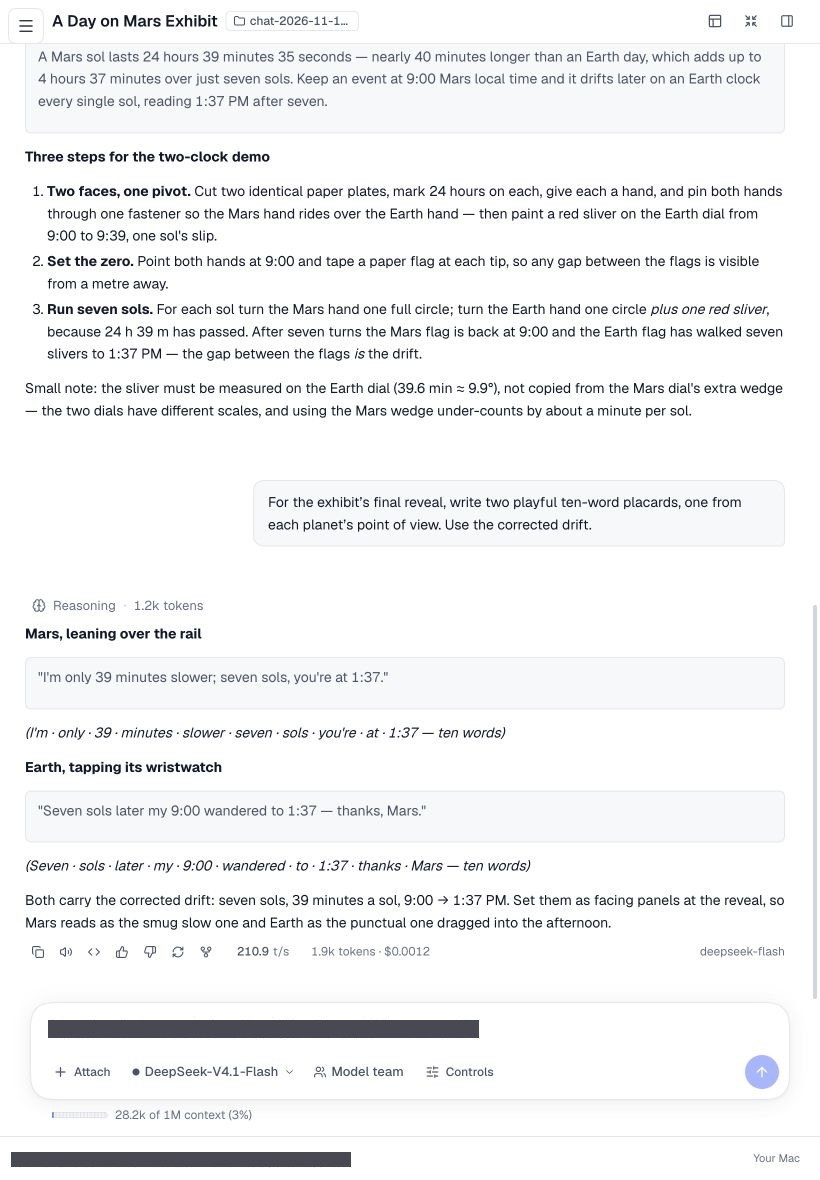
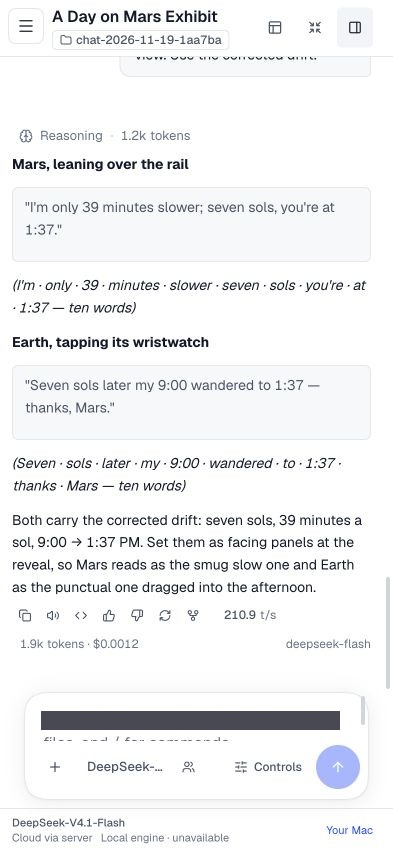

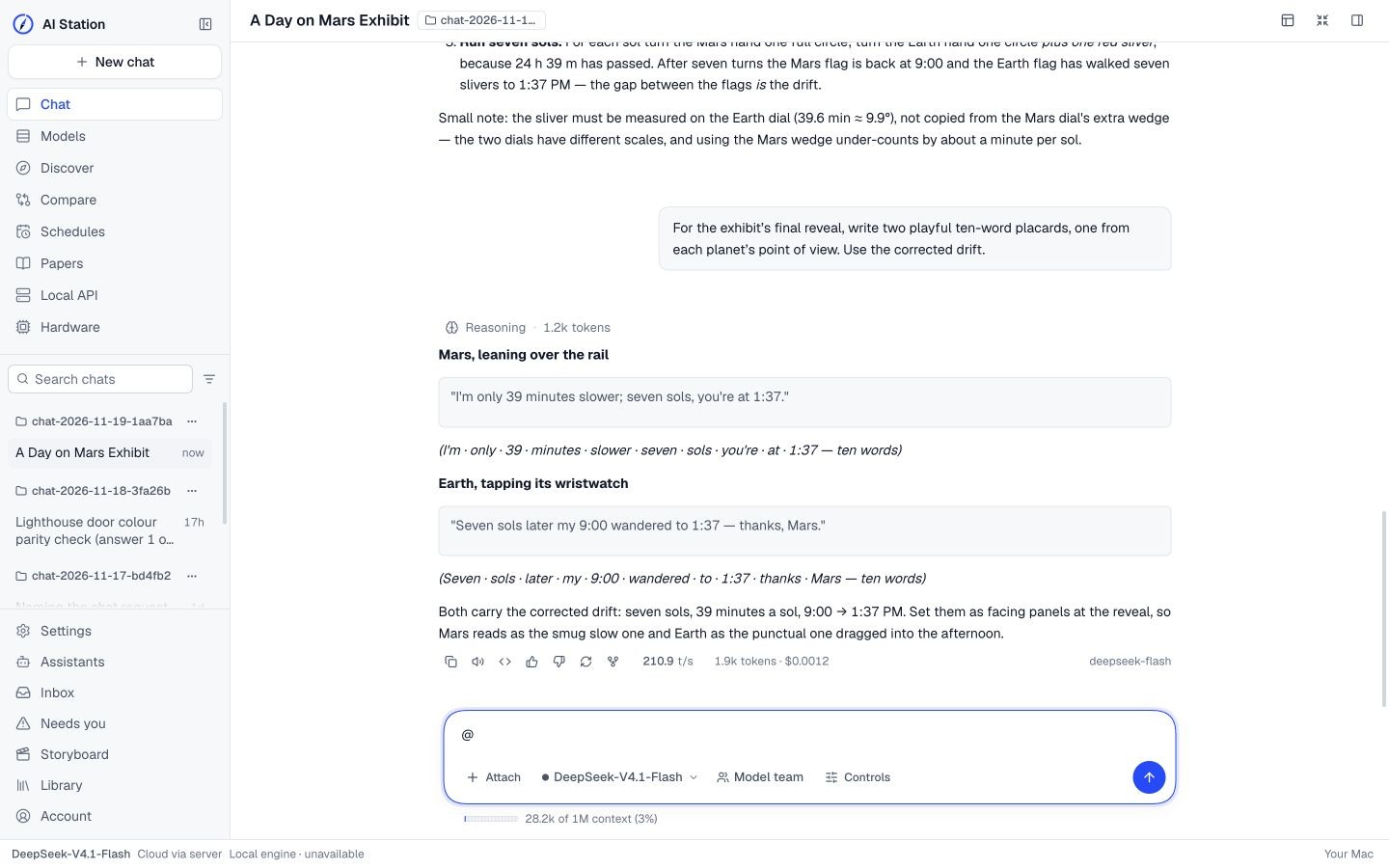
In the museum brief, the assistant turns the difference between Earth and Mars time into exhibit copy. A follow-up imposes a ten-word limit for each placard. Open the same stage on iPad and iPhone to read the final pair.
Keep the conversation with the files
A signed-in workspace stores project files and chat history on the host. Open a folder or repository, follow live progress, and switch into the inspector to check tasks, documents, changes and previews.
Give repeat work an assistant
Save instructions and a model preference with an assistant. Set its access for the job, use the library for reusable material, and inspect available extensions before adding a connector or skill.
Review from the device at hand
Use the storyboard to examine a shot, pin a note to a frame, request a revision or approve a cut. Schedules and inbox updates keep recurring jobs visible, while Needs you brings outstanding decisions together.
Choose where work runs
Discover and compare models, inspect the available hardware and configure providers. Account controls manage sessions and desktop pairing. A paired machine can perform supported local work while the browser remains the review surface.
Carry a decision from chat into the project
The Fieldnotes example uses a small editorial repository. The sample conversation turns a brief into three meeting decisions. In the same workspace, the Changes panel shows exactly what has been added to the Markdown file. The editor can read the proposal and the actual file change together.
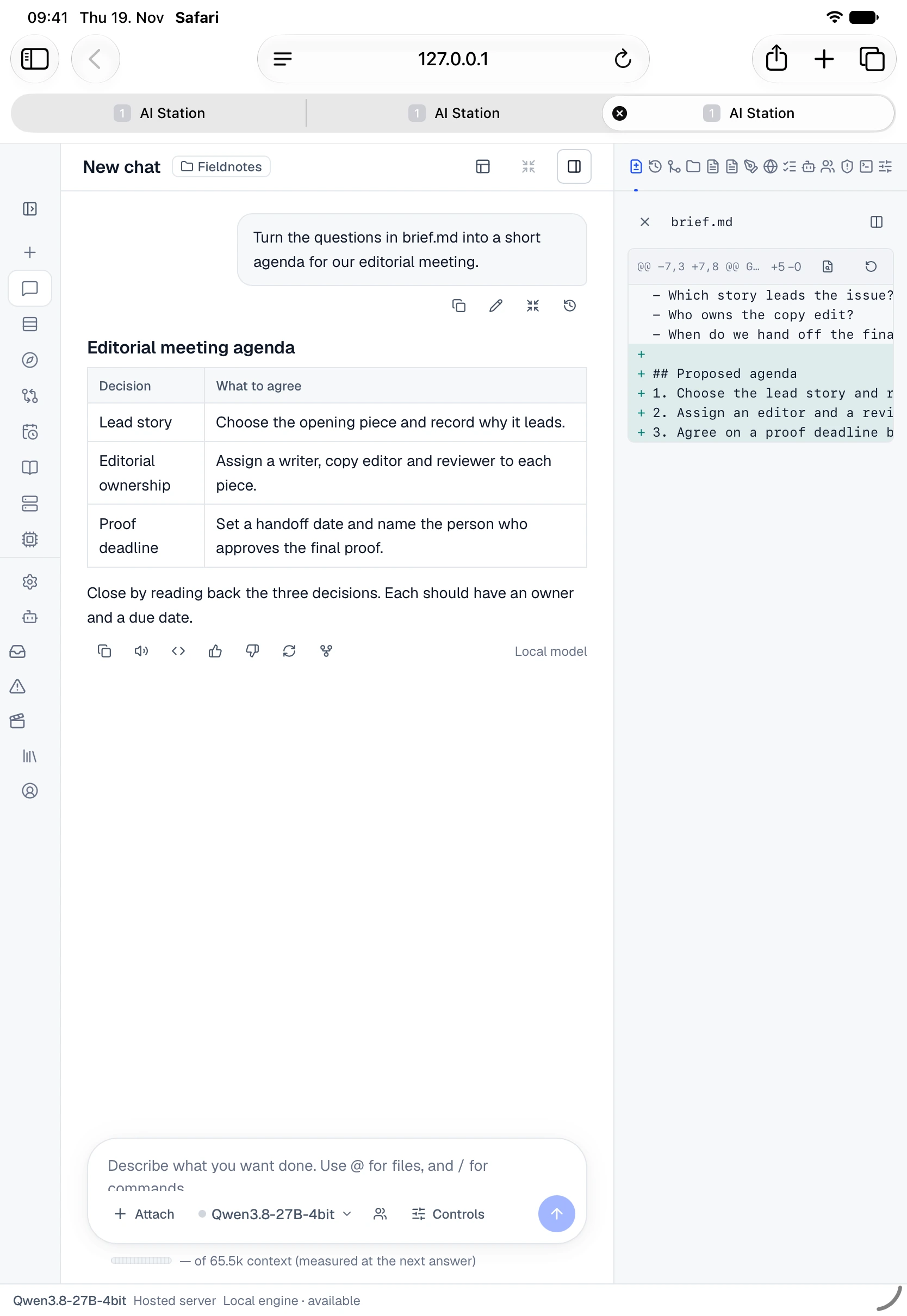
The green lines in the right pane add the proposed agenda to brief.md. This is a real Git diff from the Fieldnotes demonstration repository.
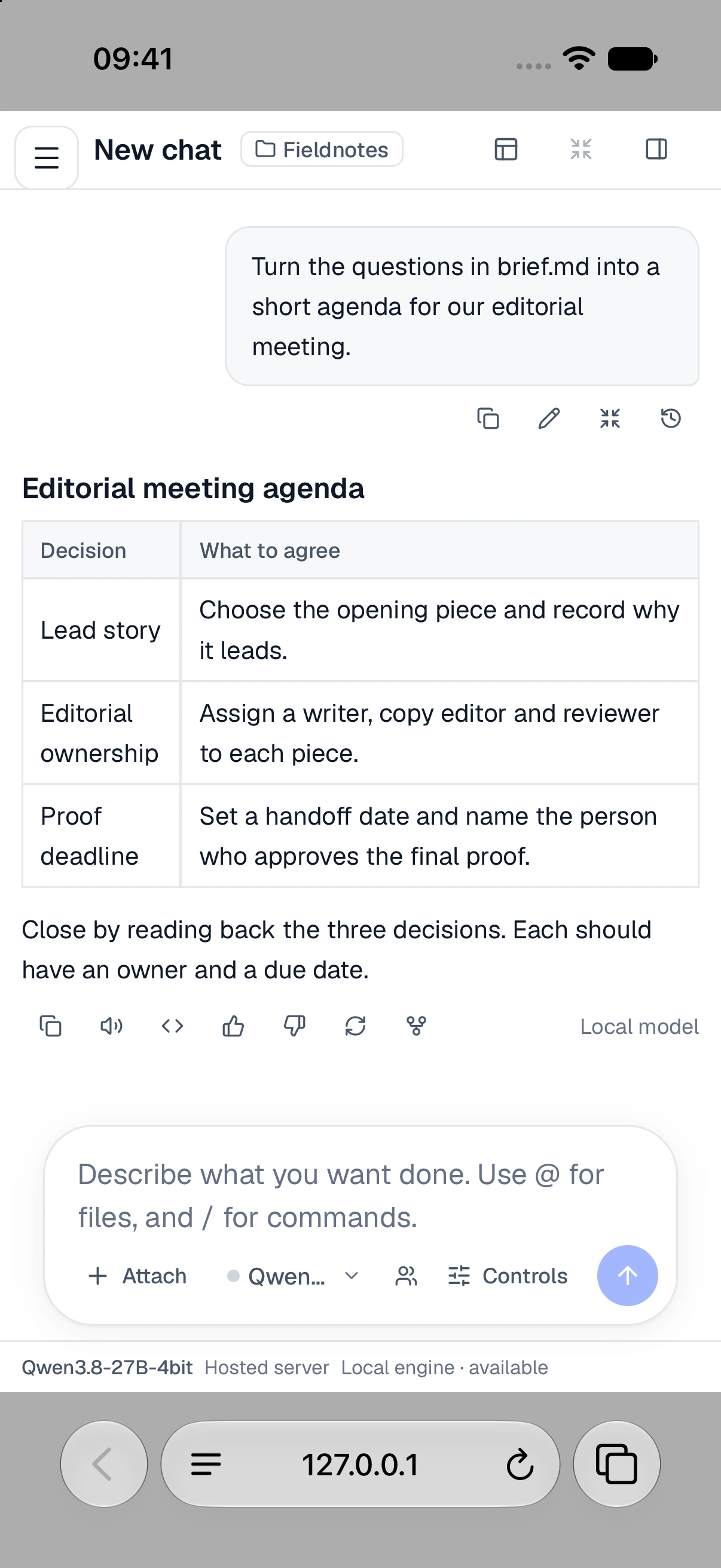
The sample exchange shows the brief as a table of decisions, including who owns the edit and when the proof is due. It illustrates how structured model output appears in a project chat.
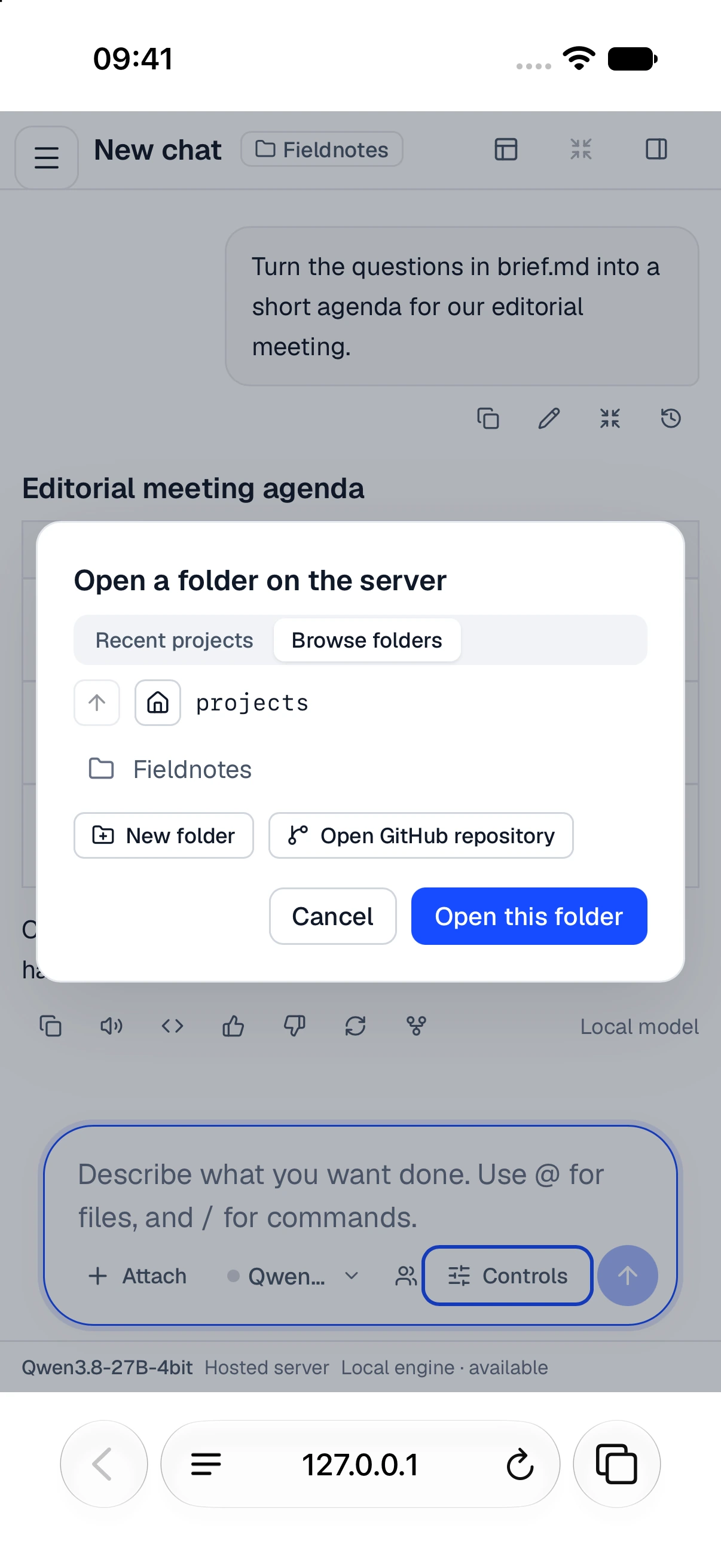
The folder picker selects a directory on the host. That choice determines which project the chat opens when the user returns.
Hosted projects can start from a server folder or a GitHub repository. The app can reuse a matching checkout, show a diff and commit selected files. Before a push, it identifies the destination repository, branch and outgoing commit range for review.
Review a cut down to the frame
This iPad storyboard pairs the iPhone conversation with the iPad file review. An editor can move between shots, play the selected source and pin feedback to a particular moment. The note stays with that shot version, giving the next reviewer a specific frame to revisit.
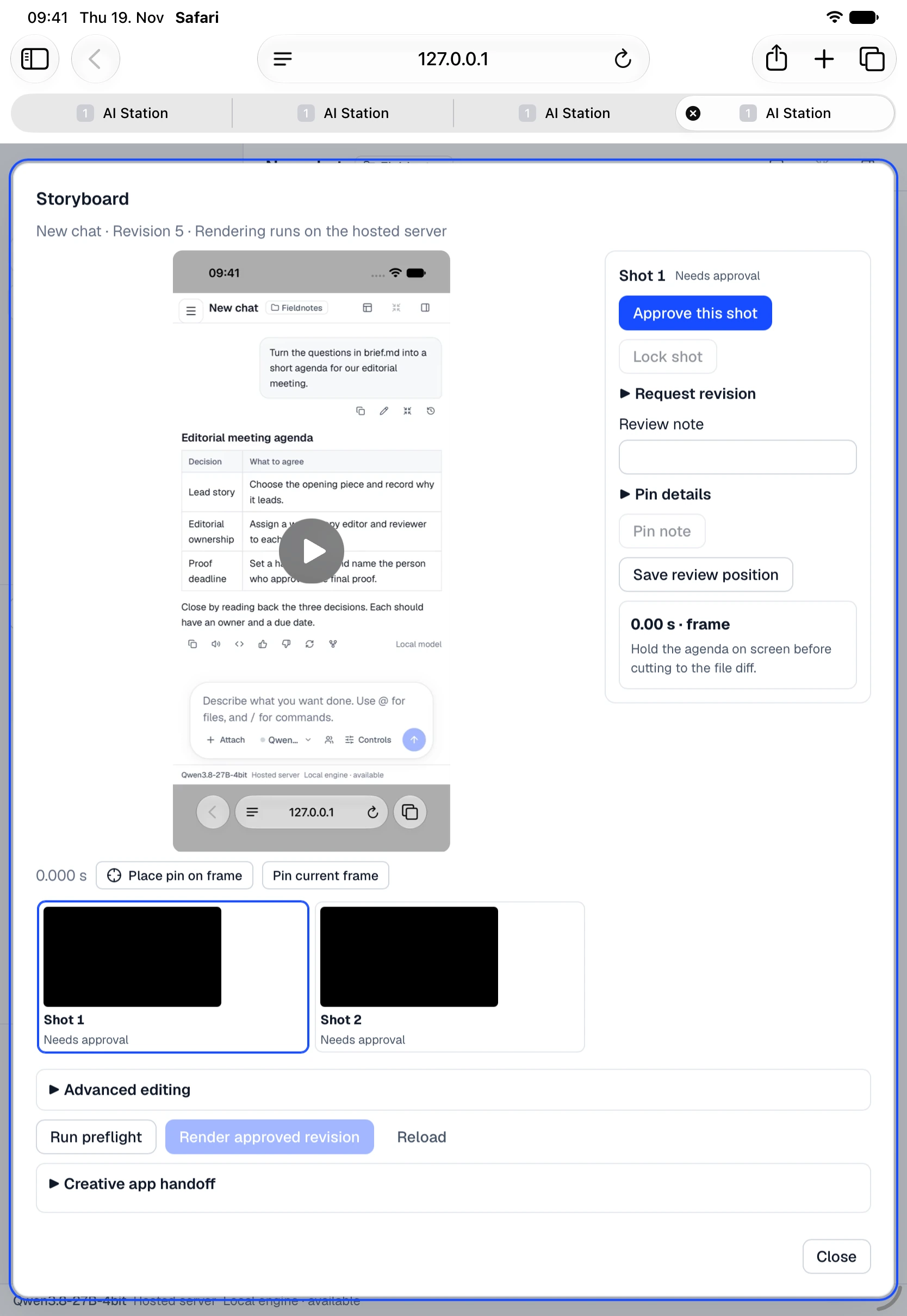
The first shot is selected in the strip. A note pinned at 0.00 seconds gives the next reviewer an exact point to revisit.
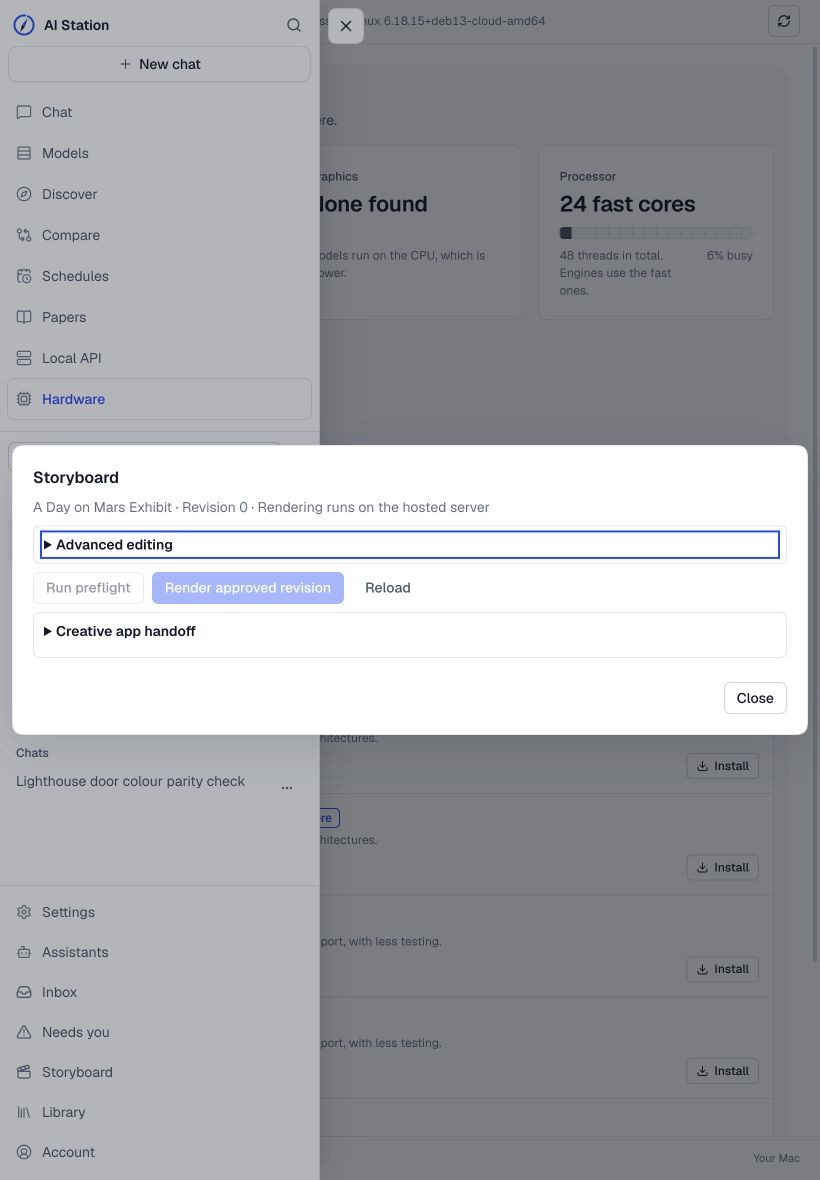
The storyboard distinguishes a source asset, a shot and a revision. A reviewer can request a replacement, approve a version and lock a shot. Preflight checks the current revision before a render starts on the host.
Give a workflow its own assistant and tools
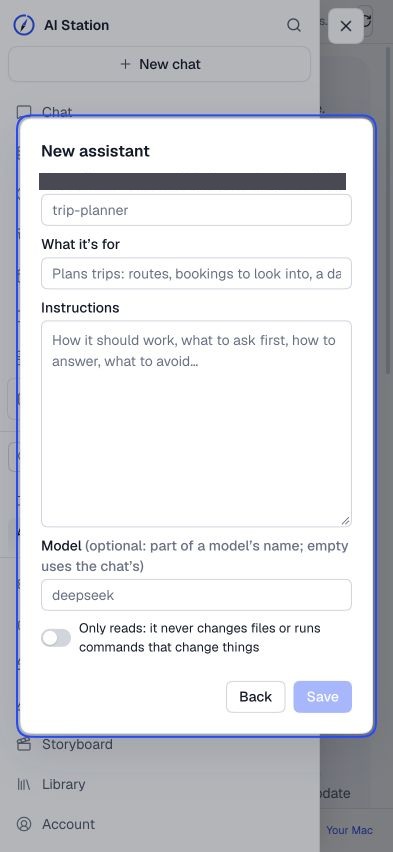
An assistant definition captures the instructions a team would otherwise repeat in every prompt. Here the editorial reviewer is asked to extract decisions, owners and deadlines. Its read-only setting suits a review pass that should produce feedback while leaving the source files alone.
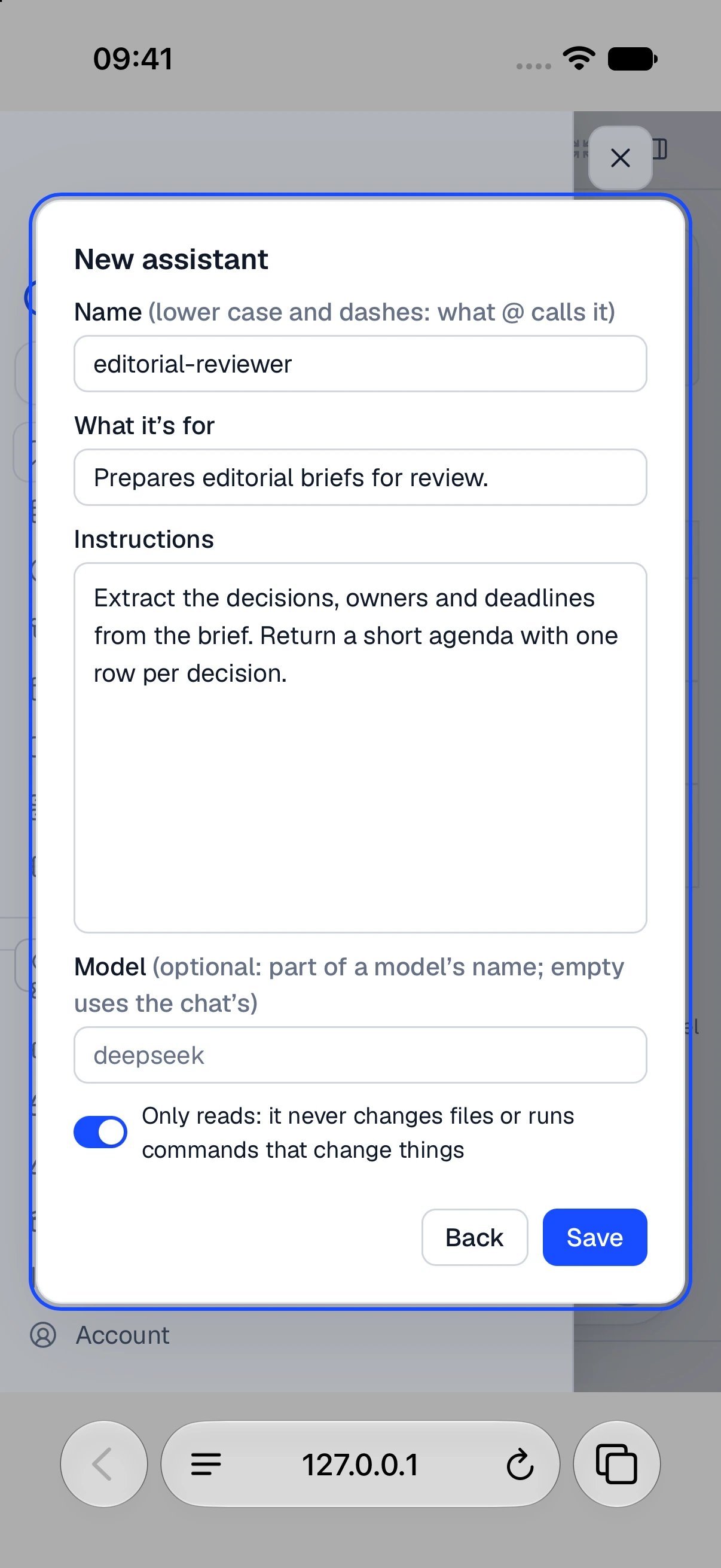
The assistant’s name, purpose, instructions and access setting are editable in one form. An optional model preference can be attached to the definition.
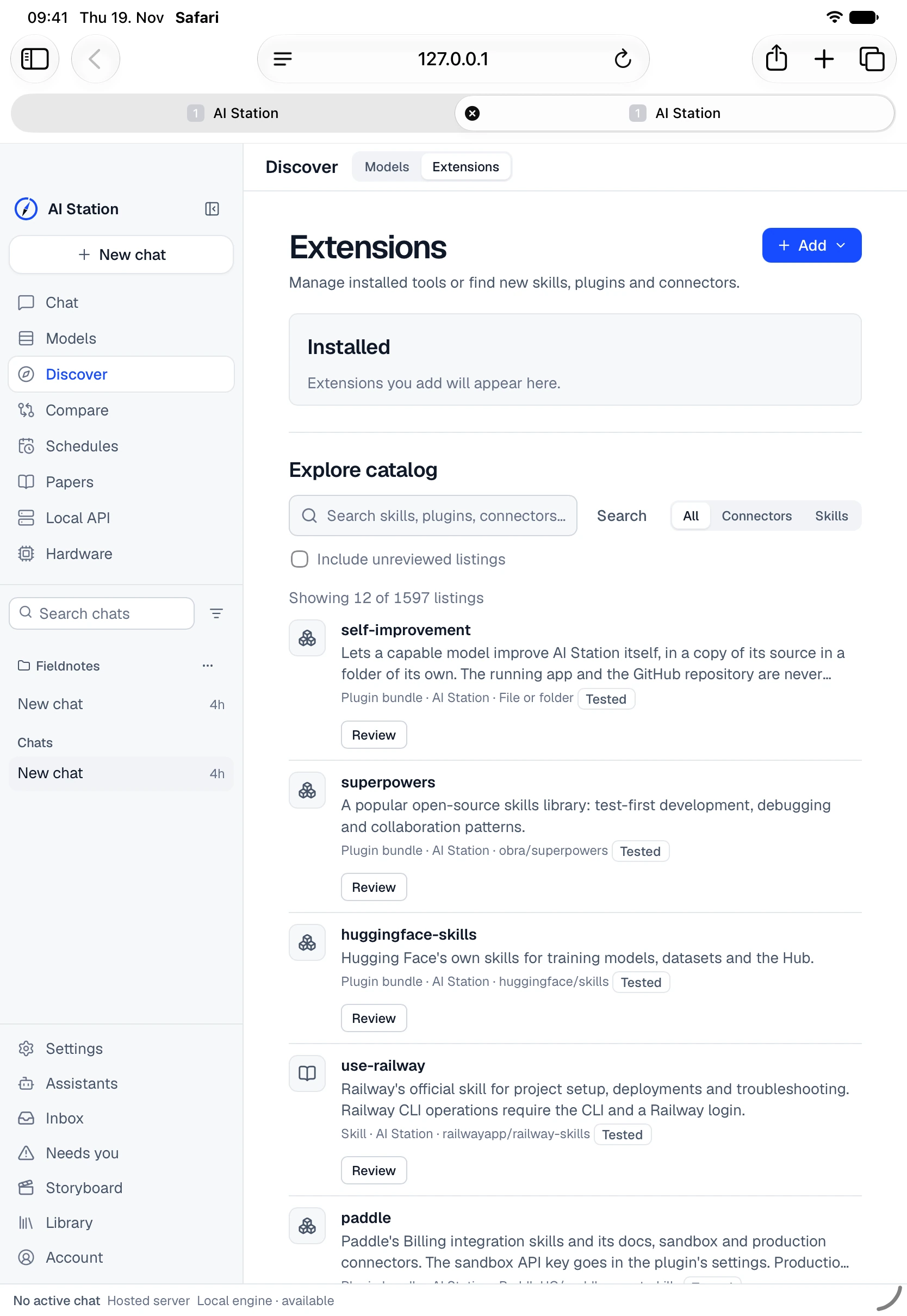
A user can search the catalog, inspect a listing and check its source before deciding whether the workspace needs that integration.
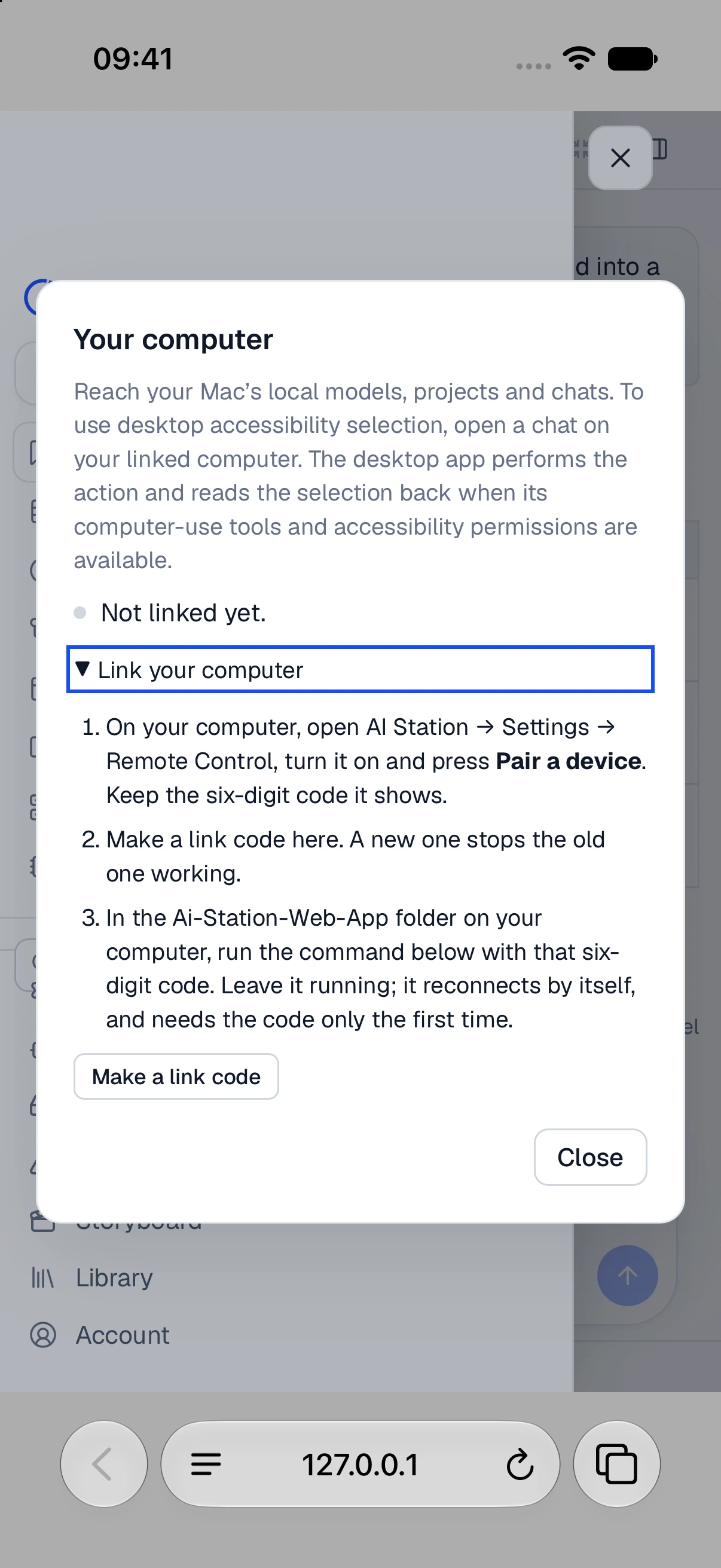
The pairing dialog identifies what must happen on the desktop and in the browser. Once paired, supported tasks can use the desktop’s local files and hardware.
The extension directory brings together skills, plugin bundles and connectors. Listings expose their publisher and verification information before installation. Work that needs a particular Mac can instead use the desktop link and the permissions granted on that machine.
The full harness, from any browser
The web app runs the same agent core as the desktop app, so the work a model can do in AI Station it can do here too, with the host as its workshop.
The same agent core
Chats, tools, permissions, plan mode, memory and project instructions behave as they do on the desktop, because they are the same code.
Projects and GitHub
Open a server folder or a GitHub repository, reuse a matching checkout, review the diff and commit selected files.
Pushes you can trust
Push shows the repository, branch, exact local commit and outgoing range, and refuses if any of them changes before you confirm.
Model teams in the browser
Choose a principal model and named specialists, check their routes and reuse the team in another chat, even after a restart.
Virtual machines on the host
Guests, snapshots, clones and guest commands, with the guest’s screen in the page’s own console and the same approvals as the desktop.
The agent’s own browser
A headless Chromium on the host runs AI Station’s browser tools, and the chat’s Browser panel shows the page and accepts clicks and typing.
Extensions and connectors
Search skills, plugins and connectors, check each listing’s publisher, source and verification, and sign in to a connector from the directory.
Work that keeps going
Schedules run prompts on a timer, the inbox collects updates and Needs you gathers the decisions waiting for a person.
Security and data the owner controls
The host keeps the workspace behind a signed-in session, and its owner can see, export and restore everything it holds.
Signed sessions
An HMAC-signed, HttpOnly, SameSite=Strict cookie, writes accepted only from the site’s own pages, and a lockout after ten wrong passwords.
Authenticator codes
Two-step sign-in with any authenticator app, with each code accepted once.
Every sign-in on record
The last thirty sign-ins and refused attempts, and one button that signs out every other browser.
Encrypted secrets
API keys and GitHub tokens typed into Settings are stored encrypted on the host.
Paths checked on the server
Projects, chat folders, worktrees and every virtual-machine path are validated on the host before anything uses them.
Export and restore
Download every chat as Markdown and JSON, take a full backup, and restore it with a copy of the current data kept first.
Verified in signed-in browsers
I use disposable projects to check that work can be reviewed, approved and resumed from the browser.
- 36 passes
- in the November 23 browser run for the composer and Send now update, in Playwright’s Chromium and WebKit.
- After a cold restart
- the November 25 browser preview kept the context setting for each connection and applied it to the next request in the test.
- 3 Fieldnotes clips
- approved in the signed-in storyboard, with the frame note visible at desktop and phone widths.
- 425 ms
- the exact frame position a note kept after the paired Mac reconnected. The render waited for approval and every source file kept its original hash.
- 3 routes
- a local principal with a local reviewer used zero API calls, a local principal took an API review, and an API principal took a local one.
- After a restart
- a saved two-role model team loaded into a second chat, and one stopped specialist was retried on its own while its sibling’s result stayed.
- 360 to 1,440 px
- Compare, Benchmark, Teach and the Security dialog checked at four widths in both themes, with iPhone WebKit emulation.
Where a browser action actually runs
The browser and desktop editions share the agent core. In the web edition, the browser sends authenticated actions to a Node.js host and receives progress through server-sent events. Hosted project files live with that process. A paired desktop initiates its own connection and performs the actions that require its hardware. That boundary determines where a file is read, where a model runs and whose permissions apply.
Complete screenshot library
Explore 376 full-frame views of AI Station Web App by feature and device. Open any image to inspect it at its original dimensions. Identifying details are obscured in sensitive views.
Account 12
Account controls bring identity, sessions and personal data settings into one place.
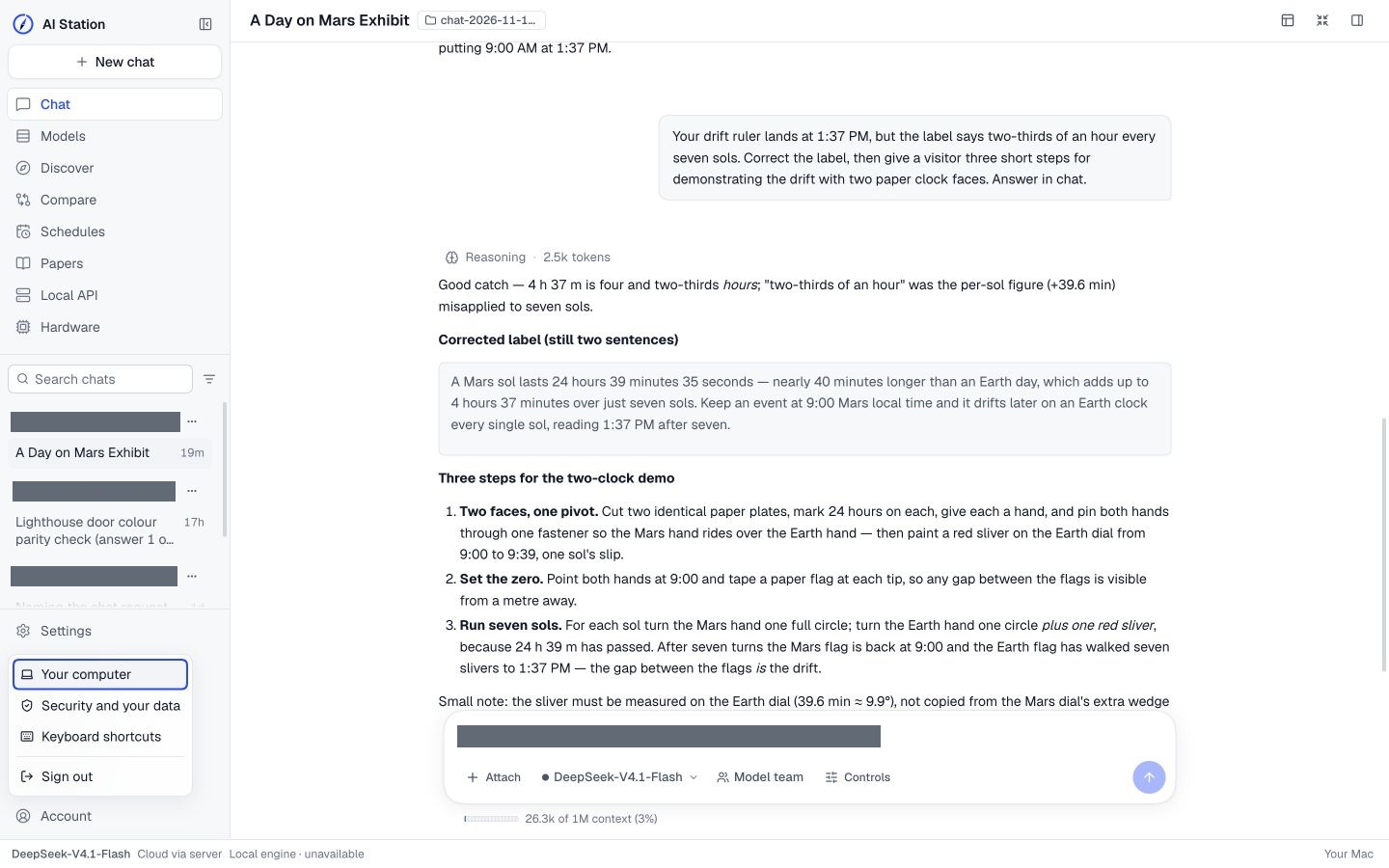
The menu gathers navigation choices into a compact view, keeping them reachable while the main workspace stays in focus.
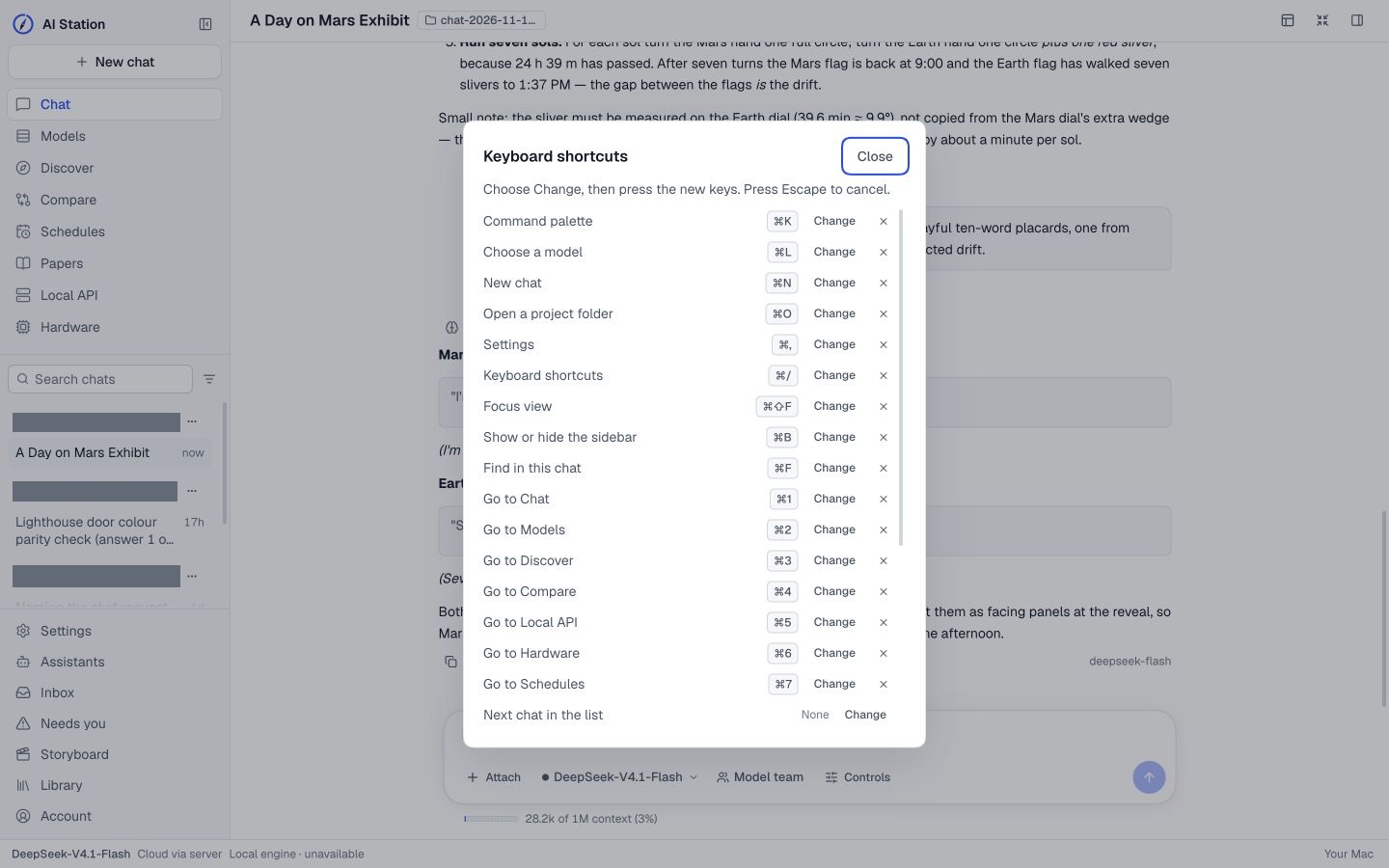
The command reference makes frequently used actions accessible from the keyboard while the user is working.
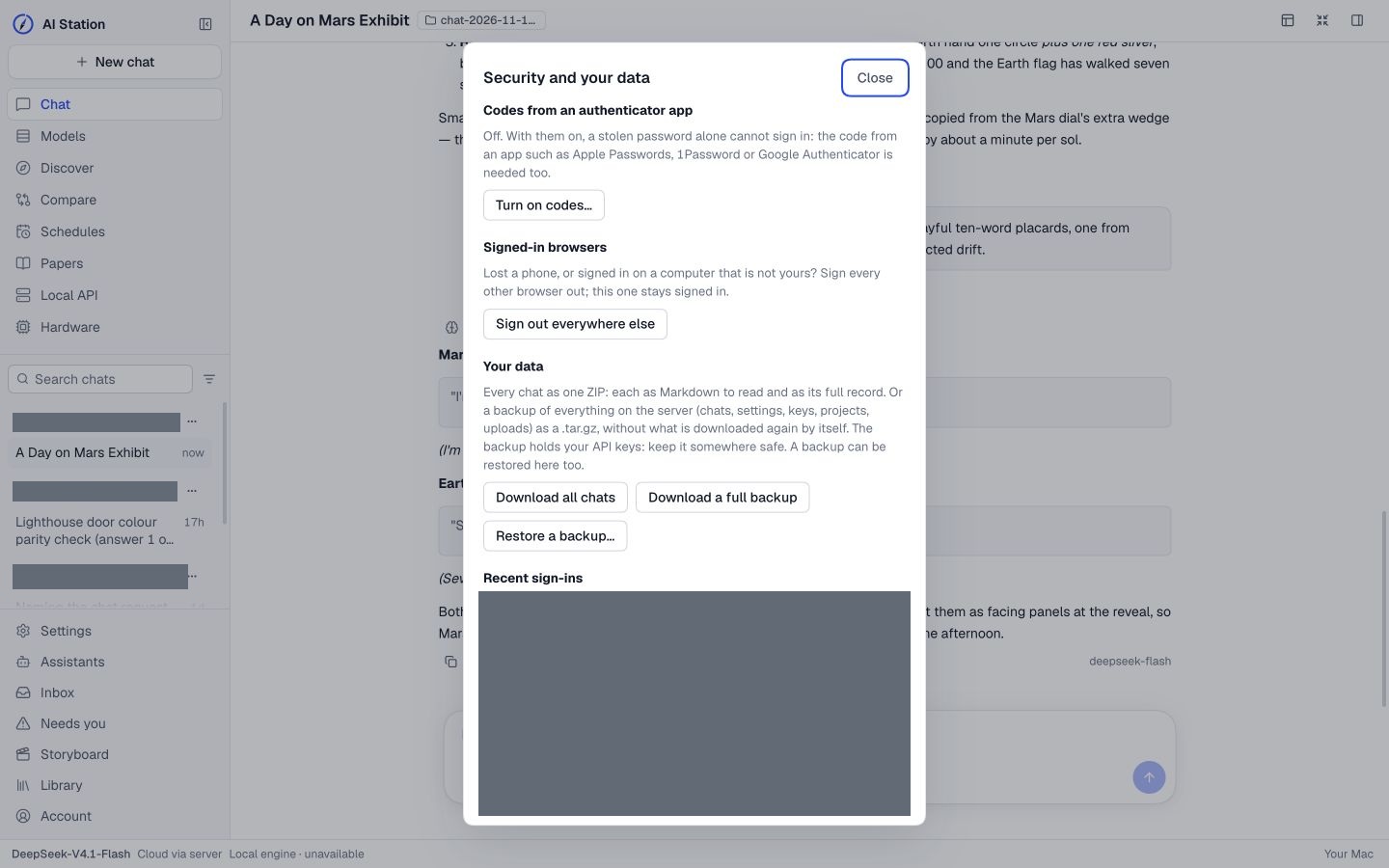
Account settings bring the user’s security and data controls into one place for review.
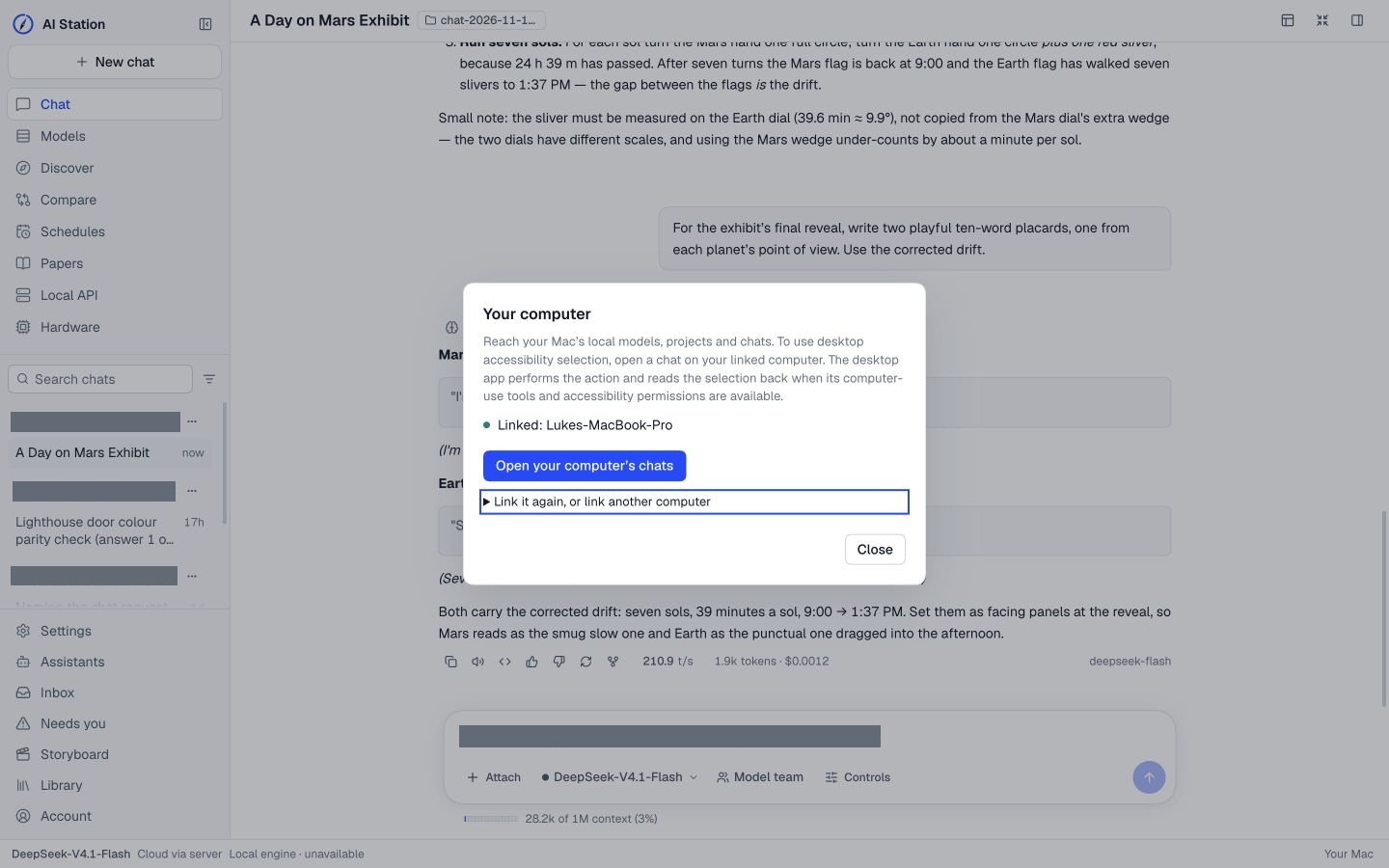
The desktop pairing view connects the hosted workspace to a user-controlled machine for supported tasks that require local files or hardware.
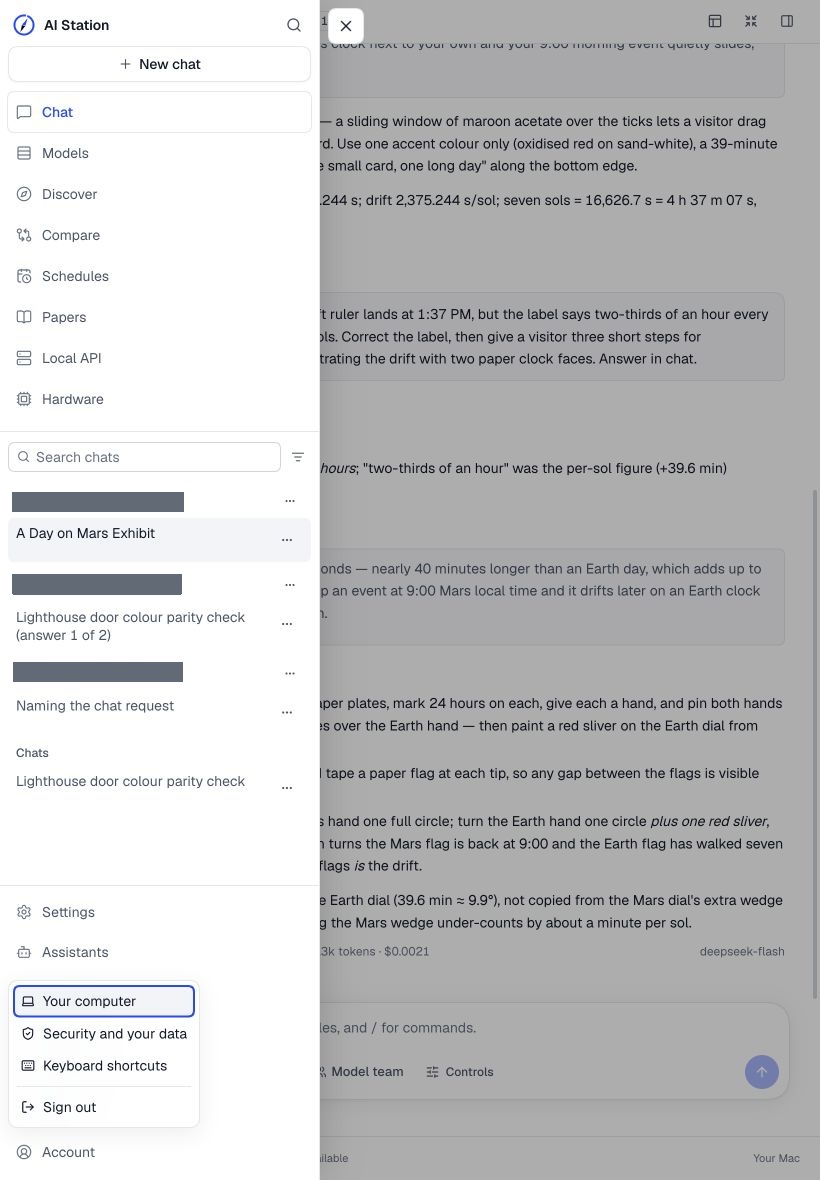
The menu gathers navigation choices into a compact view, keeping them reachable while the main workspace stays in focus.
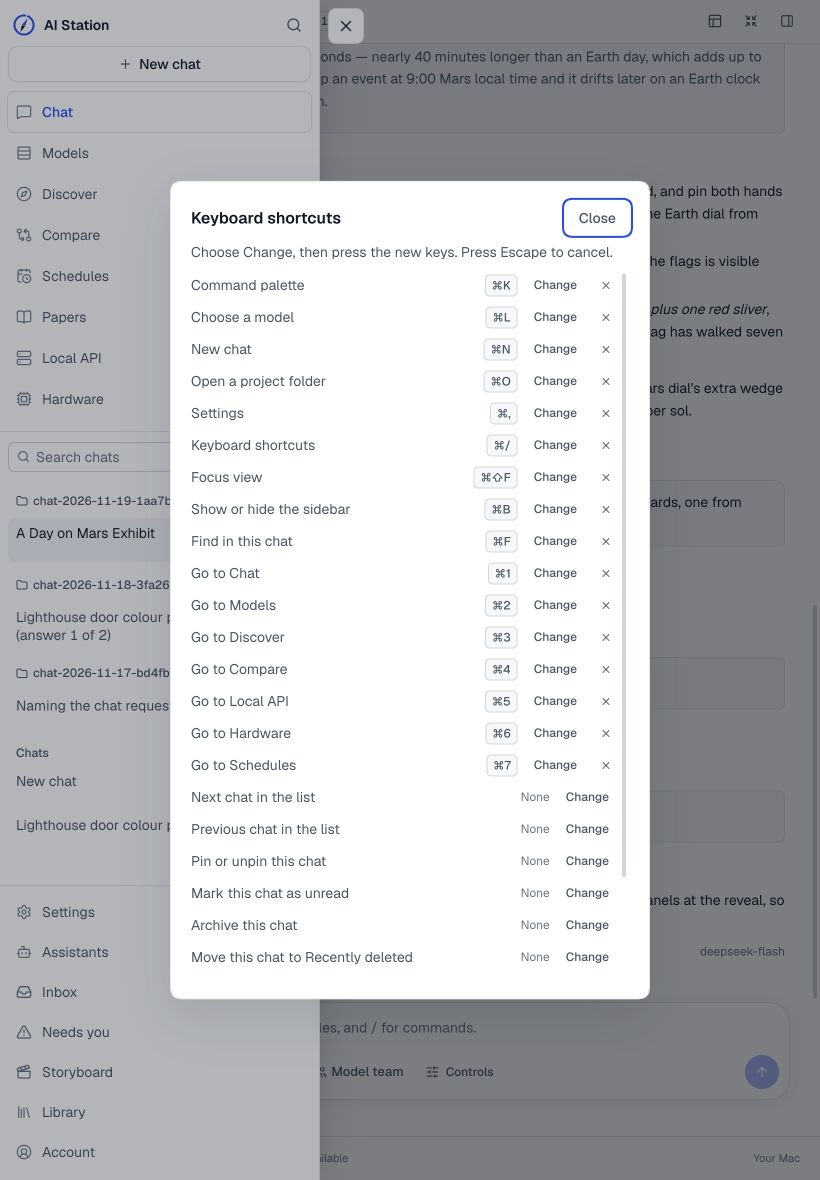
The command reference makes frequently used actions accessible from the keyboard while the user is working.
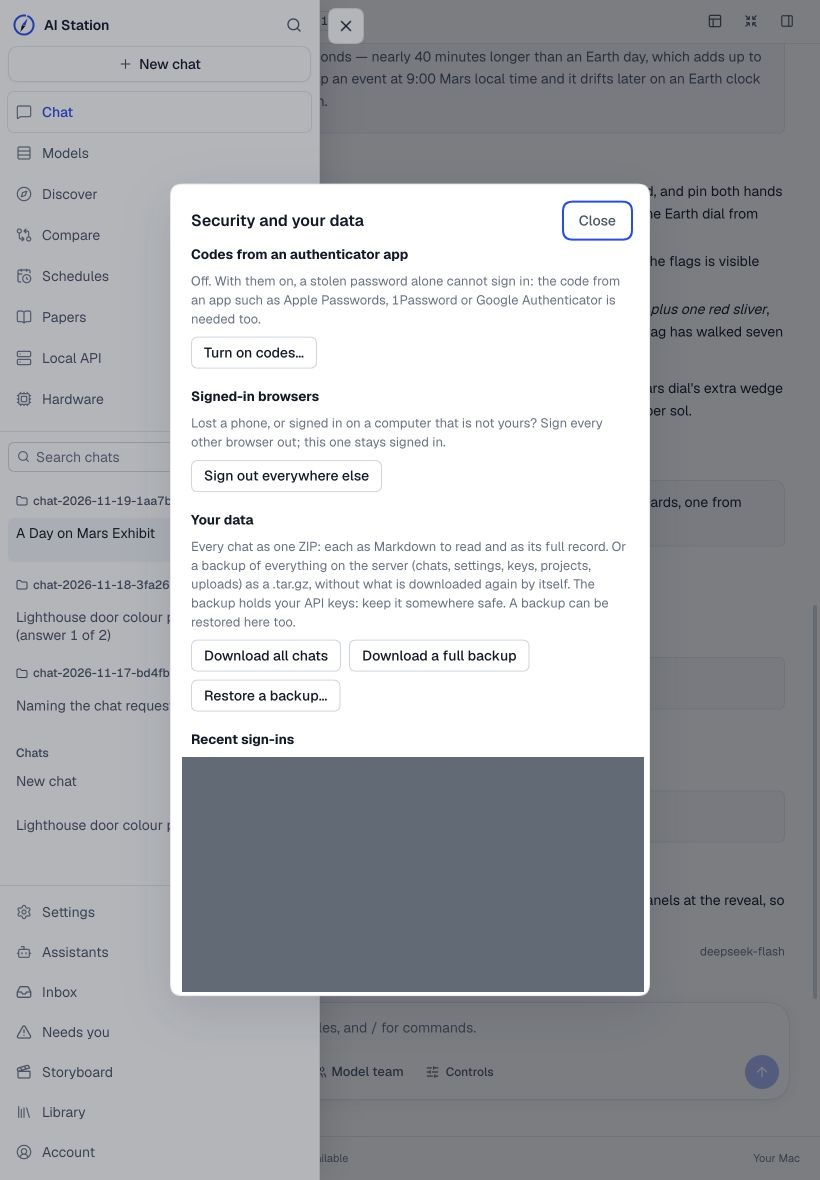
Account settings bring the user’s security and data controls into one place for review.
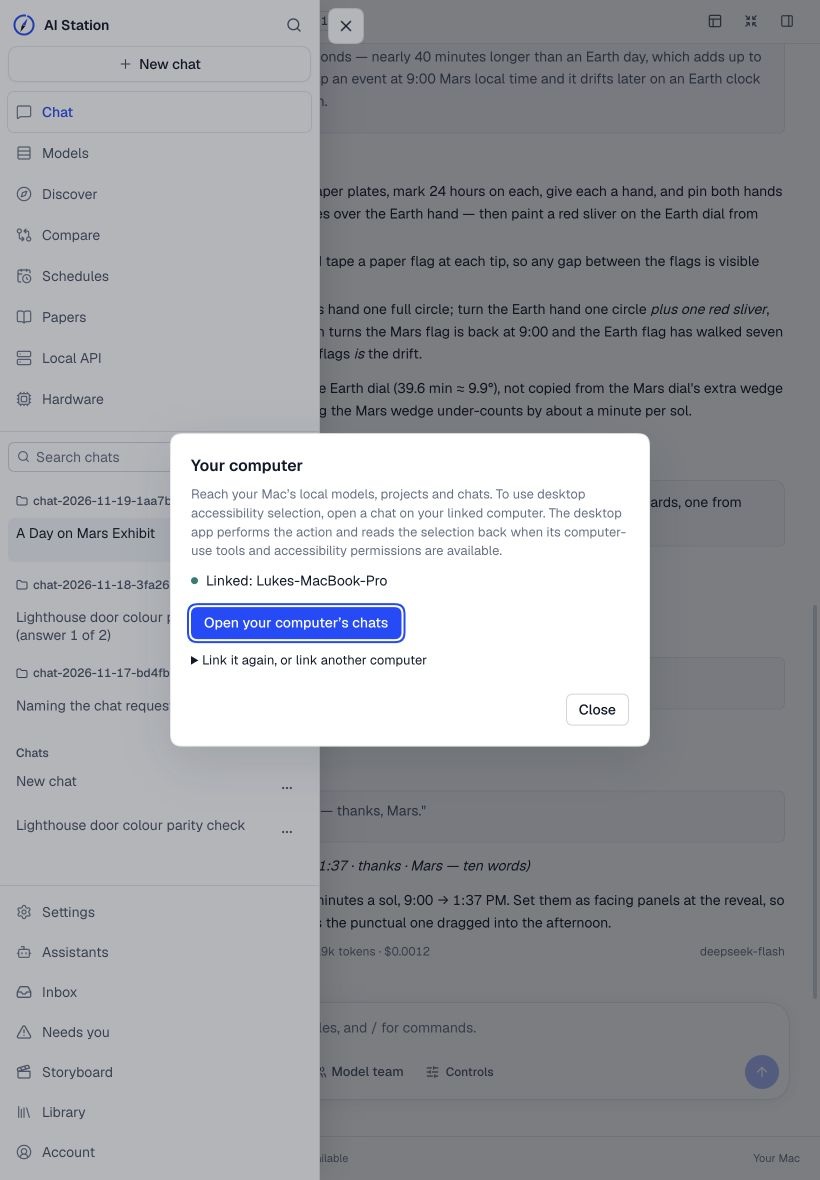
The desktop pairing view connects the hosted workspace to a user-controlled machine for supported tasks that require local files or hardware.
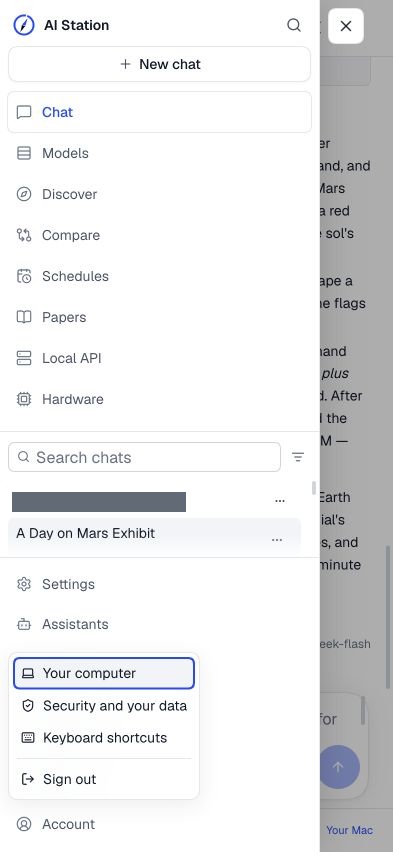
The menu gathers navigation choices into a compact view, keeping them reachable while the main workspace stays in focus.
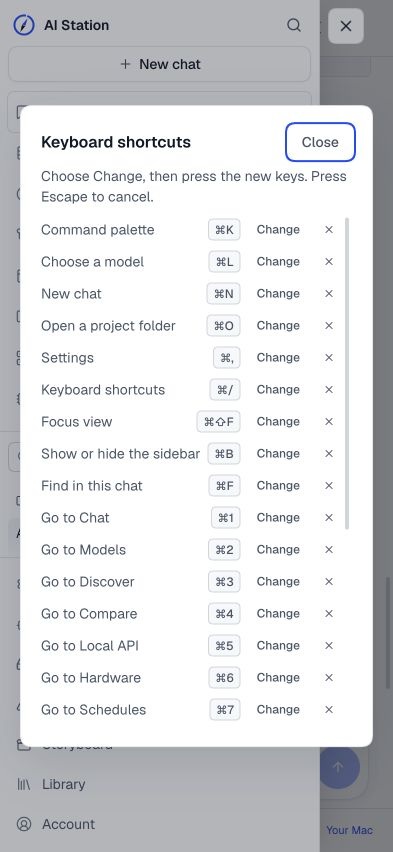
The command reference makes frequently used actions accessible from the keyboard while the user is working.
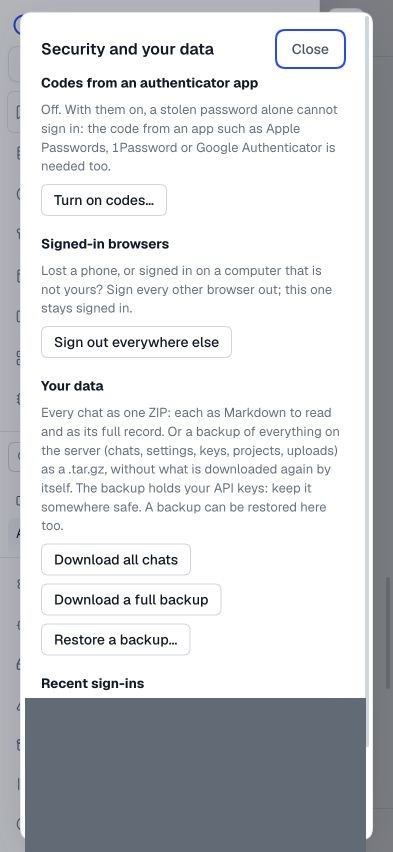
Account settings bring the user’s security and data controls into one place for review.
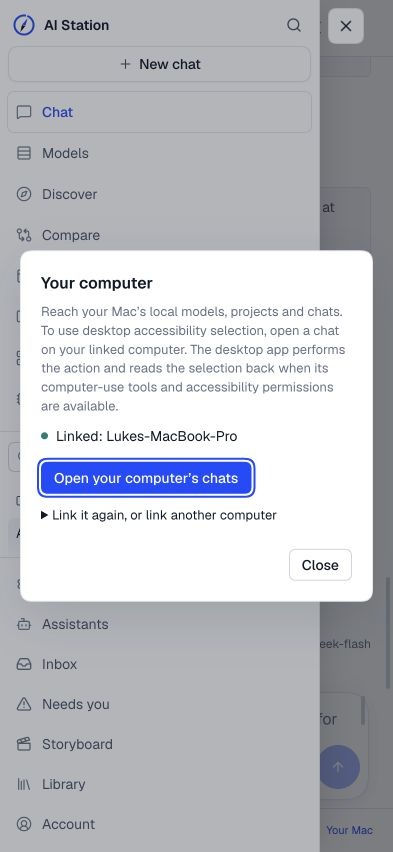
The desktop pairing view connects the hosted workspace to a user-controlled machine for supported tasks that require local files or hardware.
Assistants 6
Define what an assistant should do, give it instructions and choose the access it needs.
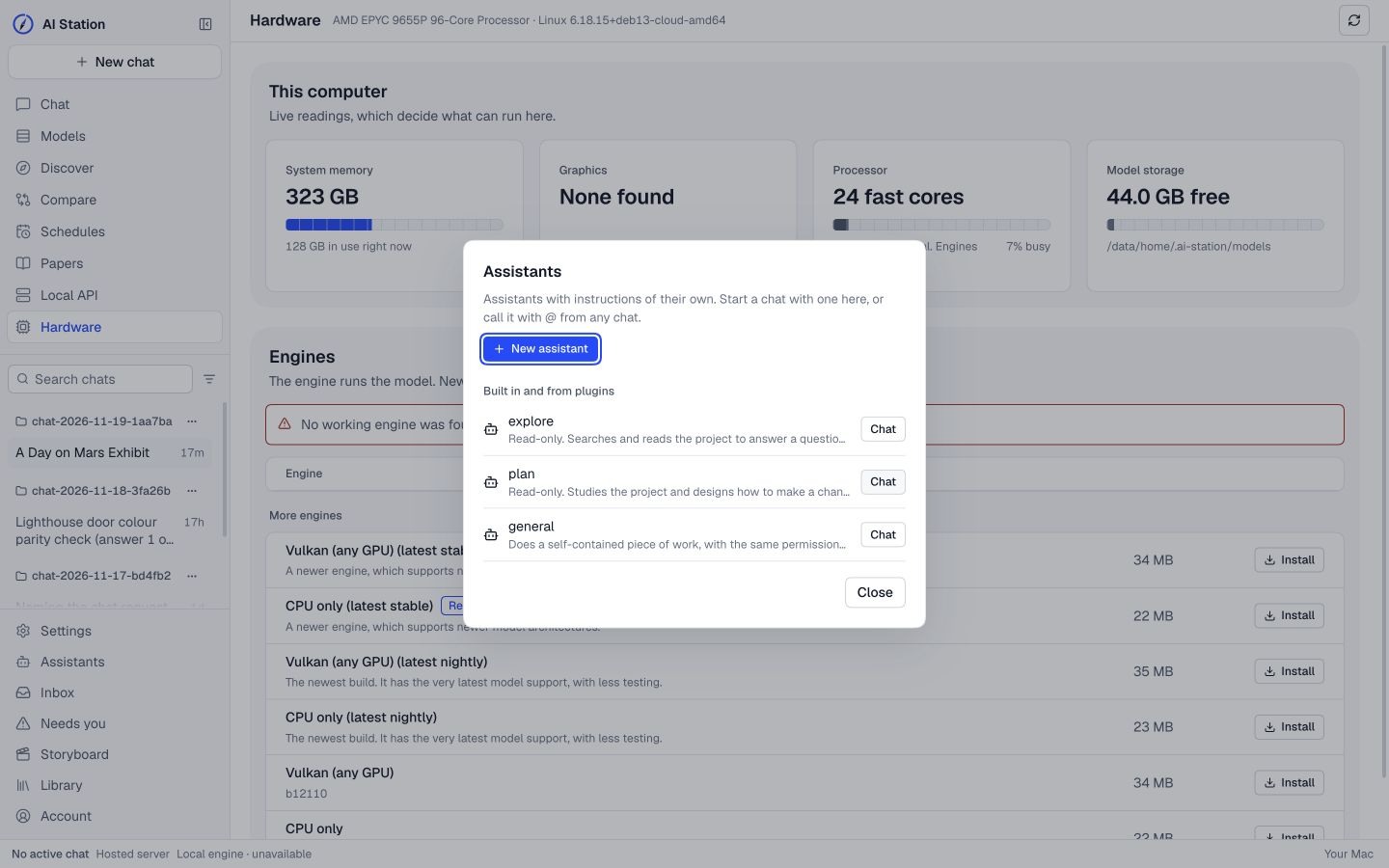
Define what an assistant should do, give it instructions and choose the access it needs.
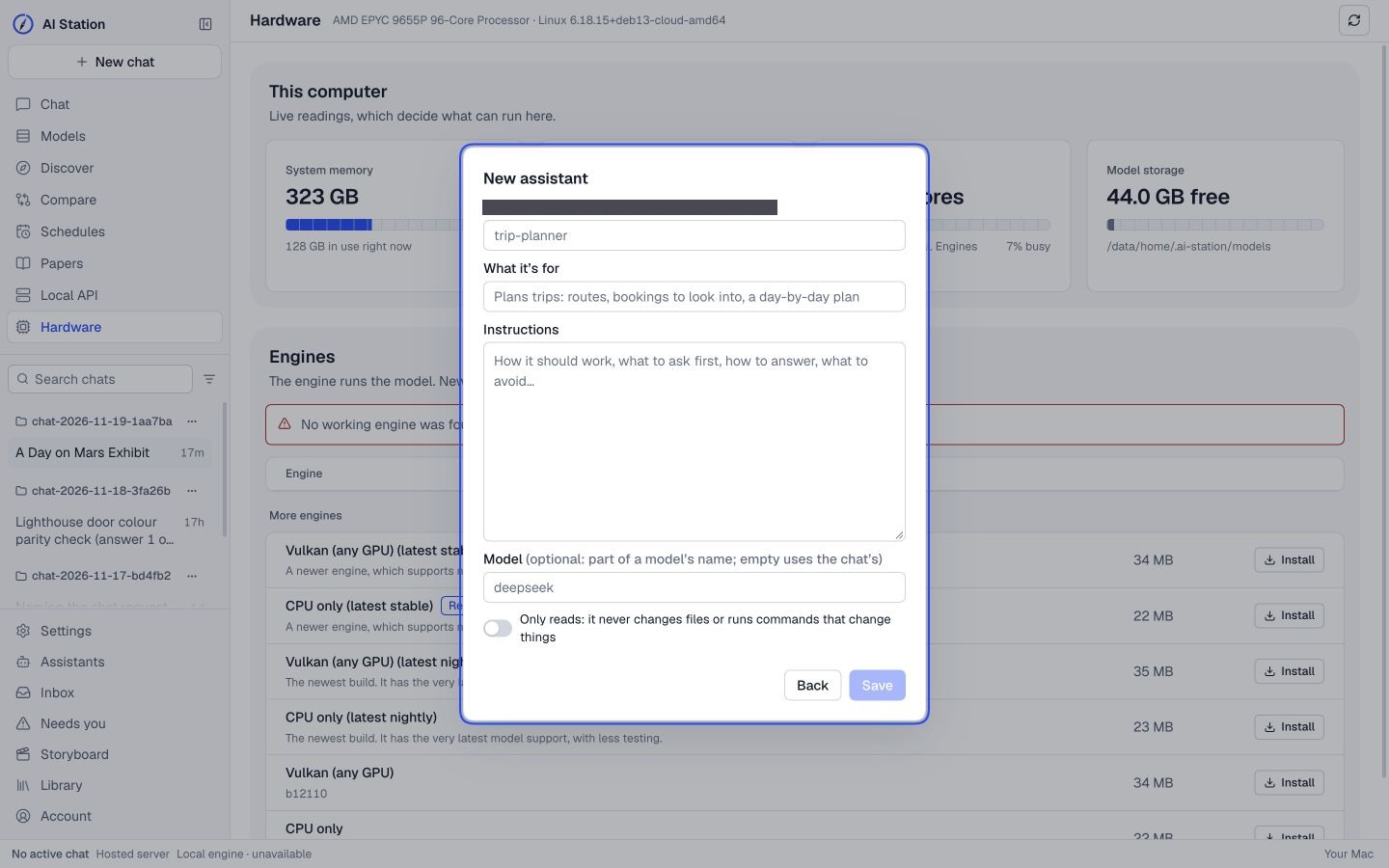
The assistant editor captures a reusable role, instructions and access settings. A team can return to that definition across similar review tasks.
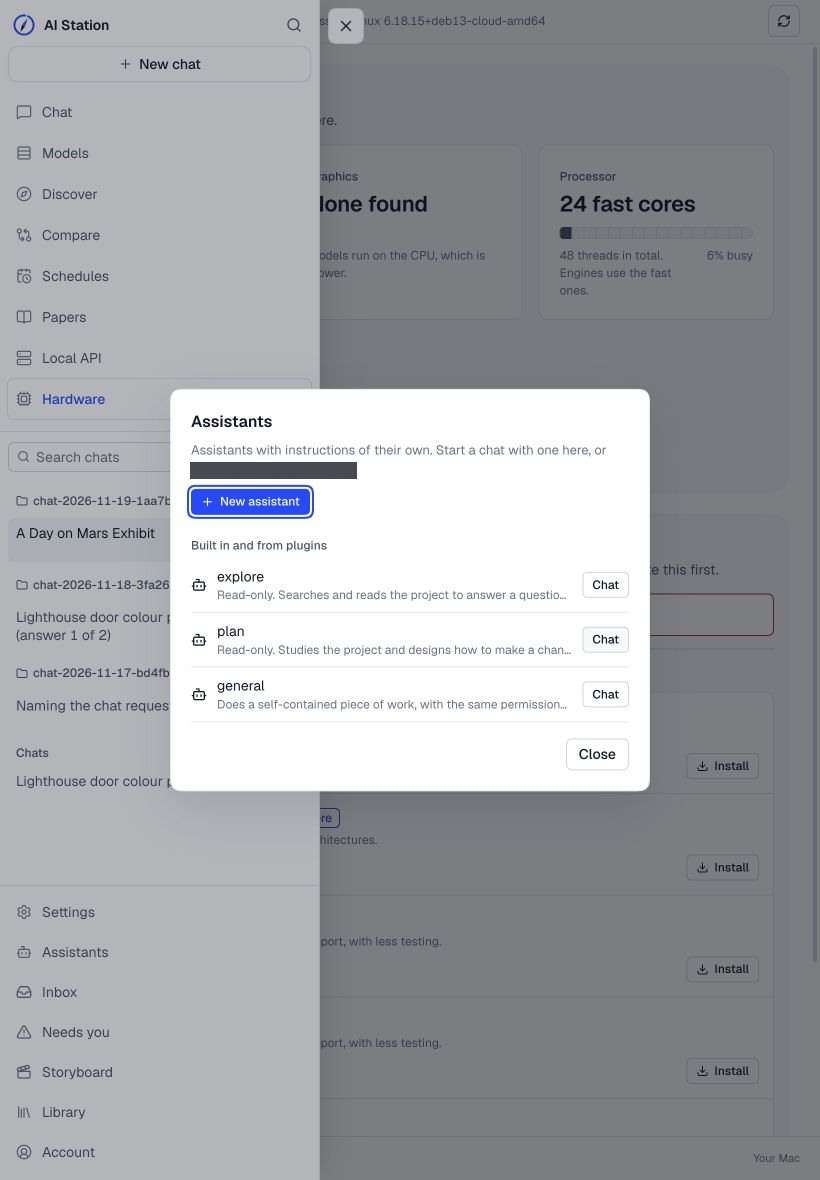
Define what an assistant should do, give it instructions and choose the access it needs.
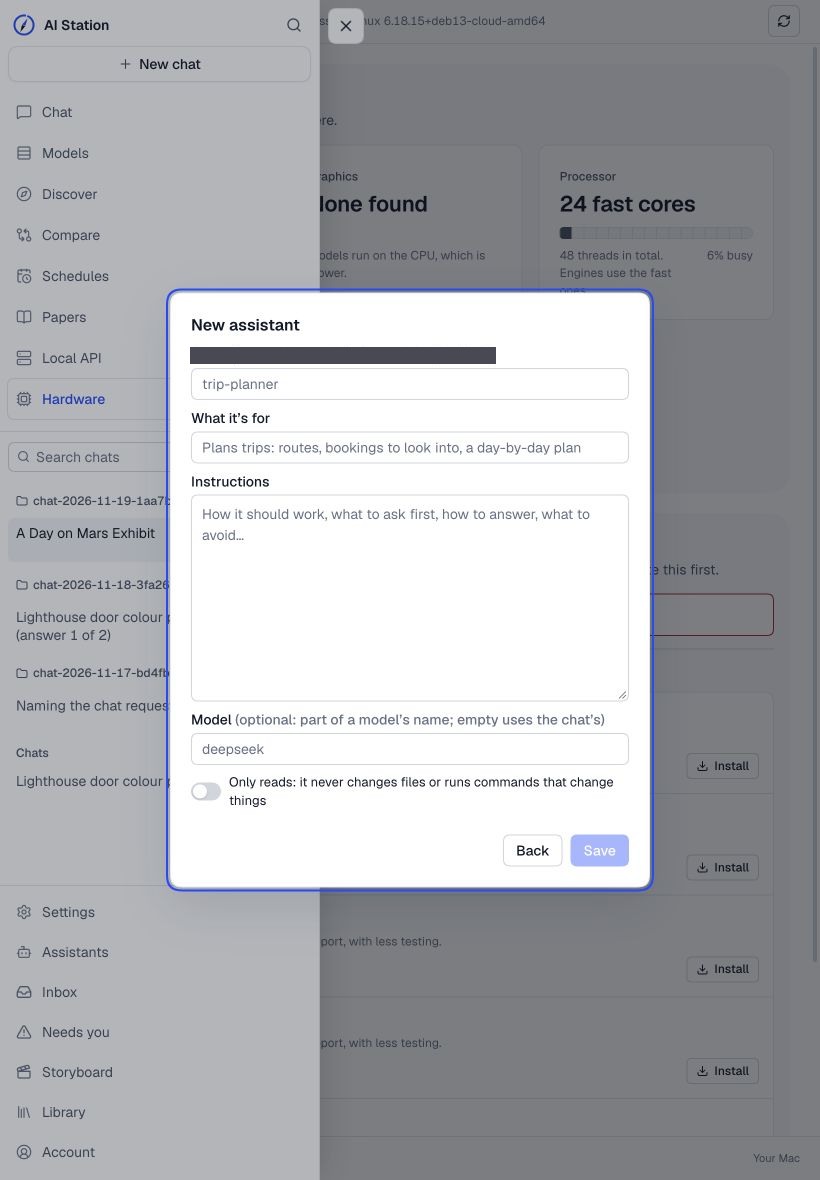
The assistant editor captures a reusable role, instructions and access settings. A team can return to that definition across similar review tasks.
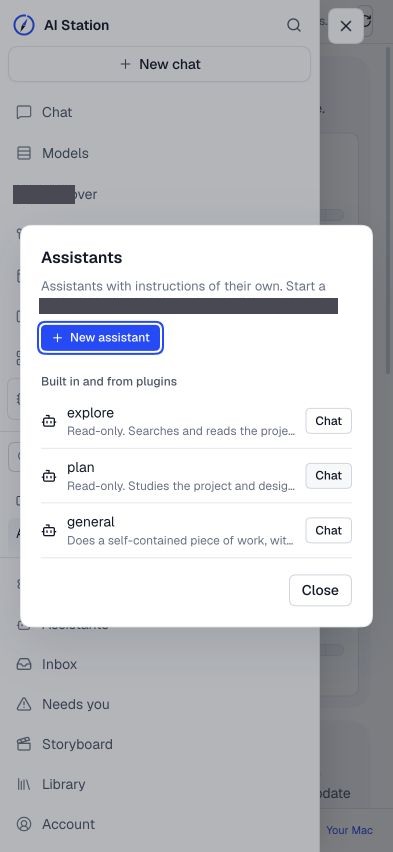
Define what an assistant should do, give it instructions and choose the access it needs.
The assistant editor captures a reusable role, instructions and access settings. A team can return to that definition across similar review tasks.
Chat 47
Start a conversation, attach context and return to the work as it develops.
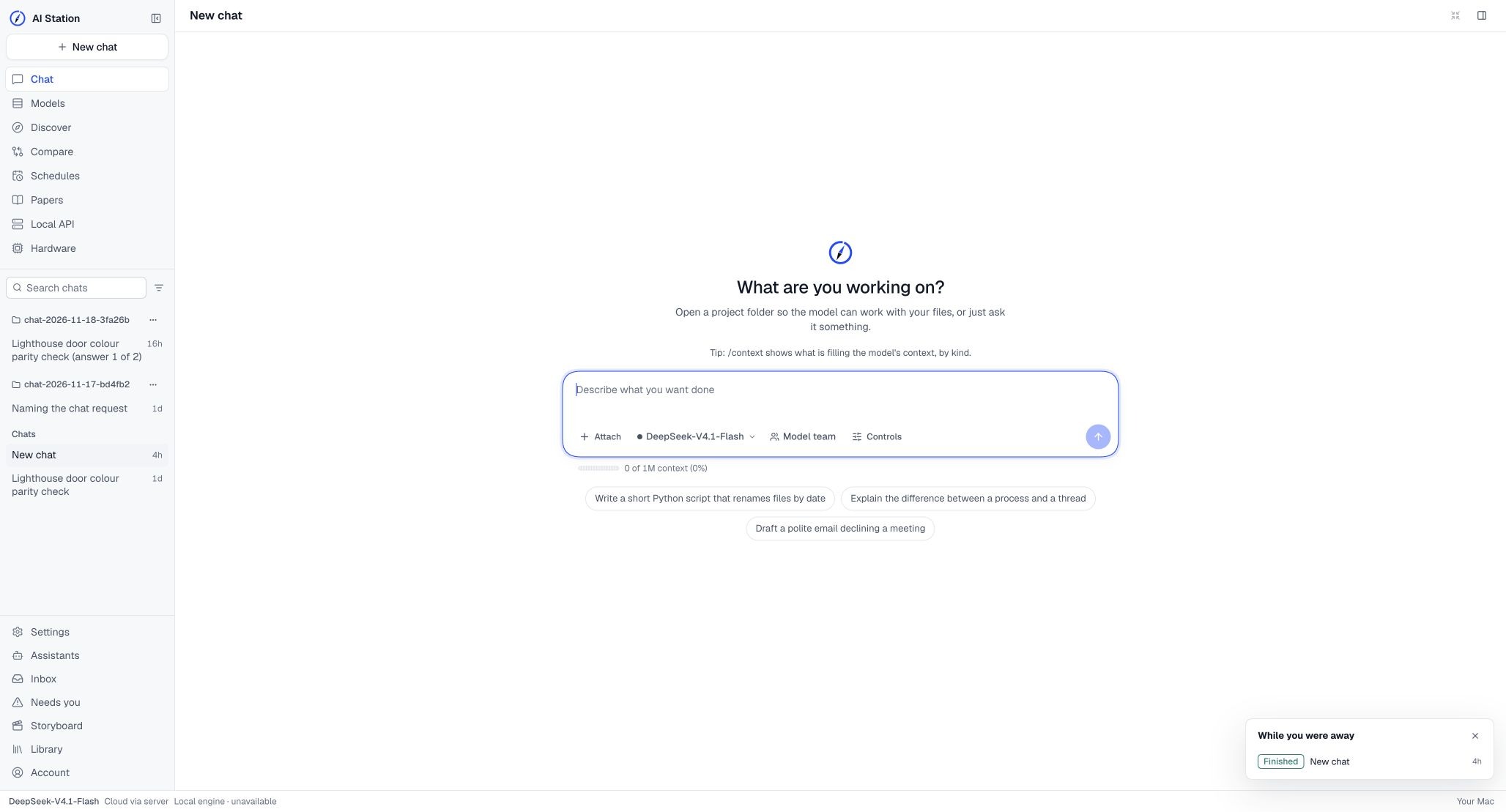
A fresh chat gives the next task its own history. The user can choose a model and supply project context before sending the opening prompt.
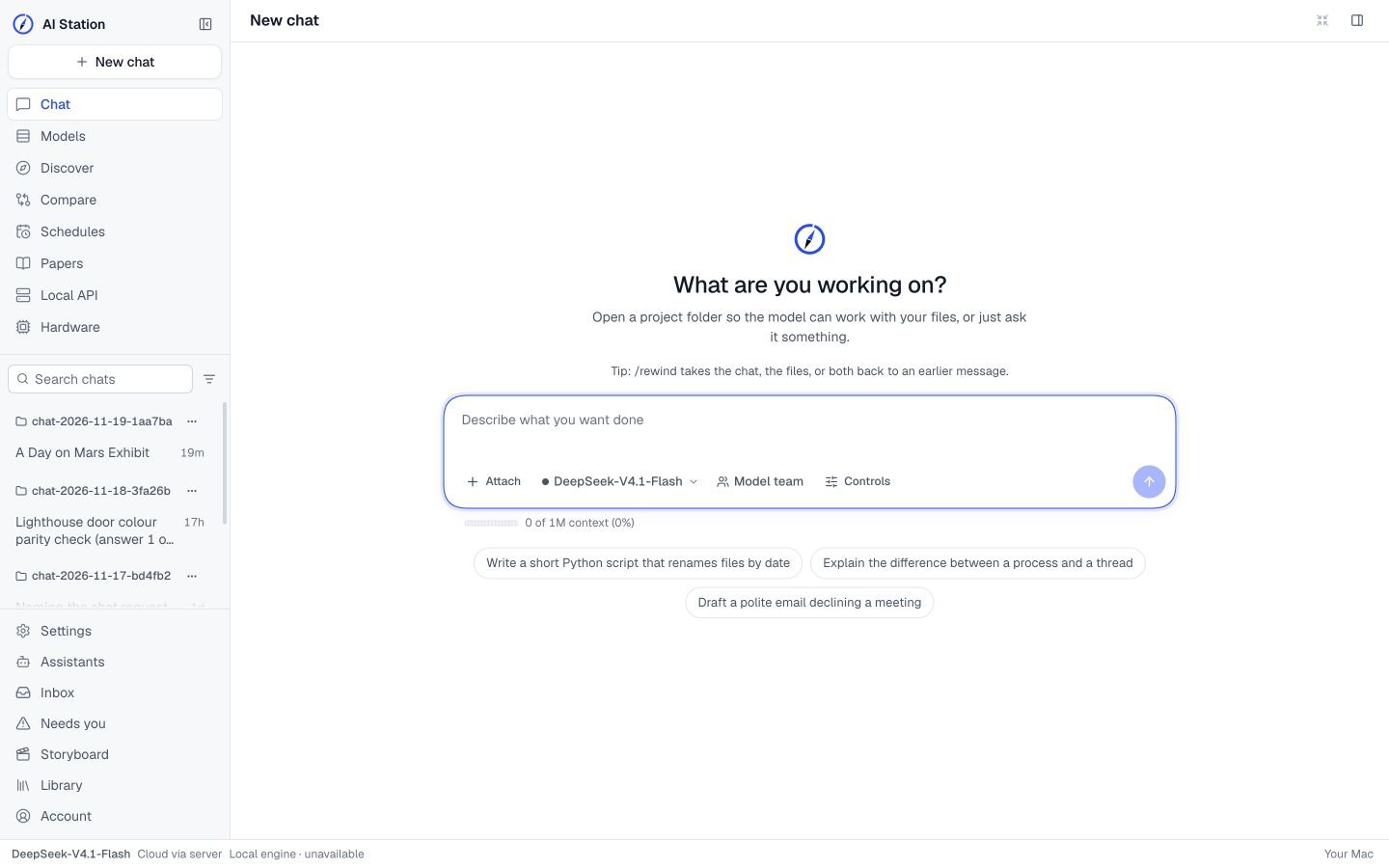
A fresh chat gives the next task its own history. The user can choose a model and supply project context before sending the opening prompt.
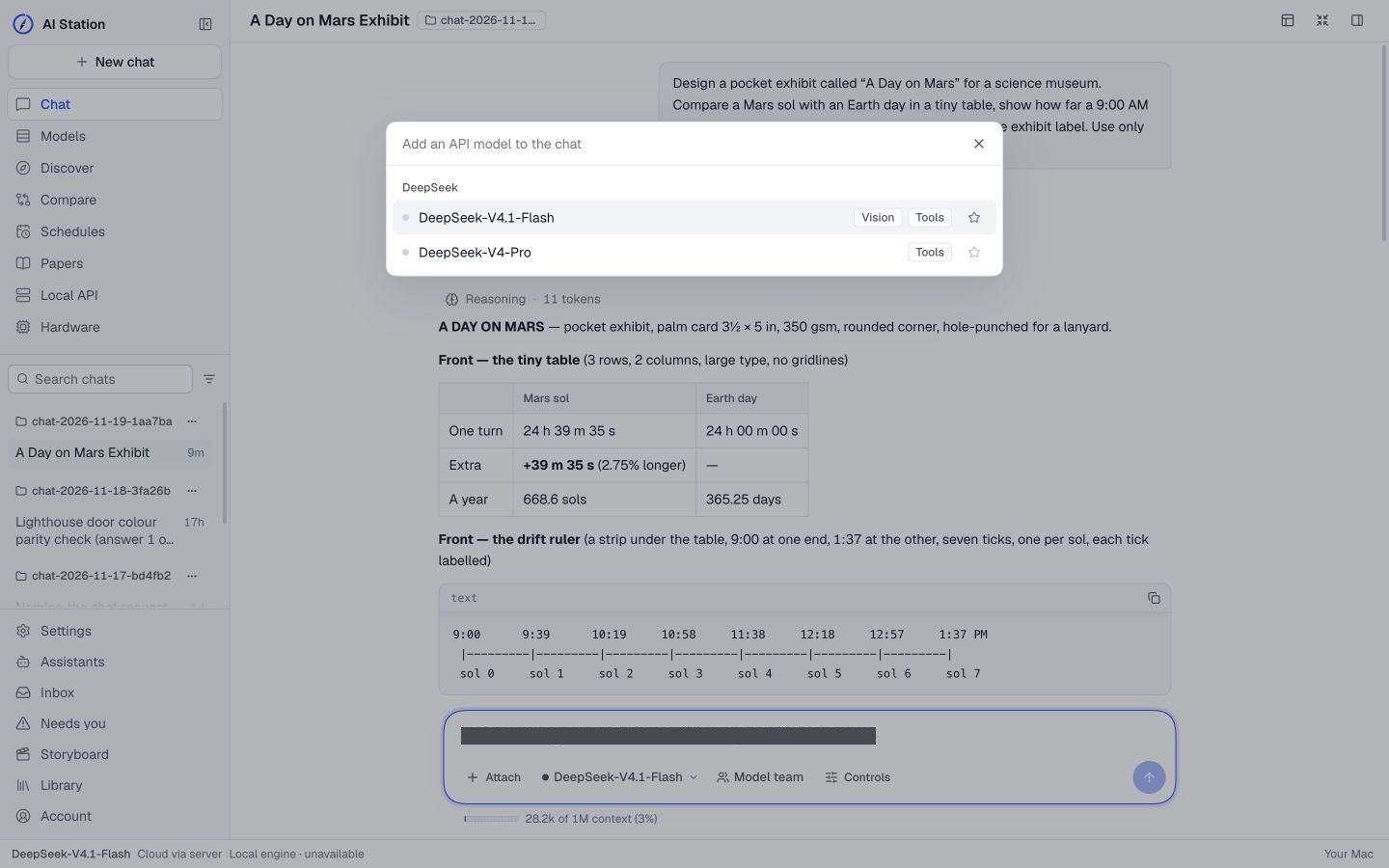
The model control determines which runtime answers the conversation. A developer can inspect the available choices when setting up a project chat.
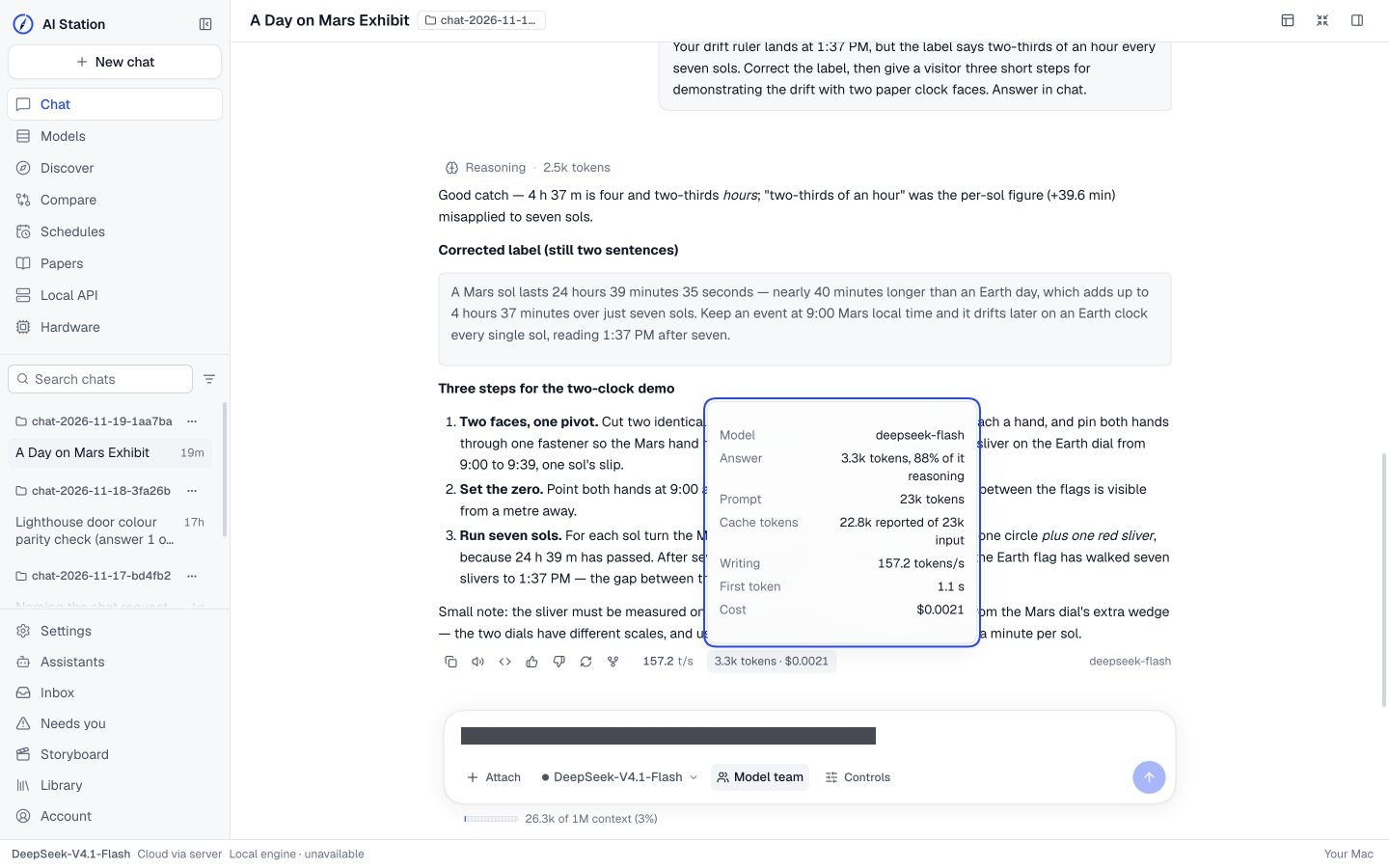
The response inspector breaks out token usage and estimated cost for a single answer. This makes the resource cost of a conversation visible at the point of use.
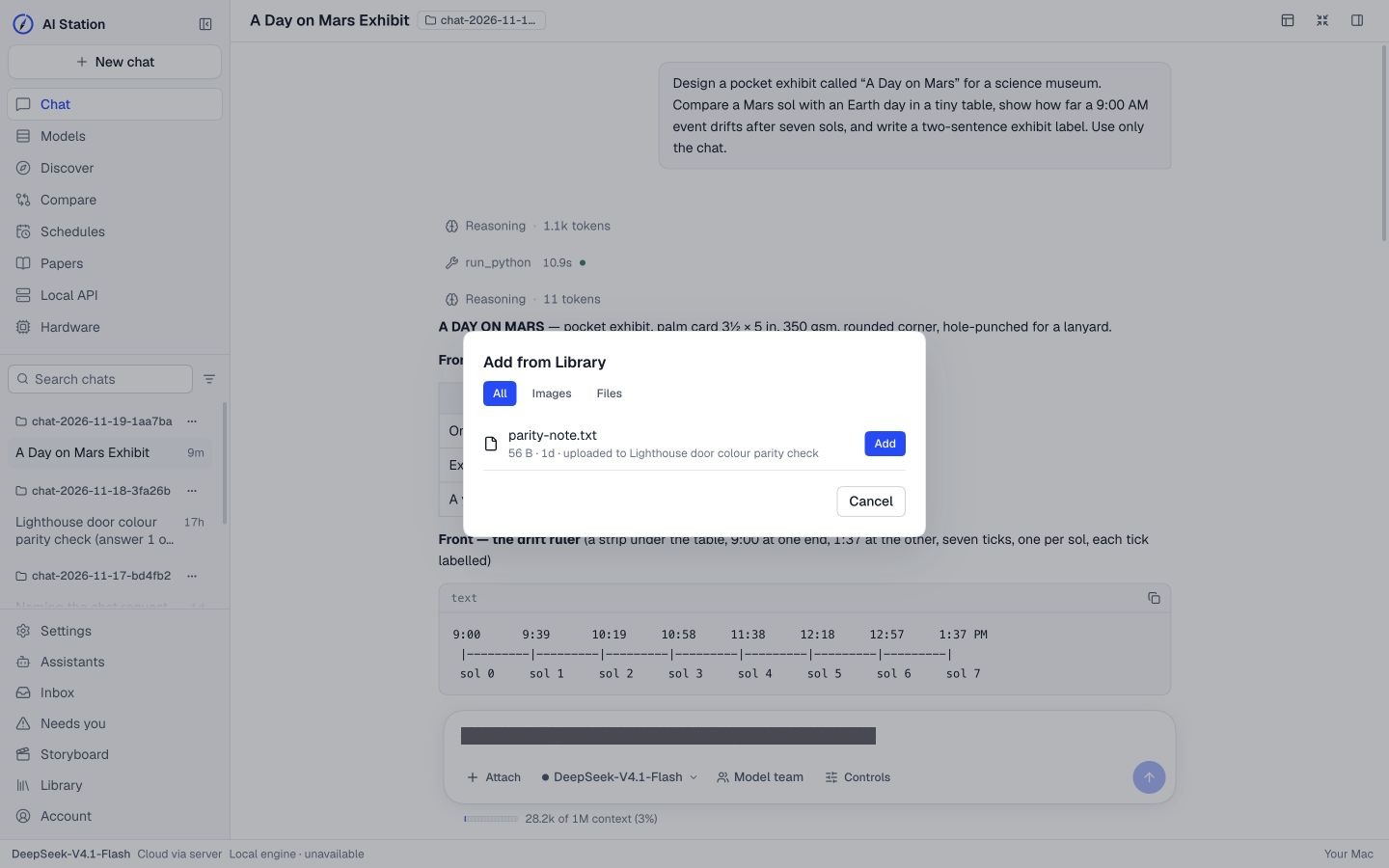
The file view connects a conversation to its source material. It lets the user inspect or select the files that supply context for the assistant’s work.
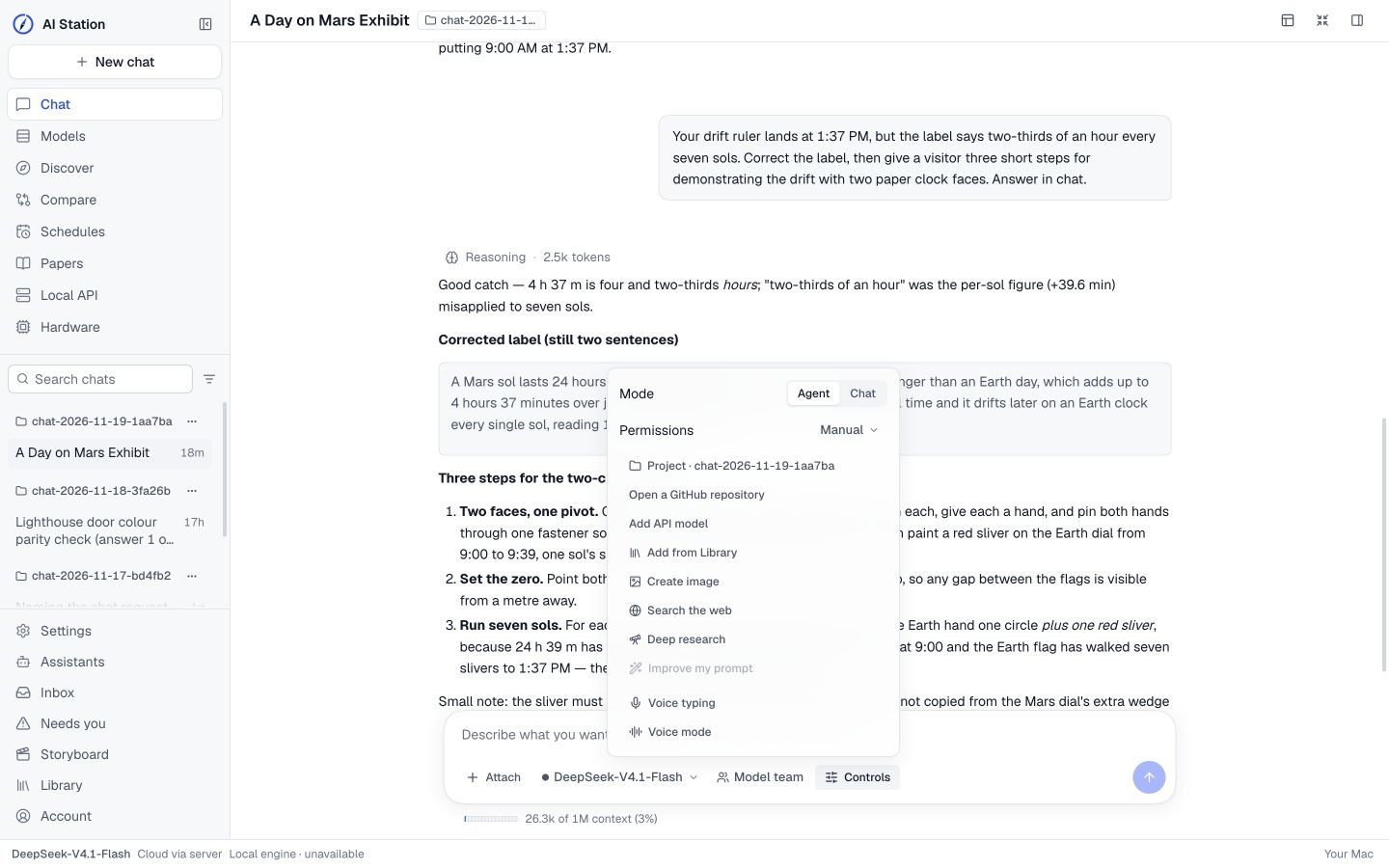
Conversation controls bring the settings for this exchange into reach while leaving the message history visible.
The file view connects a conversation to its source material. It lets the user inspect or select the files that supply context for the assistant’s work.
The file view connects a conversation to its source material. It lets the user inspect or select the files that supply context for the assistant’s work.
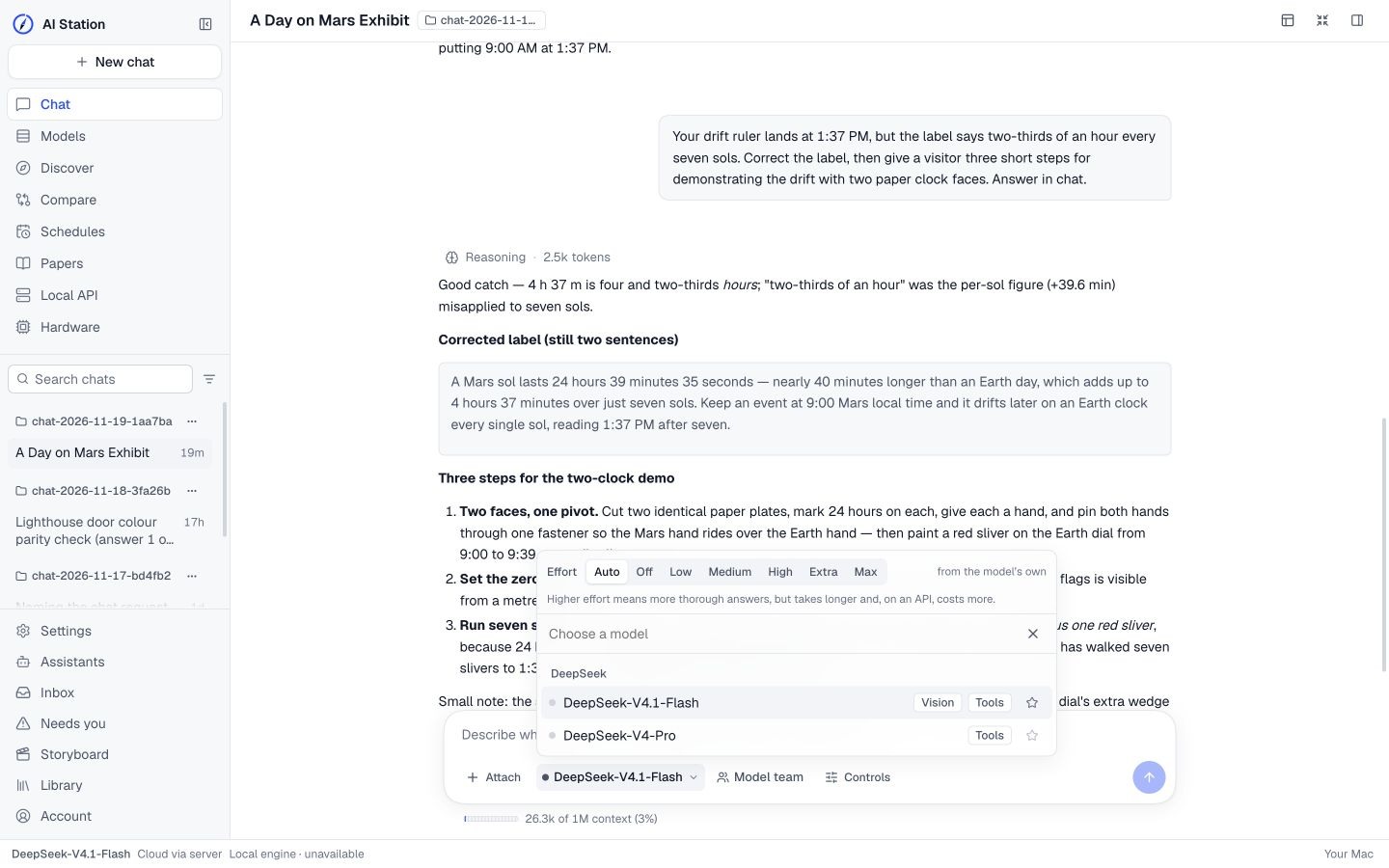
The model control determines which runtime answers the conversation. A developer can inspect the available choices when setting up a project chat.
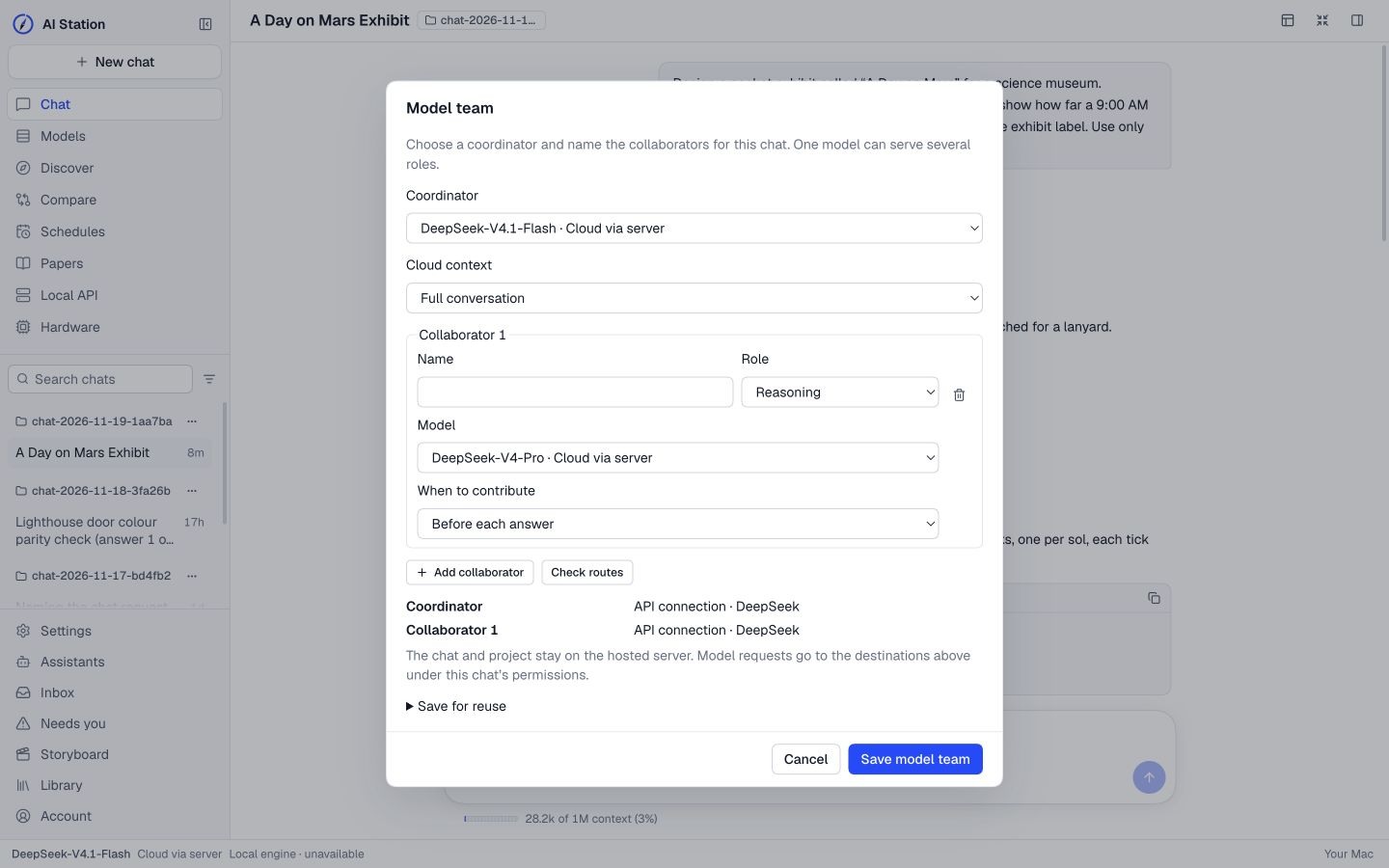
A developer can inspect the collaborators assigned to the work and how their roles divide up a project task.
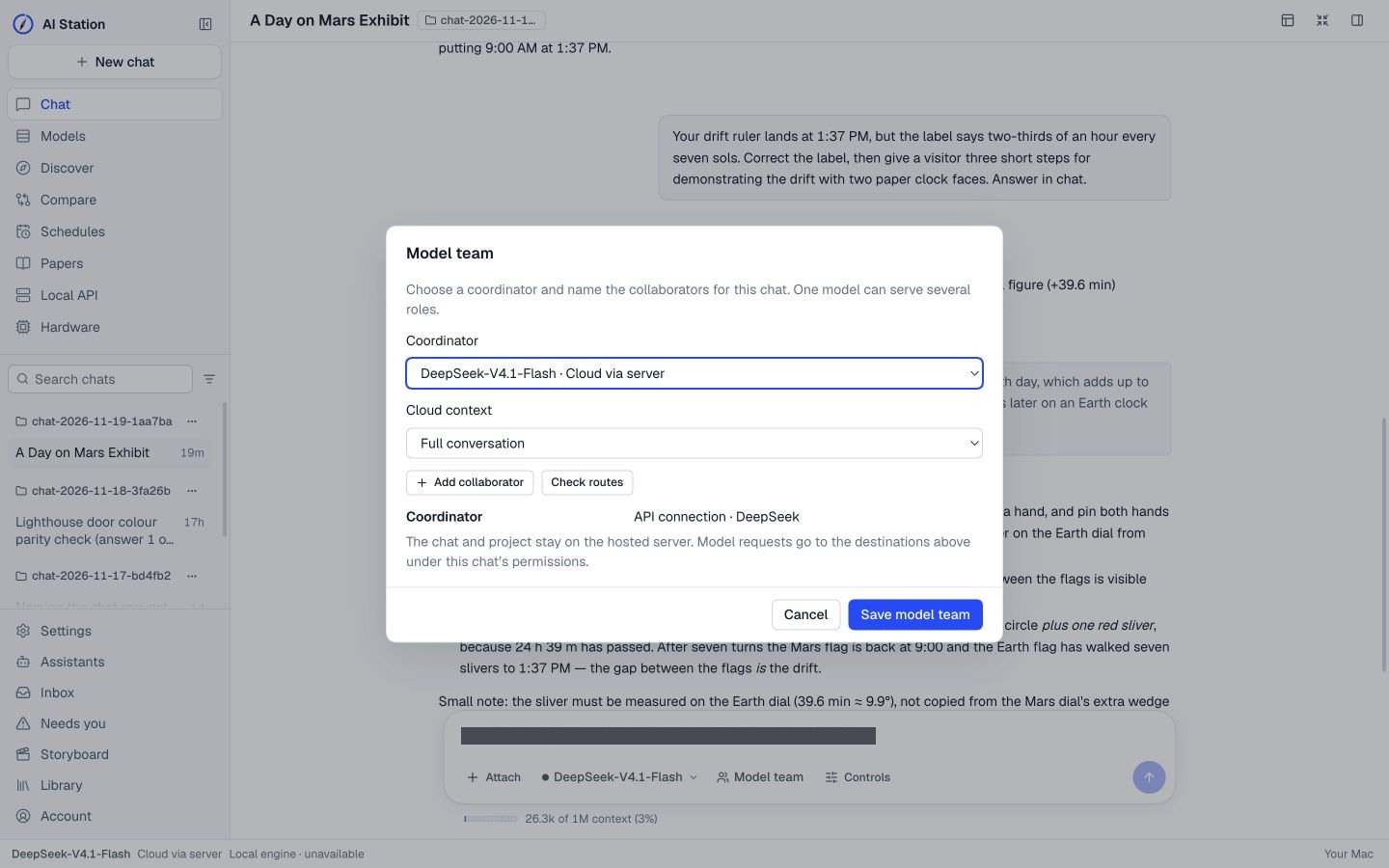
A developer can inspect the collaborators assigned to the work and how their roles divide up a project task.
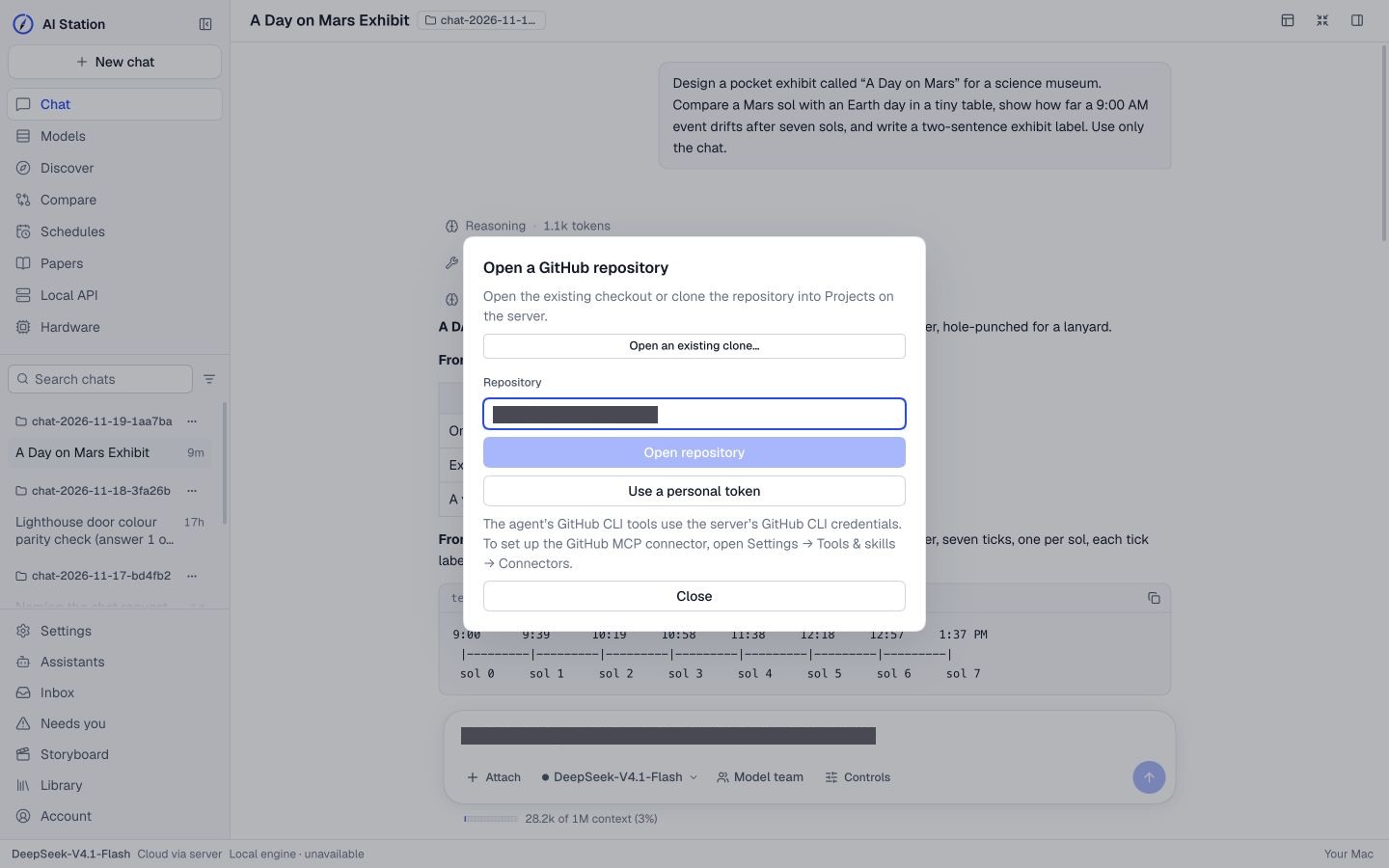
Project controls establish the working context for a conversation, including which repository, files or saved instructions the assistant should use.
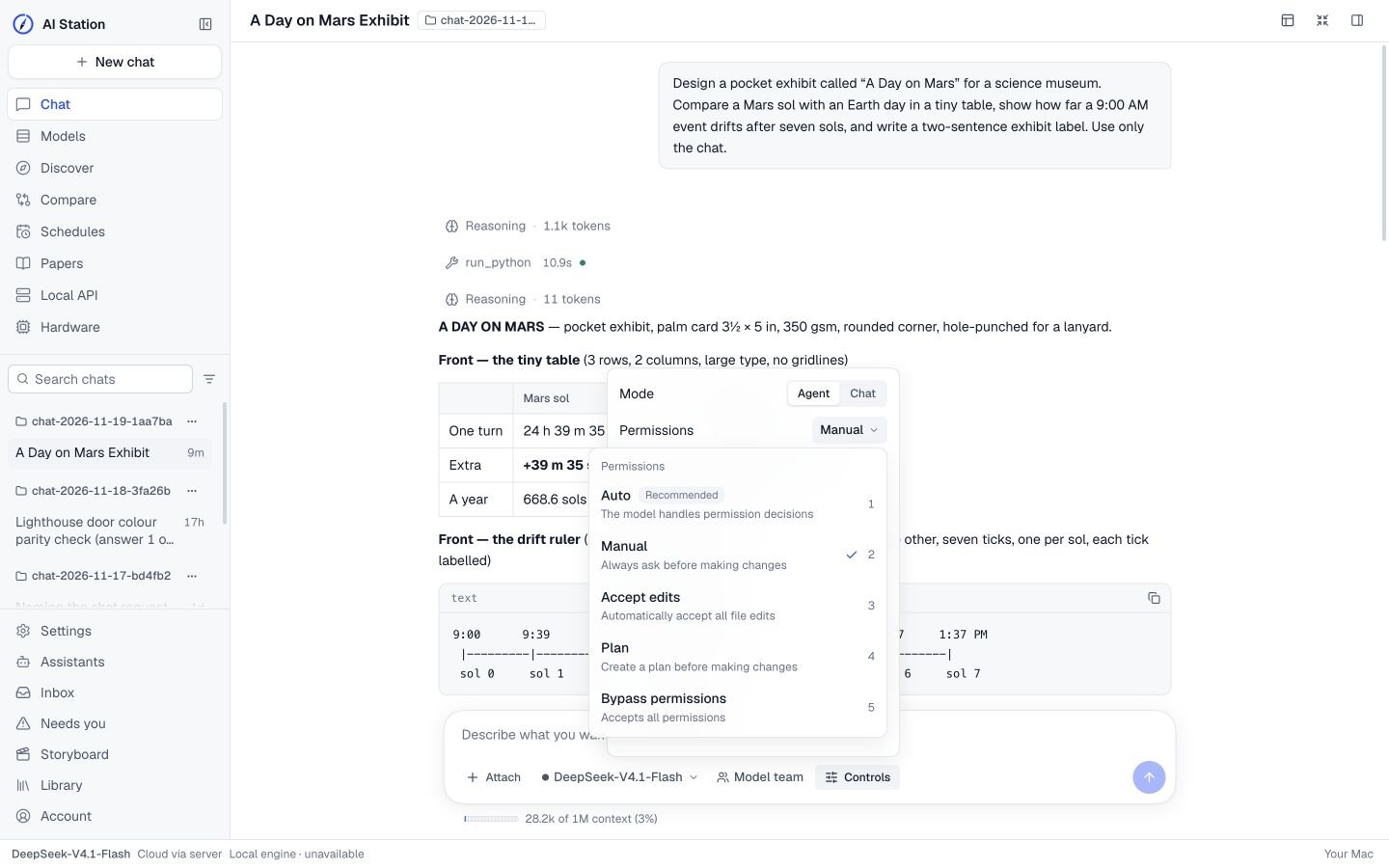
The chat exposes the agent’s available actions and permissions so the user can review what the agent may do in this project.
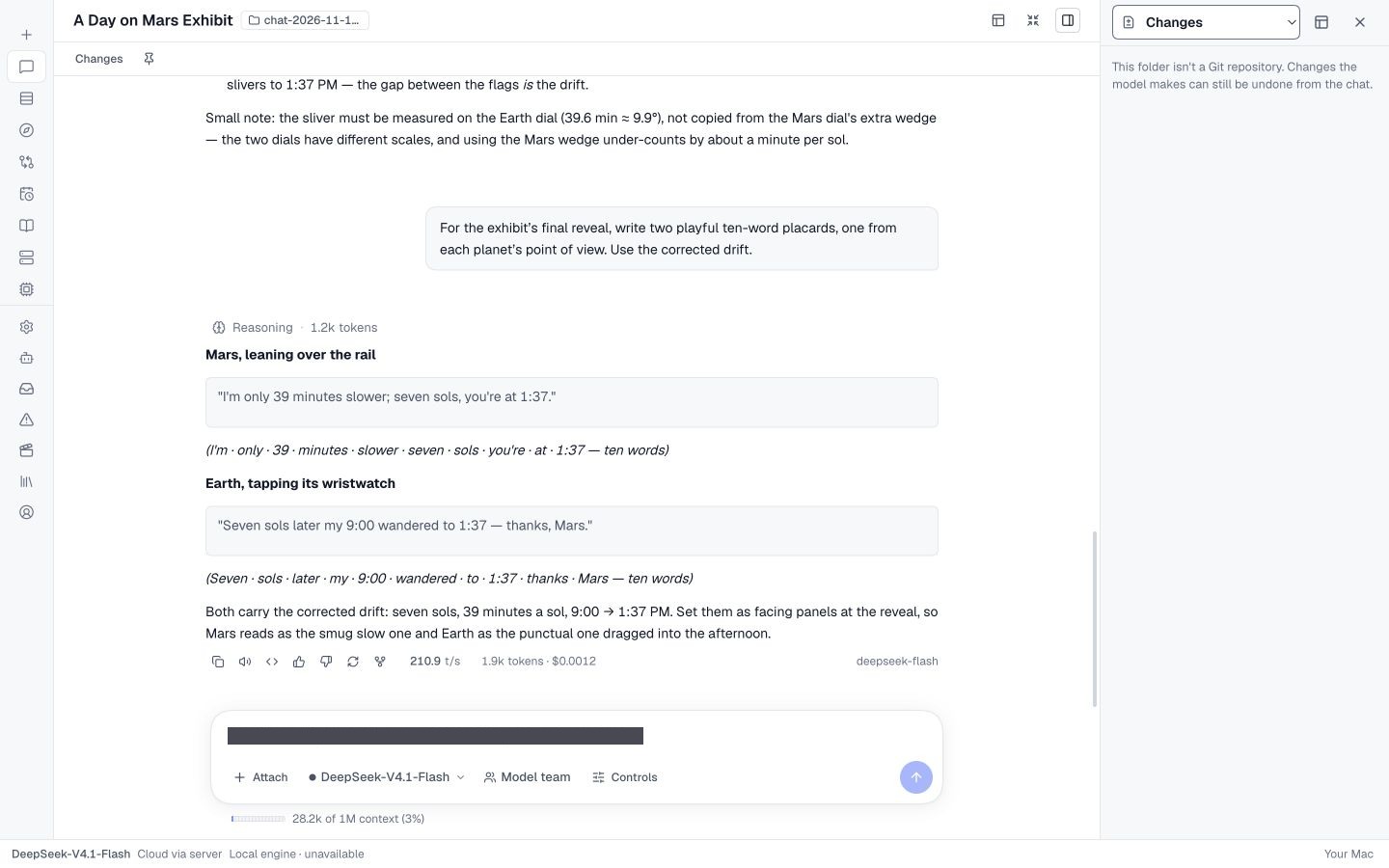
Project controls establish the working context for a conversation, including which repository, files or saved instructions the assistant should use.
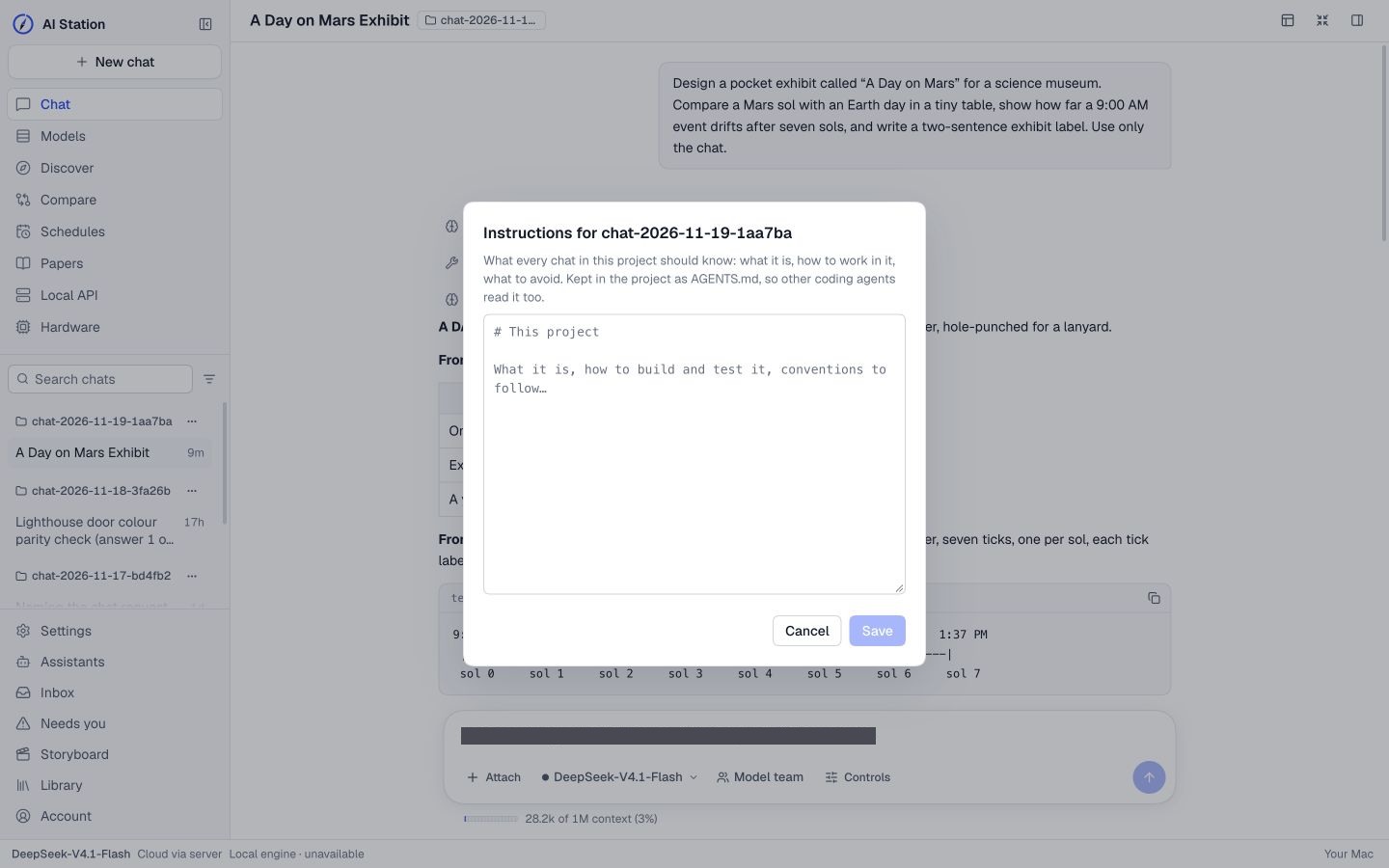
Project controls establish the working context for a conversation, including which repository, files or saved instructions the assistant should use.
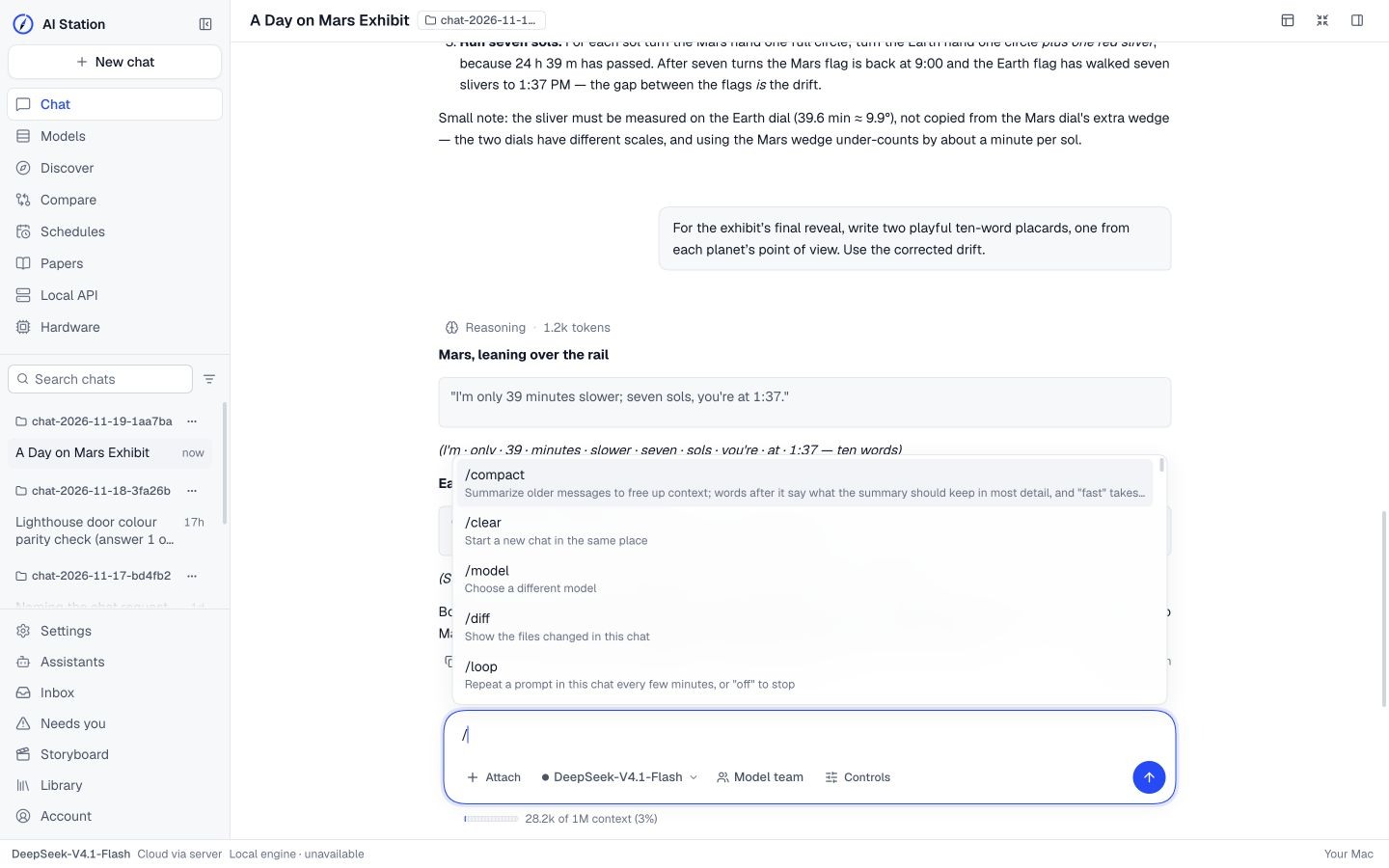
The command reference makes frequently used actions accessible from the keyboard while the user is working.
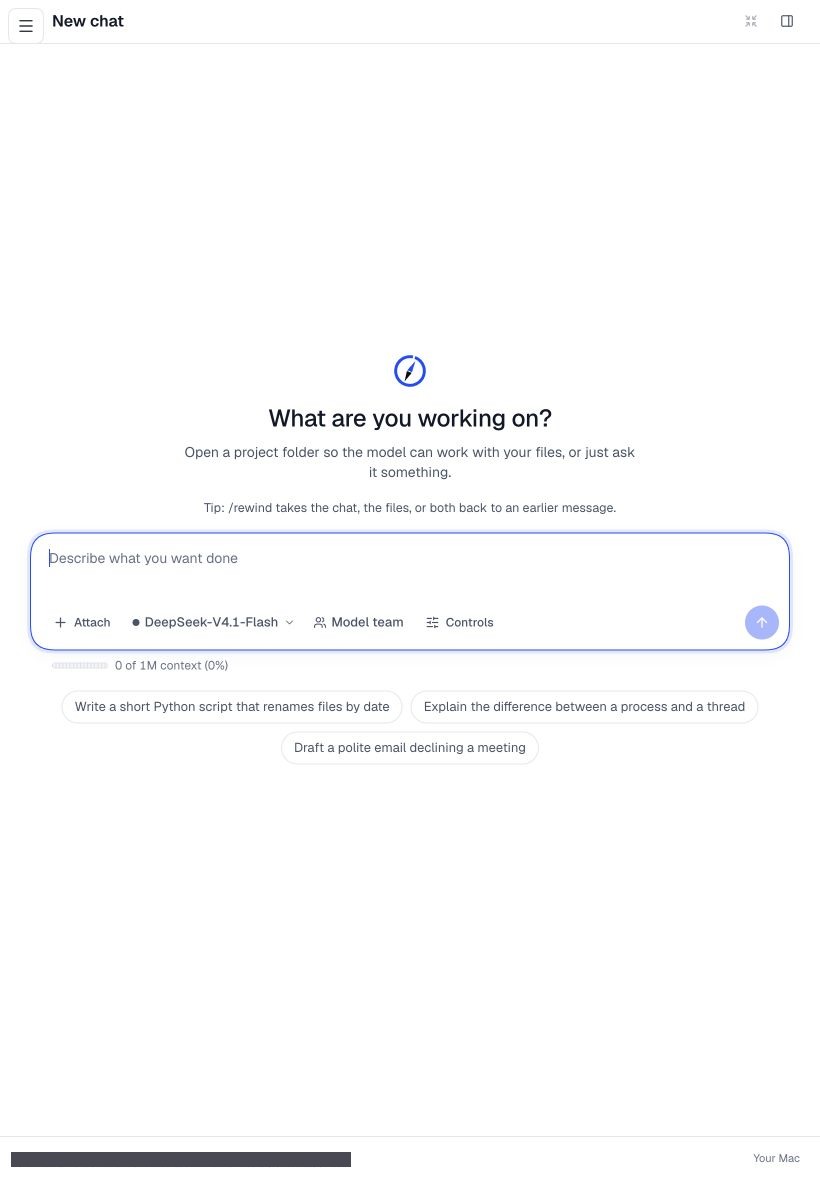
A fresh chat gives the next task its own history. The user can choose a model and supply project context before sending the opening prompt.
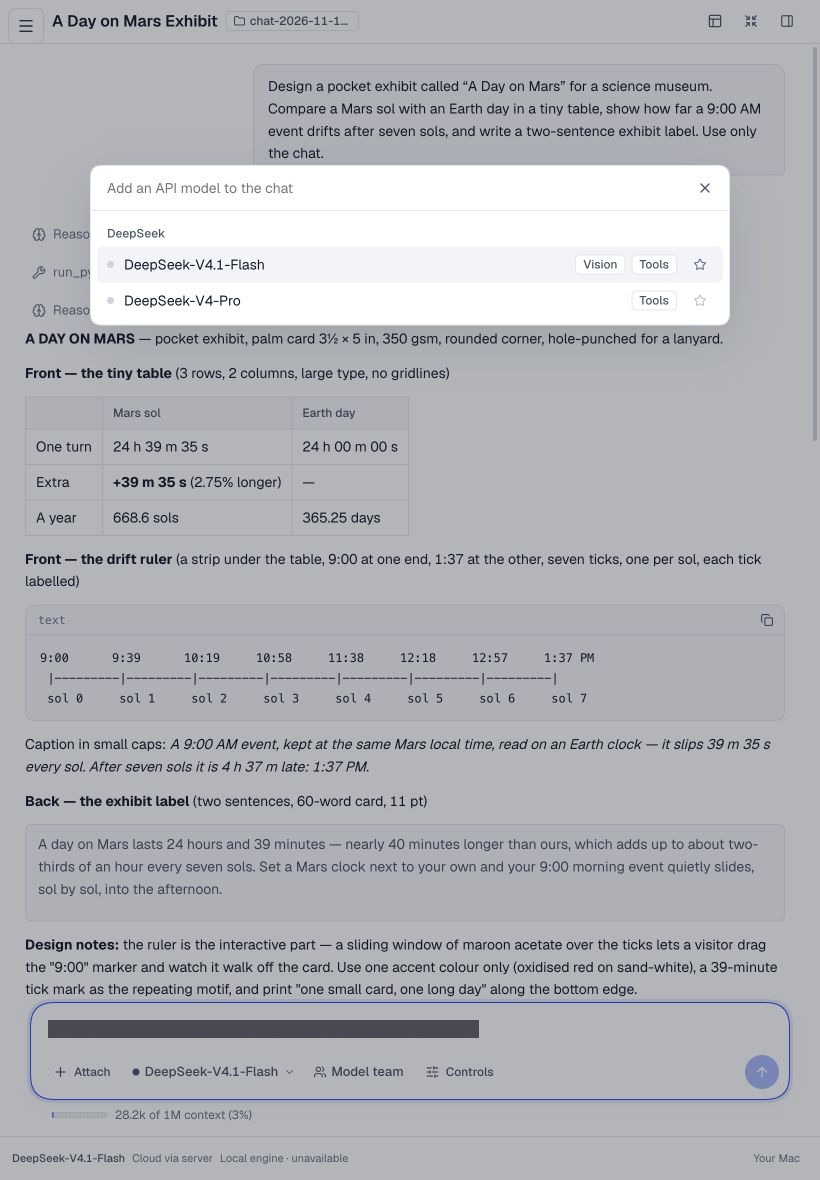
The model control determines which runtime answers the conversation. A developer can inspect the available choices when setting up a project chat.
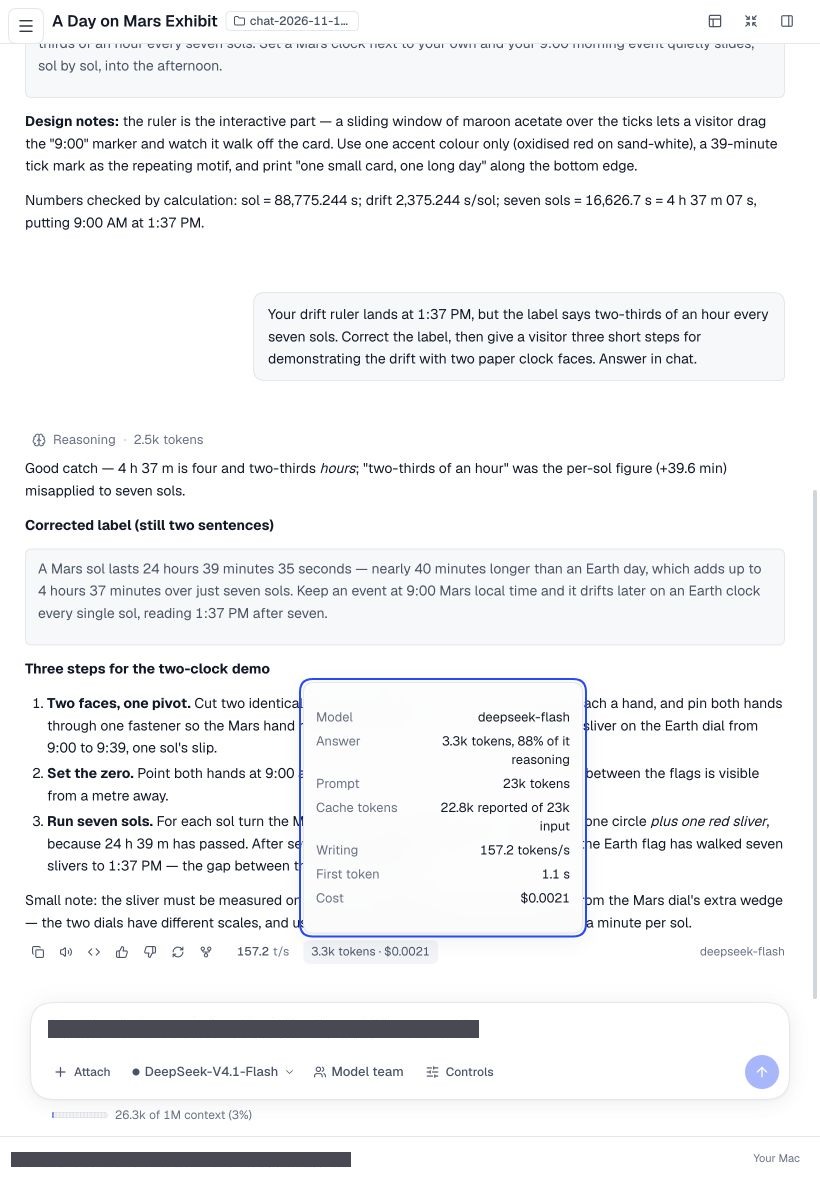
The response inspector breaks out token usage and estimated cost for a single answer. This makes the resource cost of a conversation visible at the point of use.
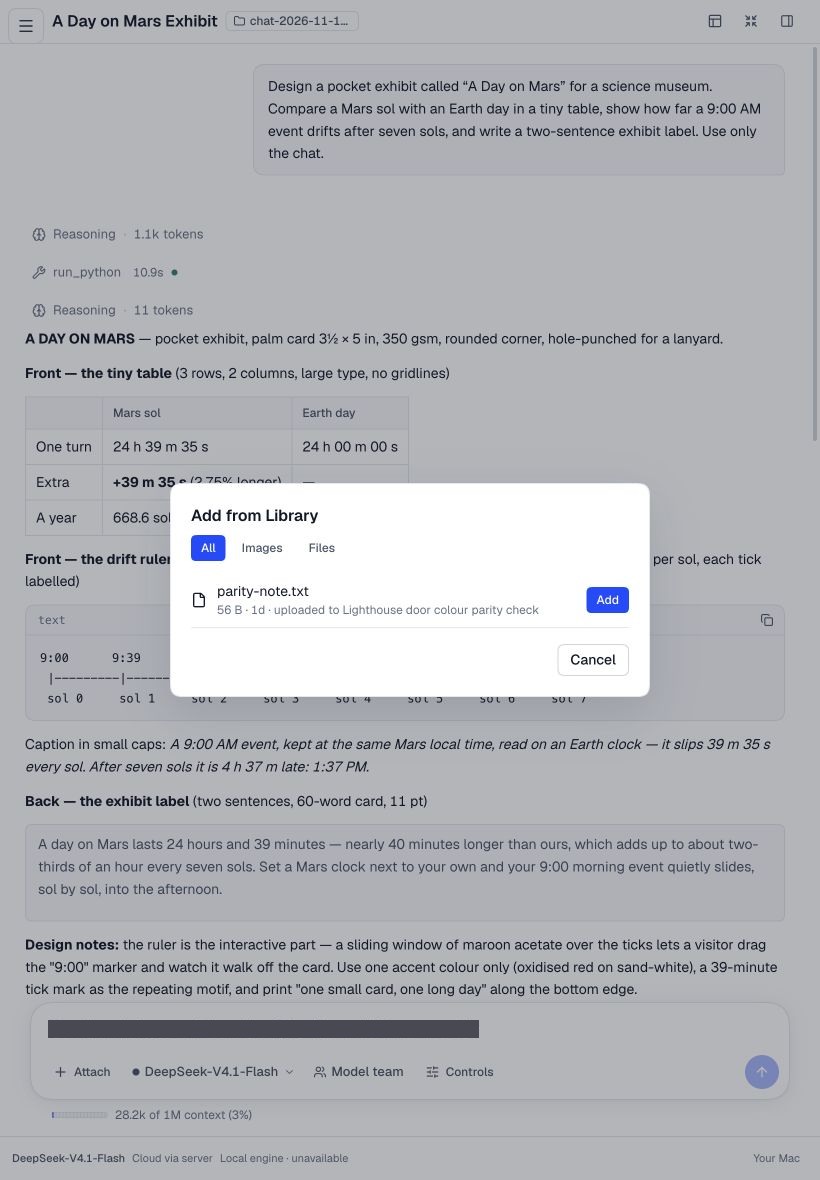
The file view connects a conversation to its source material. It lets the user inspect or select the files that supply context for the assistant’s work.

Conversation controls bring the settings for this exchange into reach while leaving the message history visible.
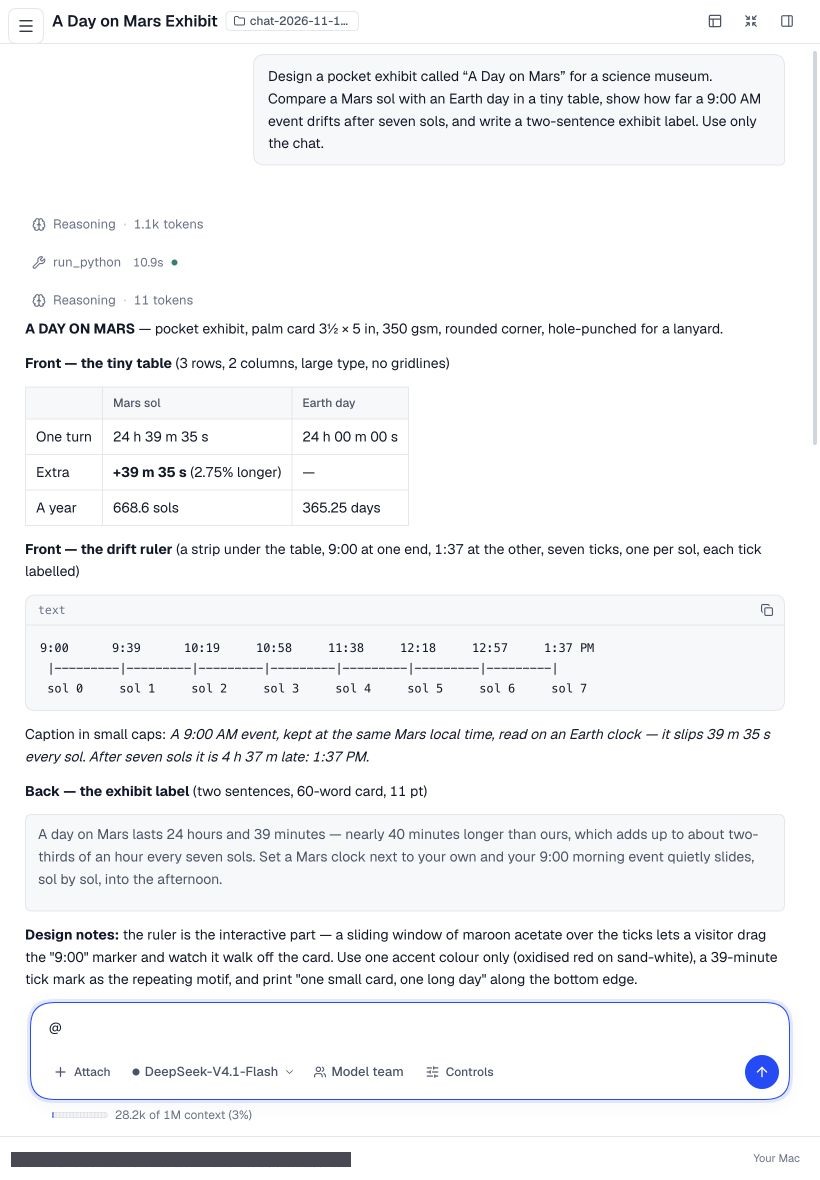
The file view connects a conversation to its source material. It lets the user inspect or select the files that supply context for the assistant’s work.
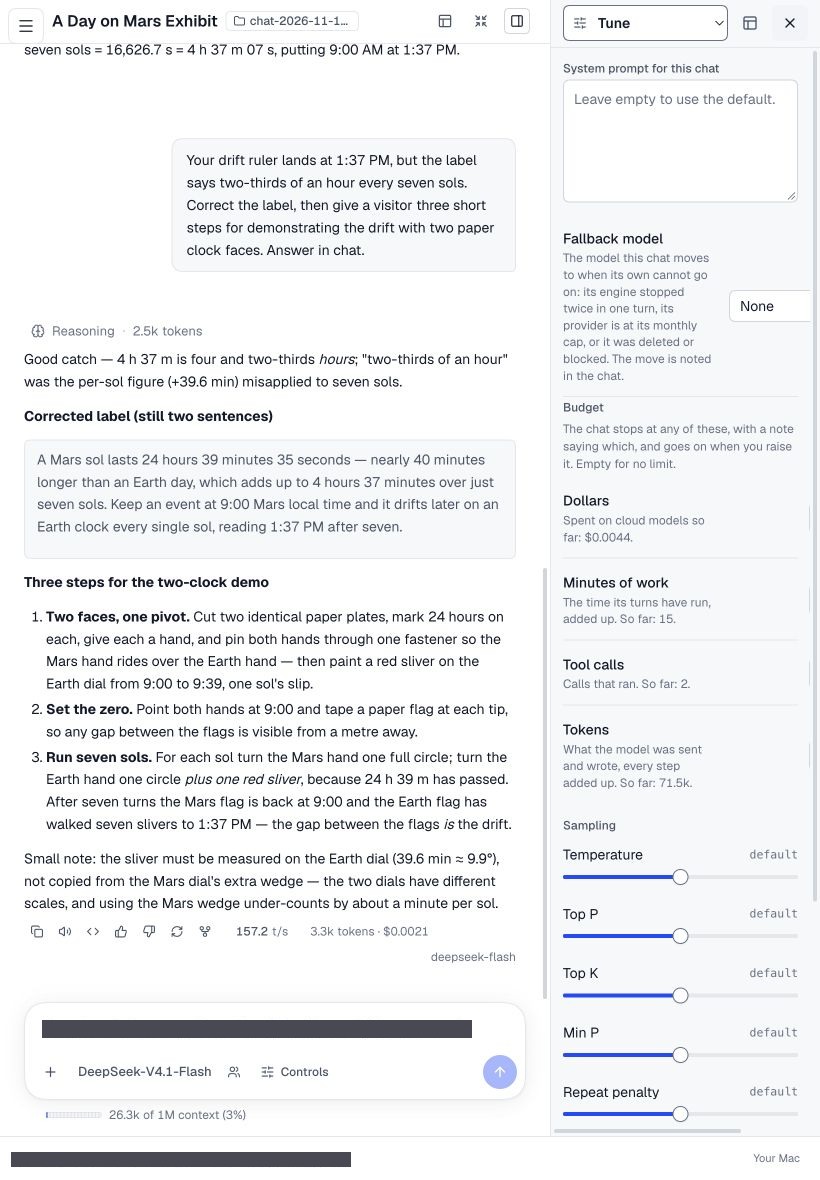
The file view connects a conversation to its source material. It lets the user inspect or select the files that supply context for the assistant’s work.
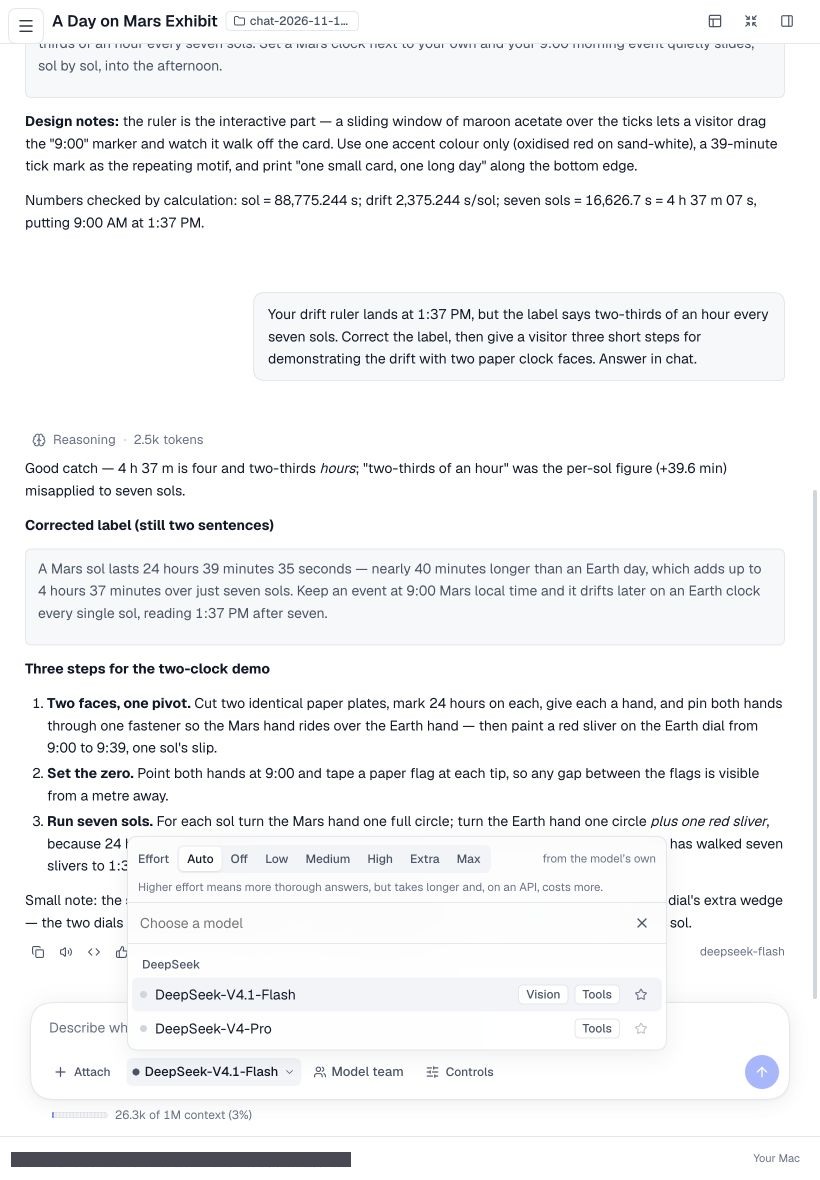
The model control determines which runtime answers the conversation. A developer can inspect the available choices when setting up a project chat.
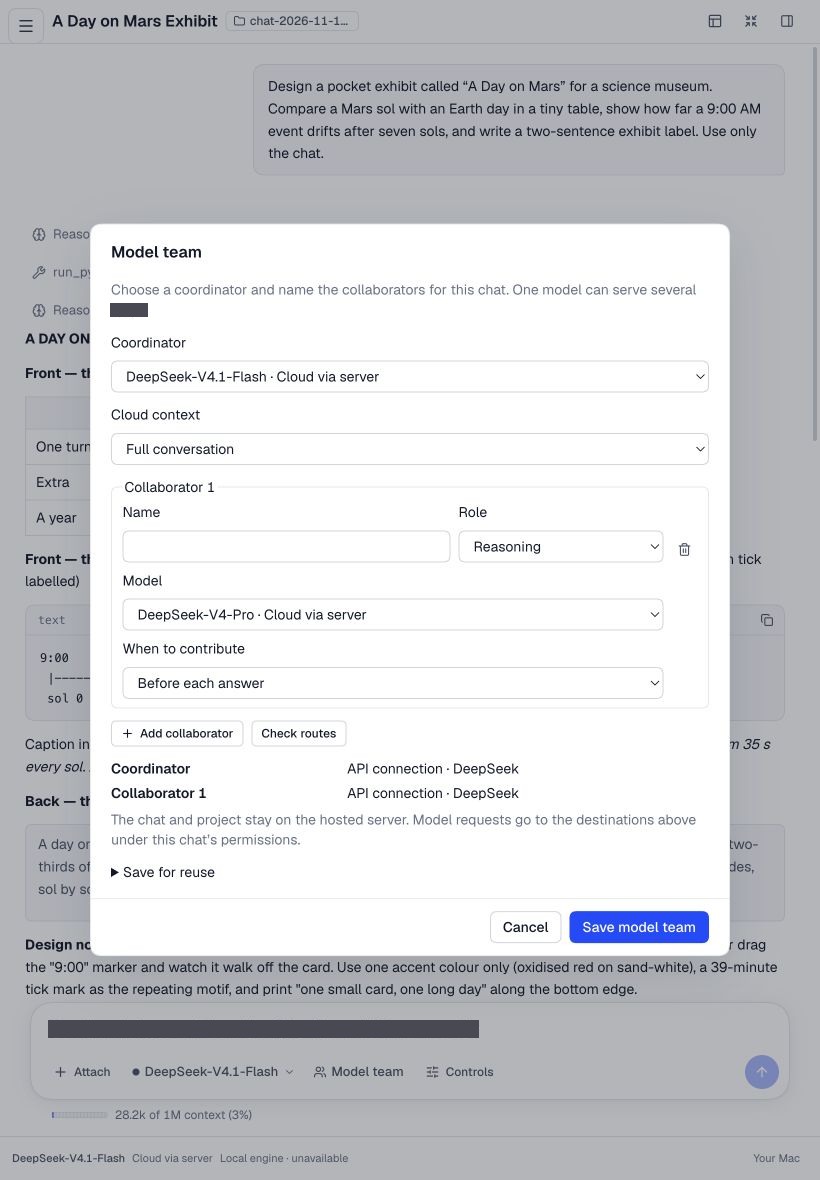
A developer can inspect the collaborators assigned to the work and how their roles divide up a project task.
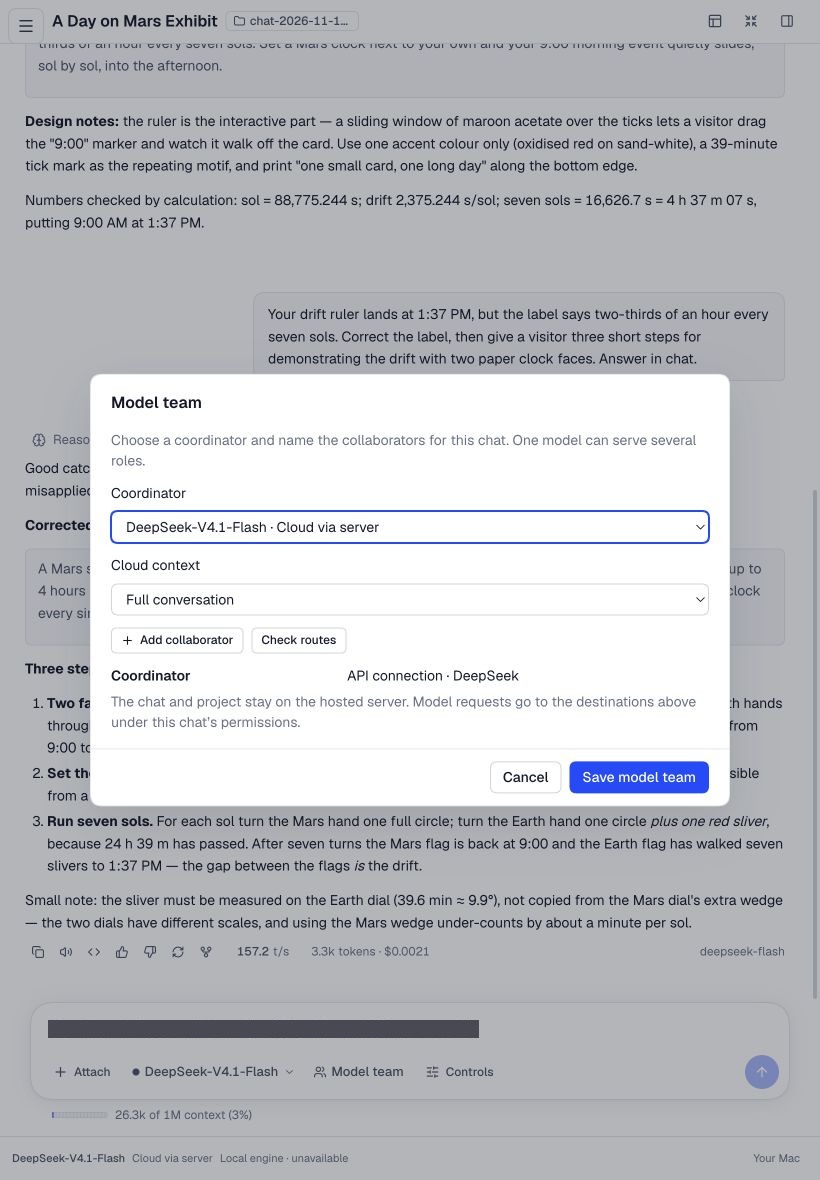
A developer can inspect the collaborators assigned to the work and how their roles divide up a project task.
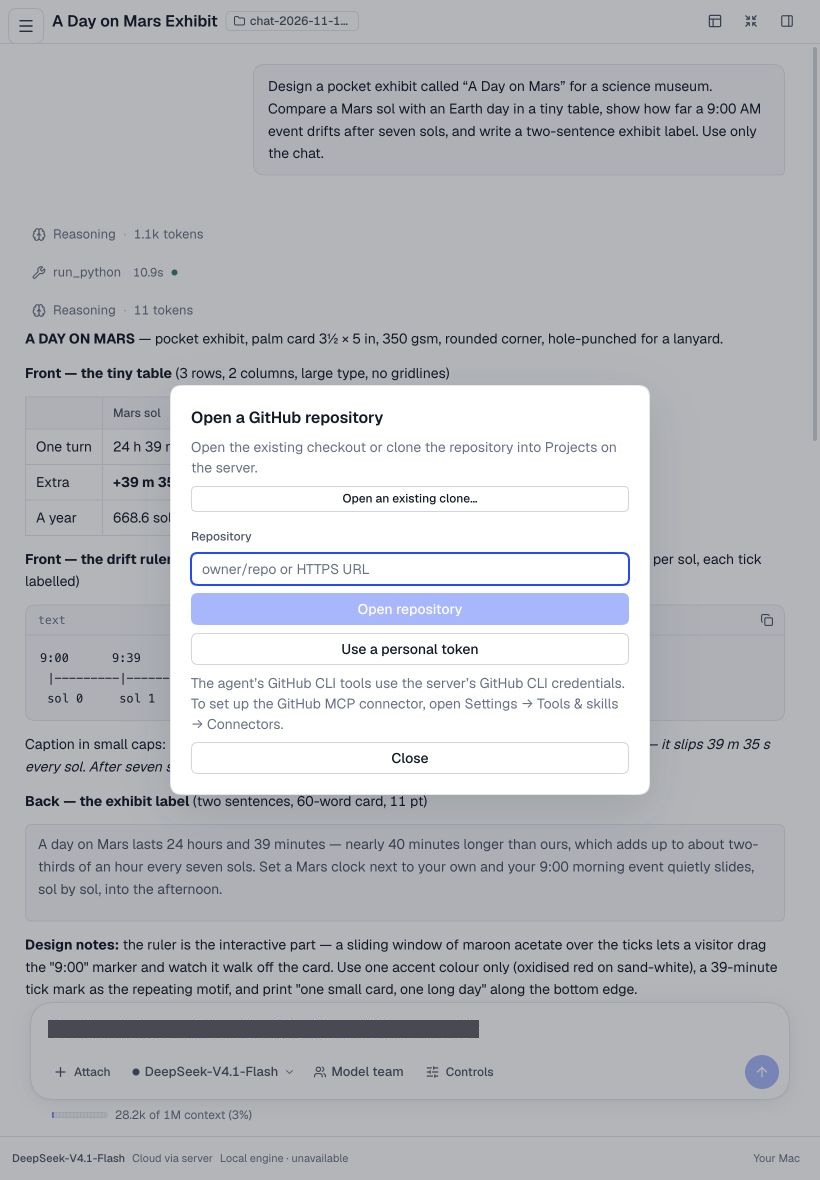
Project controls establish the working context for a conversation, including which repository, files or saved instructions the assistant should use.
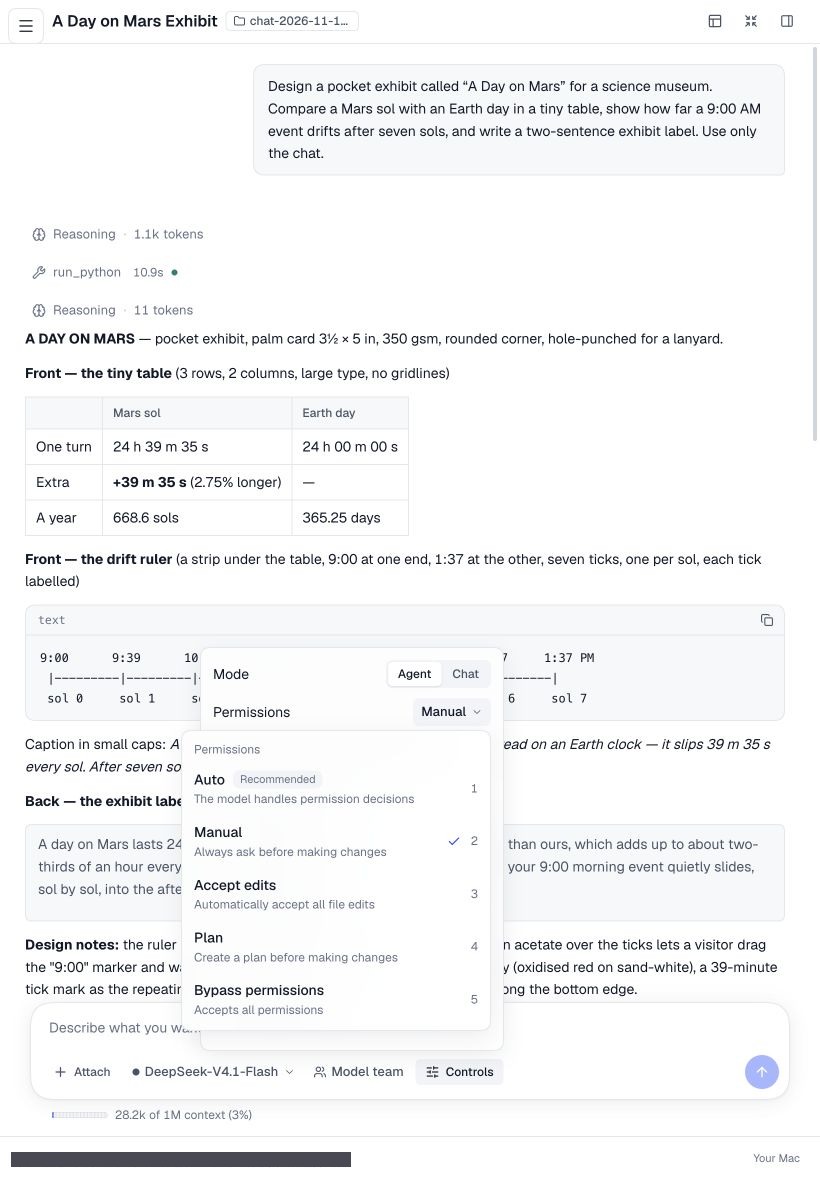
The chat exposes the agent’s available actions and permissions so the user can review what the agent may do in this project.
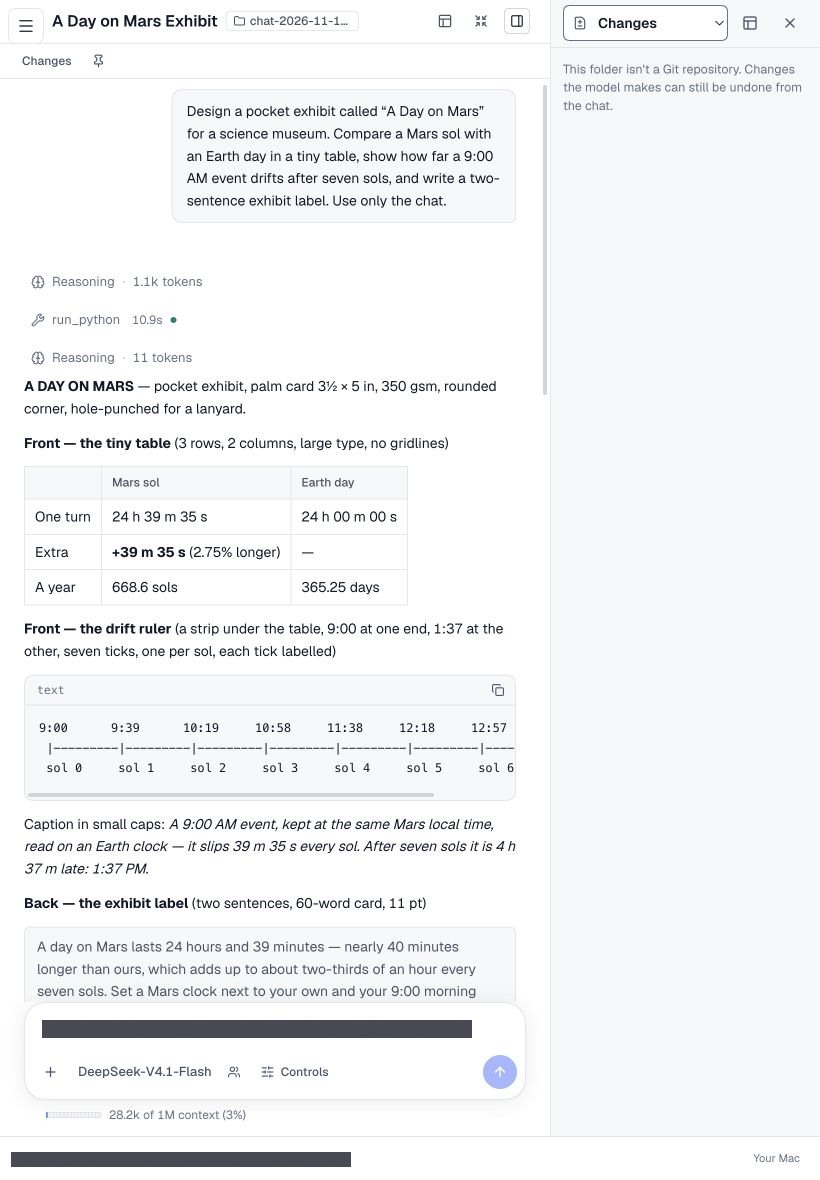
Project controls establish the working context for a conversation, including which repository, files or saved instructions the assistant should use.
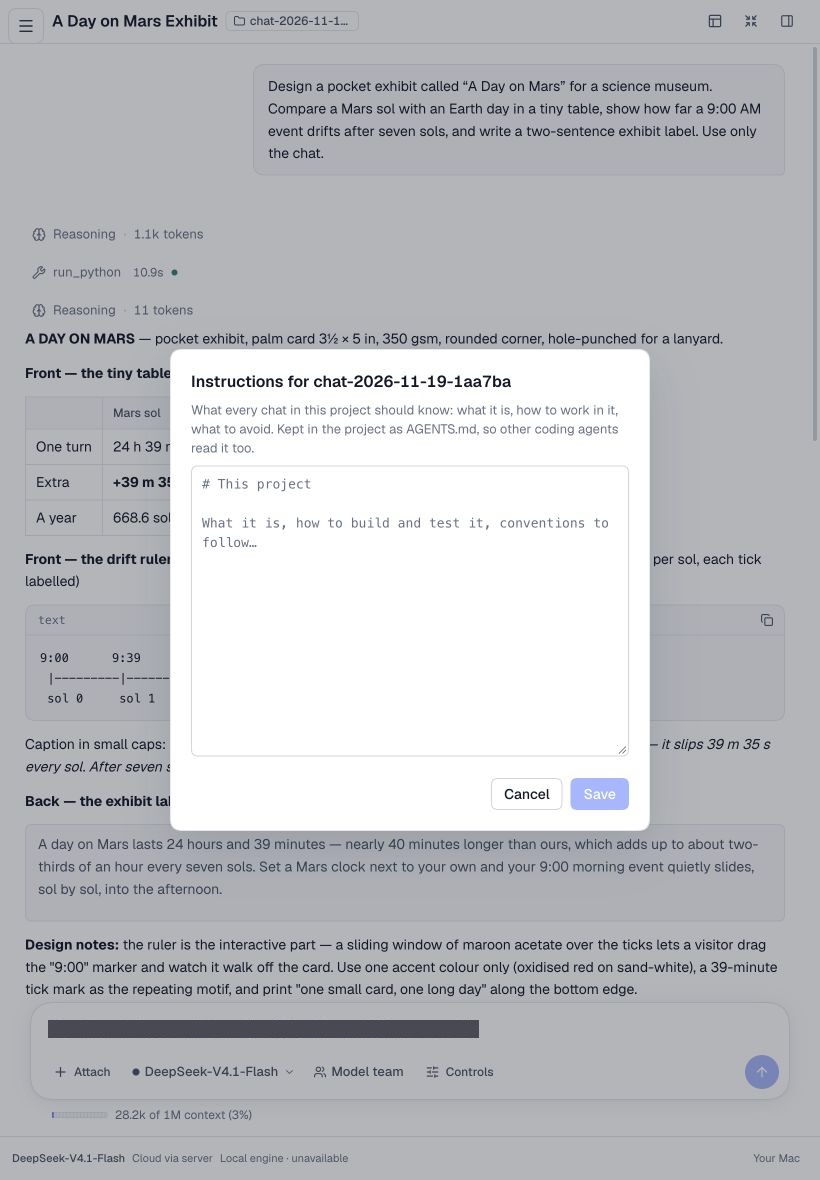
Project controls establish the working context for a conversation, including which repository, files or saved instructions the assistant should use.
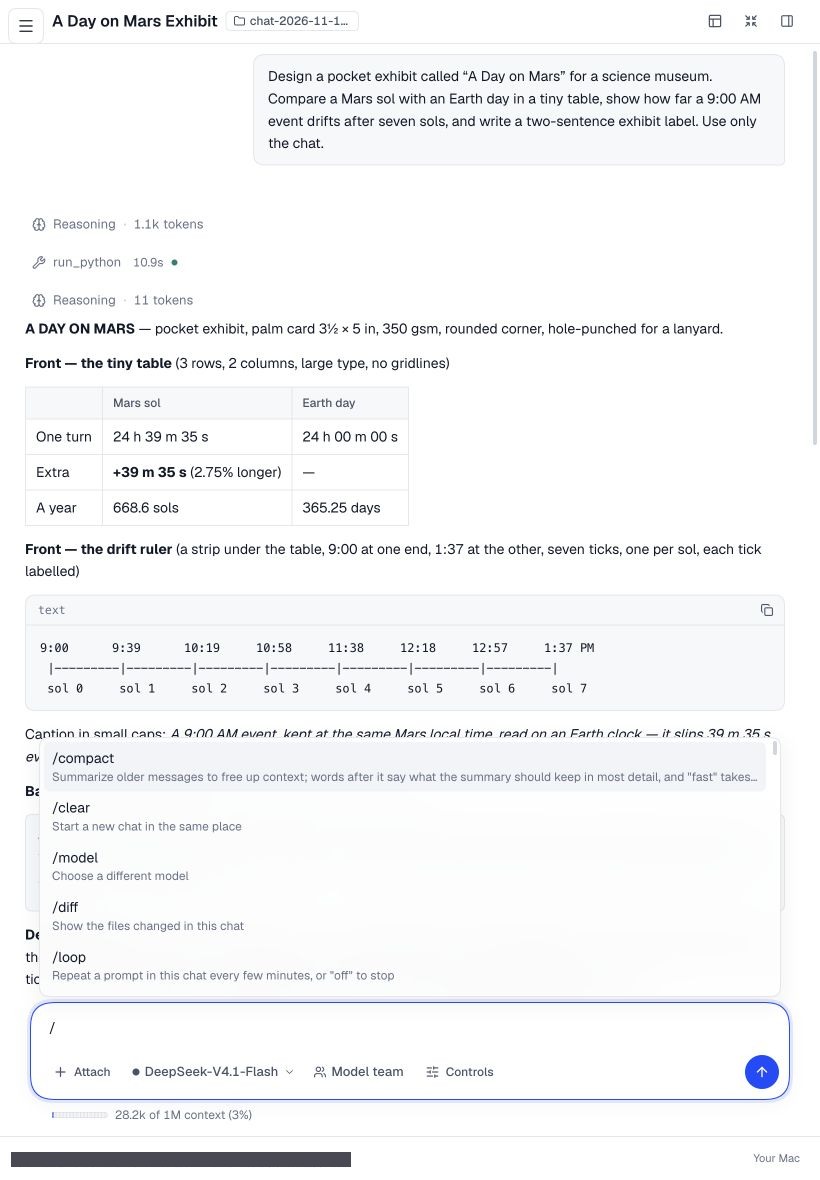
The command reference makes frequently used actions accessible from the keyboard while the user is working.
A fresh chat gives the next task its own history. The user can choose a model and supply project context before sending the opening prompt.
A fresh chat gives the next task its own history. The user can choose a model and supply project context before sending the opening prompt.
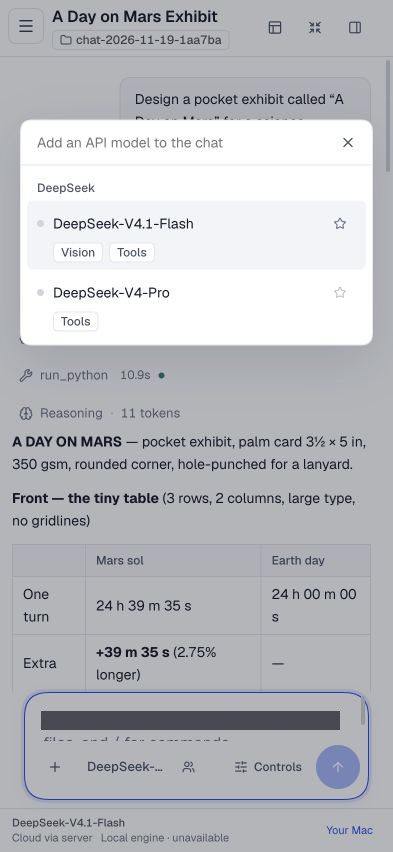
The model control determines which runtime answers the conversation. A developer can inspect the available choices when setting up a project chat.
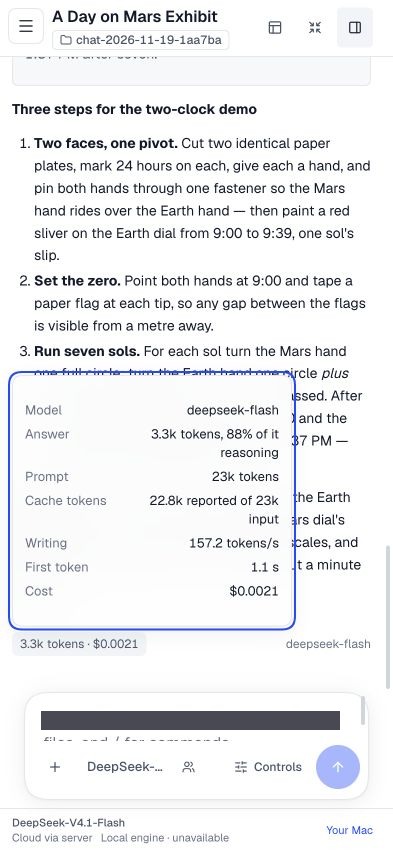
The response inspector breaks out token usage and estimated cost for a single answer. This makes the resource cost of a conversation visible at the point of use.
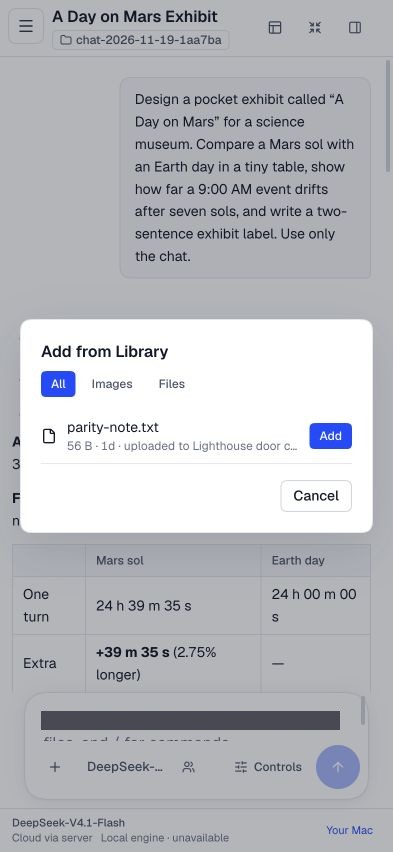
The file view connects a conversation to its source material. It lets the user inspect or select the files that supply context for the assistant’s work.
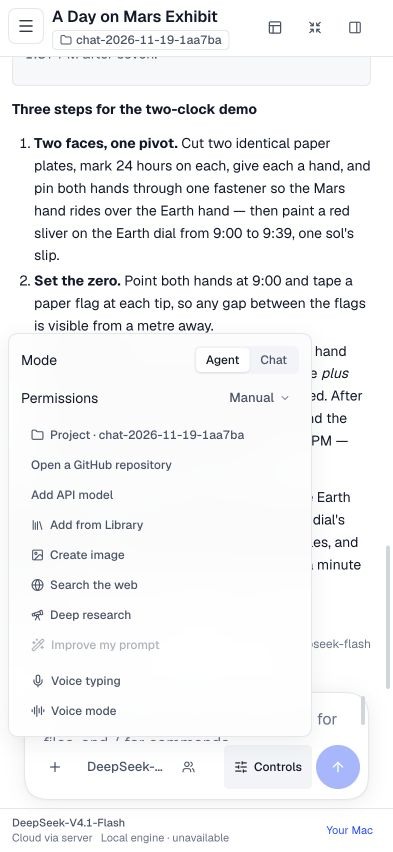
Conversation controls bring the settings for this exchange into reach while leaving the message history visible.
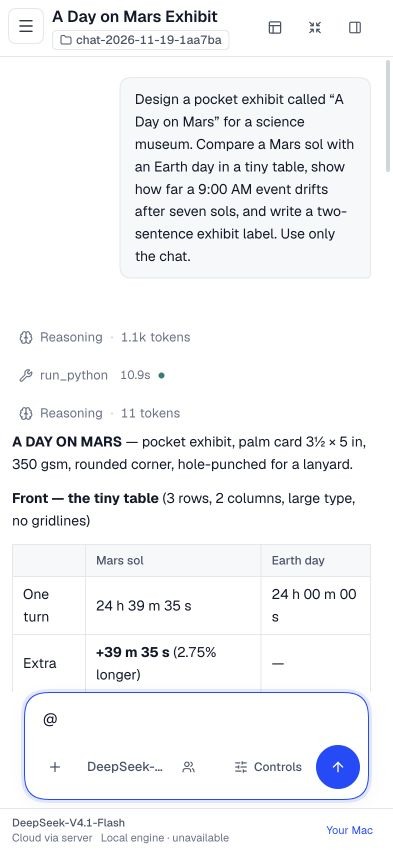
The file view connects a conversation to its source material. It lets the user inspect or select the files that supply context for the assistant’s work.
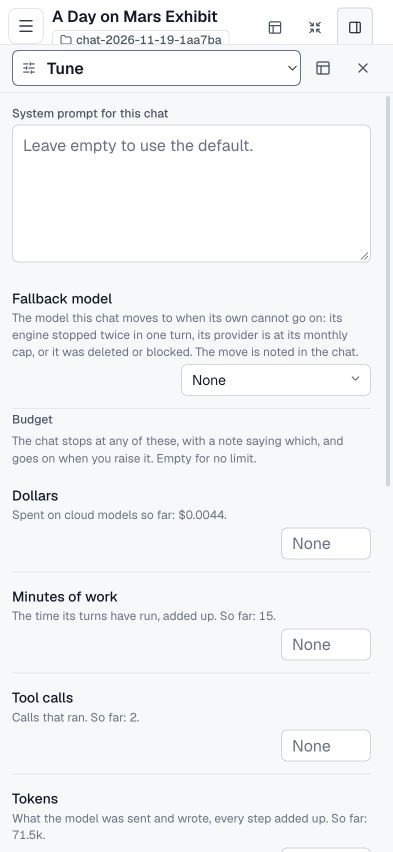
The file view connects a conversation to its source material. It lets the user inspect or select the files that supply context for the assistant’s work.
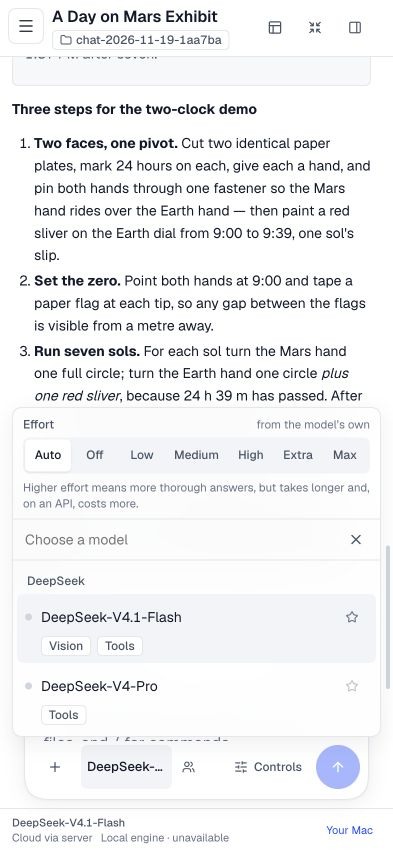
The model control determines which runtime answers the conversation. A developer can inspect the available choices when setting up a project chat.
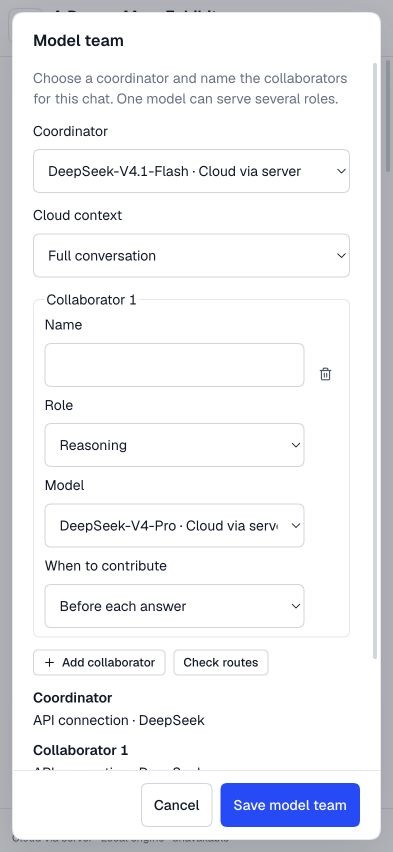
A developer can inspect the collaborators assigned to the work and how their roles divide up a project task.
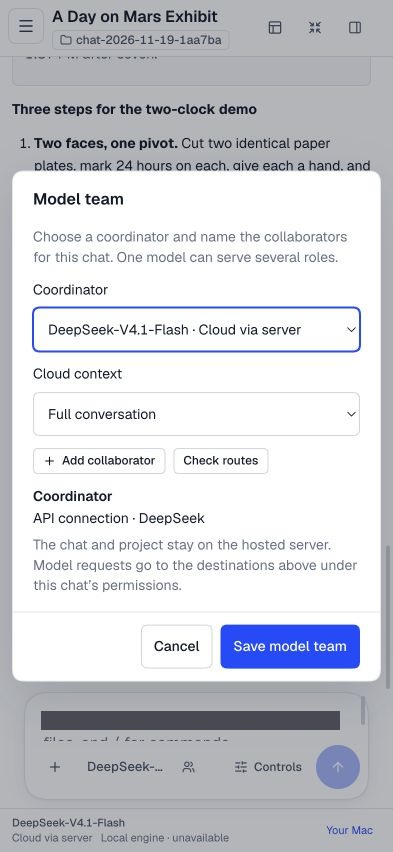
A developer can inspect the collaborators assigned to the work and how their roles divide up a project task.
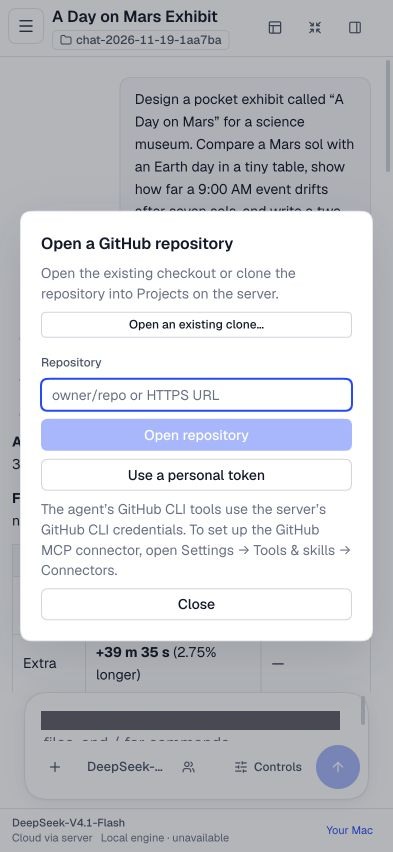
Project controls establish the working context for a conversation, including which repository, files or saved instructions the assistant should use.
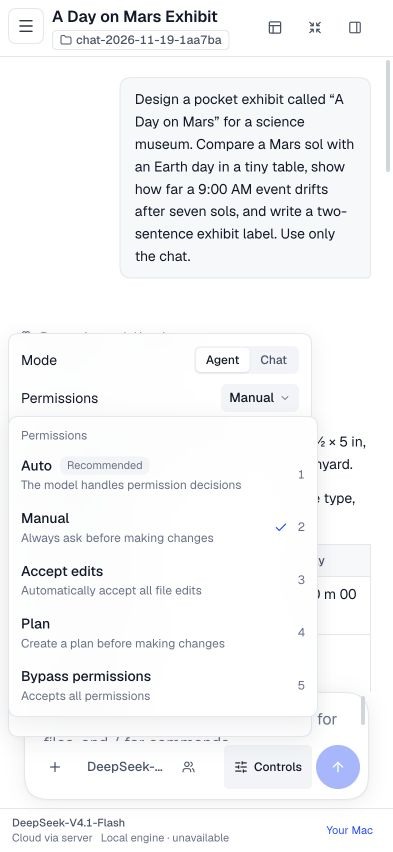
The chat exposes the agent’s available actions and permissions so the user can review what the agent may do in this project.
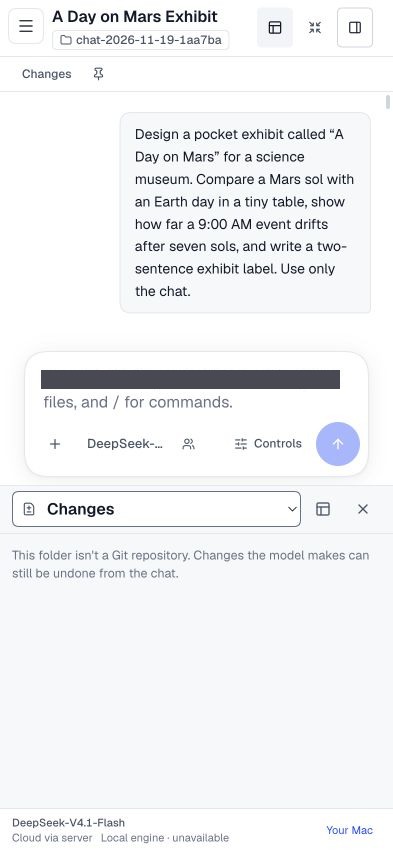
Project controls establish the working context for a conversation, including which repository, files or saved instructions the assistant should use.
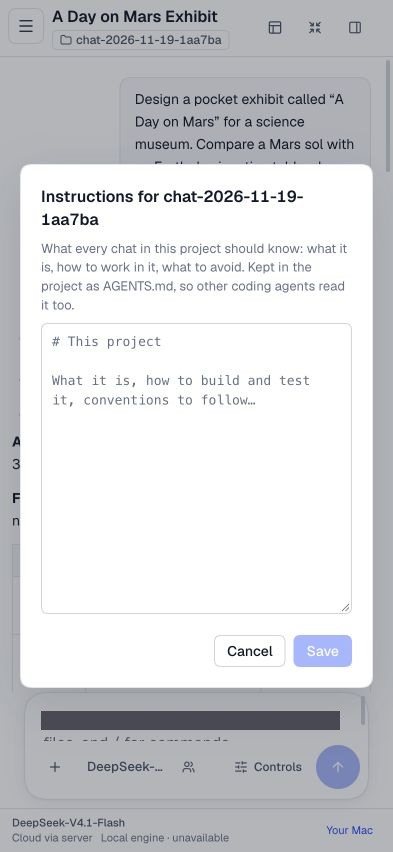
Project controls establish the working context for a conversation, including which repository, files or saved instructions the assistant should use.
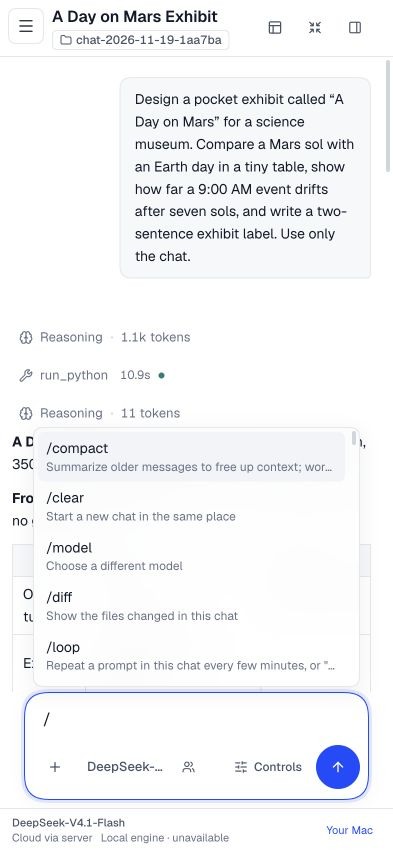
The command reference makes frequently used actions accessible from the keyboard while the user is working.
Chat inspector 45
Inspect the work behind an answer, from task assignments and documents to file changes and previews.
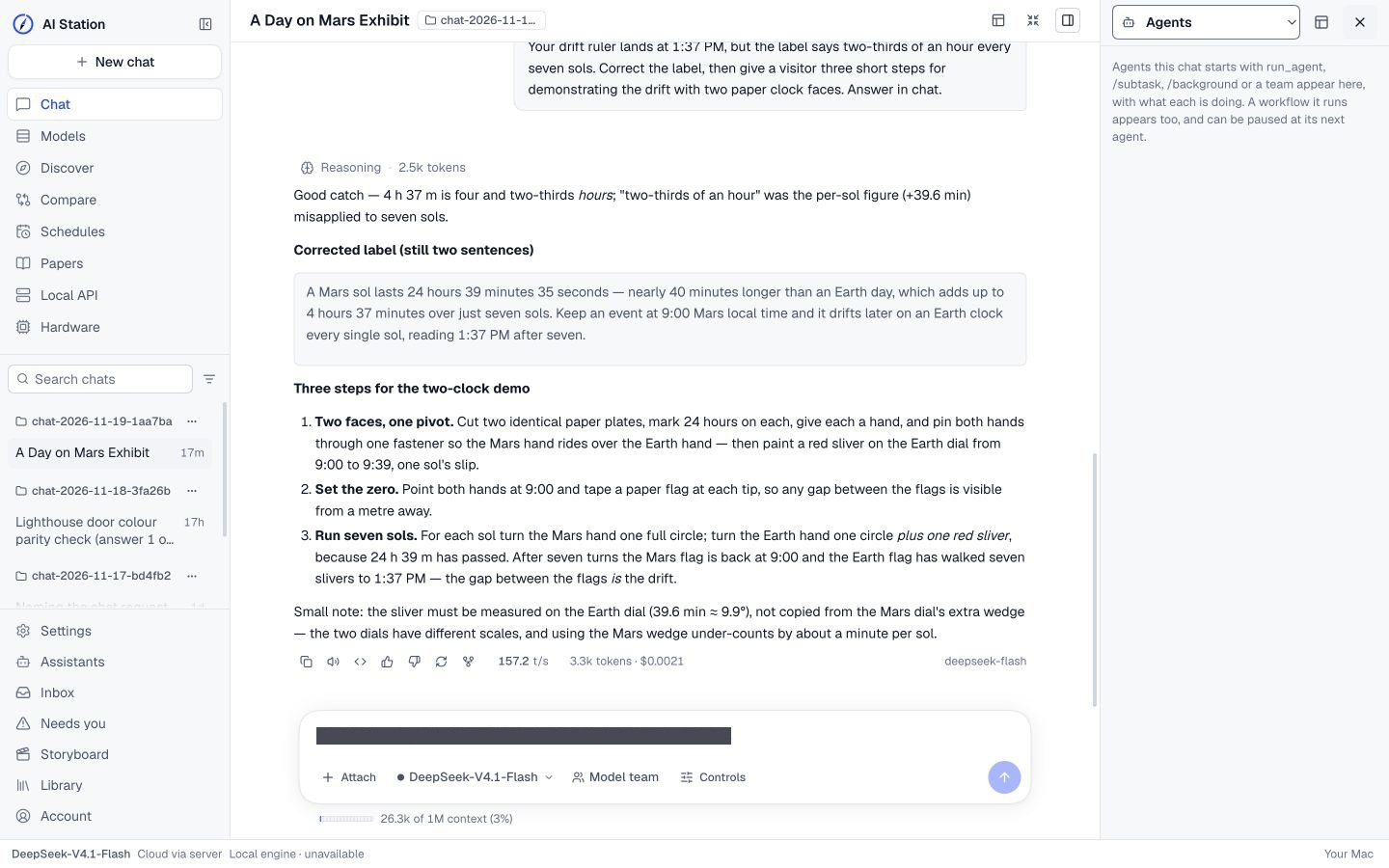
A developer can inspect the collaborators assigned to the work and how their roles divide up a project task.
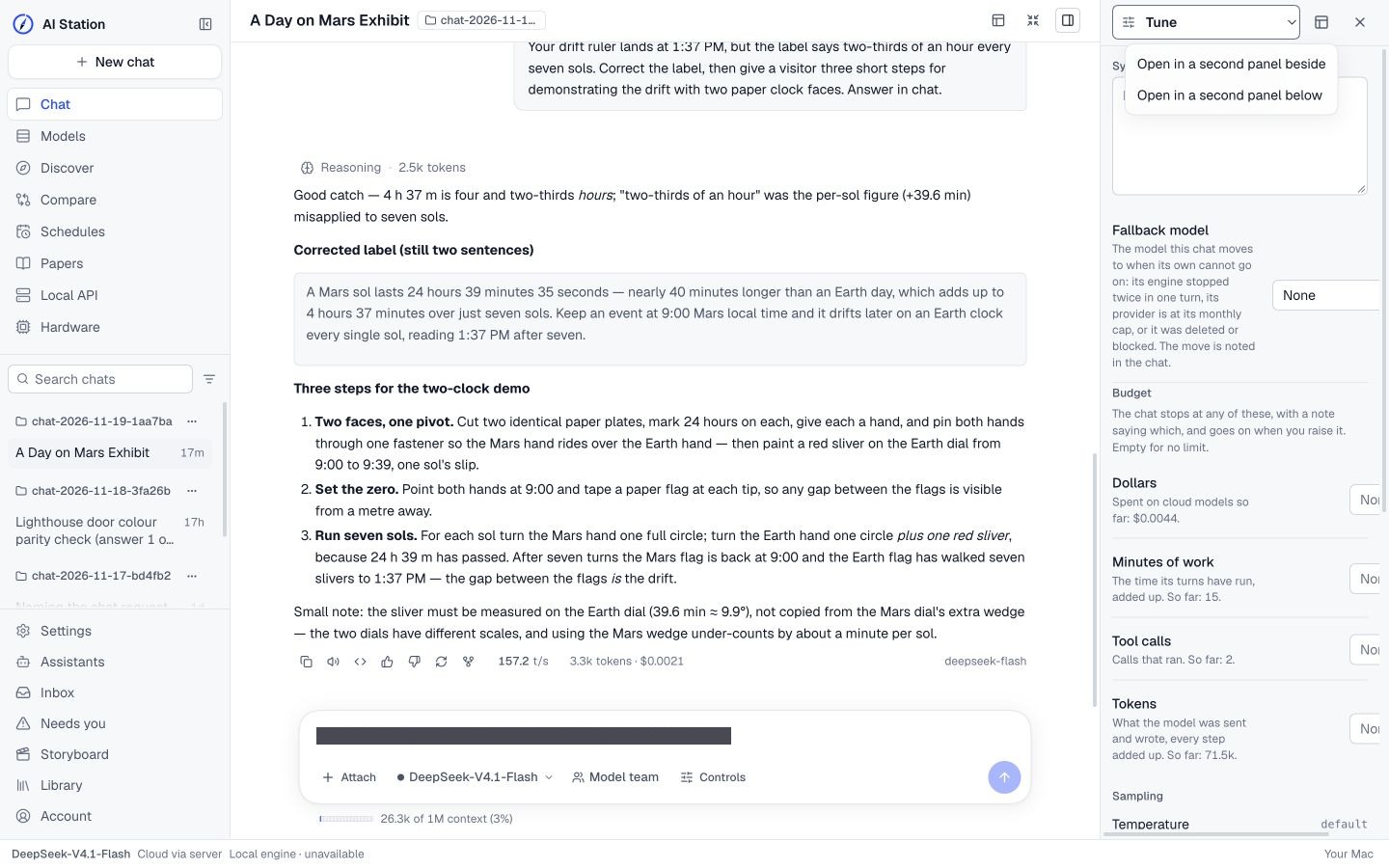
The layout controls let the reviewer choose how inspection tools sit alongside the conversation, giving more room to the current task.
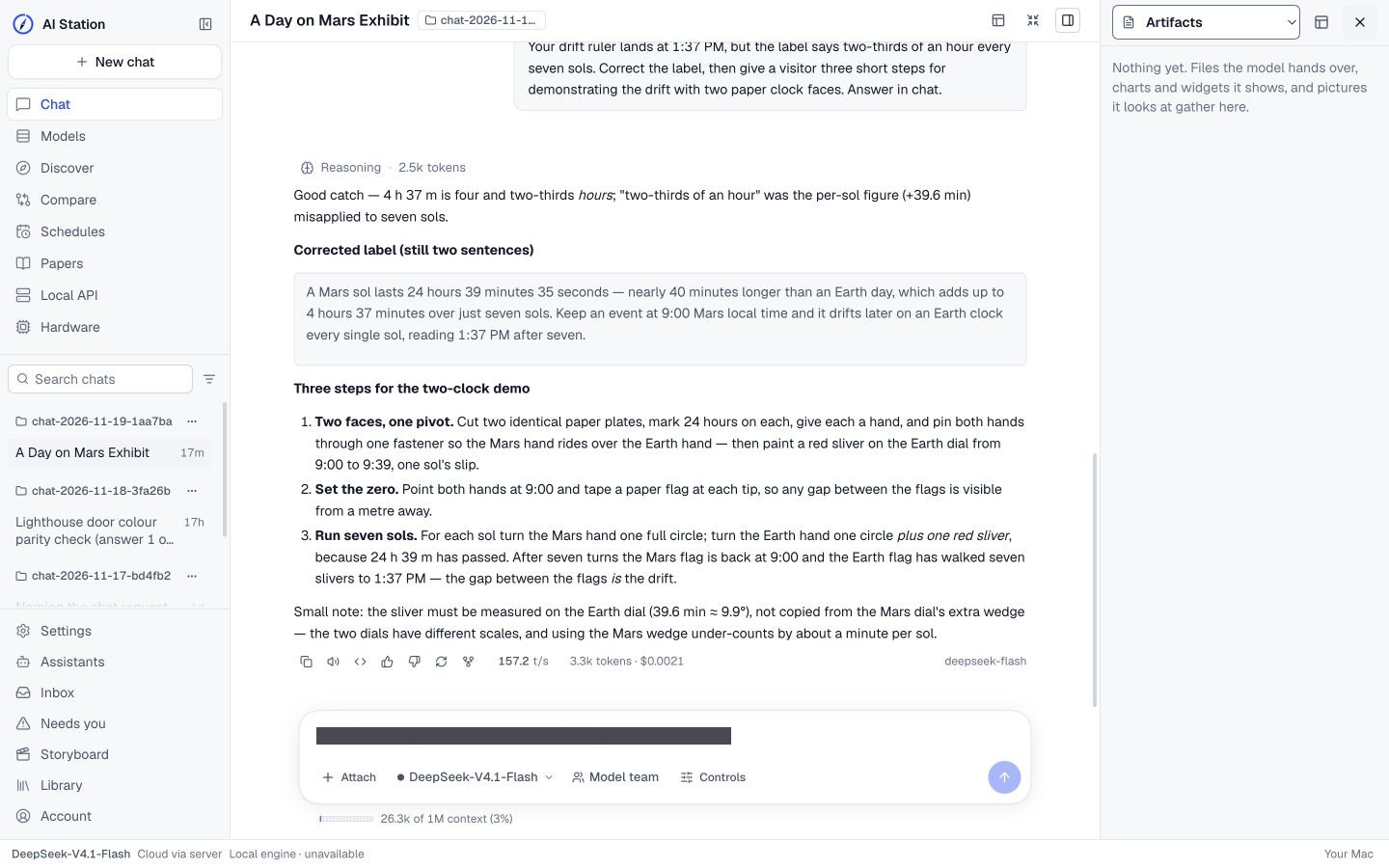
The inspector gives the output of a conversation its own viewing area so the user can examine the work while retaining the discussion that produced it.
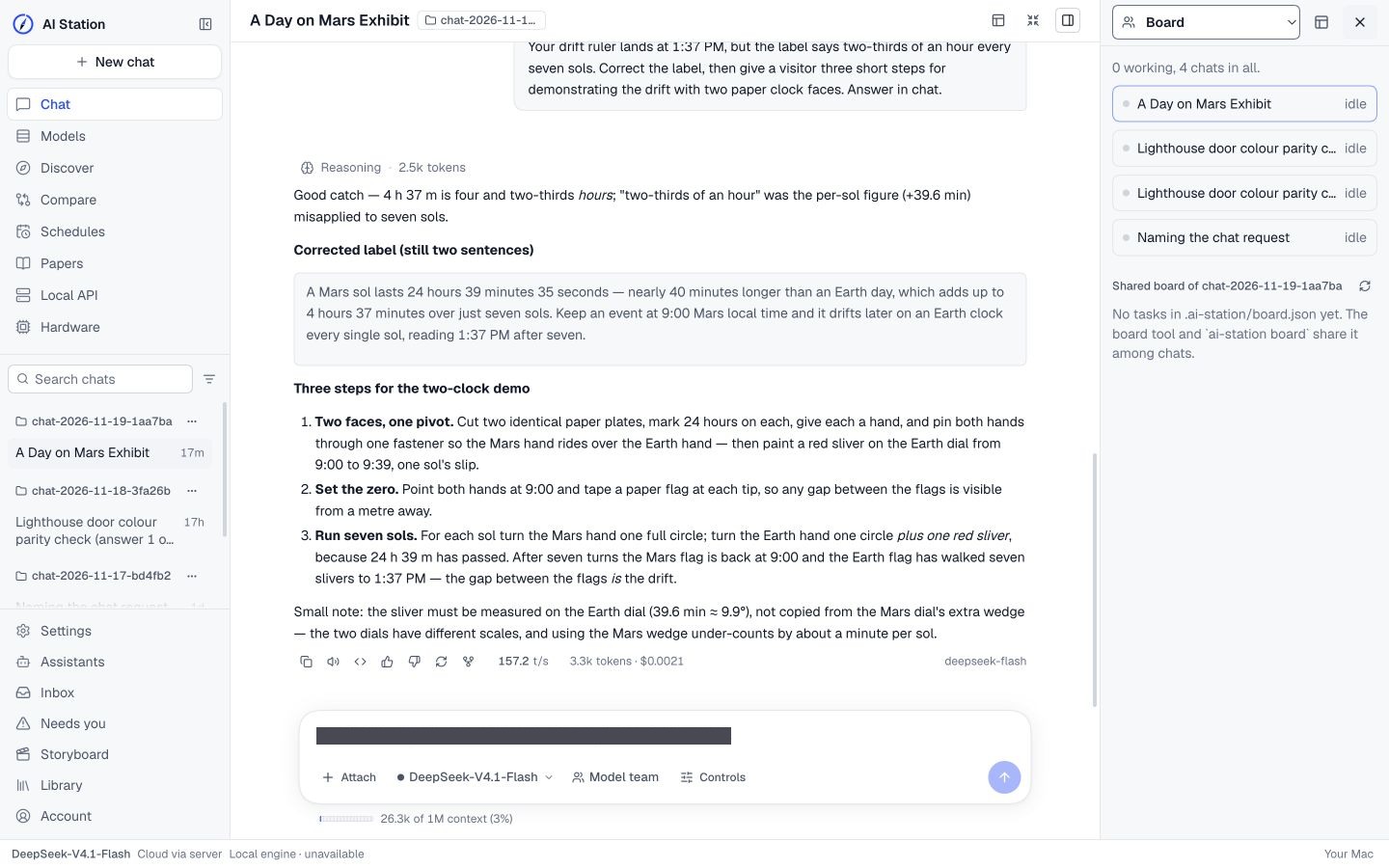
The inspector organises work into tasks. A reviewer can see which parts of a larger request still need attention.
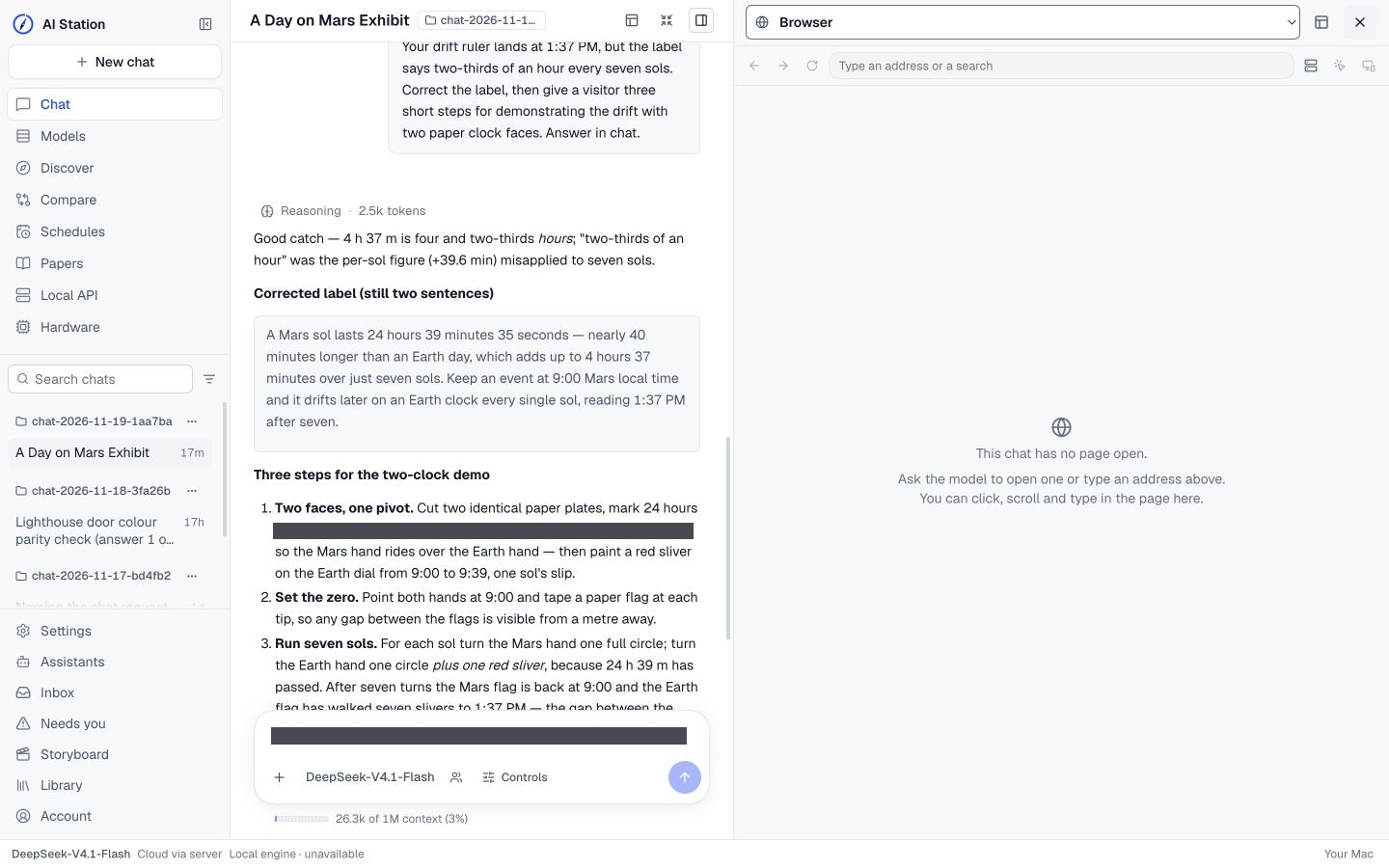
The inspector exposes a running project tool beside the conversation. A developer can examine execution or preview the application while following the assistant’s work.
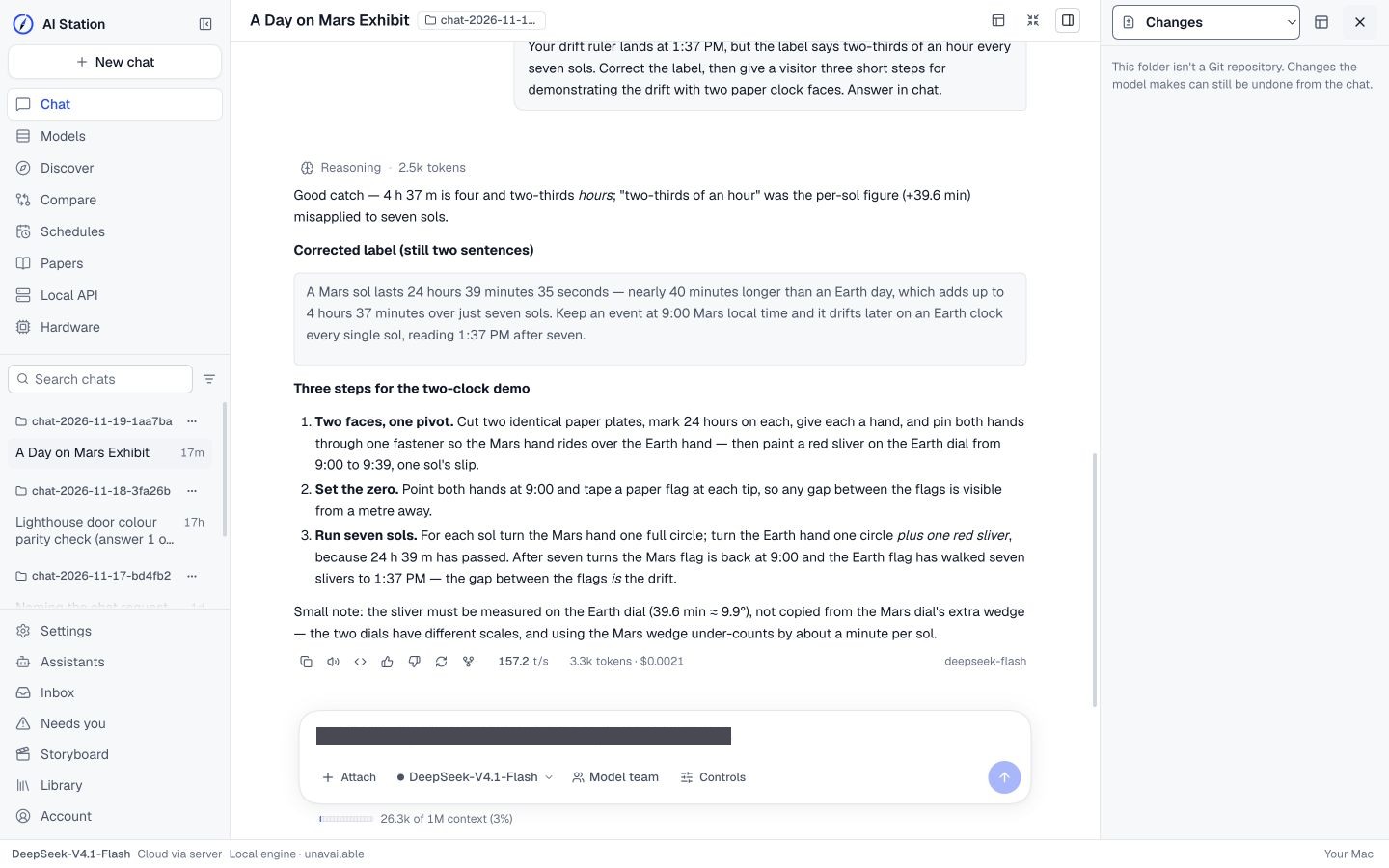
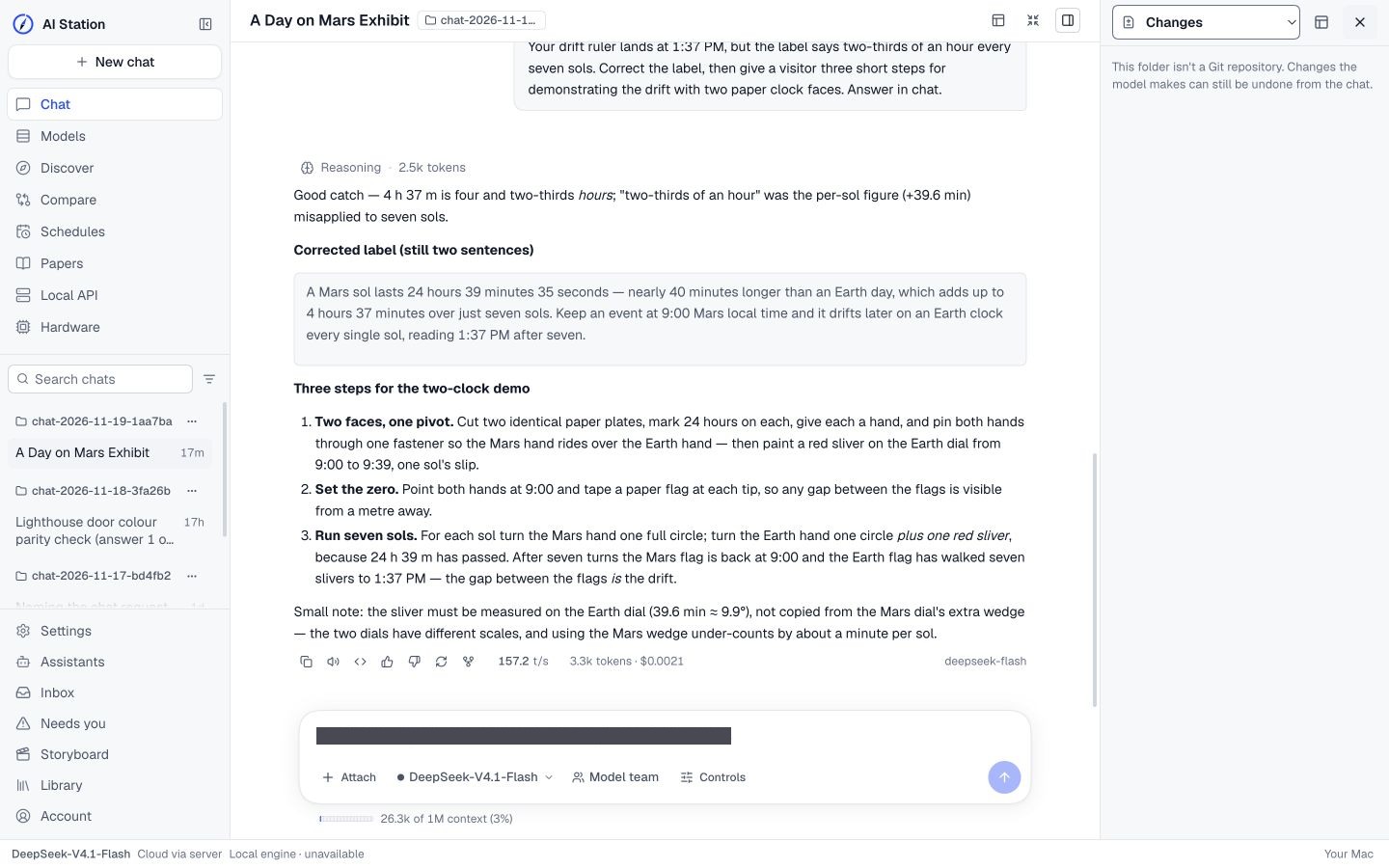
The changes inspector brings the project diff alongside the conversation so a reviewer can compare an assistant’s explanation with its actual edits.
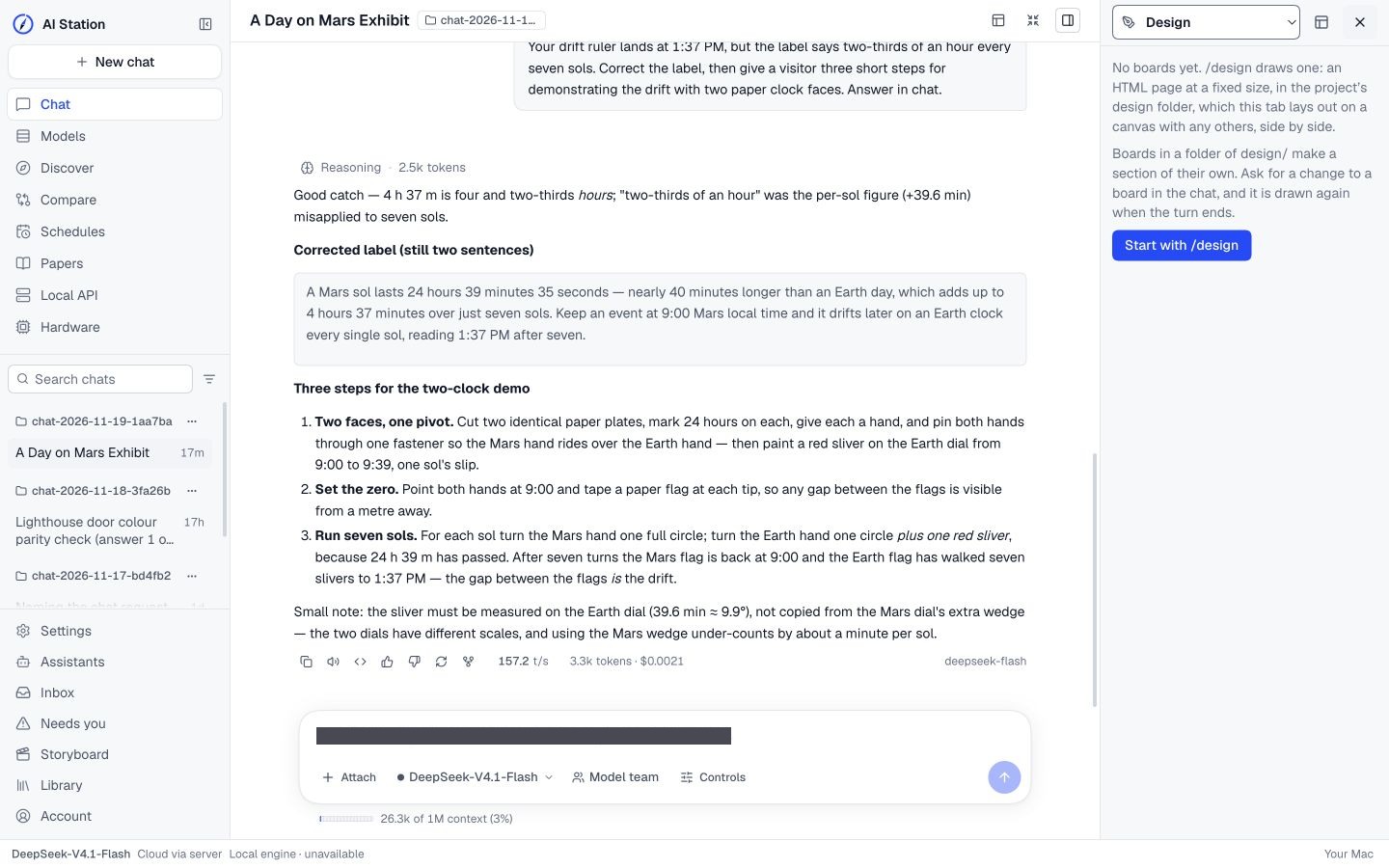
The inspector gives the output of a conversation its own viewing area so the user can examine the work while retaining the discussion that produced it.
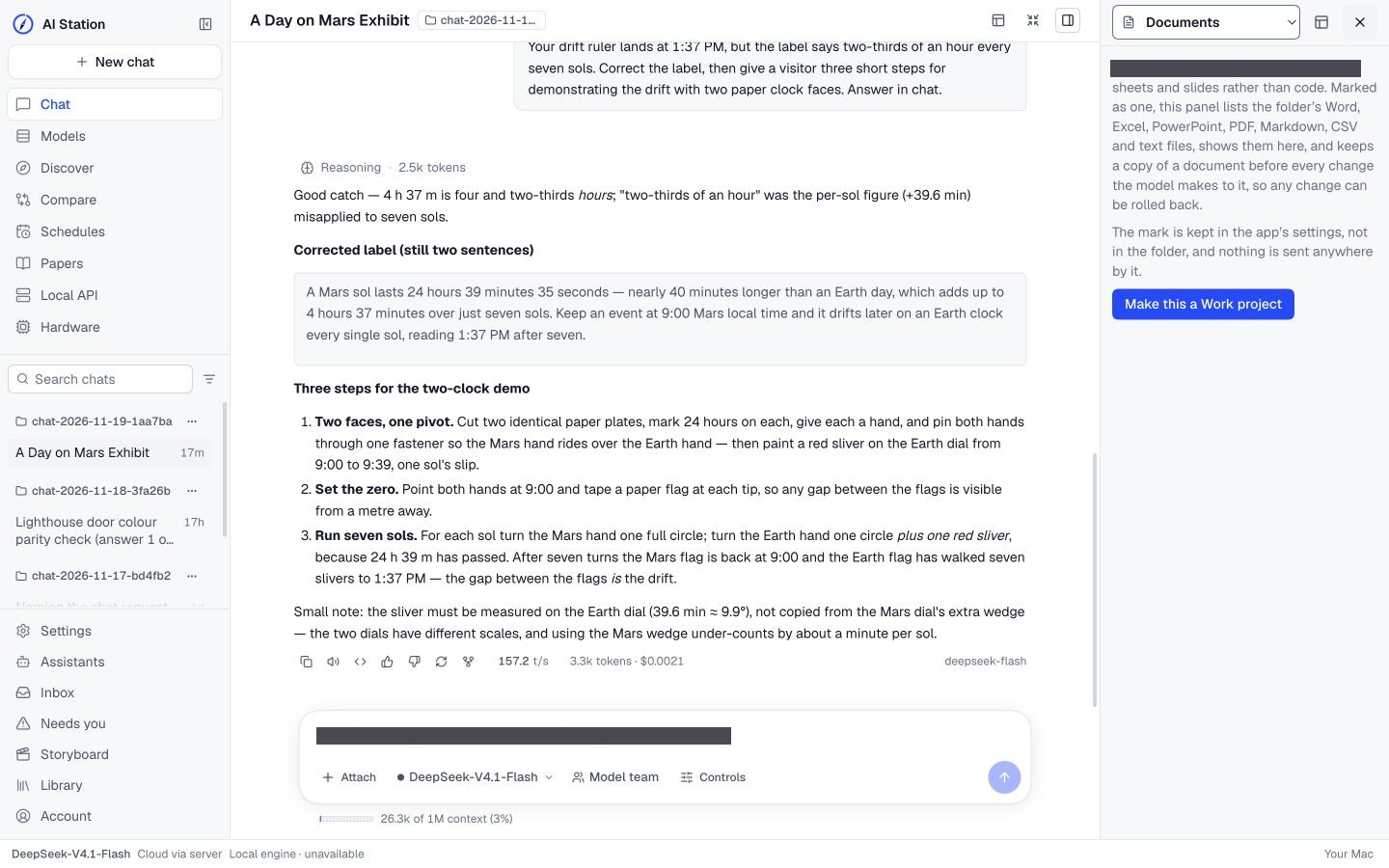
The inspector gives the output of a conversation its own viewing area so the user can examine the work while retaining the discussion that produced it.
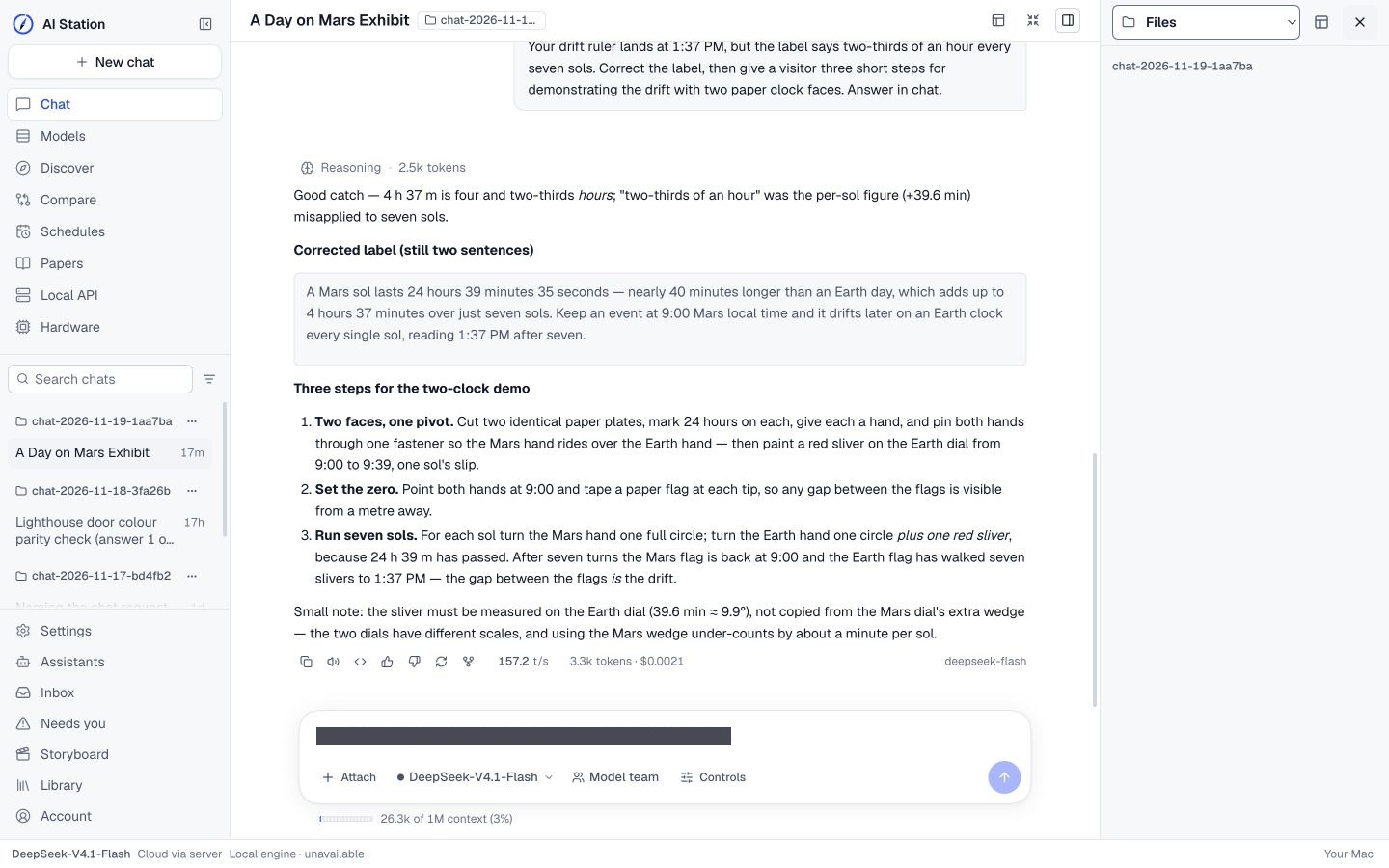
The file view connects a conversation to its source material. It lets the user inspect or select the files that supply context for the assistant’s work.
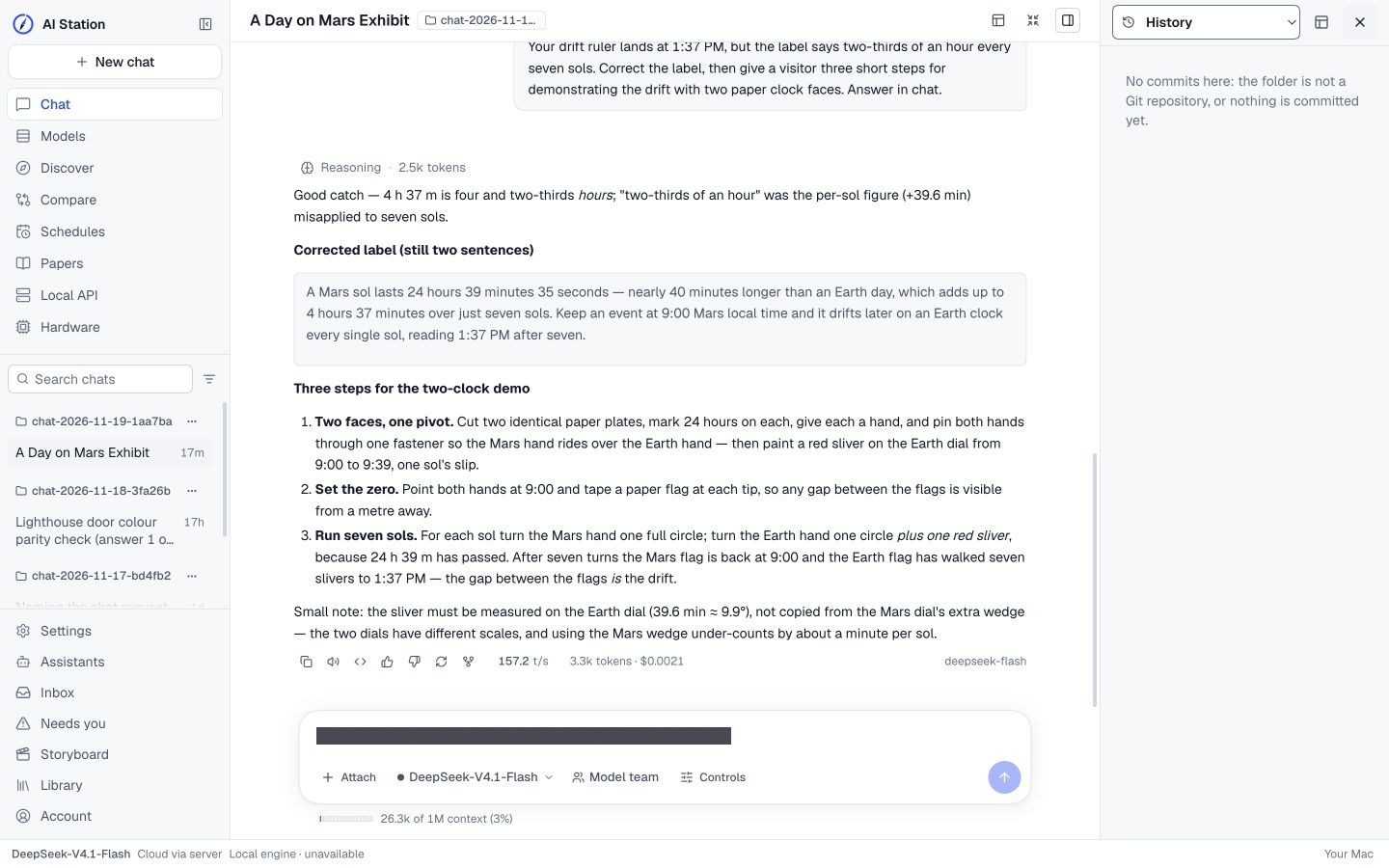
The Git inspector connects the current work to its review history, helping the developer trace a proposed change before handing it off.
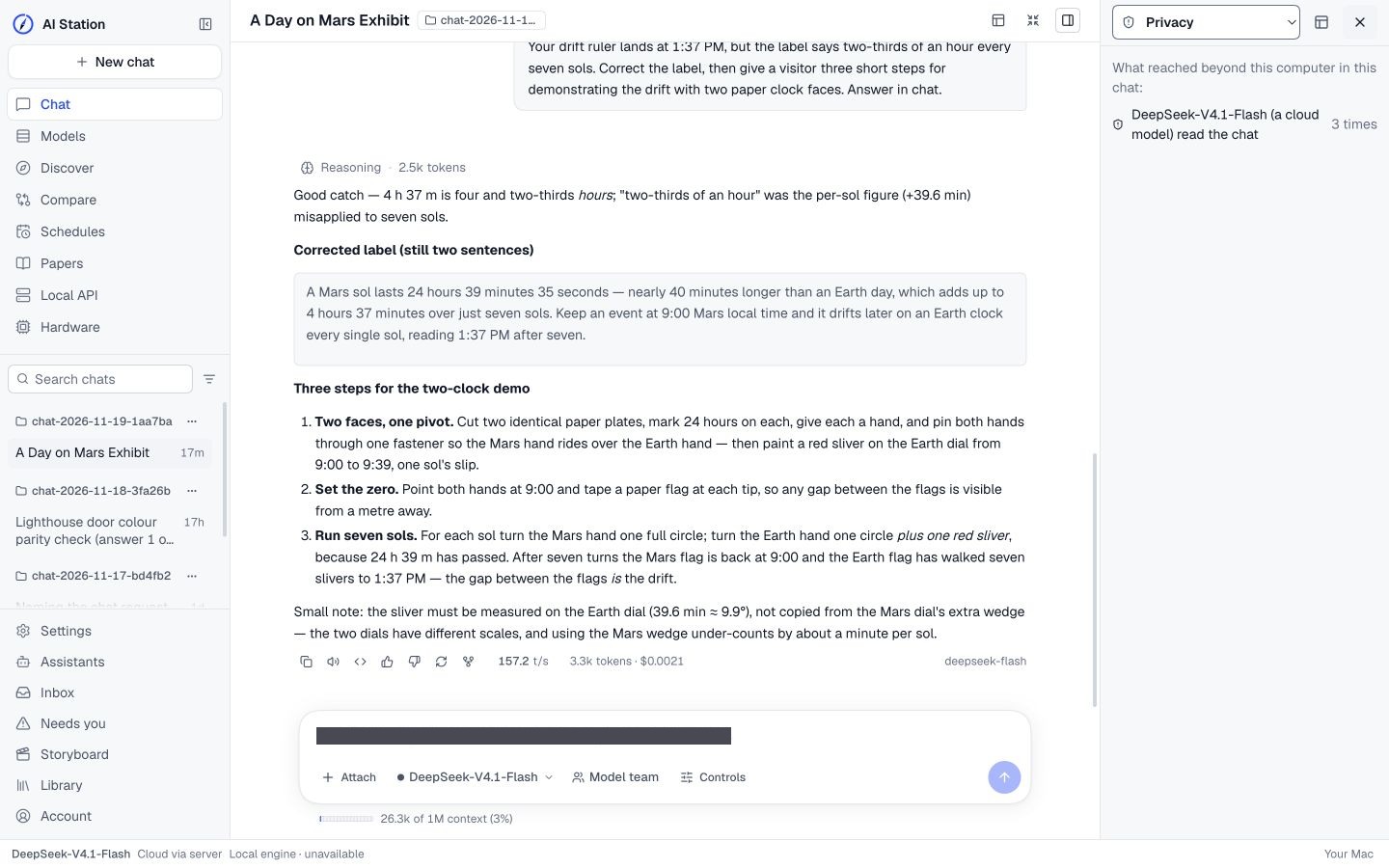
The inspector exposes privacy options for the conversation so the user can review how project context is handled.

The Git inspector connects the current work to its review history, helping the developer trace a proposed change before handing it off.
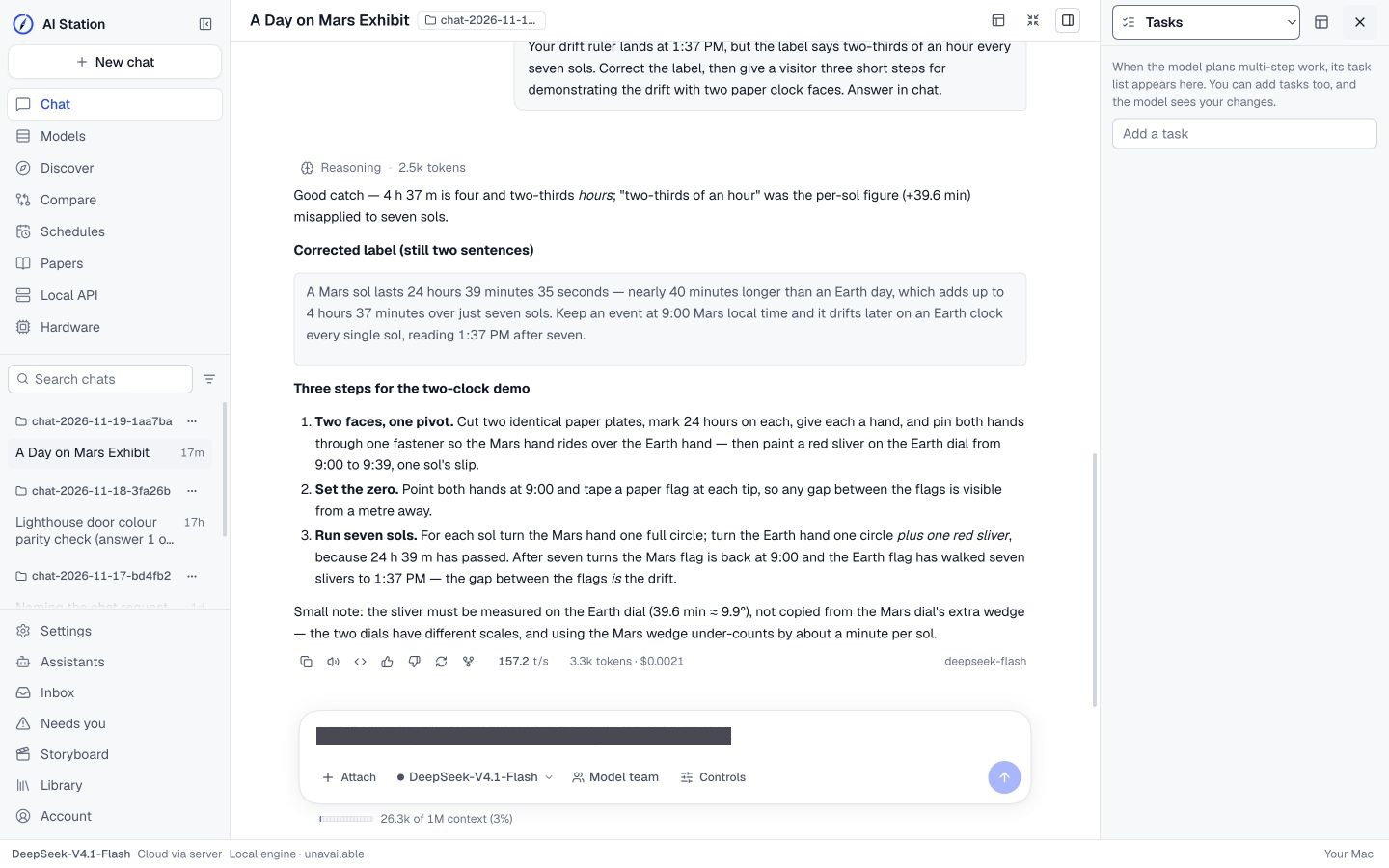
The inspector organises work into tasks. A reviewer can see which parts of a larger request still need attention.
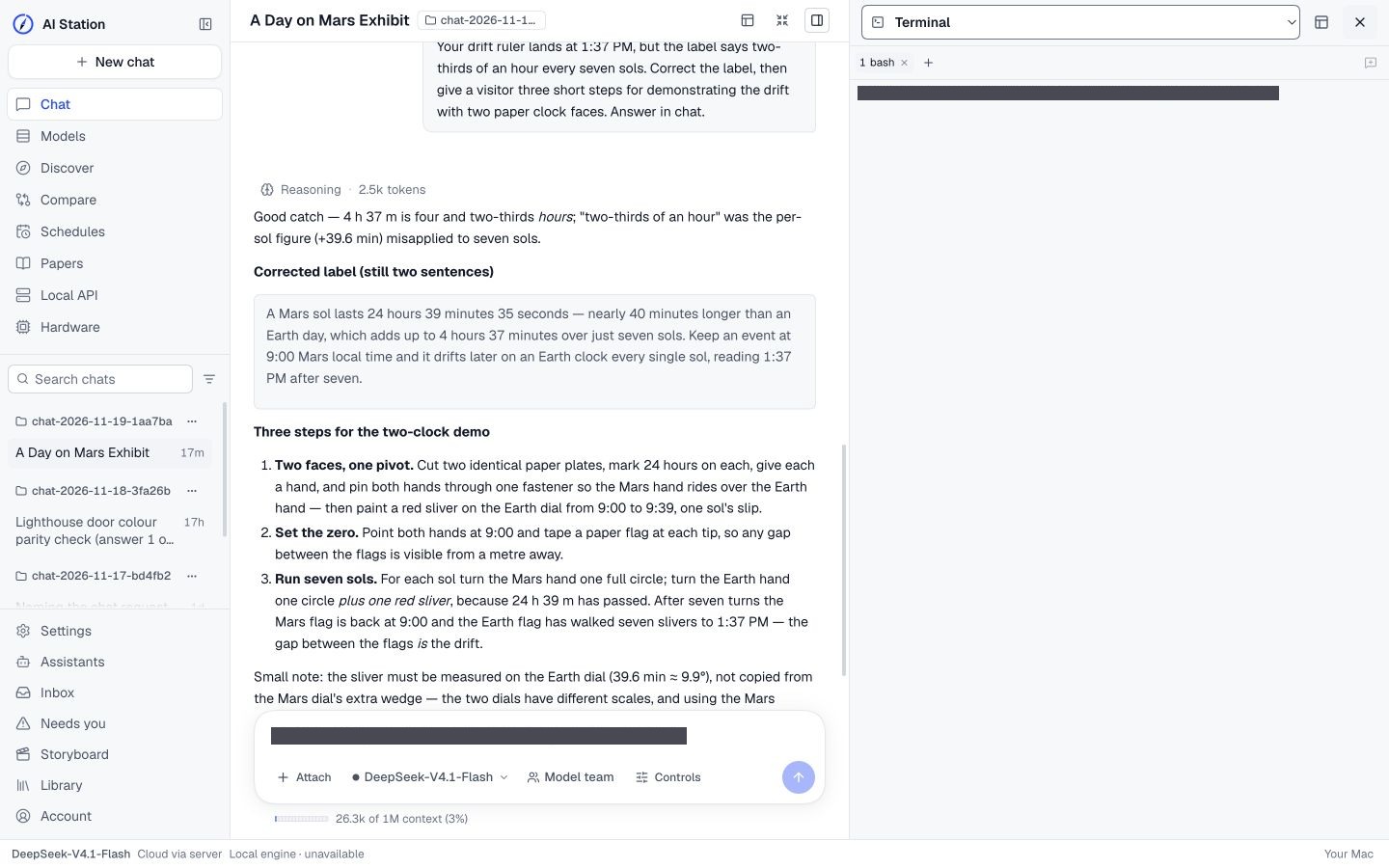
The inspector exposes a running project tool beside the conversation. A developer can examine execution or preview the application while following the assistant’s work.
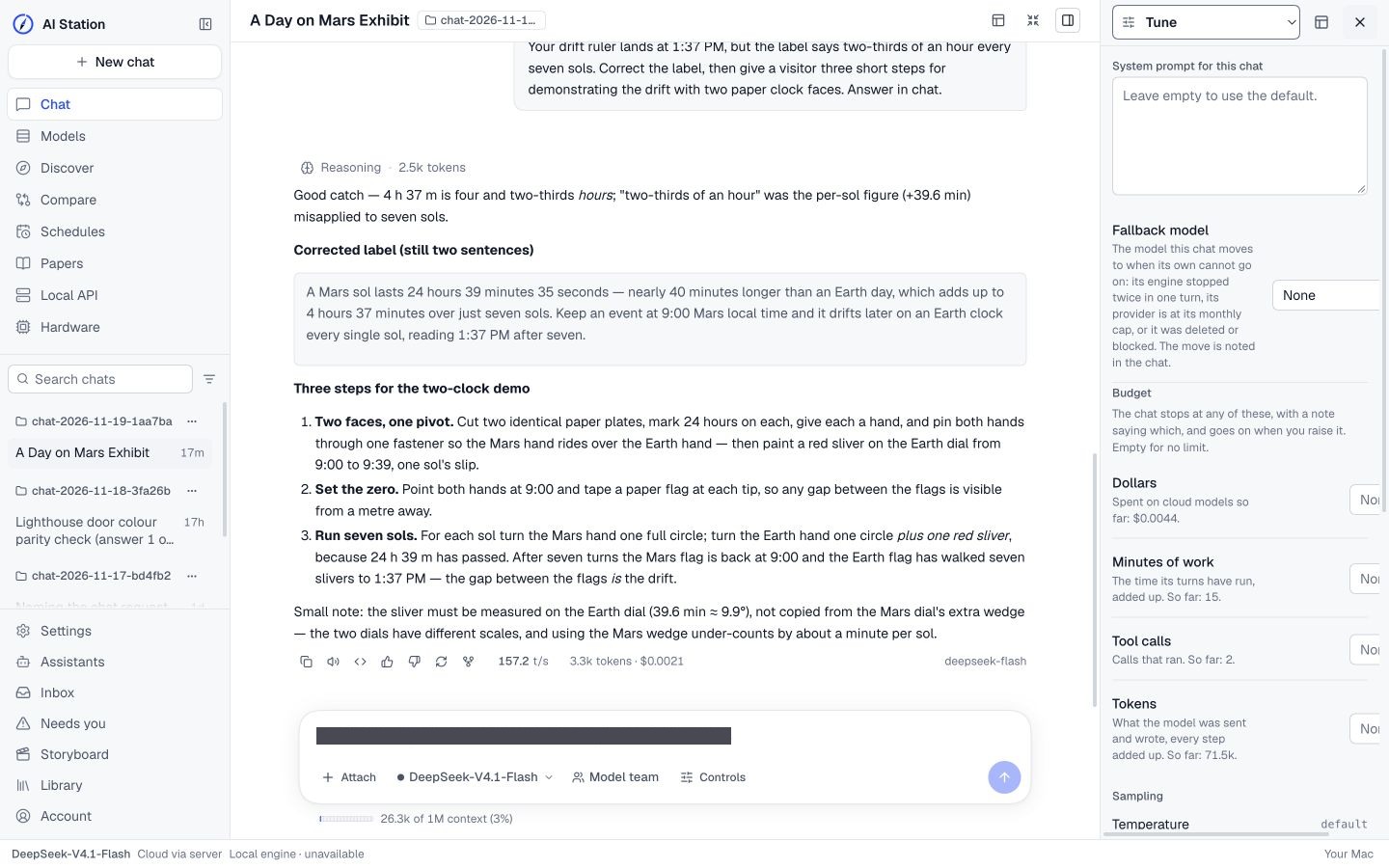
The tuning panel exposes model-generation controls for the current work, helping a developer explore how different settings affect an answer.
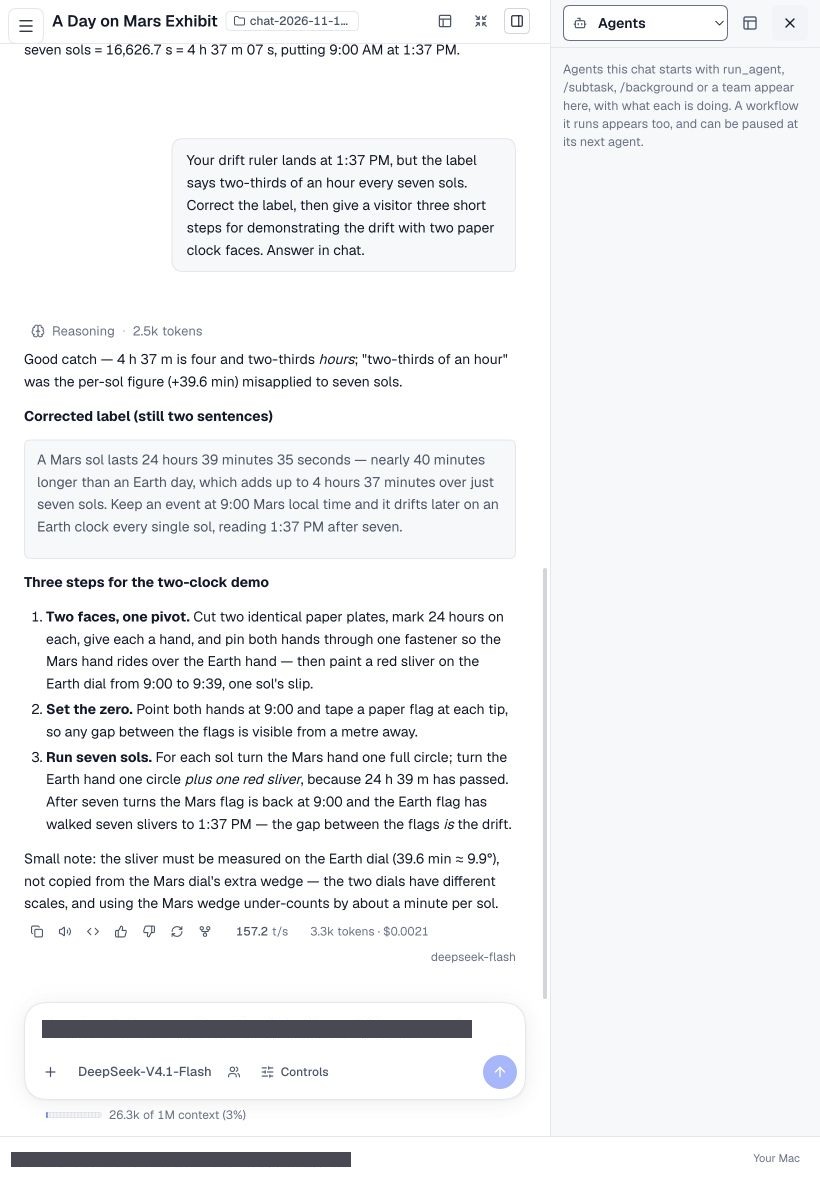
A developer can inspect the collaborators assigned to the work and how their roles divide up a project task.
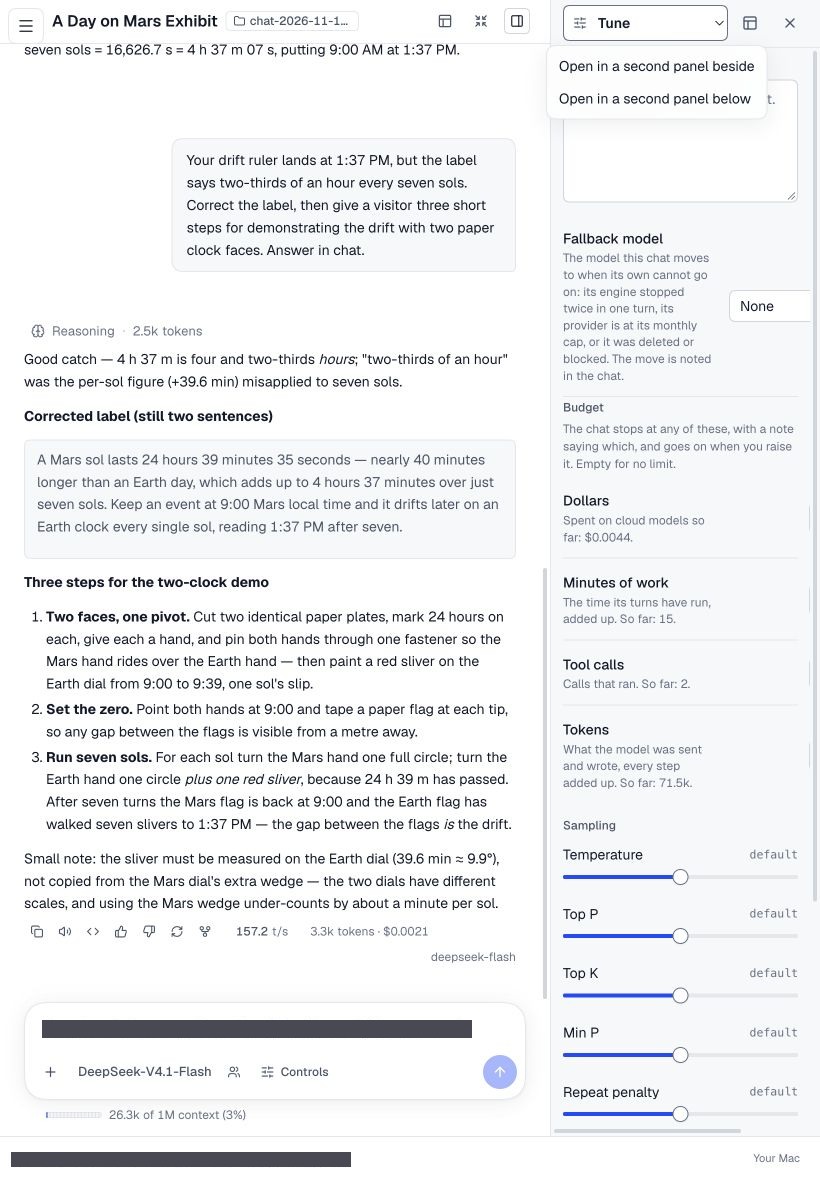
The layout controls let the reviewer choose how inspection tools sit alongside the conversation, giving more room to the current task.
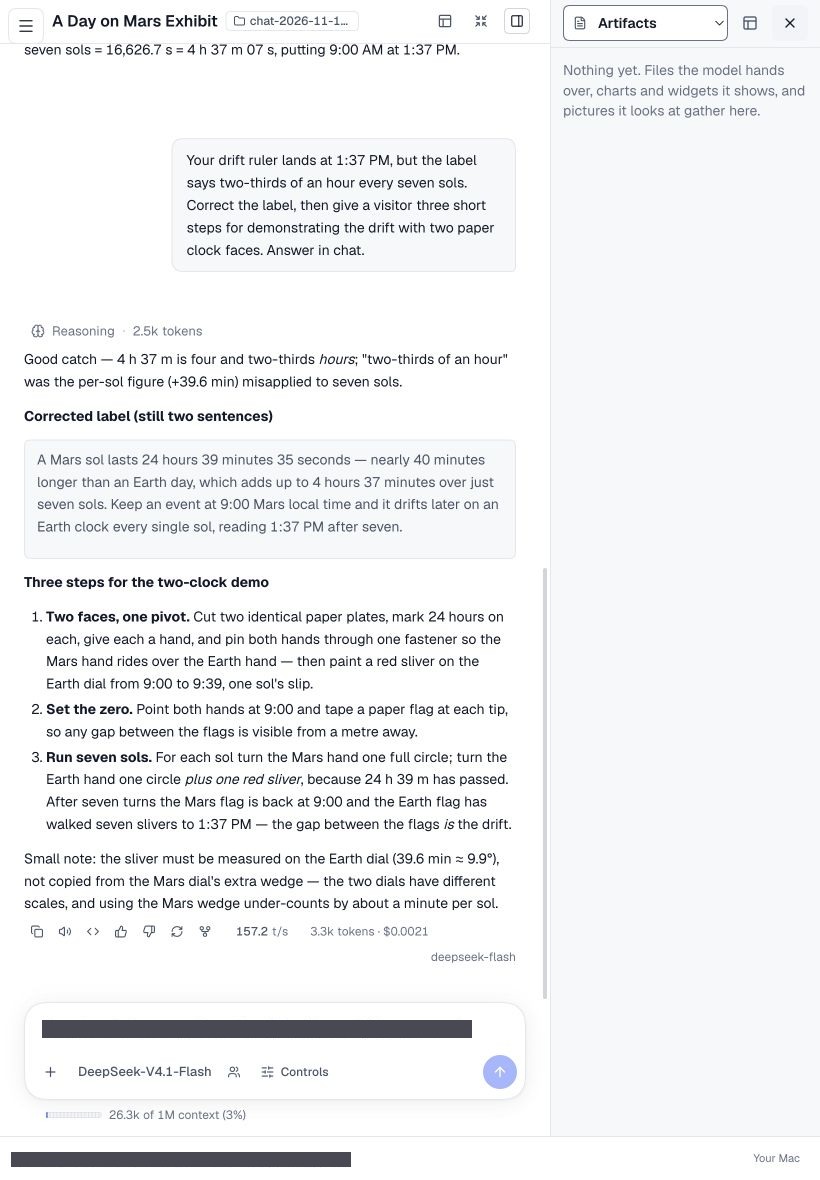
The inspector gives the output of a conversation its own viewing area so the user can examine the work while retaining the discussion that produced it.
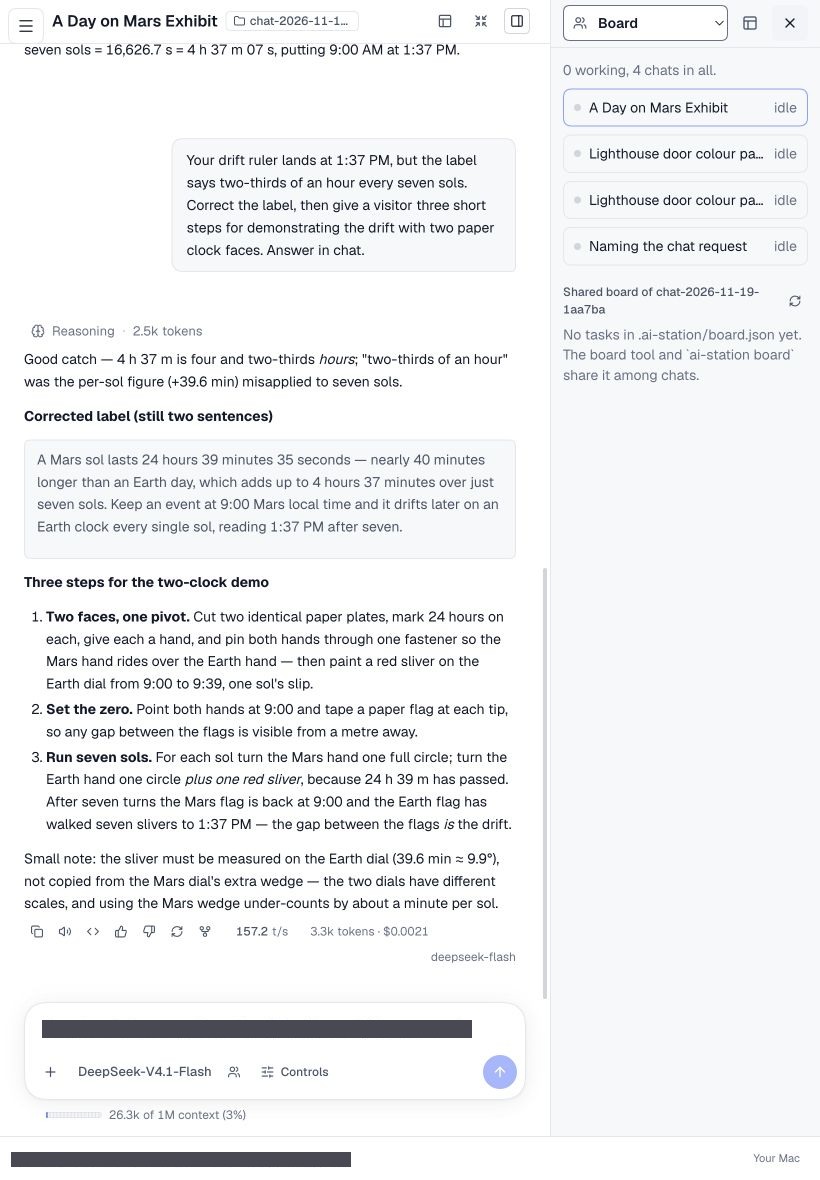
The inspector organises work into tasks. A reviewer can see which parts of a larger request still need attention.
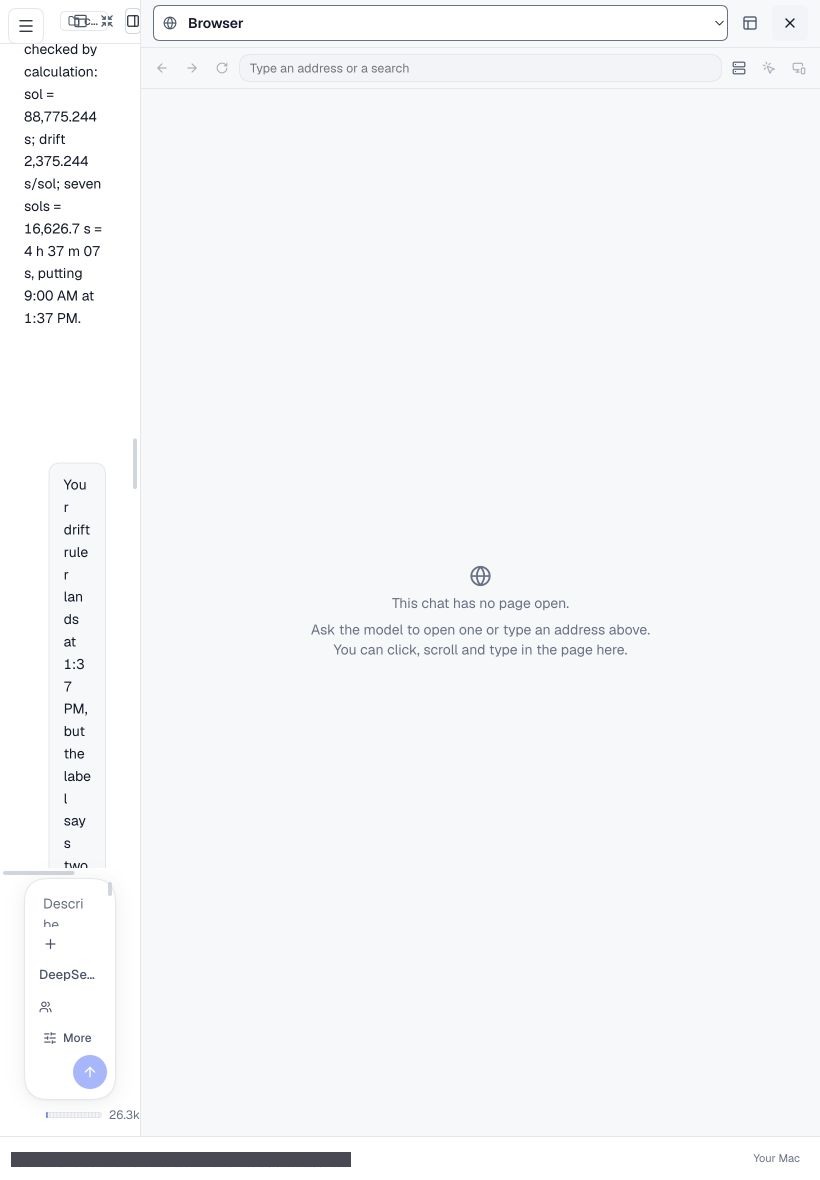
The inspector exposes a running project tool beside the conversation. A developer can examine execution or preview the application while following the assistant’s work.
The changes inspector brings the project diff alongside the conversation so a reviewer can compare an assistant’s explanation with its actual edits.
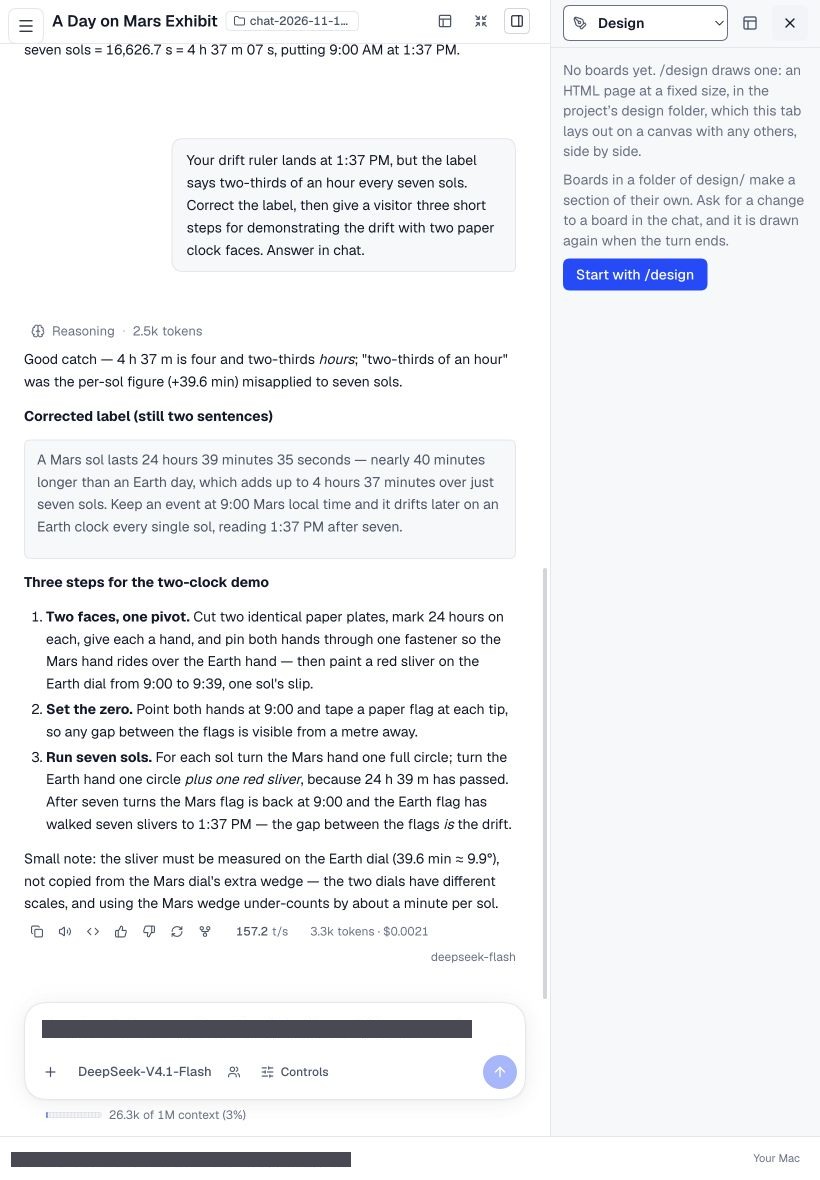
The inspector gives the output of a conversation its own viewing area so the user can examine the work while retaining the discussion that produced it.

The inspector gives the output of a conversation its own viewing area so the user can examine the work while retaining the discussion that produced it.

The file view connects a conversation to its source material. It lets the user inspect or select the files that supply context for the assistant’s work.
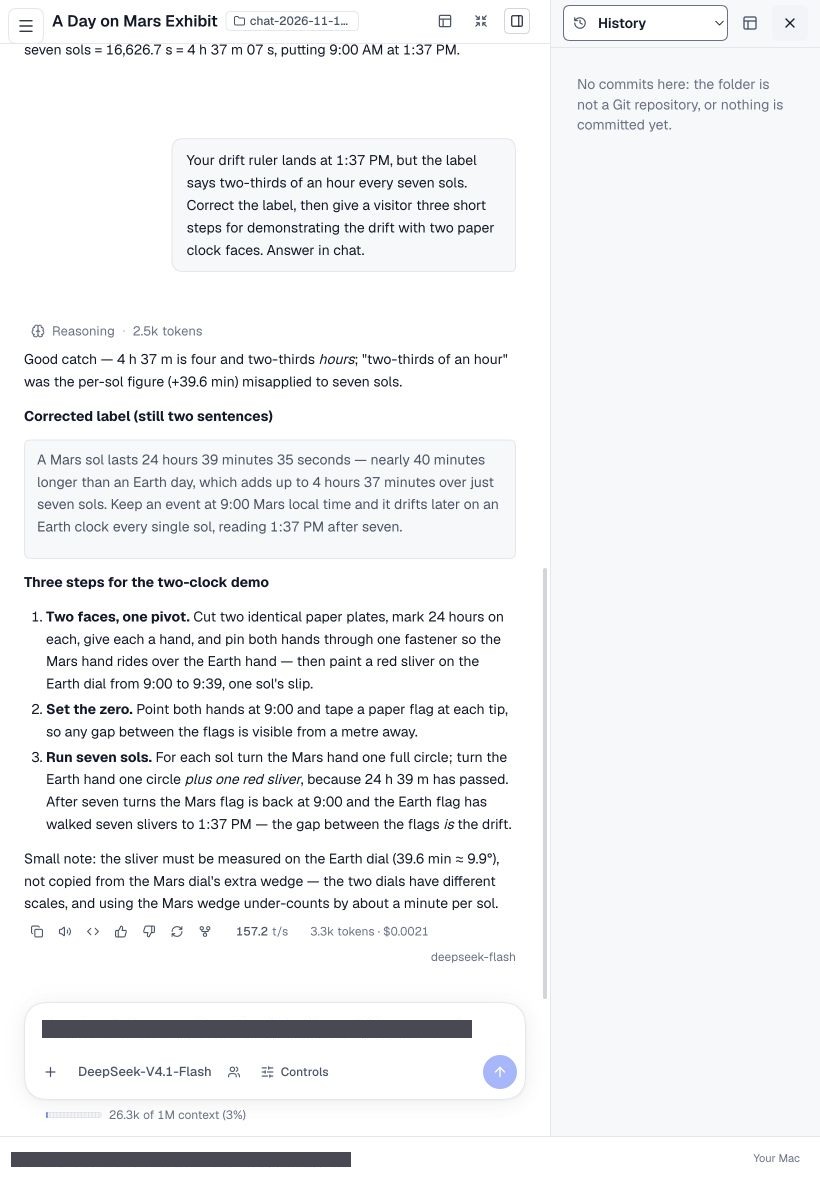
The Git inspector connects the current work to its review history, helping the developer trace a proposed change before handing it off.
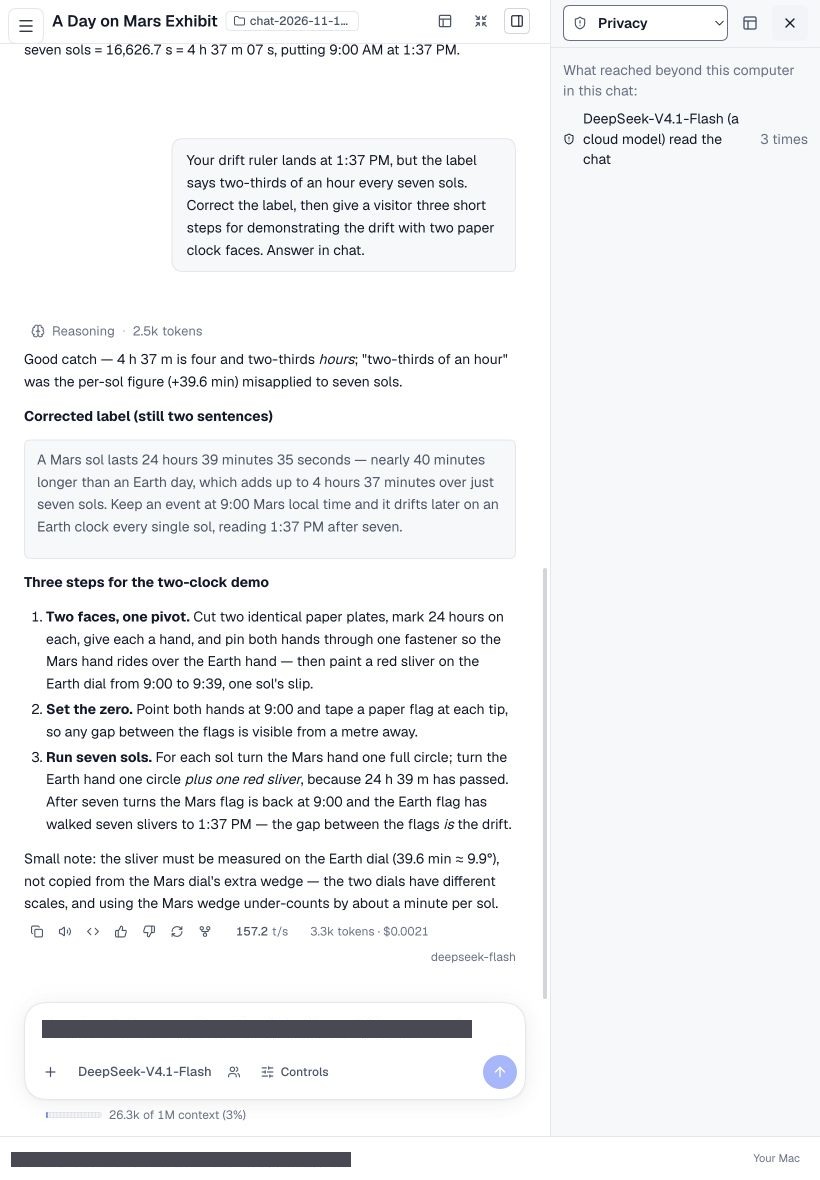
The inspector exposes privacy options for the conversation so the user can review how project context is handled.

The Git inspector connects the current work to its review history, helping the developer trace a proposed change before handing it off.
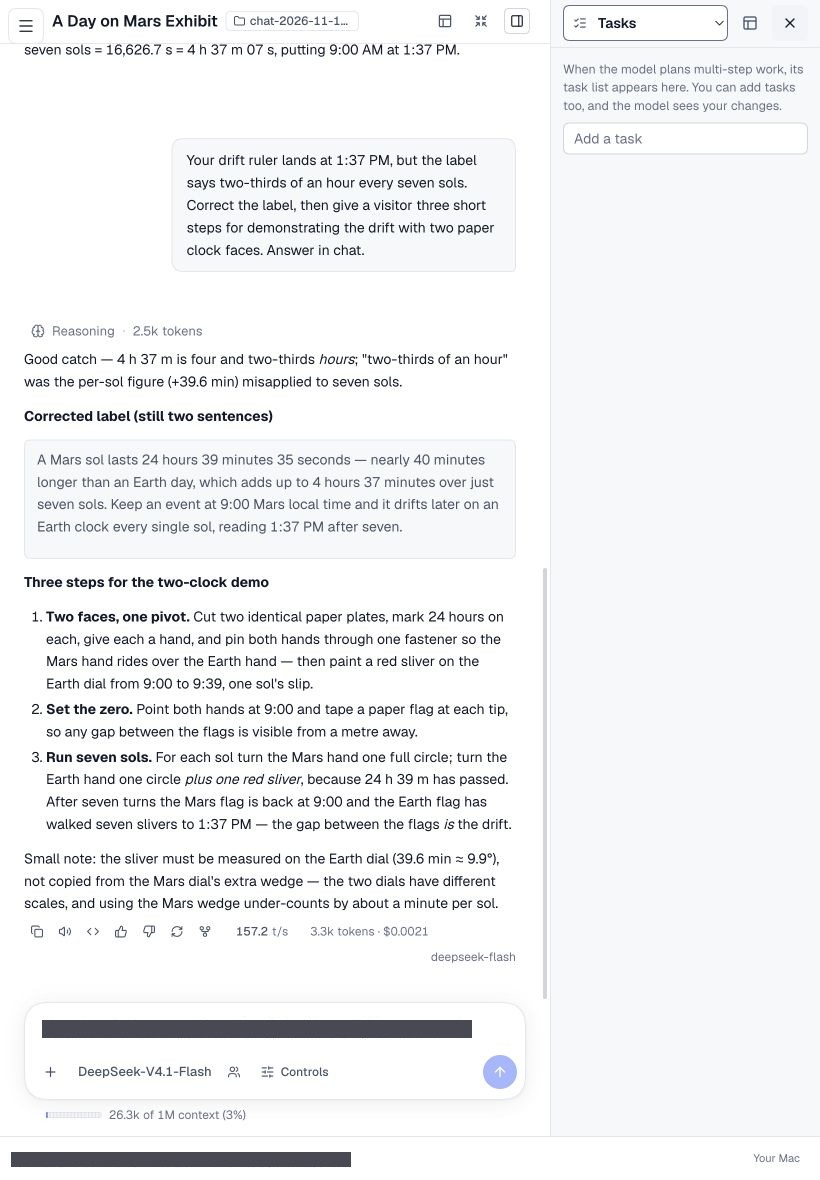
The inspector organises work into tasks. A reviewer can see which parts of a larger request still need attention.
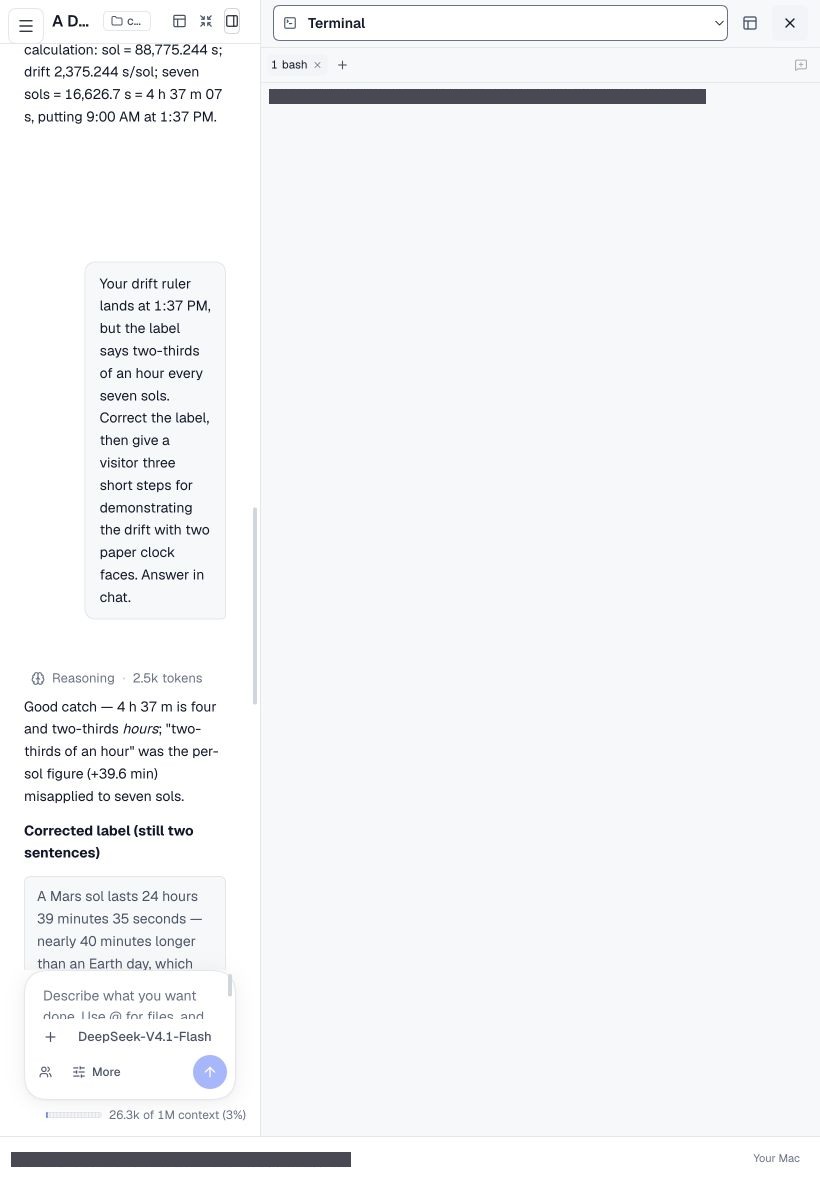
The inspector exposes a running project tool beside the conversation. A developer can examine execution or preview the application while following the assistant’s work.
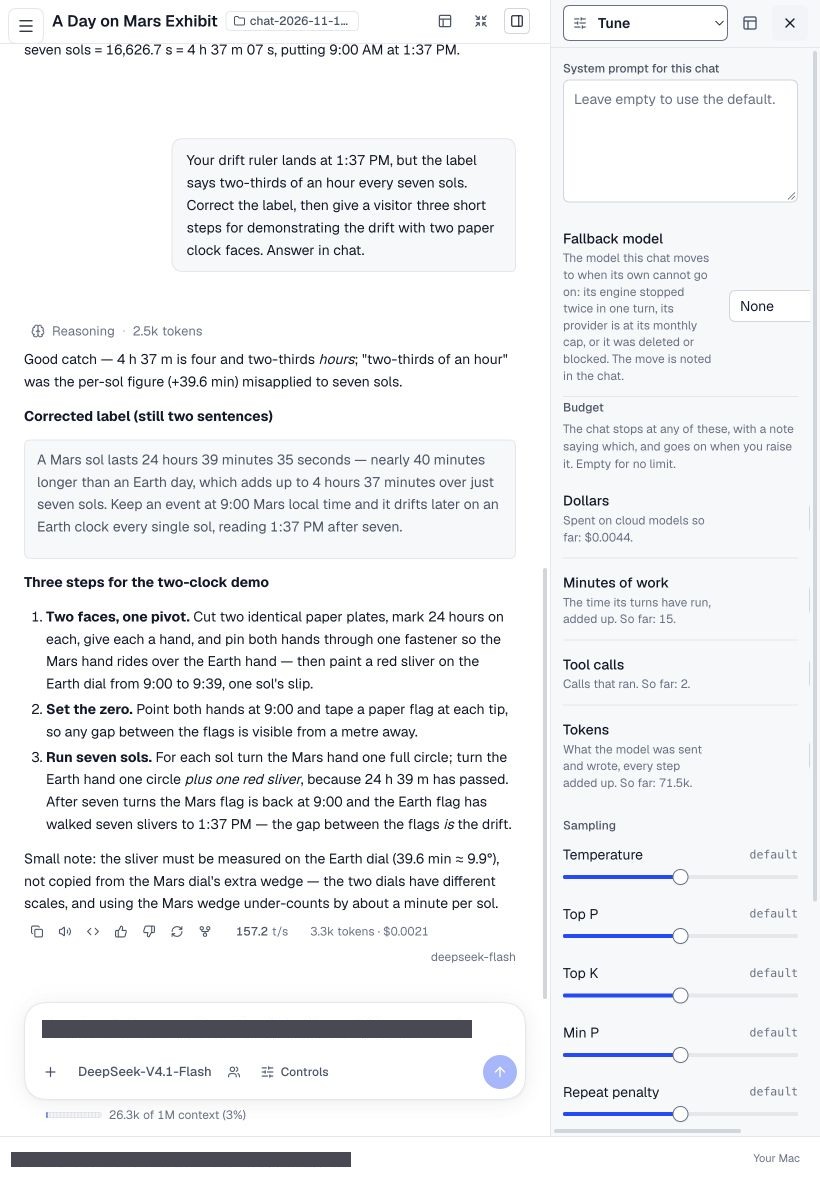
The tuning panel exposes model-generation controls for the current work, helping a developer explore how different settings affect an answer.
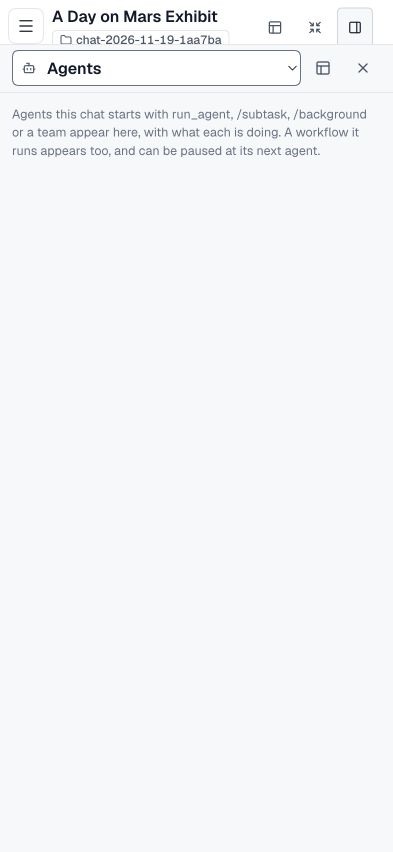
A developer can inspect the collaborators assigned to the work and how their roles divide up a project task.
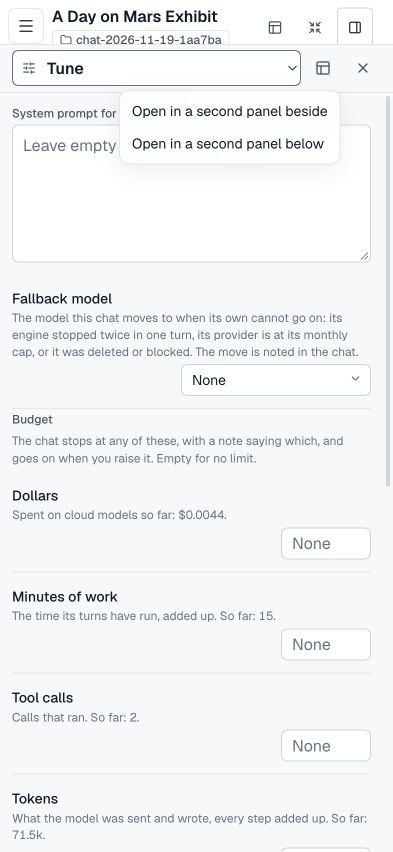
The layout controls let the reviewer choose how inspection tools sit alongside the conversation, giving more room to the current task.
The inspector gives the output of a conversation its own viewing area so the user can examine the work while retaining the discussion that produced it.
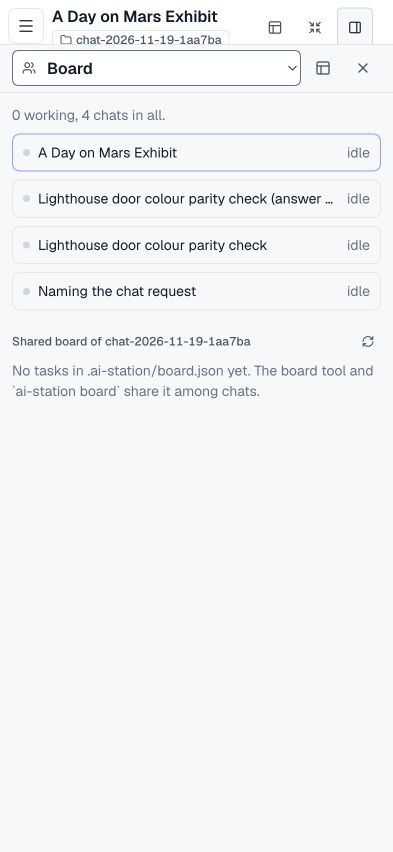
The inspector organises work into tasks. A reviewer can see which parts of a larger request still need attention.
The inspector exposes a running project tool beside the conversation. A developer can examine execution or preview the application while following the assistant’s work.
The changes inspector brings the project diff alongside the conversation so a reviewer can compare an assistant’s explanation with its actual edits.
The inspector gives the output of a conversation its own viewing area so the user can examine the work while retaining the discussion that produced it.
The inspector gives the output of a conversation its own viewing area so the user can examine the work while retaining the discussion that produced it.
The file view connects a conversation to its source material. It lets the user inspect or select the files that supply context for the assistant’s work.
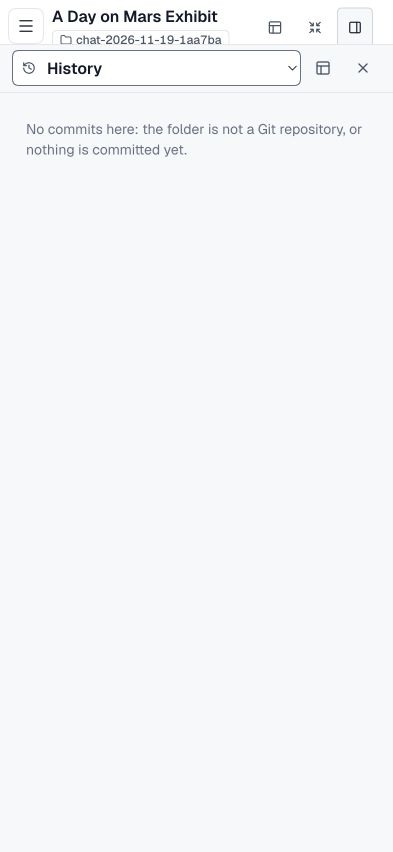
The Git inspector connects the current work to its review history, helping the developer trace a proposed change before handing it off.
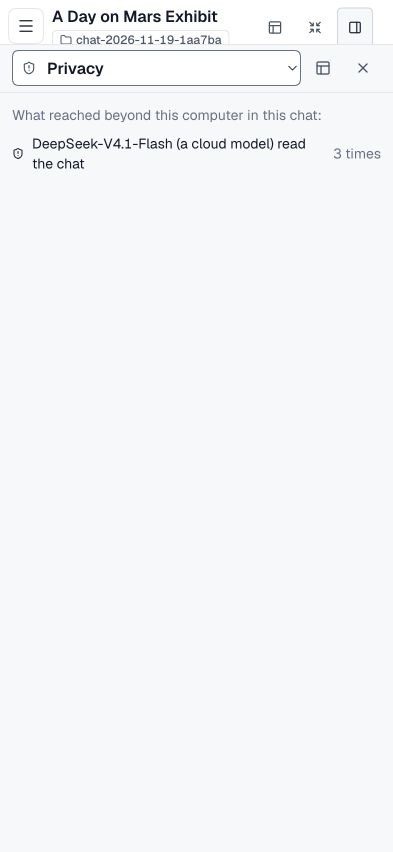
The inspector exposes privacy options for the conversation so the user can review how project context is handled.
The Git inspector connects the current work to its review history, helping the developer trace a proposed change before handing it off.
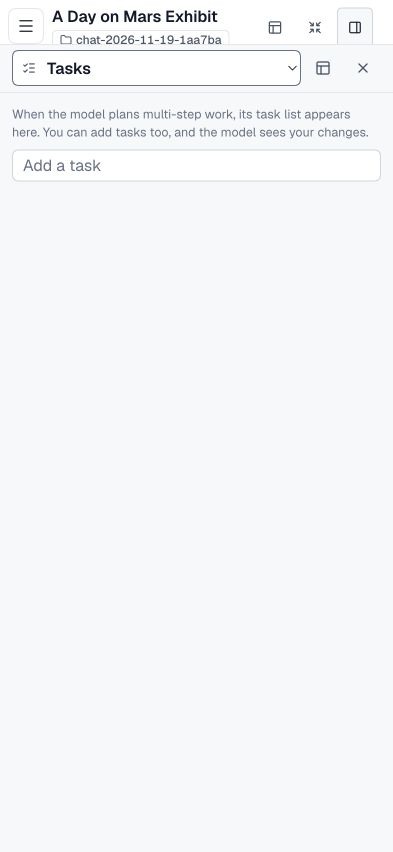
The inspector organises work into tasks. A reviewer can see which parts of a larger request still need attention.
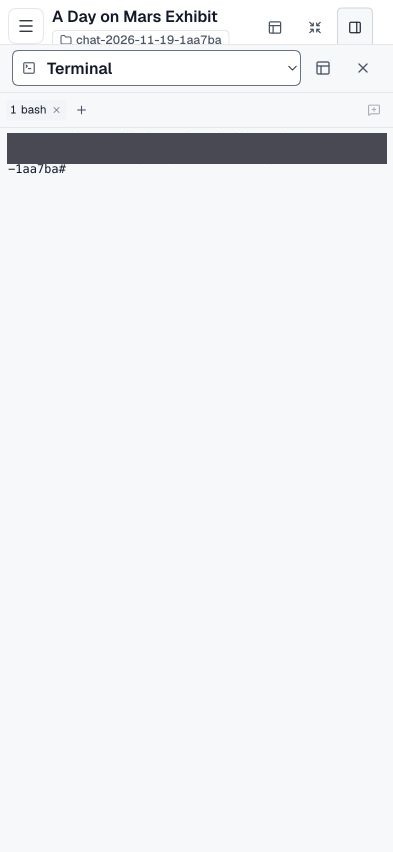
The inspector exposes a running project tool beside the conversation. A developer can examine execution or preview the application while following the assistant’s work.
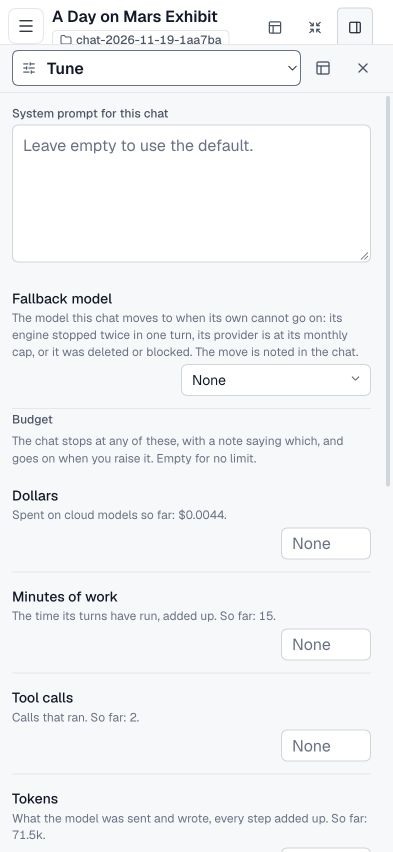
The tuning panel exposes model-generation controls for the current work, helping a developer explore how different settings affect an answer.
Compare 12
Give models the same task, read the answers together and inspect differences in speed and output.
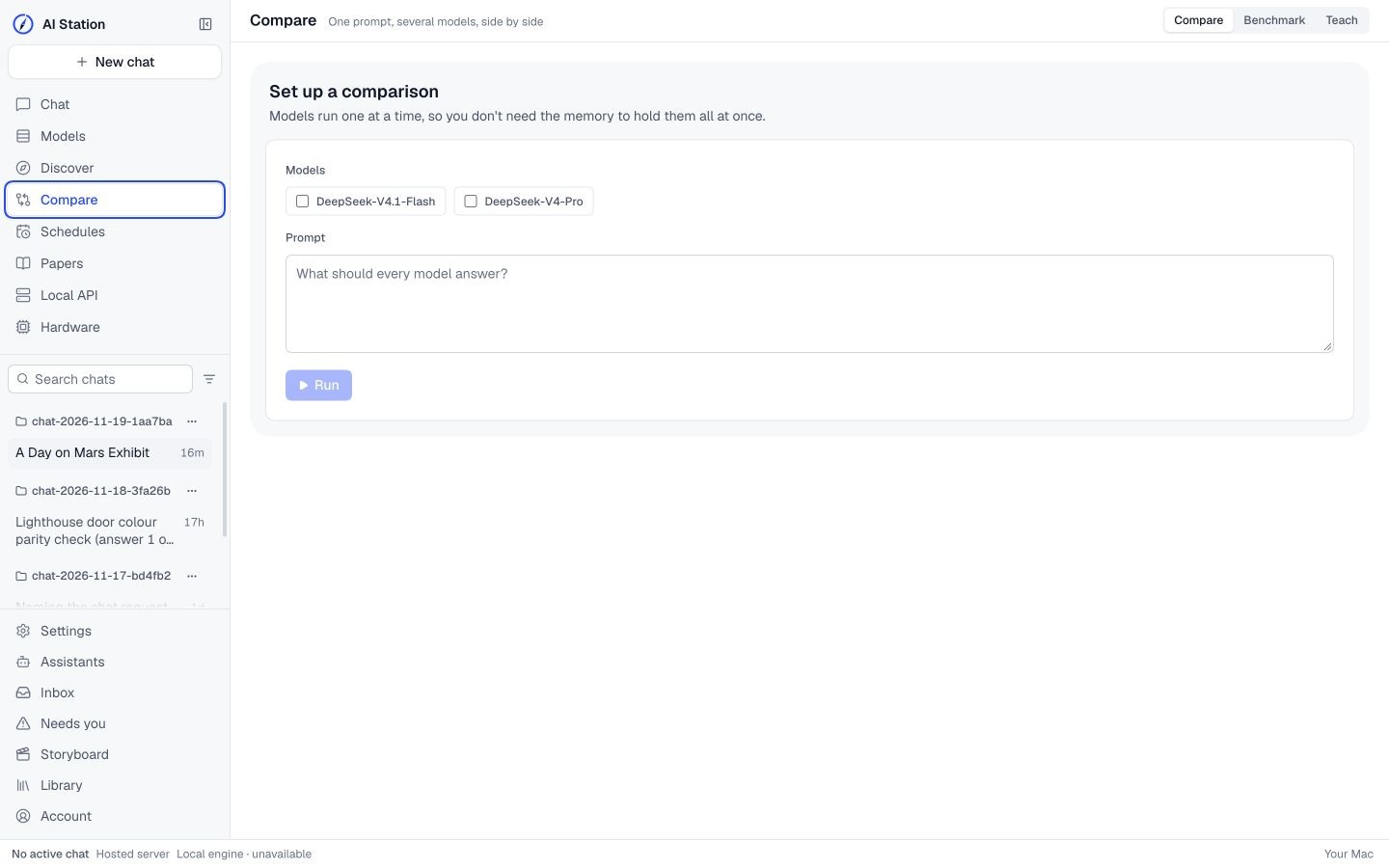
Give models the same task, read the answers together and inspect differences in speed and output.
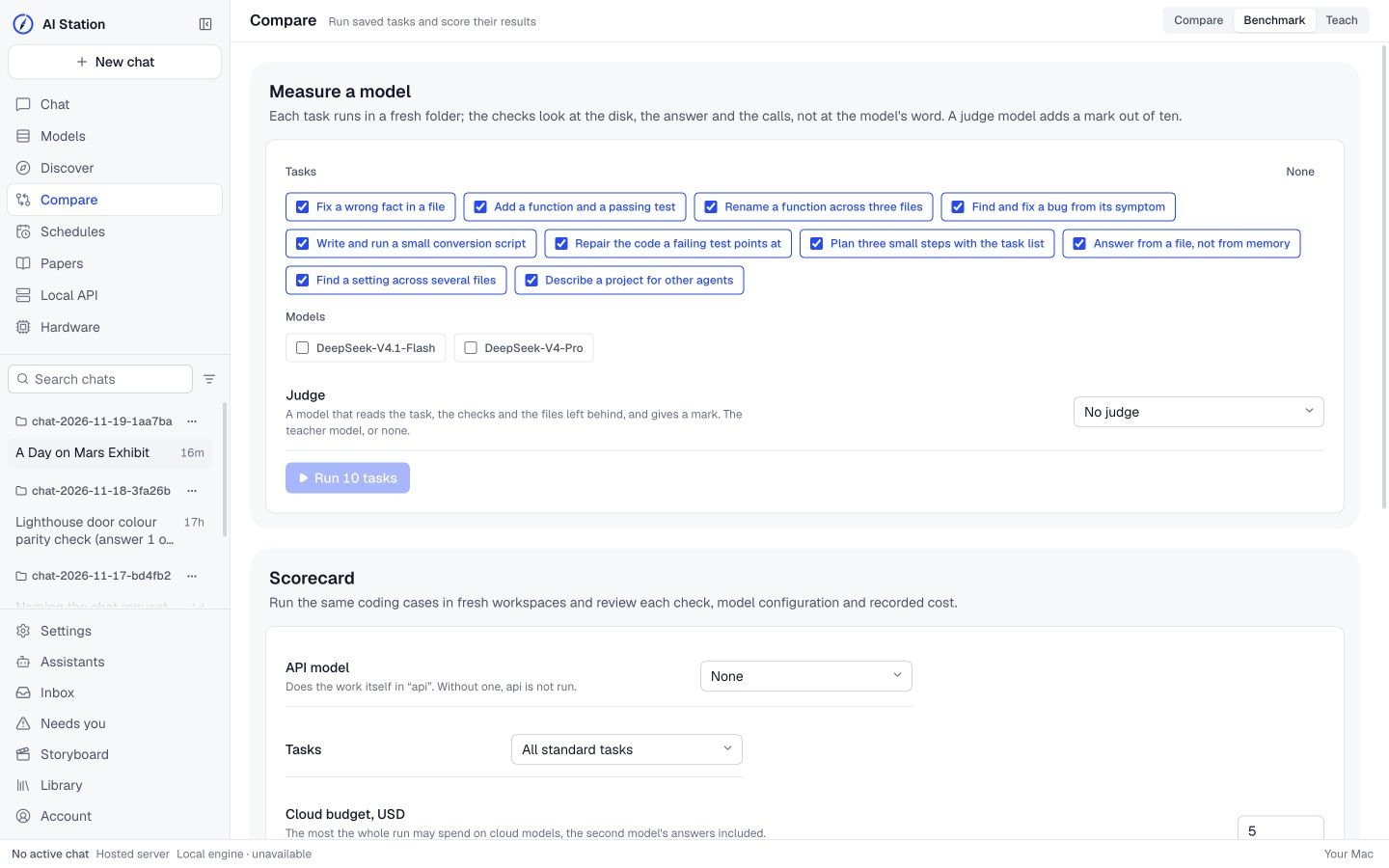
The comparison workspace runs candidates against a common task. Reading the answers alongside performance measurements helps a developer choose a model for a specific workload.
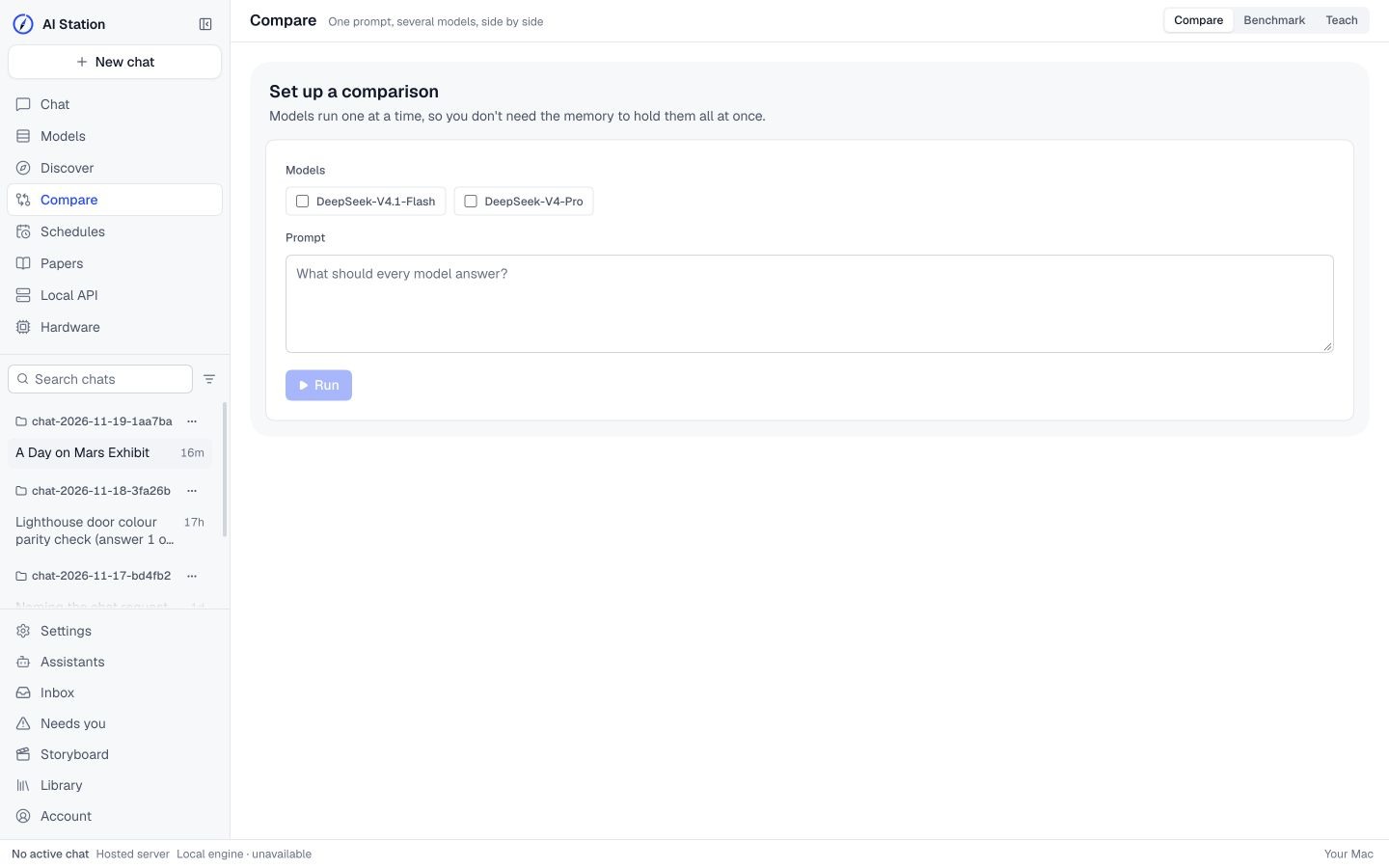
The comparison workspace runs candidates against a common task. Reading the answers alongside performance measurements helps a developer choose a model for a specific workload.
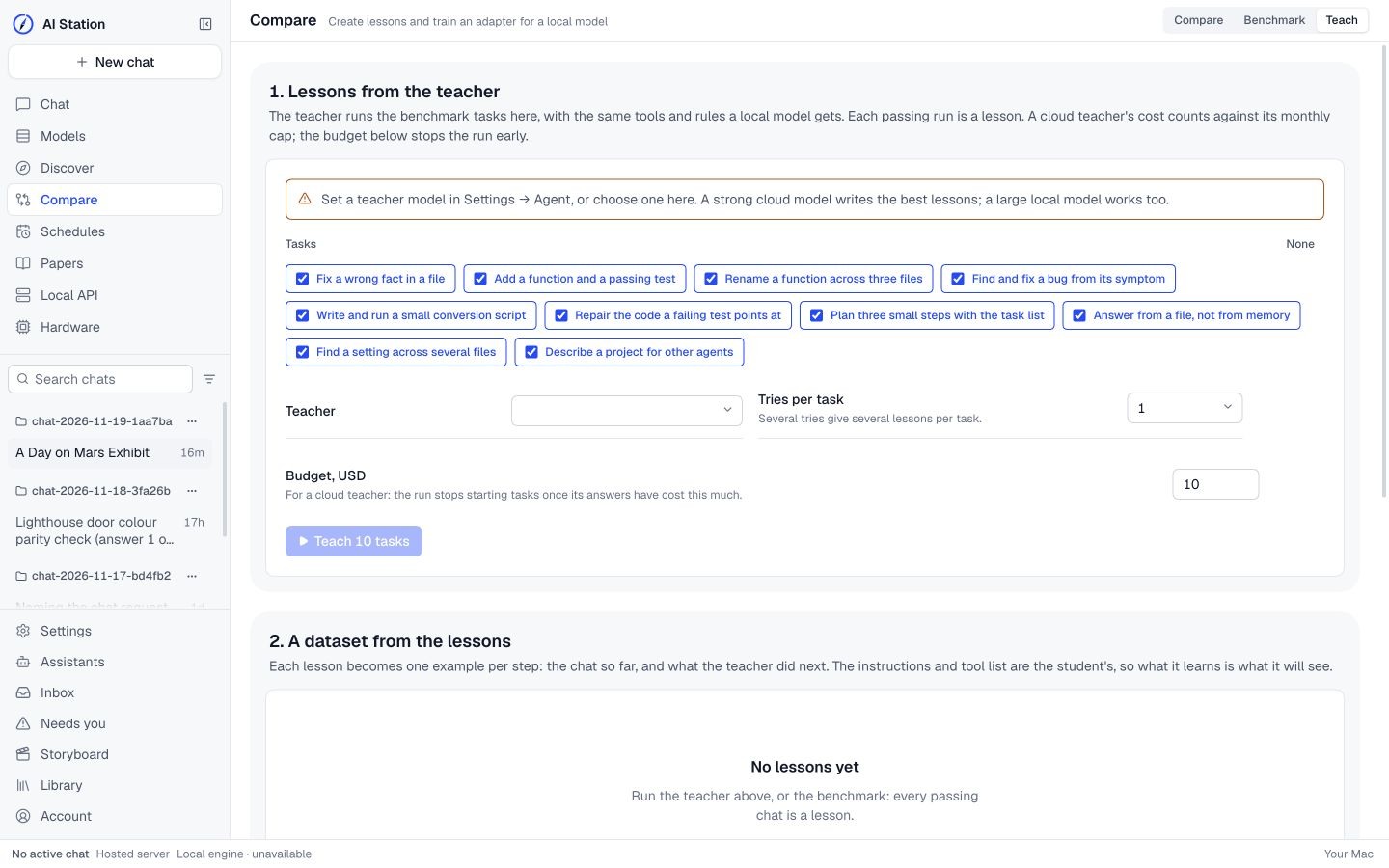
The comparison workspace includes a teaching workflow for using one model’s output to guide another. It gives model experimentation its own place outside a project chat.
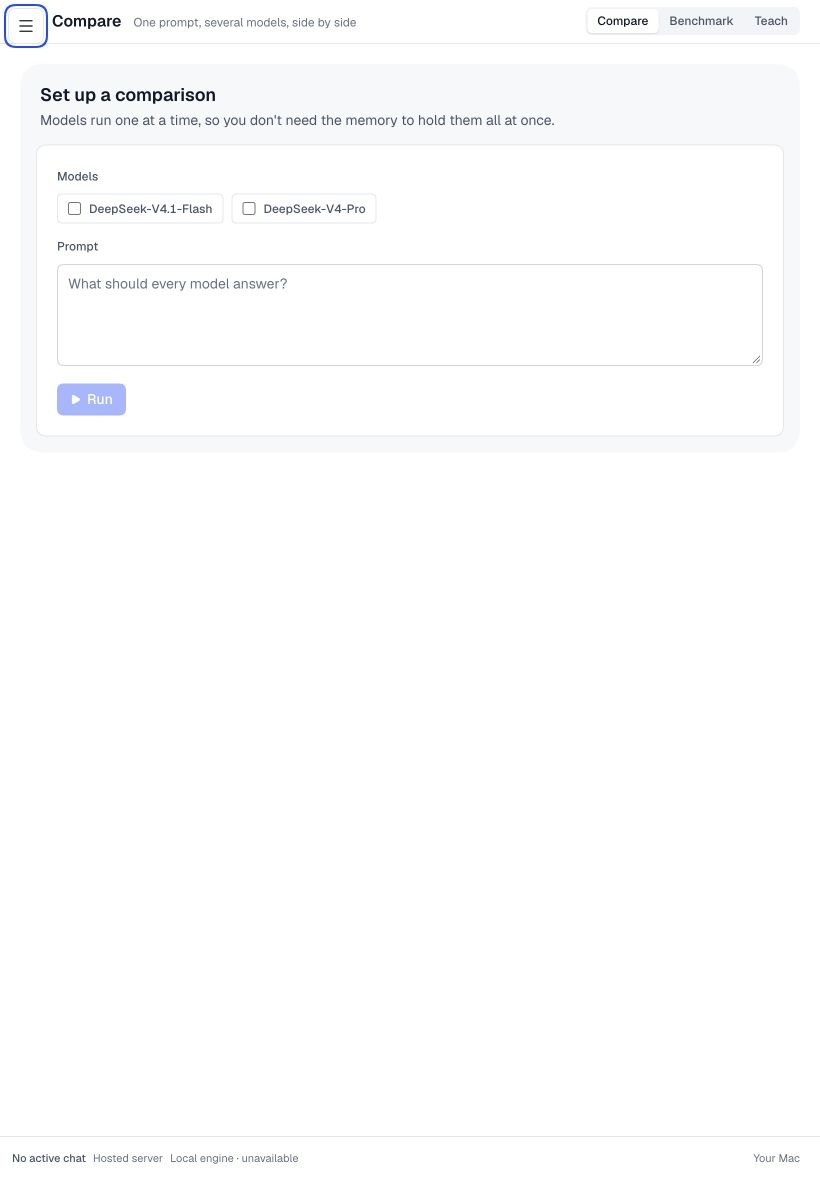
Give models the same task, read the answers together and inspect differences in speed and output.
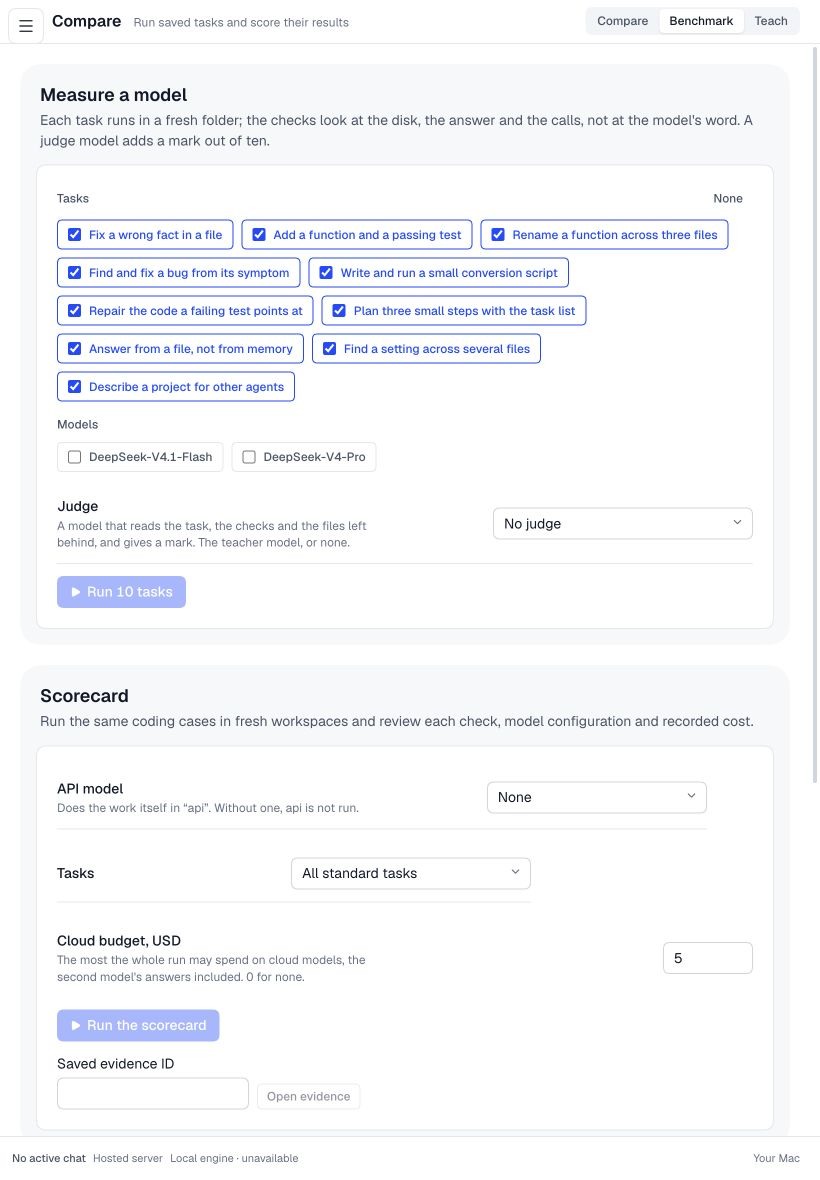
The comparison workspace runs candidates against a common task. Reading the answers alongside performance measurements helps a developer choose a model for a specific workload.
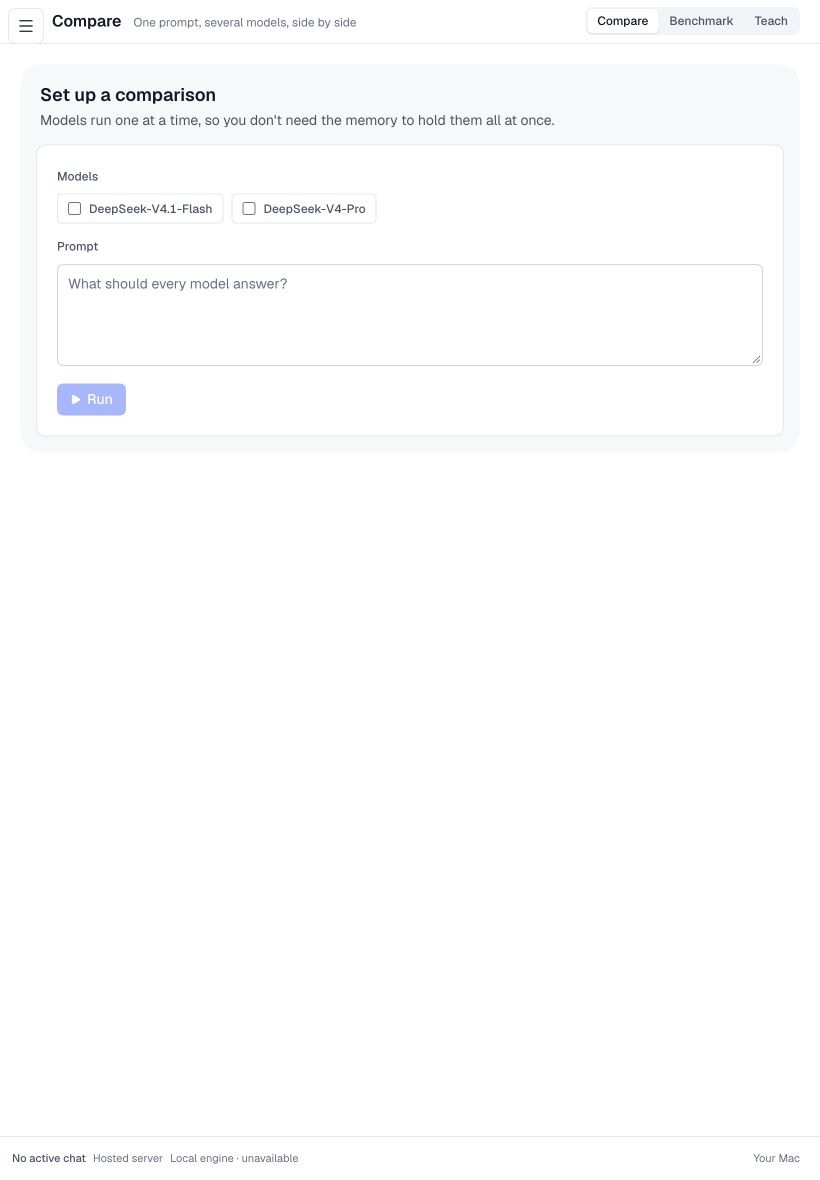
The comparison workspace runs candidates against a common task. Reading the answers alongside performance measurements helps a developer choose a model for a specific workload.
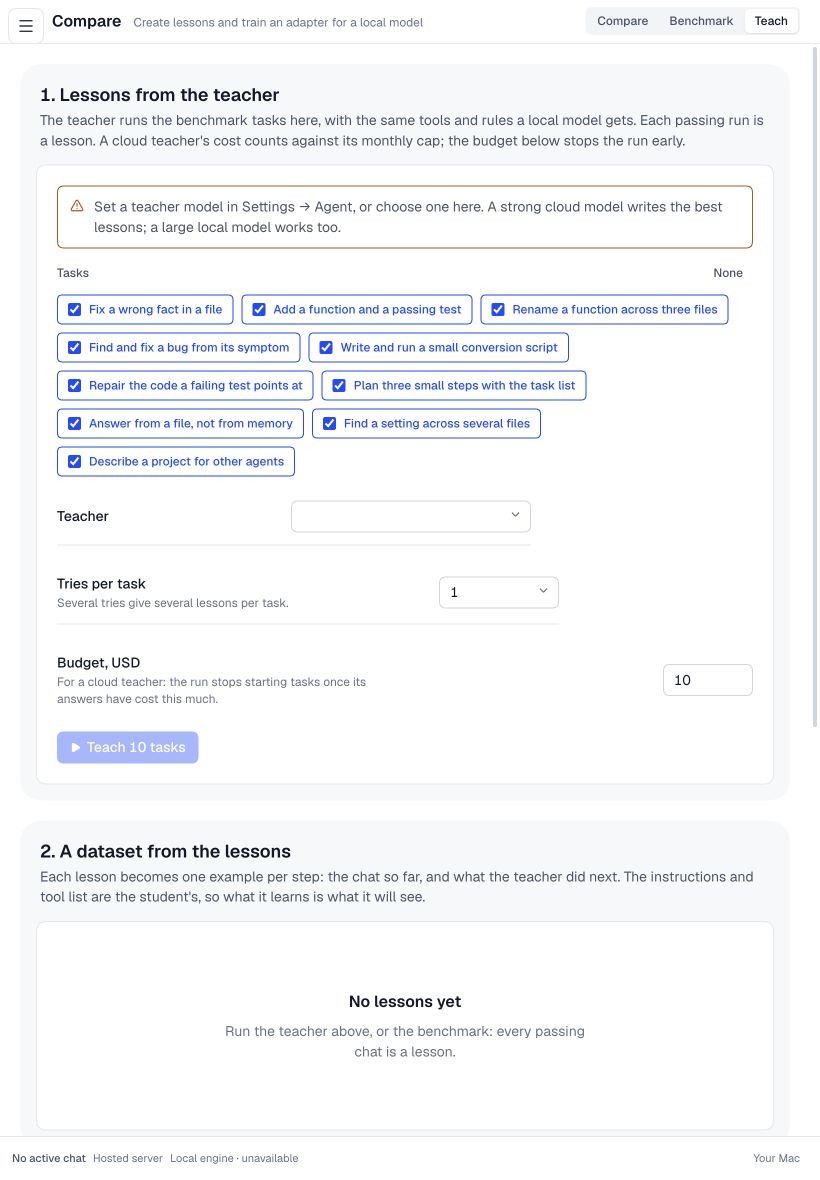
The comparison workspace includes a teaching workflow for using one model’s output to guide another. It gives model experimentation its own place outside a project chat.
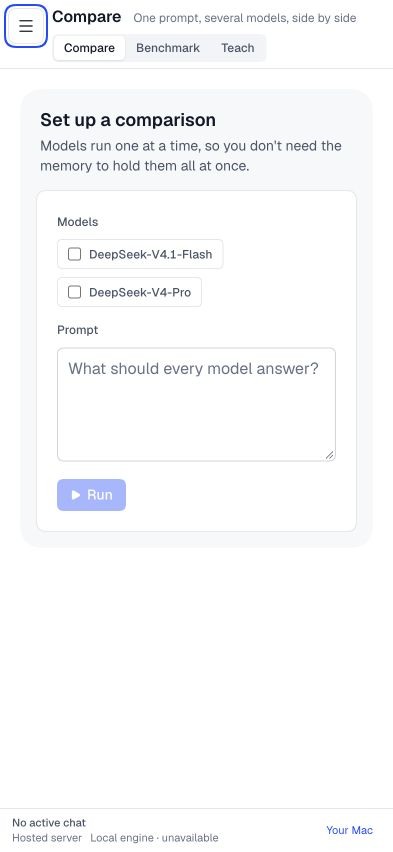
Give models the same task, read the answers together and inspect differences in speed and output.
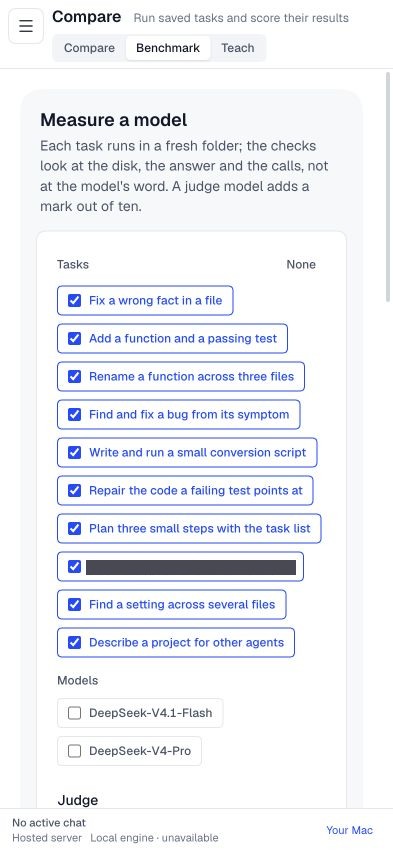
The comparison workspace runs candidates against a common task. Reading the answers alongside performance measurements helps a developer choose a model for a specific workload.
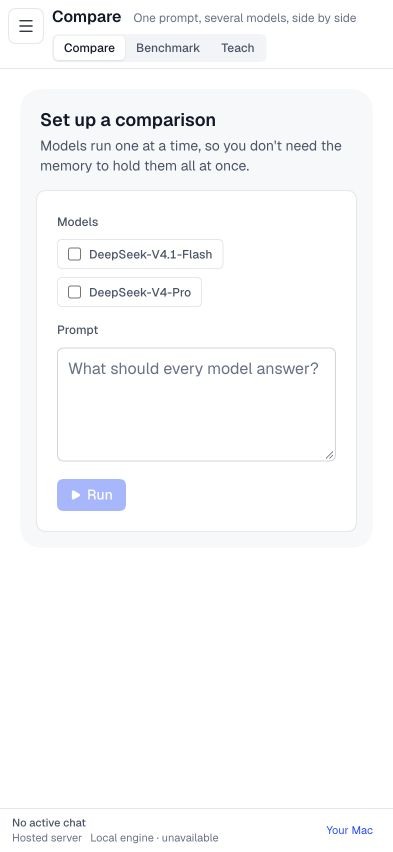
The comparison workspace runs candidates against a common task. Reading the answers alongside performance measurements helps a developer choose a model for a specific workload.
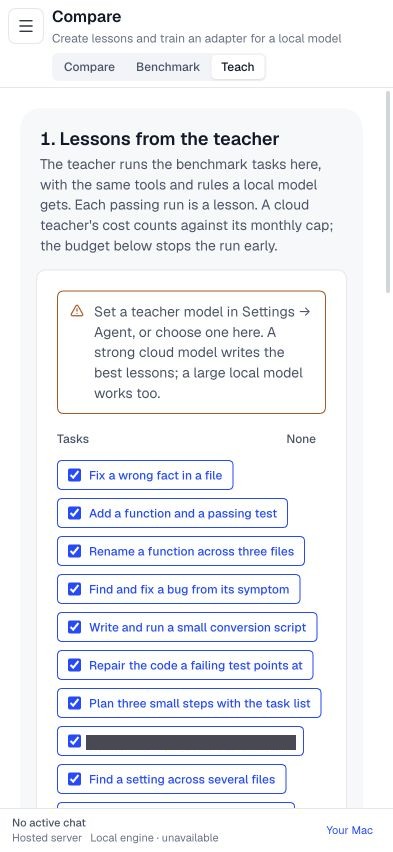
The comparison workspace includes a teaching workflow for using one model’s output to guide another. It gives model experimentation its own place outside a project chat.
Discover 15
Browse model families and inspect the available builds before choosing a download.
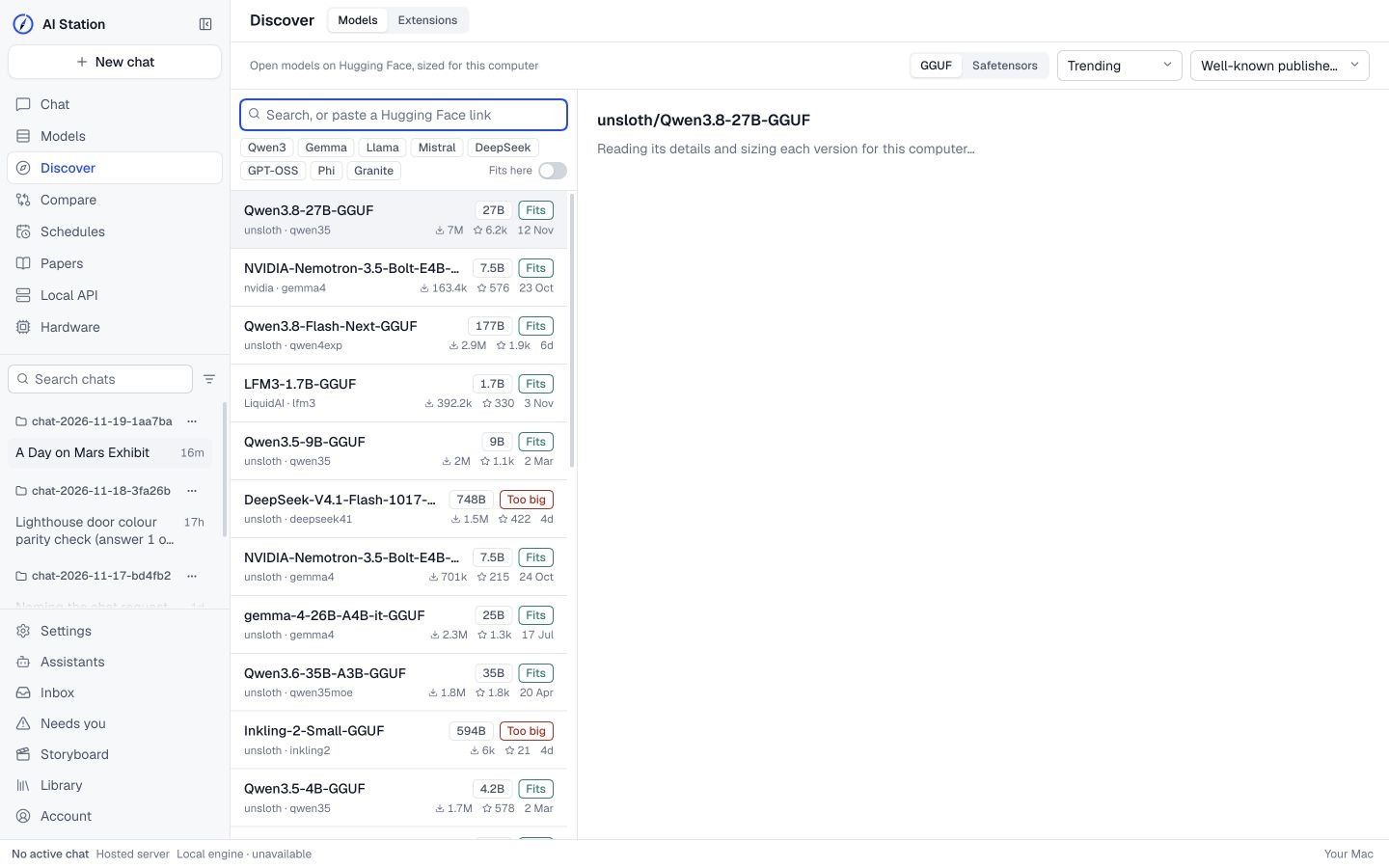
Browse model families and inspect the available builds before choosing a download.
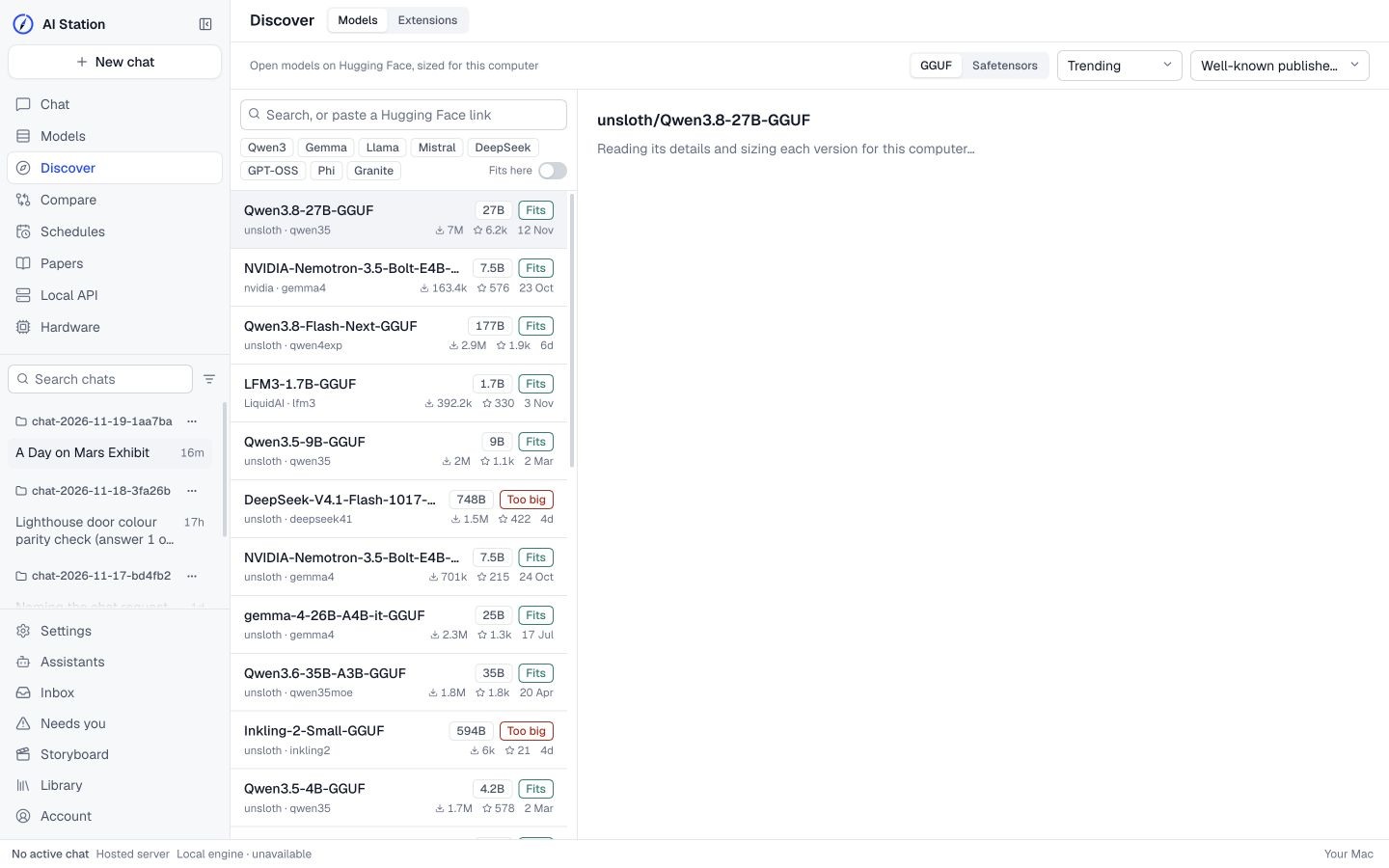
The catalog lists downloadable model builds. A developer can inspect format, size and hardware suitability before committing storage to a download.
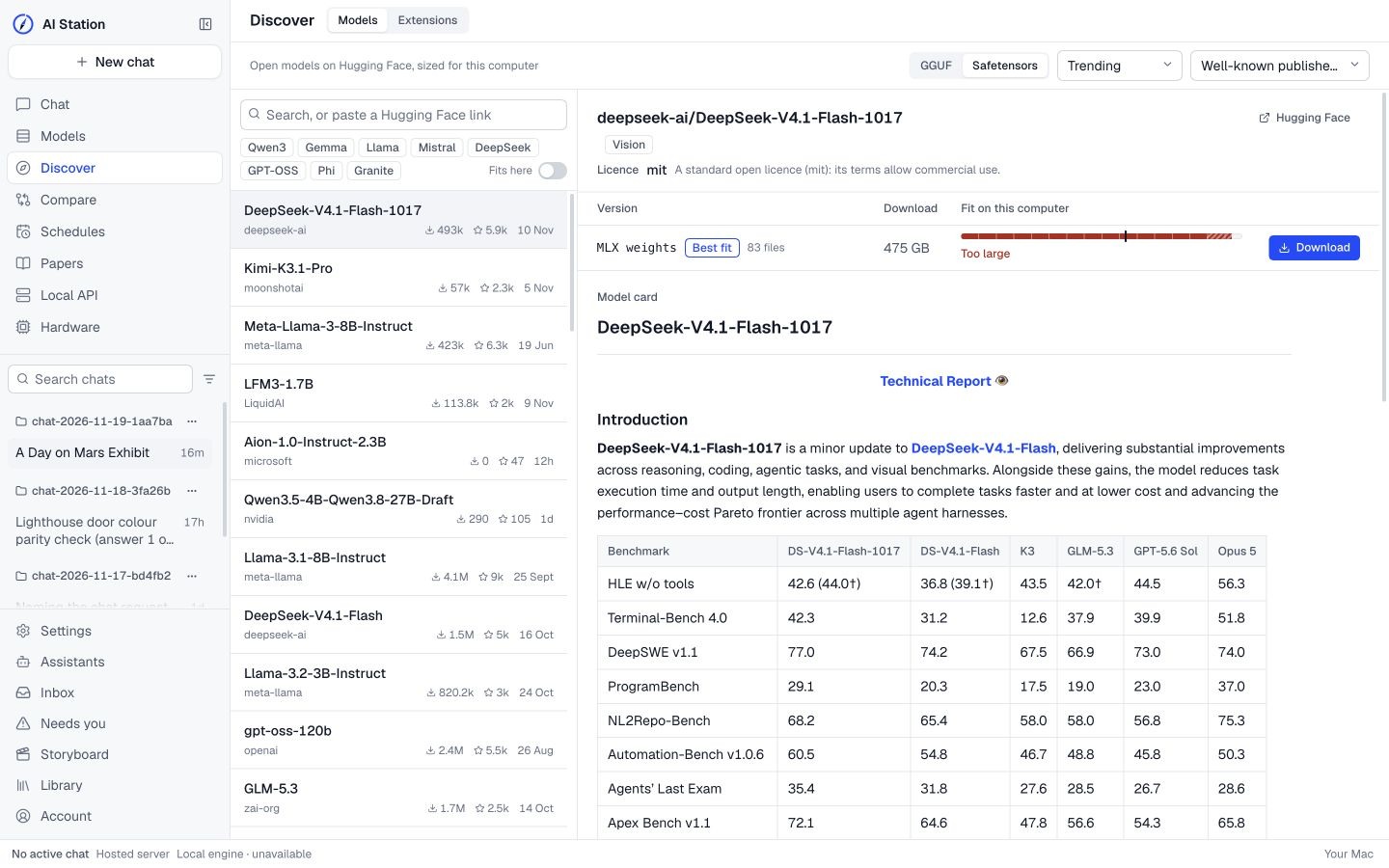
The catalog lists downloadable model builds. A developer can inspect format, size and hardware suitability before committing storage to a download.
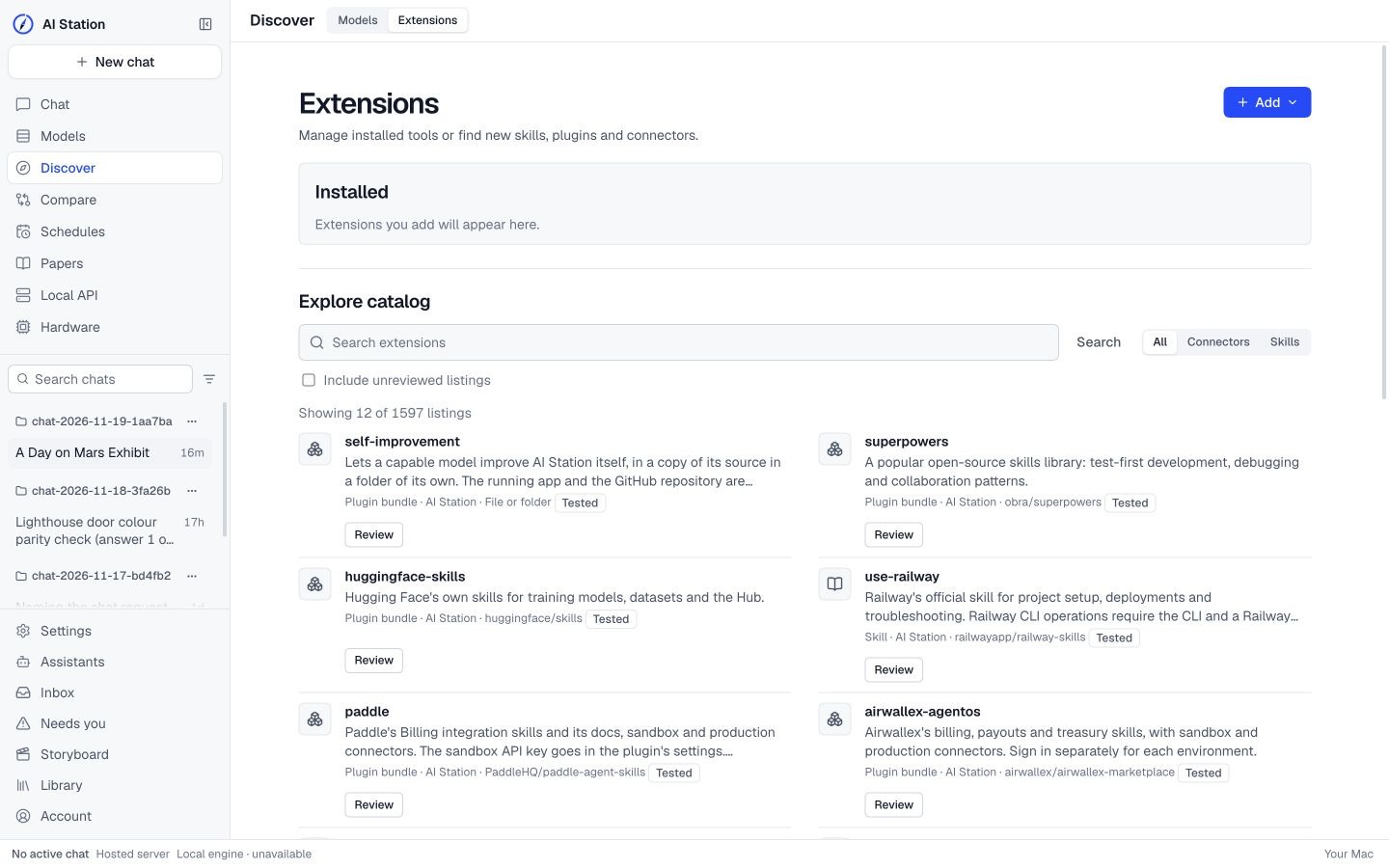
The extension directory is where the operator discovers and manages additions to the workspace. Reviewing the listing helps establish what capability is being added.
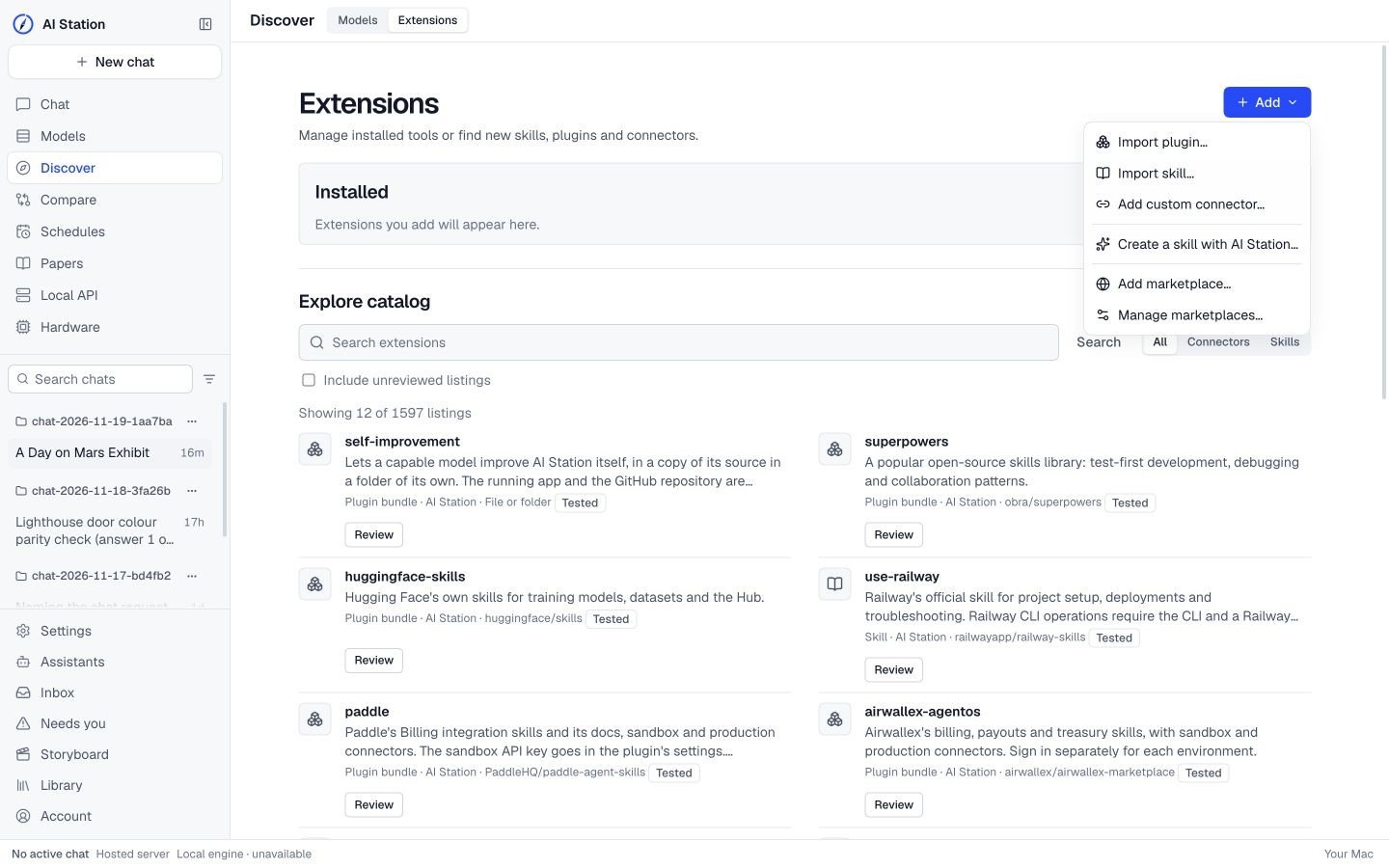
The extension directory is where the operator discovers and manages additions to the workspace. Reviewing the listing helps establish what capability is being added.
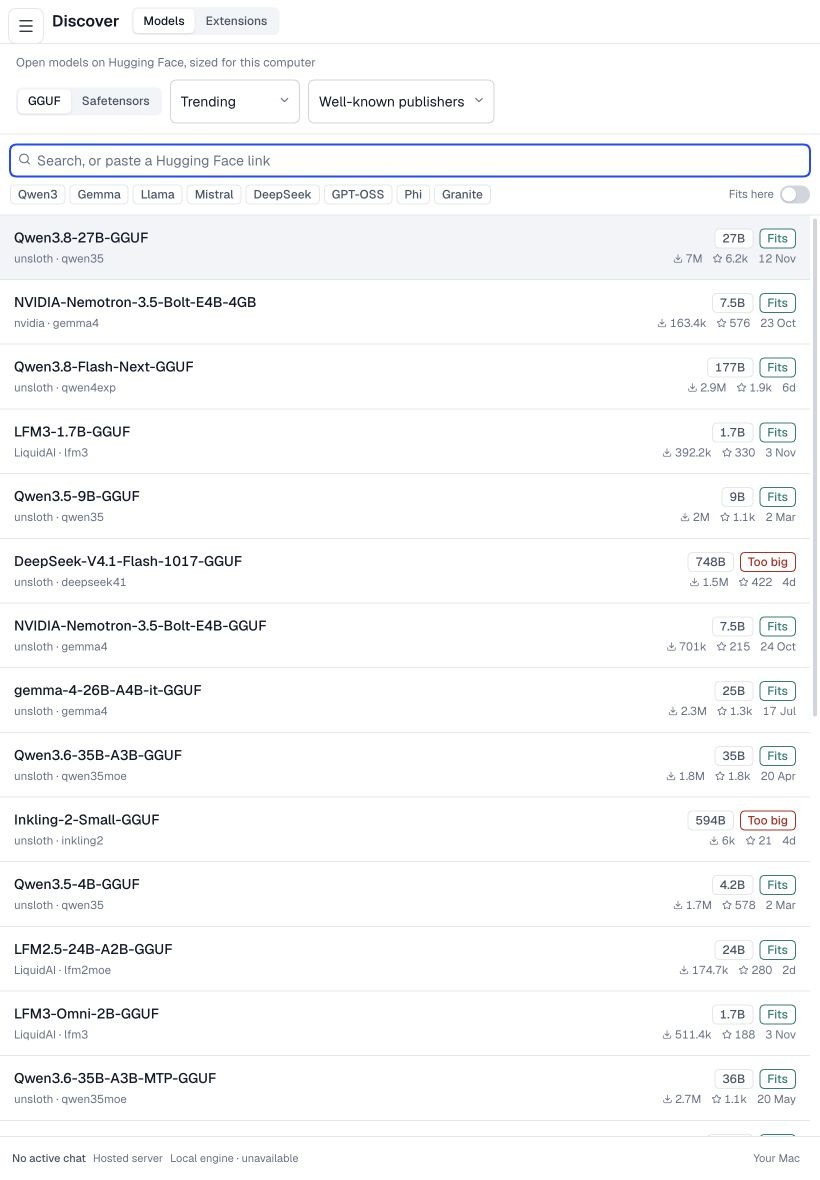
Browse model families and inspect the available builds before choosing a download.
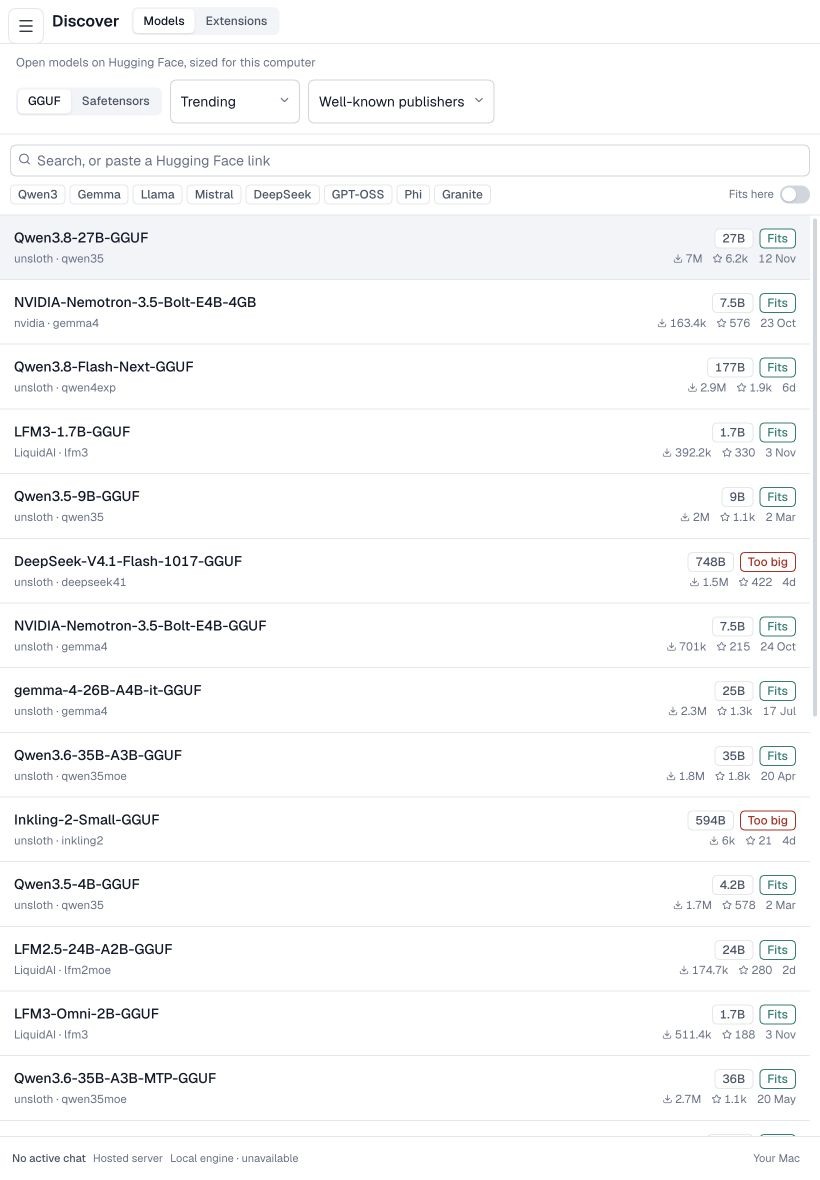
The catalog lists downloadable model builds. A developer can inspect format, size and hardware suitability before committing storage to a download.
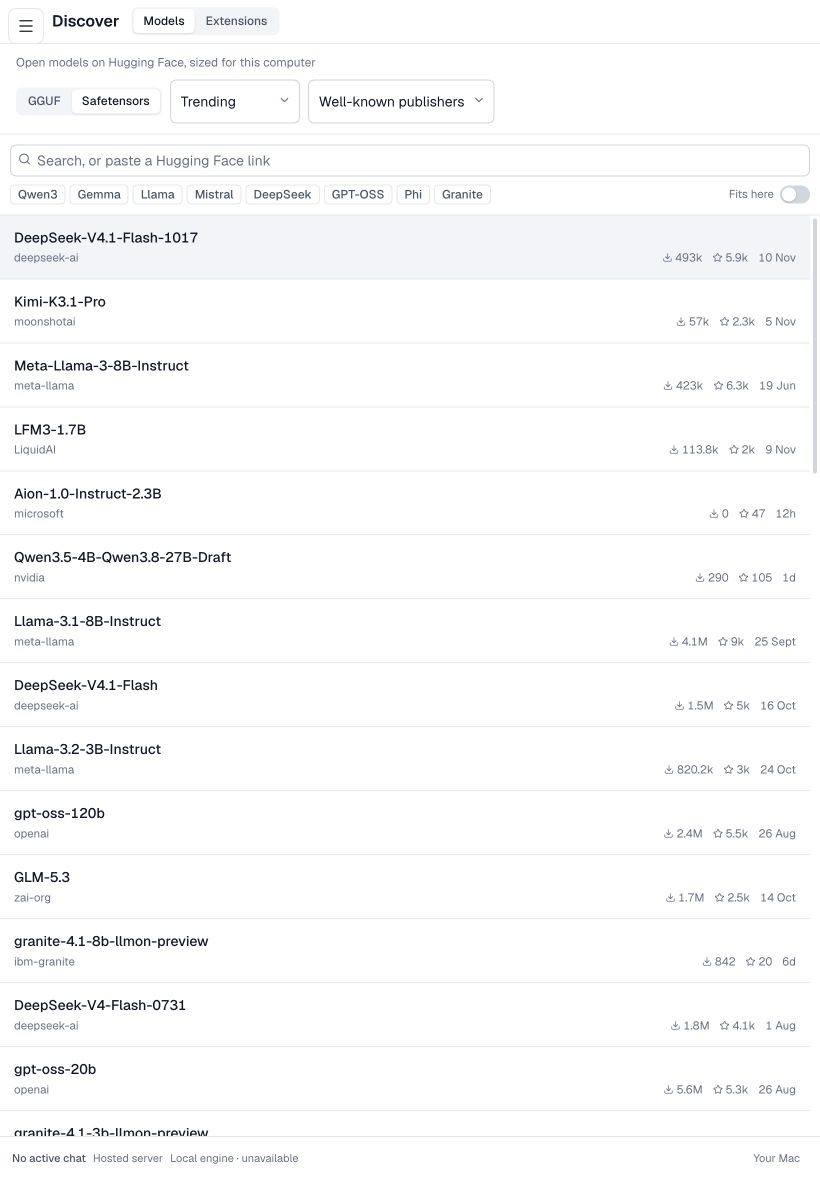
The catalog lists downloadable model builds. A developer can inspect format, size and hardware suitability before committing storage to a download.
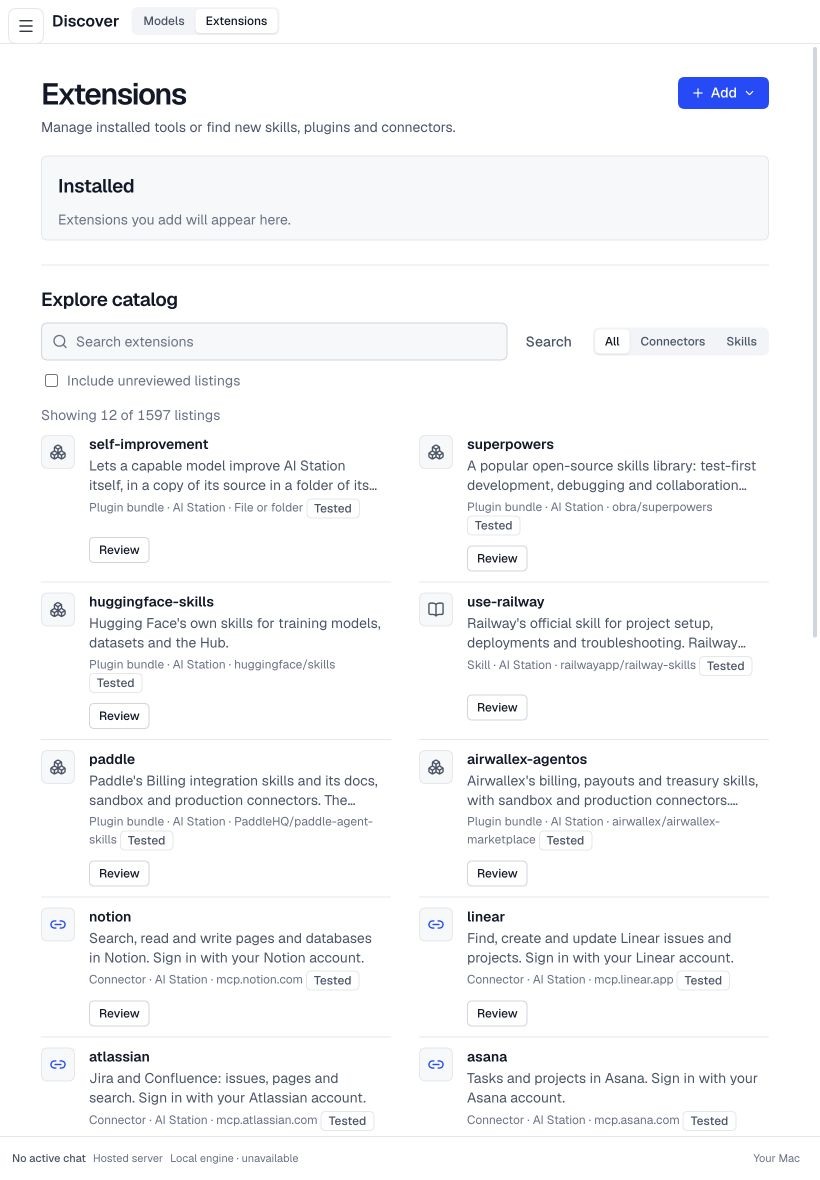
The extension directory is where the operator discovers and manages additions to the workspace. Reviewing the listing helps establish what capability is being added.
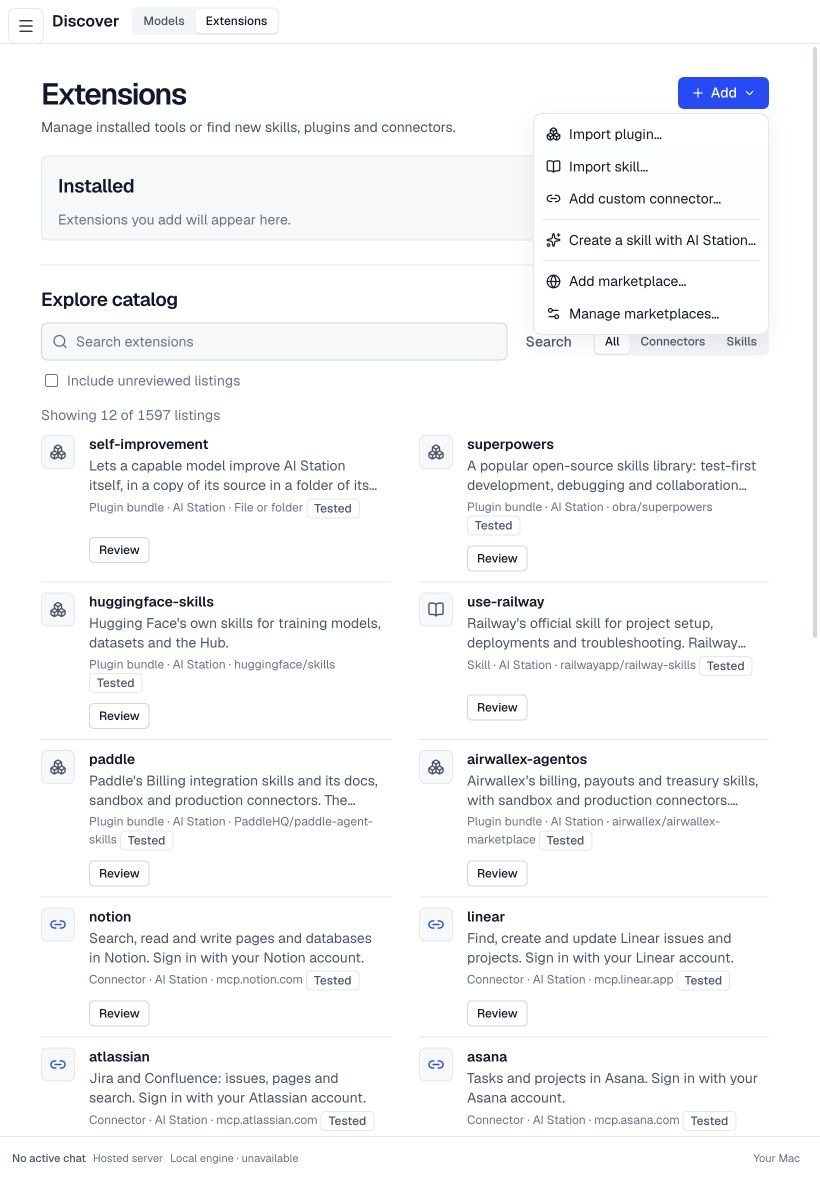
The extension directory is where the operator discovers and manages additions to the workspace. Reviewing the listing helps establish what capability is being added.
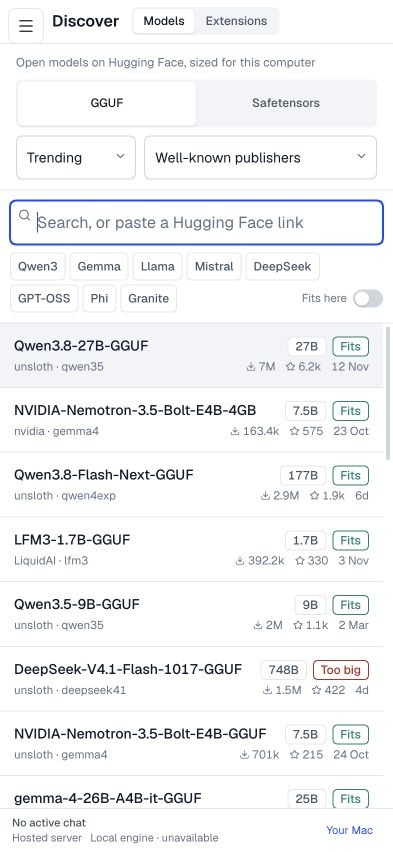
Browse model families and inspect the available builds before choosing a download.
The catalog lists downloadable model builds. A developer can inspect format, size and hardware suitability before committing storage to a download.
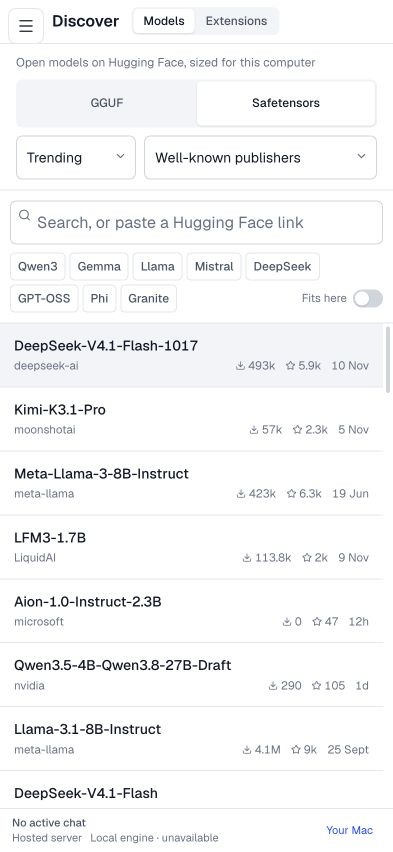
The catalog lists downloadable model builds. A developer can inspect format, size and hardware suitability before committing storage to a download.
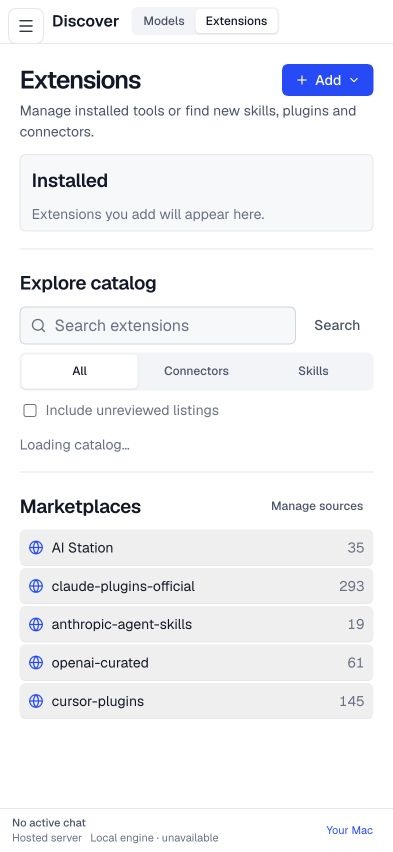
The extension directory is where the operator discovers and manages additions to the workspace. Reviewing the listing helps establish what capability is being added.
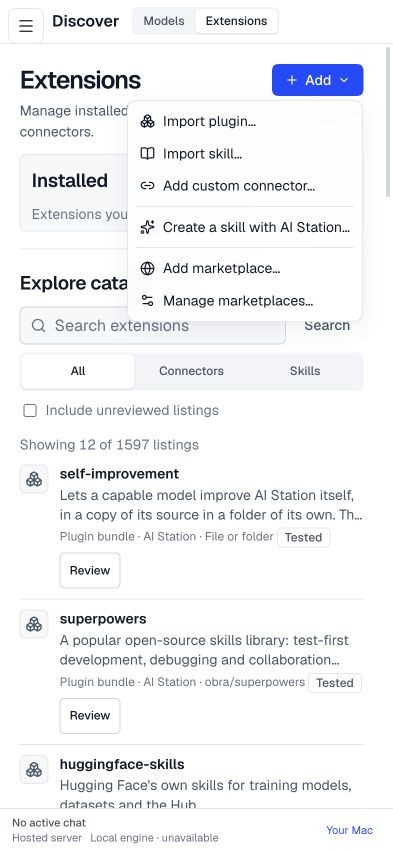
The extension directory is where the operator discovers and manages additions to the workspace. Reviewing the listing helps establish what capability is being added.
Hardware 3
Inspect the resources available to the runtime when choosing a model or diagnosing performance.
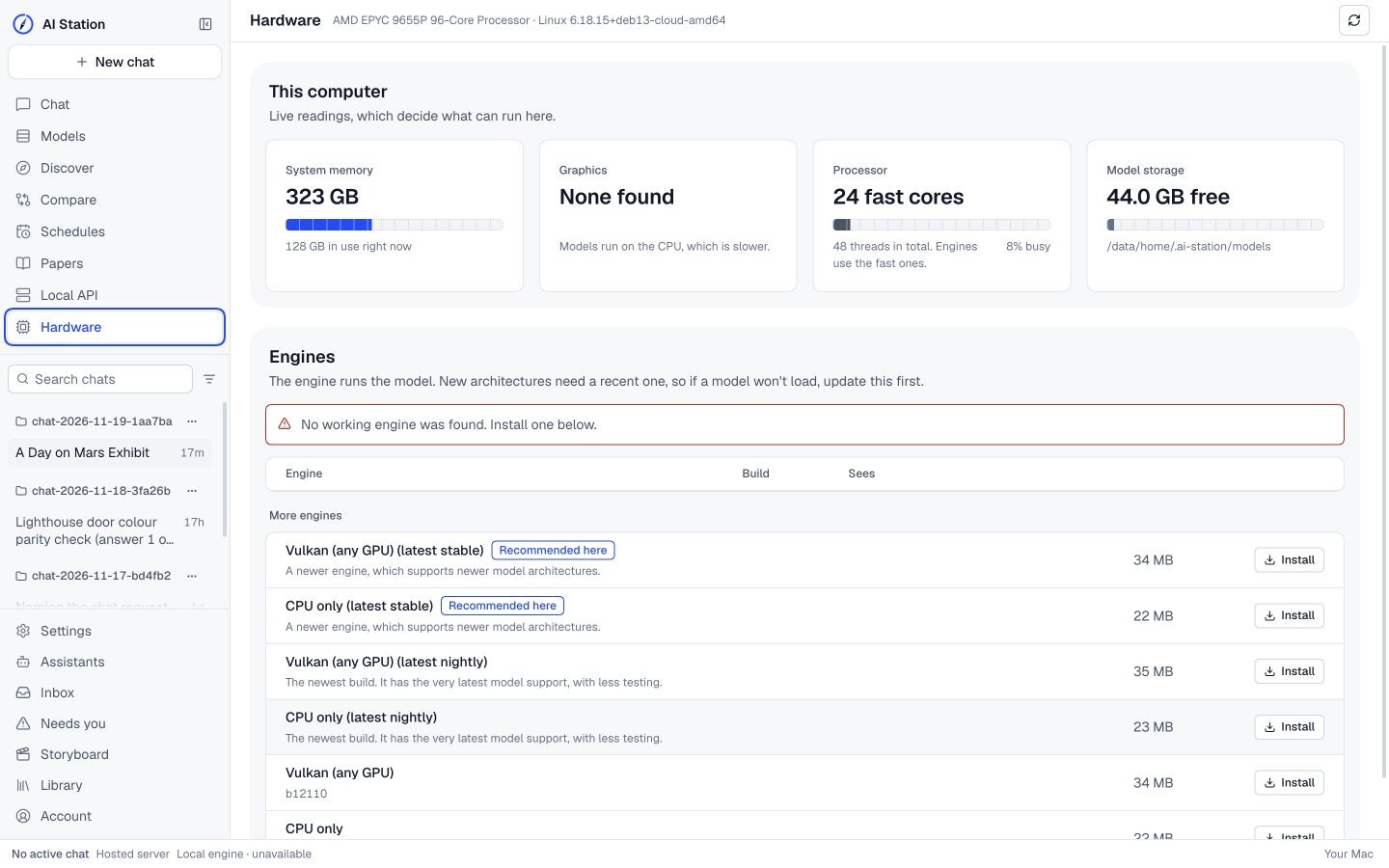
Inspect the resources available to the runtime when choosing a model or diagnosing performance.
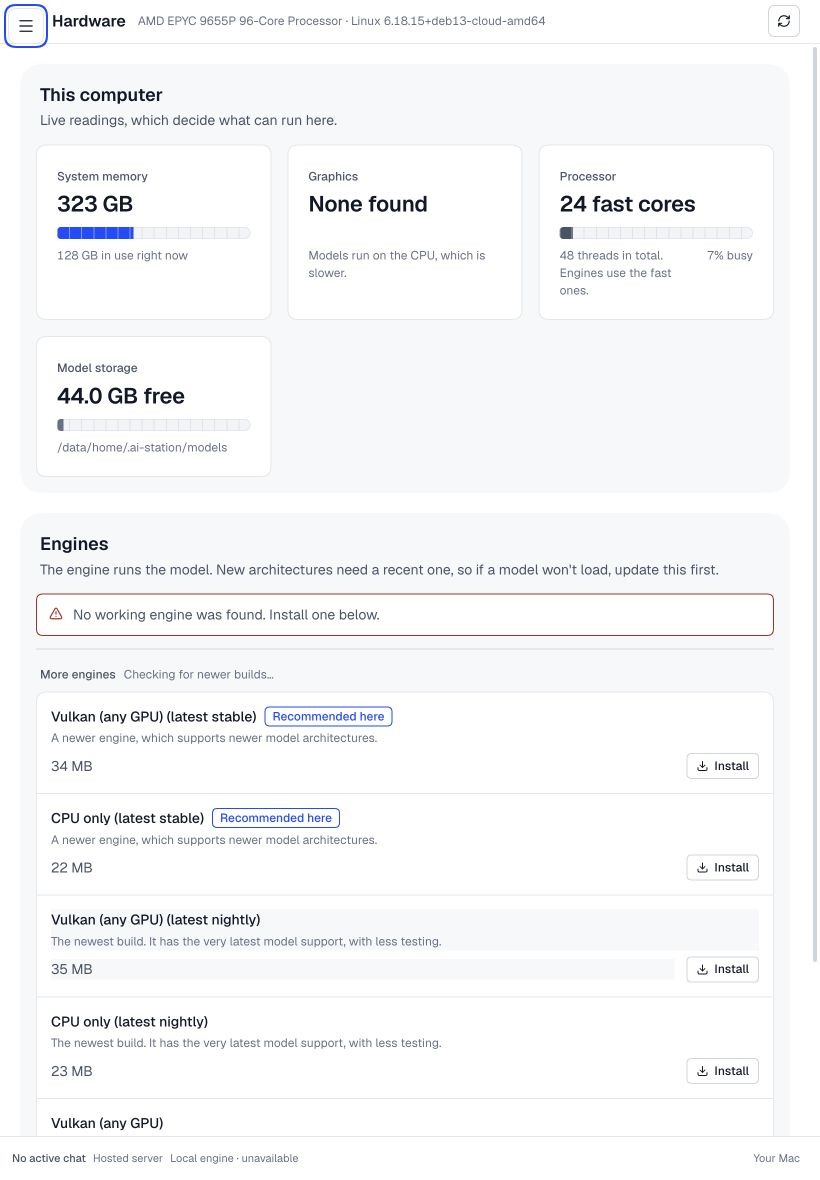
Inspect the resources available to the runtime when choosing a model or diagnosing performance.
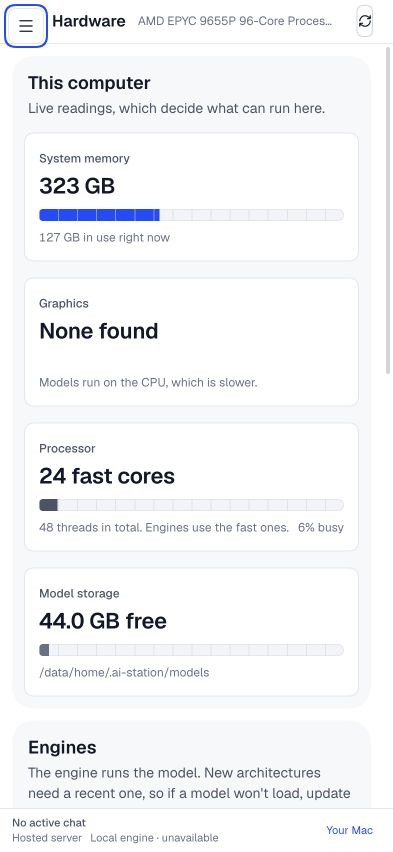
Inspect the resources available to the runtime when choosing a model or diagnosing performance.
Inbox 18
Read updates from work in progress and reopen the conversation or task behind an event.
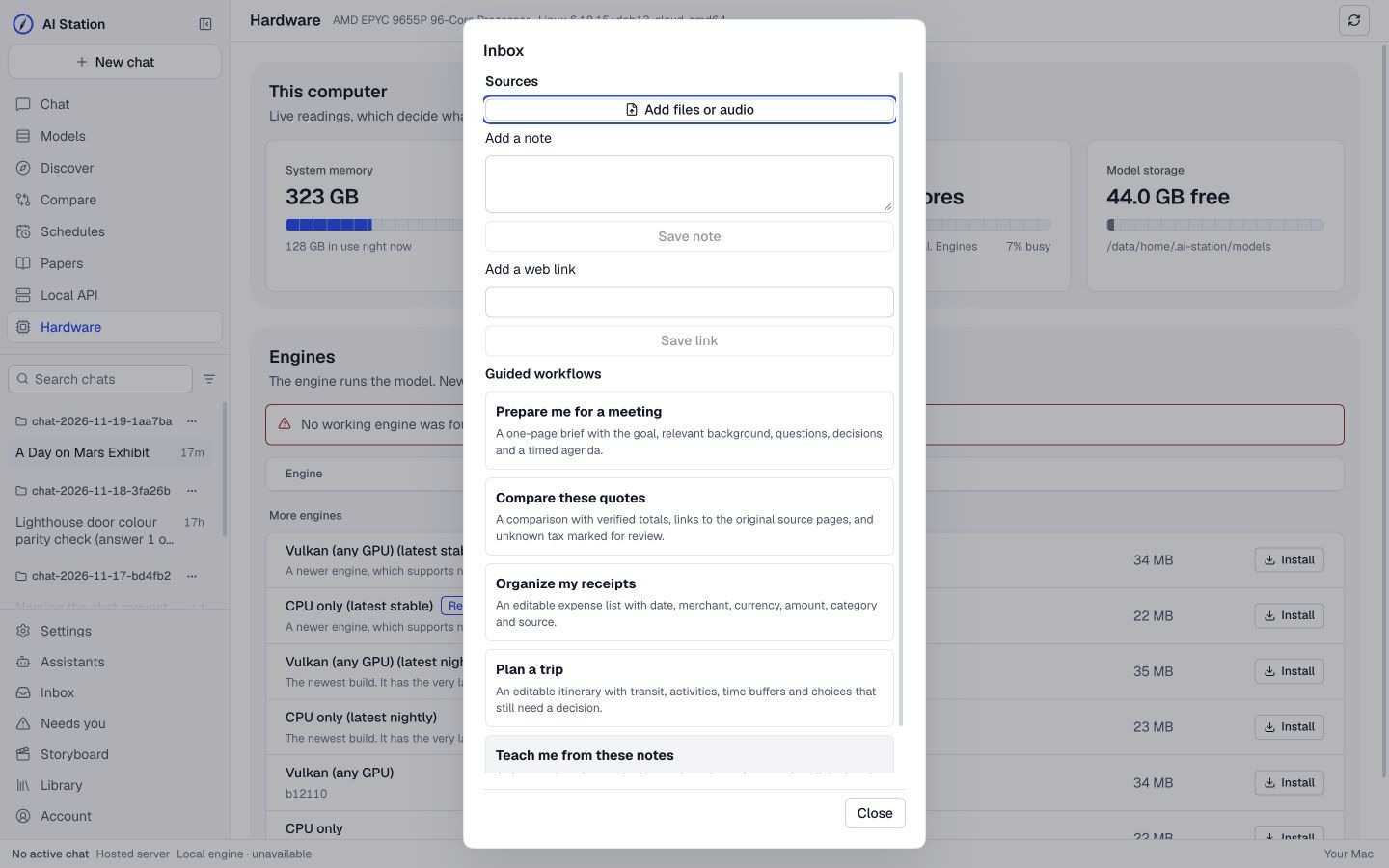
Read updates from work in progress and reopen the conversation or task behind an event.
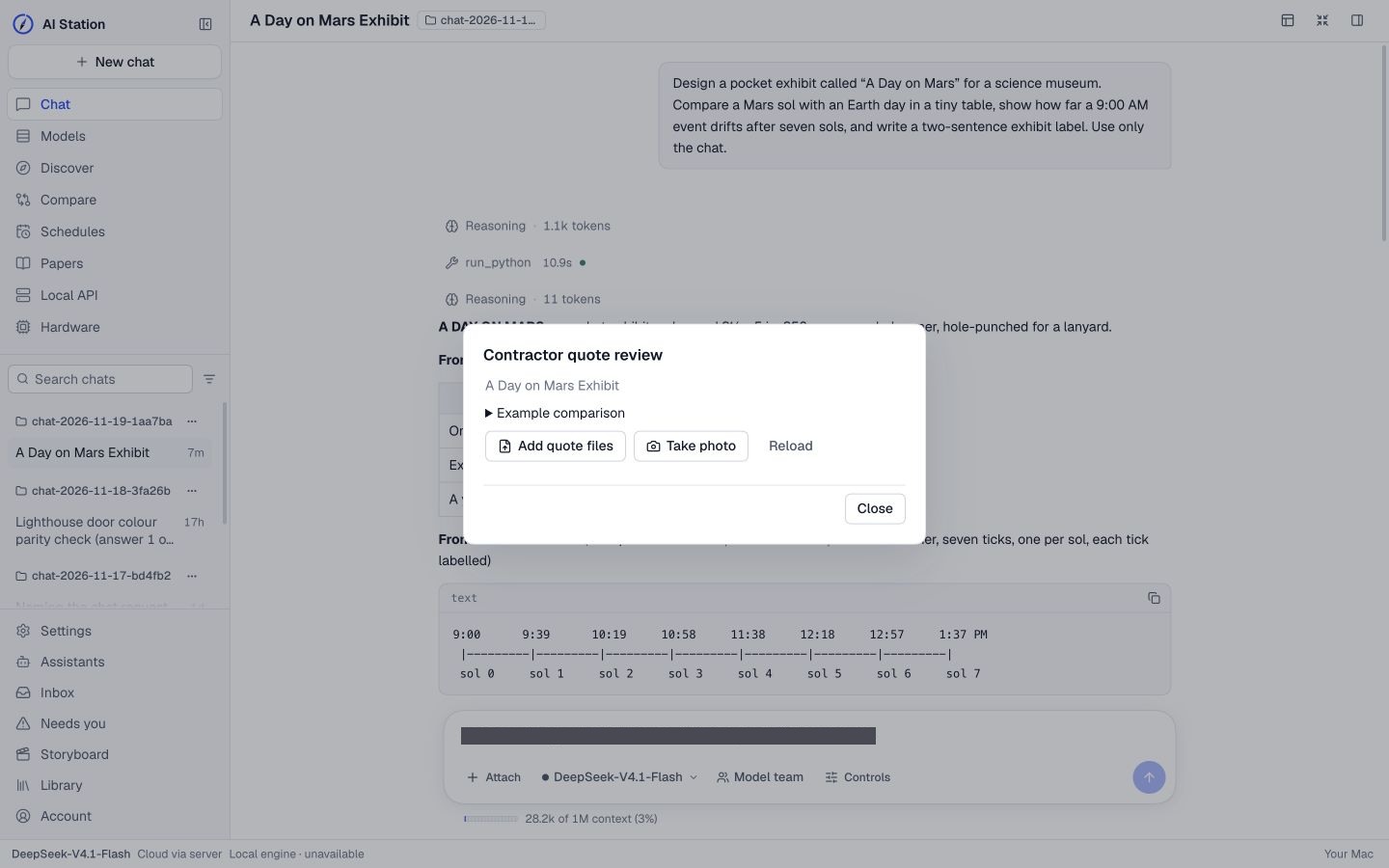
The inbox opens the “Compare these quotes” workflow. It gives the user a starting brief for turning their own material into a structured result.
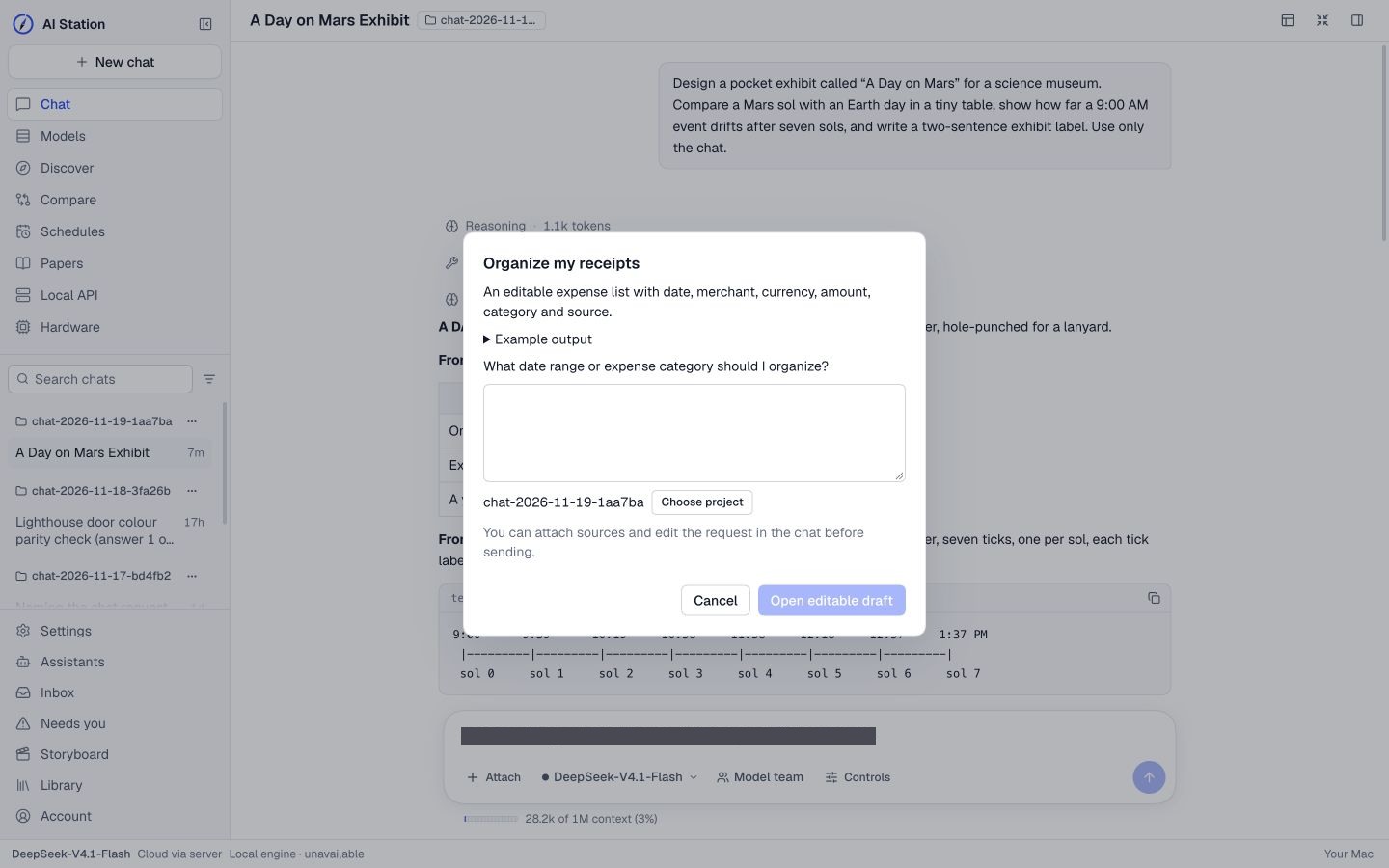
The inbox opens the “Organize my receipts” workflow. It gives the user a starting brief for turning their own material into a structured result.
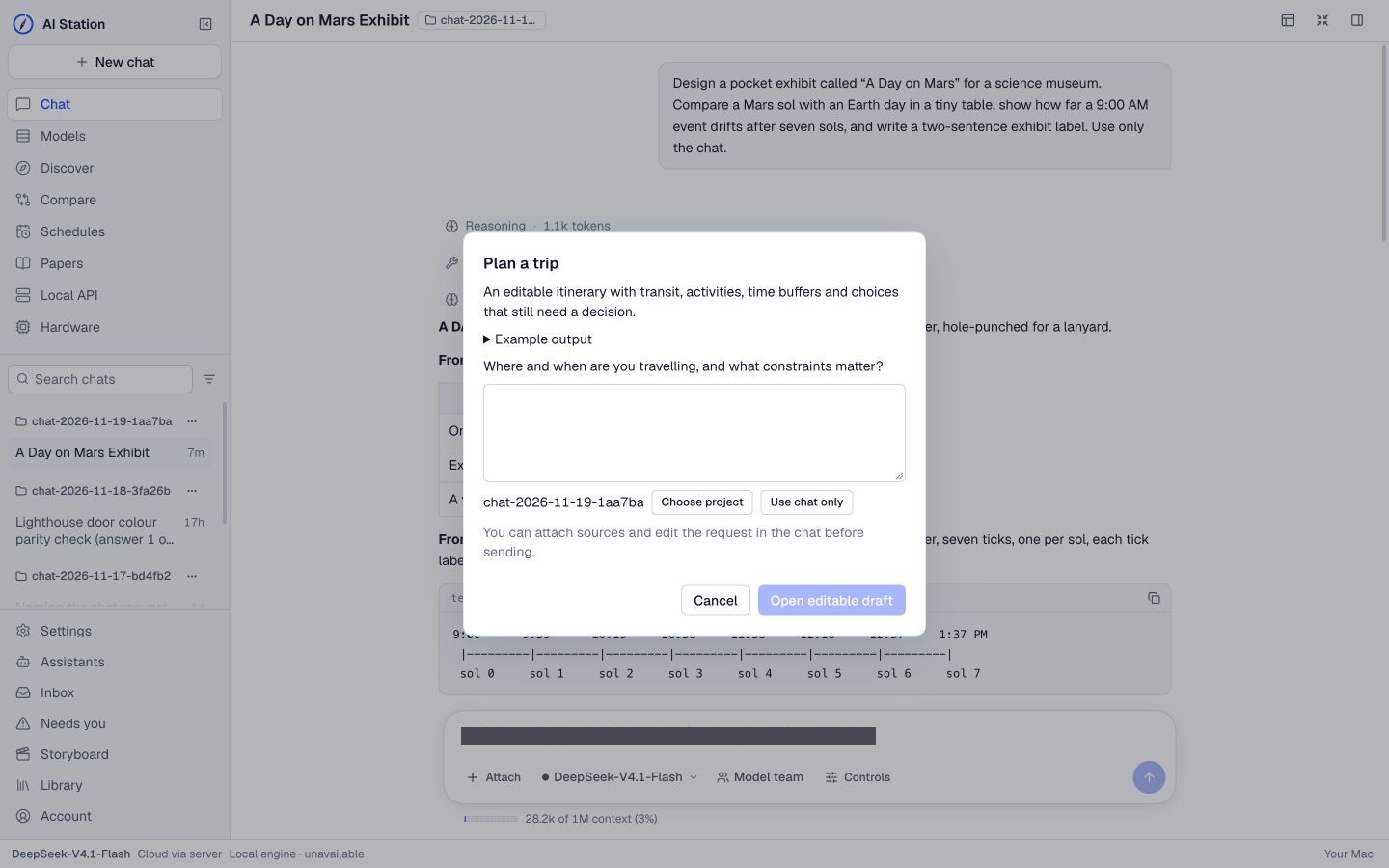
The inbox opens the “Plan a trip” workflow. It gives the user a starting brief for turning their own material into a structured result.
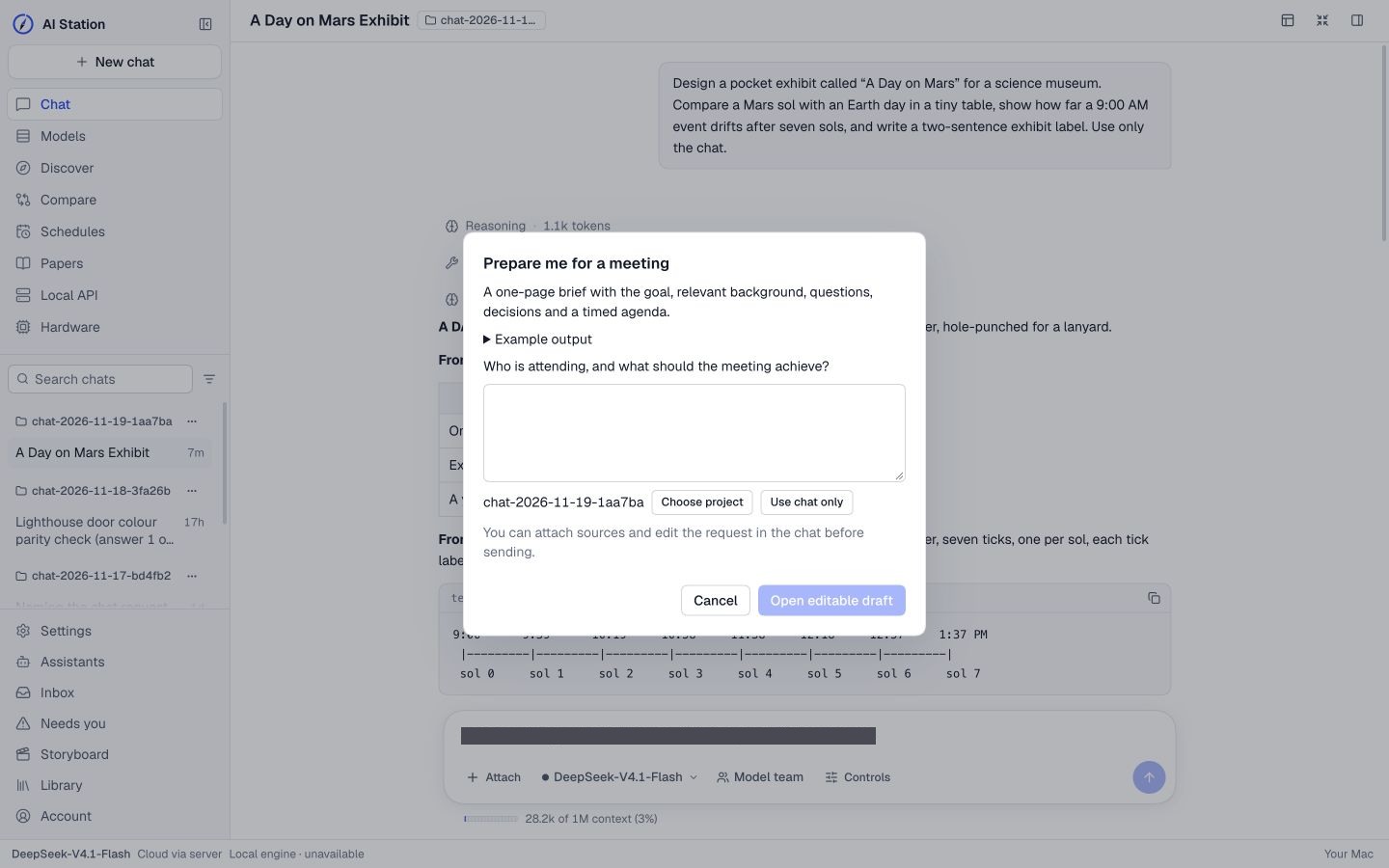
The inbox opens the “Prepare me for a meeting” workflow. It gives the user a starting brief for turning their own material into a structured result.
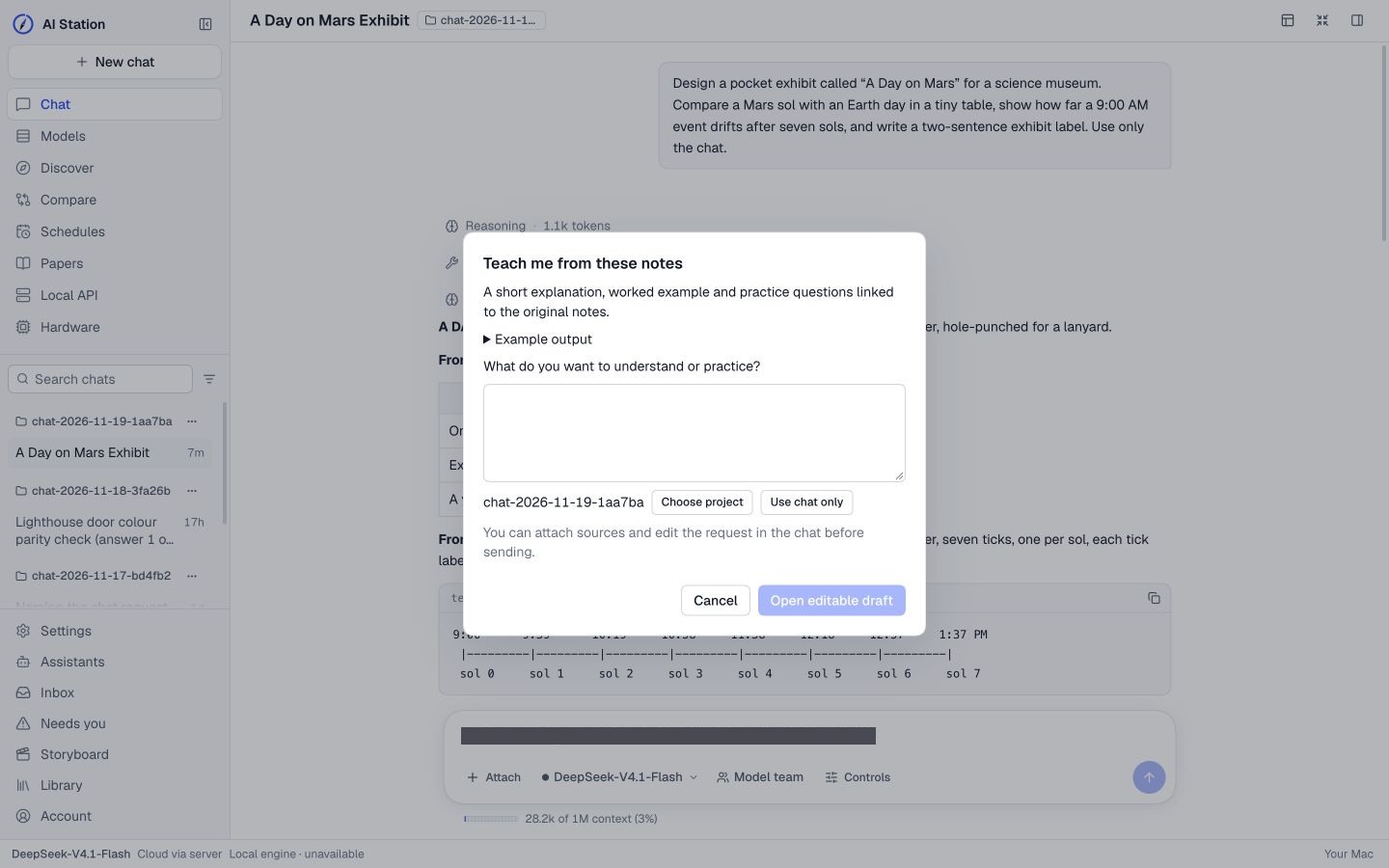
The inbox opens the “Teach me from these notes” workflow. It gives the user a starting brief for turning their own material into a structured result.
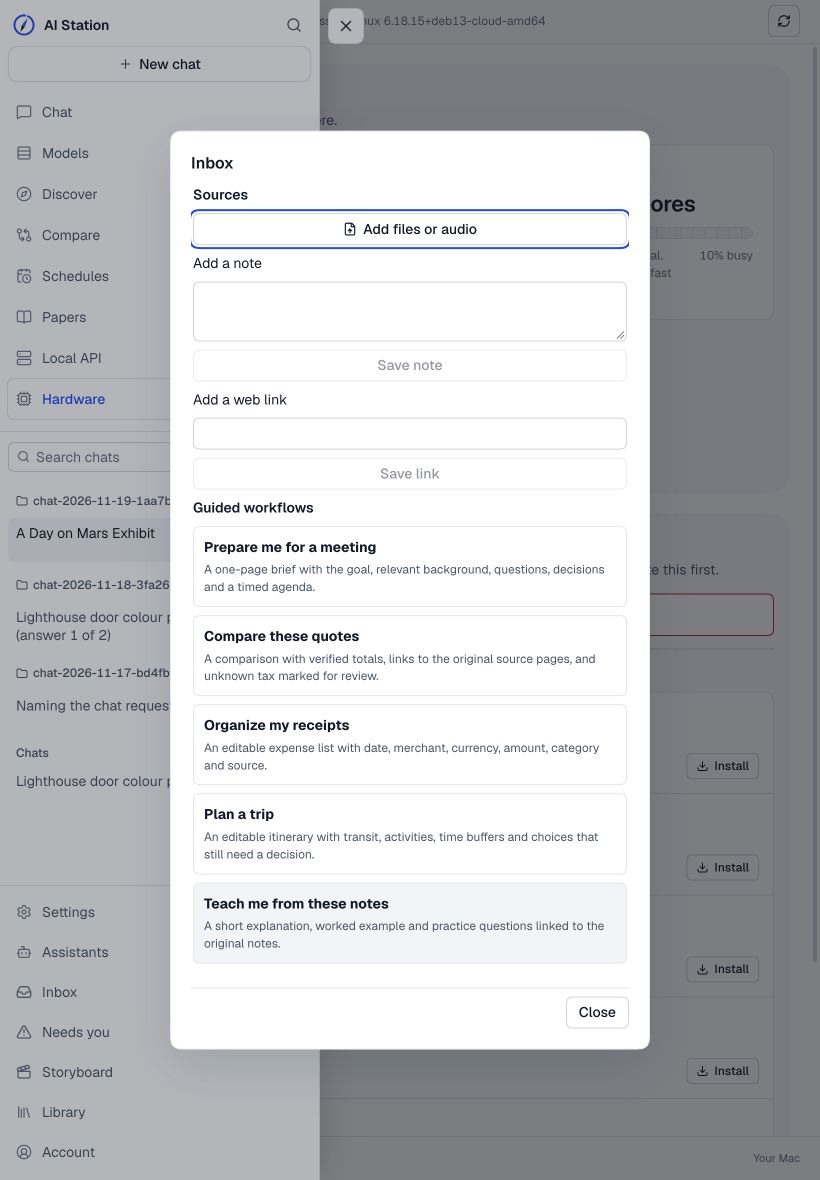
Read updates from work in progress and reopen the conversation or task behind an event.
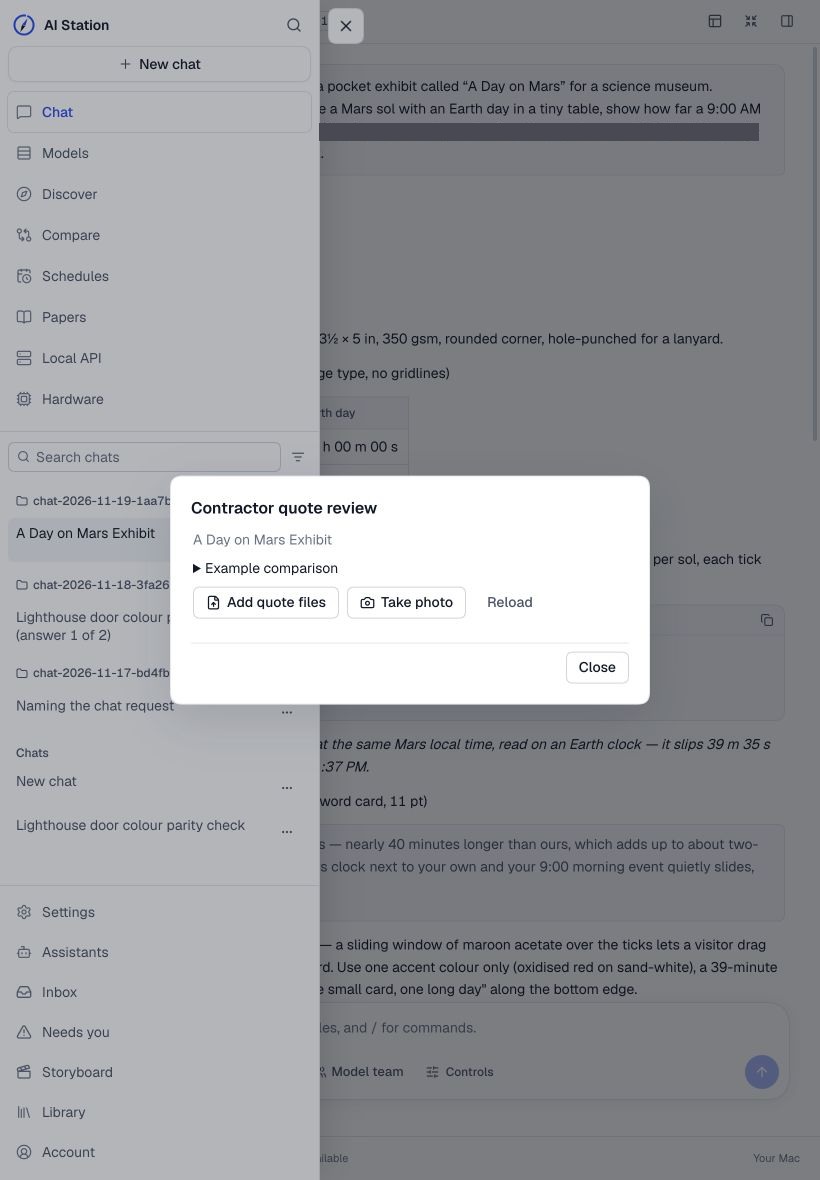
The inbox opens the “Compare these quotes” workflow. It gives the user a starting brief for turning their own material into a structured result.
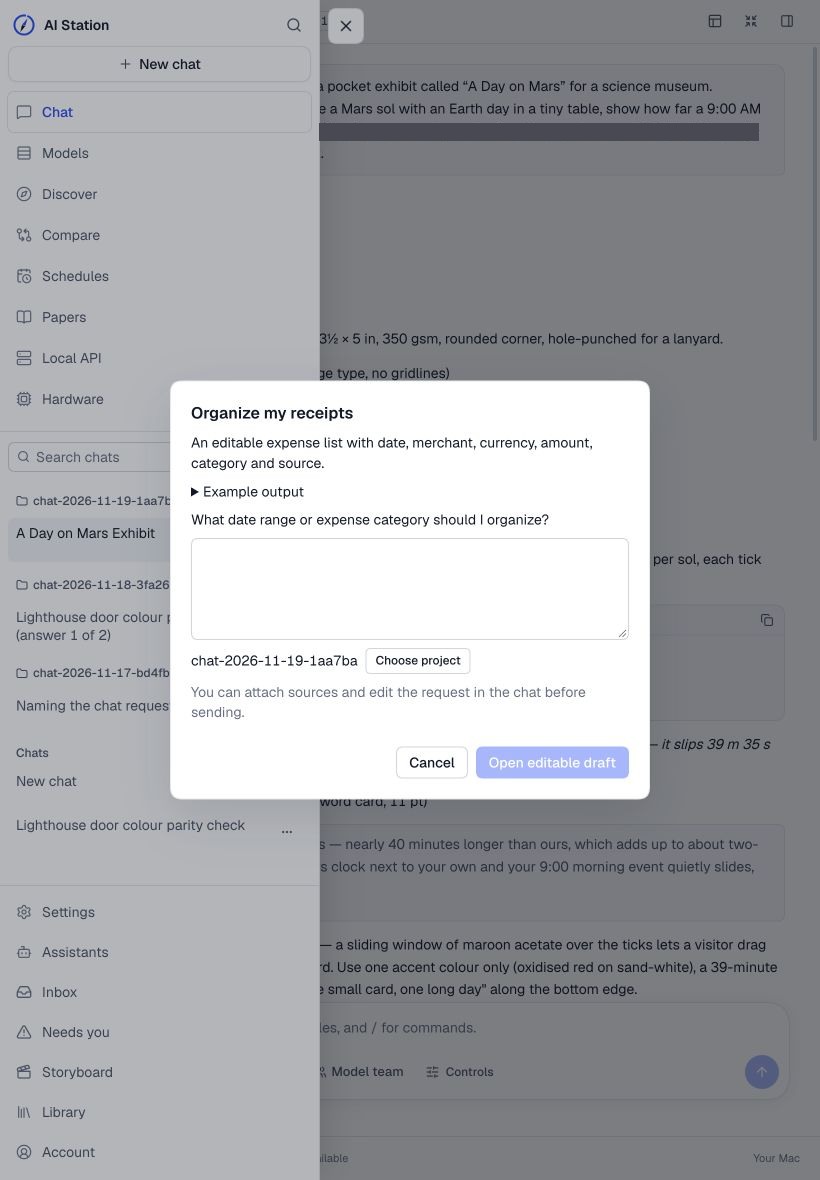
The inbox opens the “Organize my receipts” workflow. It gives the user a starting brief for turning their own material into a structured result.
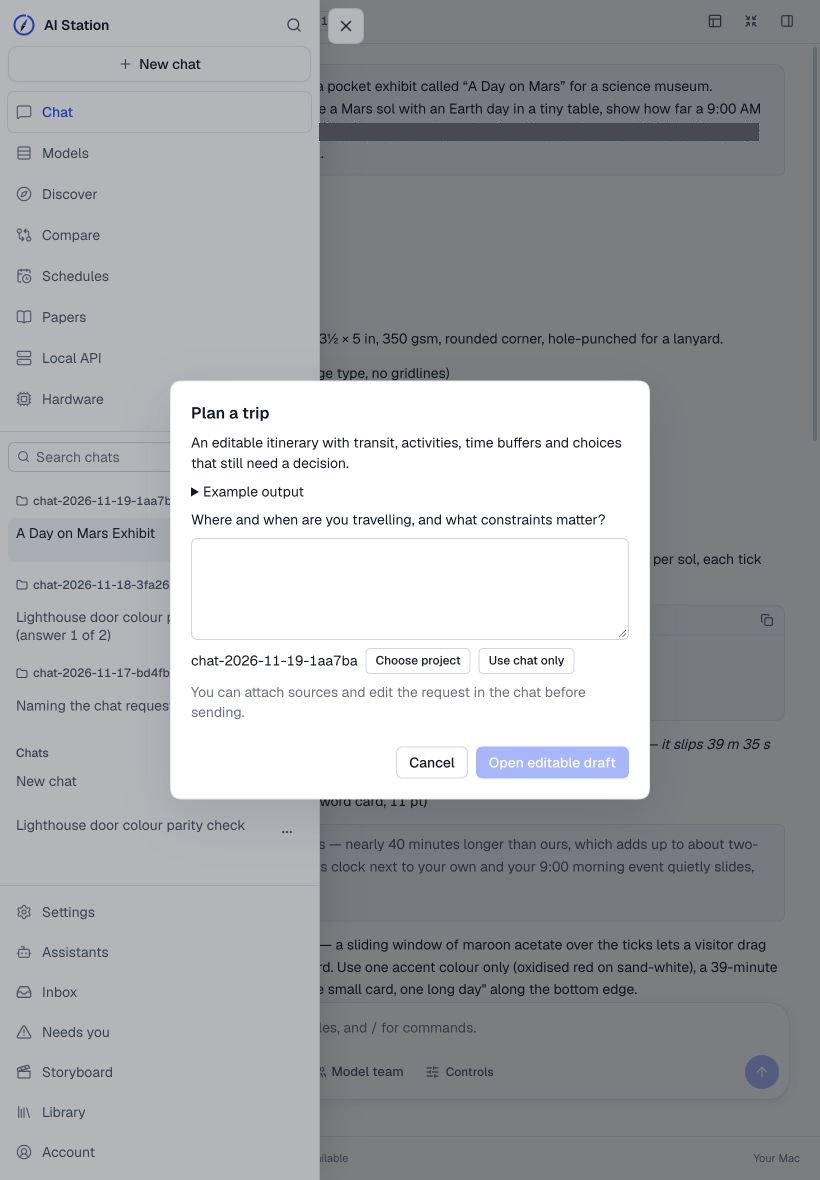
The inbox opens the “Plan a trip” workflow. It gives the user a starting brief for turning their own material into a structured result.
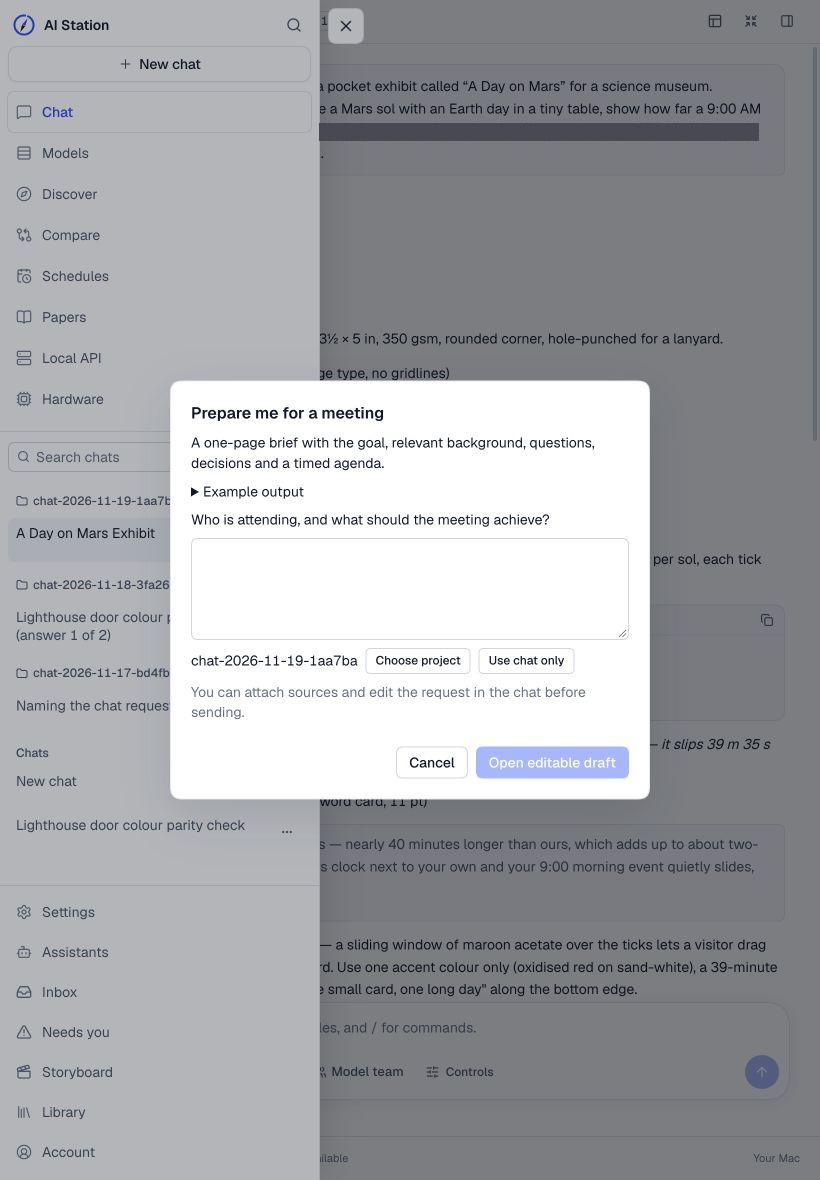
The inbox opens the “Prepare me for a meeting” workflow. It gives the user a starting brief for turning their own material into a structured result.
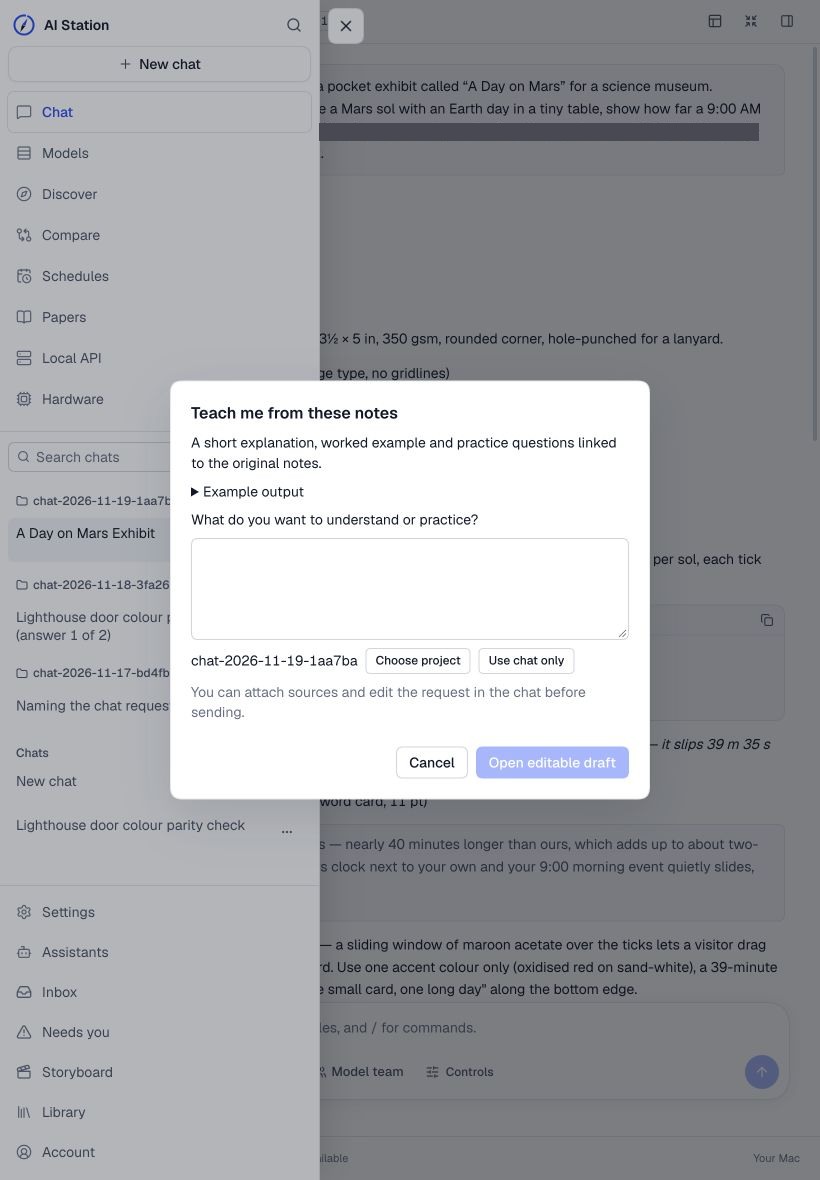
The inbox opens the “Teach me from these notes” workflow. It gives the user a starting brief for turning their own material into a structured result.
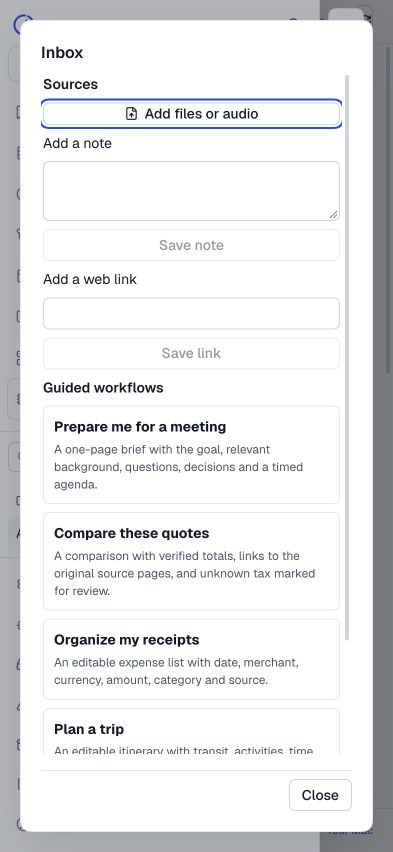
Read updates from work in progress and reopen the conversation or task behind an event.
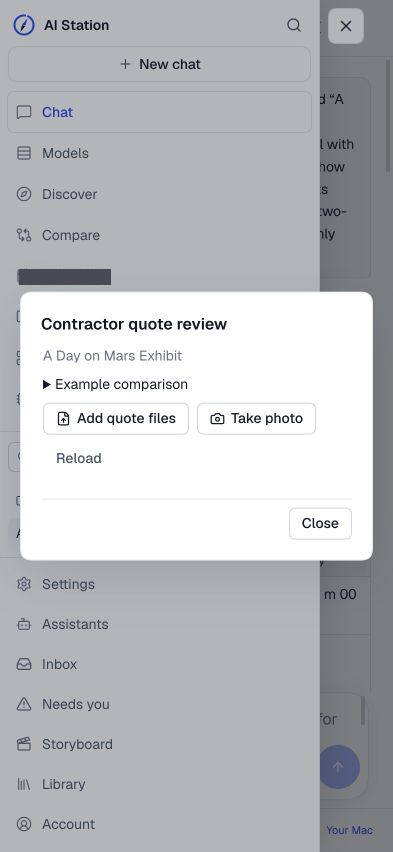
The inbox opens the “Compare these quotes” workflow. It gives the user a starting brief for turning their own material into a structured result.
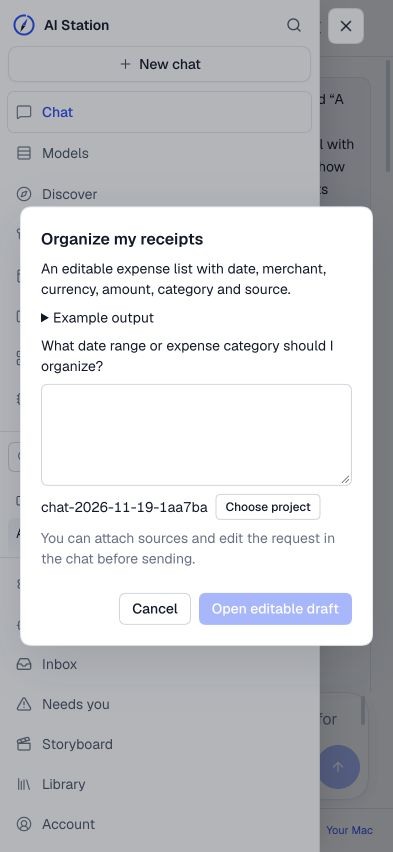
The inbox opens the “Organize my receipts” workflow. It gives the user a starting brief for turning their own material into a structured result.
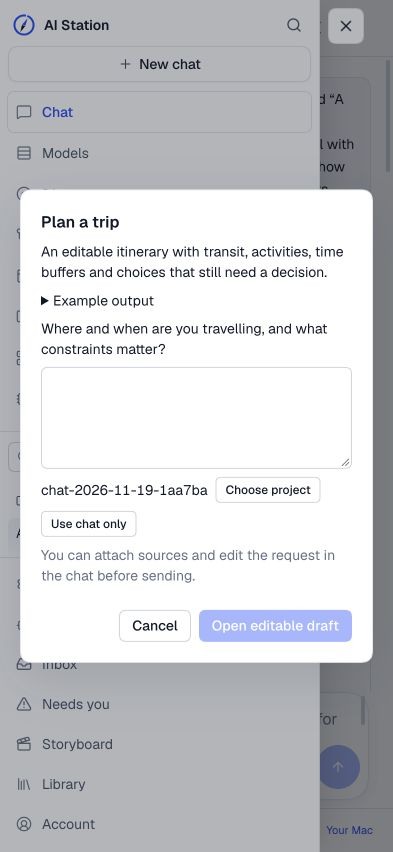
The inbox opens the “Plan a trip” workflow. It gives the user a starting brief for turning their own material into a structured result.
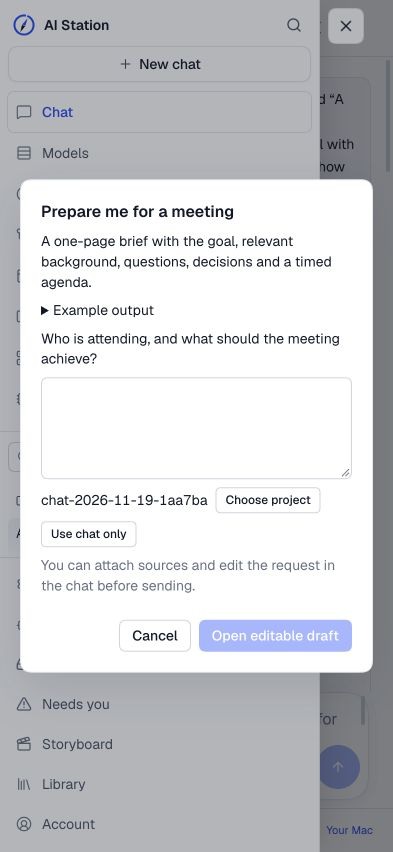
The inbox opens the “Prepare me for a meeting” workflow. It gives the user a starting brief for turning their own material into a structured result.
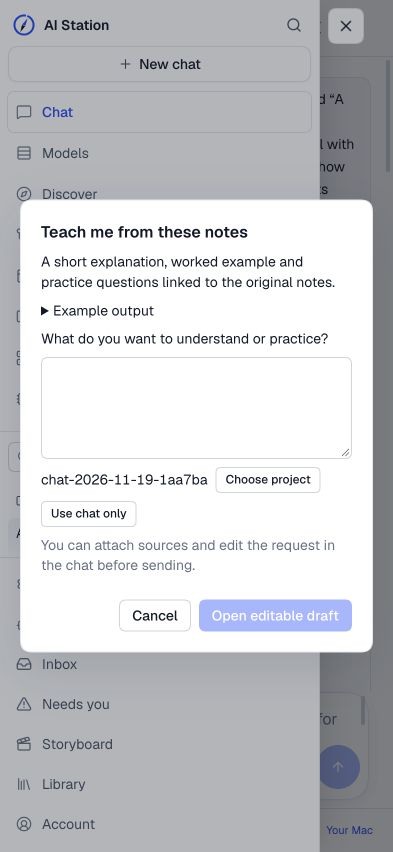
The inbox opens the “Teach me from these notes” workflow. It gives the user a starting brief for turning their own material into a structured result.
Library 12
Find saved material available to the hosted workspace and inspect individual entries.
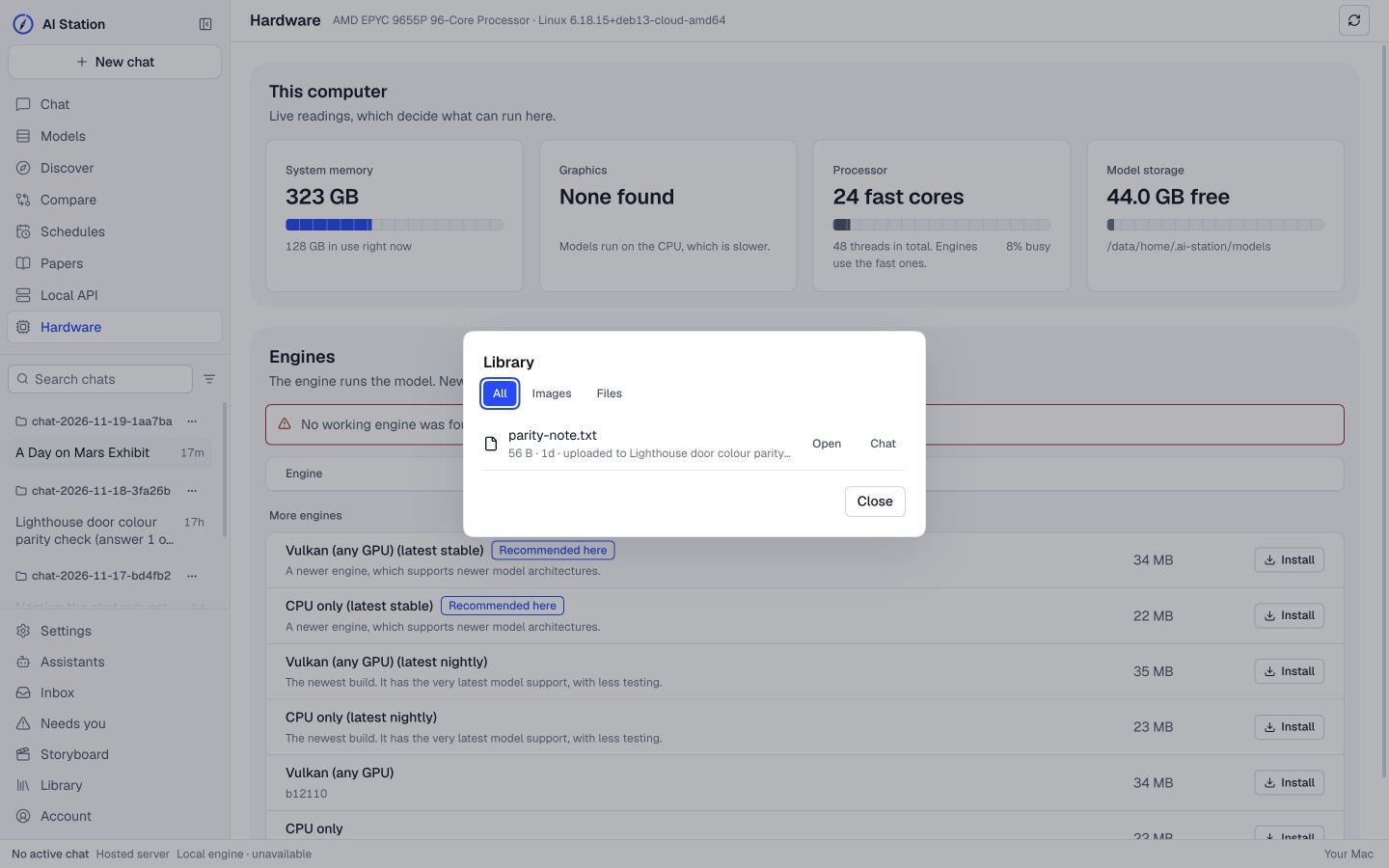
Find saved material available to the hosted workspace and inspect individual entries.
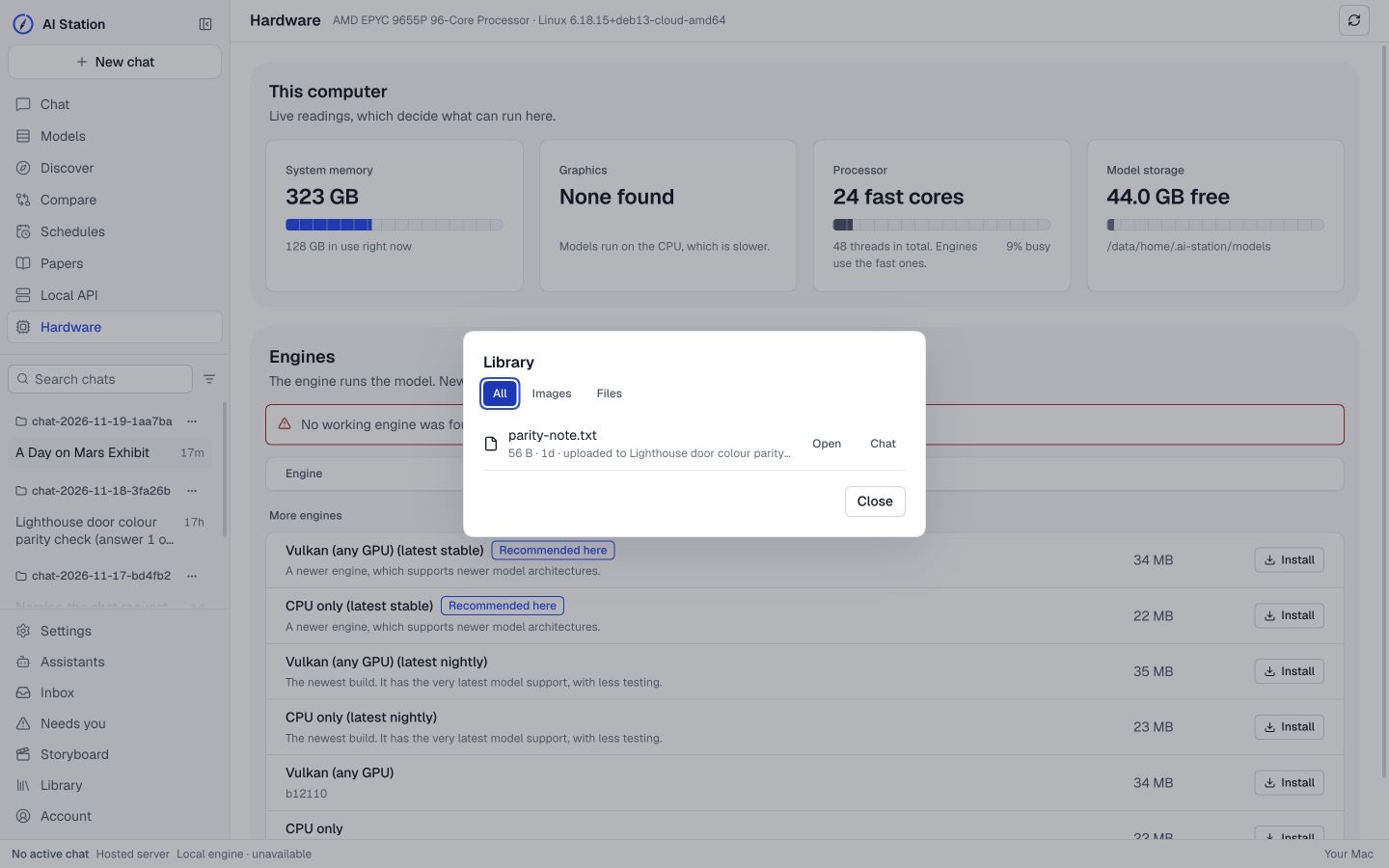
Find saved material available to the hosted workspace and inspect individual entries.
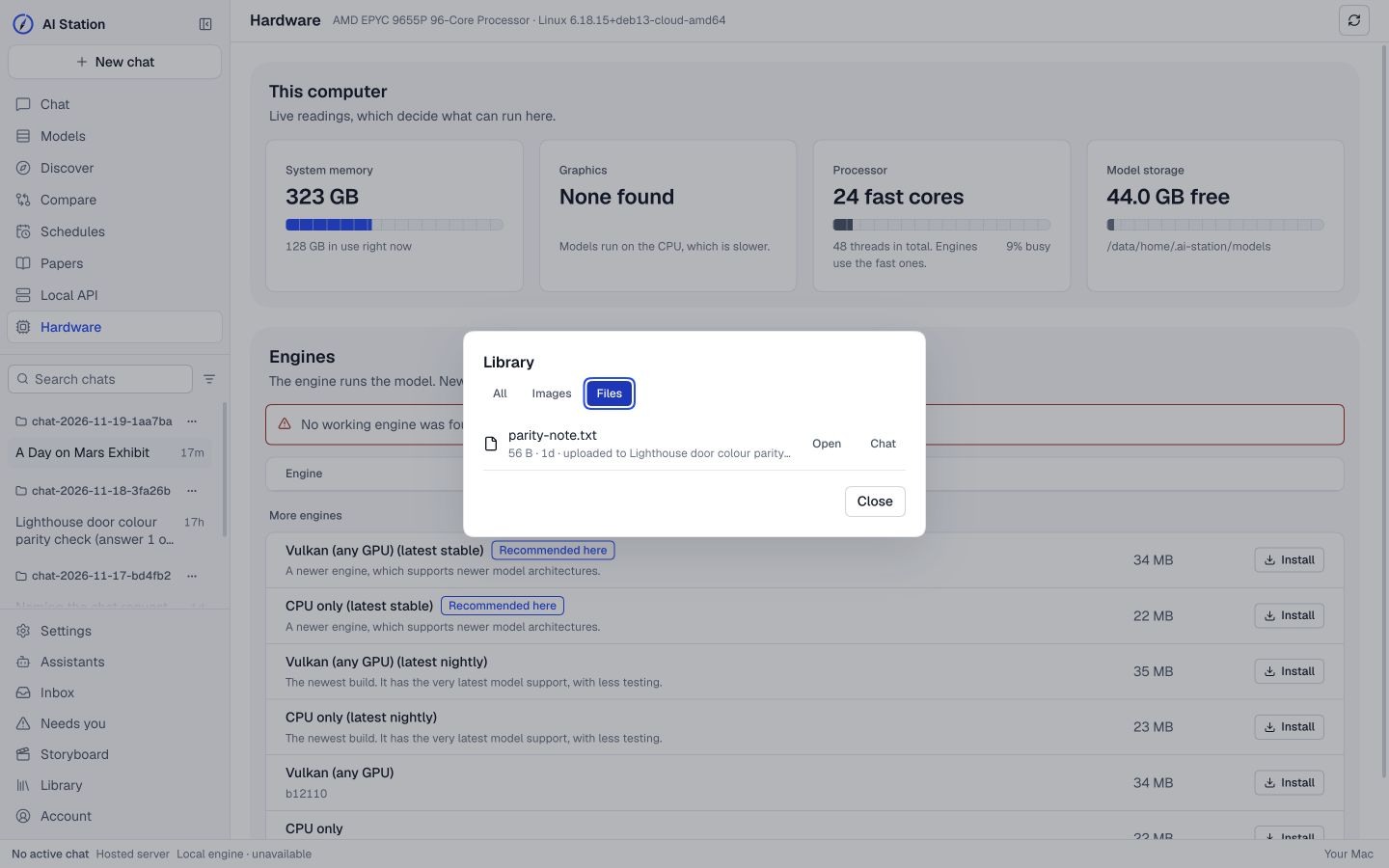
The file view connects a conversation to its source material. It lets the user inspect or select the files that supply context for the assistant’s work.
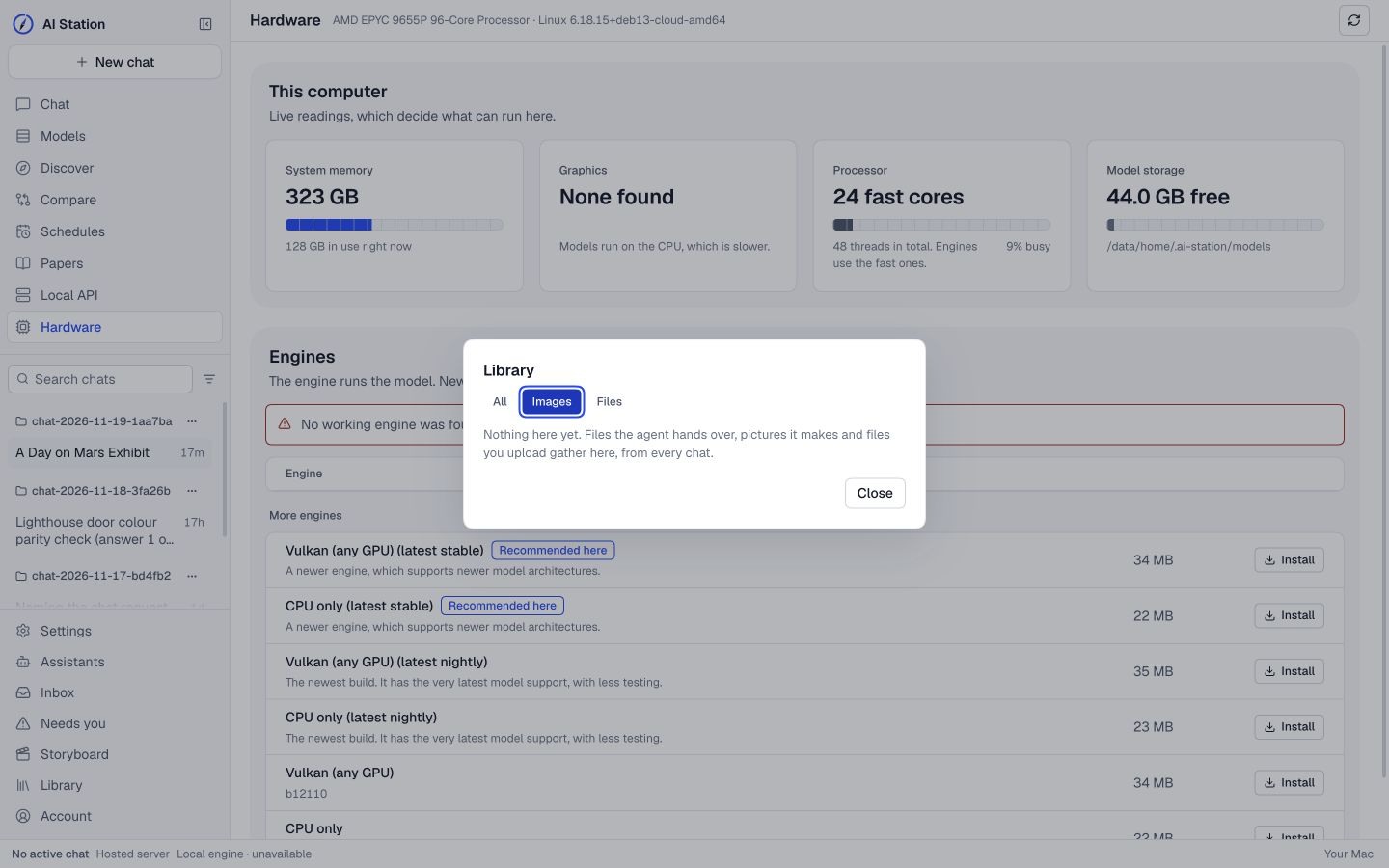
The image filter narrows the hosted library to visual material, making it easier to find a reference for a conversation.
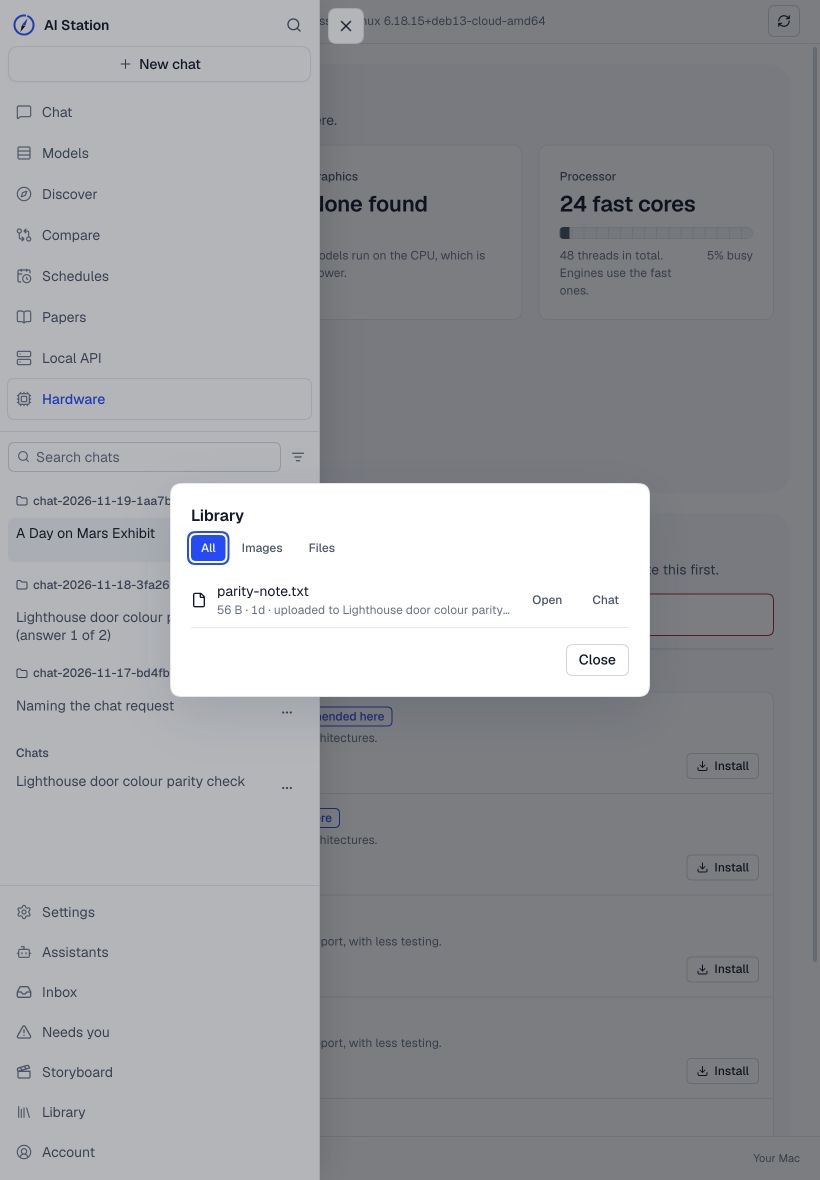
Find saved material available to the hosted workspace and inspect individual entries.
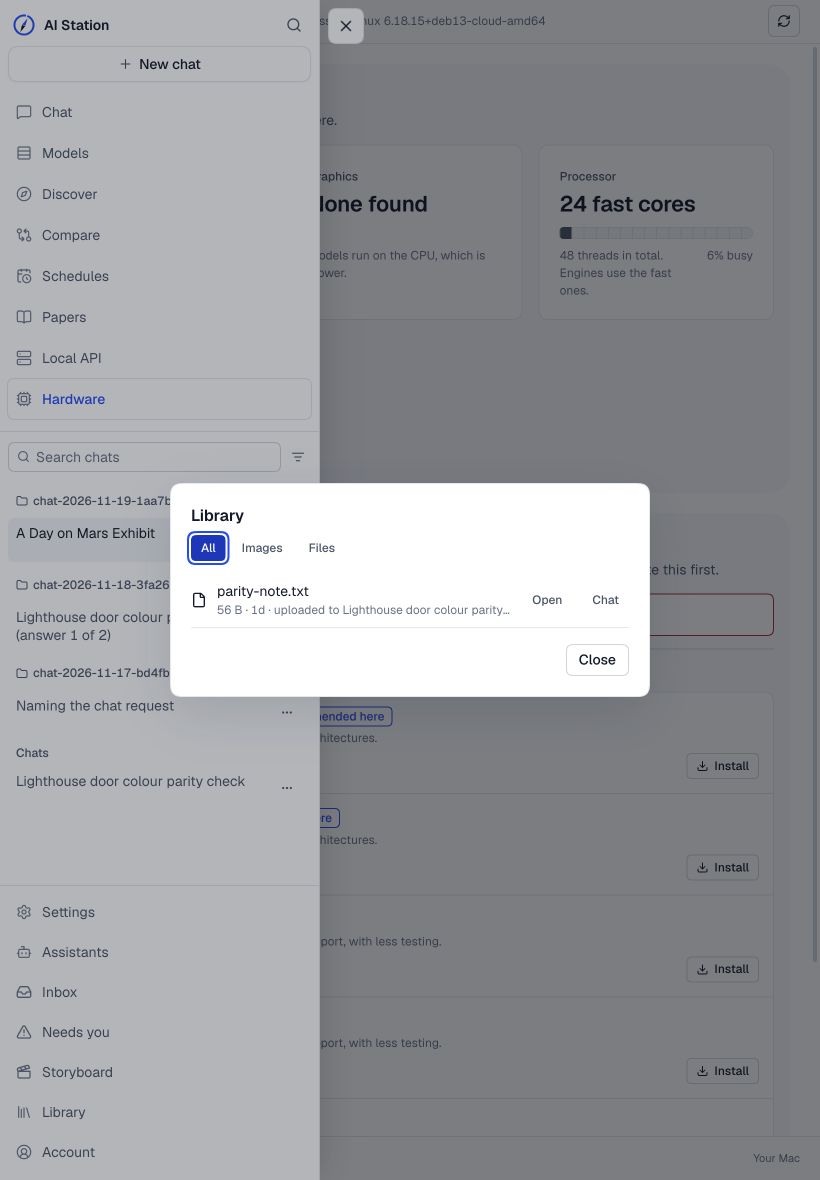
Find saved material available to the hosted workspace and inspect individual entries.
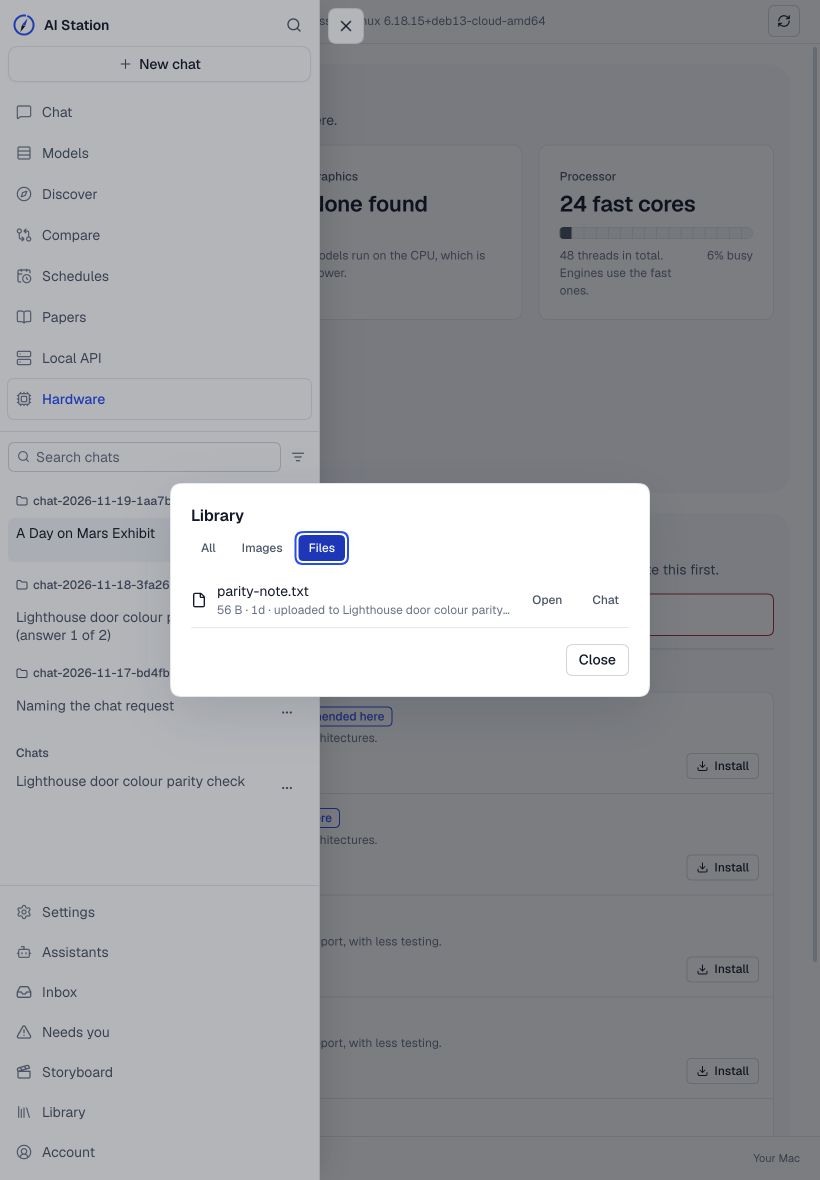
The file view connects a conversation to its source material. It lets the user inspect or select the files that supply context for the assistant’s work.
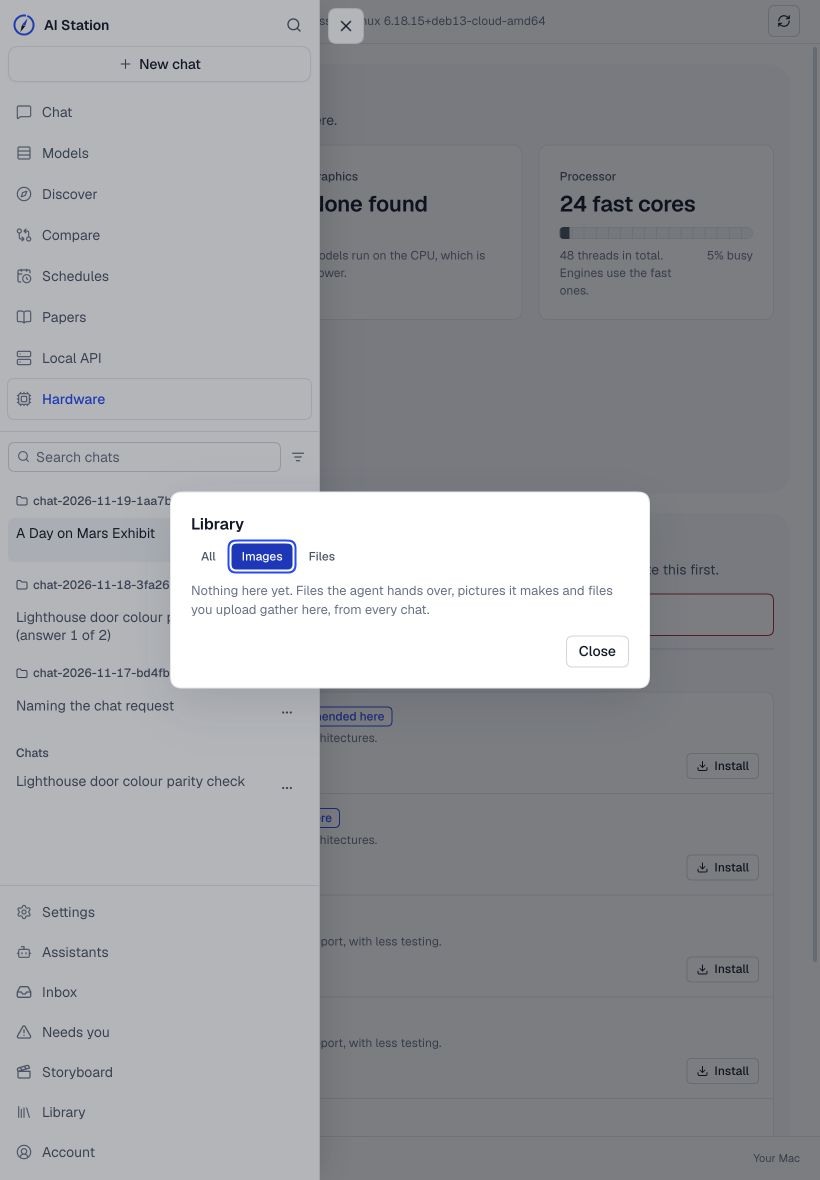
The image filter narrows the hosted library to visual material, making it easier to find a reference for a conversation.
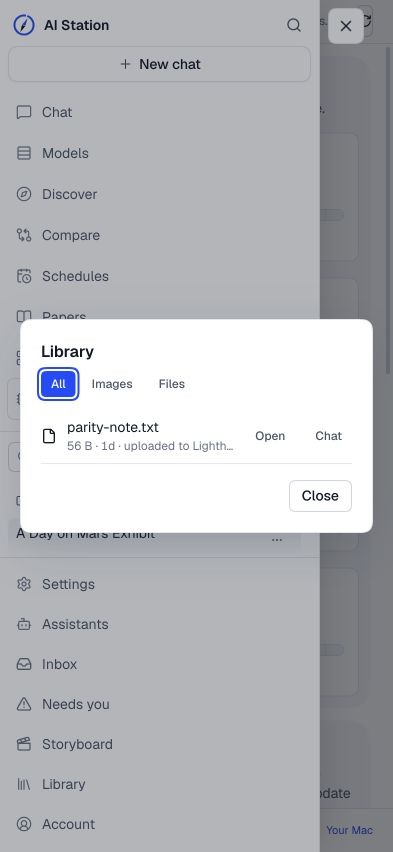
Find saved material available to the hosted workspace and inspect individual entries.
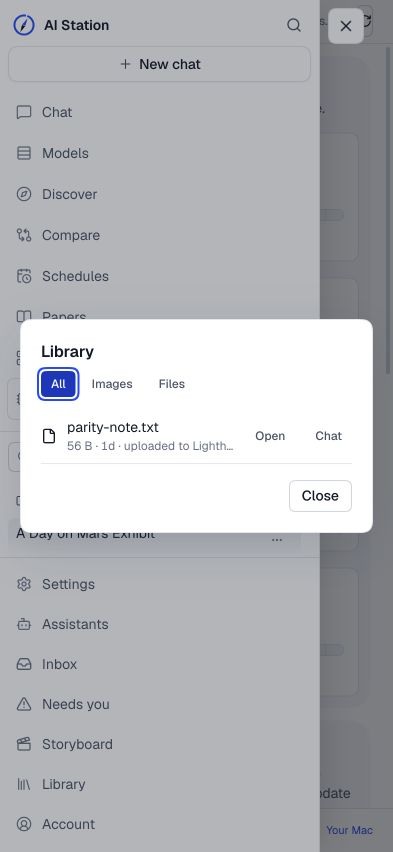
Find saved material available to the hosted workspace and inspect individual entries.
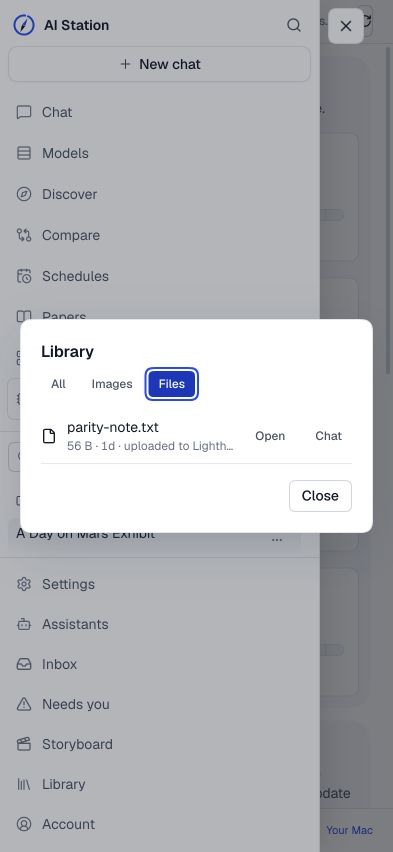
The file view connects a conversation to its source material. It lets the user inspect or select the files that supply context for the assistant’s work.
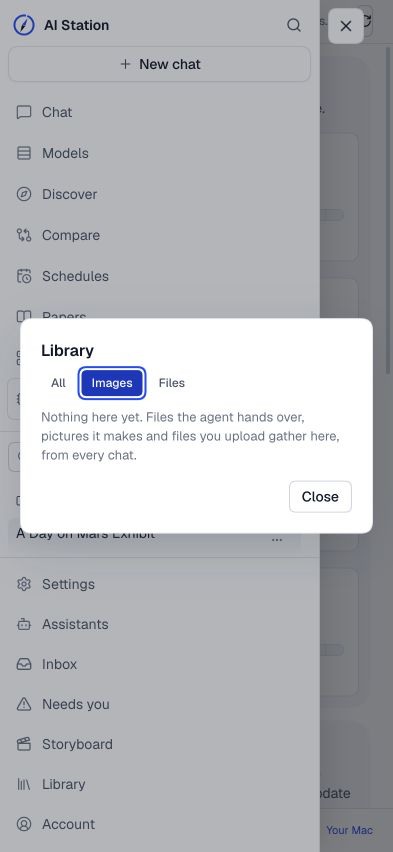
The image filter narrows the hosted library to visual material, making it easier to find a reference for a conversation.
Live Chat 30
Follow the Mars exhibit brief in sequence, including the initial request, follow-up corrections and finished work.
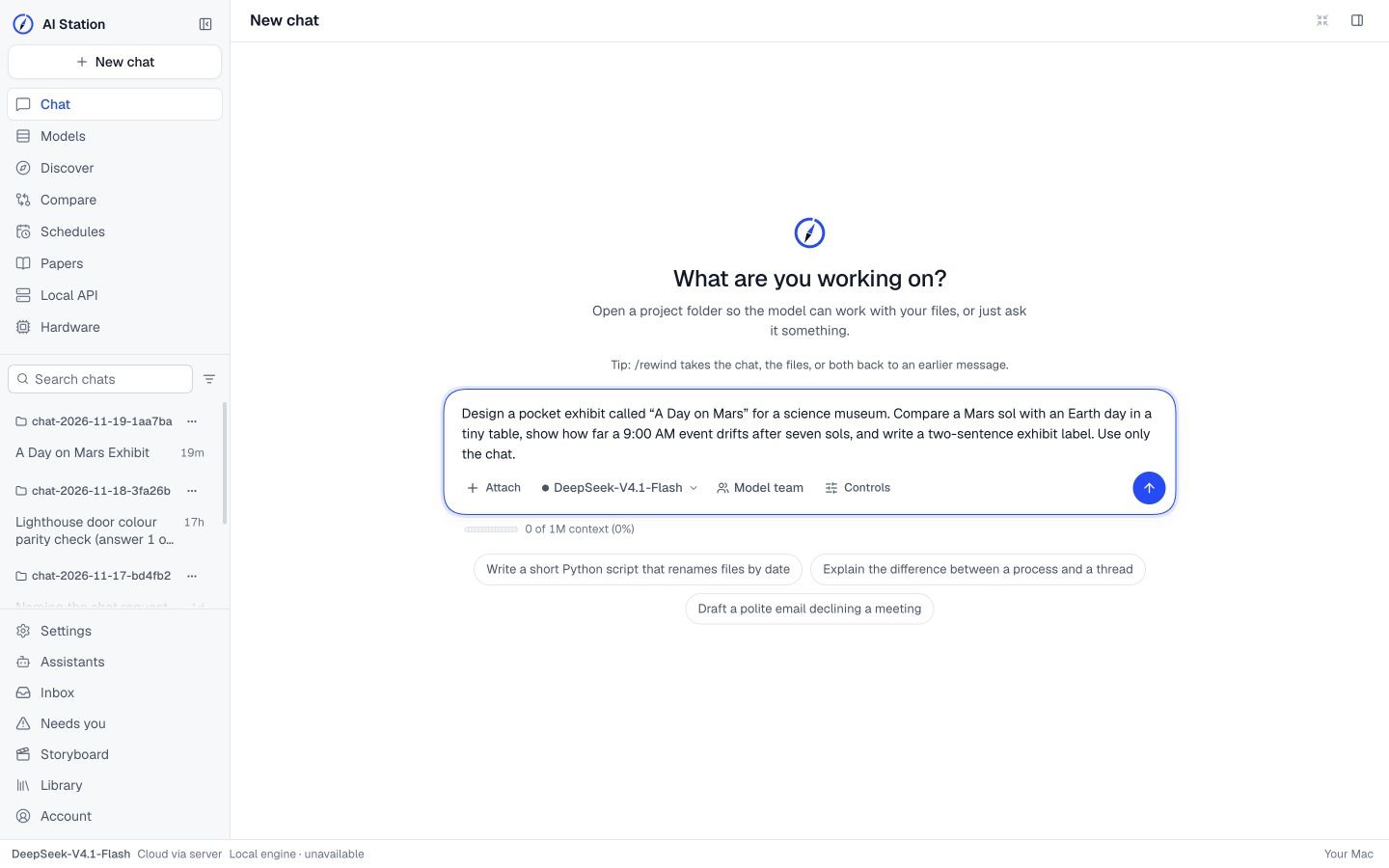
The user asks for a museum exhibit about a day on Mars. The difference between an Earth day and a sol gives the assistant a concrete calculation to explain to visitors.
The Mars exhibit conversation exposes the work behind the answer. The user can follow the calculation as the assistant moves from the prompt toward an explanation.
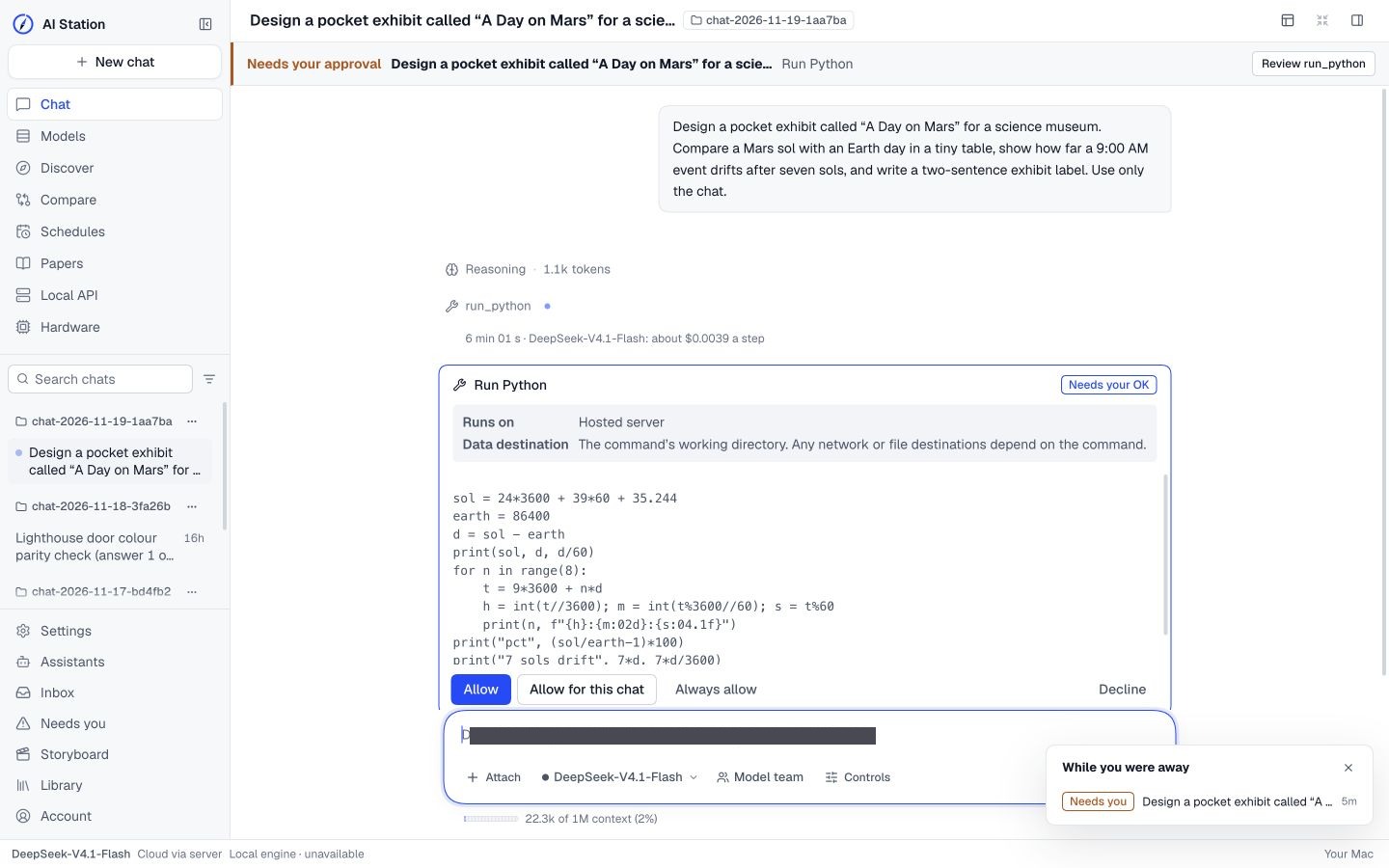
The Mars exhibit conversation exposes the work behind the answer. The user can follow the calculation as the assistant moves from the prompt toward an explanation.
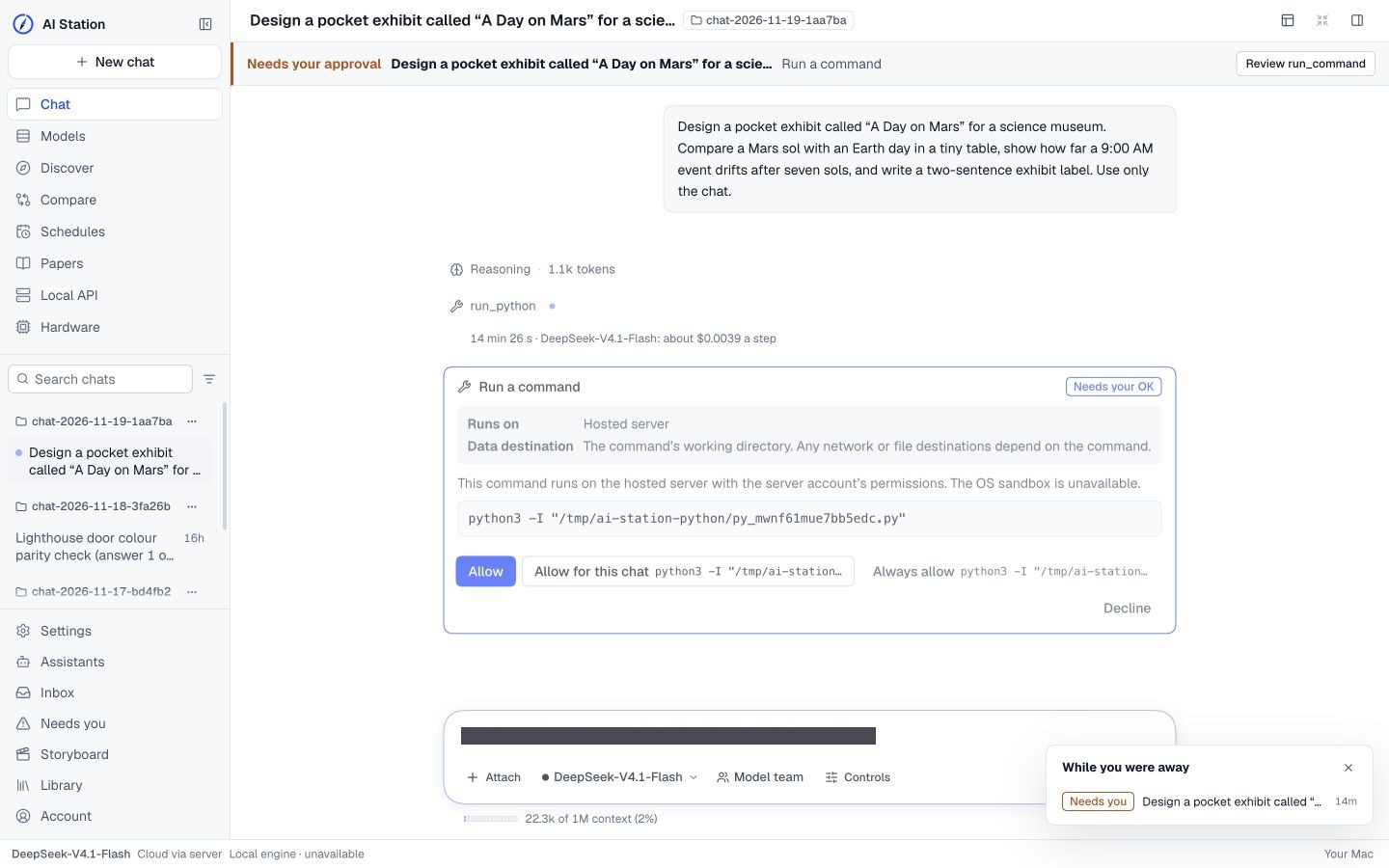
The Mars exhibit conversation exposes the work behind the answer. The user can follow the calculation as the assistant moves from the prompt toward an explanation.
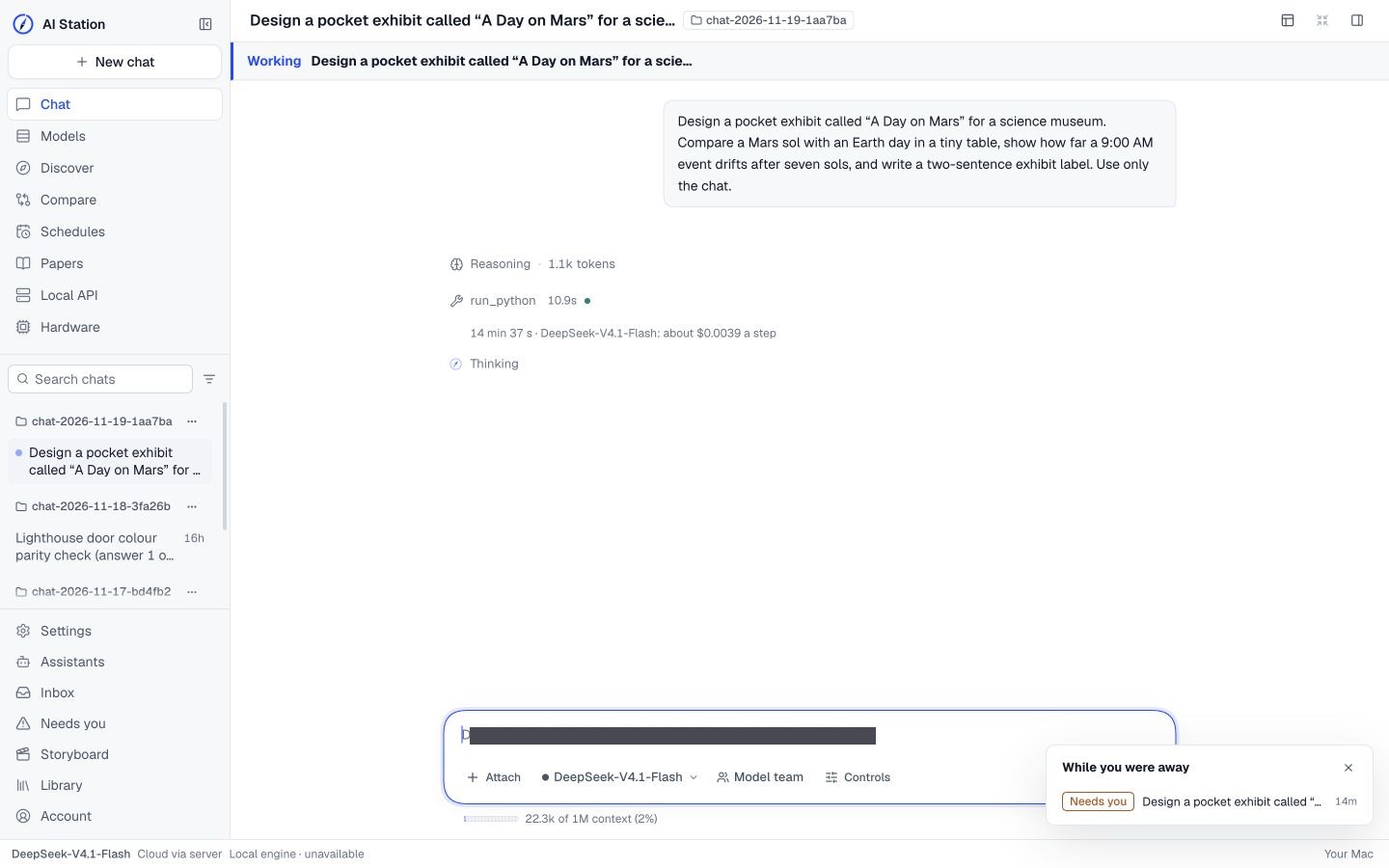
The Mars exhibit conversation exposes the work behind the answer. The user can follow the calculation as the assistant moves from the prompt toward an explanation.
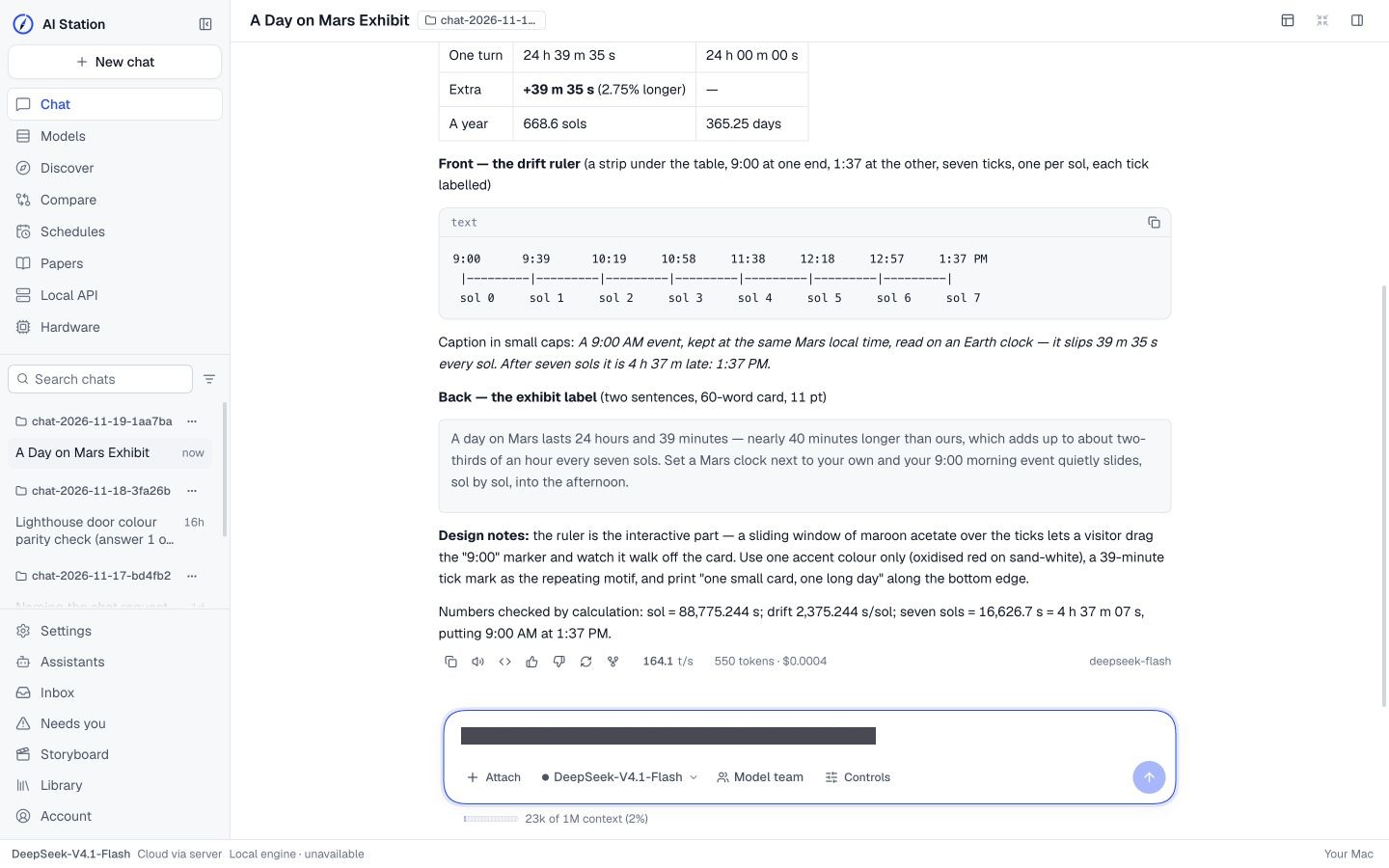
The user asks for a museum exhibit about a day on Mars. The difference between an Earth day and a sol gives the assistant a concrete calculation to explain to visitors.
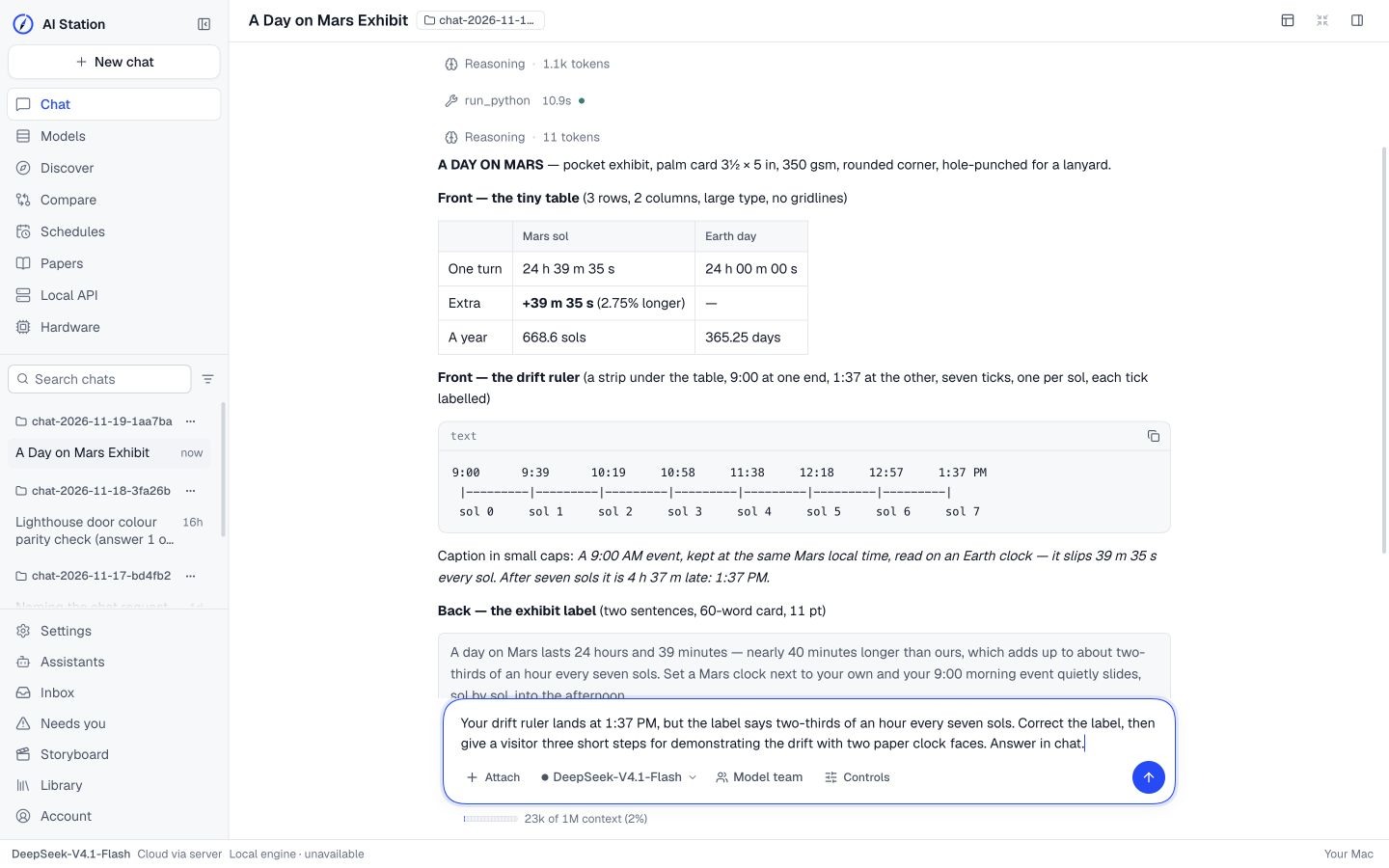
The user refines the Mars exhibit brief within the existing conversation. The earlier calculation remains available as context for the revision.
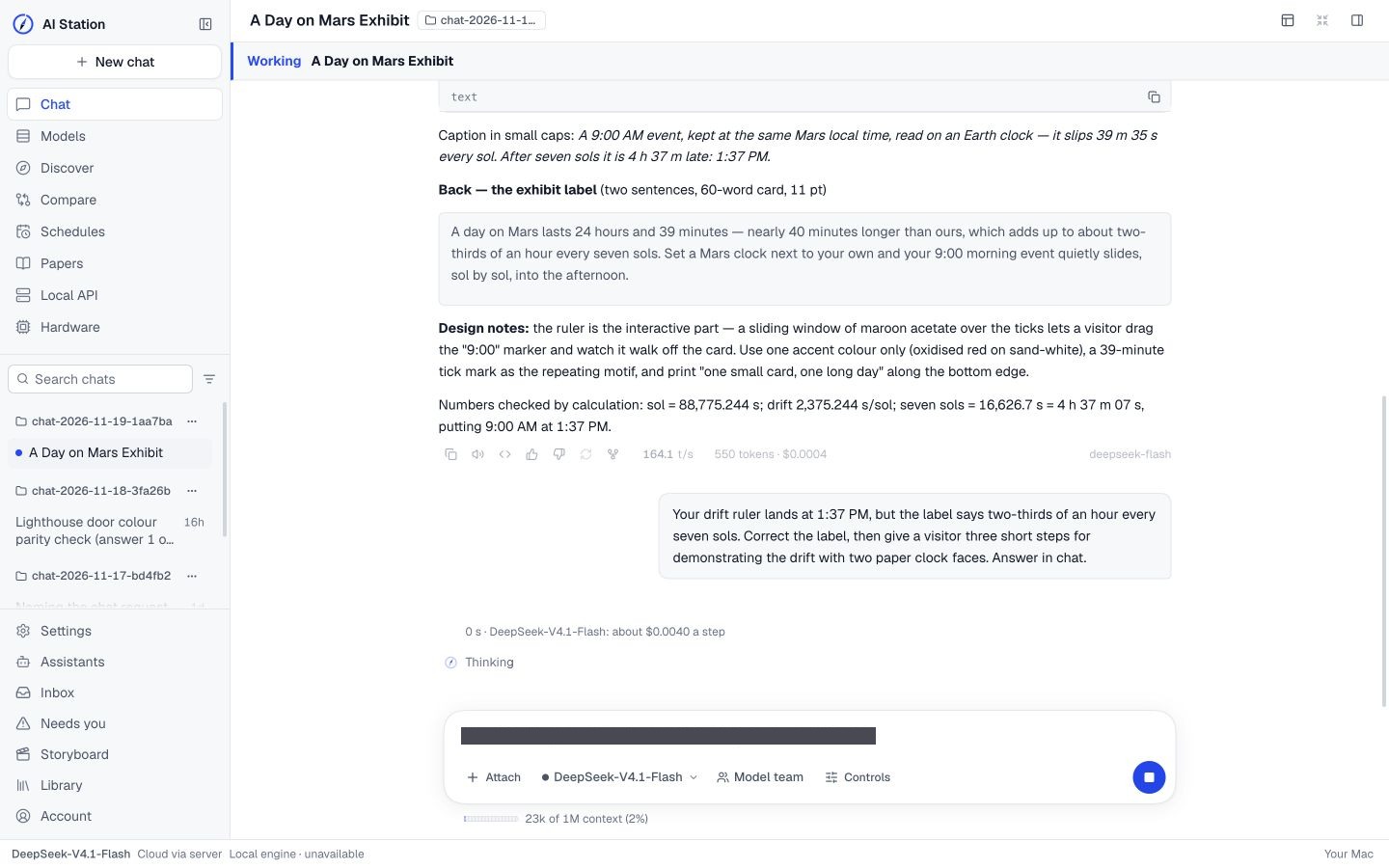
The user refines the Mars exhibit brief within the existing conversation. The earlier calculation remains available as context for the revision.
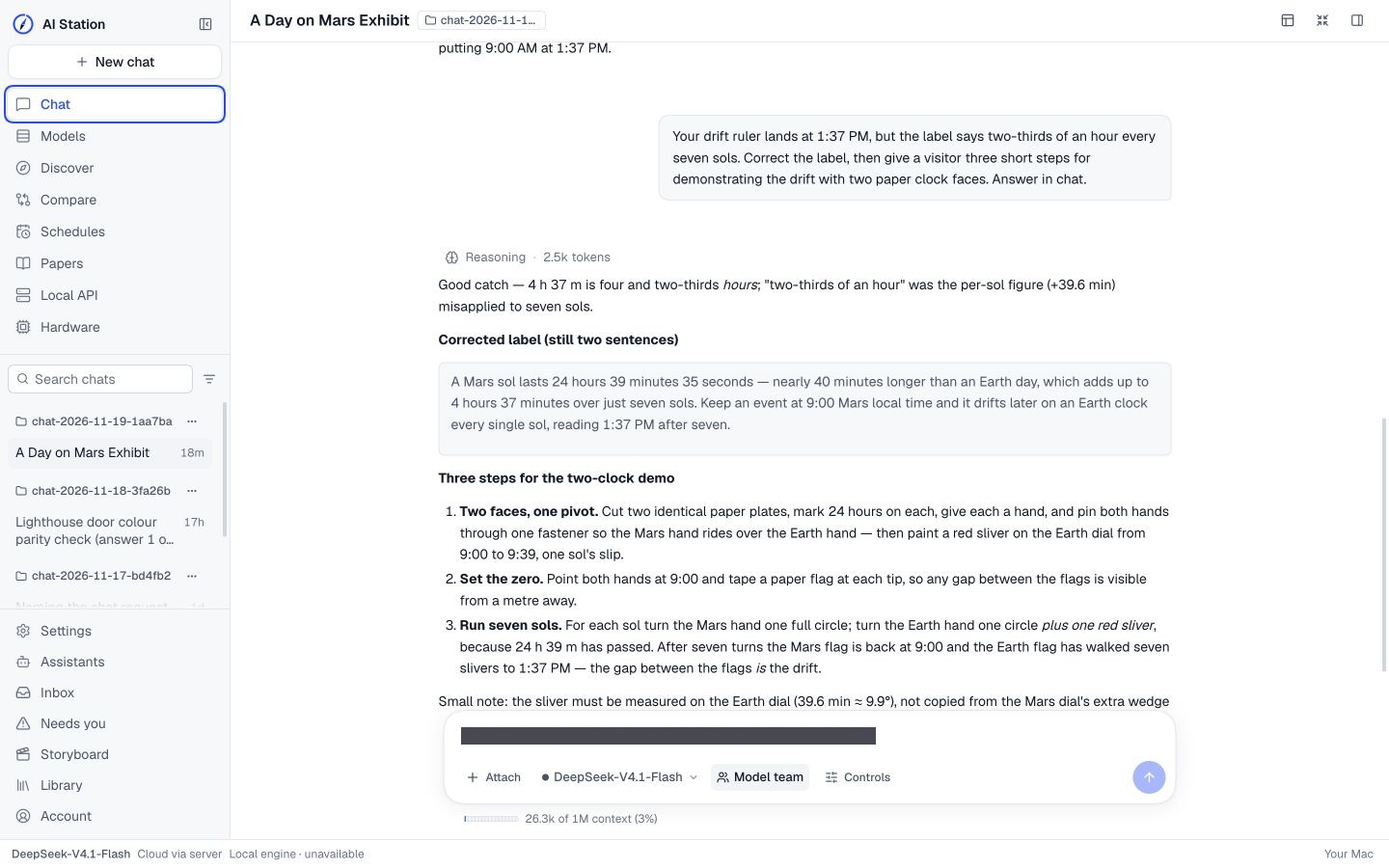
The museum conversation reaches its clock demonstration. This is the result the user can inspect after asking the assistant to correct its earlier treatment of Martian time.
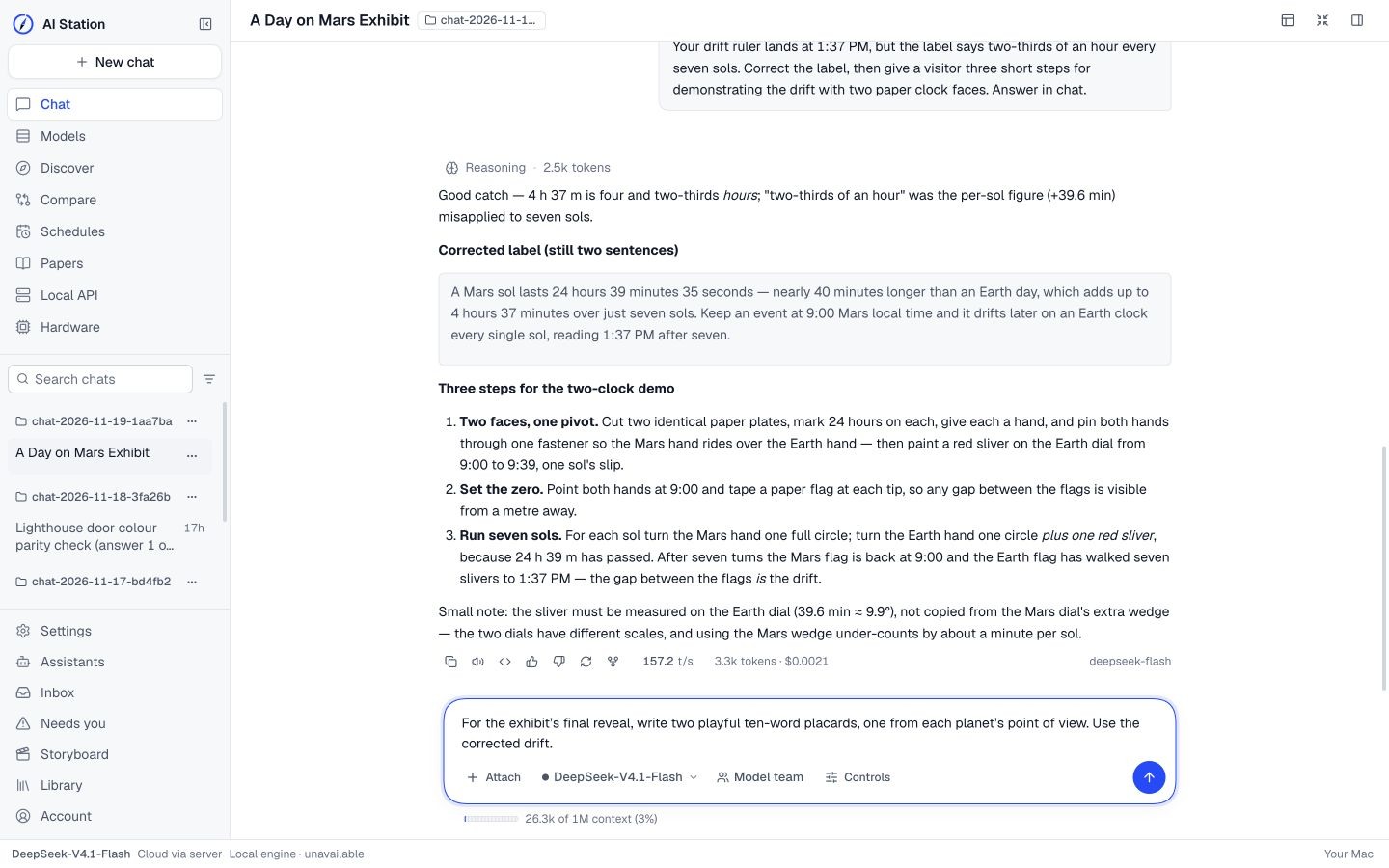
The exhibit brief has become a copy-editing task. The assistant must explain Martian time to a museum visitor within a ten-word limit for each placard.
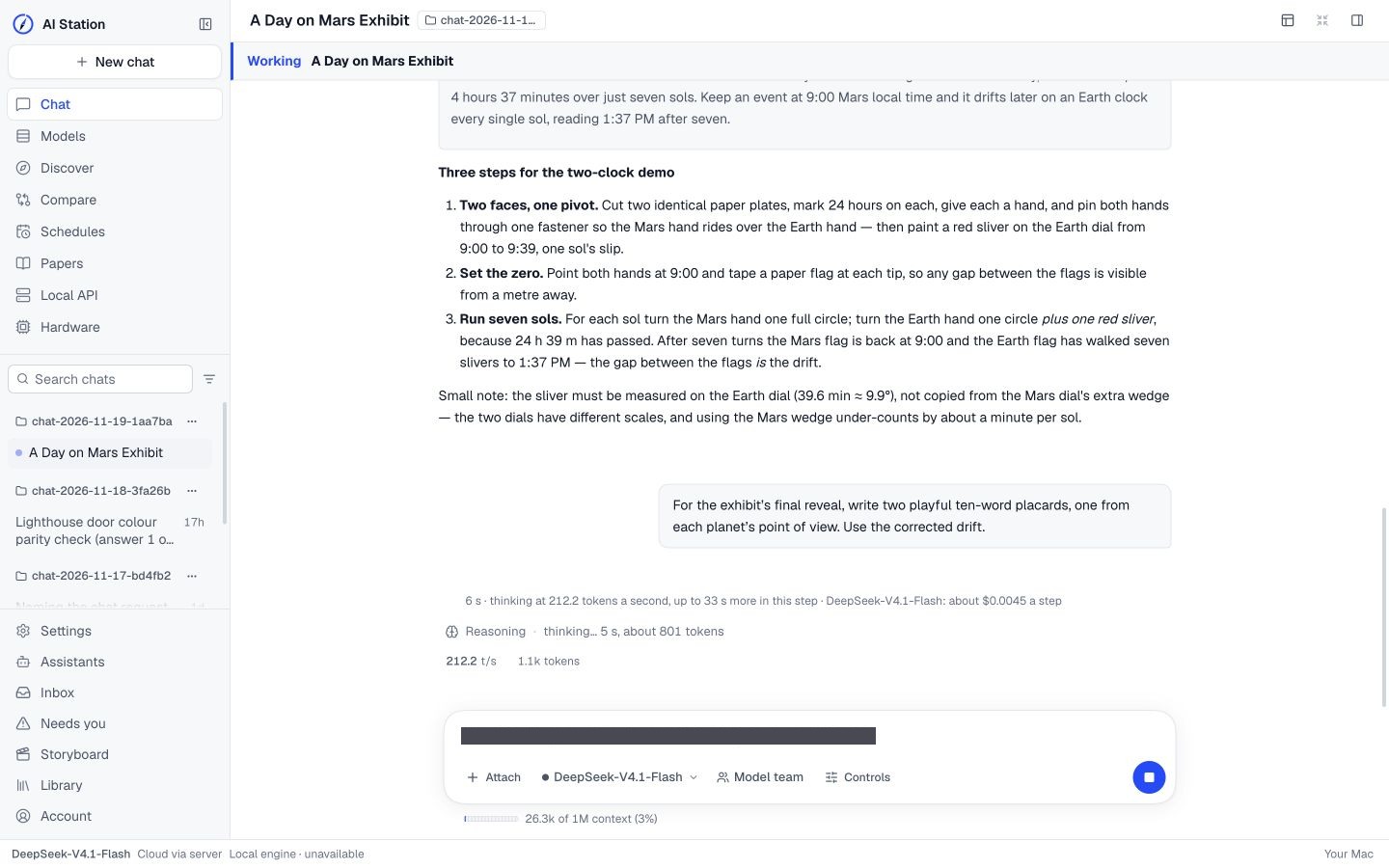
The exhibit brief has become a copy-editing task. The assistant must explain Martian time to a museum visitor within a ten-word limit for each placard.
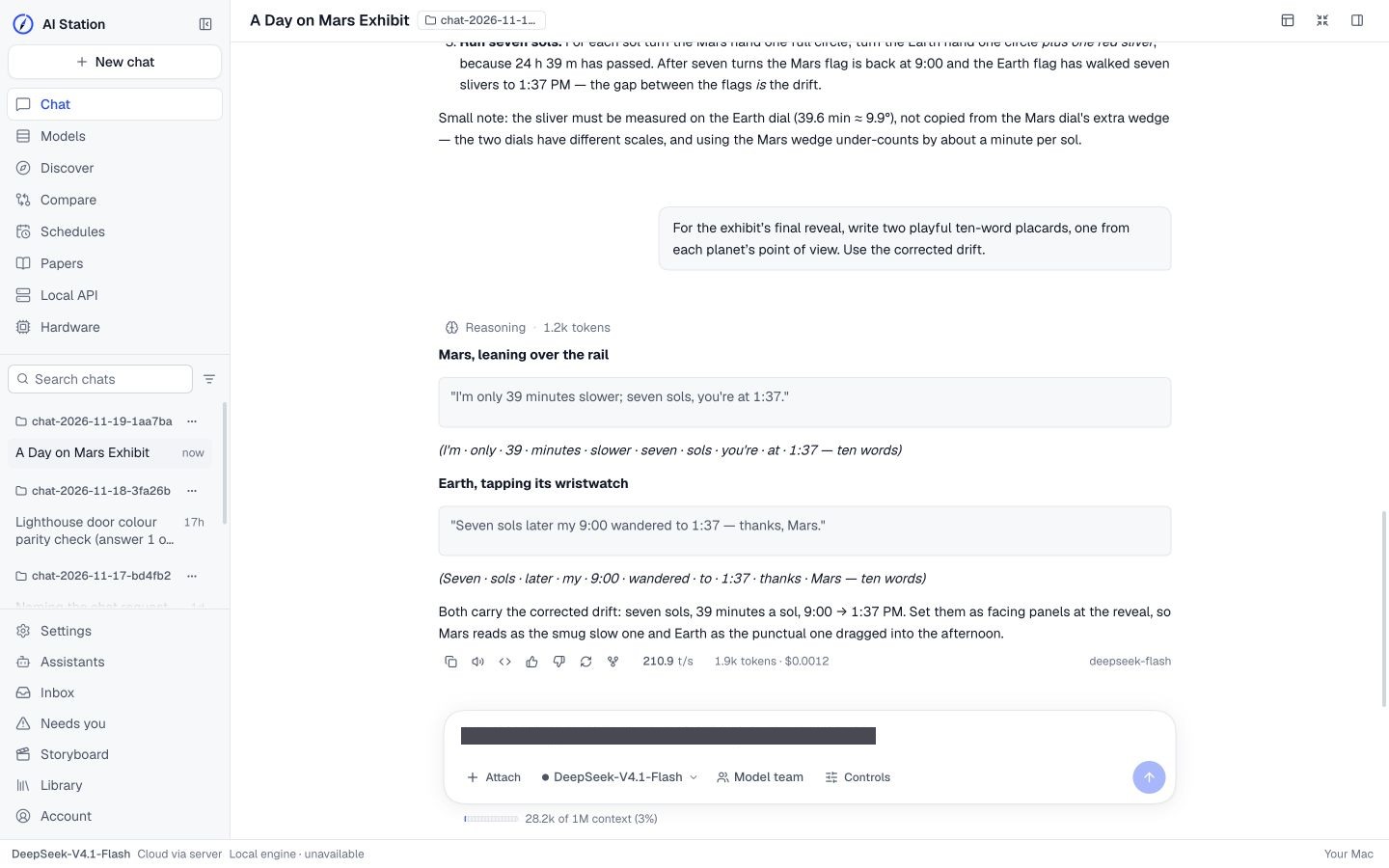
The exhibit brief has become a copy-editing task. The assistant must explain Martian time to a museum visitor within a ten-word limit for each placard.
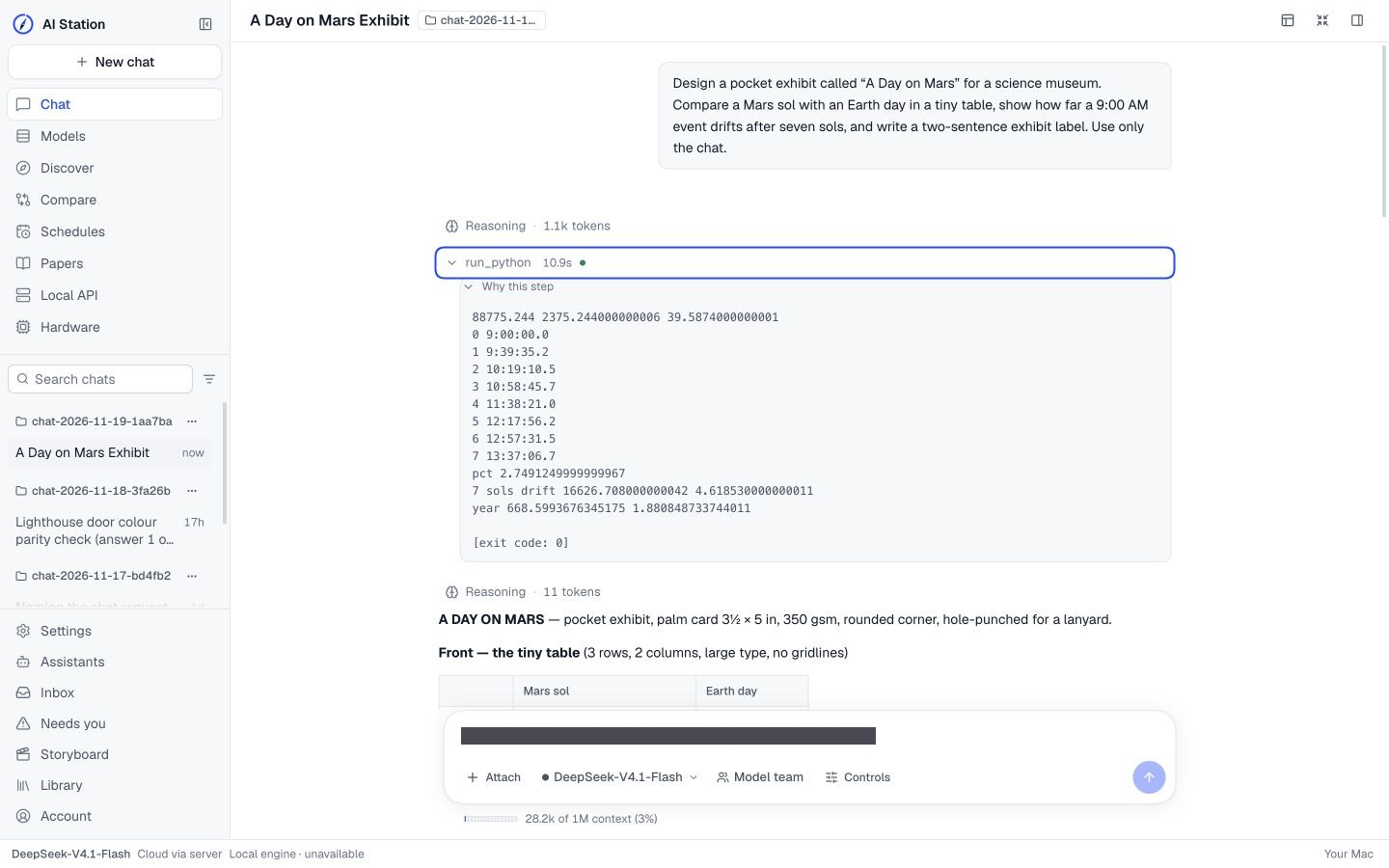
The Mars exhibit conversation exposes the work behind the answer. The user can follow the calculation as the assistant moves from the prompt toward an explanation.
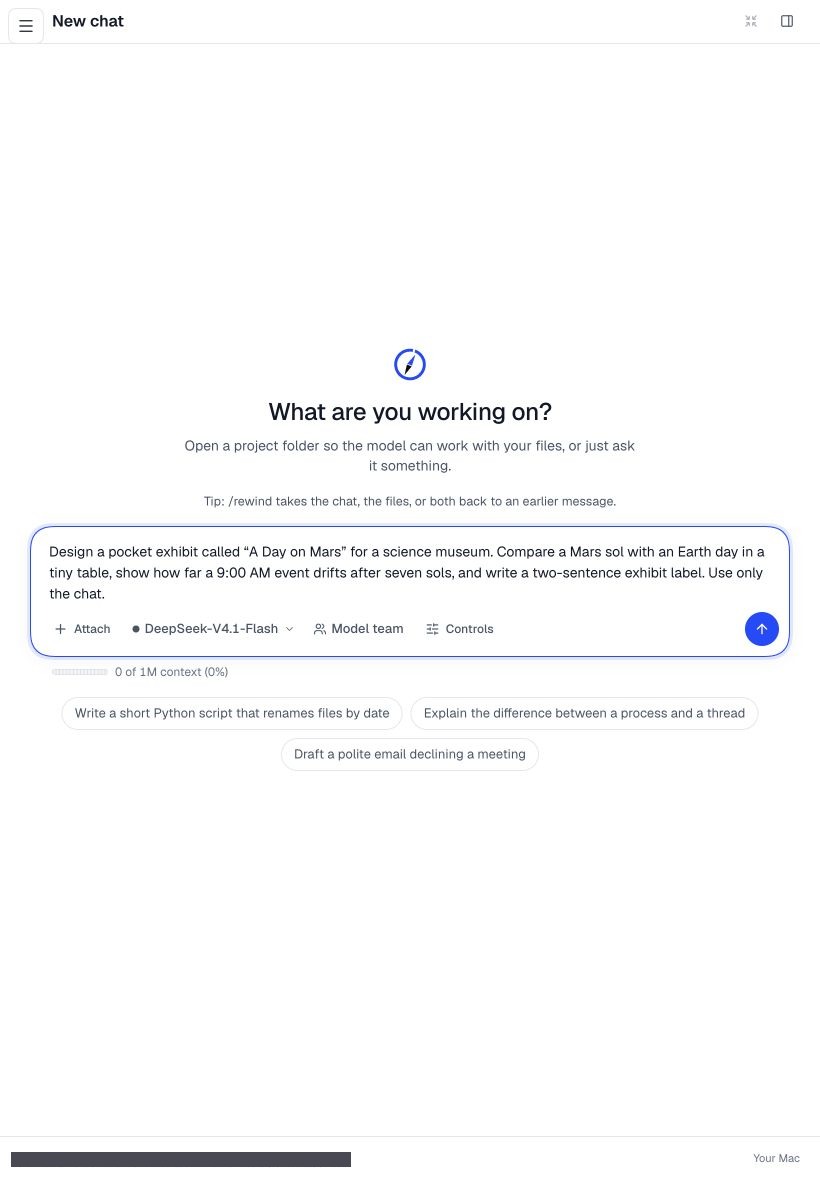
The user asks for a museum exhibit about a day on Mars. The difference between an Earth day and a sol gives the assistant a concrete calculation to explain to visitors.
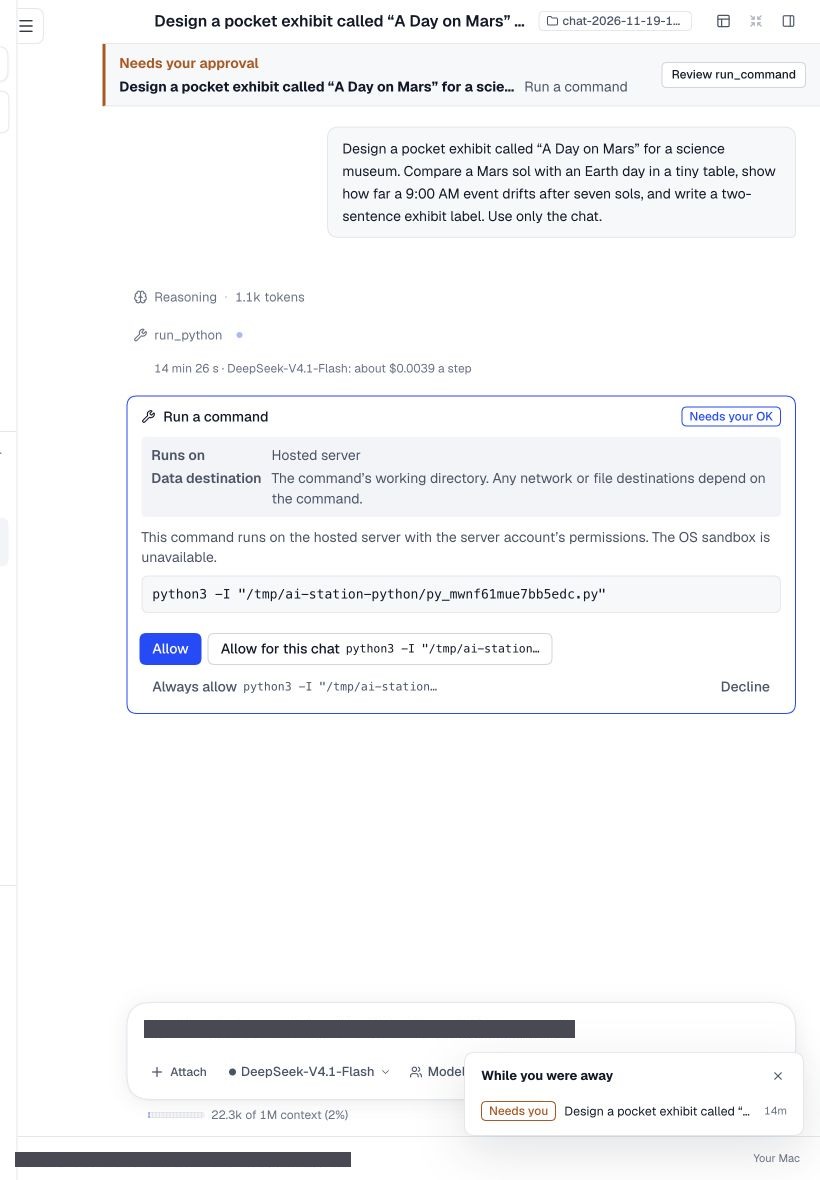
The Mars exhibit conversation exposes the work behind the answer. The user can follow the calculation as the assistant moves from the prompt toward an explanation.
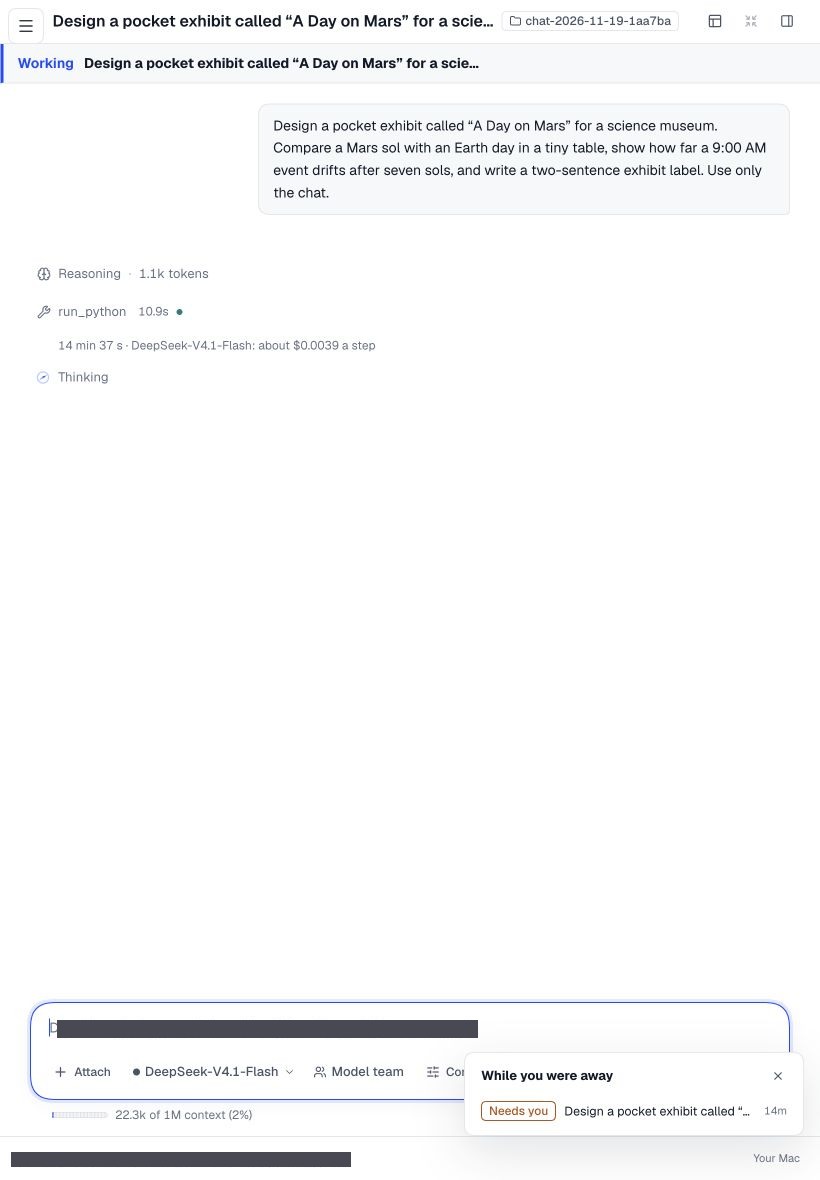
The Mars exhibit conversation exposes the work behind the answer. The user can follow the calculation as the assistant moves from the prompt toward an explanation.
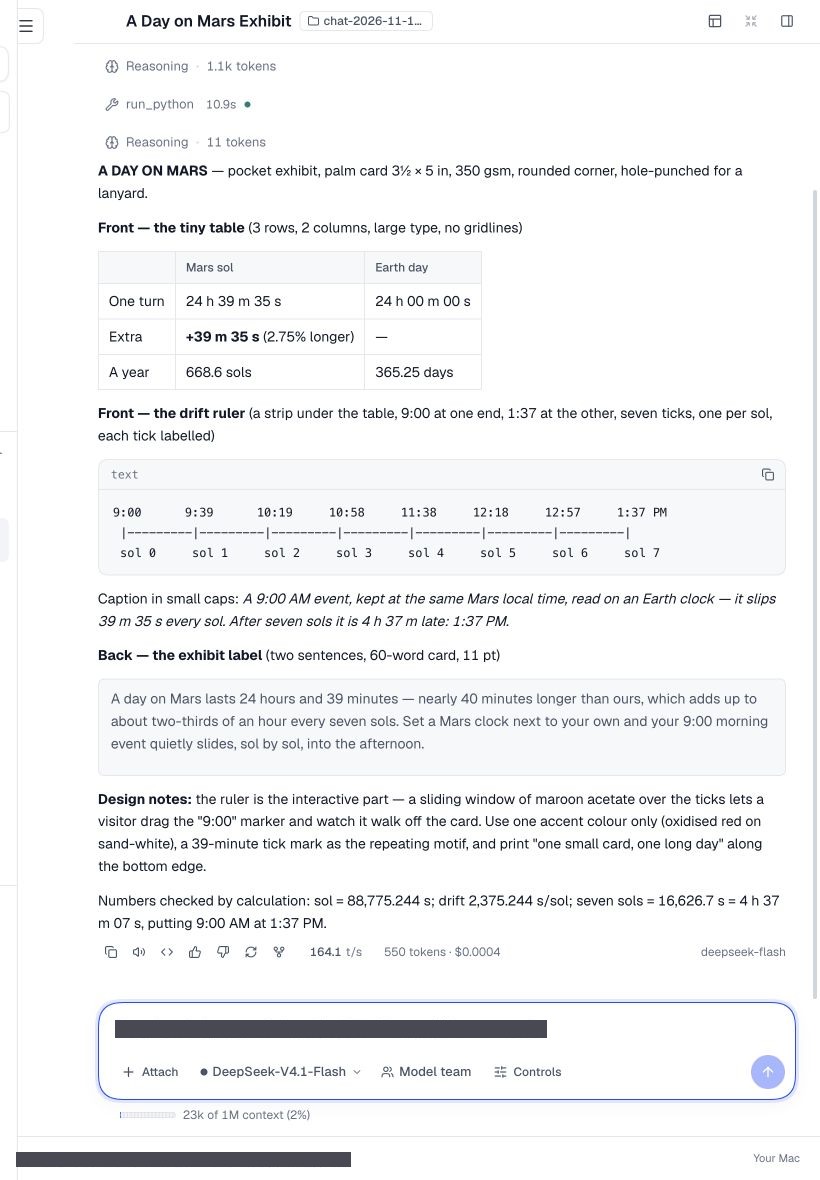
The user asks for a museum exhibit about a day on Mars. The difference between an Earth day and a sol gives the assistant a concrete calculation to explain to visitors.
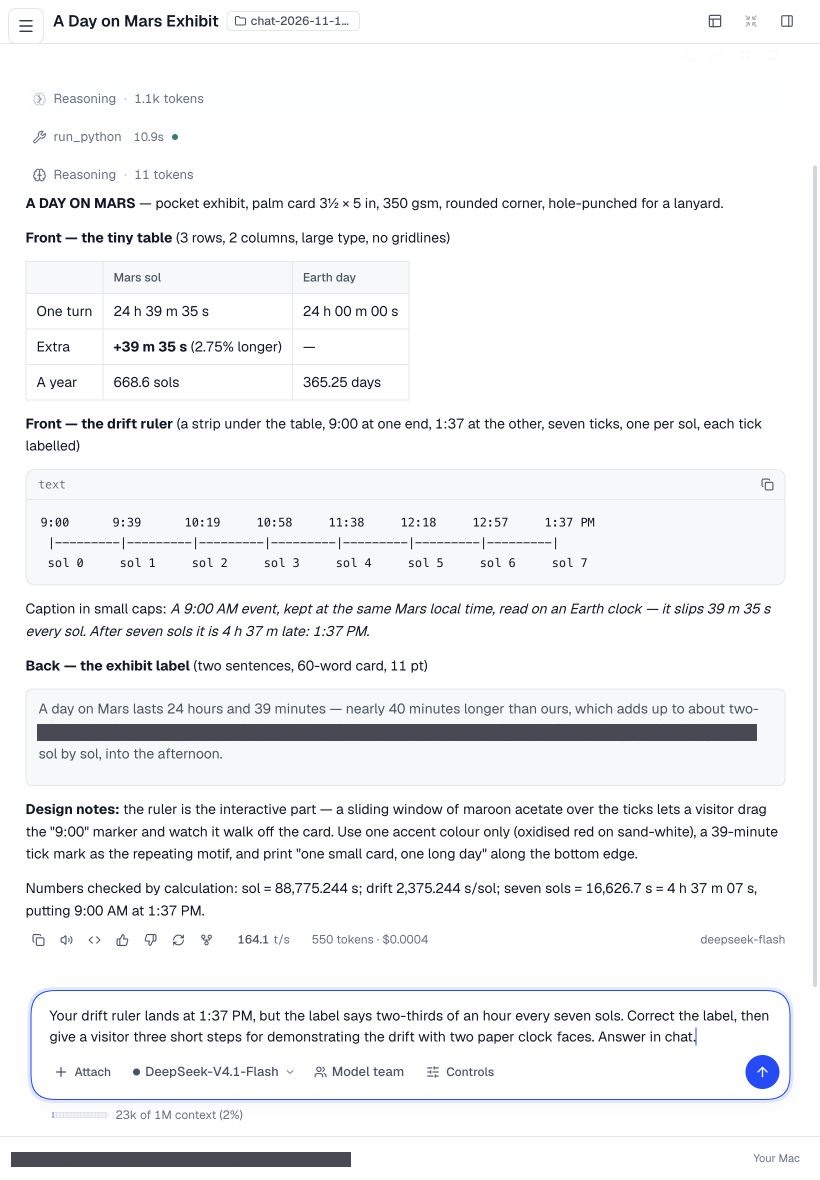
The user refines the Mars exhibit brief within the existing conversation. The earlier calculation remains available as context for the revision.
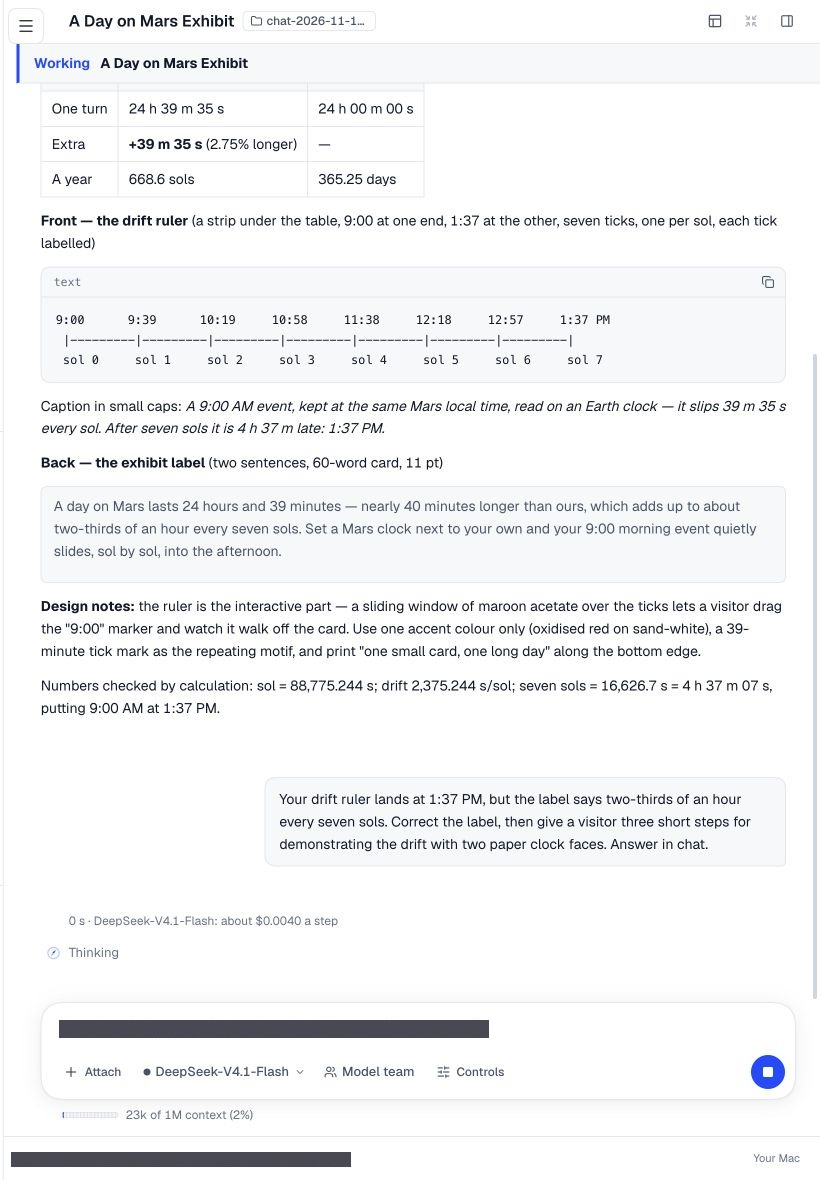
The user refines the Mars exhibit brief within the existing conversation. The earlier calculation remains available as context for the revision.

The museum conversation reaches its clock demonstration. This is the result the user can inspect after asking the assistant to correct its earlier treatment of Martian time.

The exhibit brief has become a copy-editing task. The assistant must explain Martian time to a museum visitor within a ten-word limit for each placard.
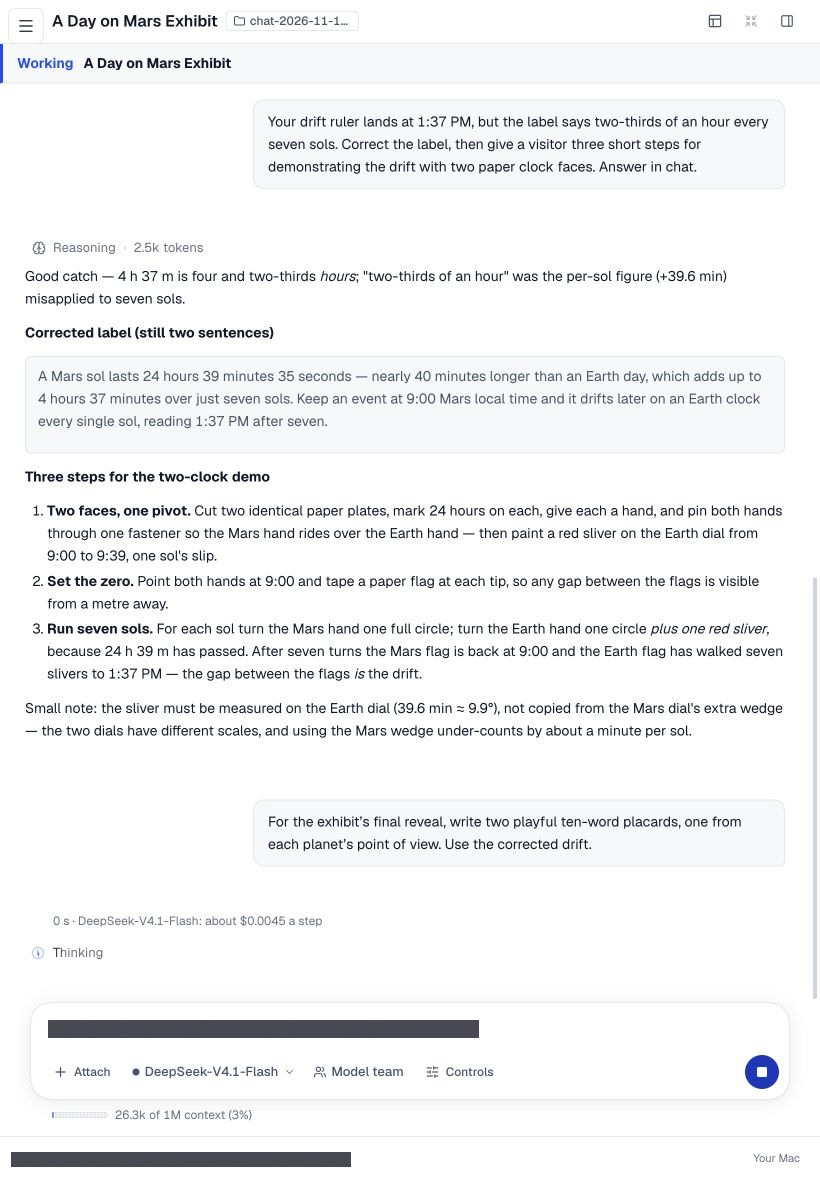
The exhibit brief has become a copy-editing task. The assistant must explain Martian time to a museum visitor within a ten-word limit for each placard.
The exhibit brief has become a copy-editing task. The assistant must explain Martian time to a museum visitor within a ten-word limit for each placard.
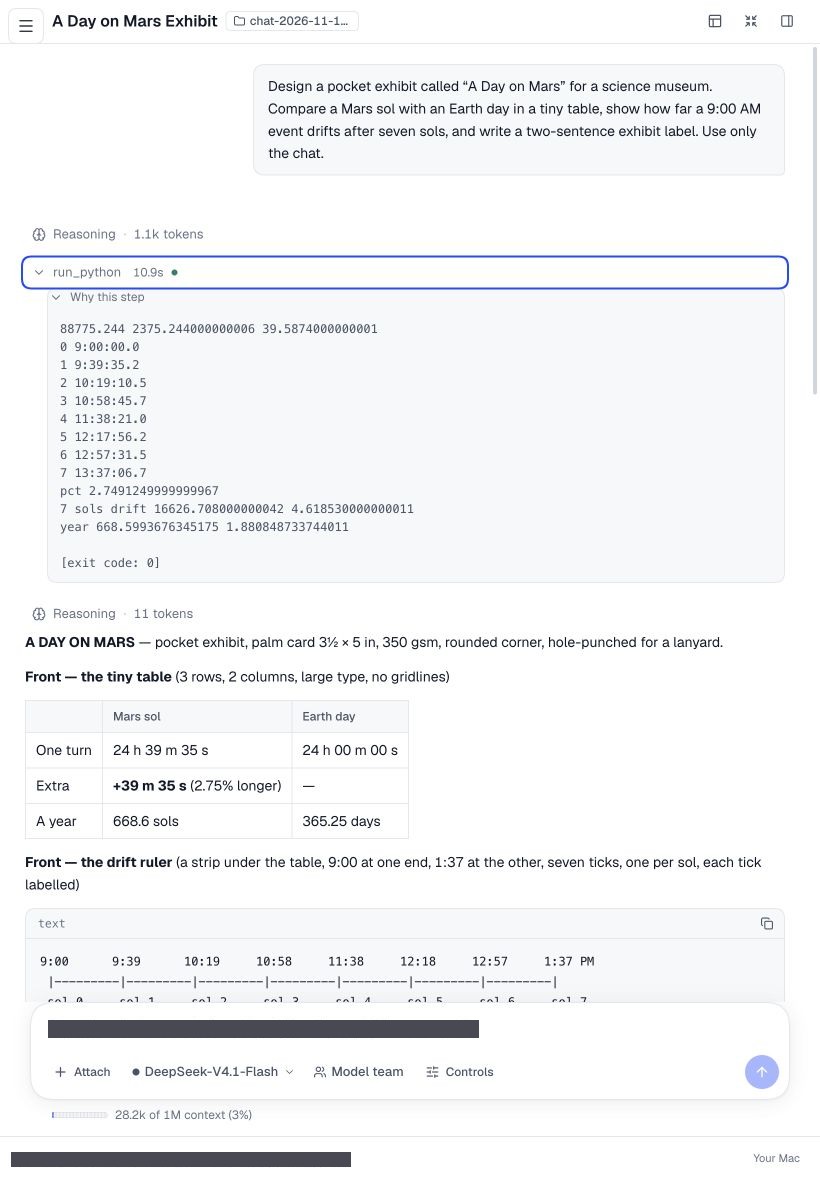
The Mars exhibit conversation exposes the work behind the answer. The user can follow the calculation as the assistant moves from the prompt toward an explanation.
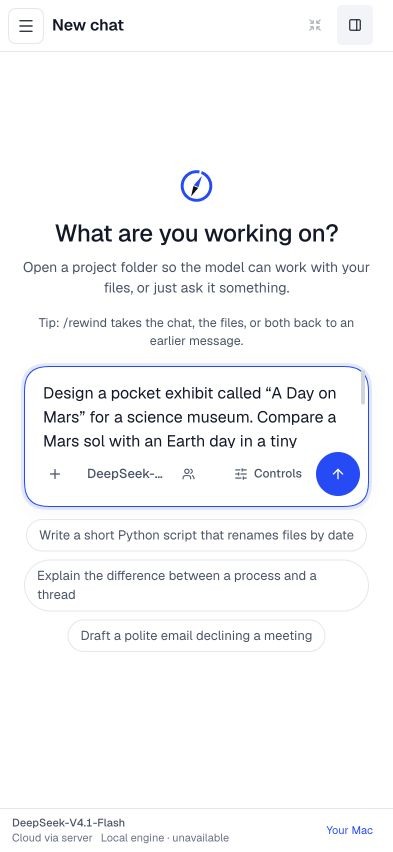
The user asks for a museum exhibit about a day on Mars. The difference between an Earth day and a sol gives the assistant a concrete calculation to explain to visitors.
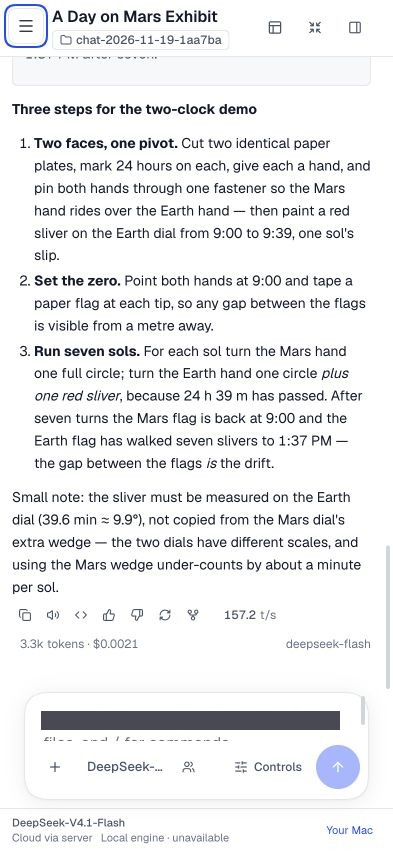
The museum conversation reaches its clock demonstration. This is the result the user can inspect after asking the assistant to correct its earlier treatment of Martian time.
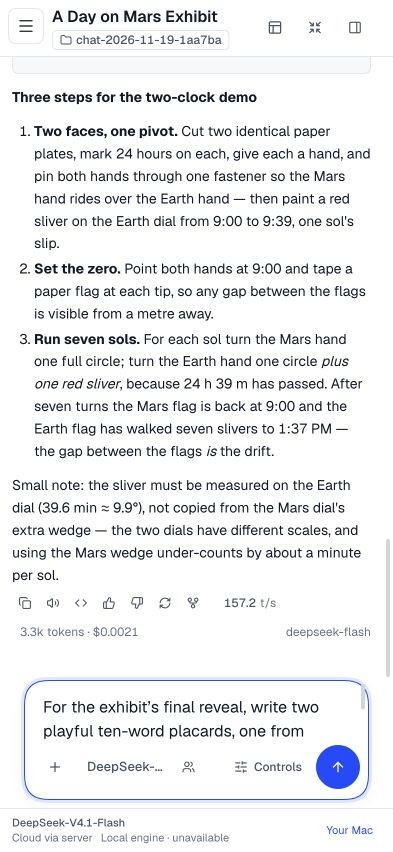
The exhibit brief has become a copy-editing task. The assistant must explain Martian time to a museum visitor within a ten-word limit for each placard.
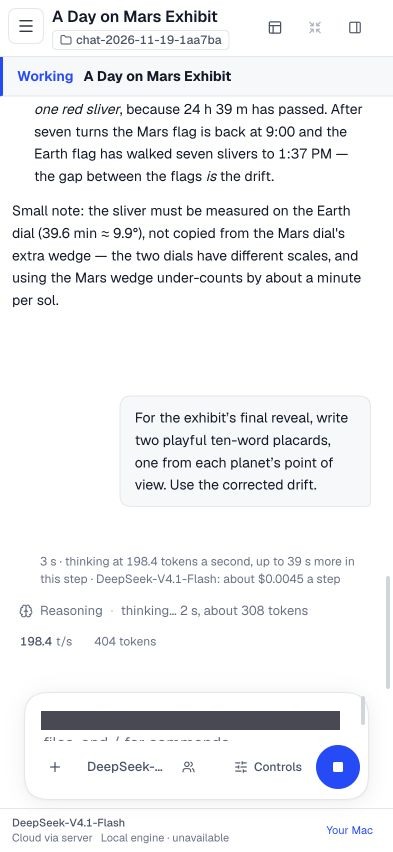
The exhibit brief has become a copy-editing task. The assistant must explain Martian time to a museum visitor within a ten-word limit for each placard.
The exhibit brief has become a copy-editing task. The assistant must explain Martian time to a museum visitor within a ten-word limit for each placard.
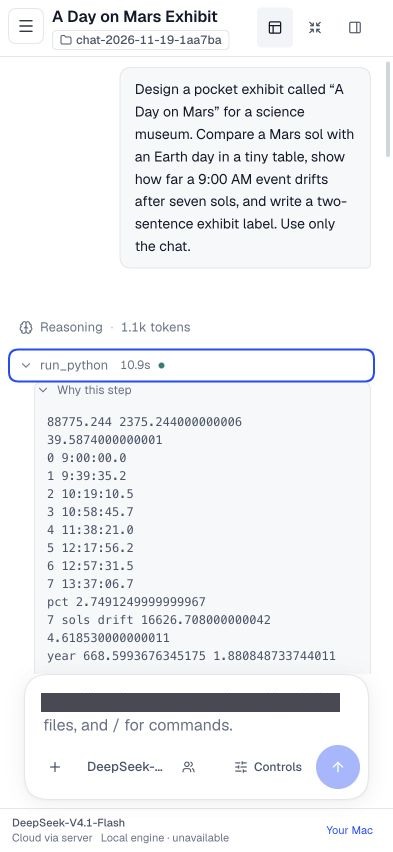
The Mars exhibit conversation exposes the work behind the answer. The user can follow the calculation as the assistant moves from the prompt toward an explanation.
Local API 3
Inspect the service that lets other applications send requests to the model runtime.
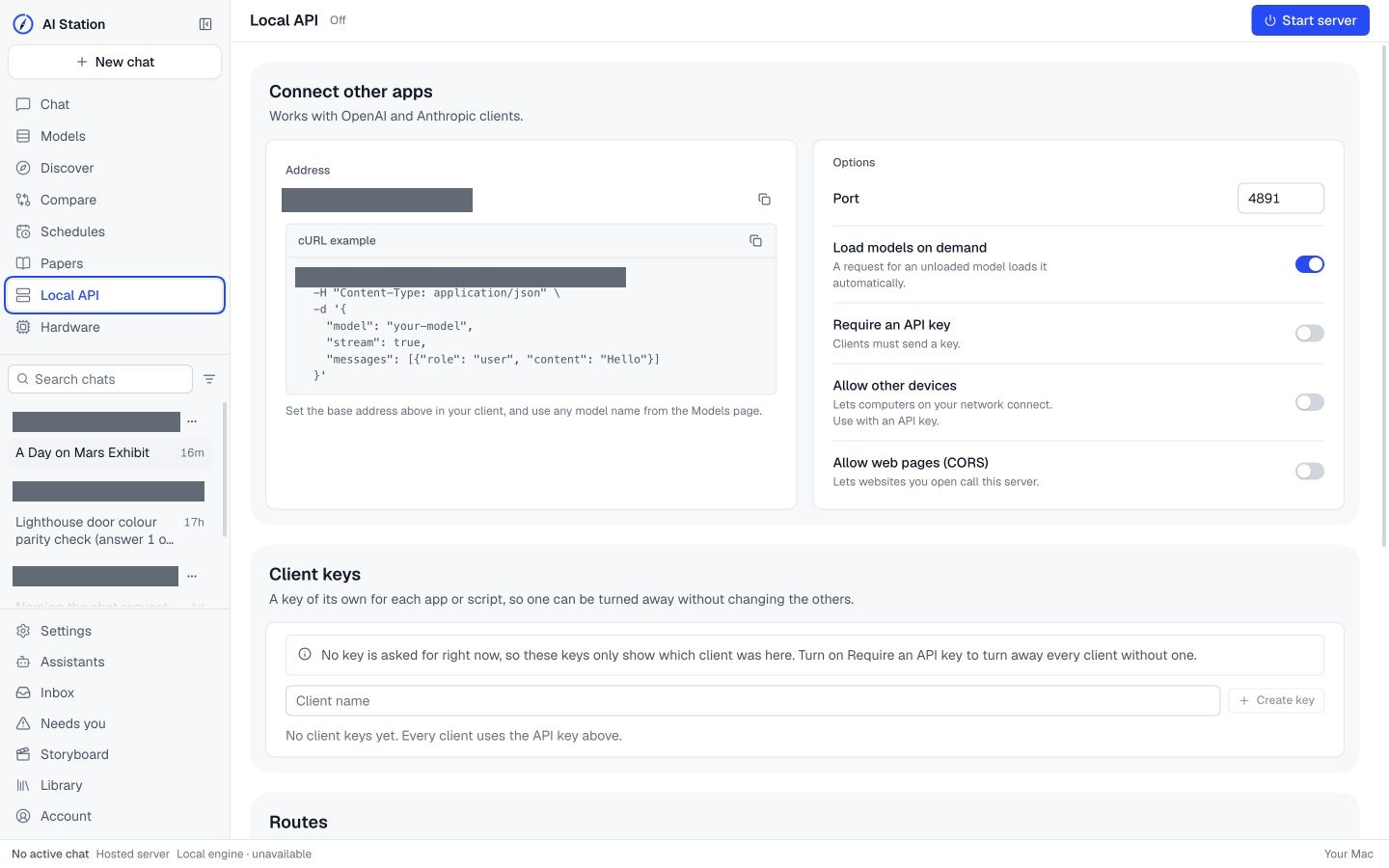
Inspect the service that lets other applications send requests to the model runtime.
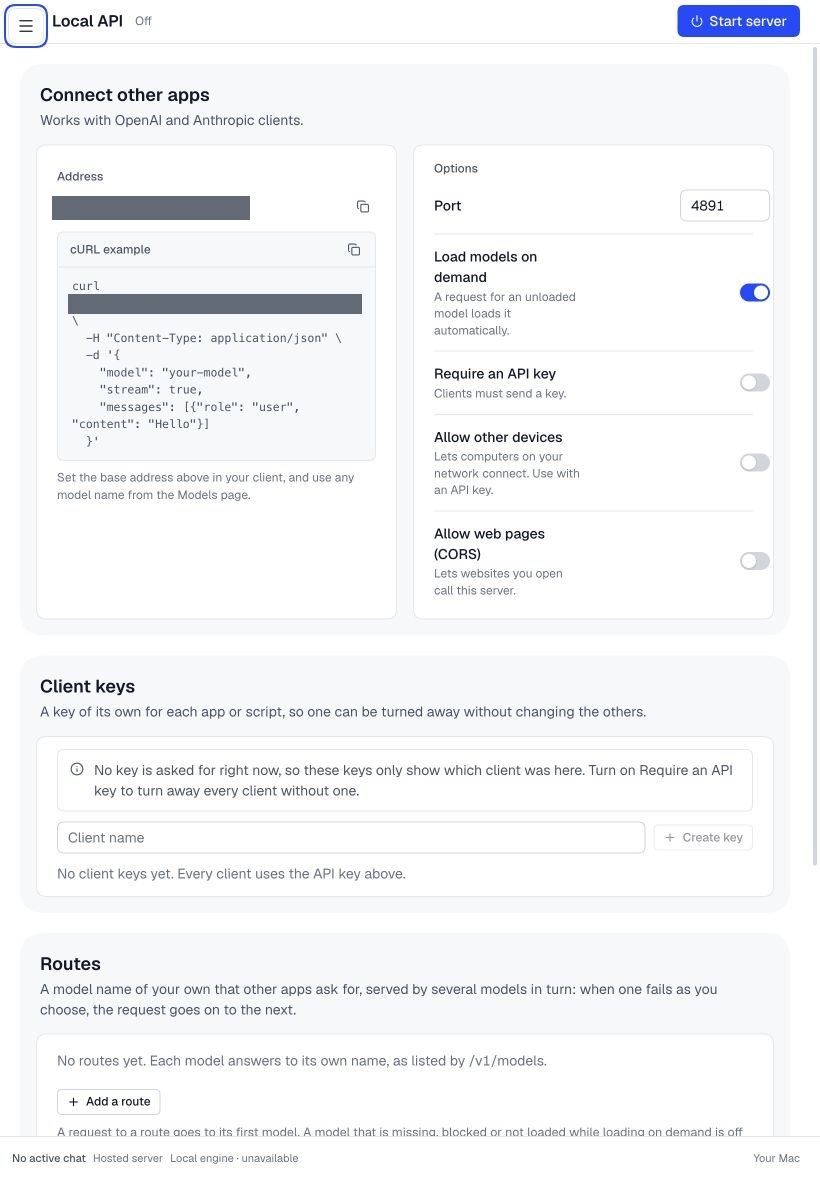
Inspect the service that lets other applications send requests to the model runtime.
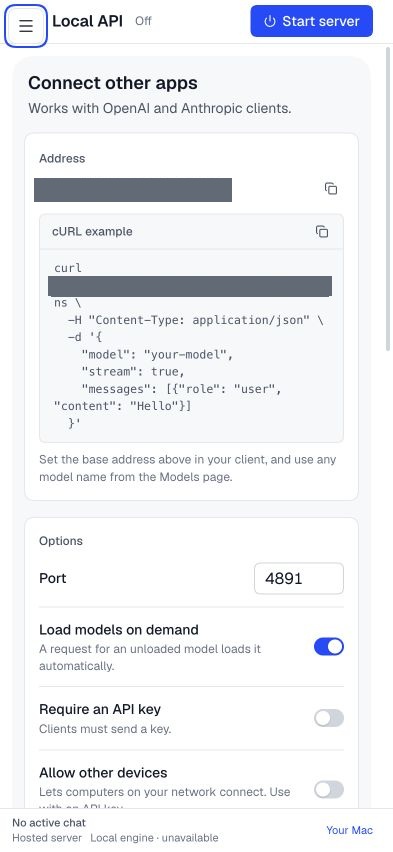
Inspect the service that lets other applications send requests to the model runtime.
Models 15
Inspect installed models, their resource requirements and the options available for running them.
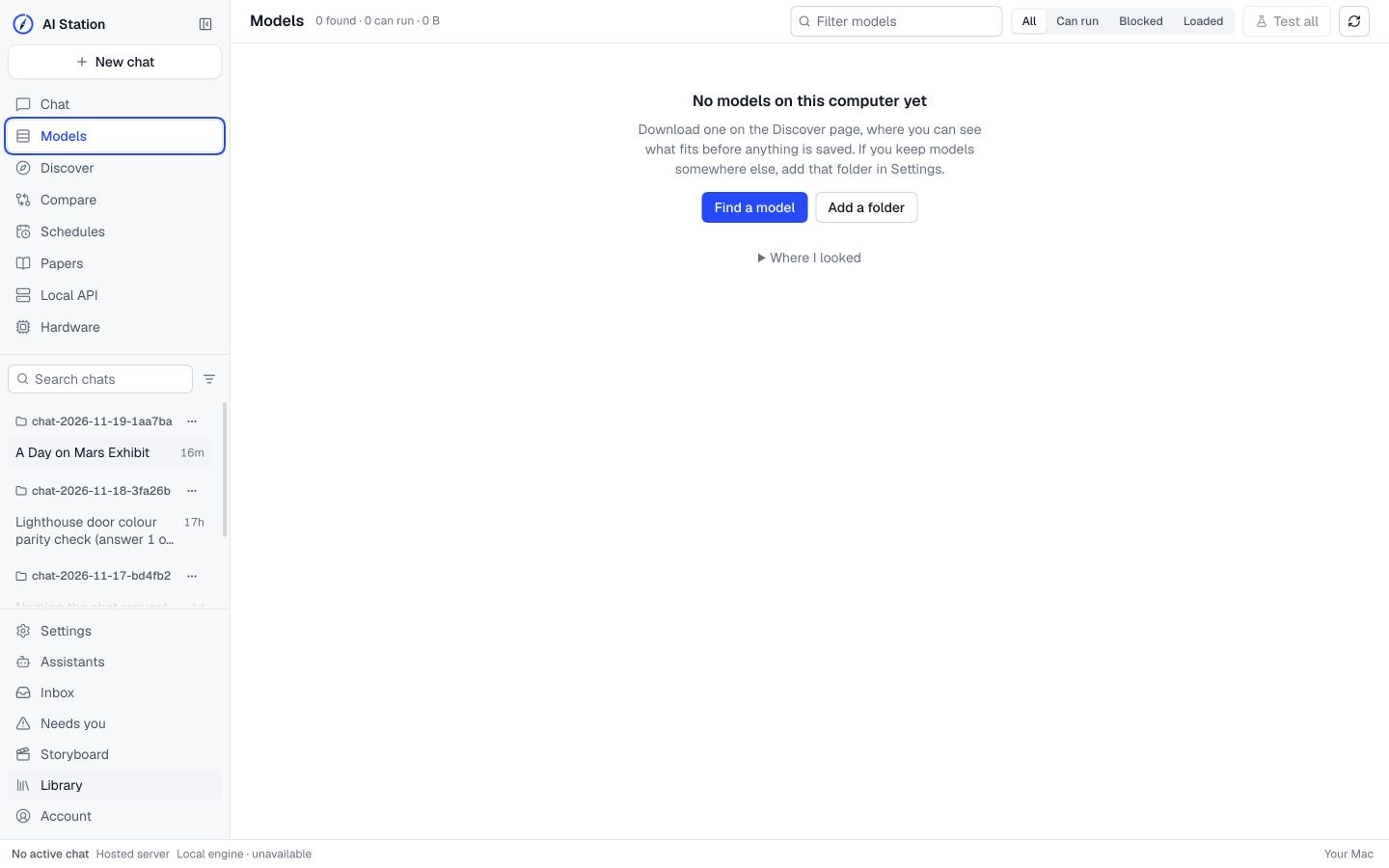
Inspect installed models, their resource requirements and the options available for running them.
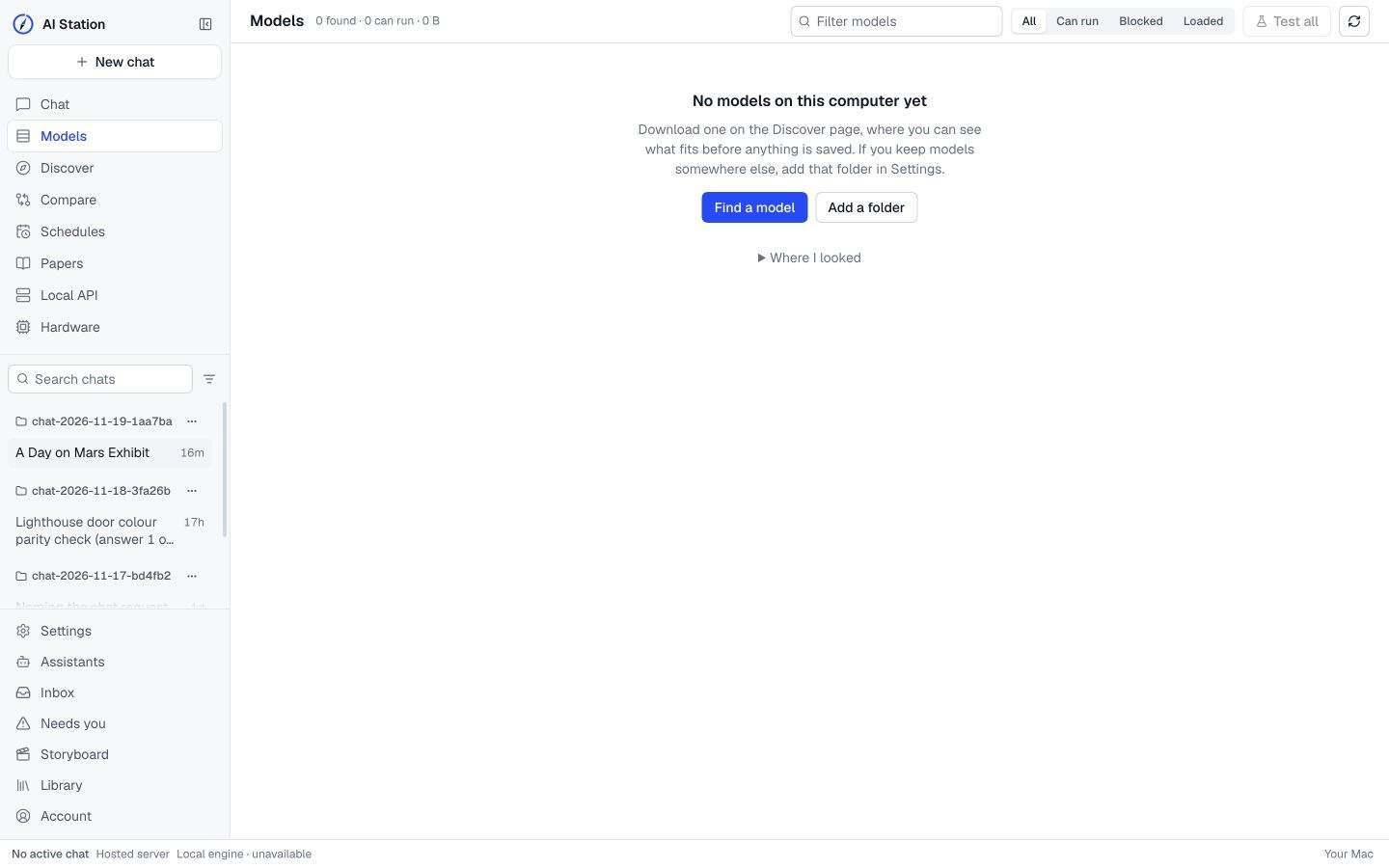
Inspect installed models, their resource requirements and the options available for running them.
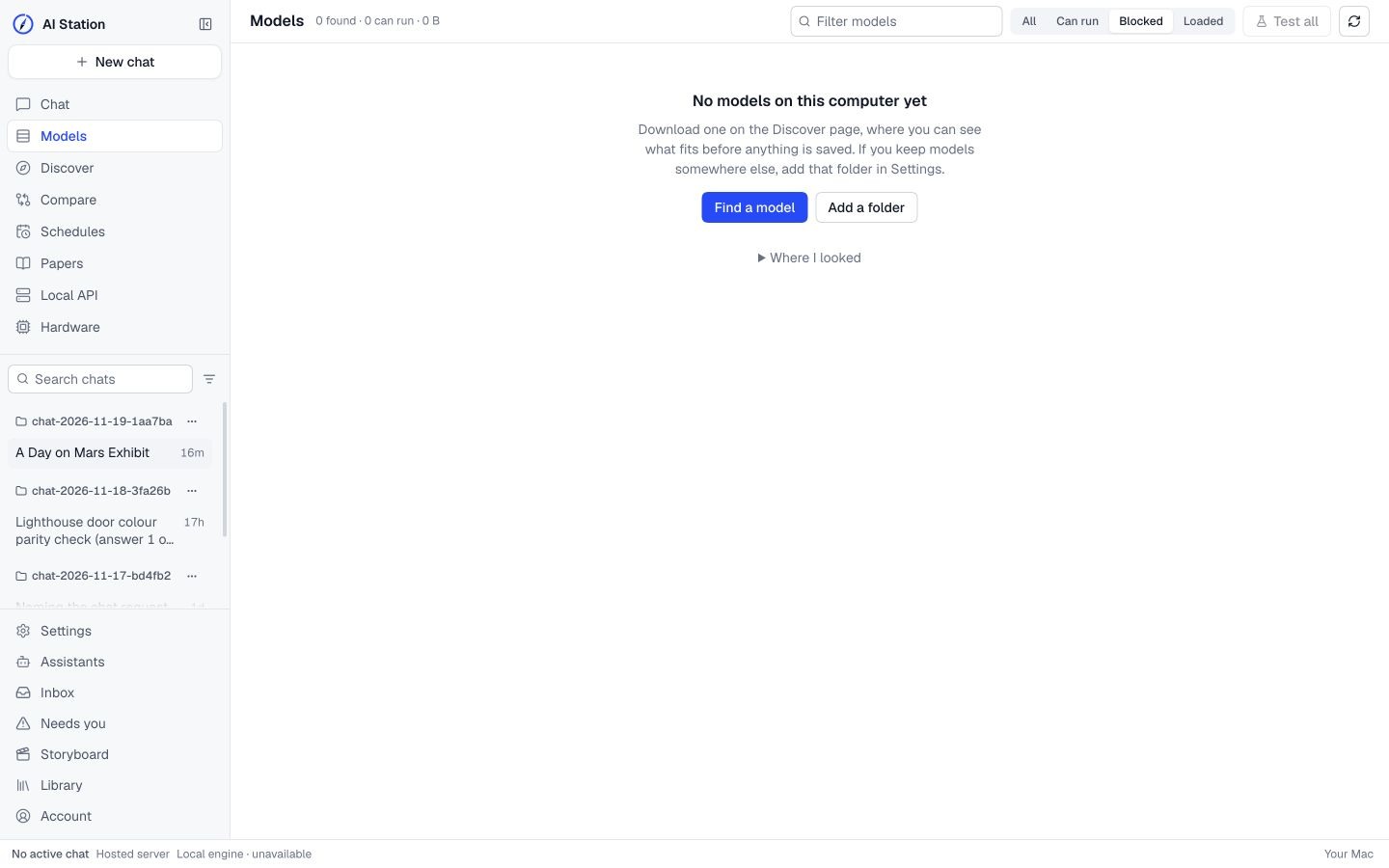
The selected model filter narrows the inventory by runtime state or access. This helps distinguish models already in memory from models available for a new task.
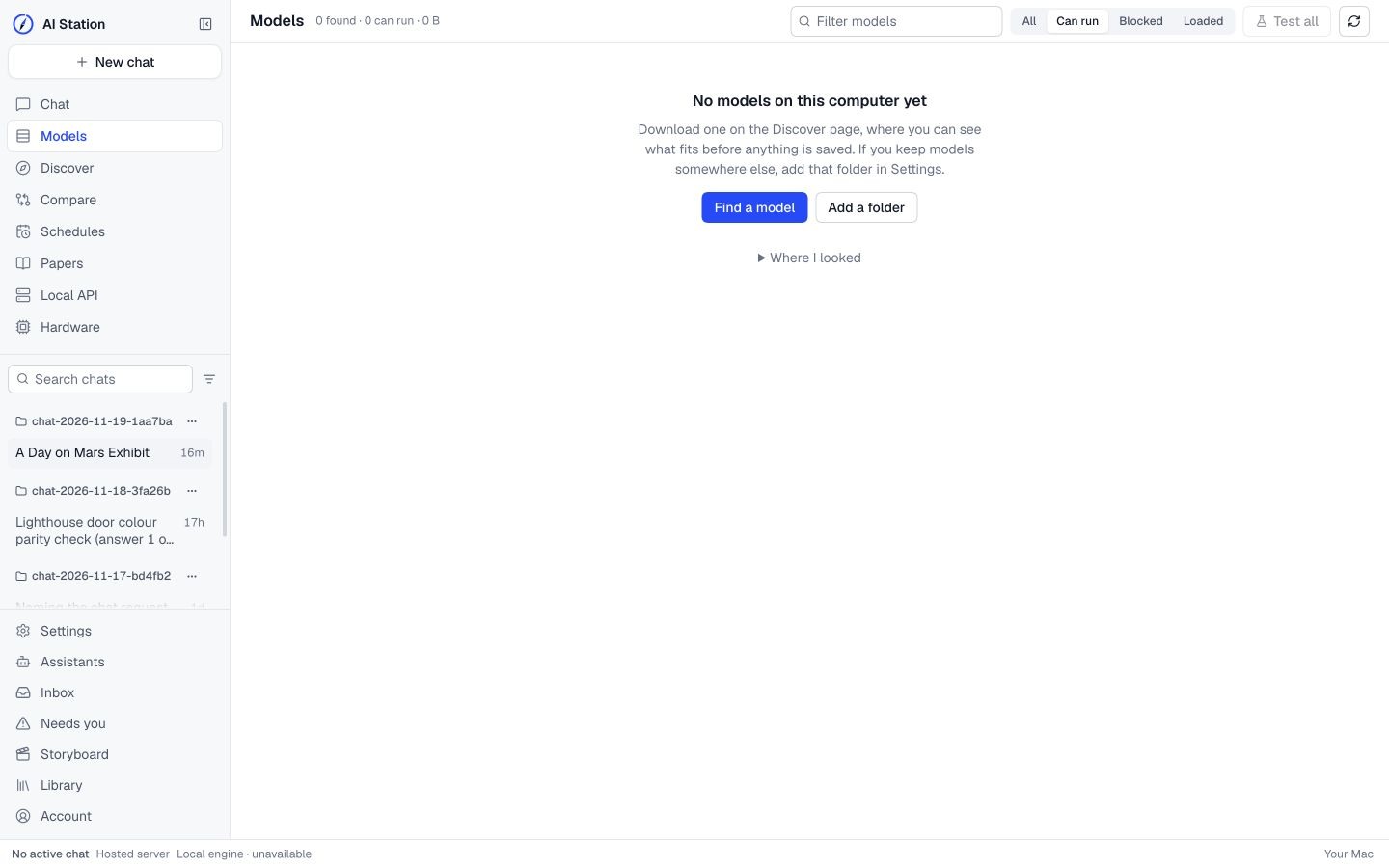
The selected model filter narrows the inventory by runtime state or access. This helps distinguish models already in memory from models available for a new task.
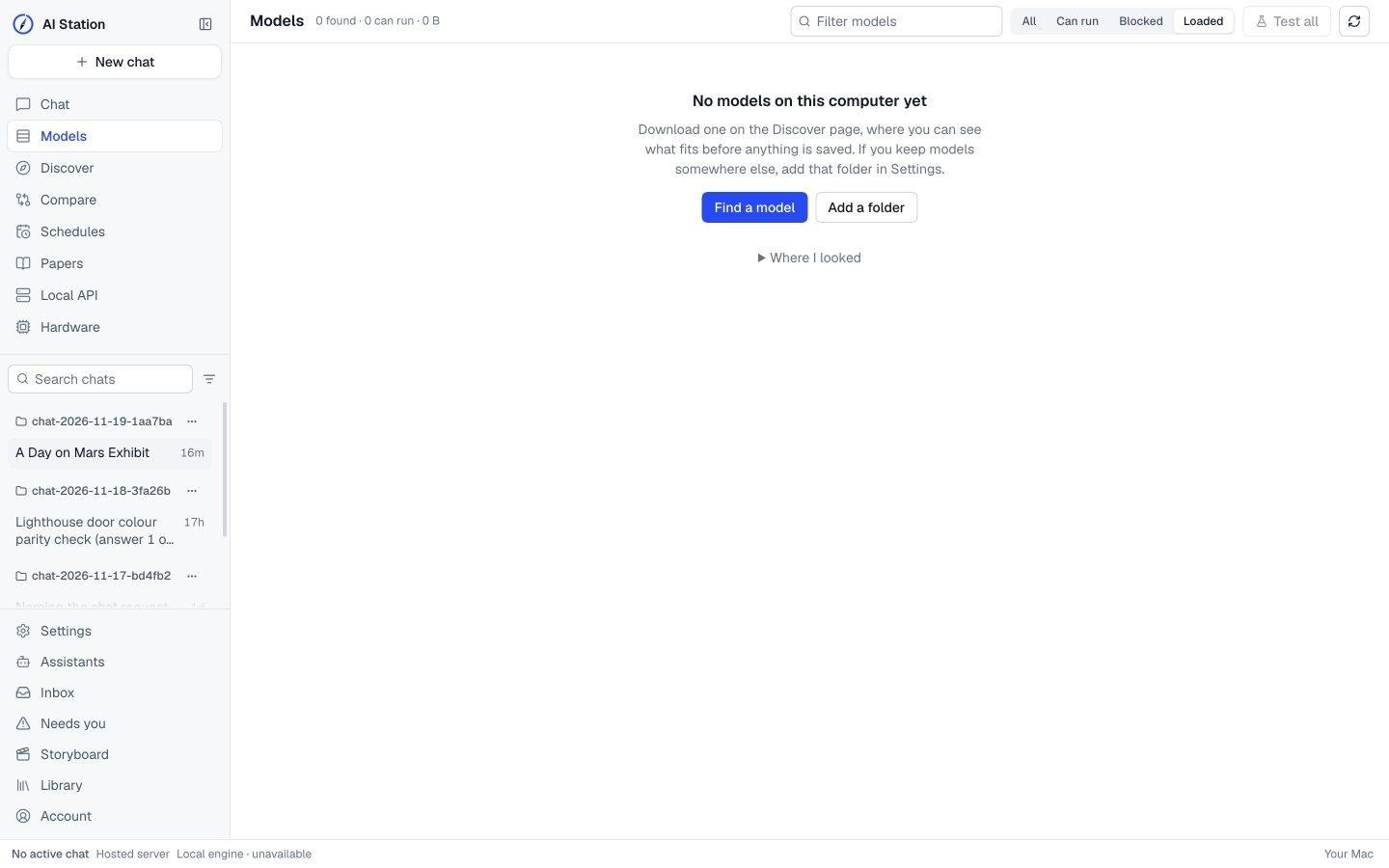
The selected model filter narrows the inventory by runtime state or access. This helps distinguish models already in memory from models available for a new task.

Inspect installed models, their resource requirements and the options available for running them.

Inspect installed models, their resource requirements and the options available for running them.

The selected model filter narrows the inventory by runtime state or access. This helps distinguish models already in memory from models available for a new task.

The selected model filter narrows the inventory by runtime state or access. This helps distinguish models already in memory from models available for a new task.

The selected model filter narrows the inventory by runtime state or access. This helps distinguish models already in memory from models available for a new task.
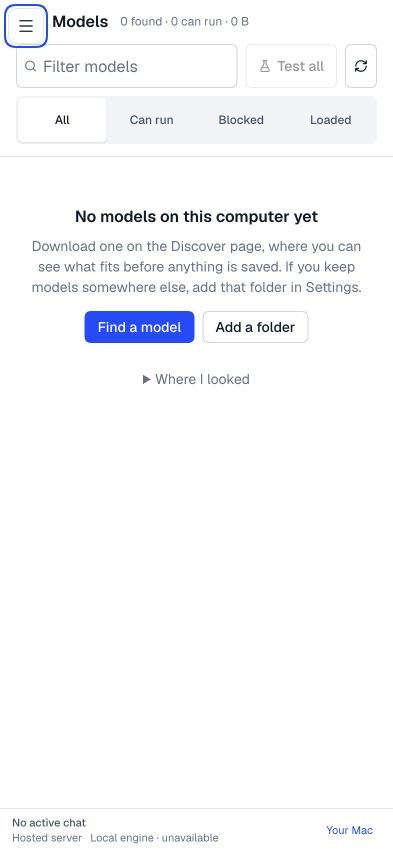
Inspect installed models, their resource requirements and the options available for running them.
Inspect installed models, their resource requirements and the options available for running them.
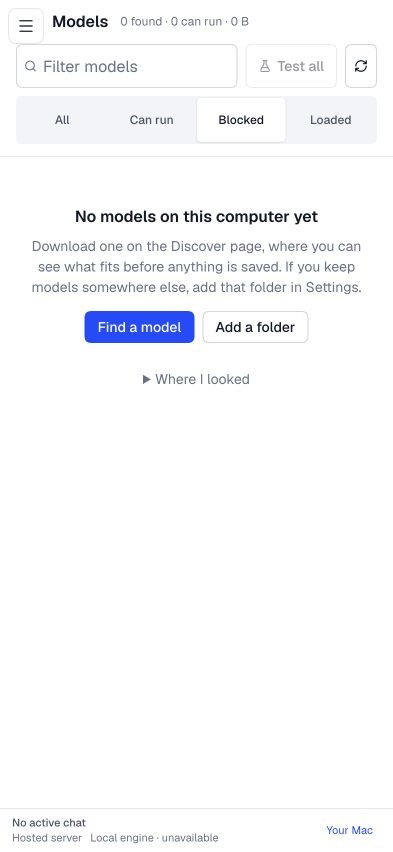
The selected model filter narrows the inventory by runtime state or access. This helps distinguish models already in memory from models available for a new task.
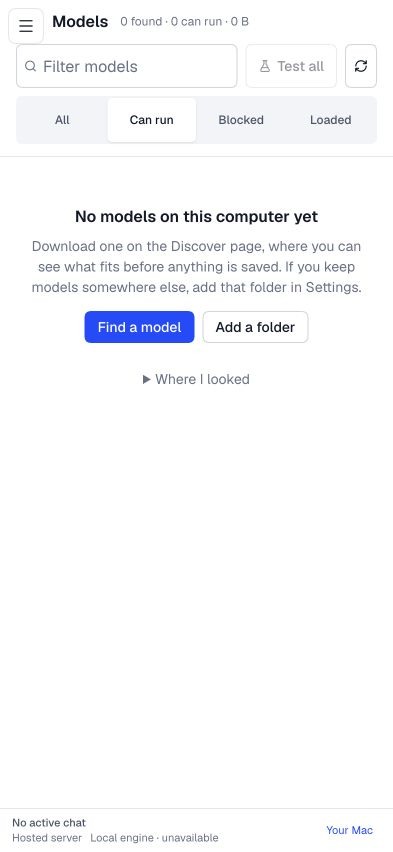
The selected model filter narrows the inventory by runtime state or access. This helps distinguish models already in memory from models available for a new task.
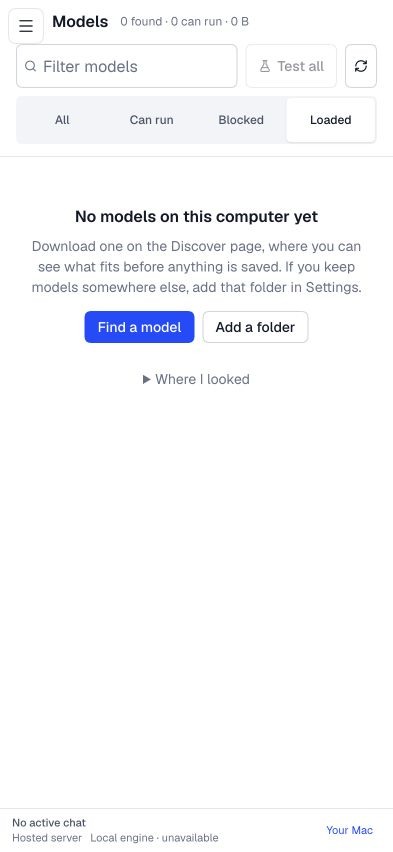
The selected model filter narrows the inventory by runtime state or access. This helps distinguish models already in memory from models available for a new task.
Navigation 9
See how users move between workspaces, find commands and reopen frequently used views.
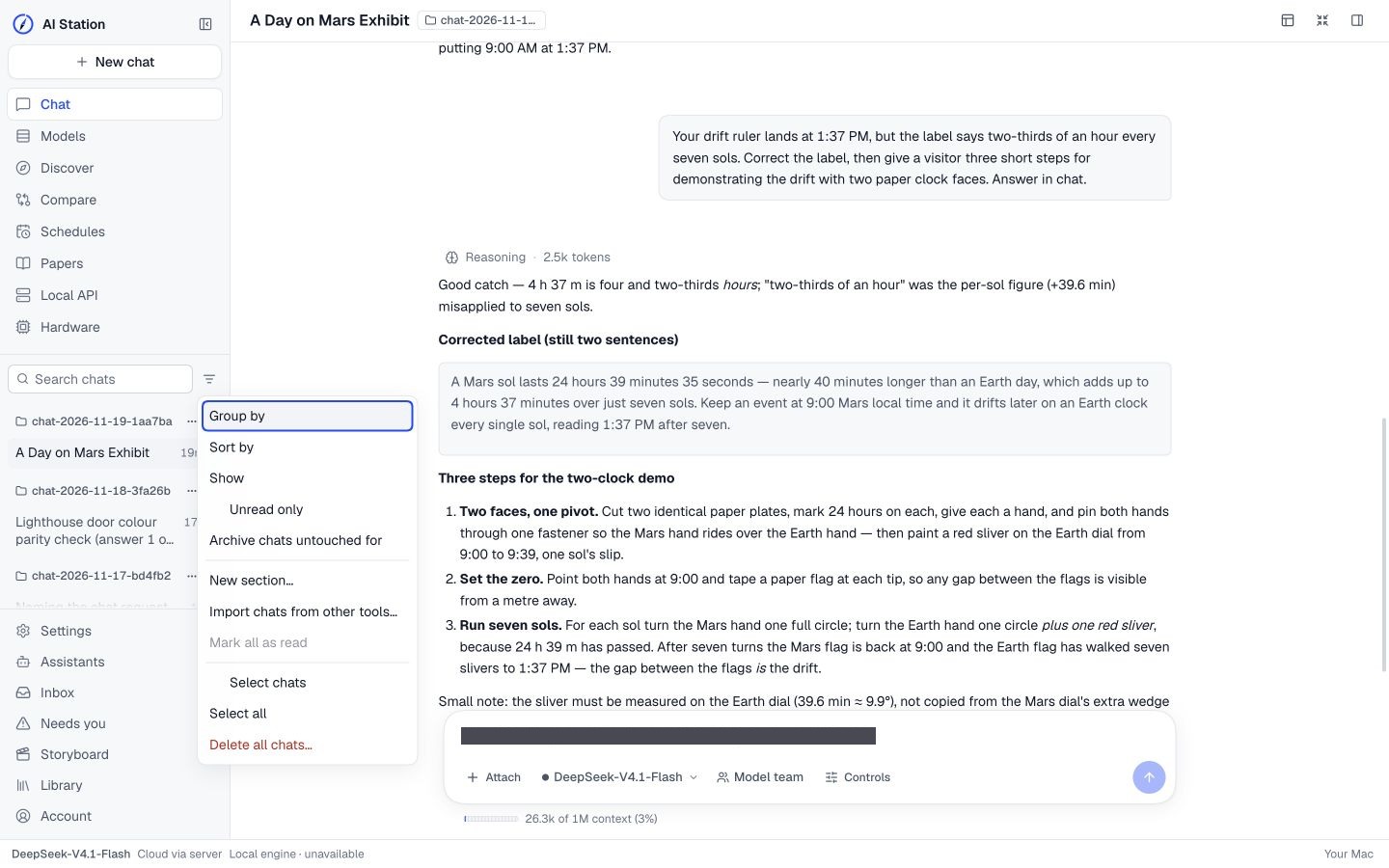
Conversation navigation helps a user narrow their chat history and return to the thread that holds a particular task.
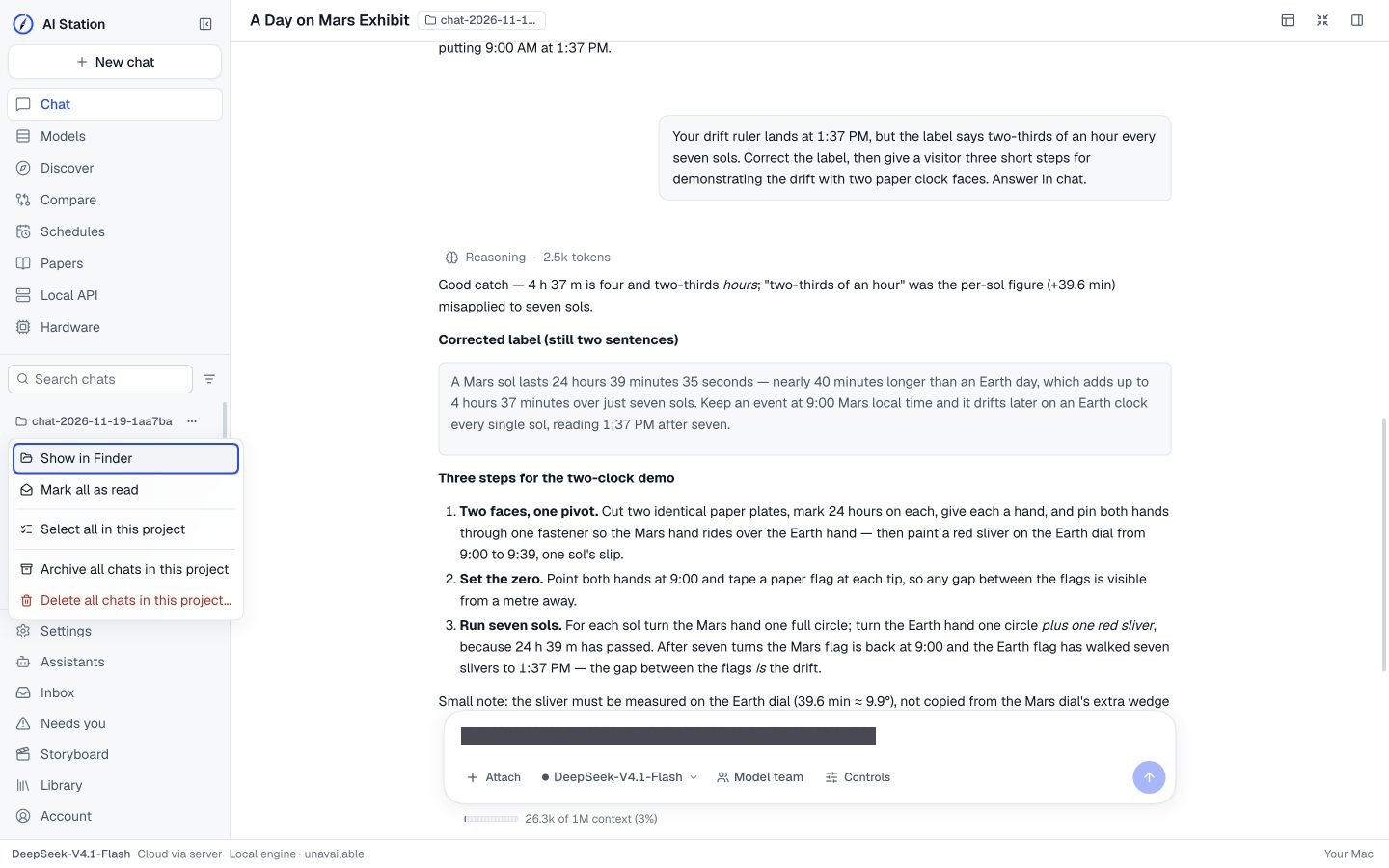
Project controls establish the working context for a conversation, including which repository, files or saved instructions the assistant should use.
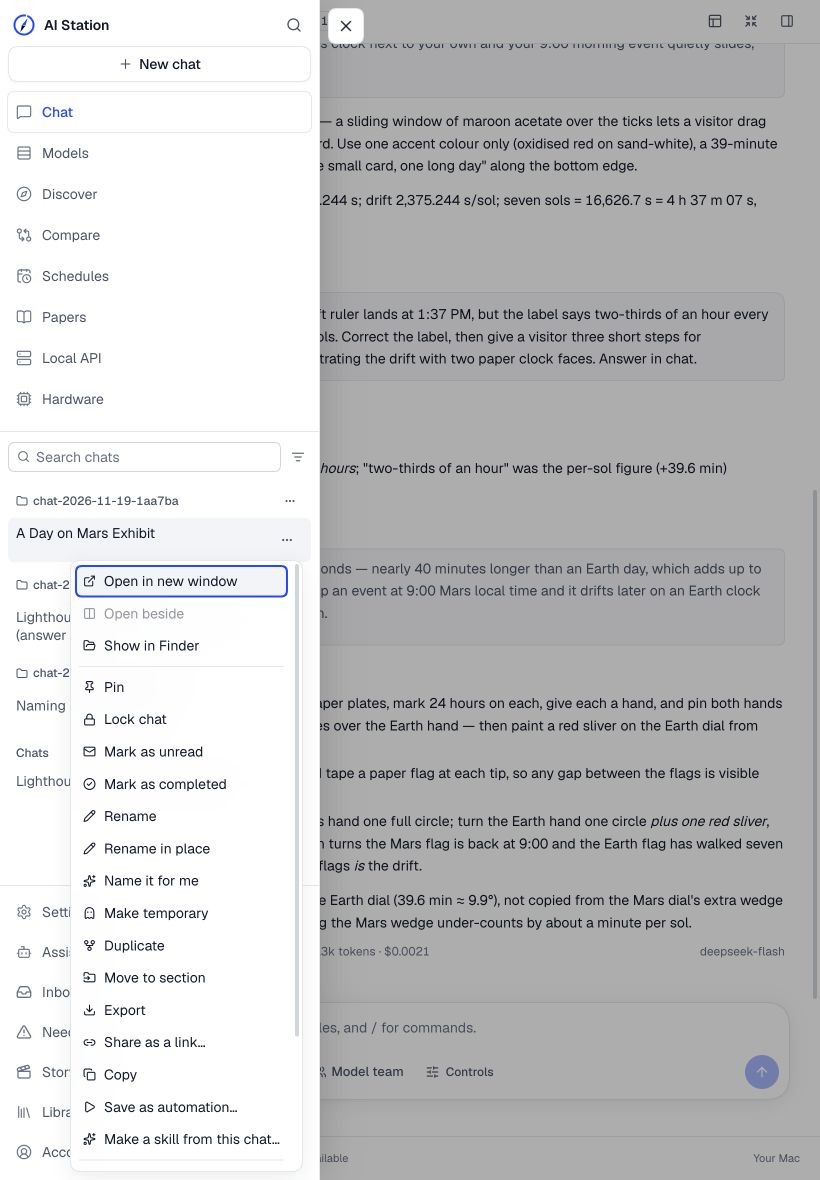
Conversation navigation helps a user narrow their chat history and return to the thread that holds a particular task.
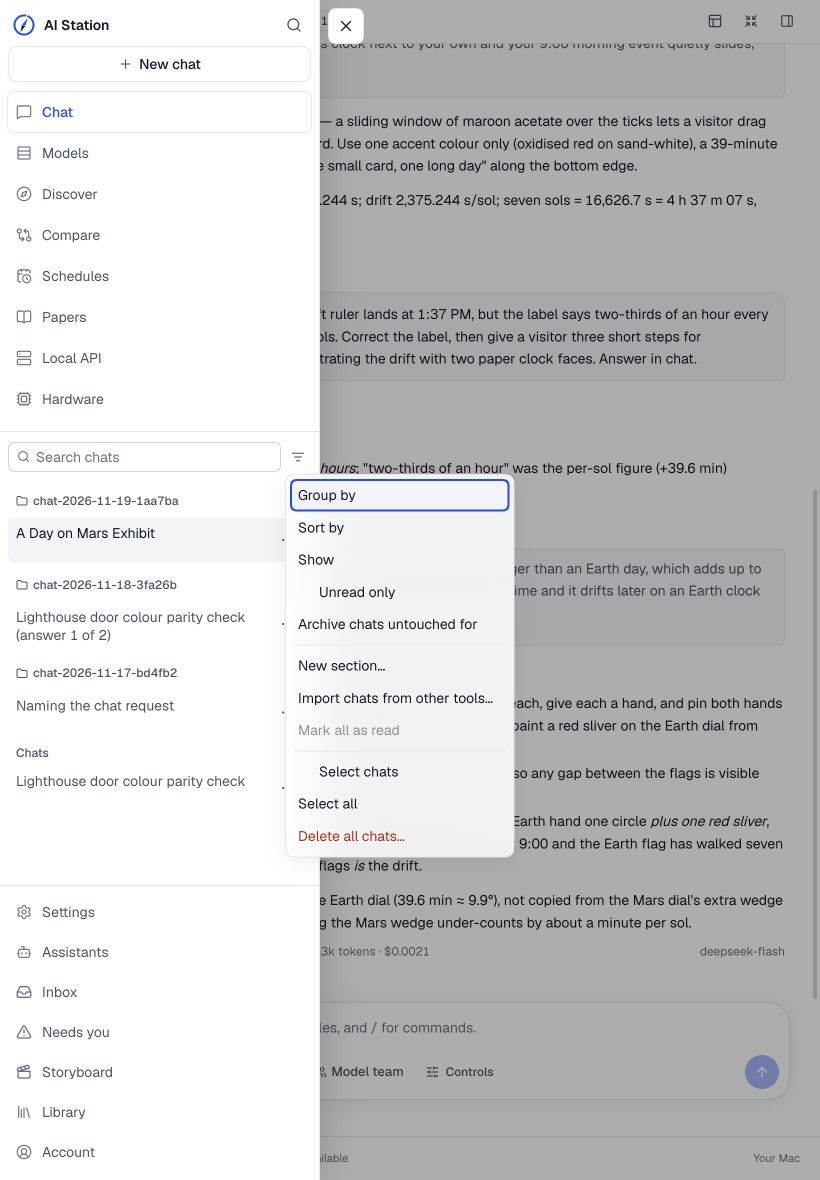
Conversation navigation helps a user narrow their chat history and return to the thread that holds a particular task.
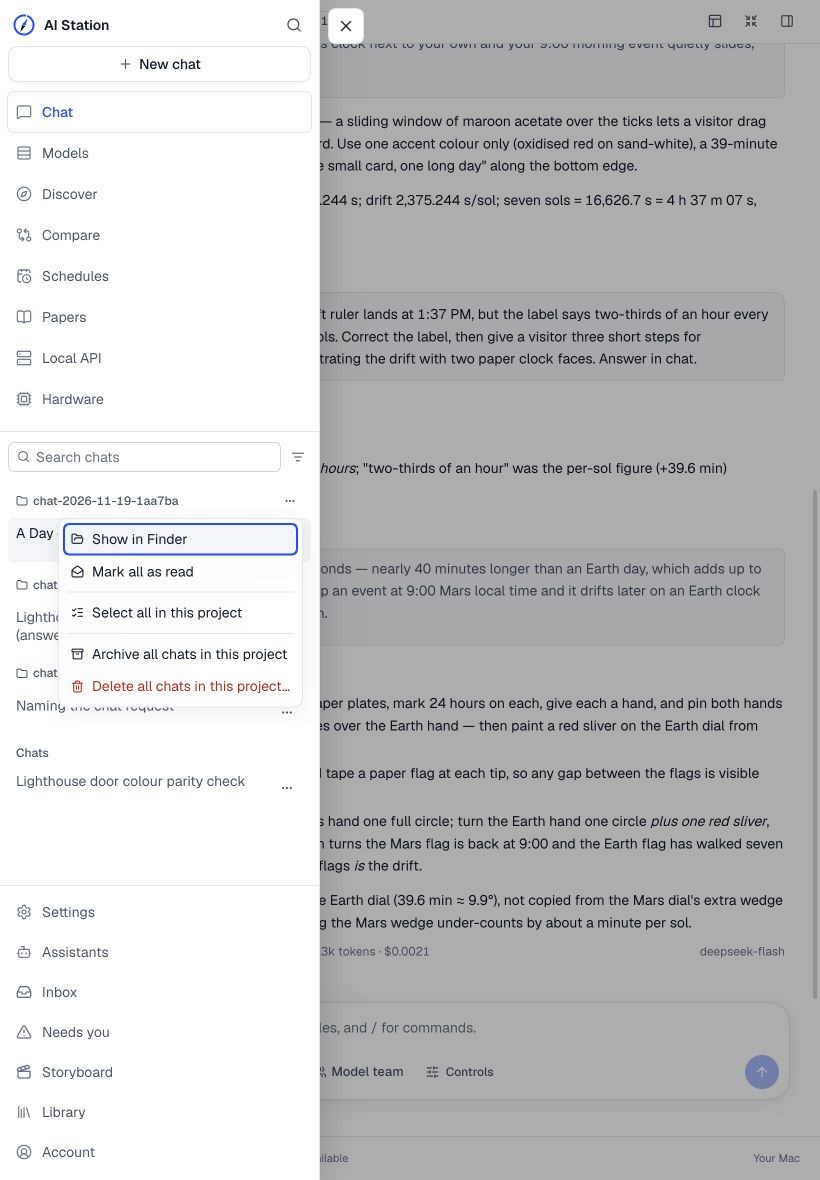
Project controls establish the working context for a conversation, including which repository, files or saved instructions the assistant should use.
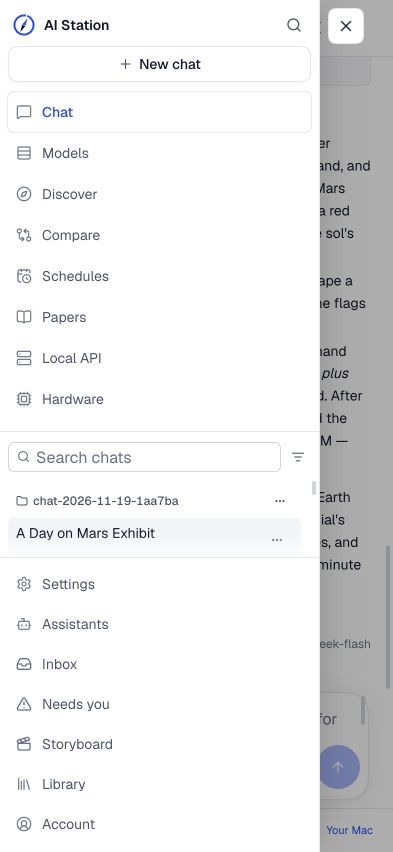
The menu gathers navigation choices into a compact view, keeping them reachable while the main workspace stays in focus.
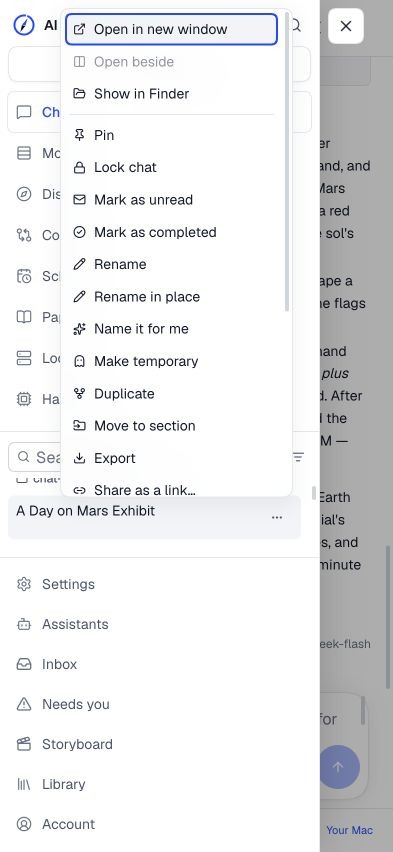
Conversation navigation helps a user narrow their chat history and return to the thread that holds a particular task.
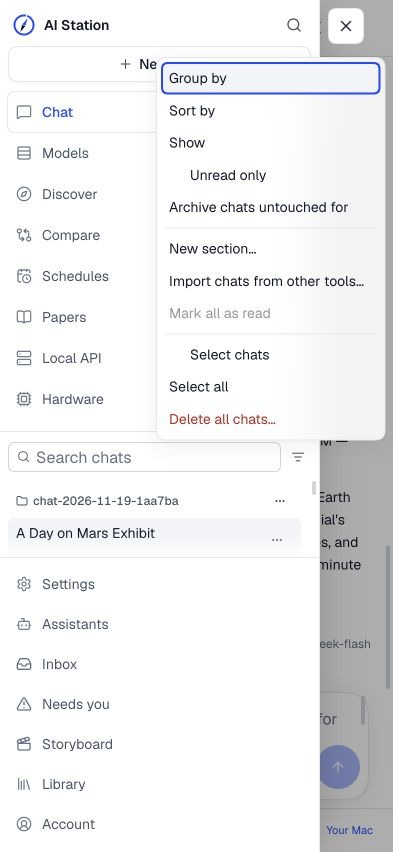
Conversation navigation helps a user narrow their chat history and return to the thread that holds a particular task.
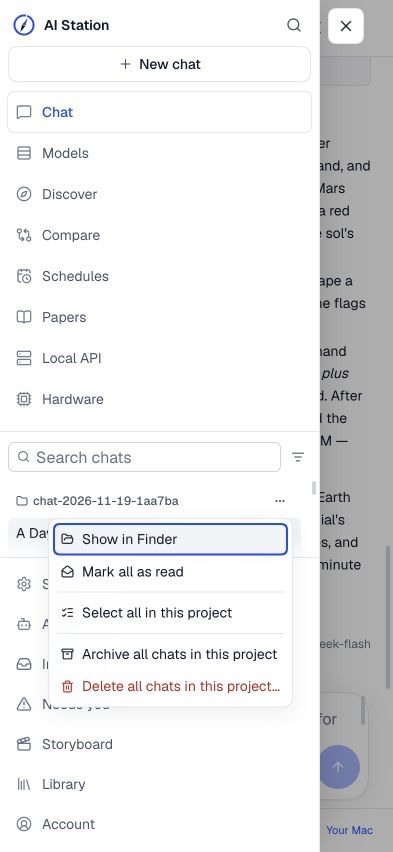
Project controls establish the working context for a conversation, including which repository, files or saved instructions the assistant should use.
Needs you 3
Find tasks waiting for a human decision and inspect the context before responding.
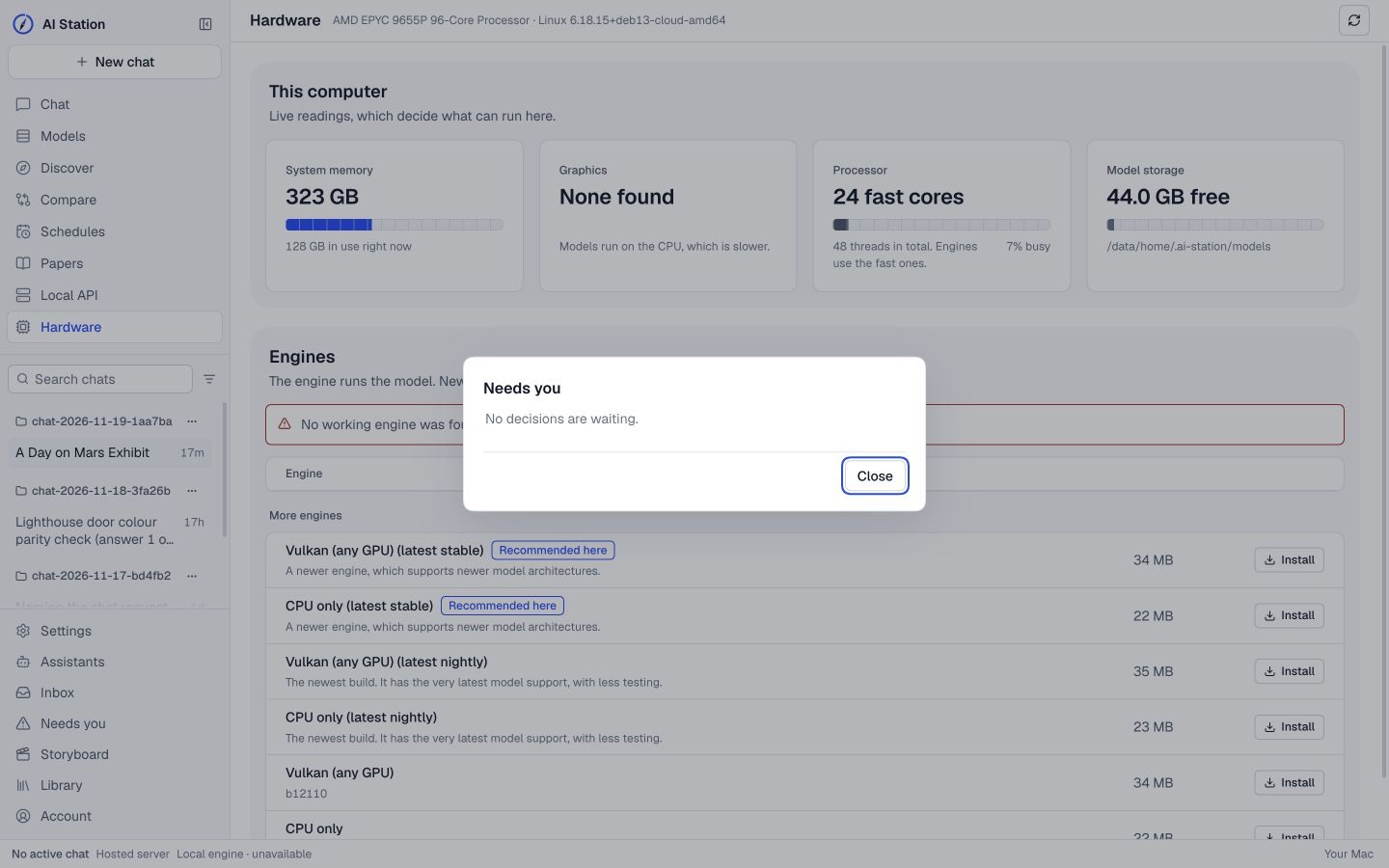
Find tasks waiting for a human decision and inspect the context before responding.
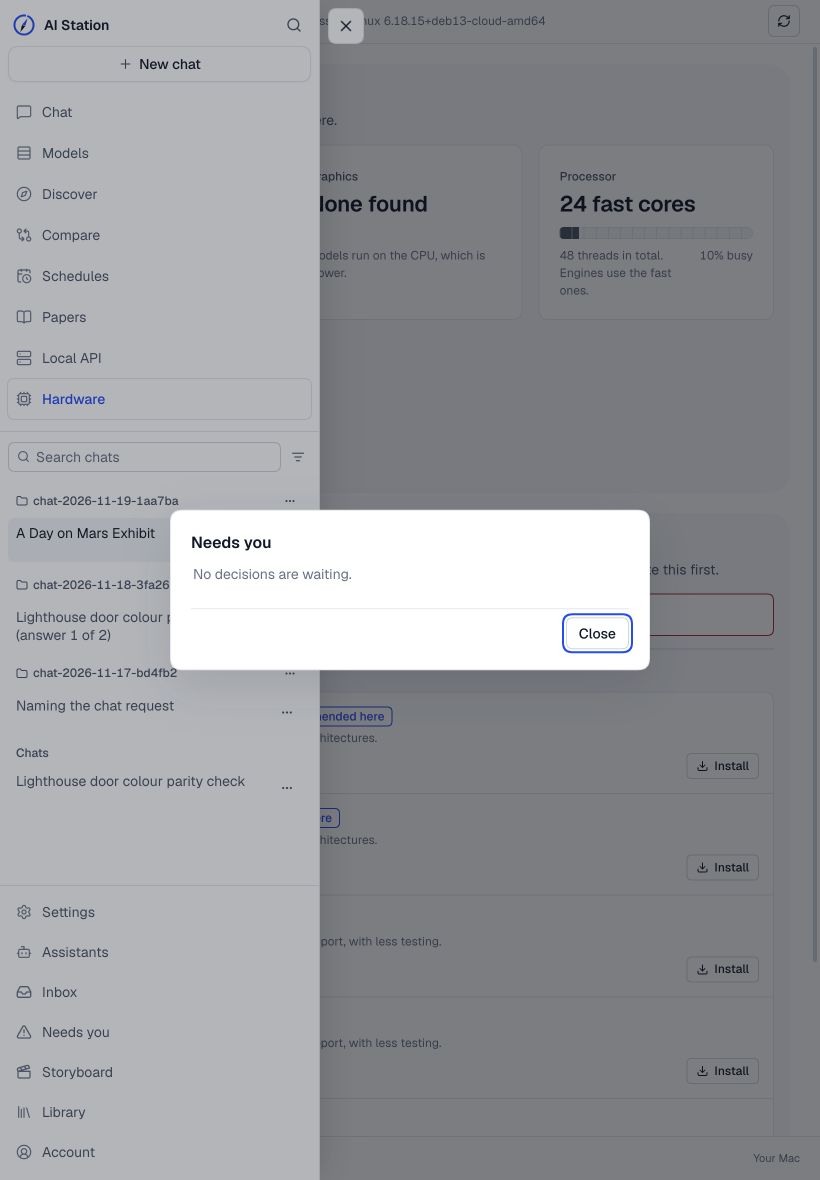
Find tasks waiting for a human decision and inspect the context before responding.
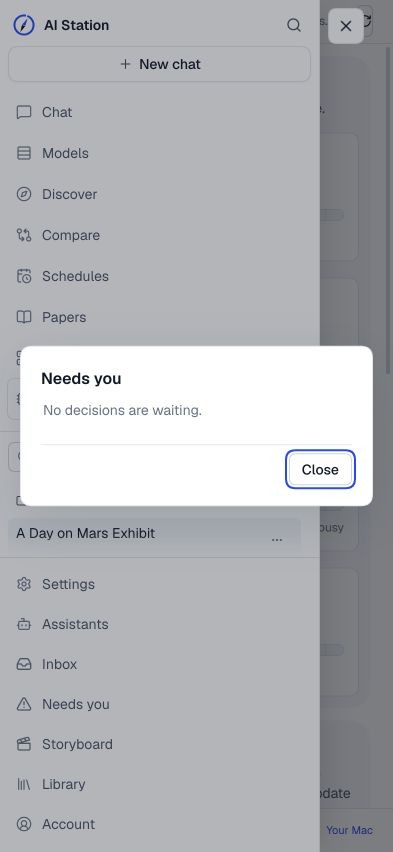
Find tasks waiting for a human decision and inspect the context before responding.
Papers 3
Browse research material from the workspace and inspect the available paper views.
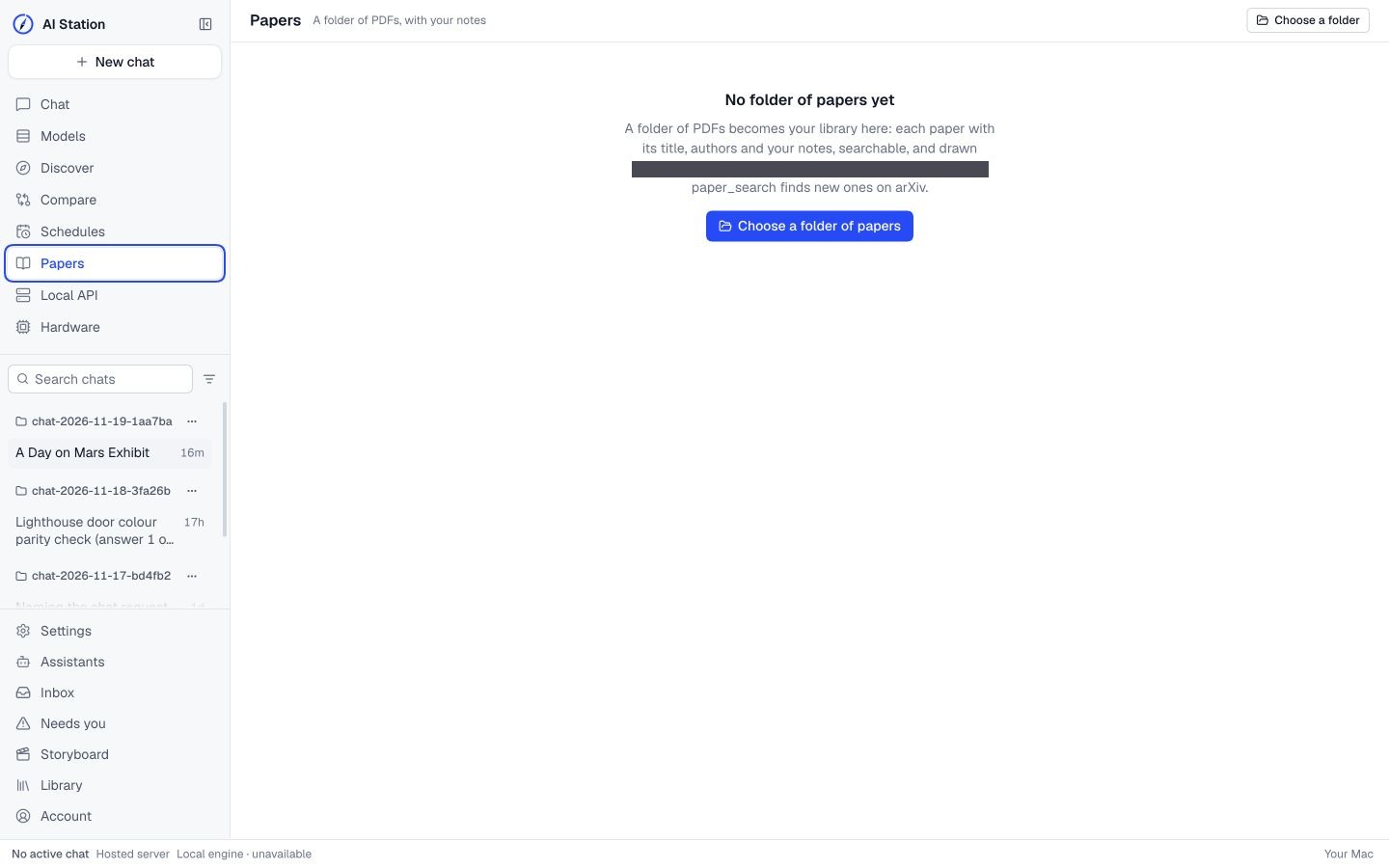
Browse research material from the workspace and inspect the available paper views.

Browse research material from the workspace and inspect the available paper views.
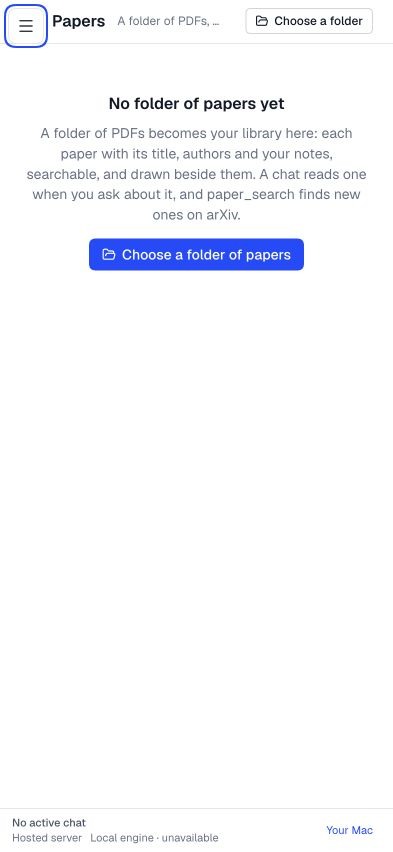
Browse research material from the workspace and inspect the available paper views.
Schedules 18
Create a recurring job, inspect its timing and follow its runs back into the workspace.
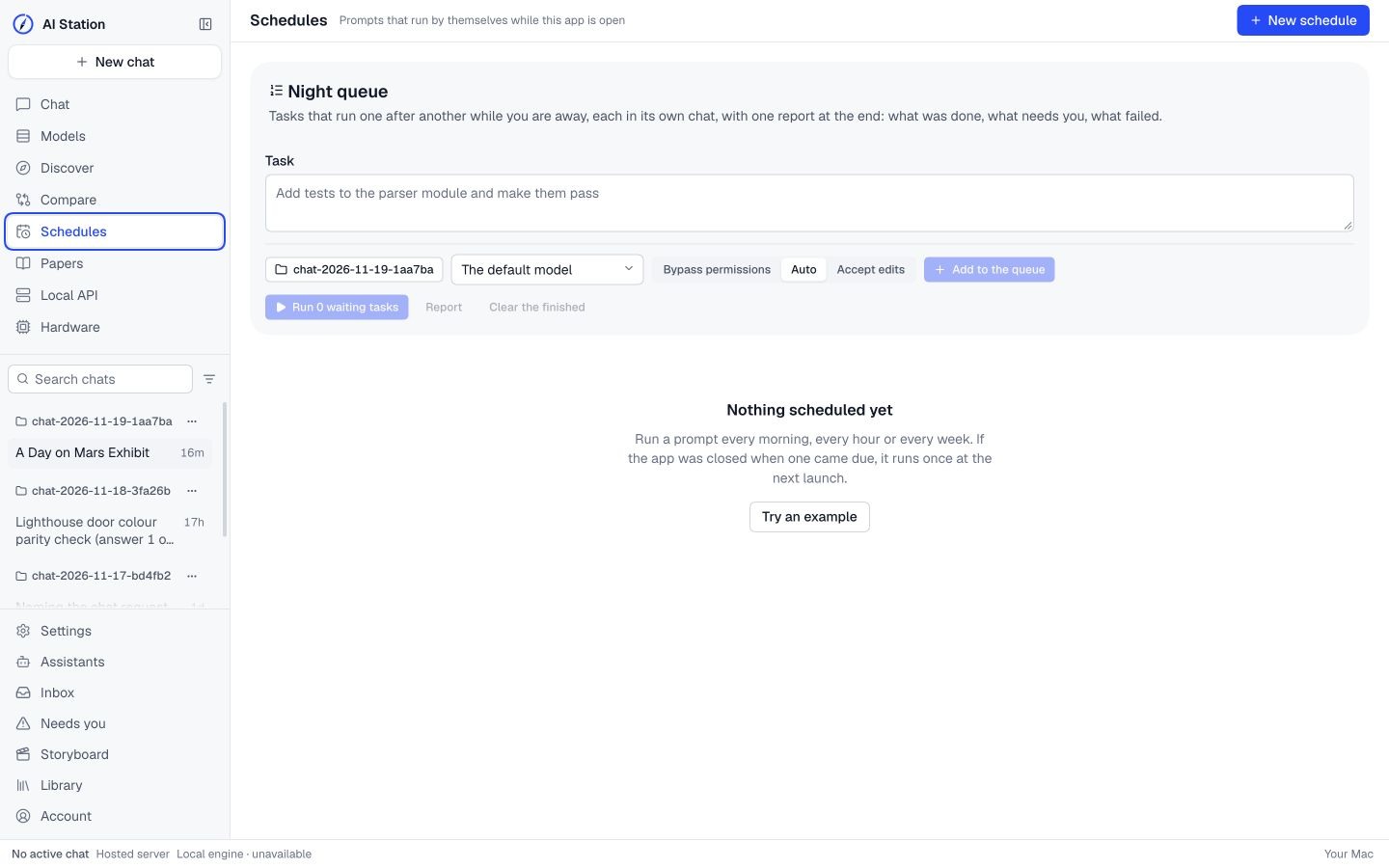
Create a recurring job, inspect its timing and follow its runs back into the workspace.
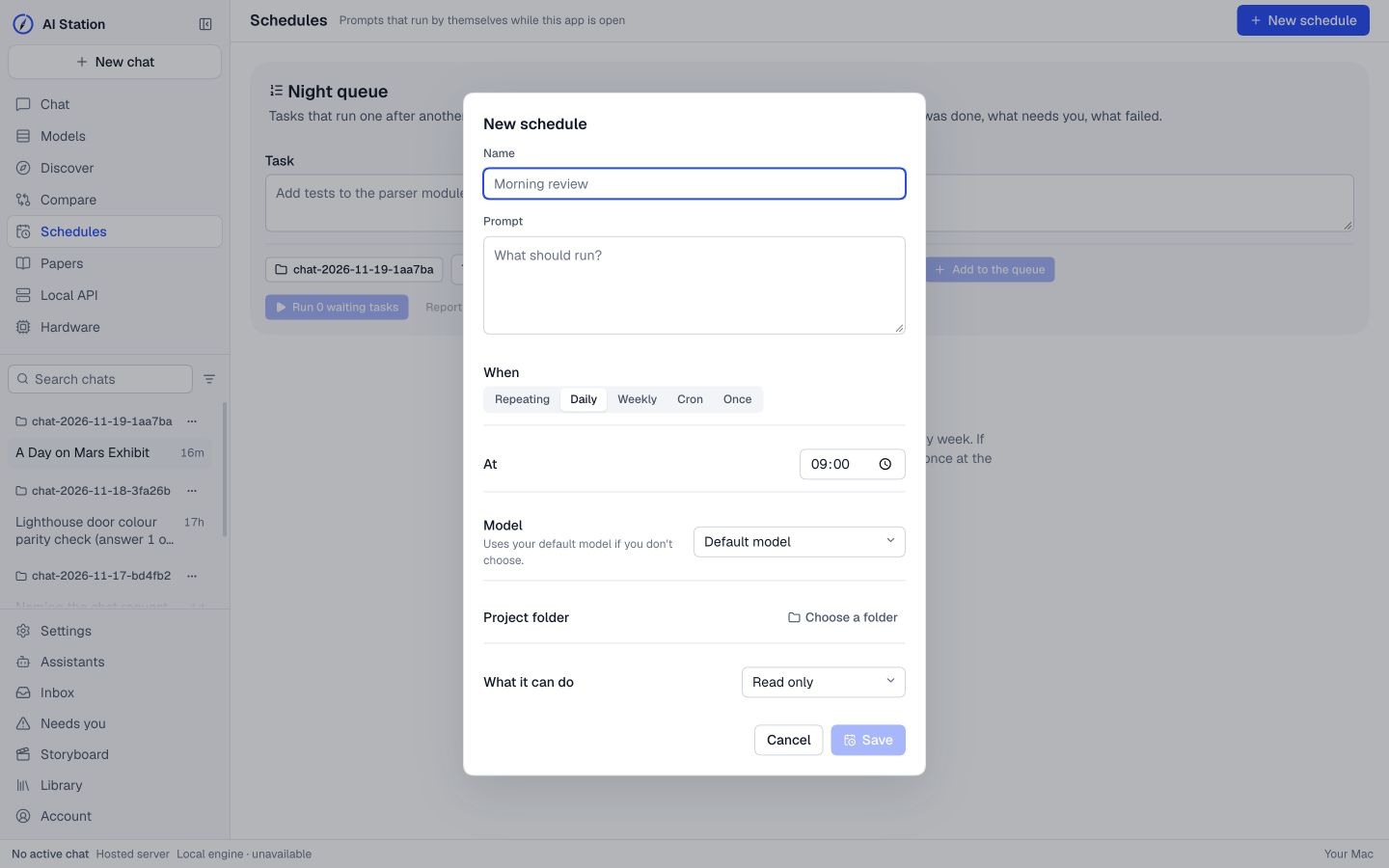
A recurring prompt starts here. The operator describes the work and chooses when the workspace should run it.
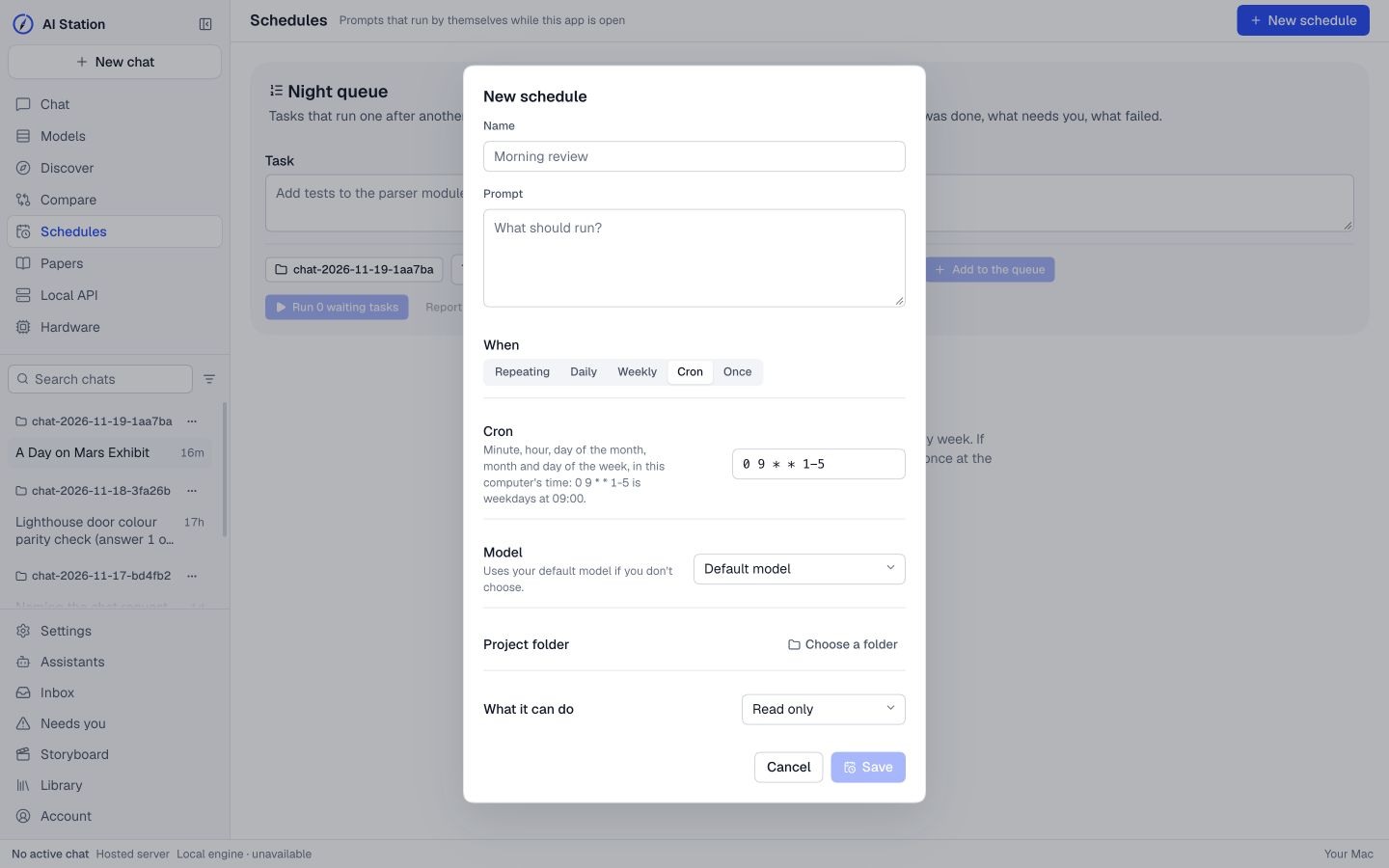
The schedule editor shows the cron timing option. This choice controls when a saved prompt runs and when the operator can expect its results.
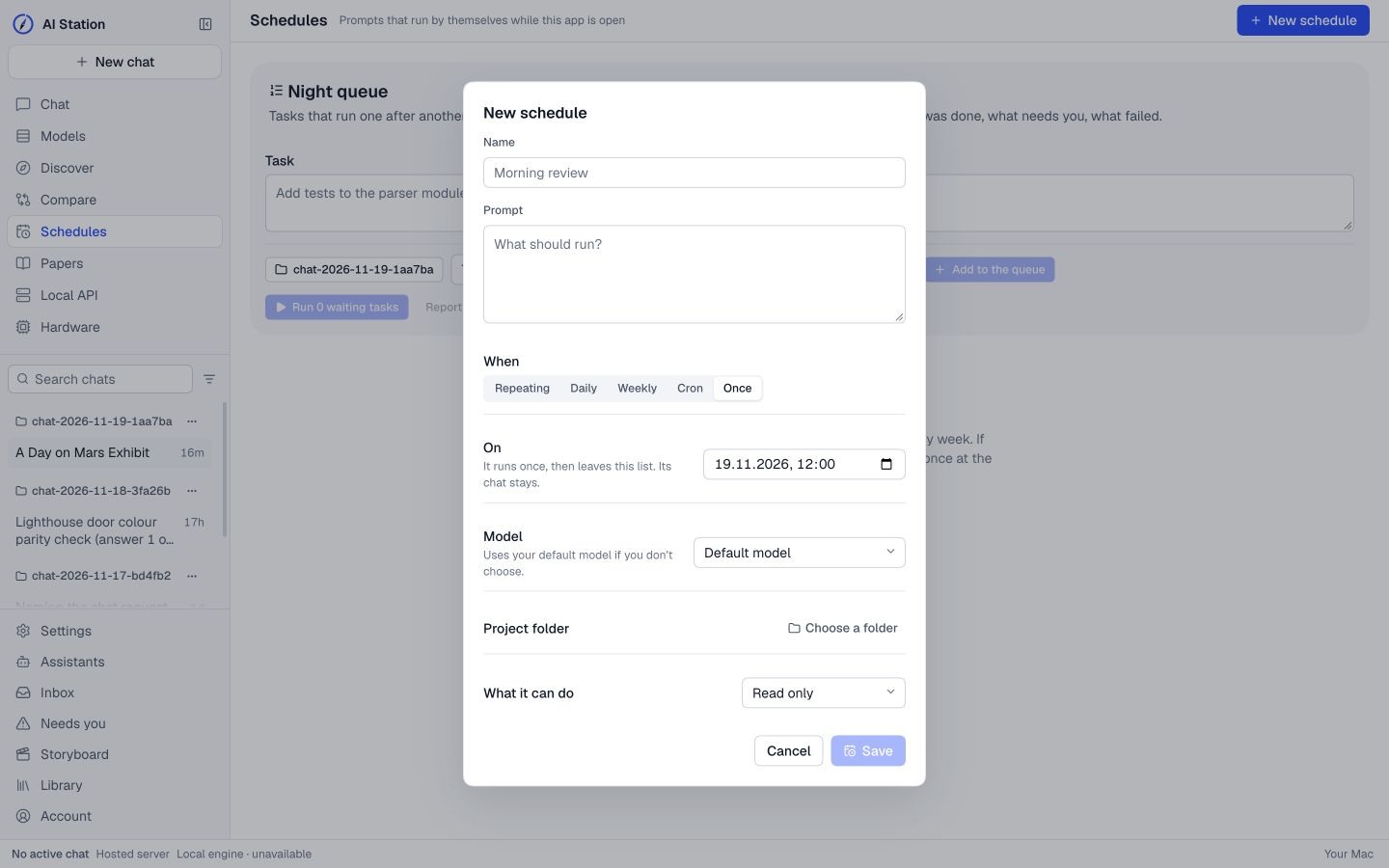
The schedule editor shows the once timing option. This choice controls when a saved prompt runs and when the operator can expect its results.
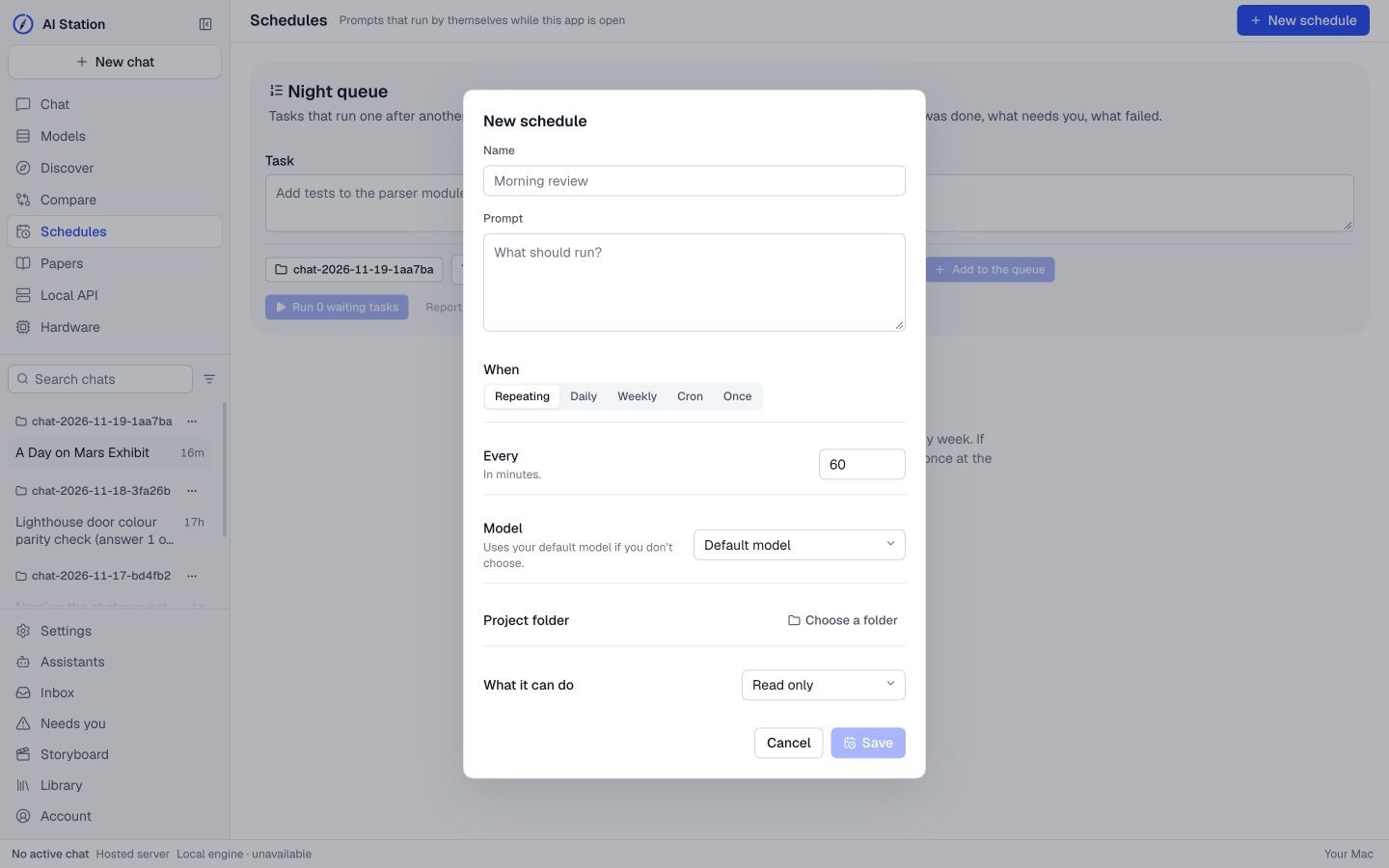
The schedule editor shows the repeating timing option. This choice controls when a saved prompt runs and when the operator can expect its results.
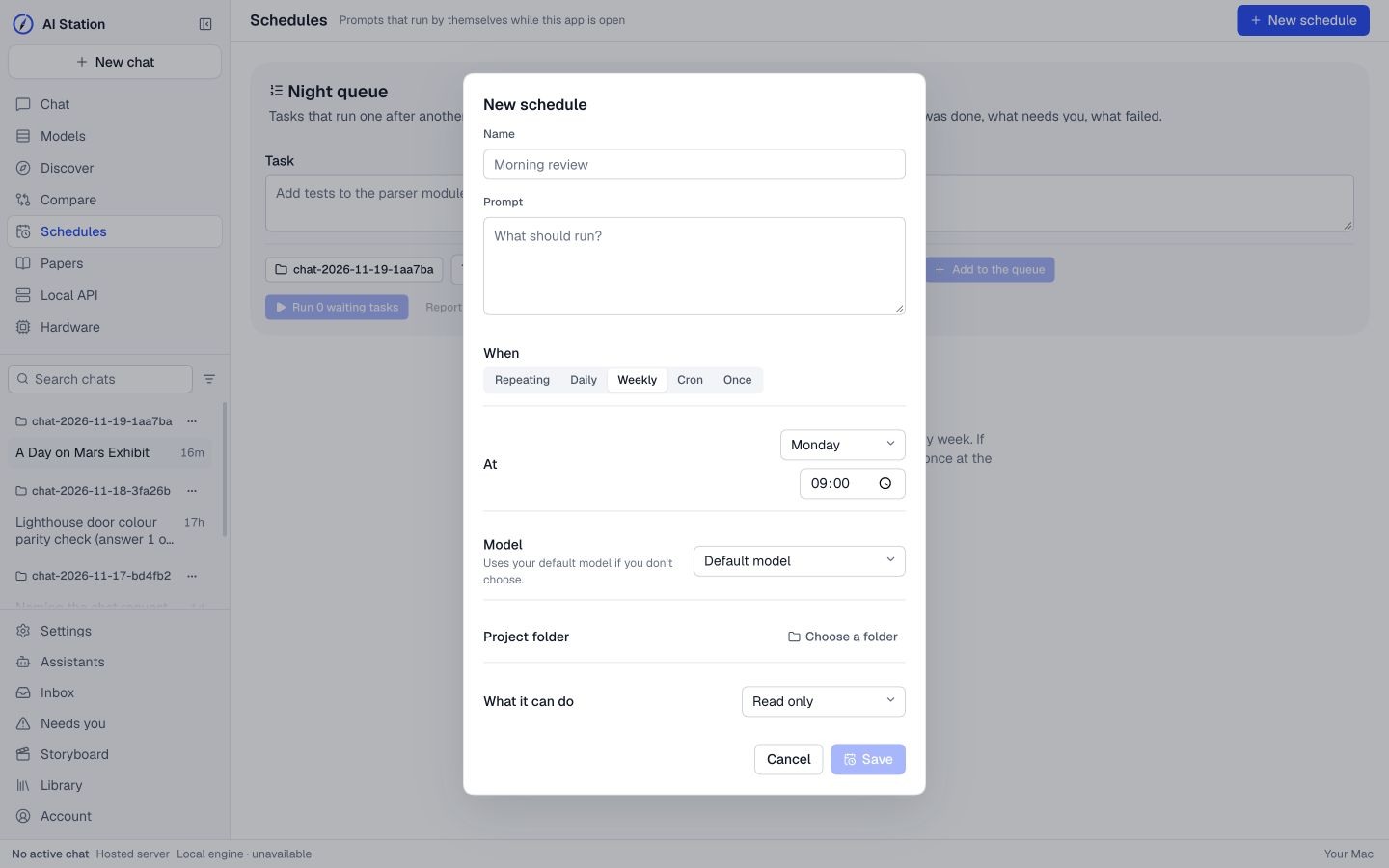
The schedule editor shows the weekly timing option. This choice controls when a saved prompt runs and when the operator can expect its results.
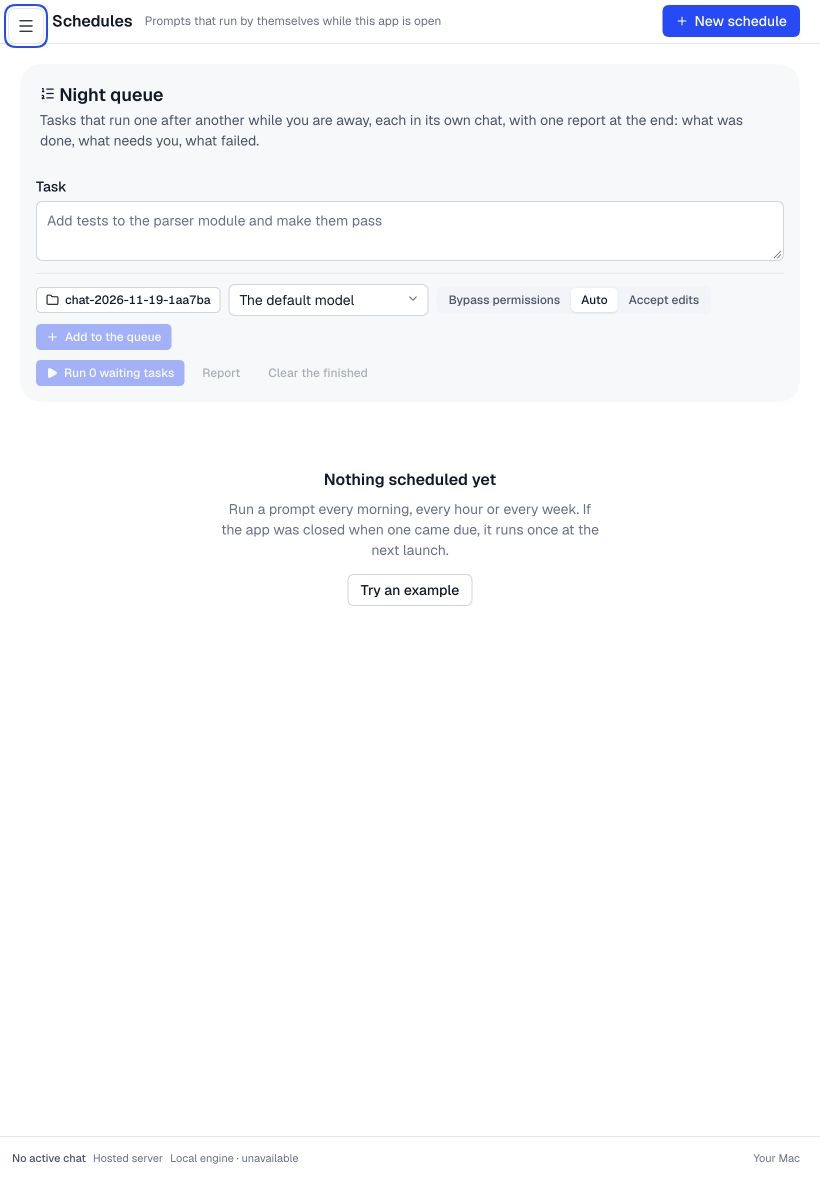
Create a recurring job, inspect its timing and follow its runs back into the workspace.
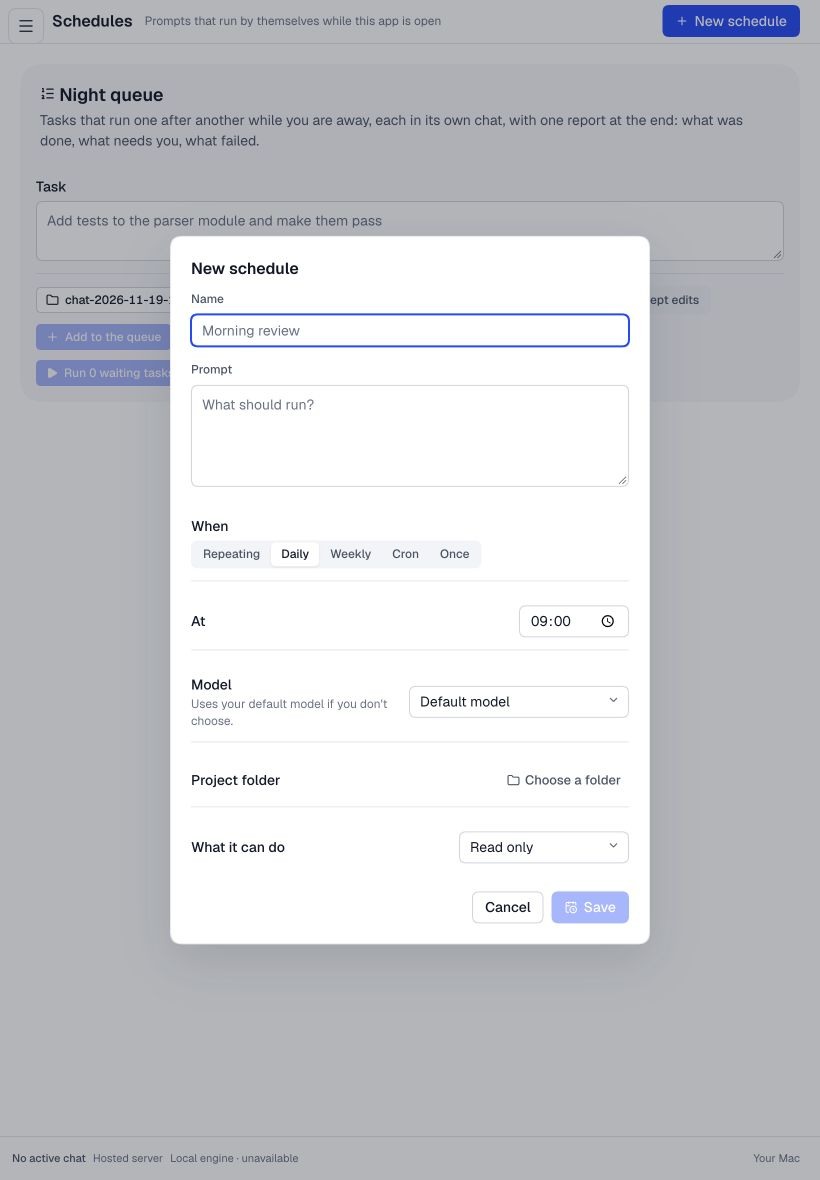
A recurring prompt starts here. The operator describes the work and chooses when the workspace should run it.
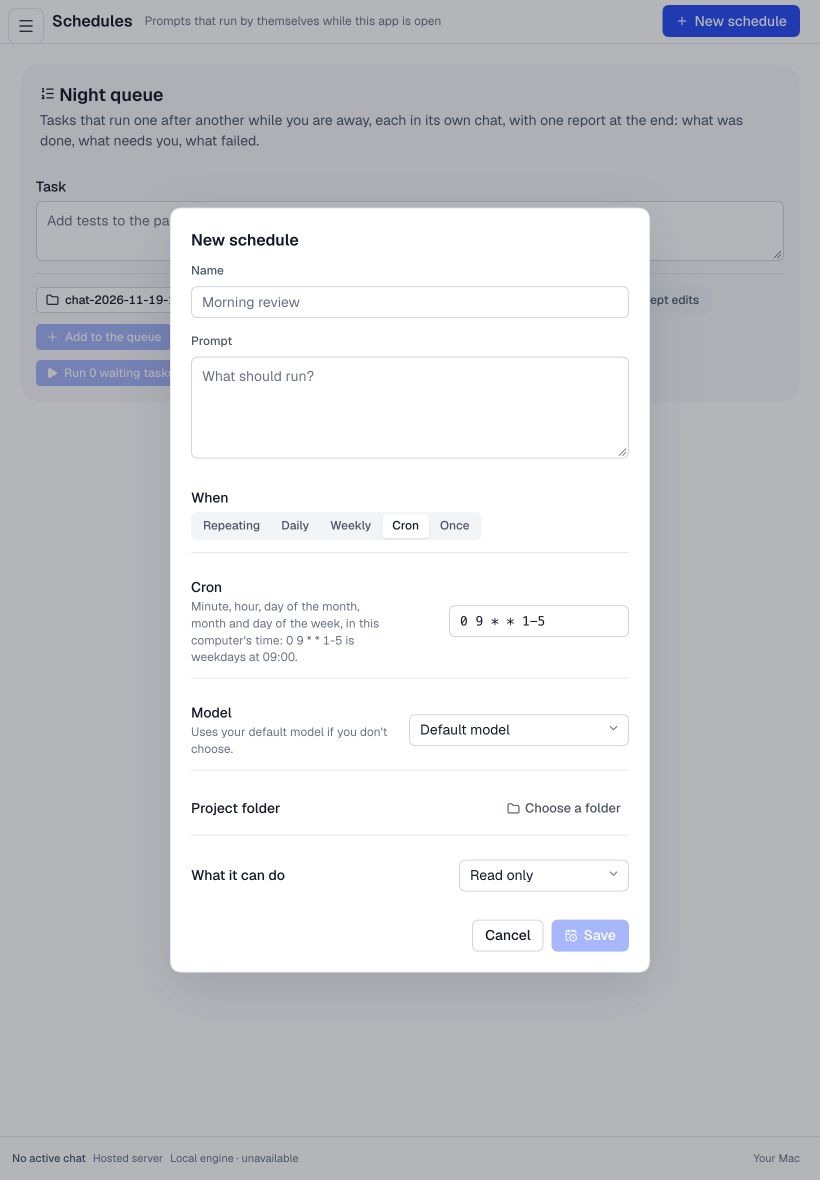
The schedule editor shows the cron timing option. This choice controls when a saved prompt runs and when the operator can expect its results.
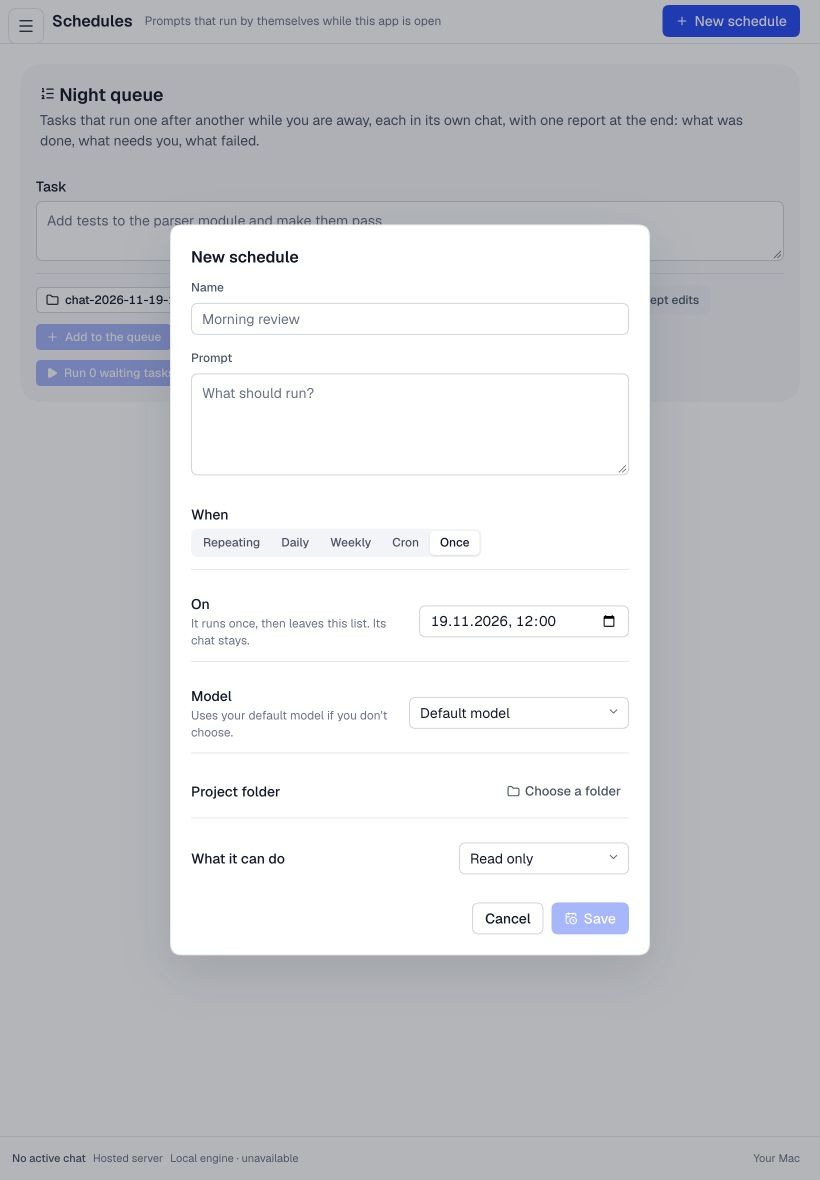
The schedule editor shows the once timing option. This choice controls when a saved prompt runs and when the operator can expect its results.
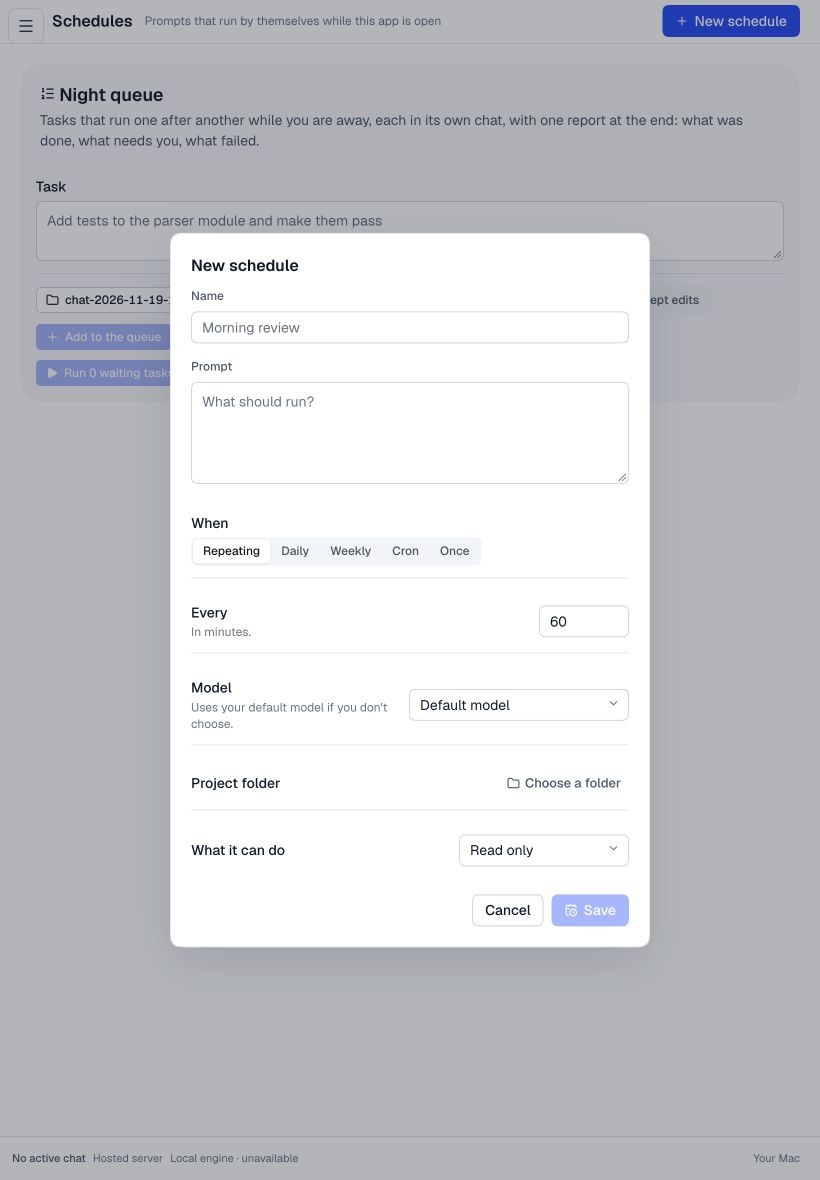
The schedule editor shows the repeating timing option. This choice controls when a saved prompt runs and when the operator can expect its results.
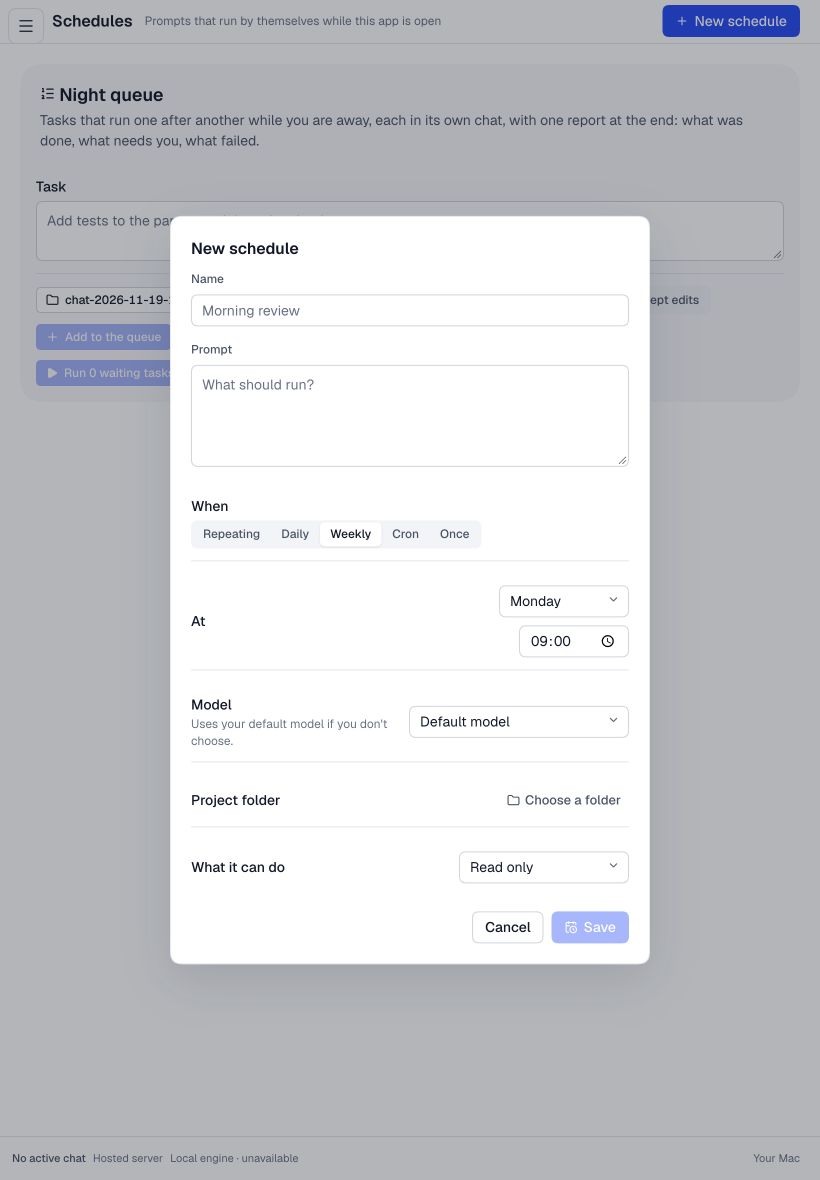
The schedule editor shows the weekly timing option. This choice controls when a saved prompt runs and when the operator can expect its results.
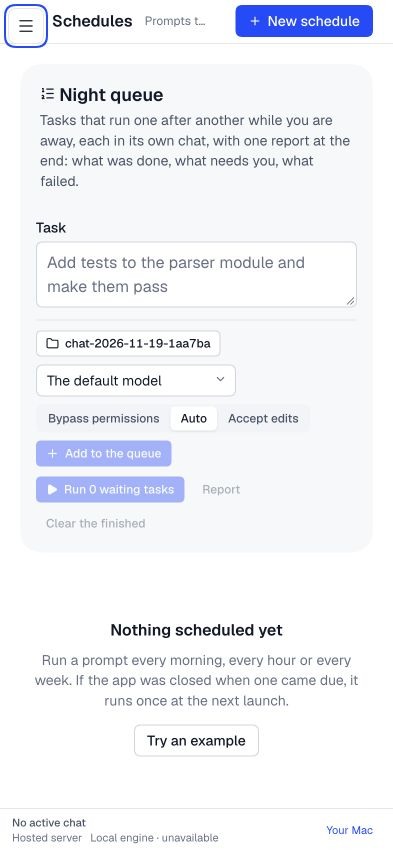
Create a recurring job, inspect its timing and follow its runs back into the workspace.
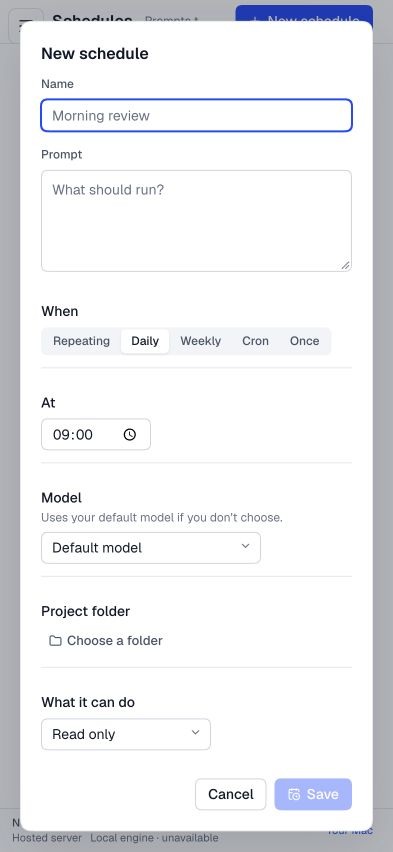
A recurring prompt starts here. The operator describes the work and chooses when the workspace should run it.
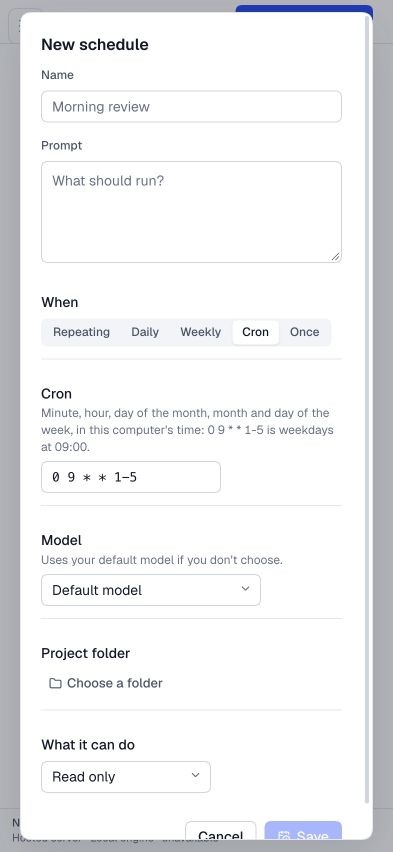
The schedule editor shows the cron timing option. This choice controls when a saved prompt runs and when the operator can expect its results.
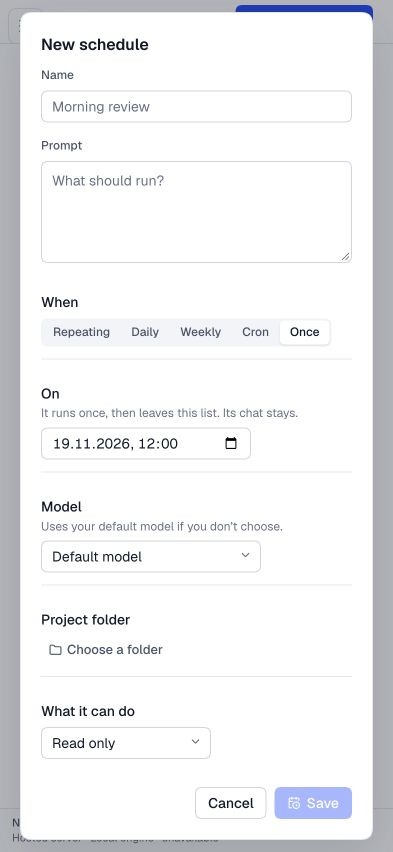
The schedule editor shows the once timing option. This choice controls when a saved prompt runs and when the operator can expect its results.
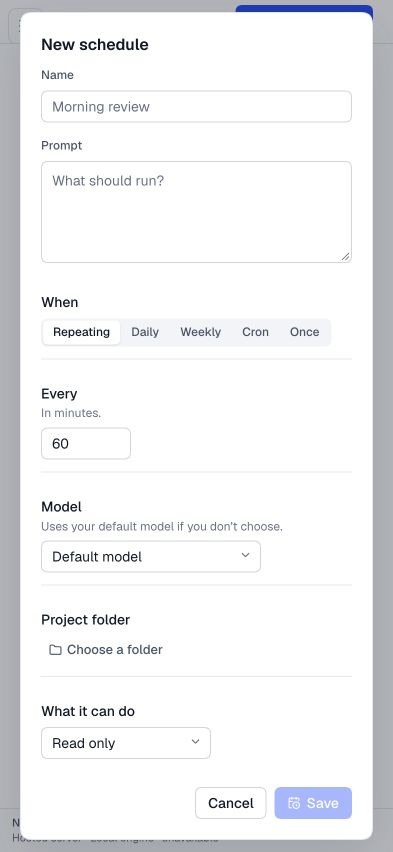
The schedule editor shows the repeating timing option. This choice controls when a saved prompt runs and when the operator can expect its results.
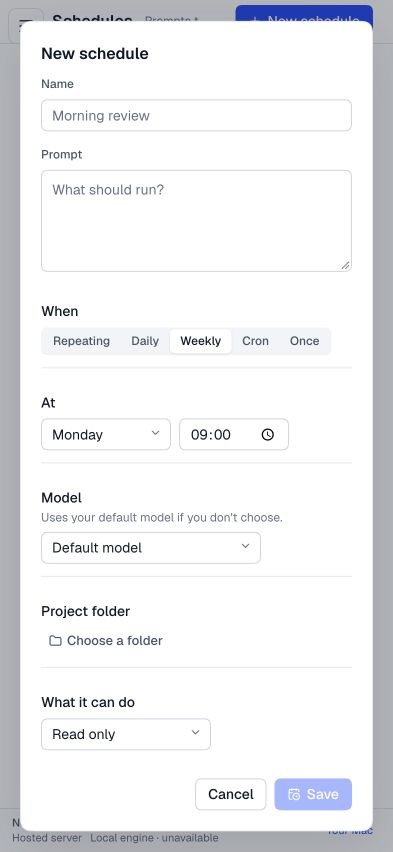
The schedule editor shows the weekly timing option. This choice controls when a saved prompt runs and when the operator can expect its results.
Settings 122
Explore the preferences and configuration panels available in this edition.
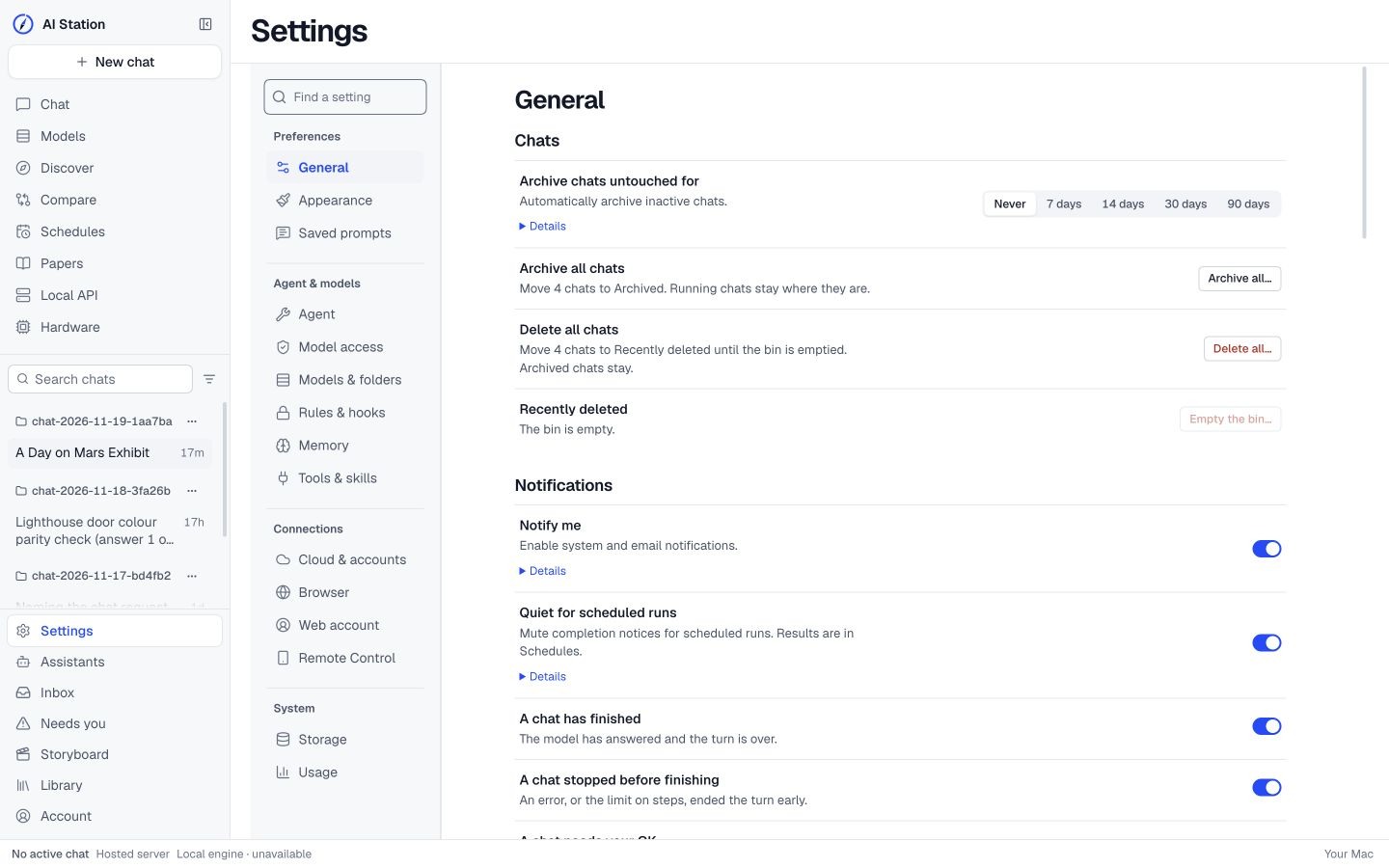
Explore the preferences and configuration panels available in this edition.
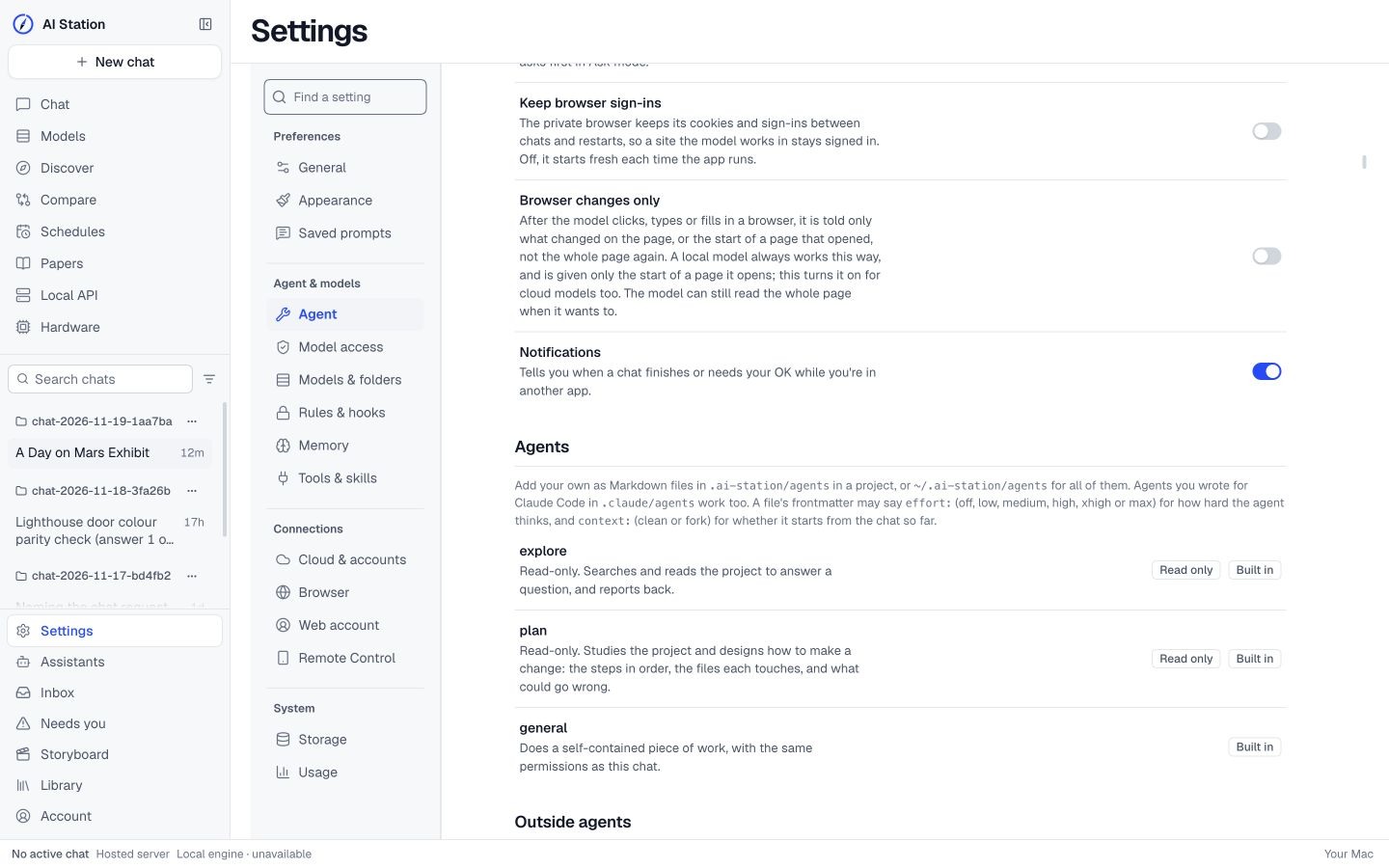
The settings view covers Agent · Agents. Set expectations for what an agent can do during project work, how much work it can undertake and when a person should review the result.
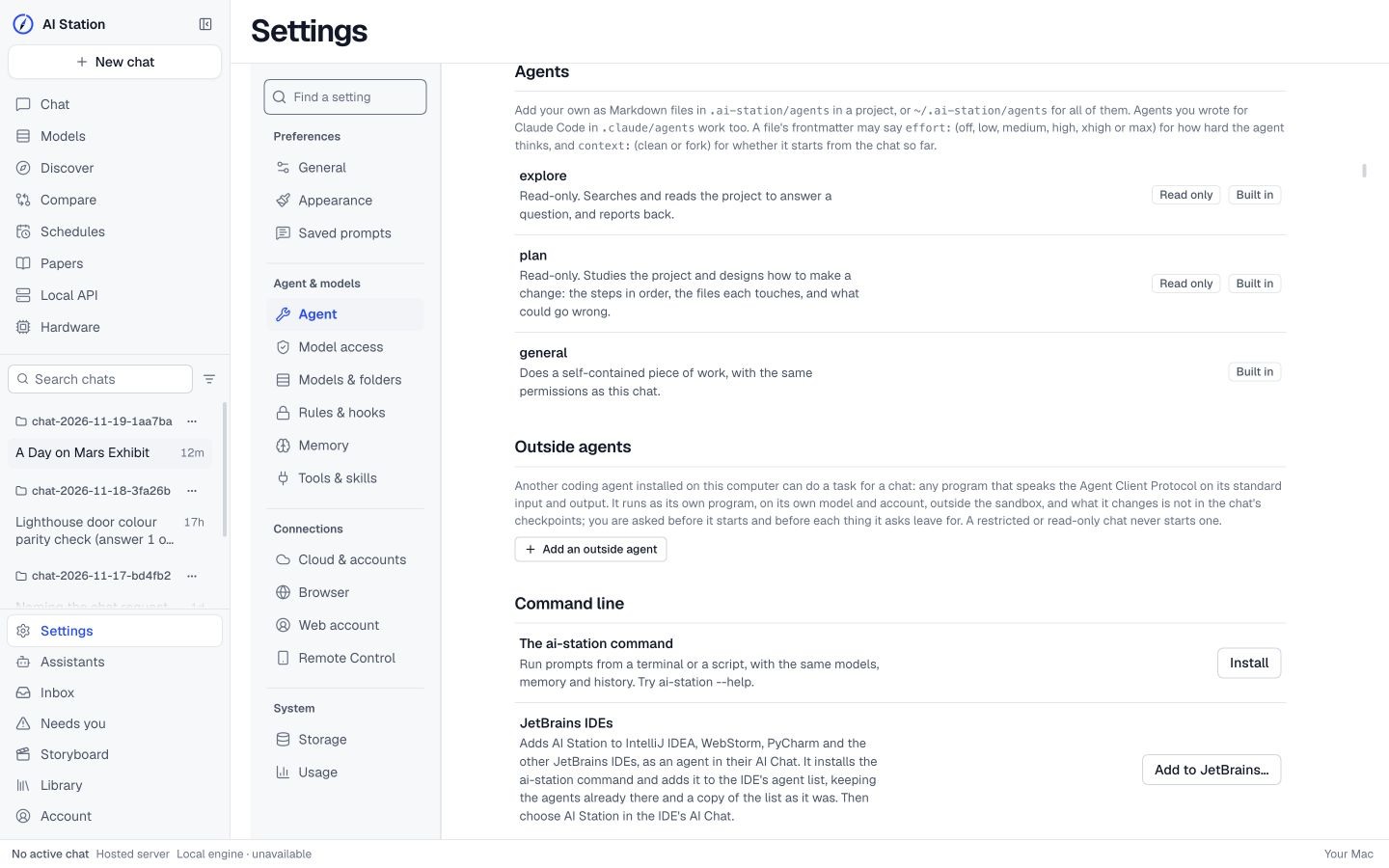
The settings view covers Agent · Outside agents. Set expectations for what an agent can do during project work, how much work it can undertake and when a person should review the result.
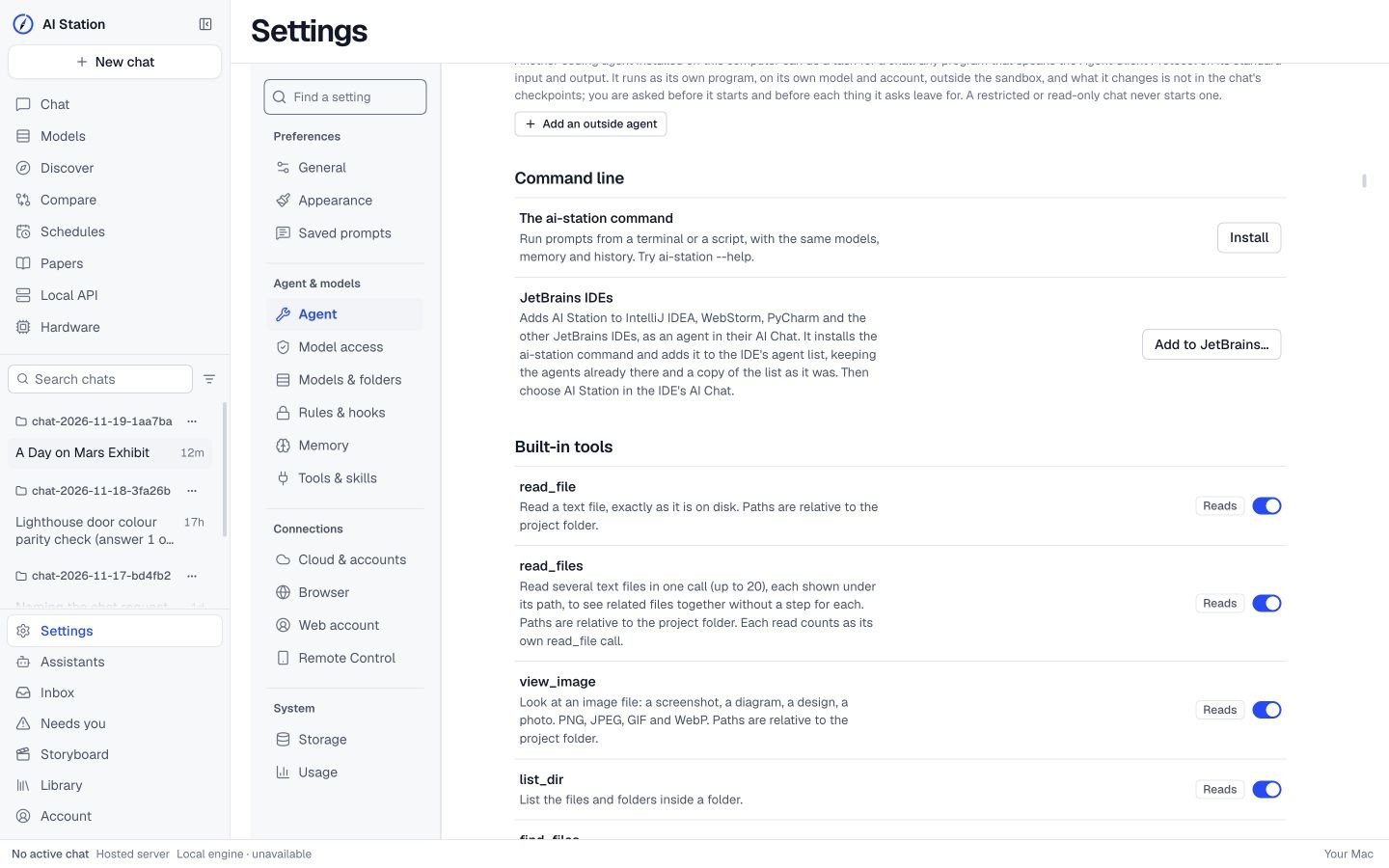
The settings view covers Agent · Built-in tools. Set expectations for what an agent can do during project work, how much work it can undertake and when a person should review the result.
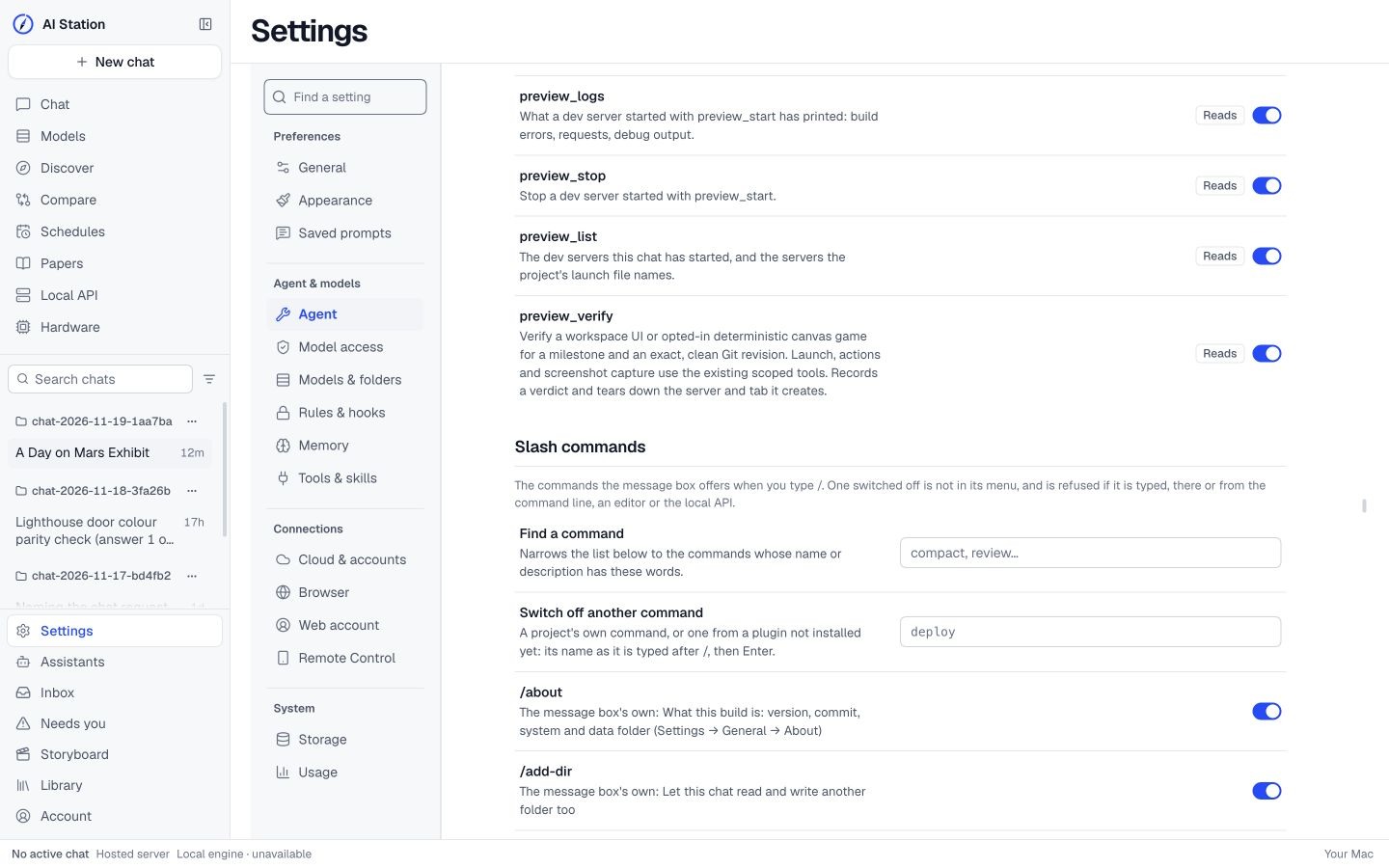
The settings view covers Agent · Slash commands. Set expectations for what an agent can do during project work, how much work it can undertake and when a person should review the result.
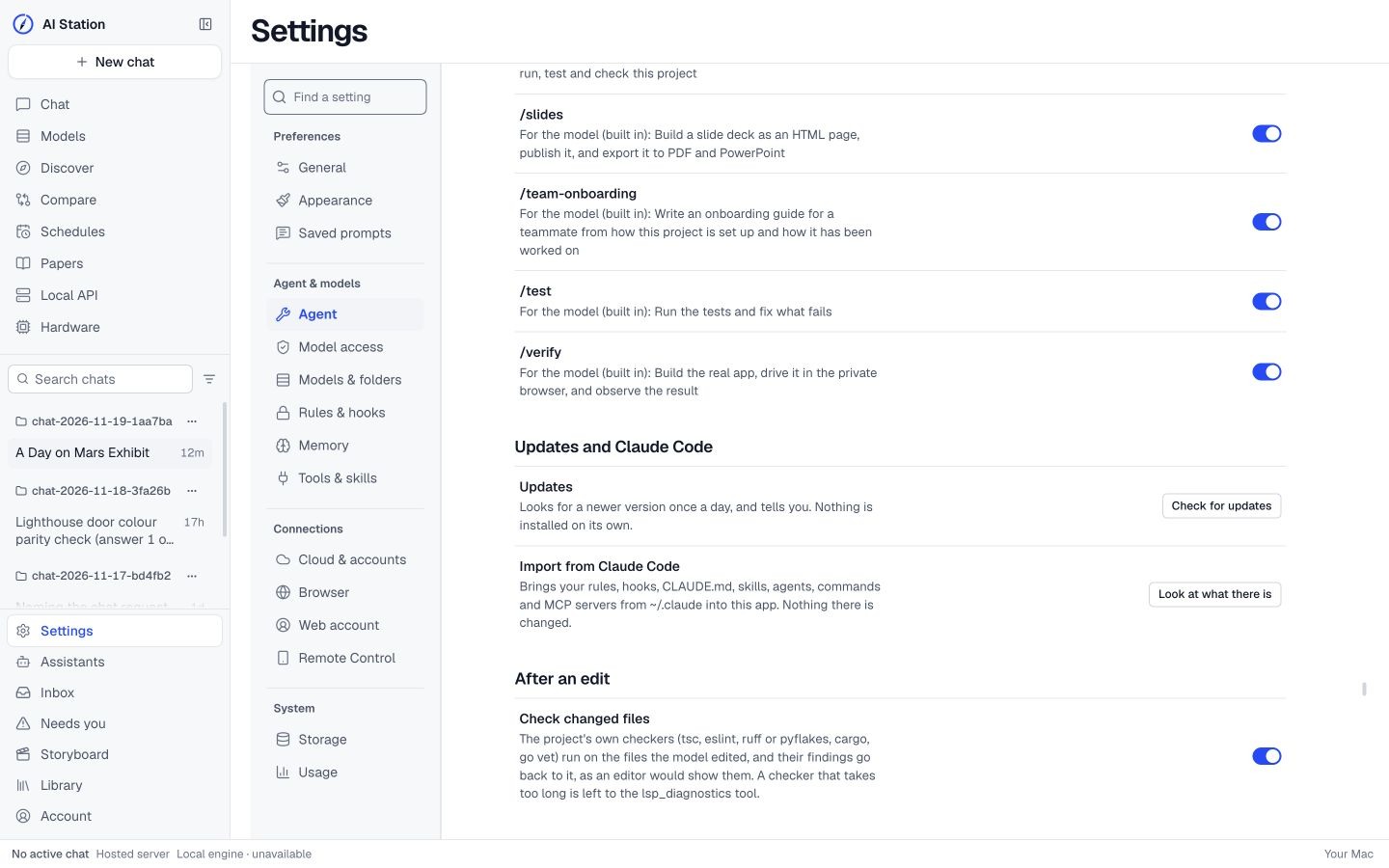
The settings view covers Agent · Updates and Claude Code. Set expectations for what an agent can do during project work, how much work it can undertake and when a person should review the result.
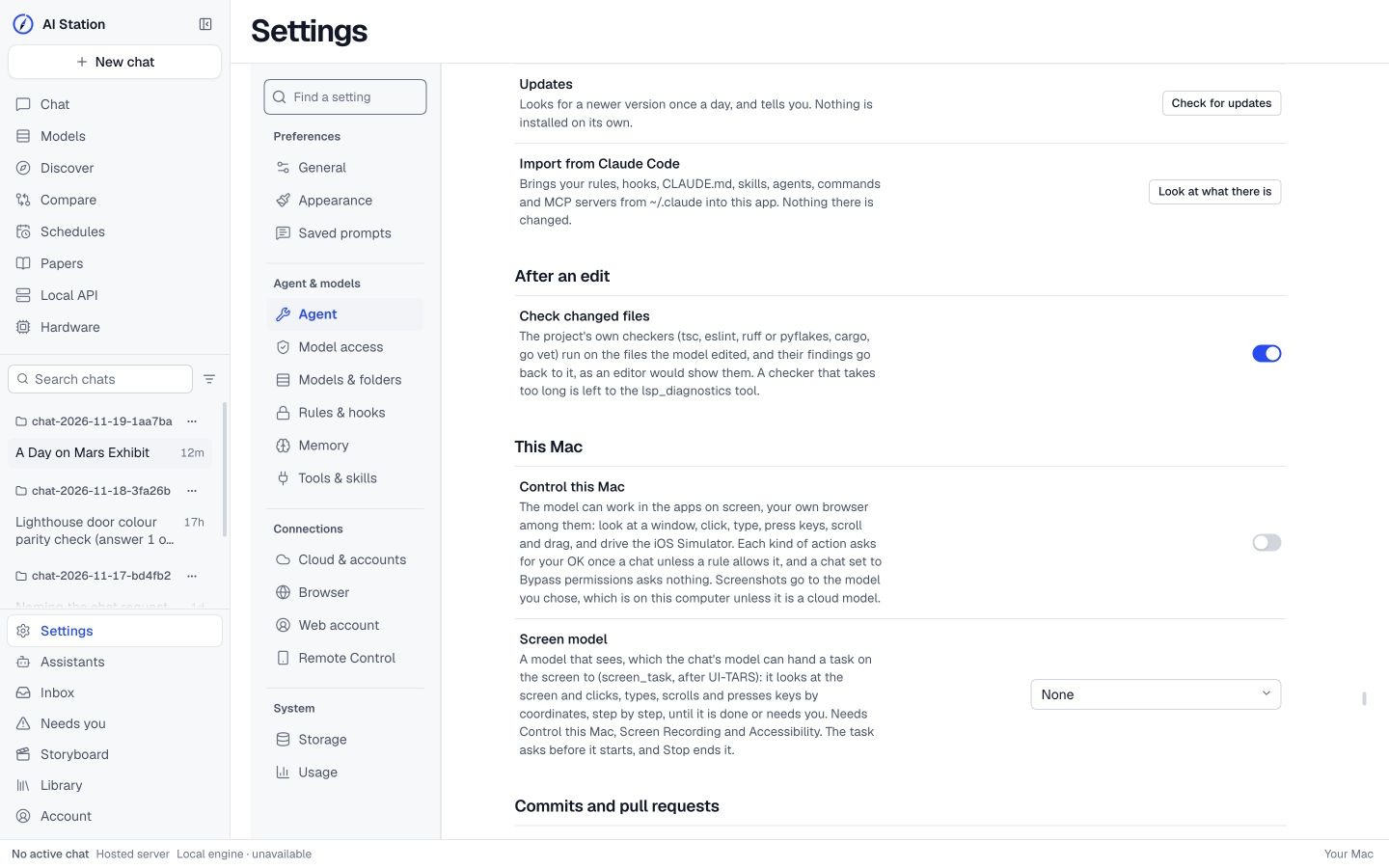
The settings view covers Agent · This Mac. Set expectations for what an agent can do during project work, how much work it can undertake and when a person should review the result.
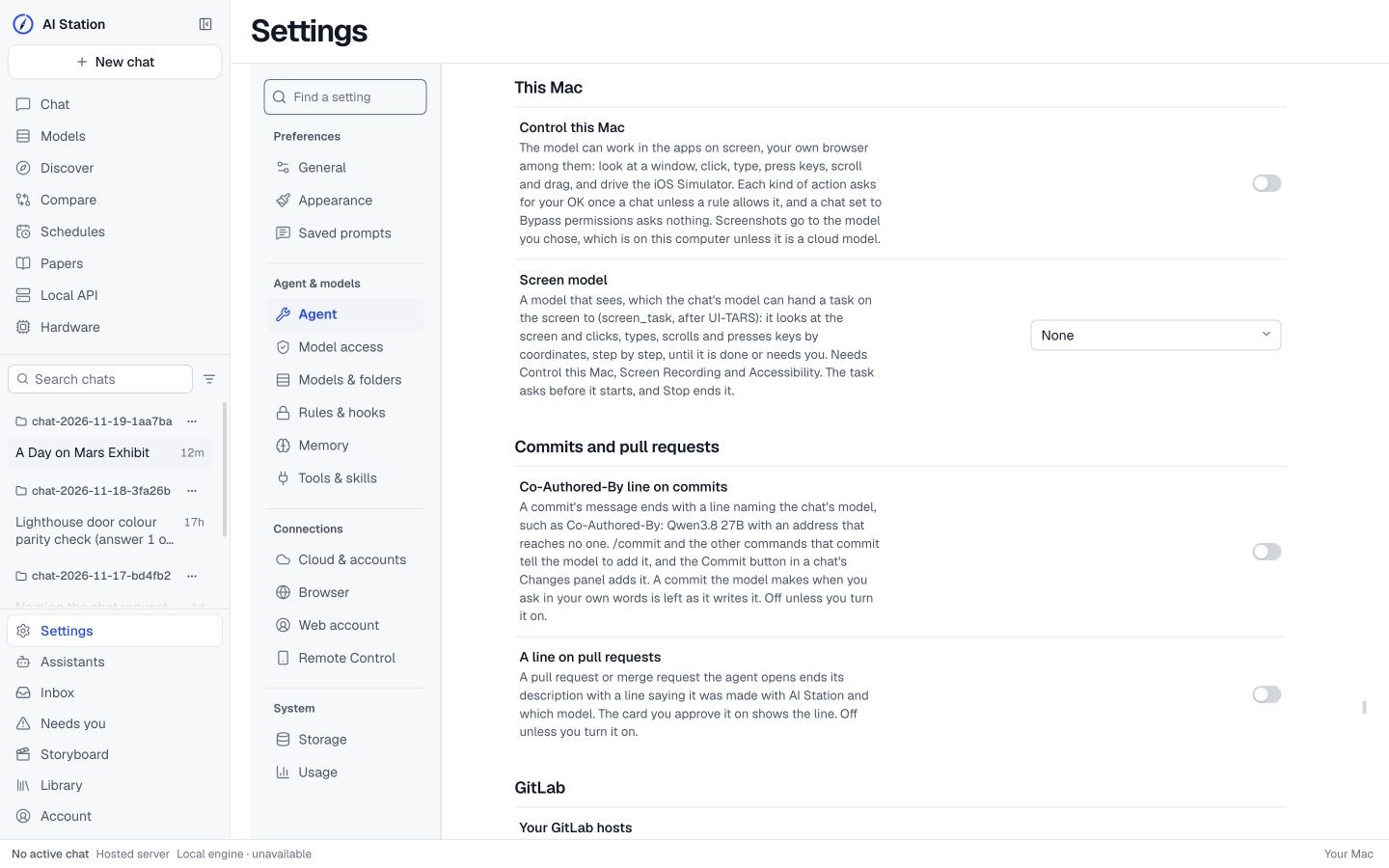
The settings view covers Agent · Commits and pull requests. Set expectations for what an agent can do during project work, how much work it can undertake and when a person should review the result.
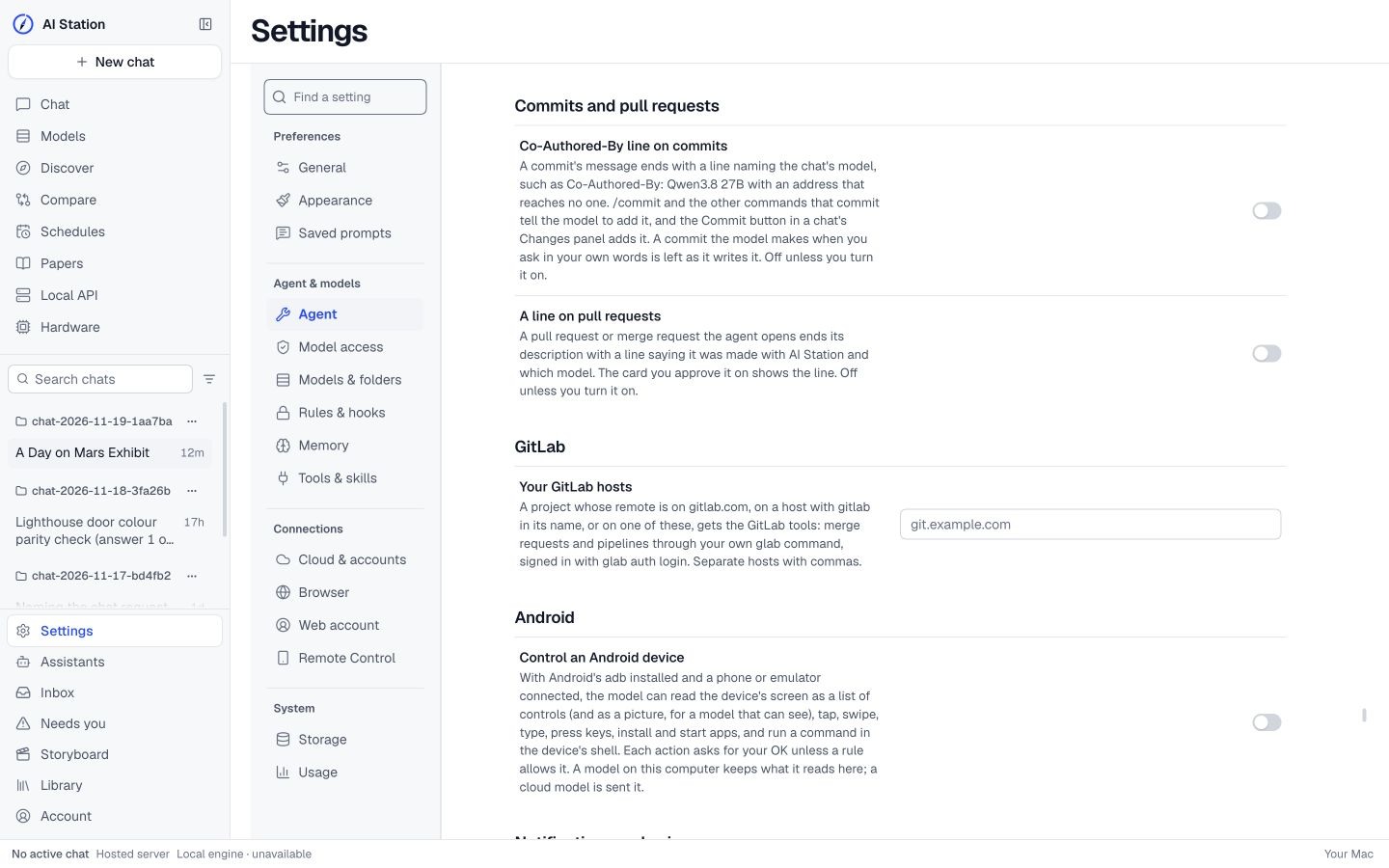
The settings view covers Agent · GitLab. Set expectations for what an agent can do during project work, how much work it can undertake and when a person should review the result.
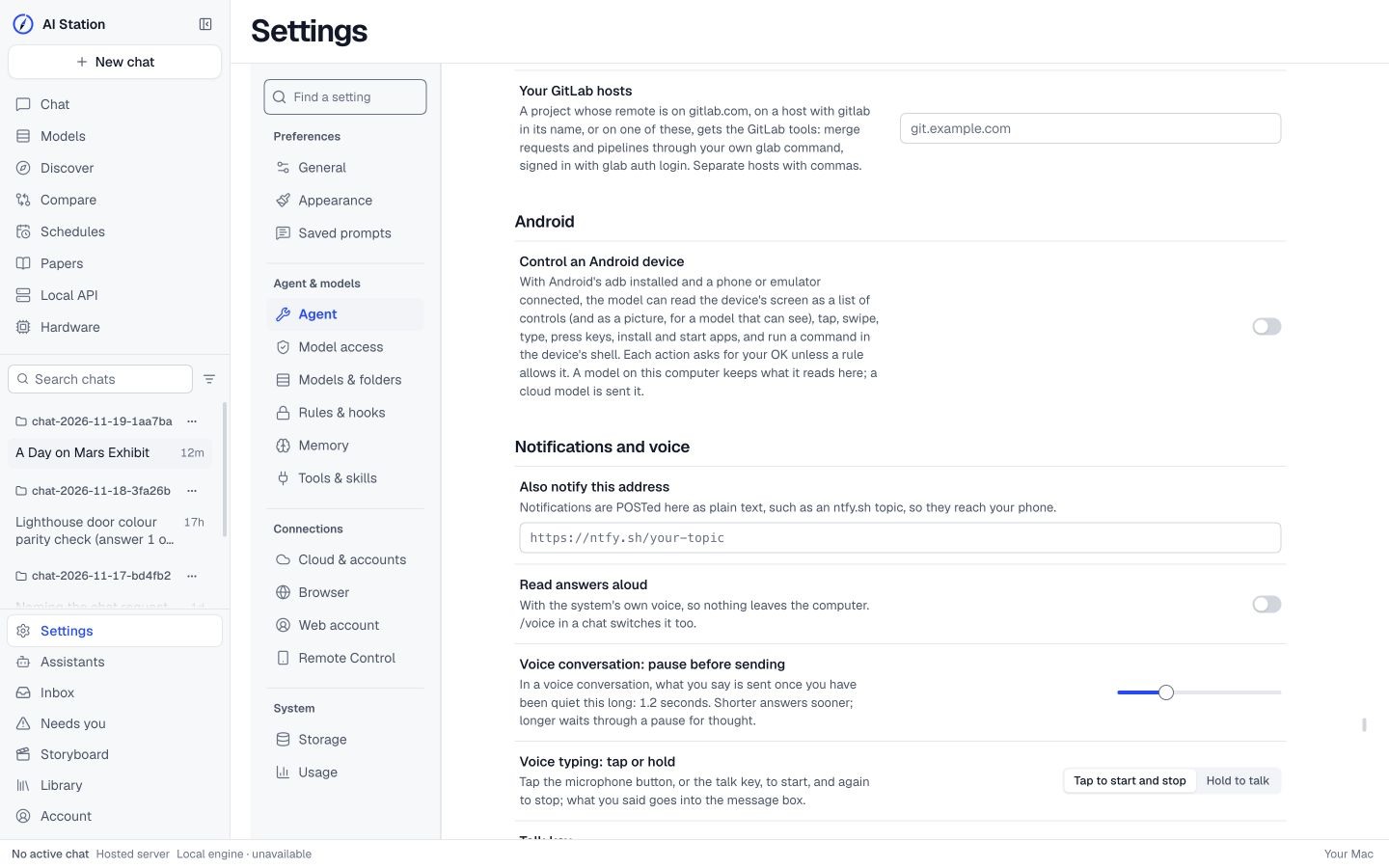
The settings view covers Agent · Notifications and voice. Set expectations for what an agent can do during project work, how much work it can undertake and when a person should review the result.
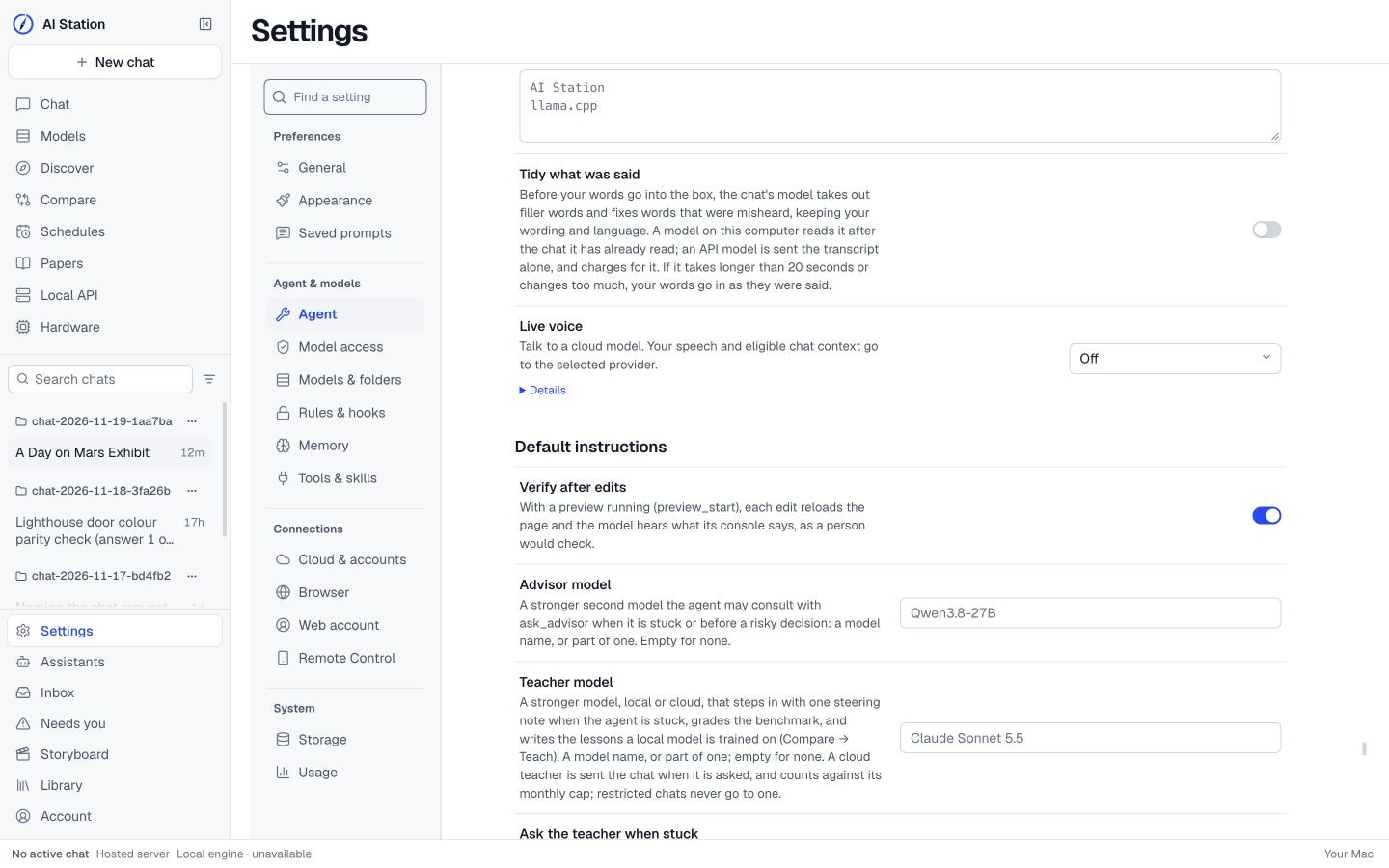
The settings view covers Agent · Default instructions. Set expectations for what an agent can do during project work, how much work it can undertake and when a person should review the result.
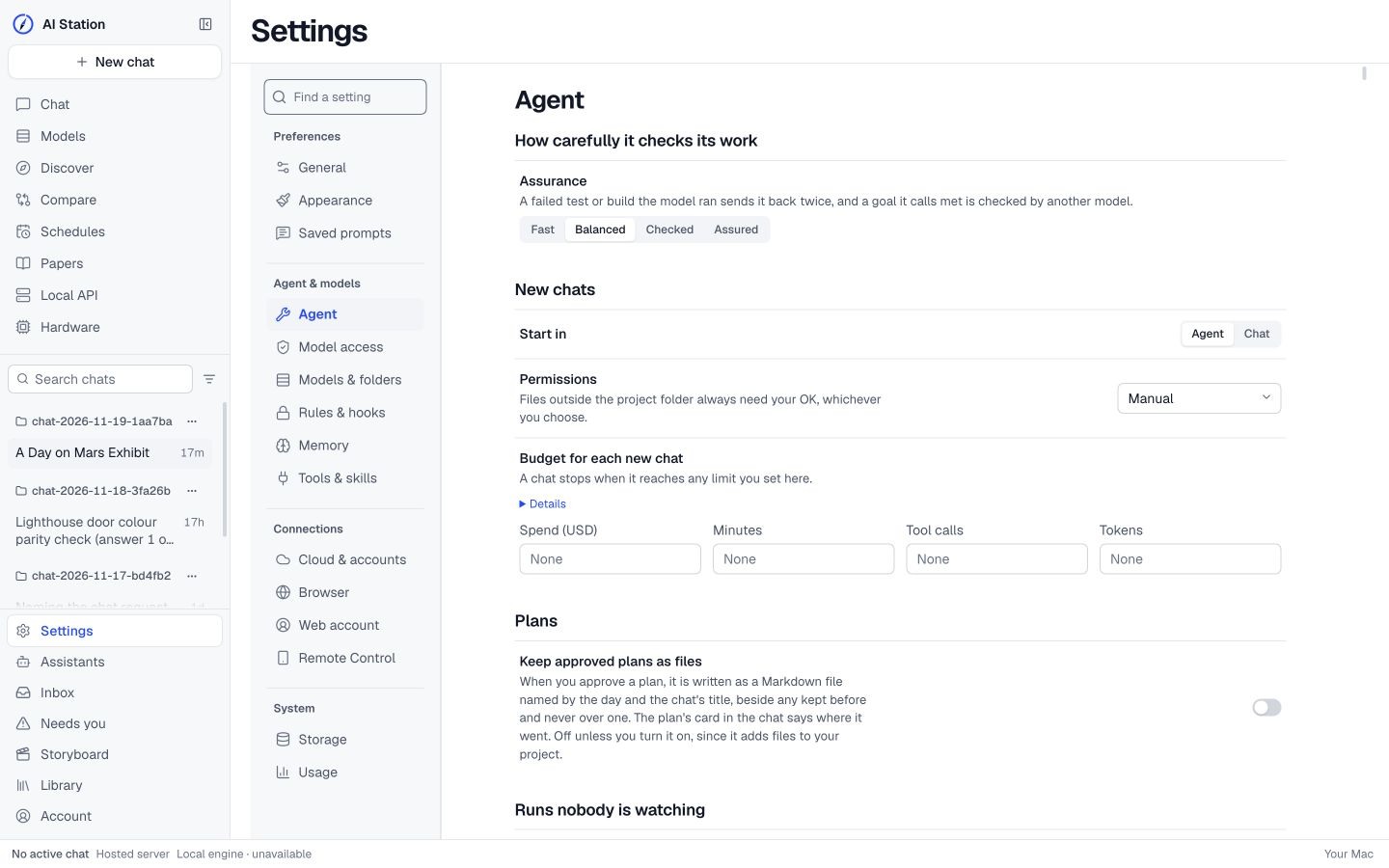
The settings view covers Agent. Set expectations for what an agent can do during project work, how much work it can undertake and when a person should review the result.
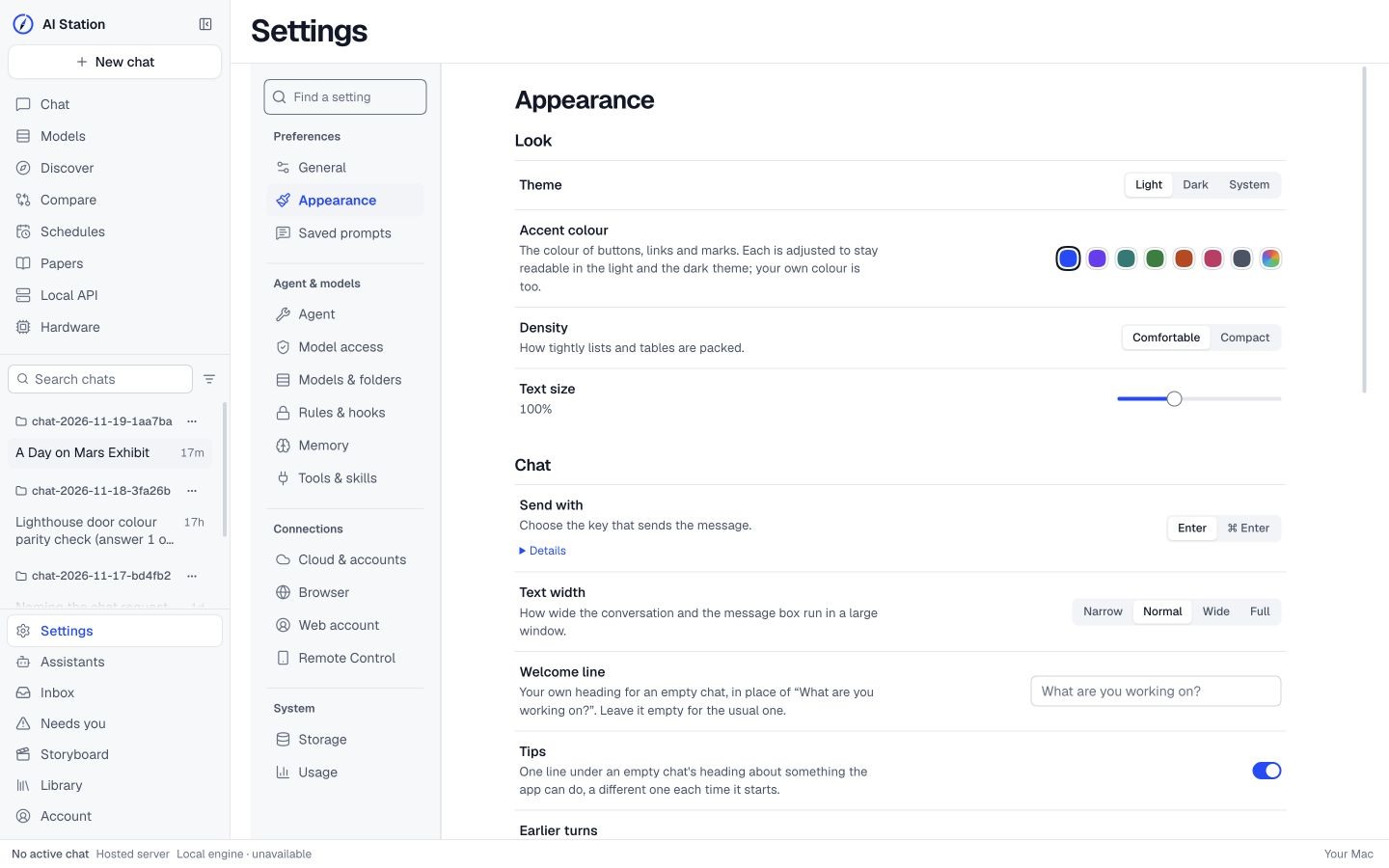
The settings view covers Appearance. Adjust the presentation of the workspace to suit the display and the person reading it.
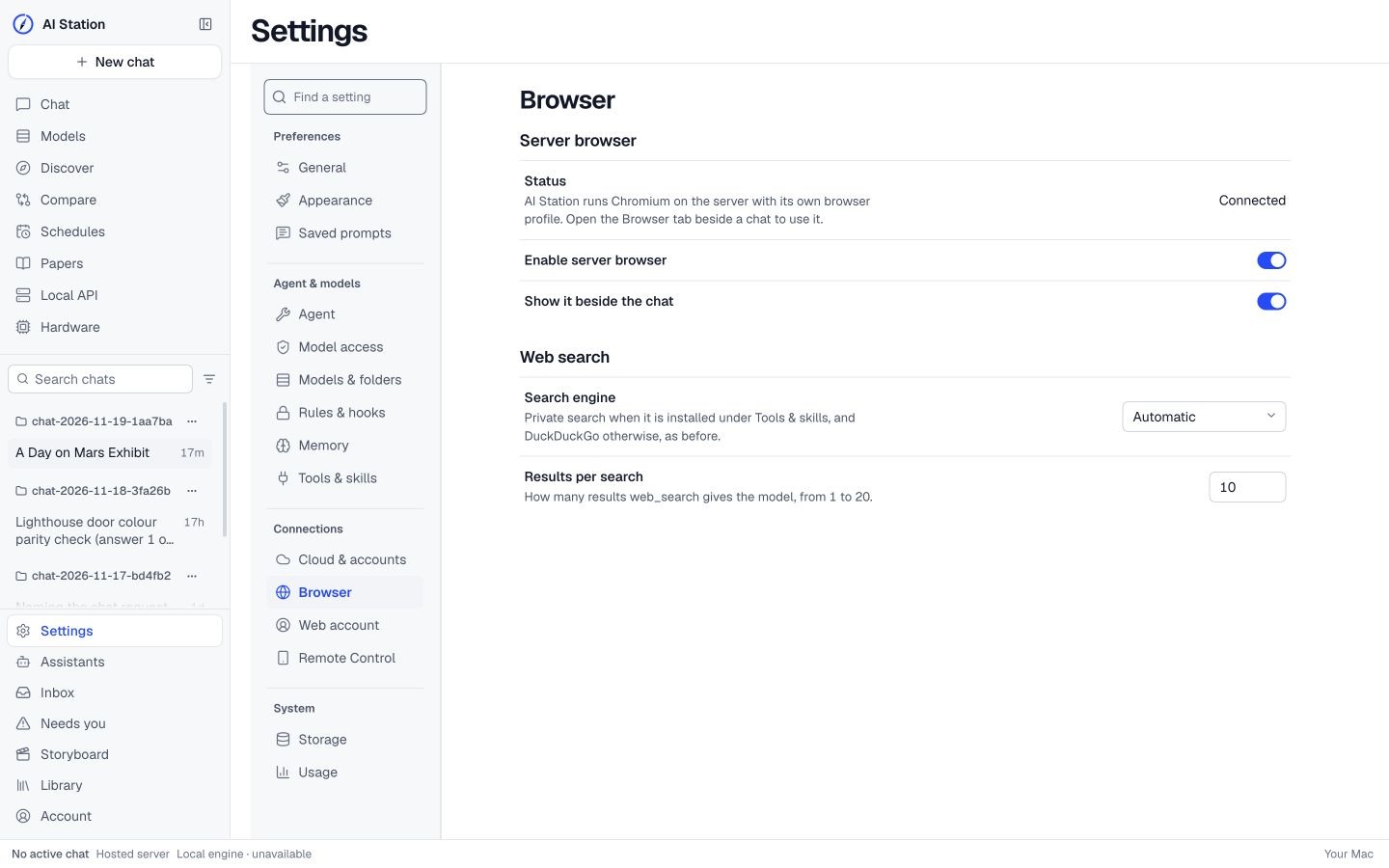
The settings view covers Browser. Configure the browser used to inspect web content and preview a project during a conversation.
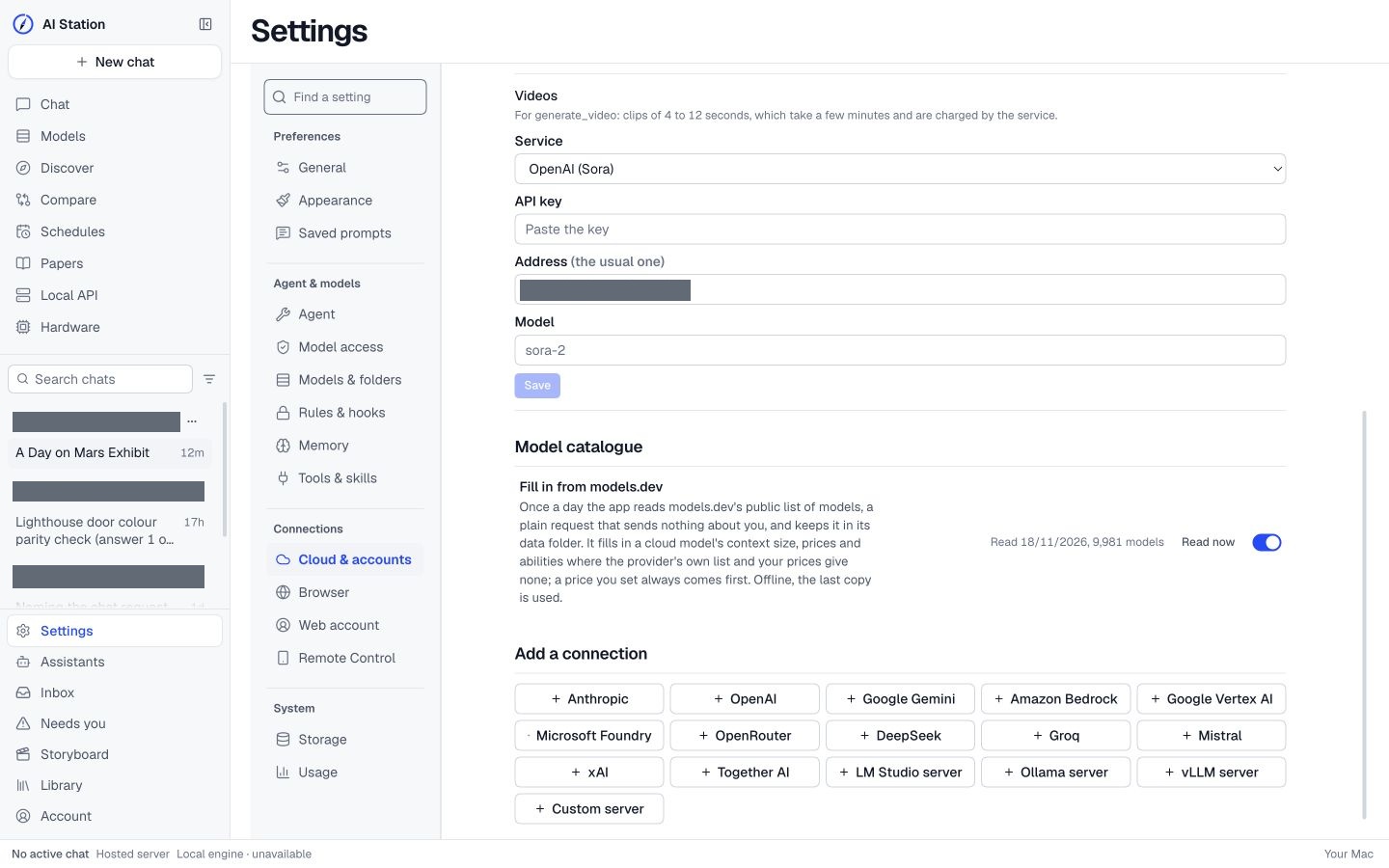
The settings view covers Cloud & accounts · Model catalogue. Manage provider connections and the models they make available to the workspace.
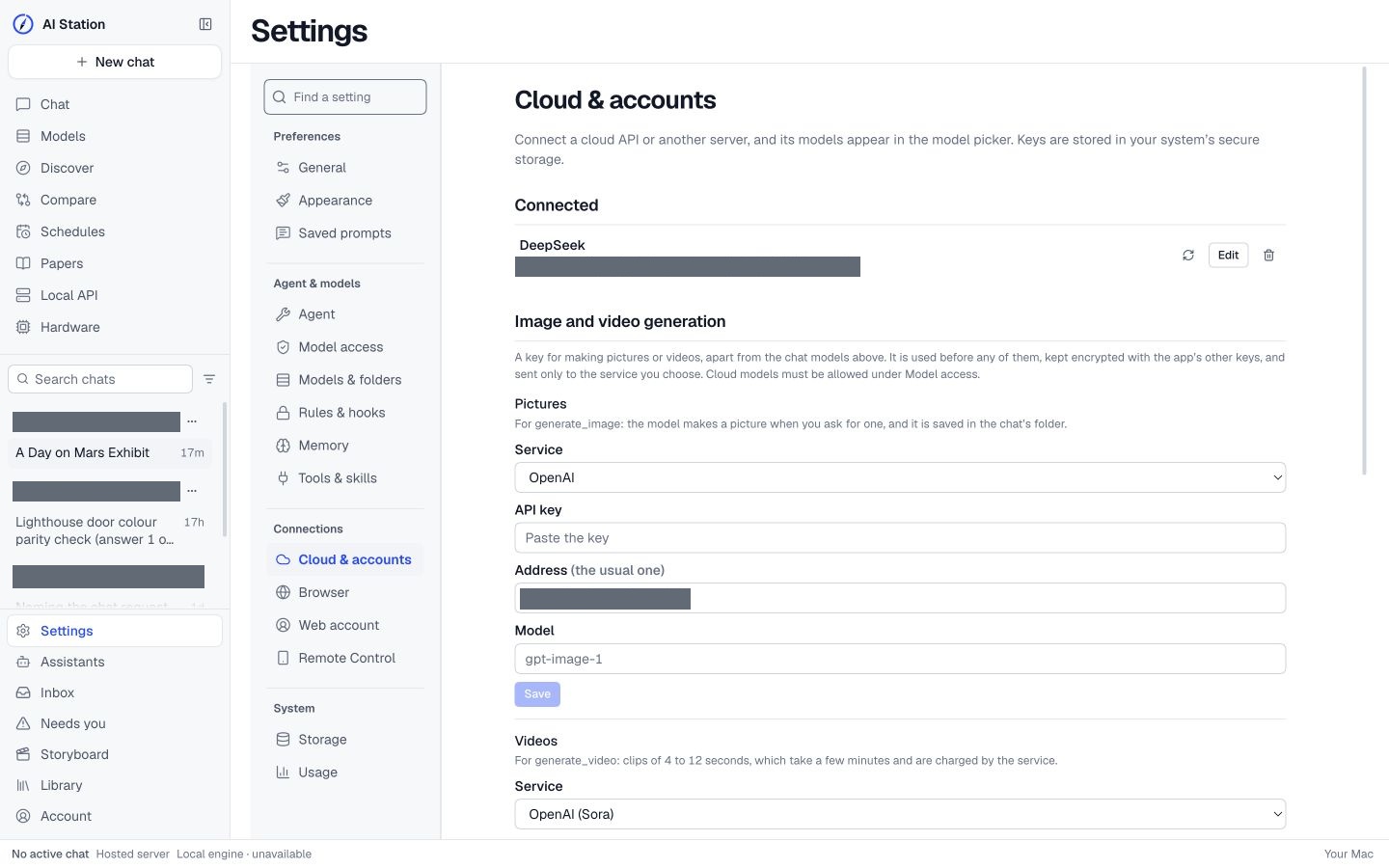
The settings view covers Cloud & accounts. Manage provider connections and the models they make available to the workspace.
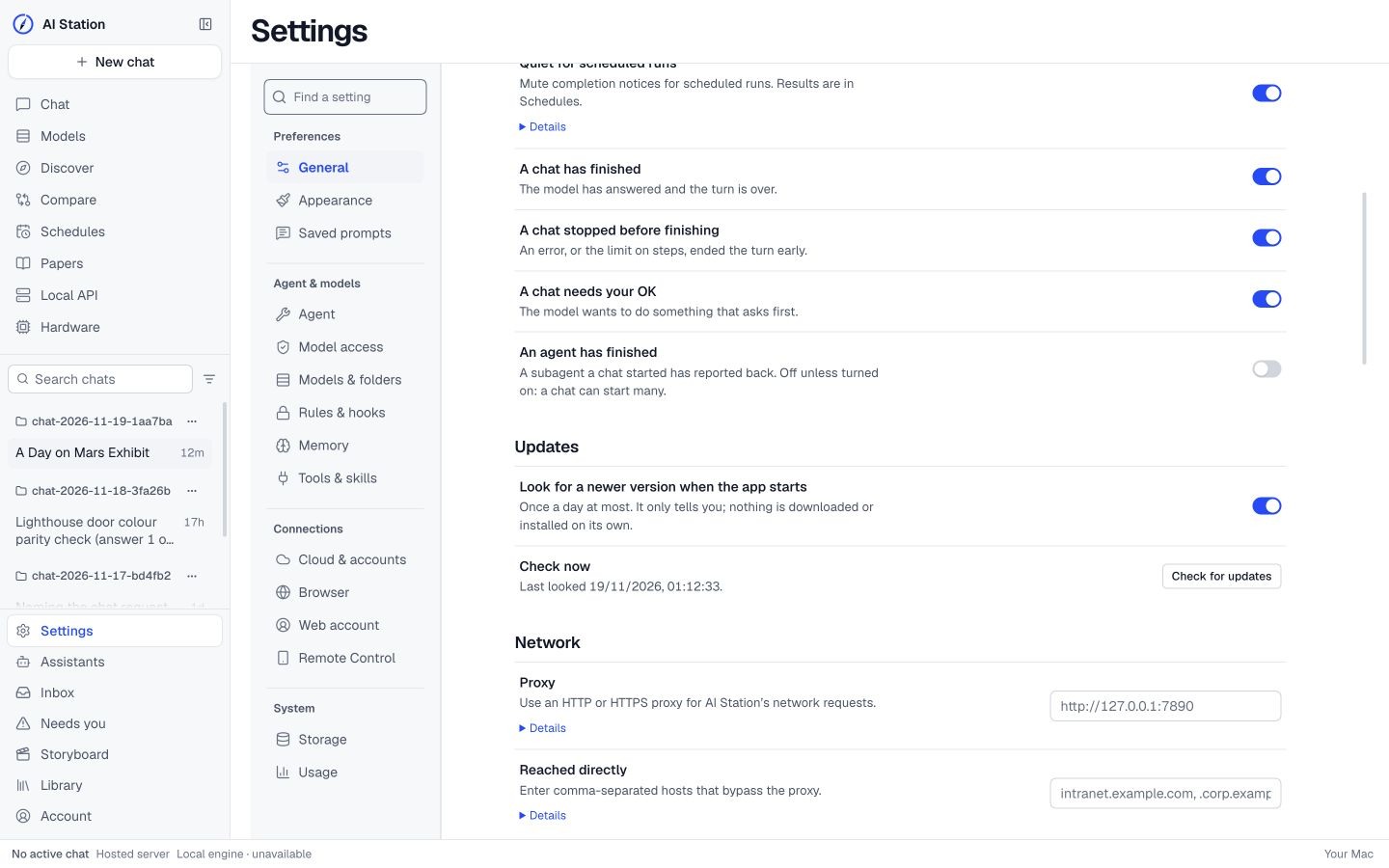
The settings view covers General · Updates. Inspect application-wide preferences, diagnostic information and update controls.
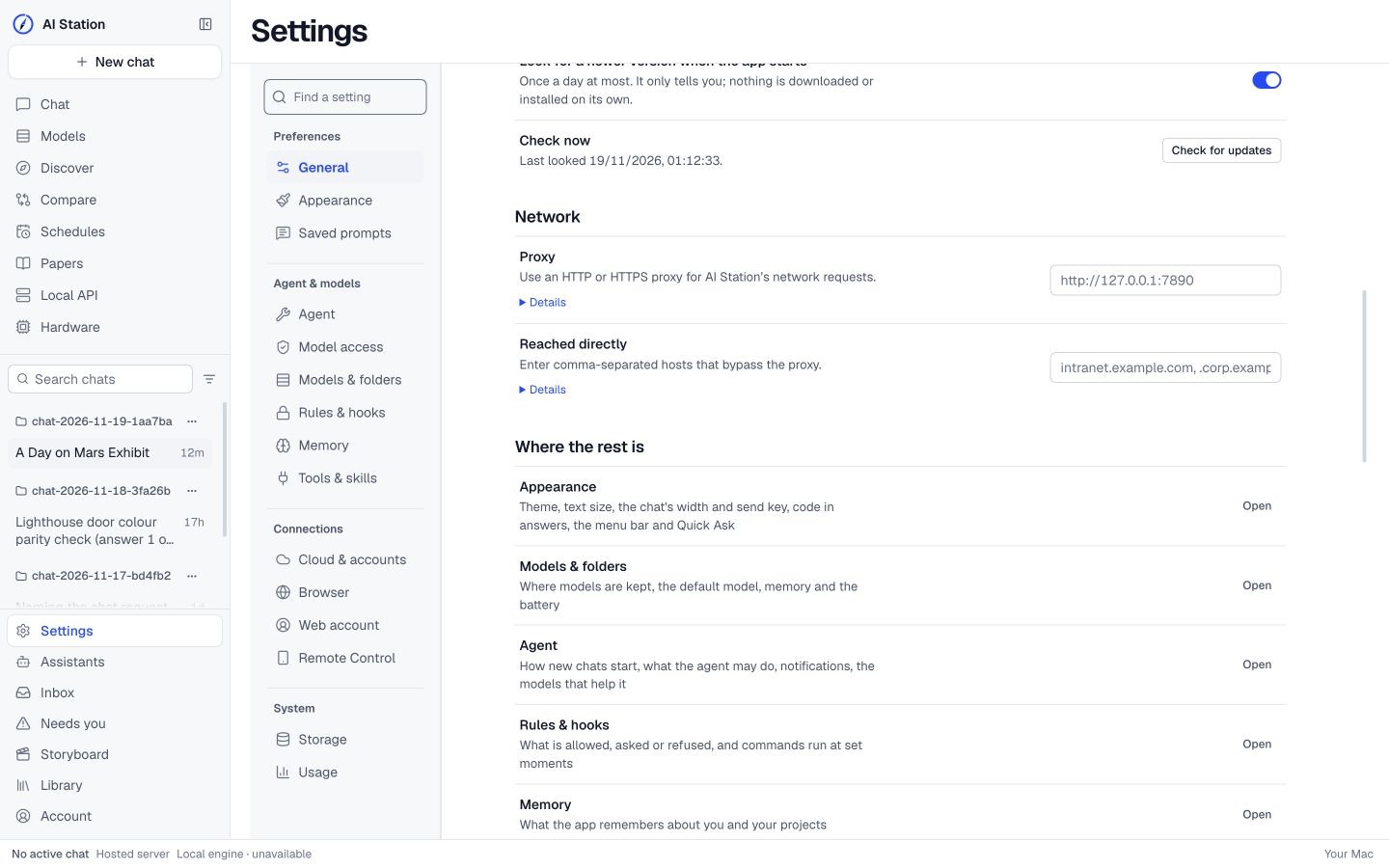
The settings view covers General · Where the rest is. Inspect application-wide preferences, diagnostic information and update controls.
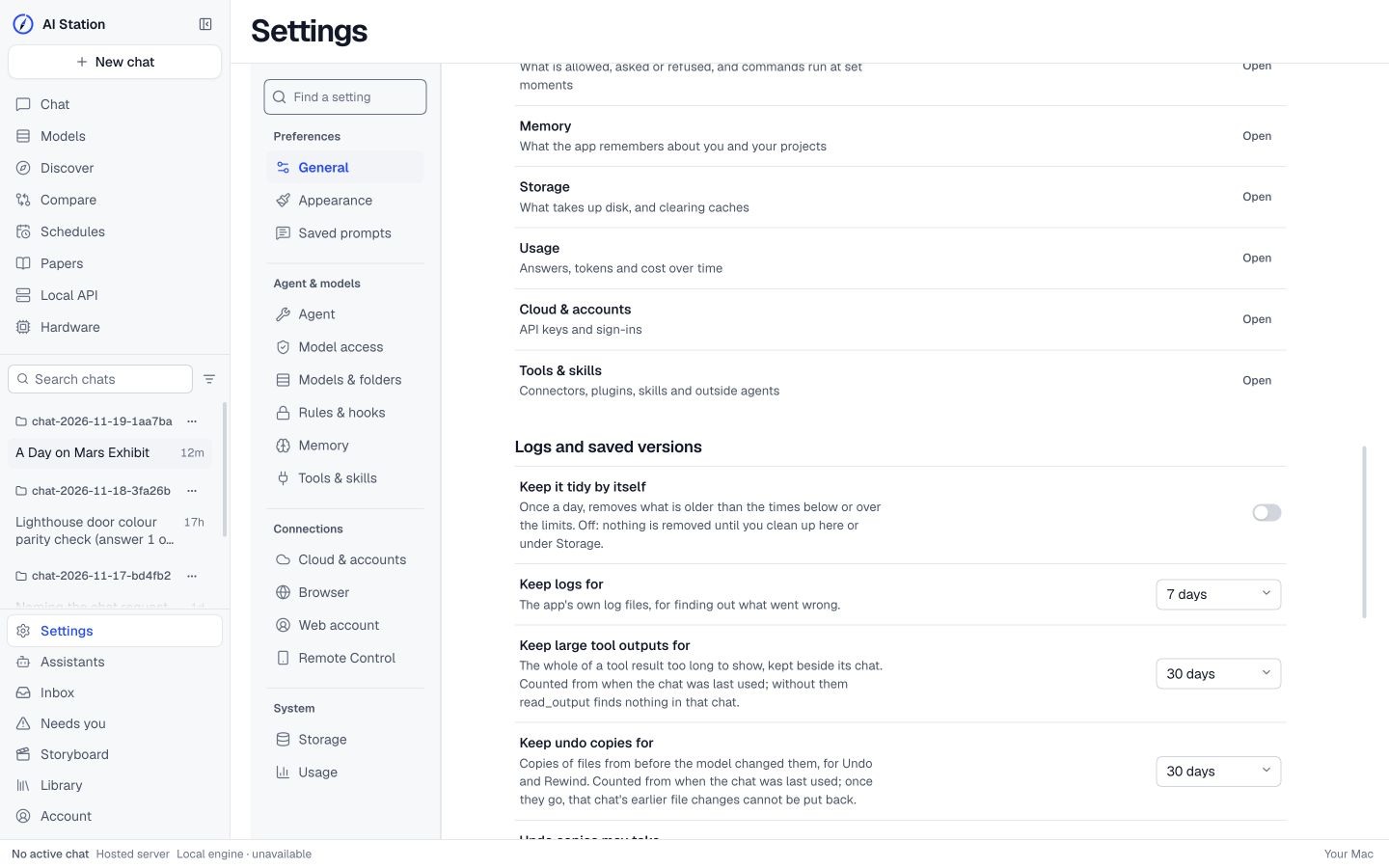
The settings view covers General · Logs and saved versions. Inspect application-wide preferences, diagnostic information and update controls.
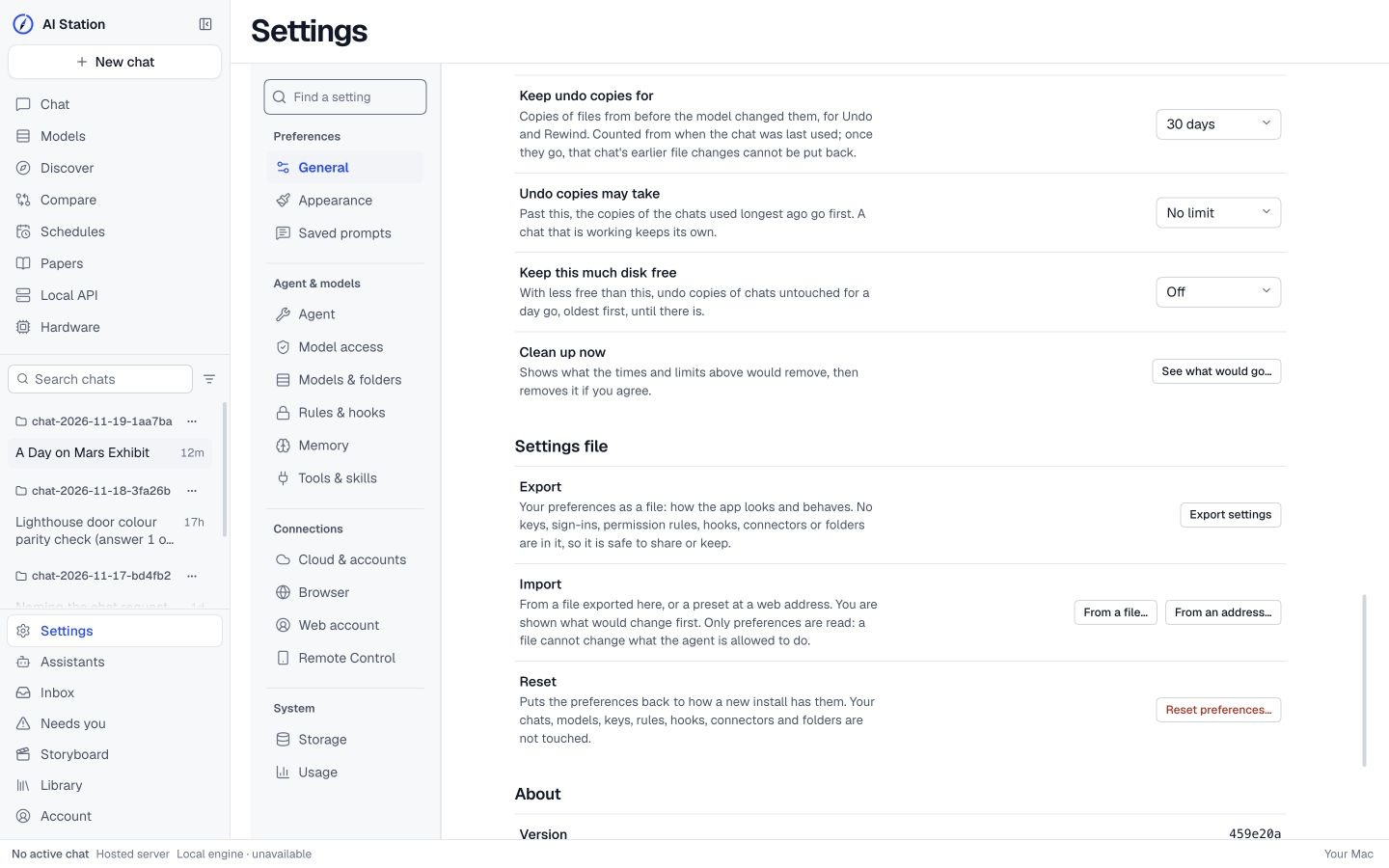
The settings view covers General · Settings file. Inspect application-wide preferences, diagnostic information and update controls.
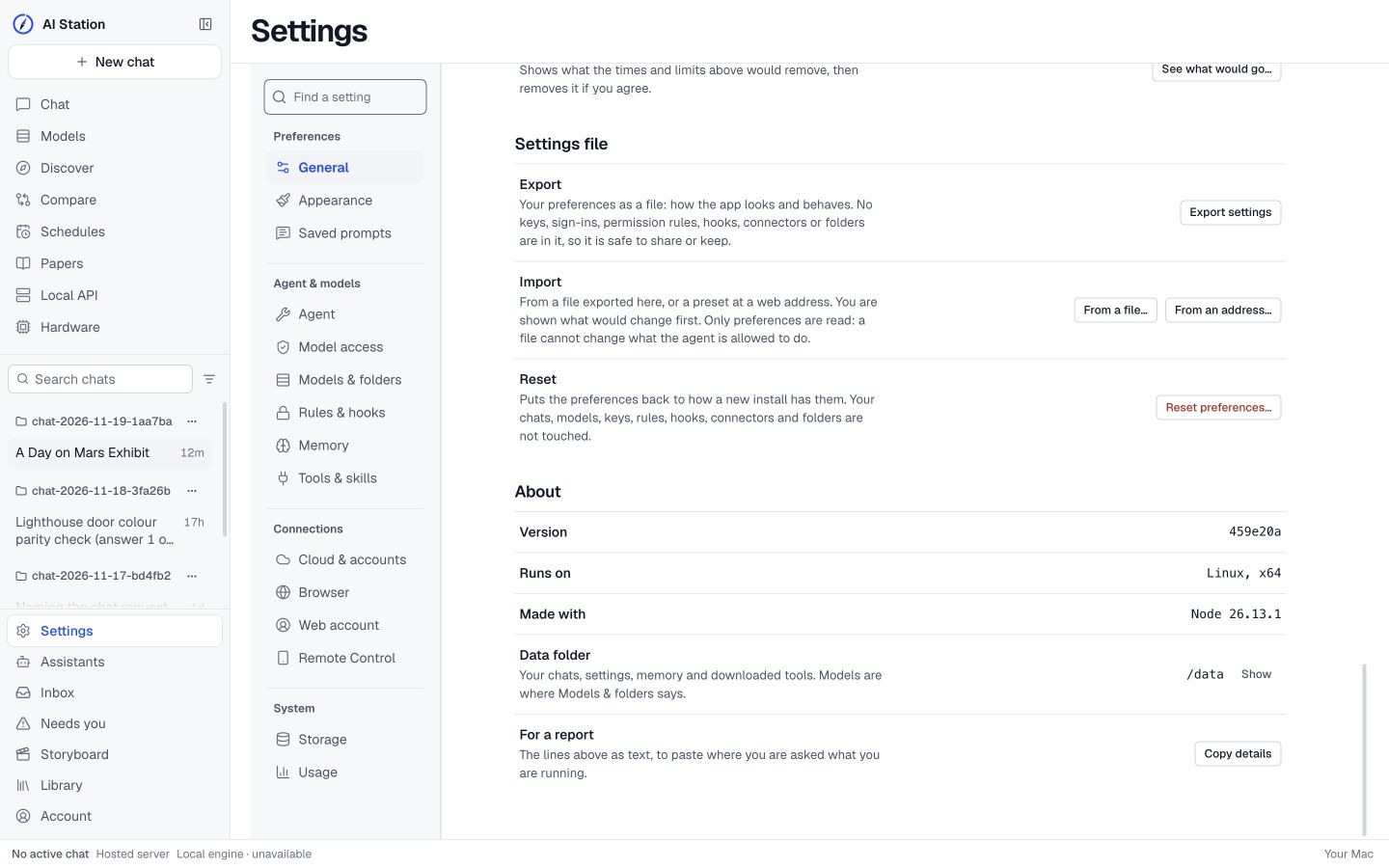
The settings view covers General · About. Inspect application-wide preferences, diagnostic information and update controls.
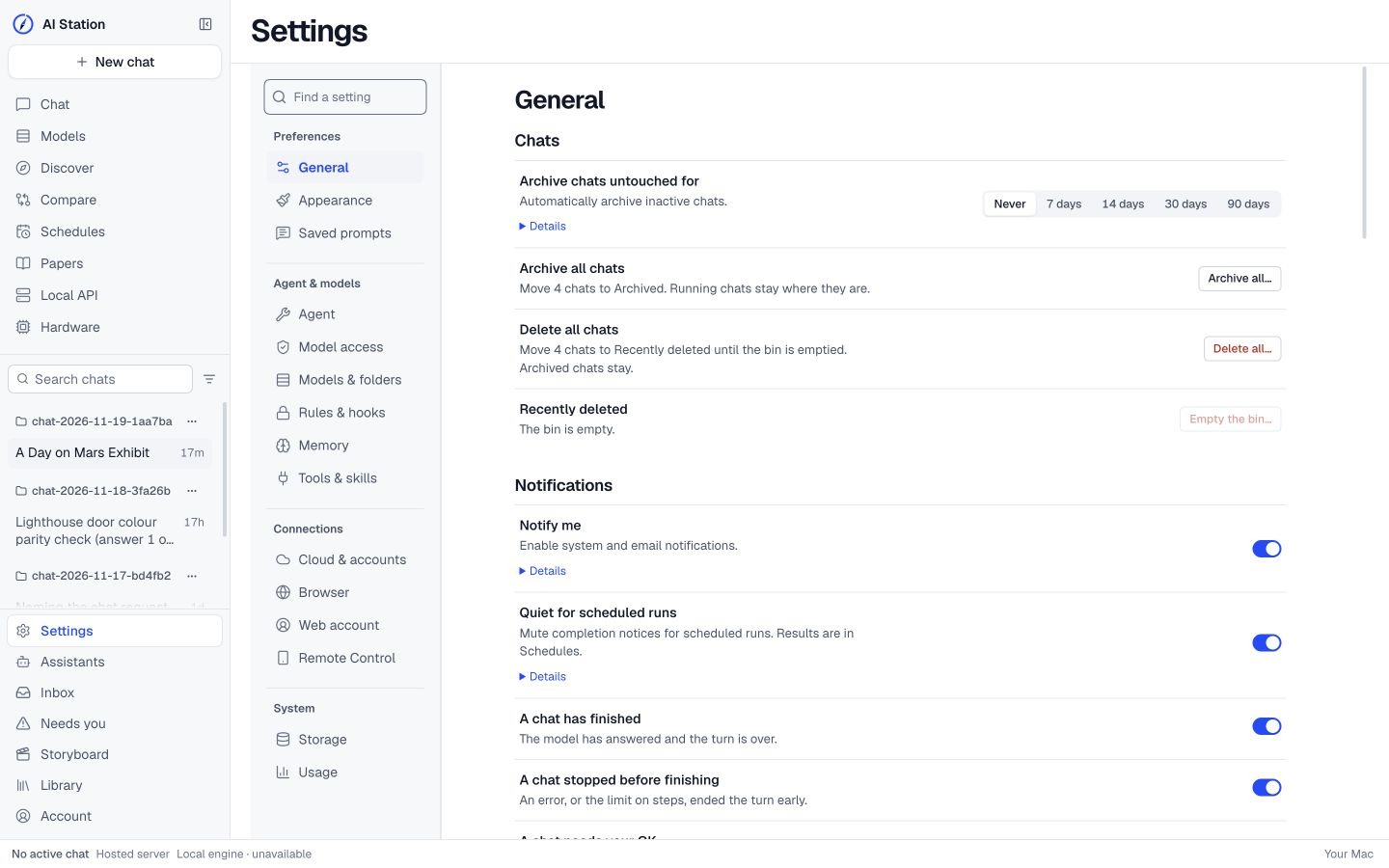
The settings view covers General. Inspect application-wide preferences, diagnostic information and update controls.
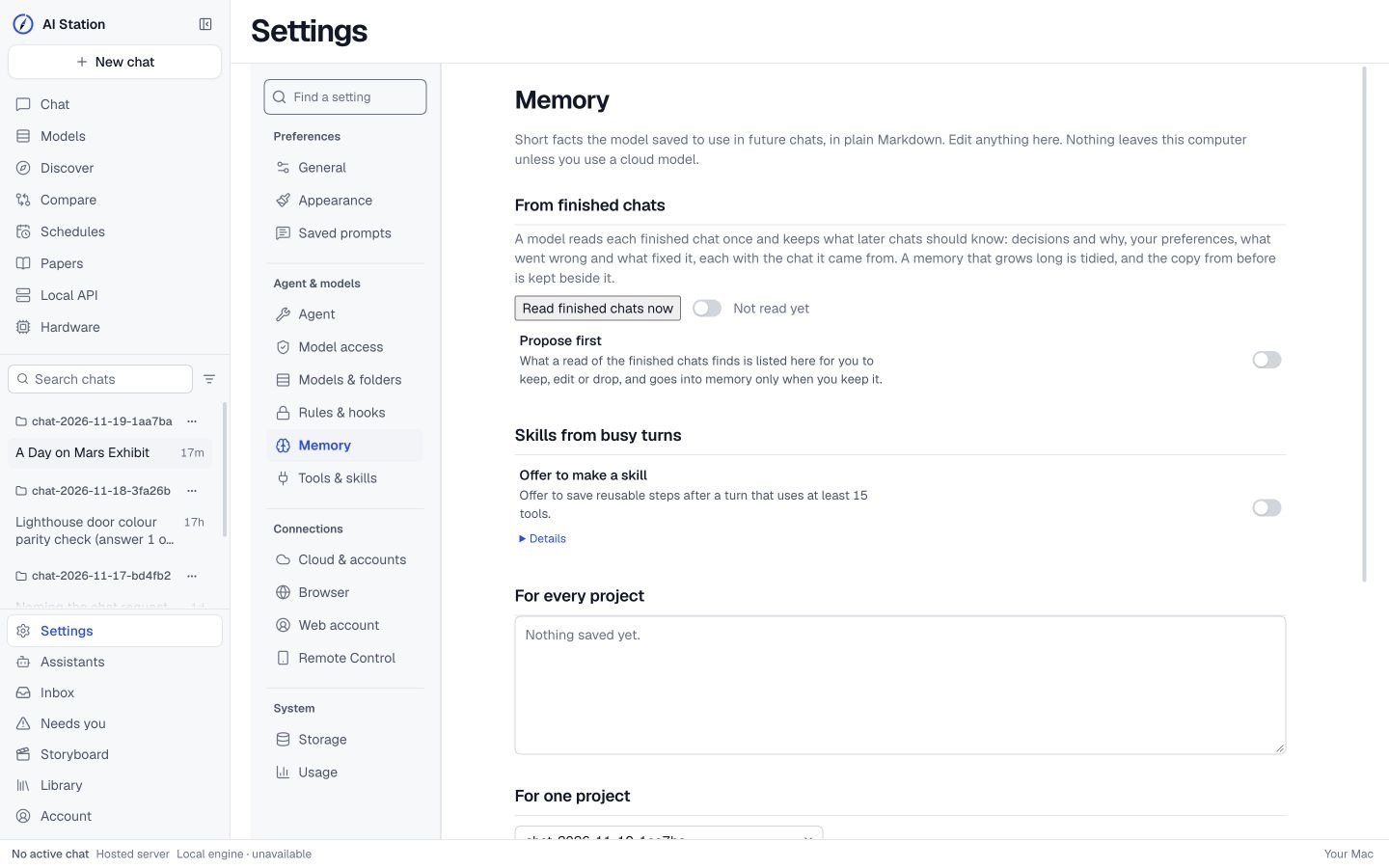
The settings view covers Memory. Manage information retained between tasks and the context that can be shared across a team.
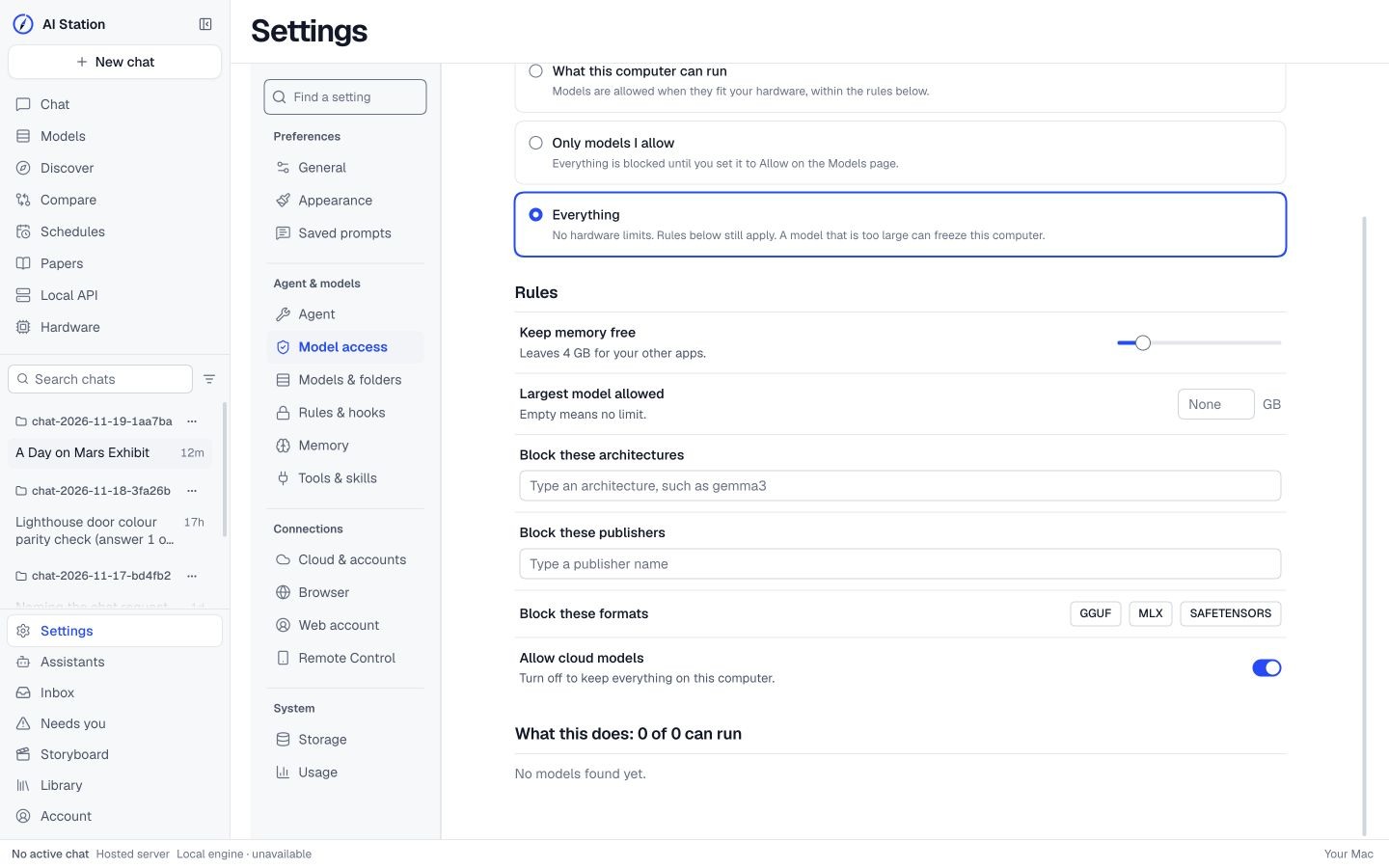
The settings view covers Model access · What this does - 0 of 0 can run. Review which models are eligible to serve requests. An installed model may still require permission before use.
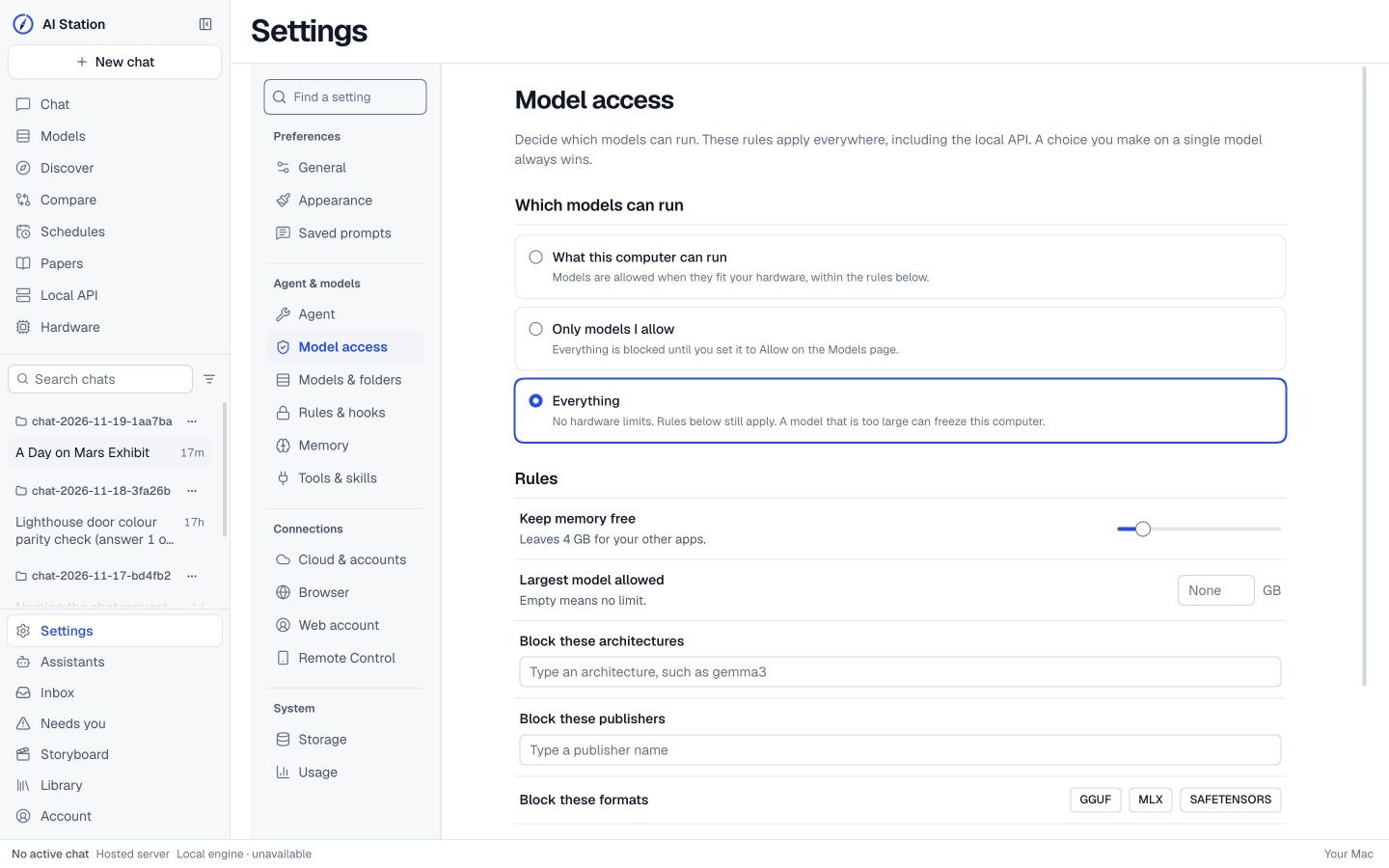
The settings view covers Model access. Review which models are eligible to serve requests. An installed model may still require permission before use.
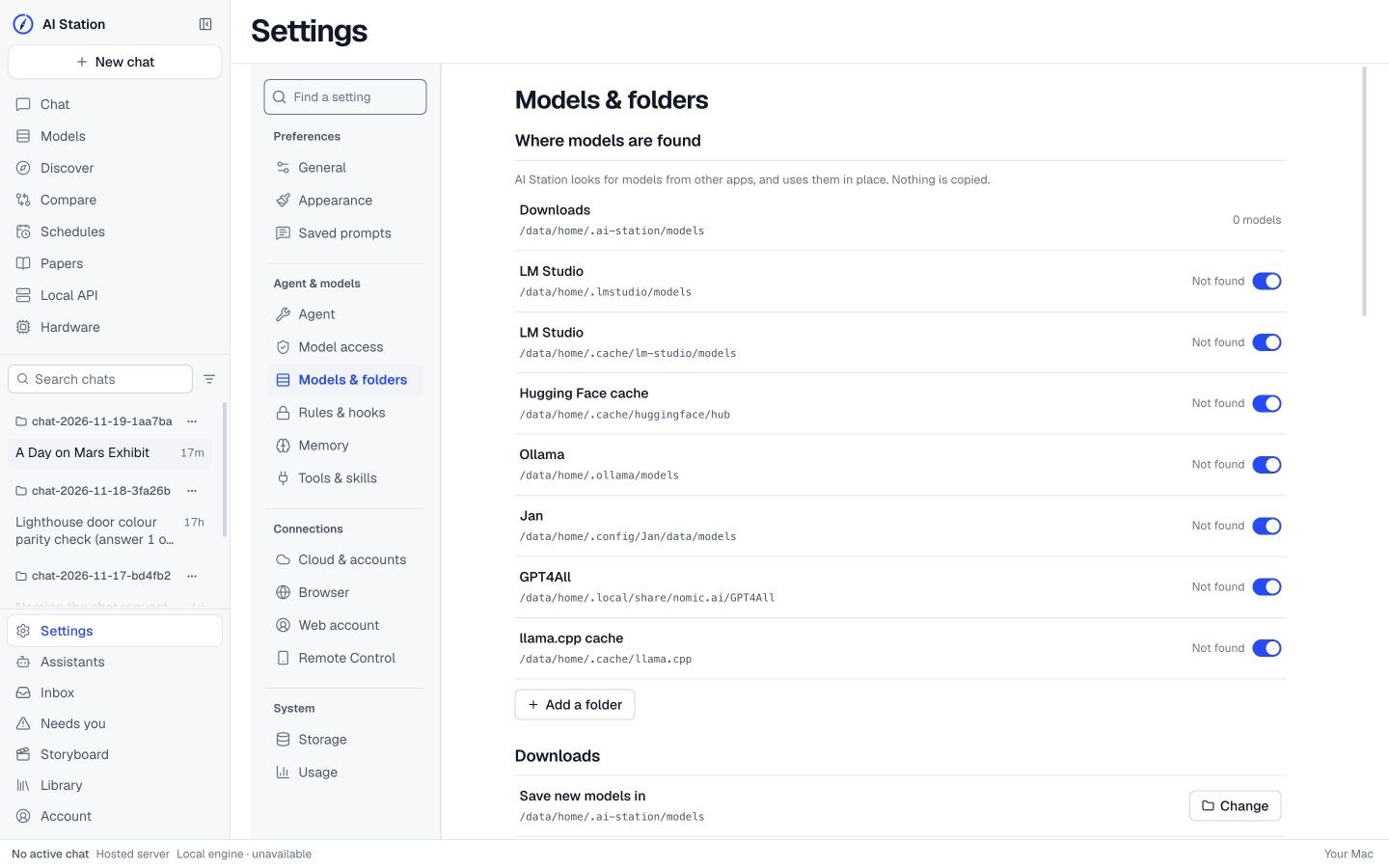
The settings view covers Models & folders. Choose where the application looks for model files and related resources on the machine.
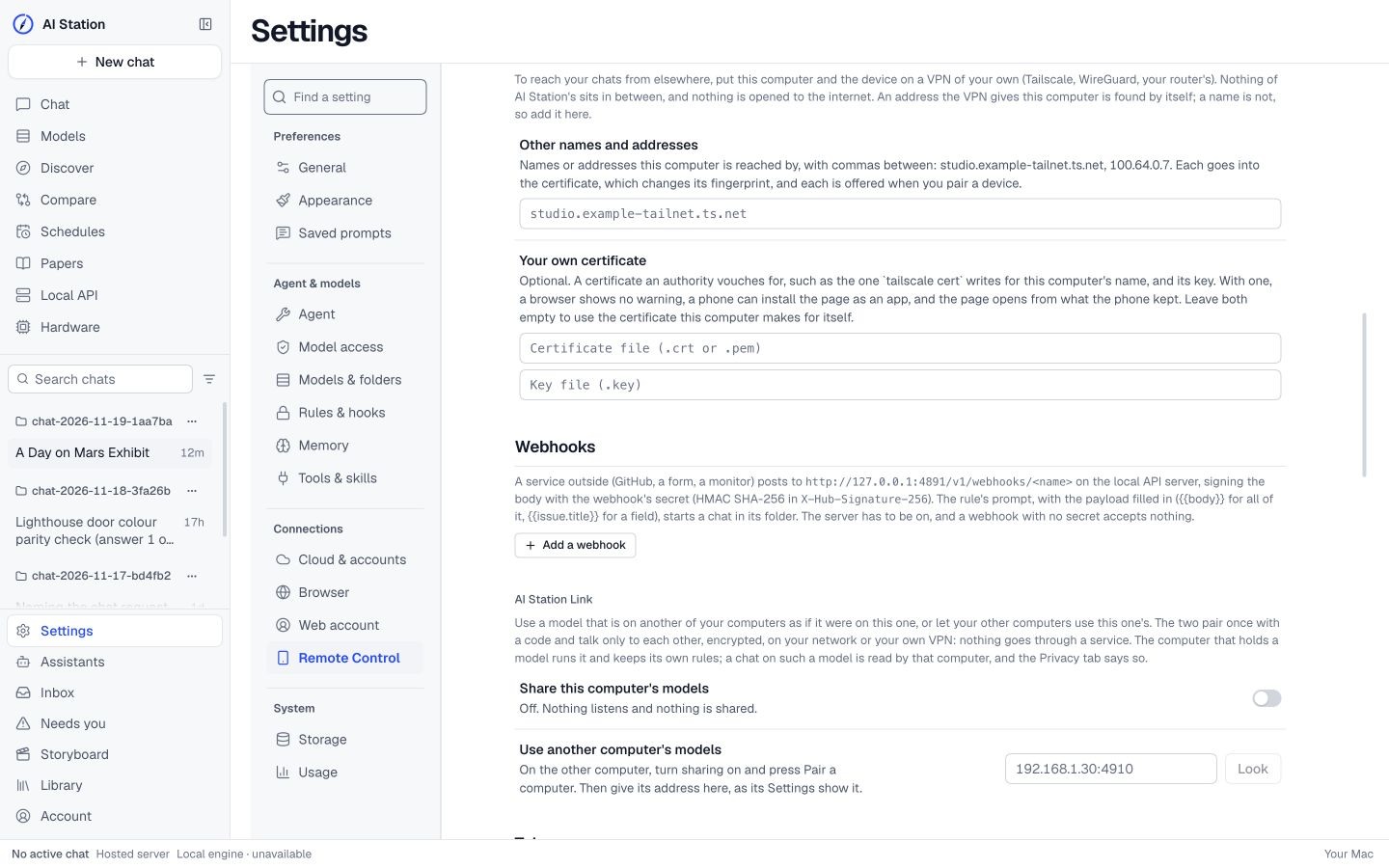
The settings view covers Remote Control · Webhooks. Configure the channels through which an operator can reach the workspace and receive updates away from the main interface.
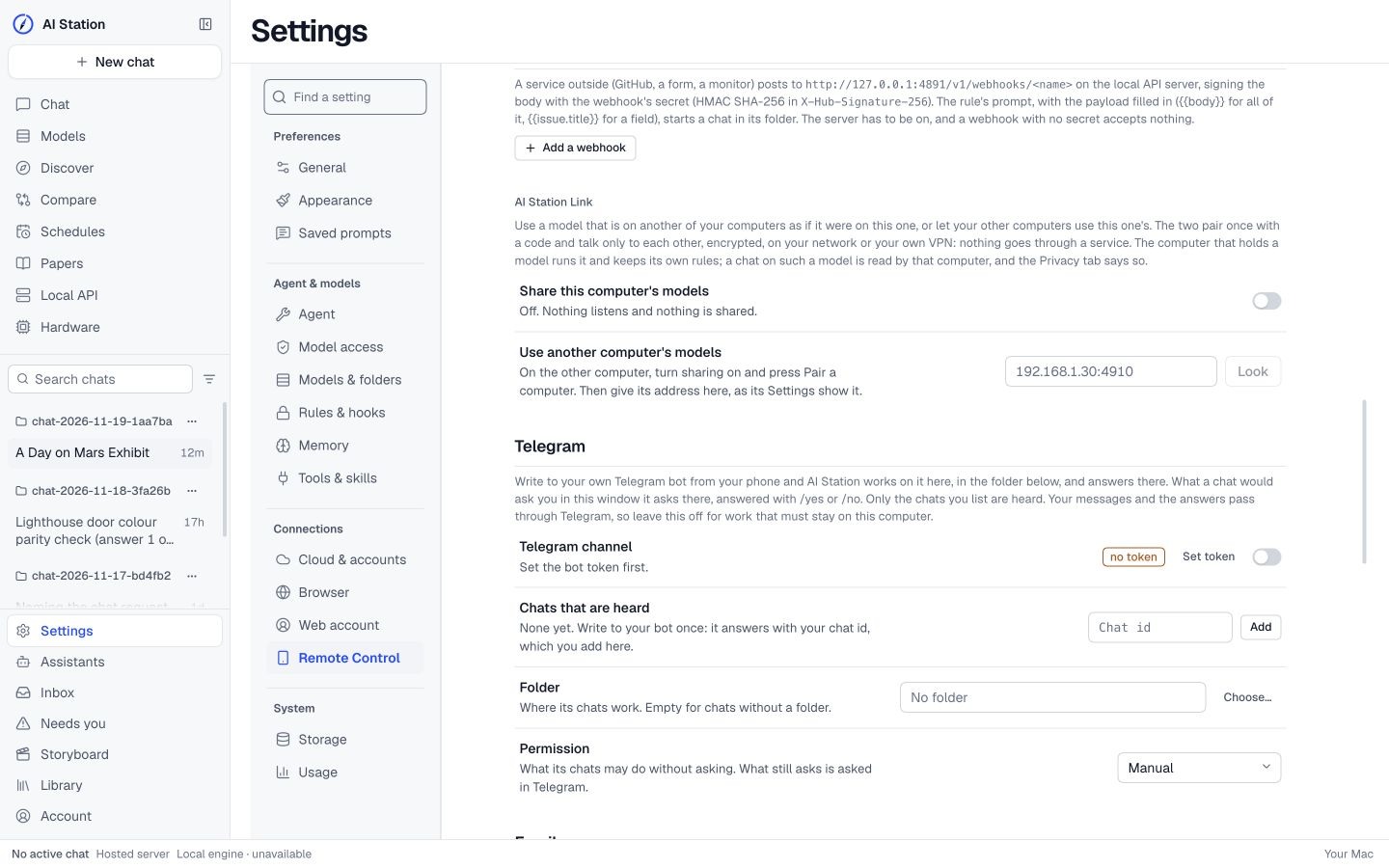
The settings view covers Remote Control · Telegram. Configure the channels through which an operator can reach the workspace and receive updates away from the main interface.
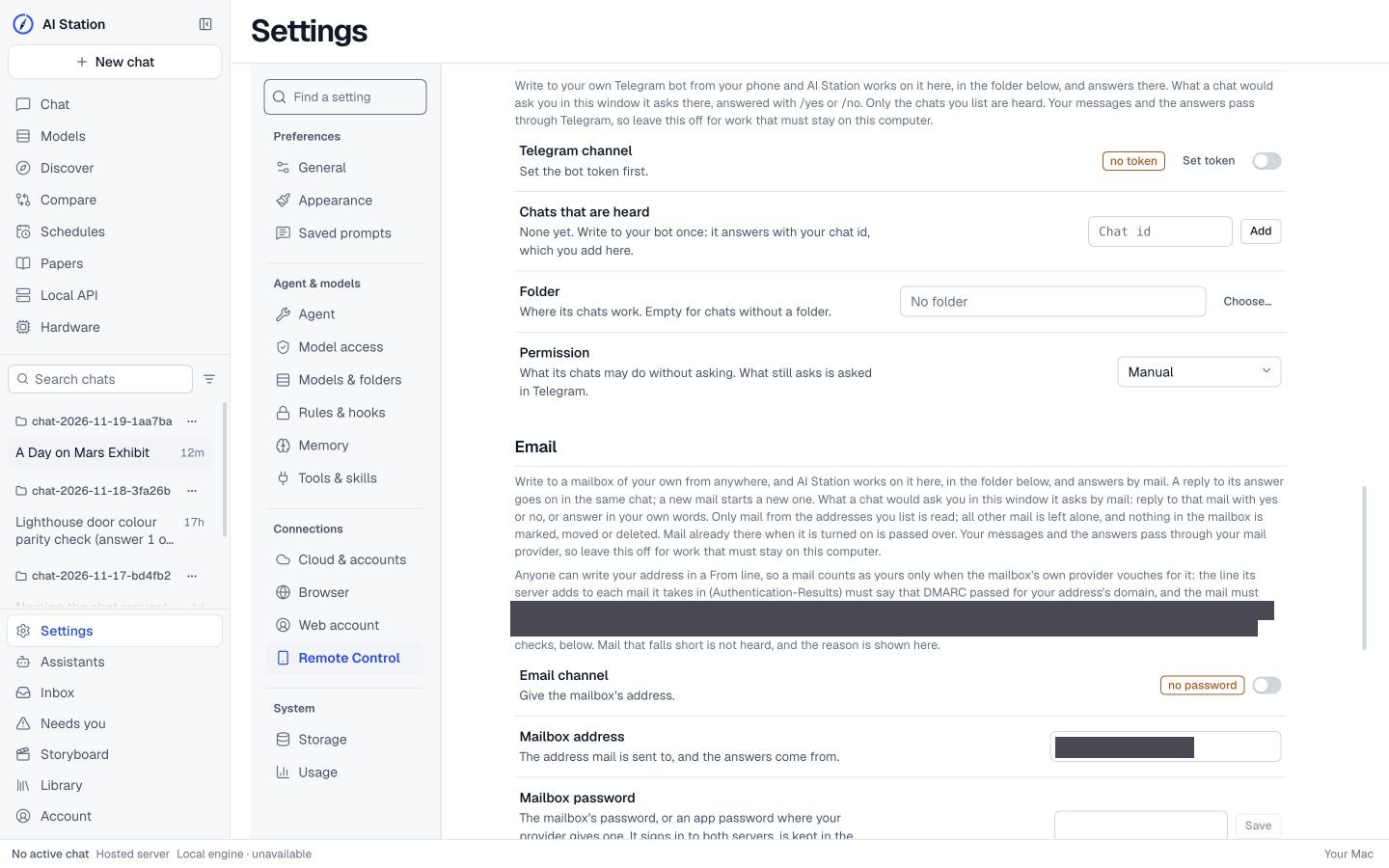
The settings view covers Remote Control · Email. Configure the channels through which an operator can reach the workspace and receive updates away from the main interface.
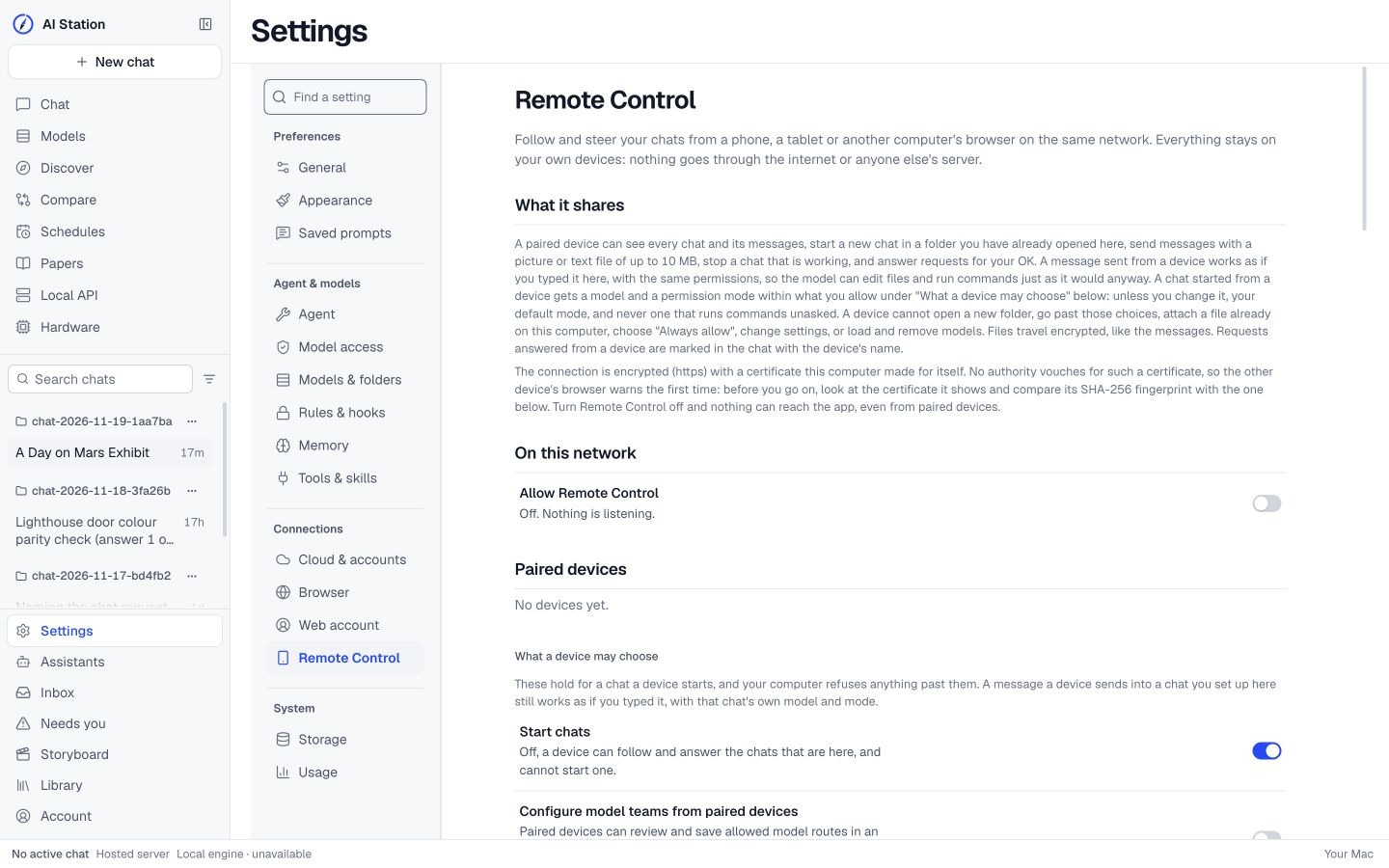
The settings view covers Remote Control. Configure the channels through which an operator can reach the workspace and receive updates away from the main interface.
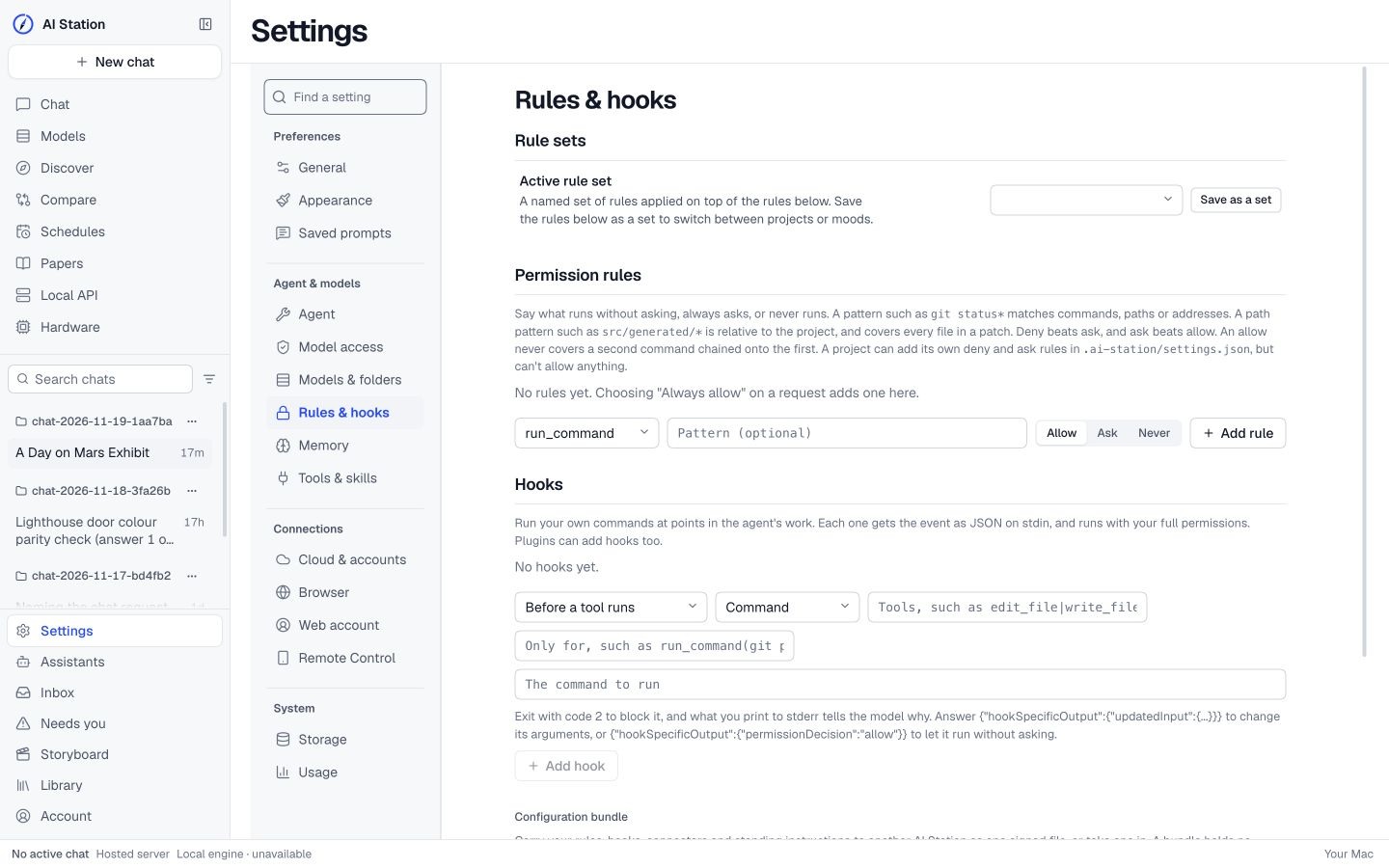
The settings view covers Rules & hooks. Define instructions and actions associated with workflow events so recurring project conventions can be applied consistently.
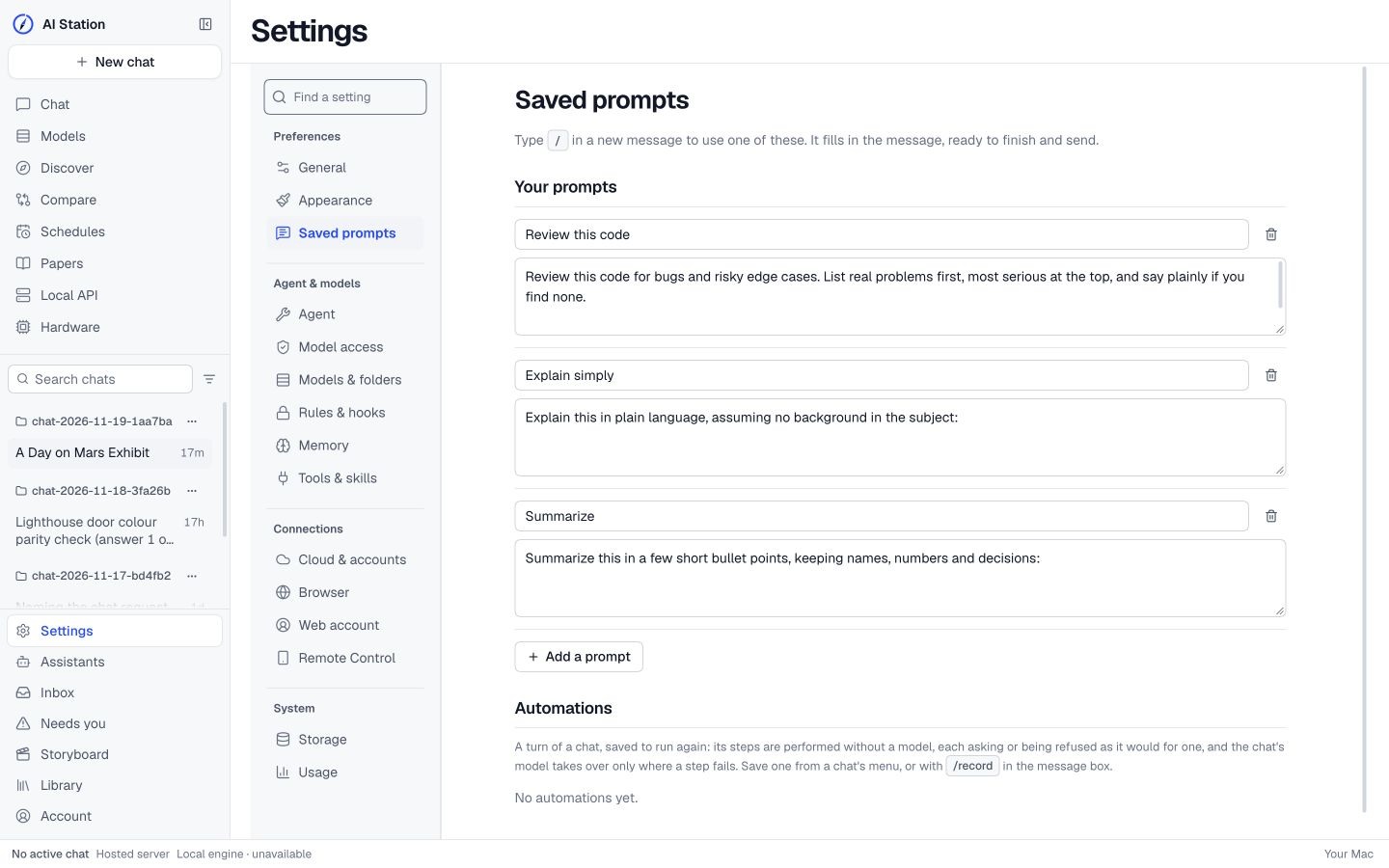
The settings view covers Saved prompts. Keep frequently used instructions available for later conversations.
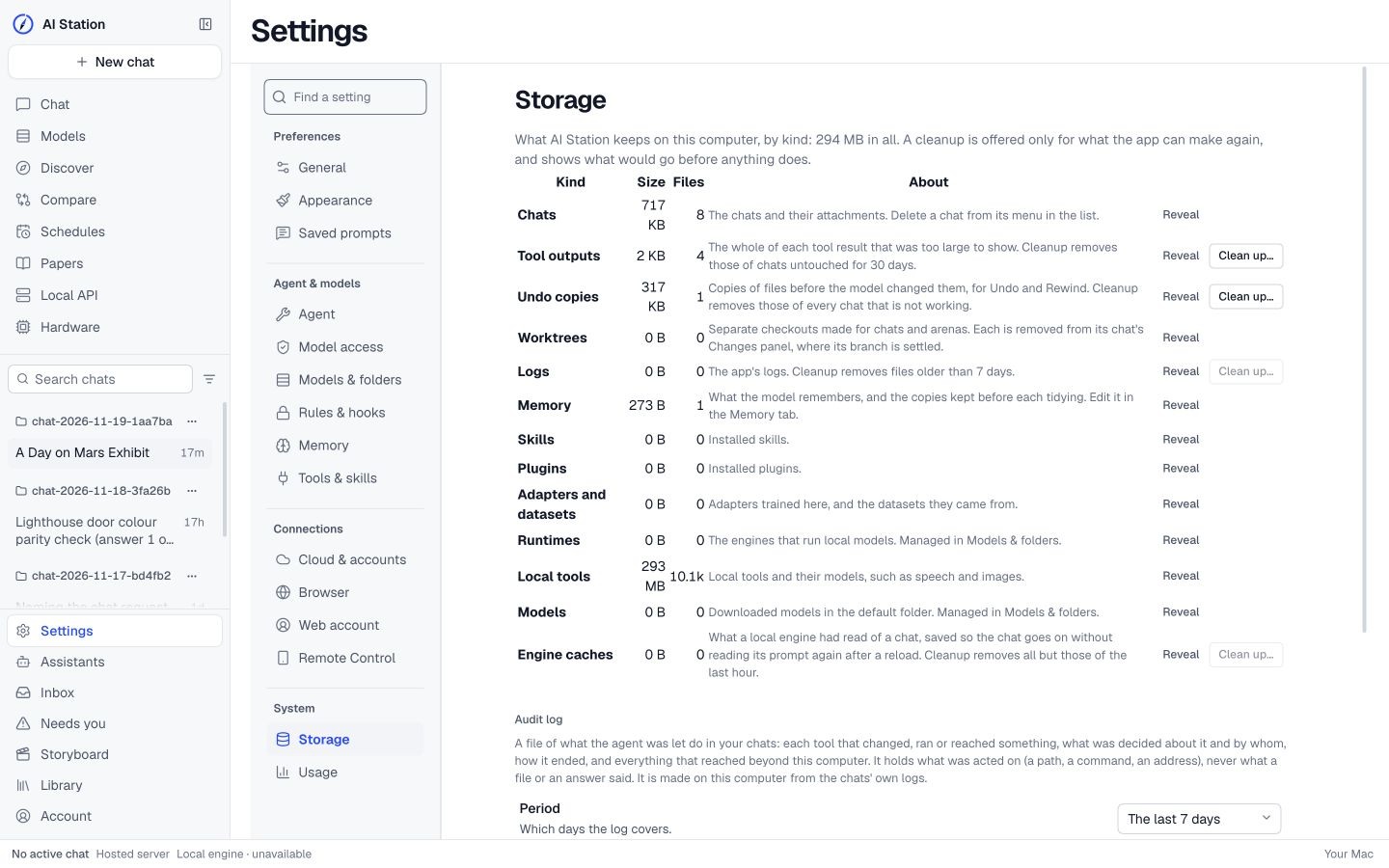
The settings view covers Storage. Inspect storage used by the workspace and manage its retained data.
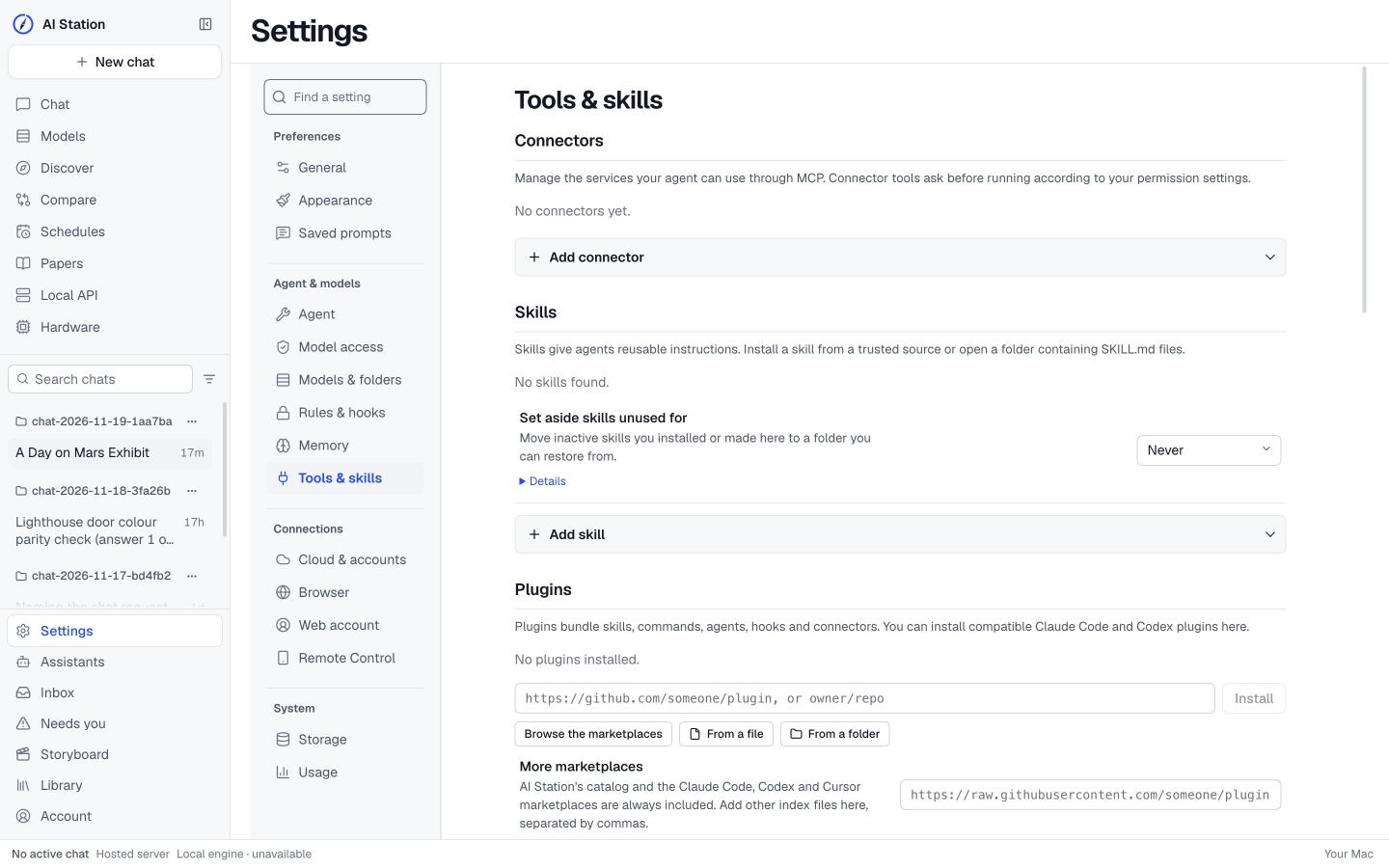
The settings view covers Tools & skills. Manage the tools, trusted directories and reusable skills available to an assistant.
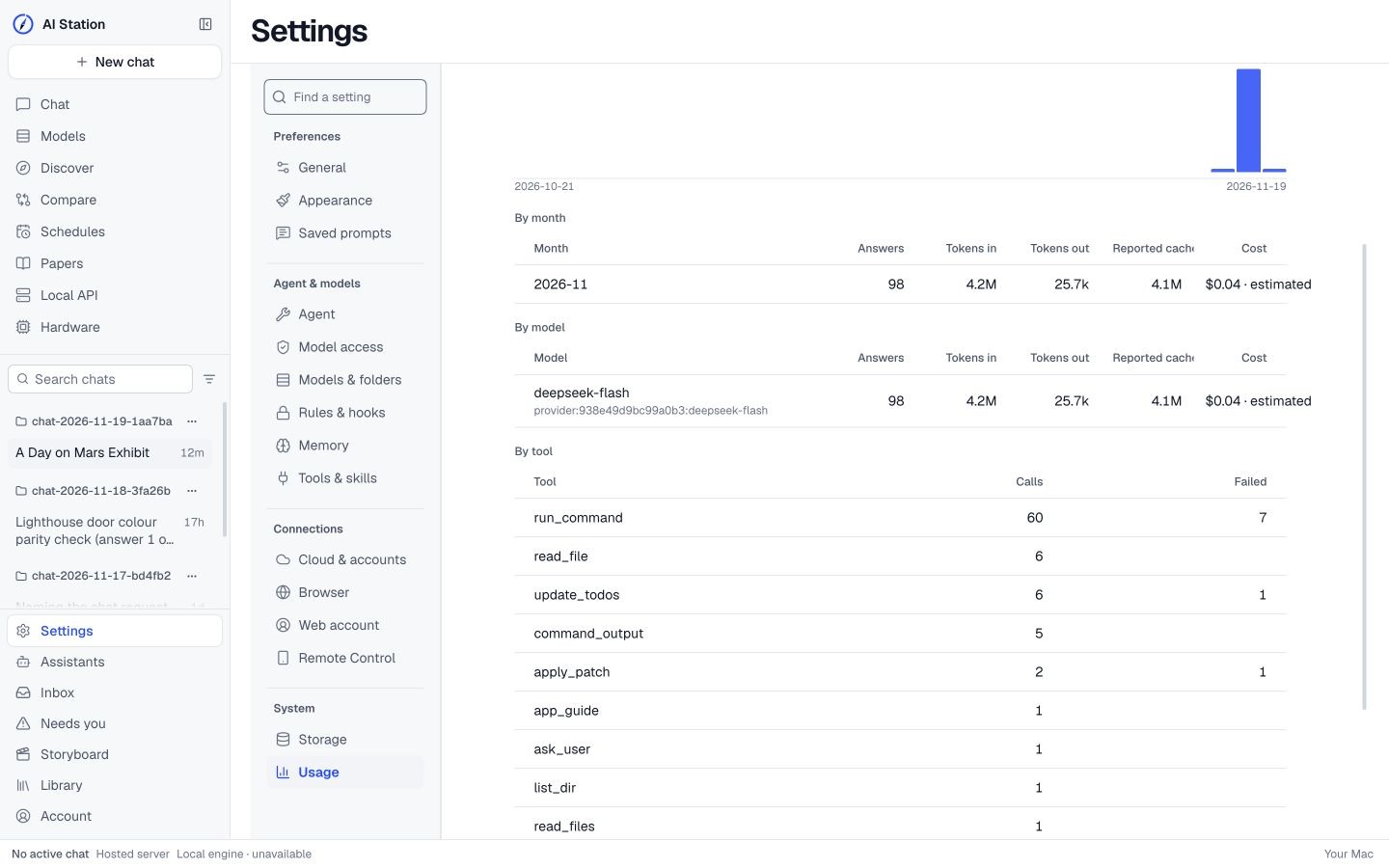
The settings view covers Usage · By tool. Inspect consumption across runs to understand which tools and periods account for activity.
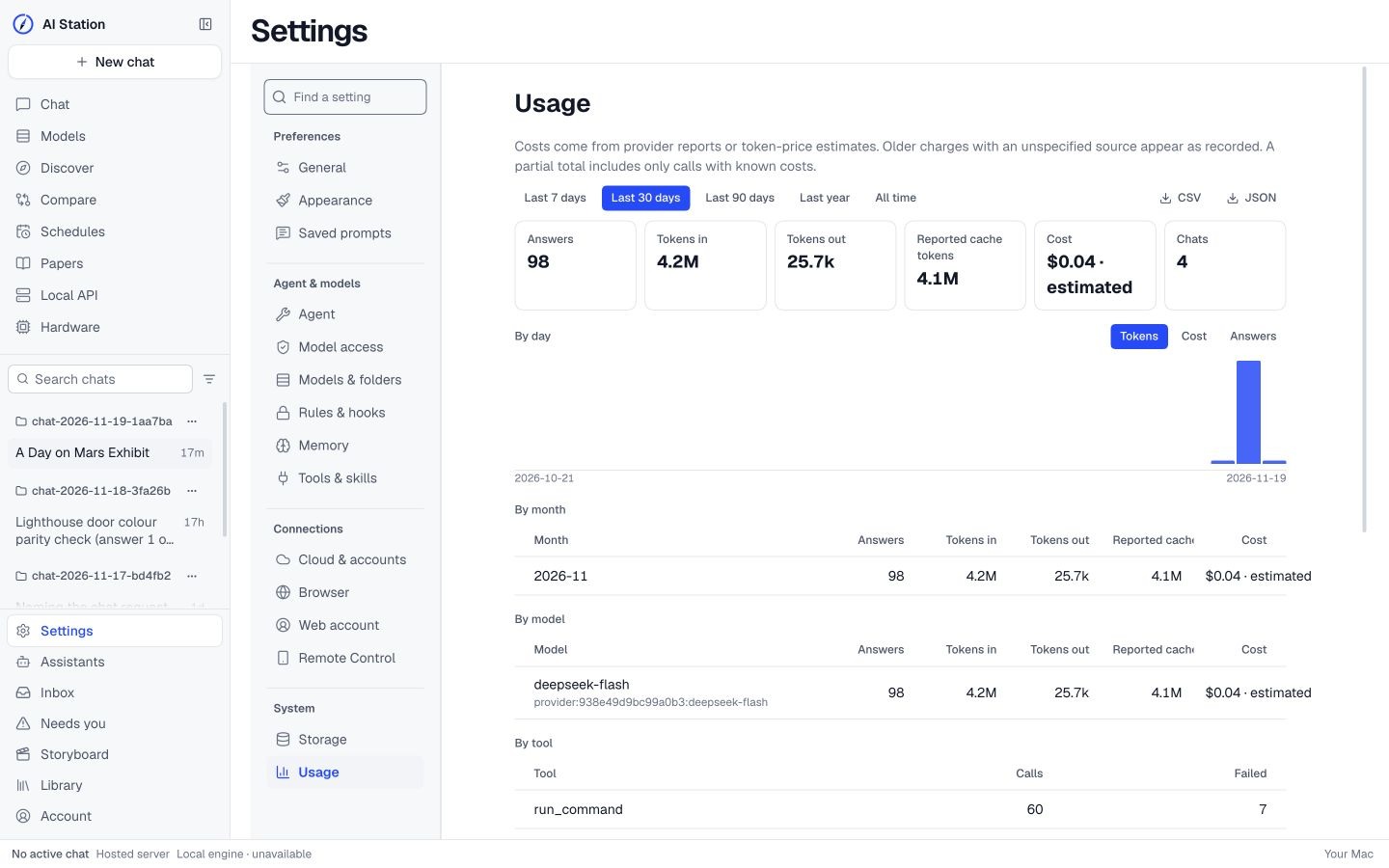
The settings view covers Usage. Inspect consumption across runs to understand which tools and periods account for activity.
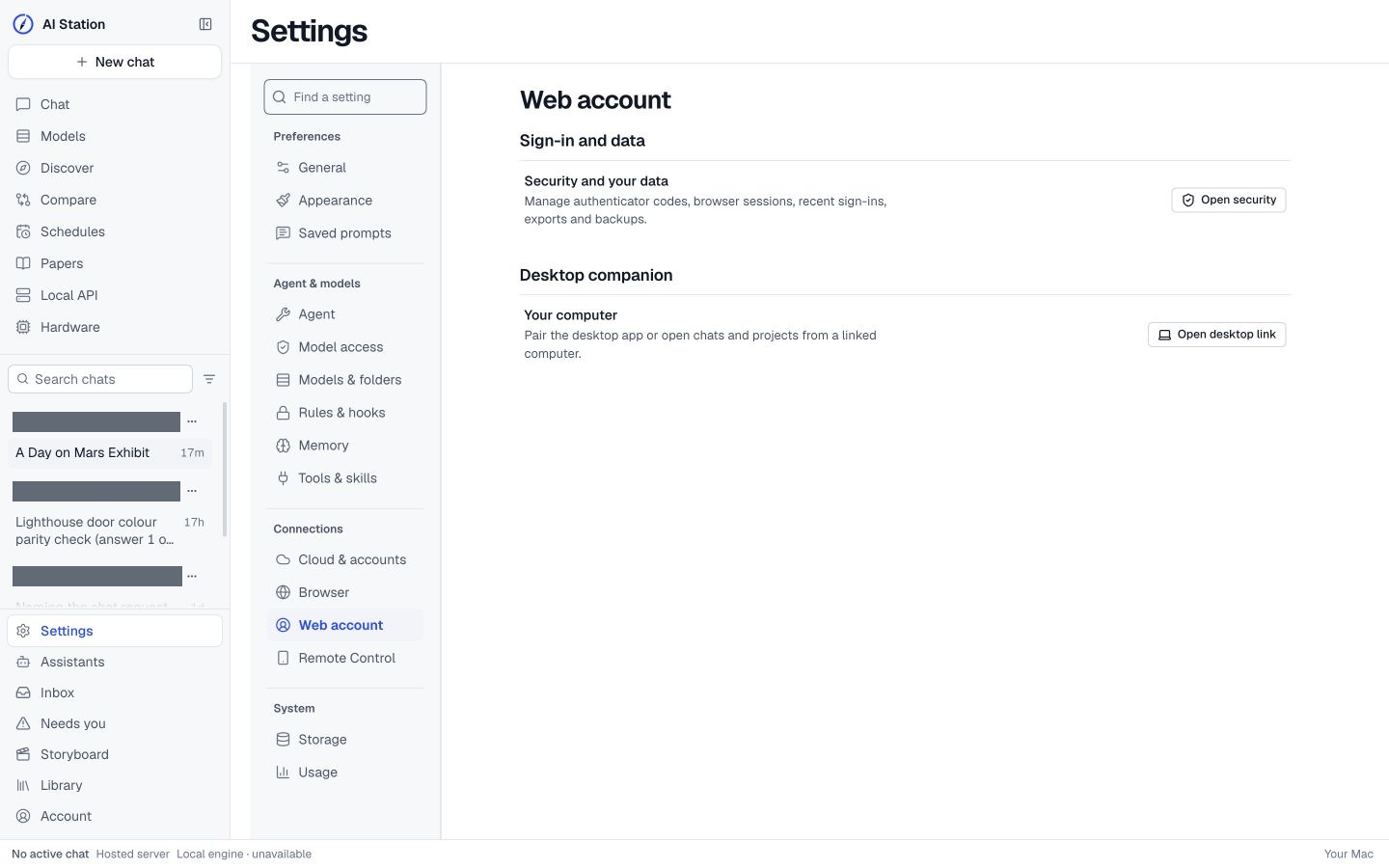
The settings view covers Web account. Review the account associated with the hosted workspace.
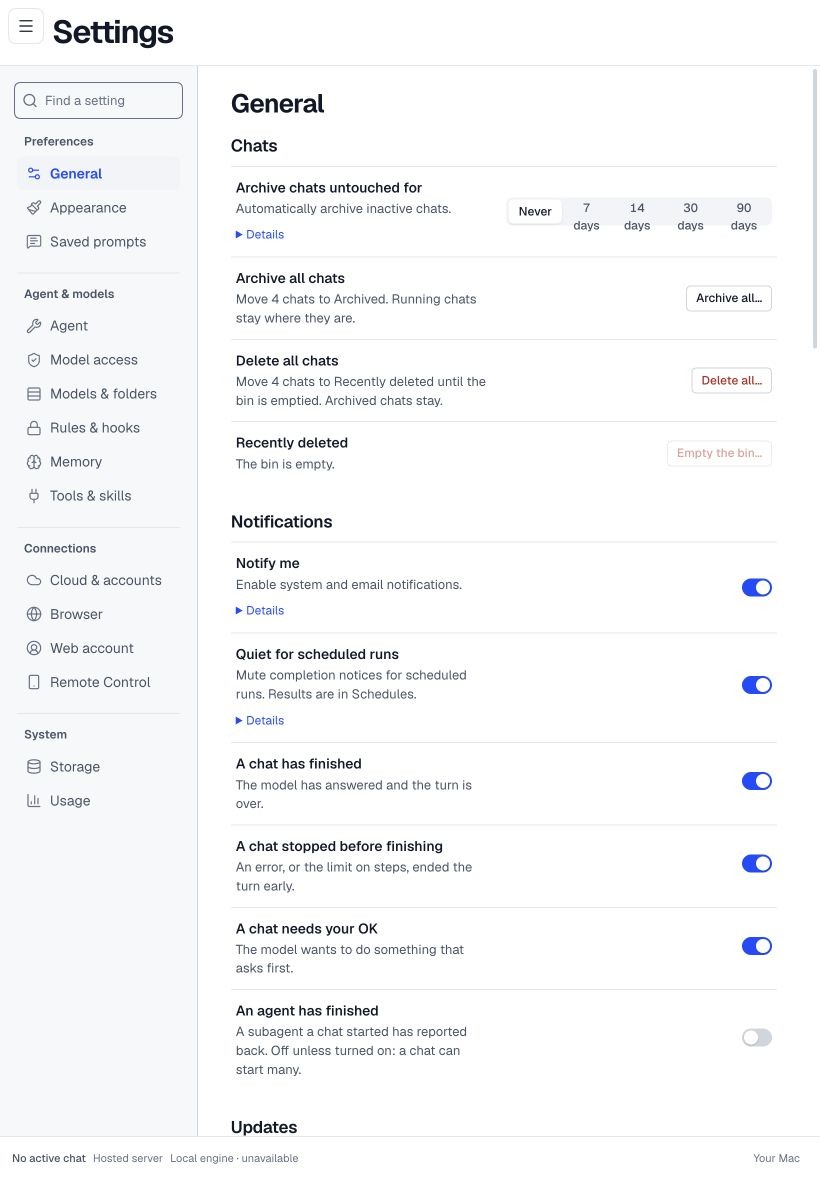
Explore the preferences and configuration panels available in this edition.
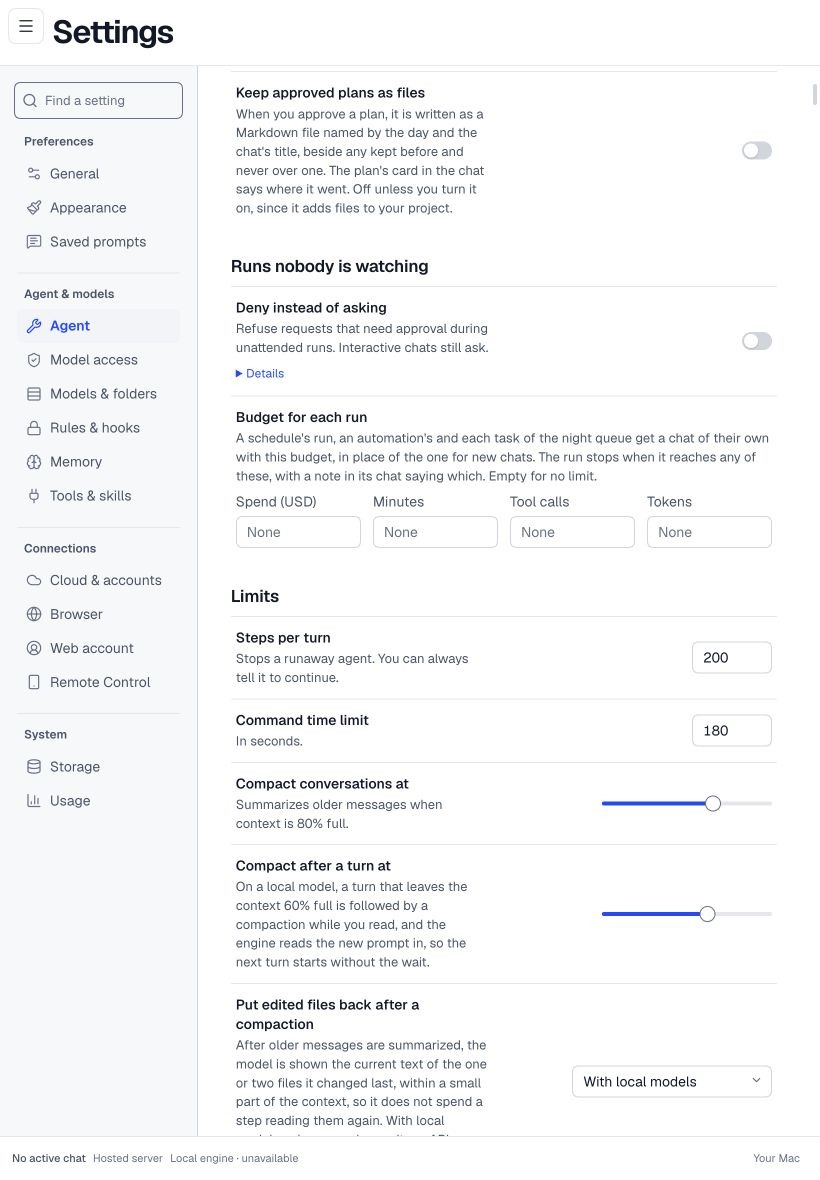
The settings view covers Agent · Limits. Set expectations for what an agent can do during project work, how much work it can undertake and when a person should review the result.
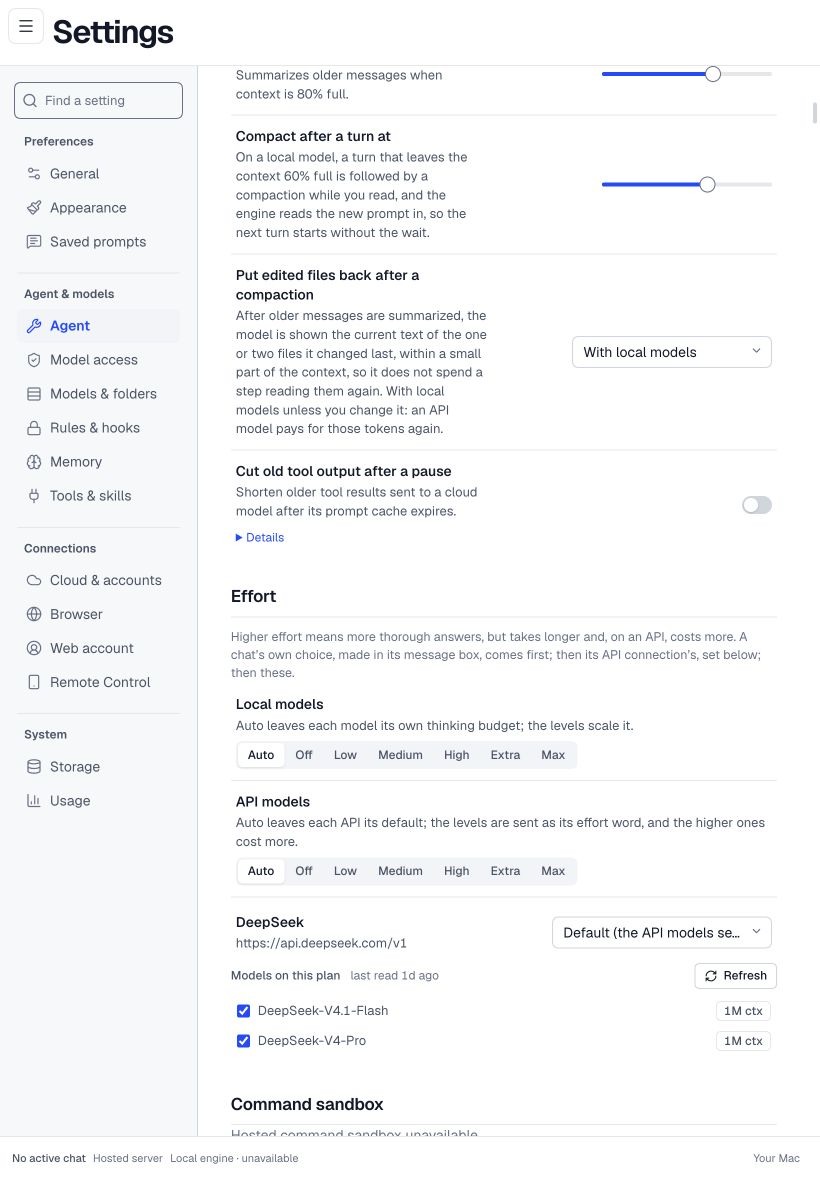
The settings view covers Agent · Effort. Set expectations for what an agent can do during project work, how much work it can undertake and when a person should review the result.
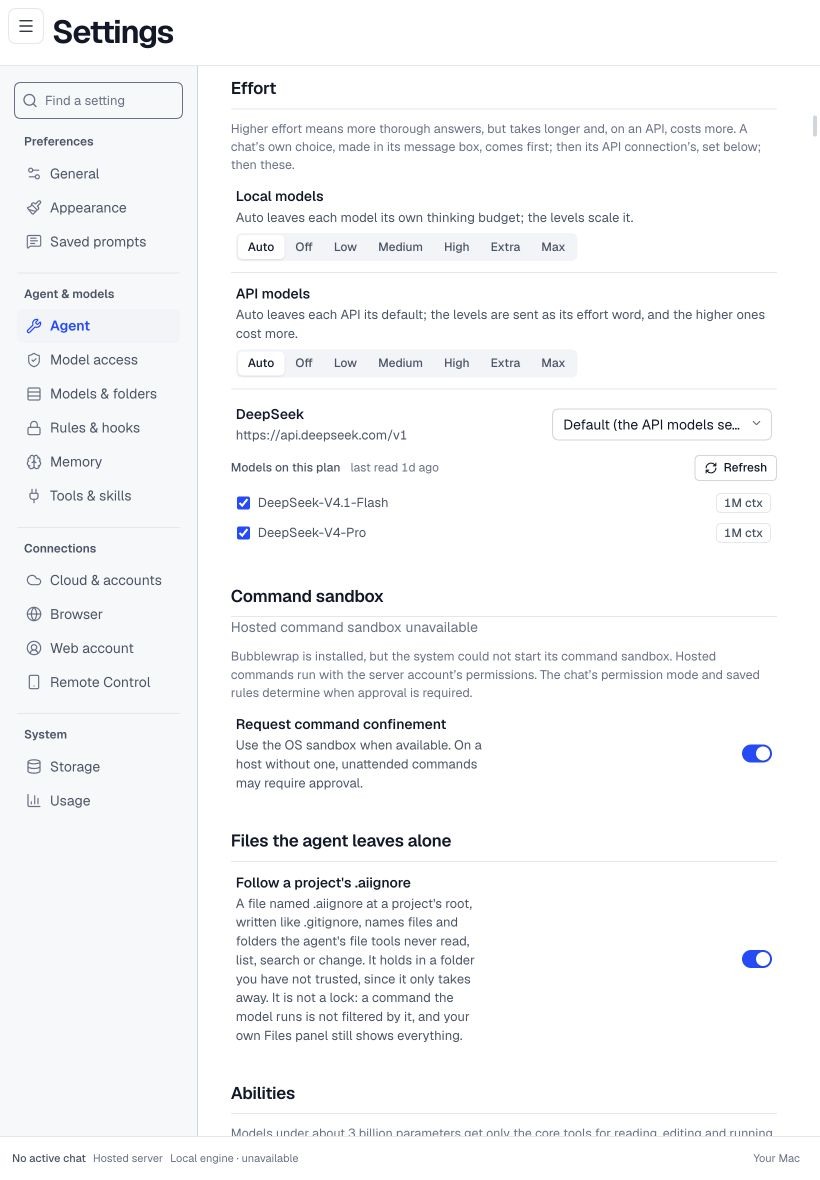
The settings view covers Agent · Command sandbox. Set expectations for what an agent can do during project work, how much work it can undertake and when a person should review the result.
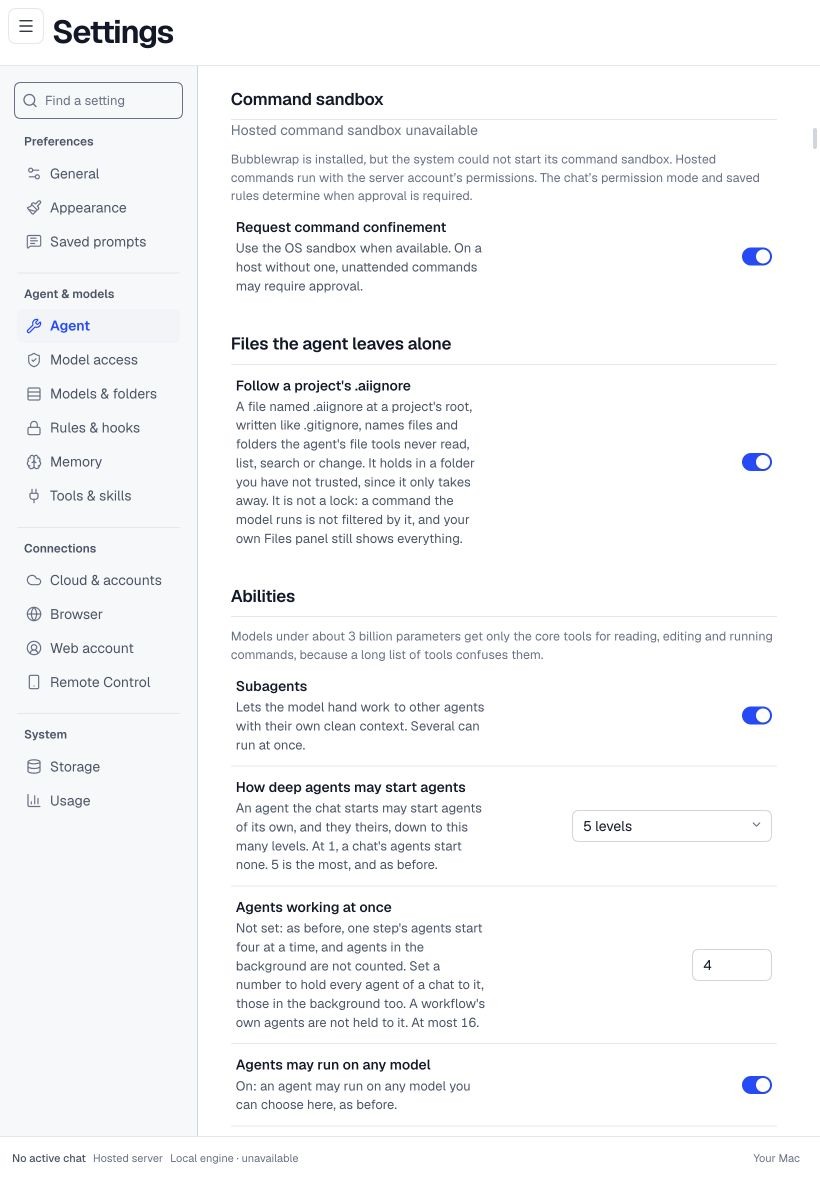
The settings view covers Agent · Abilities. Set expectations for what an agent can do during project work, how much work it can undertake and when a person should review the result.
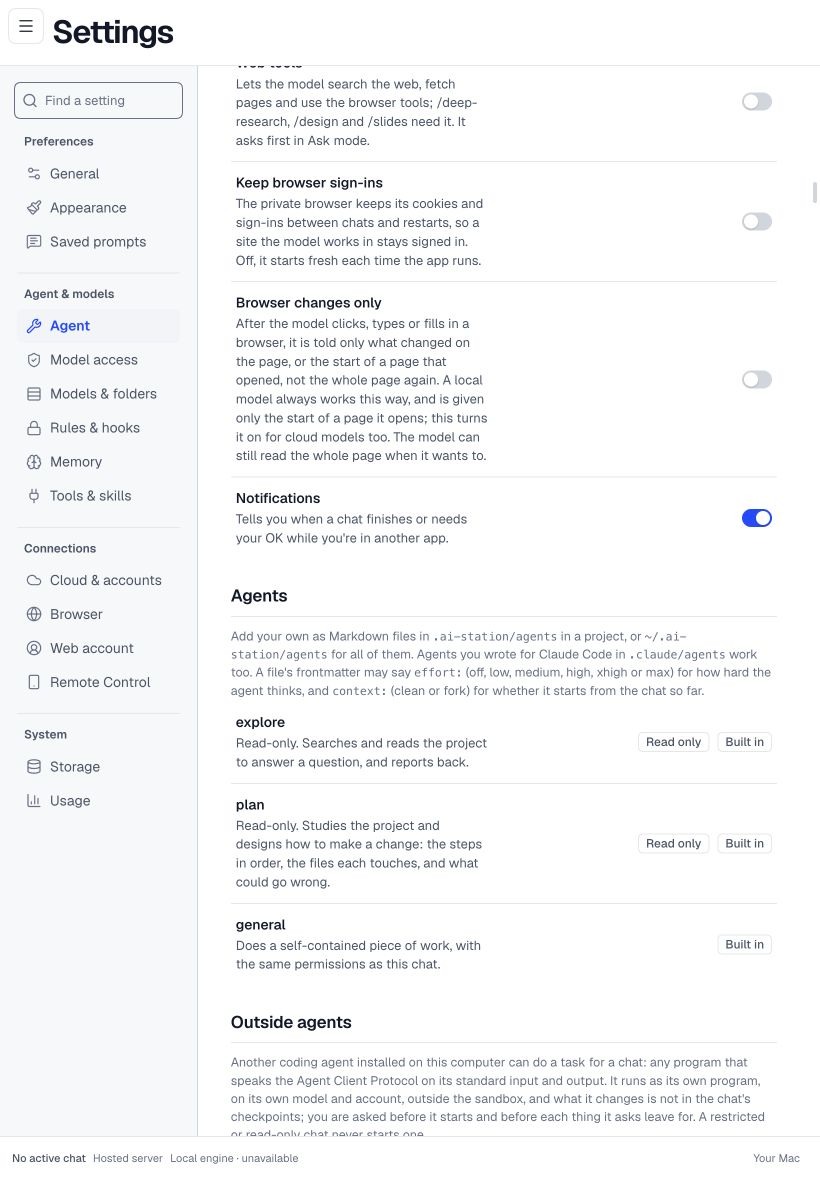
The settings view covers Agent · Agents. Set expectations for what an agent can do during project work, how much work it can undertake and when a person should review the result.
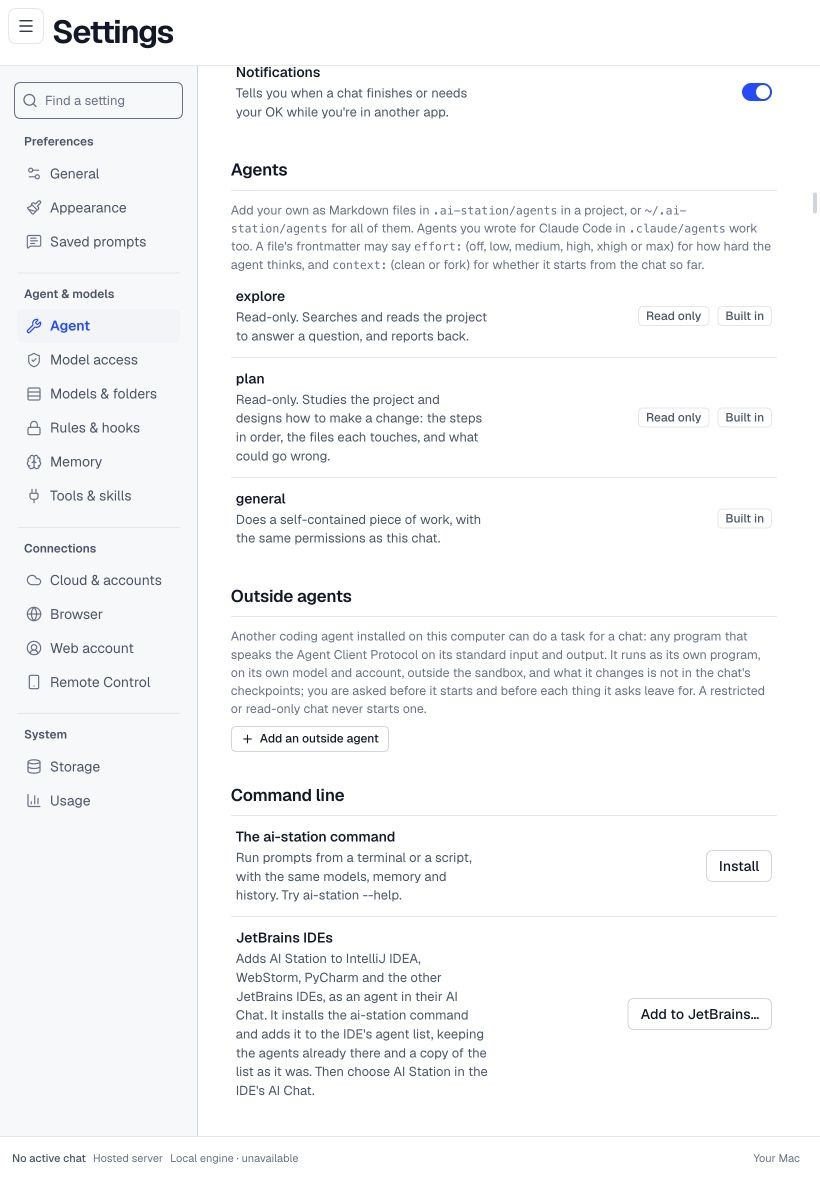
The settings view covers Agent · Outside agents. Set expectations for what an agent can do during project work, how much work it can undertake and when a person should review the result.
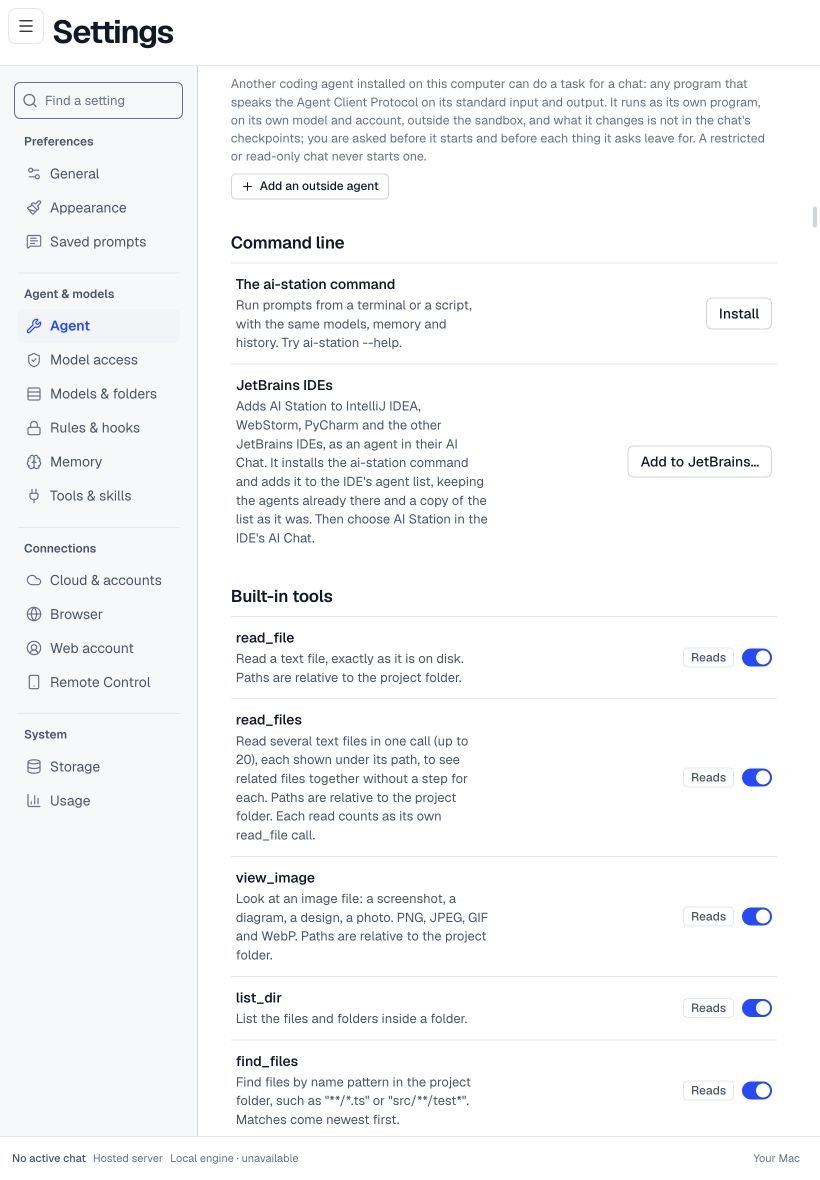
The settings view covers Agent · Built-in tools. Set expectations for what an agent can do during project work, how much work it can undertake and when a person should review the result.
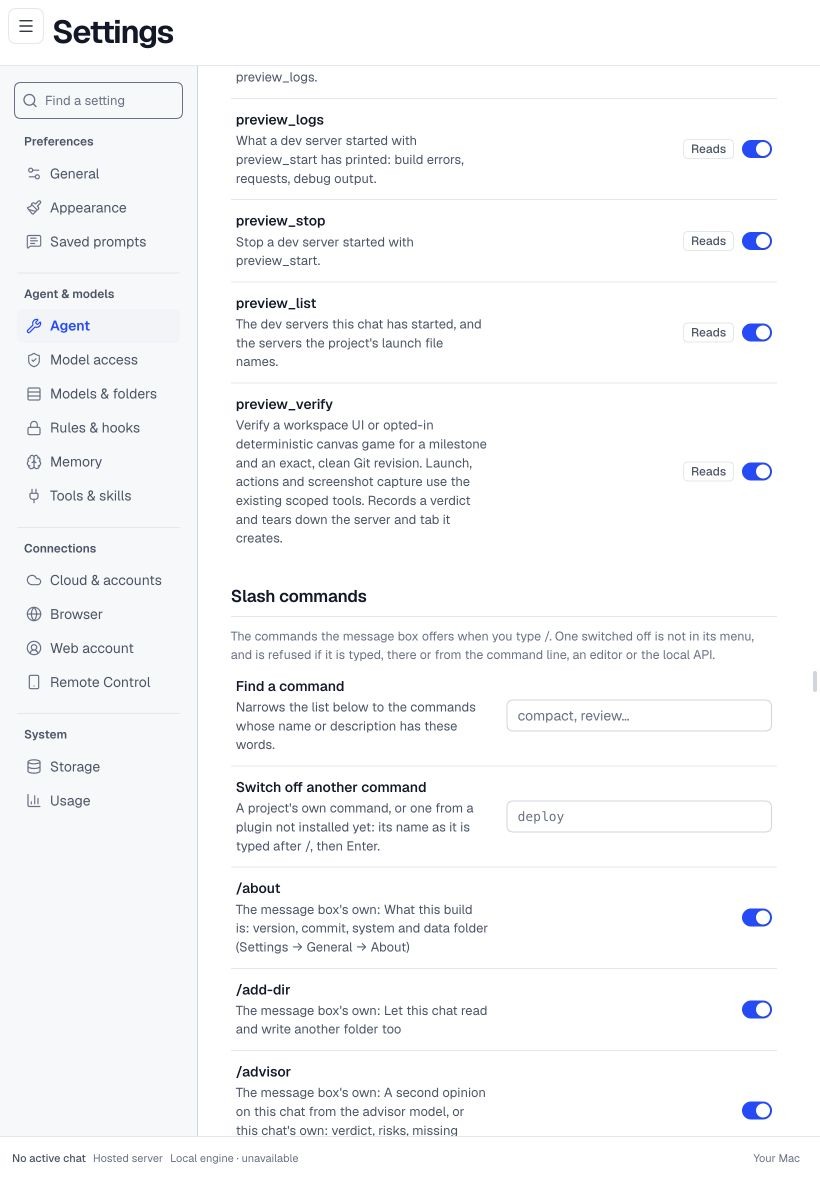
The settings view covers Agent · Slash commands. Set expectations for what an agent can do during project work, how much work it can undertake and when a person should review the result.
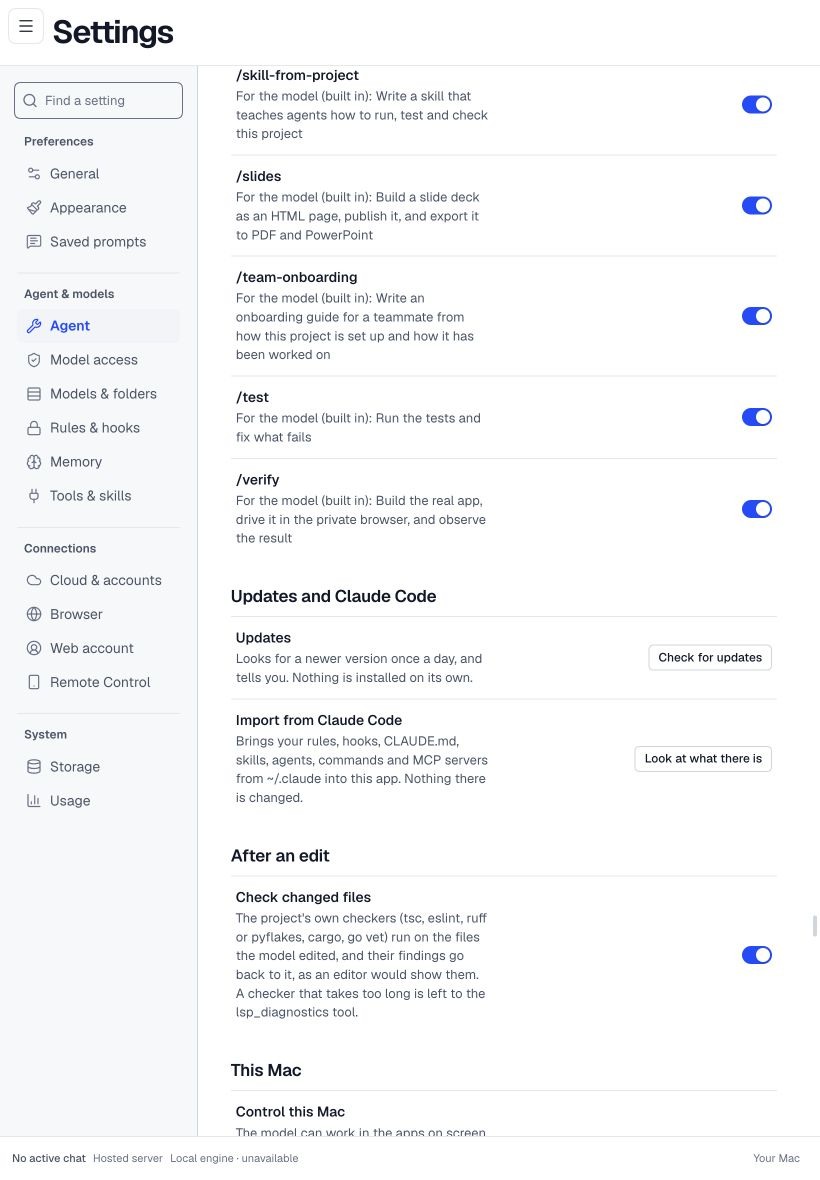
The settings view covers Agent · Updates and Claude Code. Set expectations for what an agent can do during project work, how much work it can undertake and when a person should review the result.
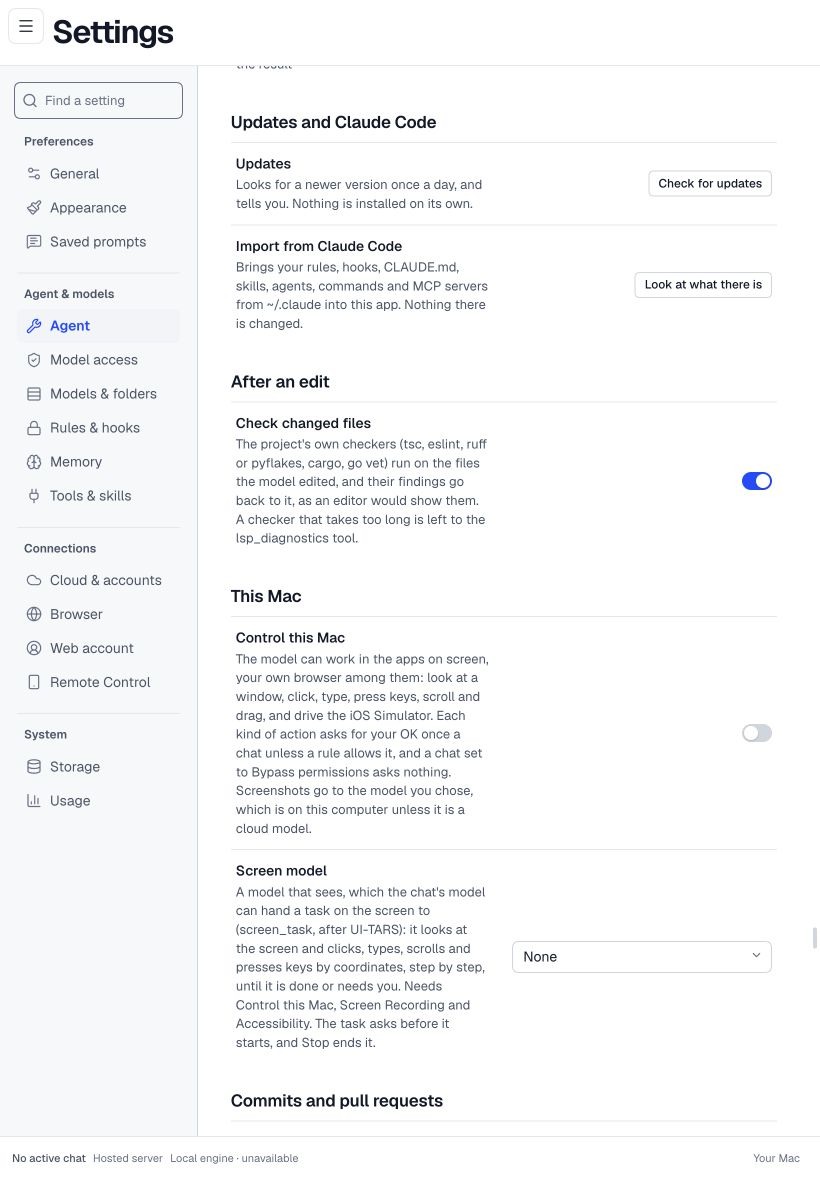
The settings view covers Agent · This Mac. Set expectations for what an agent can do during project work, how much work it can undertake and when a person should review the result.
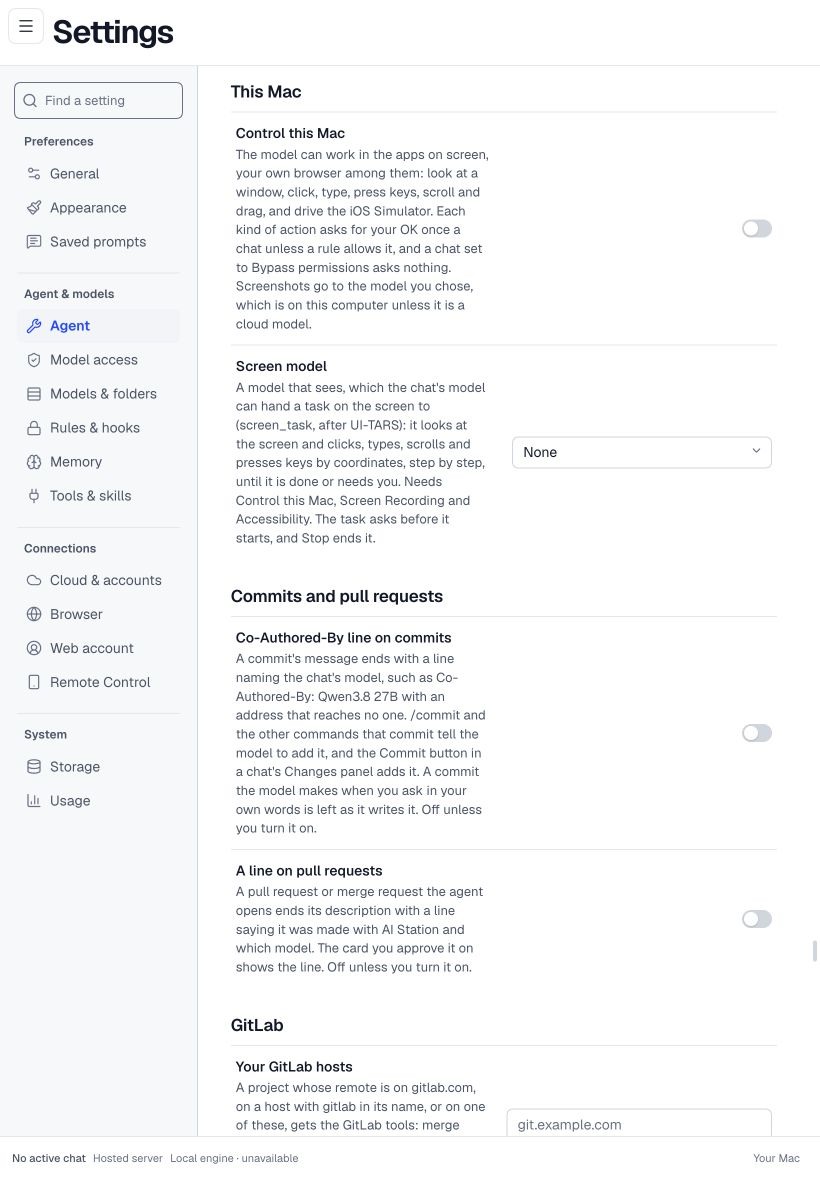
The settings view covers Agent · Commits and pull requests. Set expectations for what an agent can do during project work, how much work it can undertake and when a person should review the result.
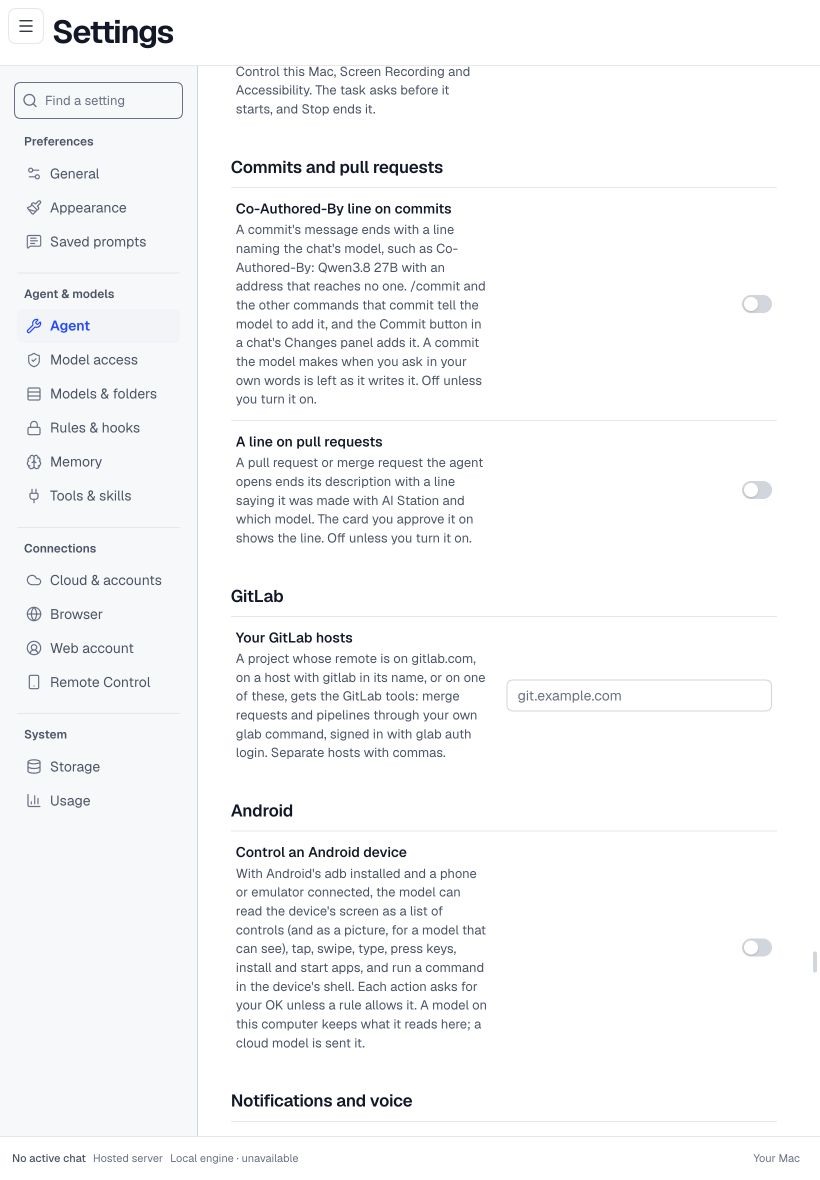
The settings view covers Agent · GitLab. Set expectations for what an agent can do during project work, how much work it can undertake and when a person should review the result.
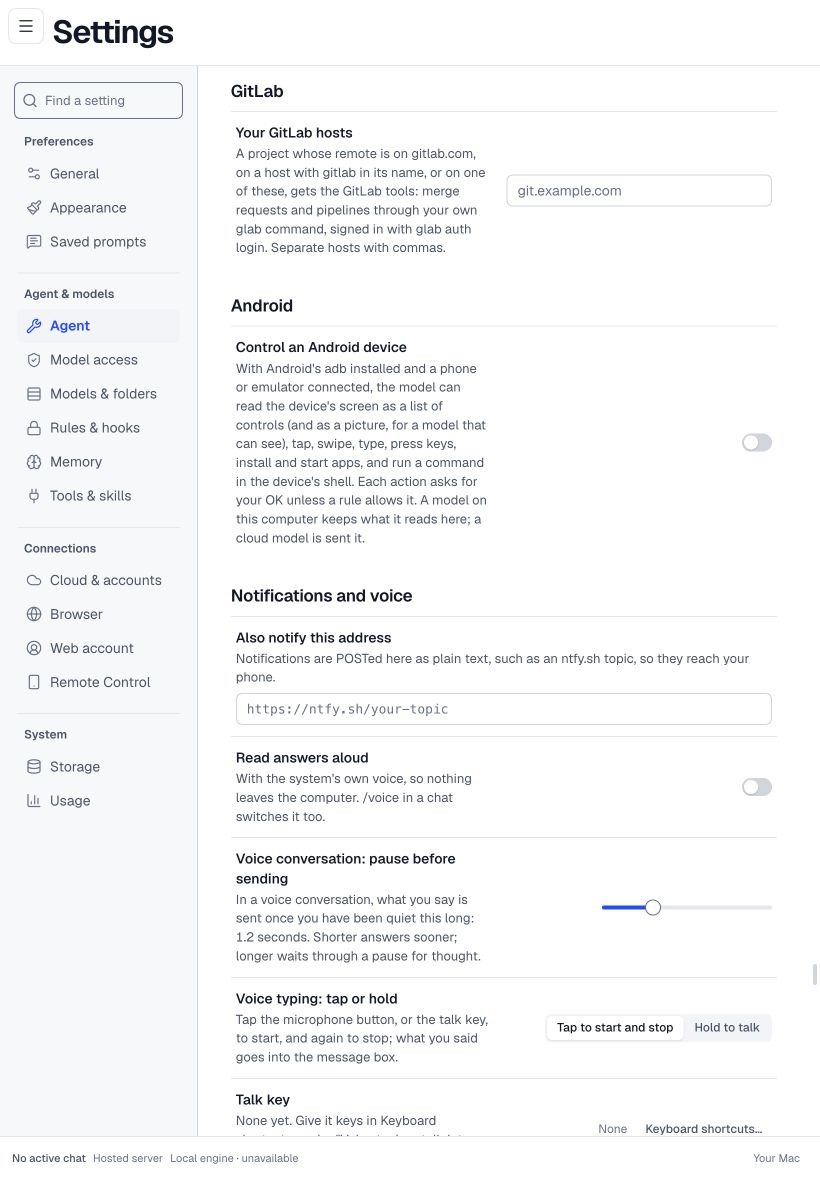
The settings view covers Agent · Notifications and voice. Set expectations for what an agent can do during project work, how much work it can undertake and when a person should review the result.
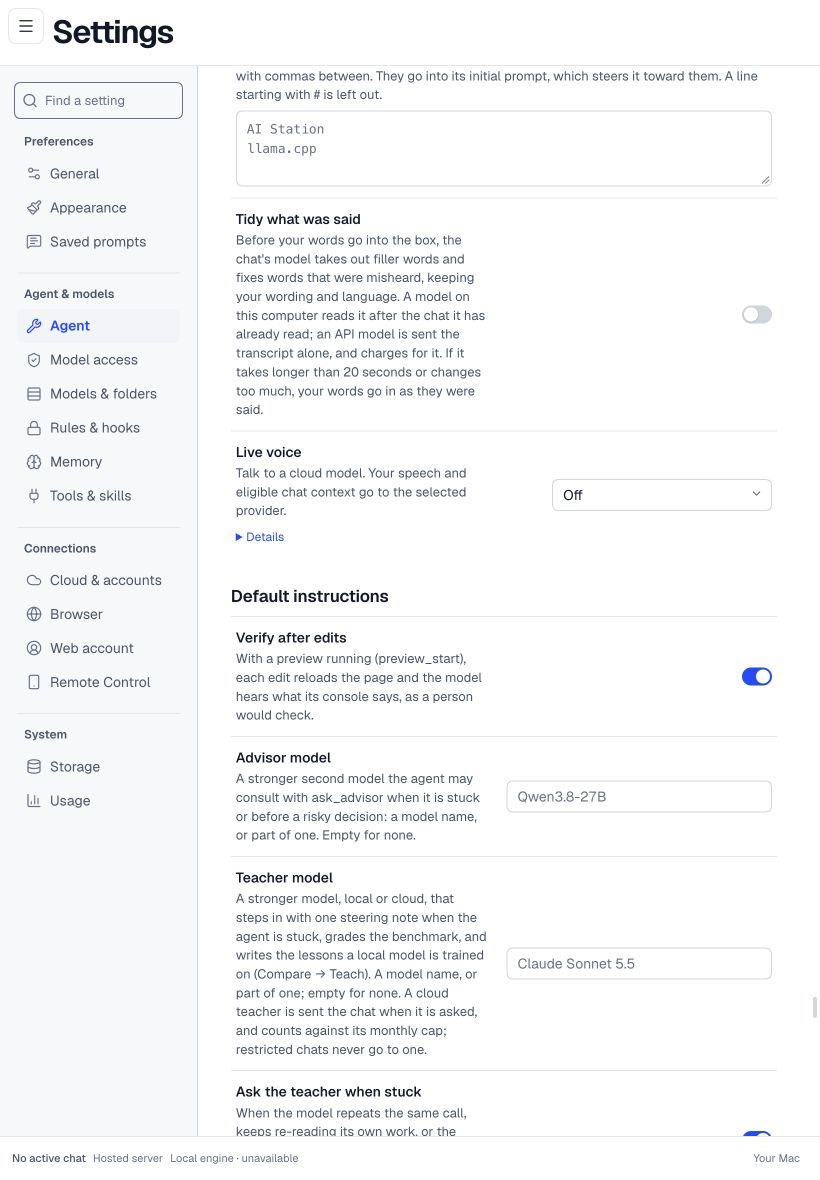
The settings view covers Agent · Default instructions. Set expectations for what an agent can do during project work, how much work it can undertake and when a person should review the result.
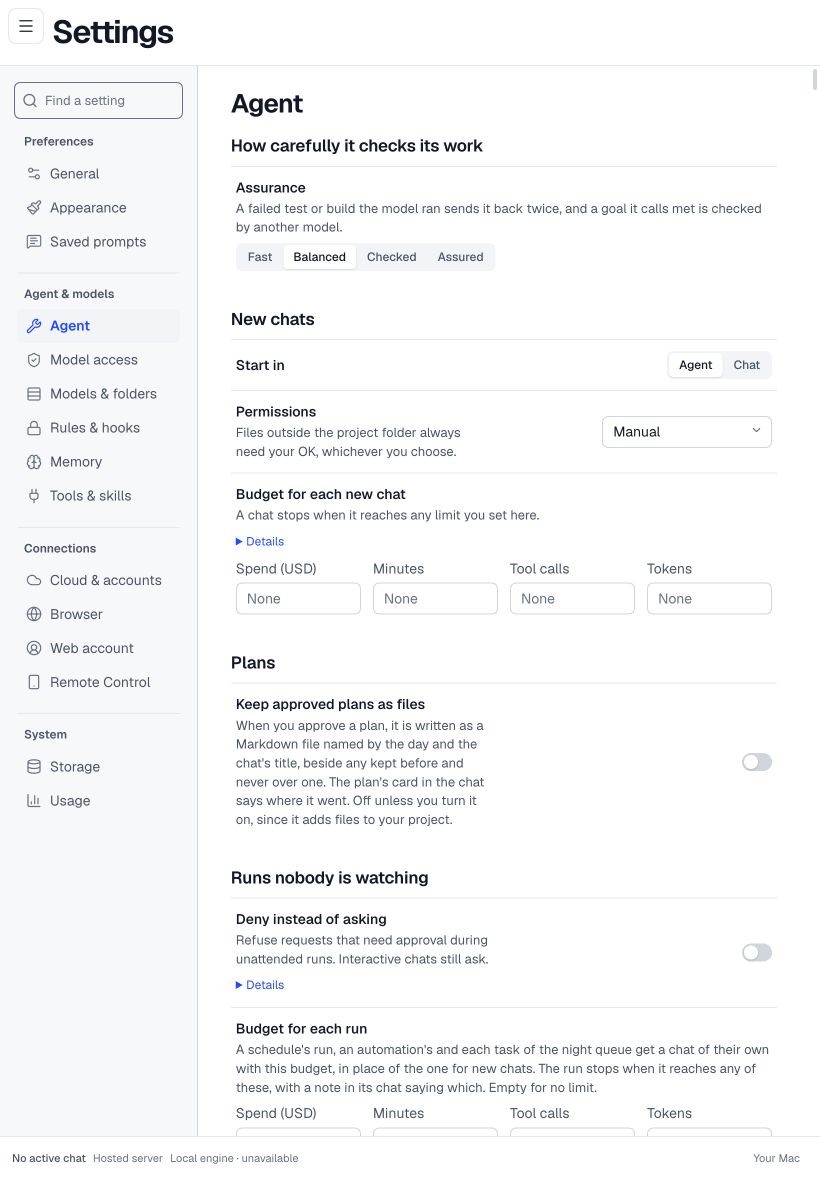
The settings view covers Agent. Set expectations for what an agent can do during project work, how much work it can undertake and when a person should review the result.
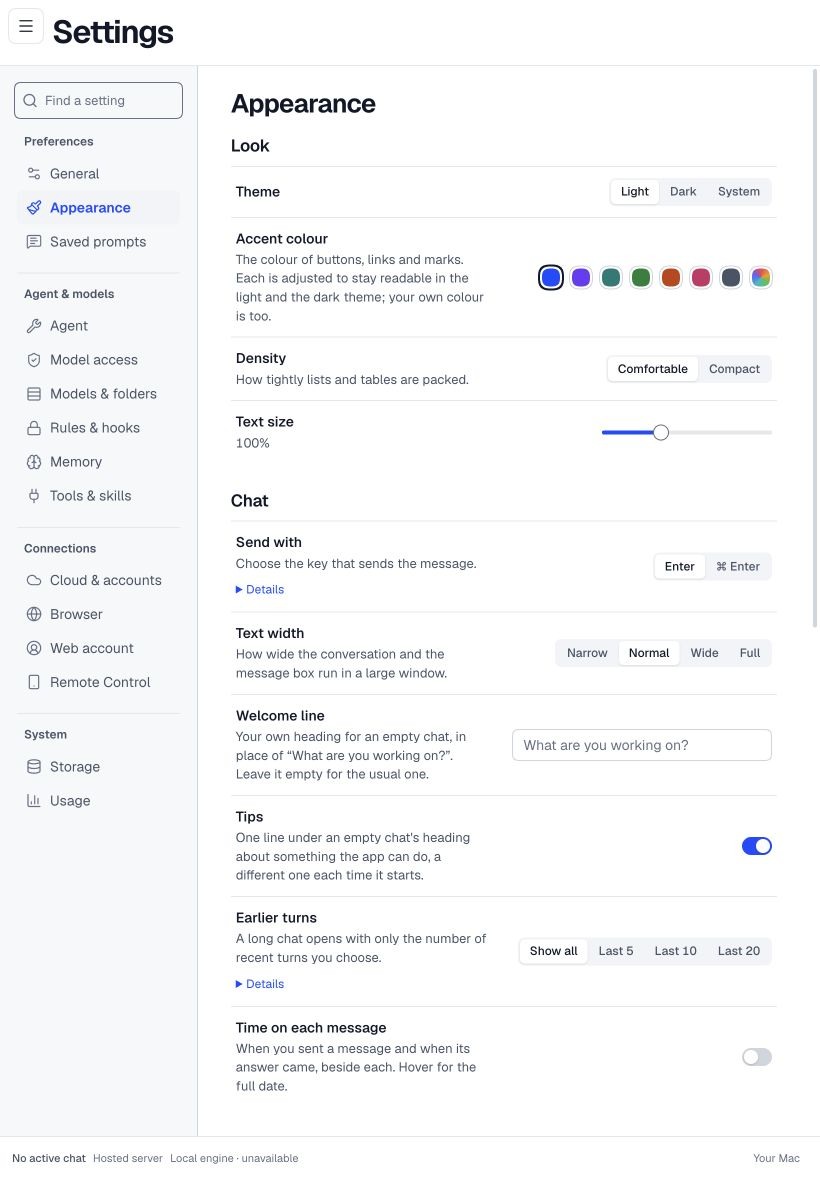
The settings view covers Appearance. Adjust the presentation of the workspace to suit the display and the person reading it.
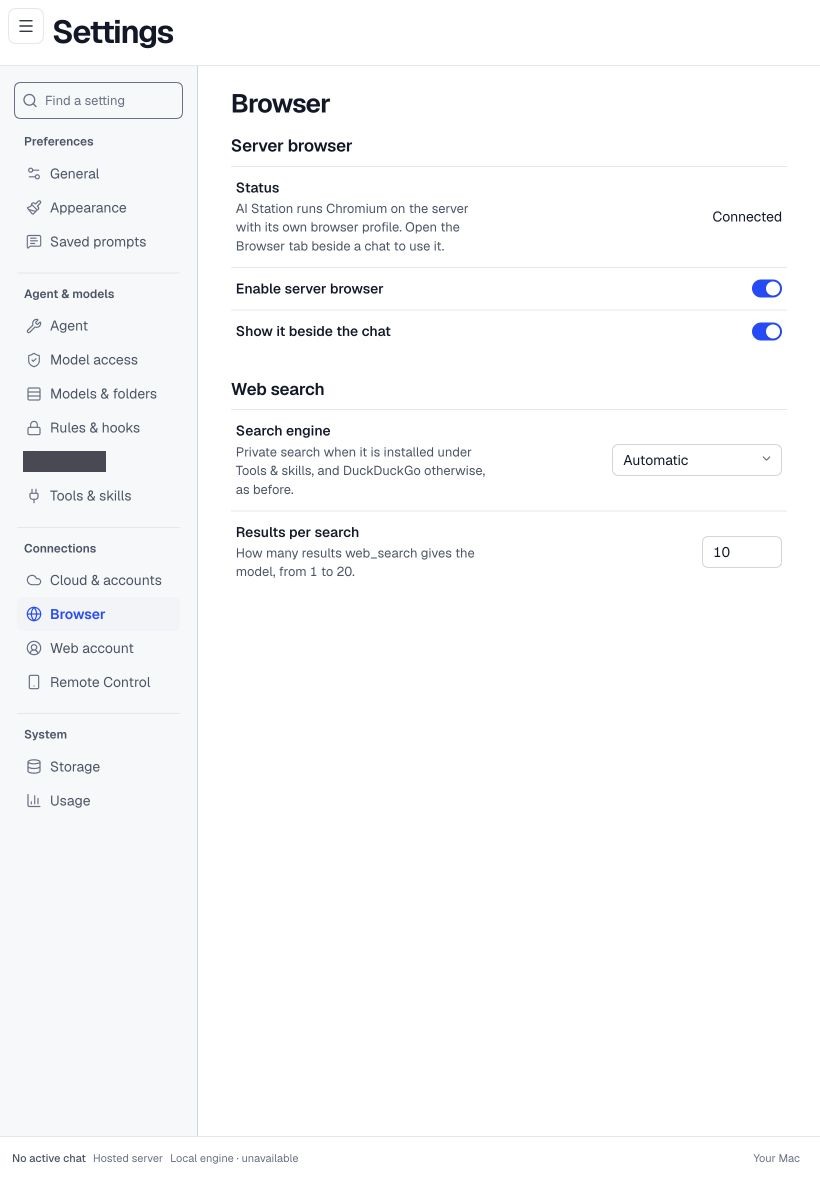
The settings view covers Browser. Configure the browser used to inspect web content and preview a project during a conversation.
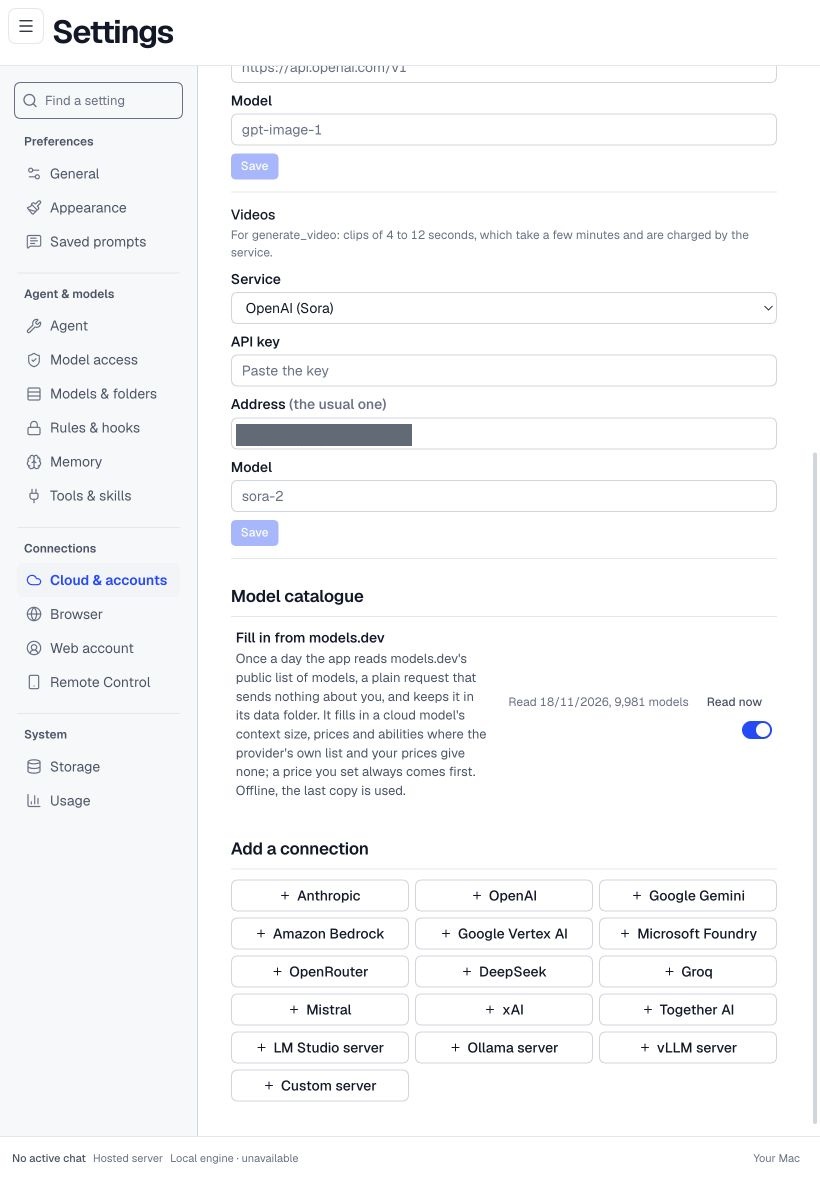
The settings view covers Cloud & accounts · Model catalogue. Manage provider connections and the models they make available to the workspace.
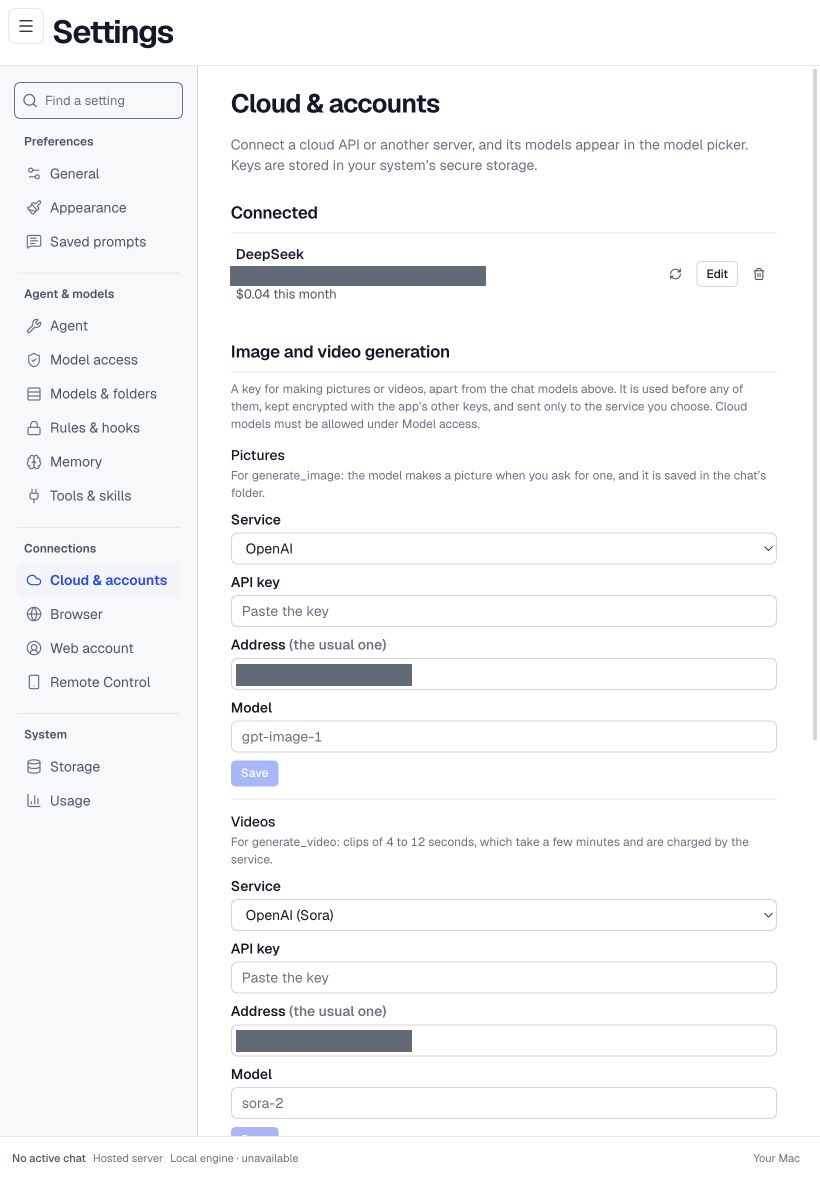
The settings view covers Cloud & accounts. Manage provider connections and the models they make available to the workspace.
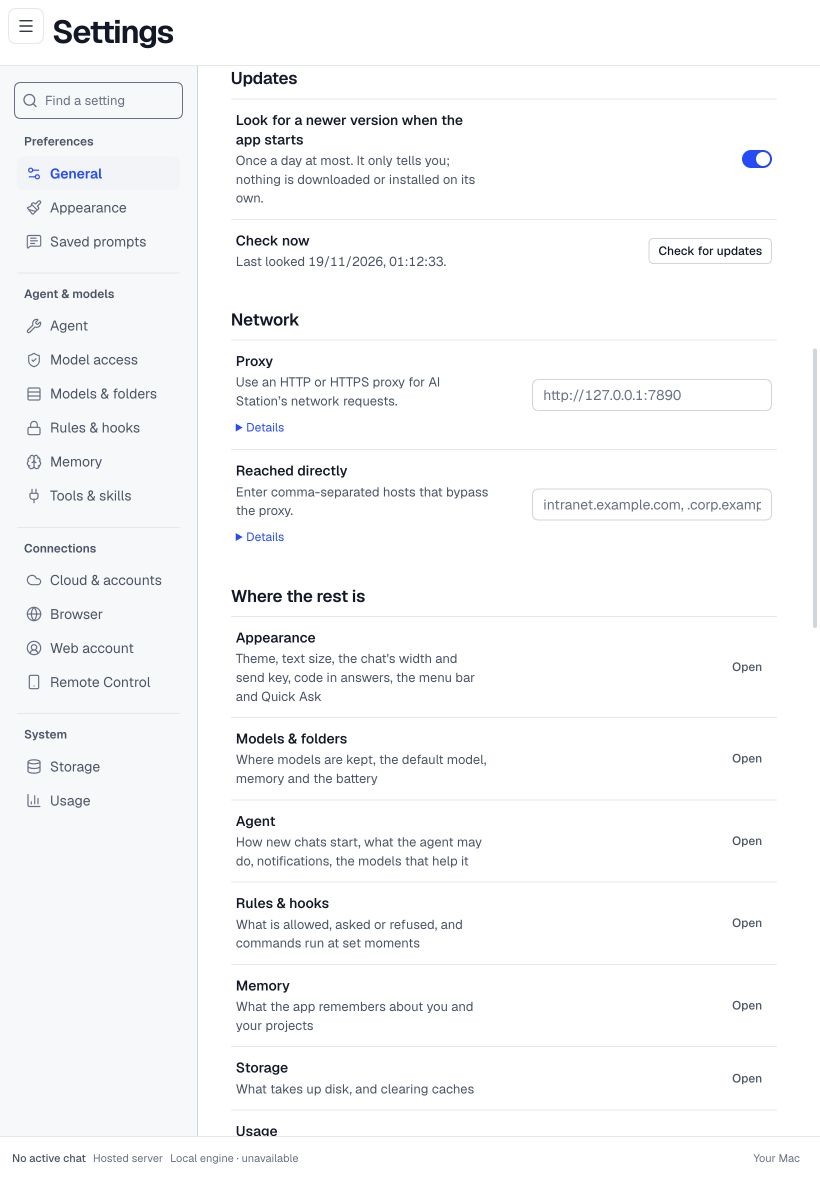
The settings view covers General · Where the rest is. Inspect application-wide preferences, diagnostic information and update controls.
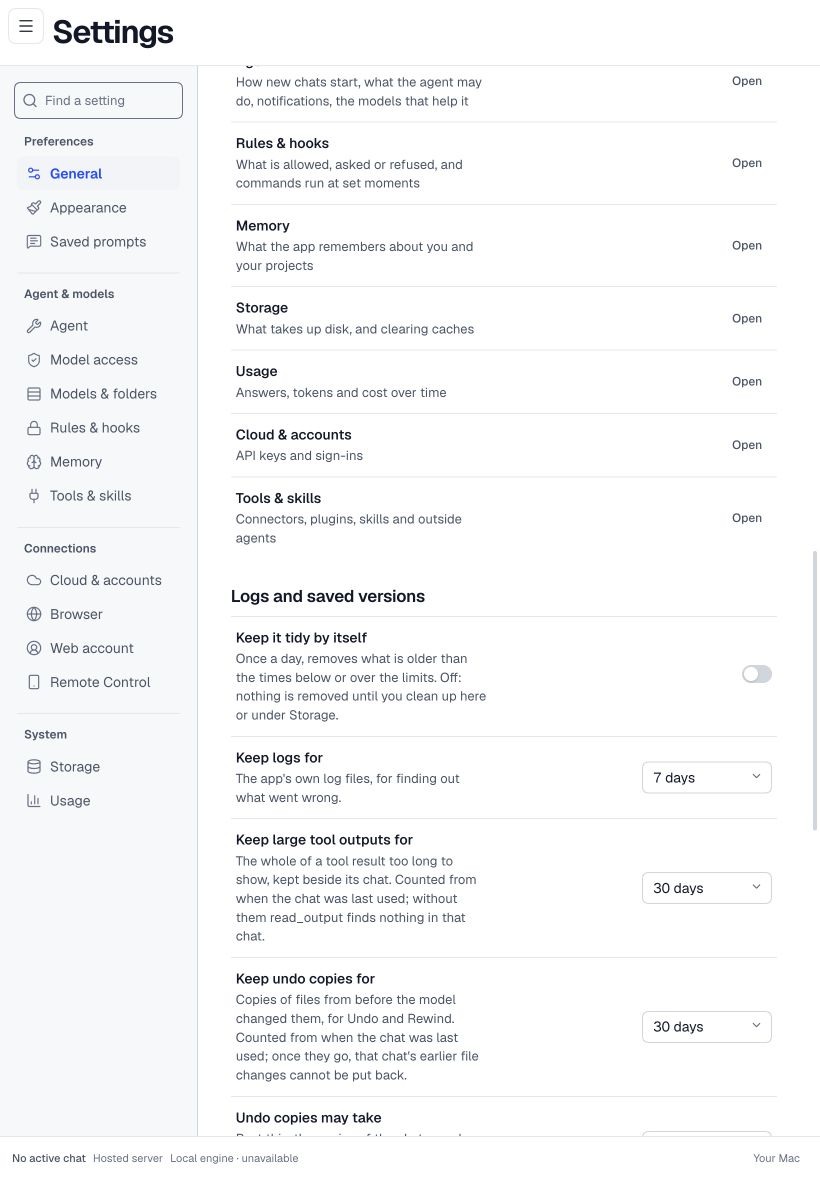
The settings view covers General · Logs and saved versions. Inspect application-wide preferences, diagnostic information and update controls.
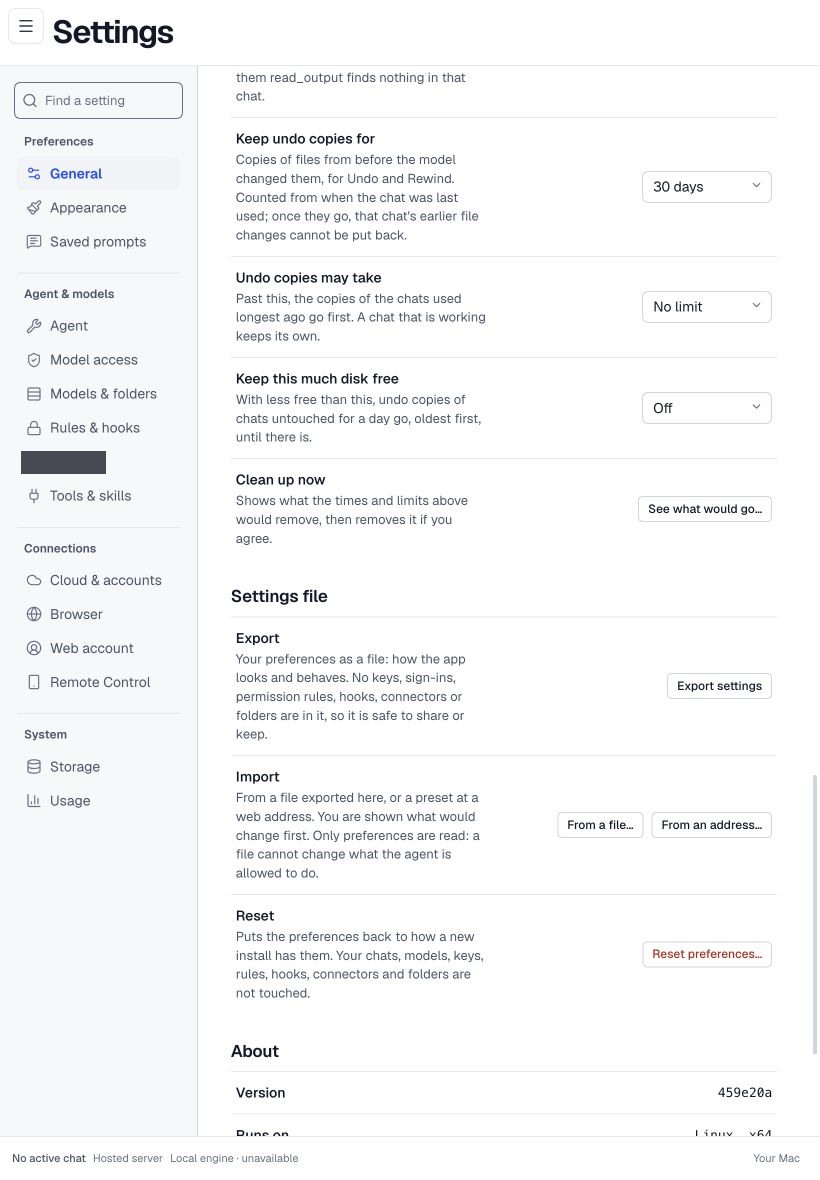
The settings view covers General · Settings file. Inspect application-wide preferences, diagnostic information and update controls.
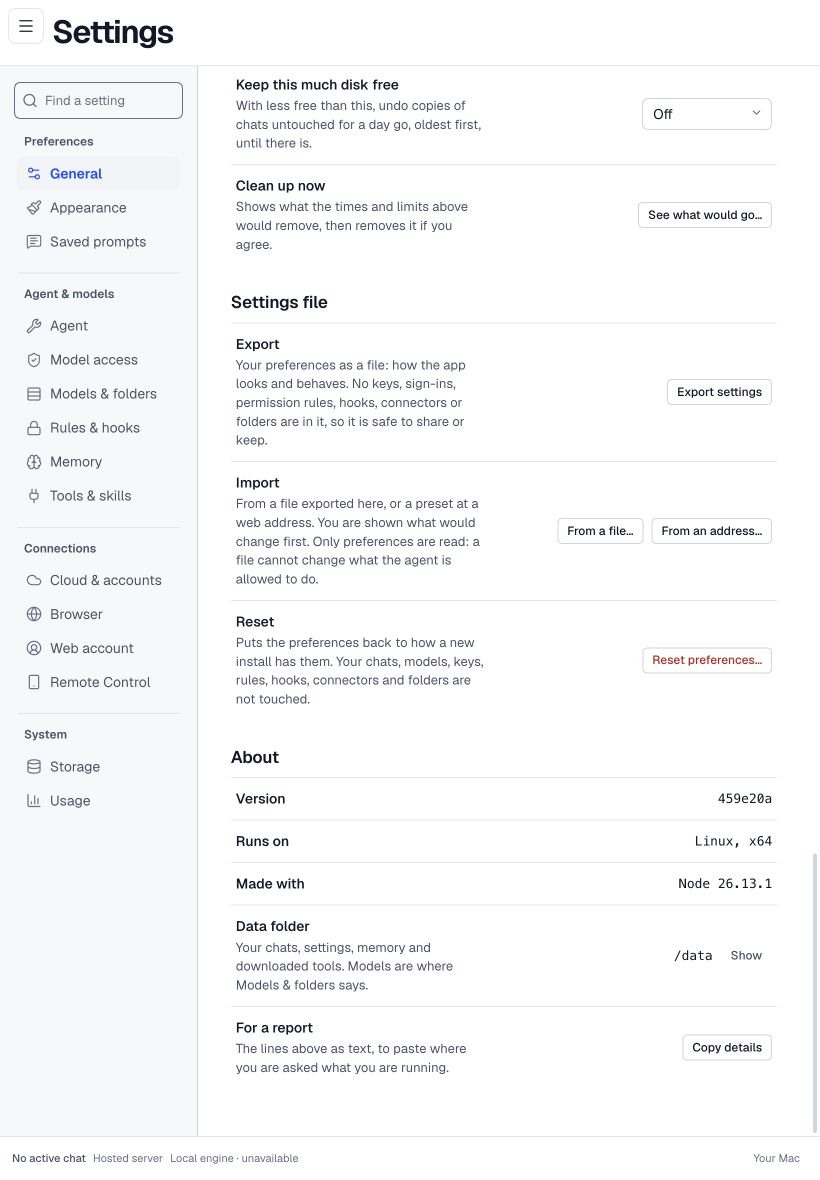
The settings view covers General · About. Inspect application-wide preferences, diagnostic information and update controls.
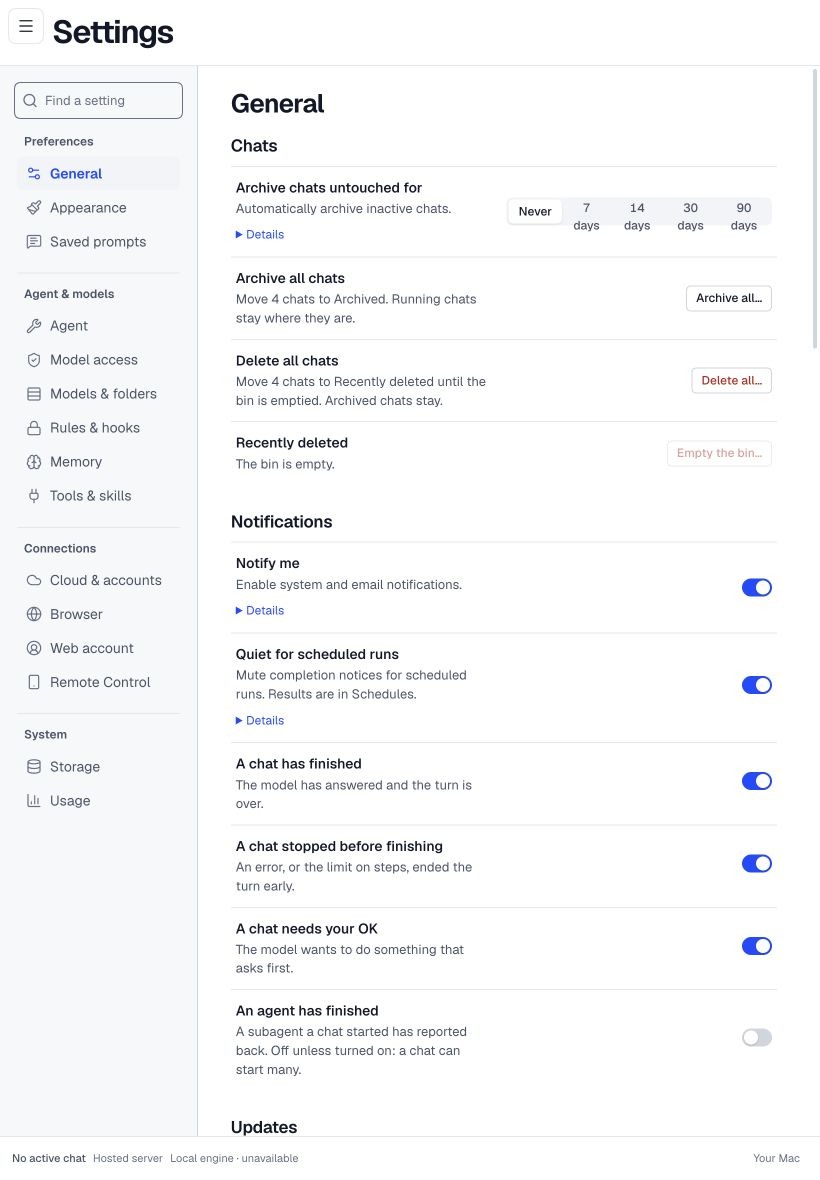
The settings view covers General. Inspect application-wide preferences, diagnostic information and update controls.
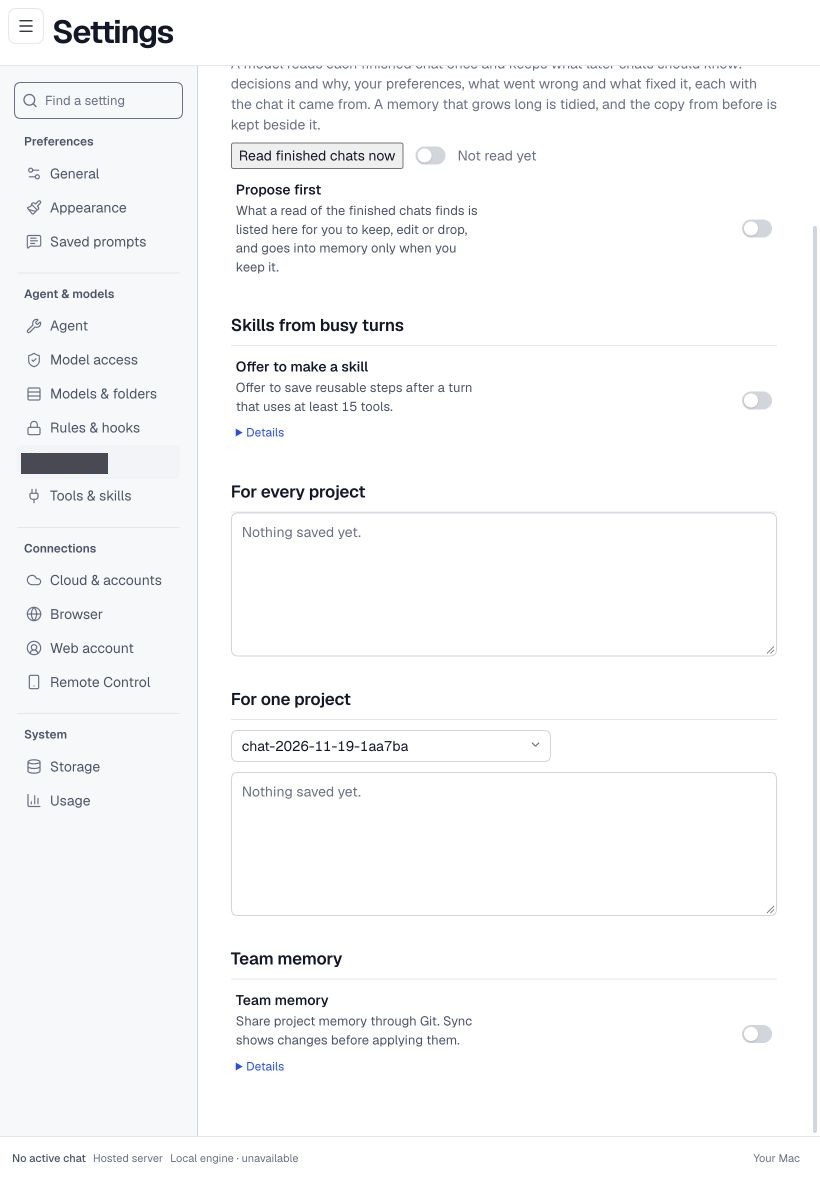
The settings view covers Memory · Team memory. Manage information retained between tasks and the context that can be shared across a team.
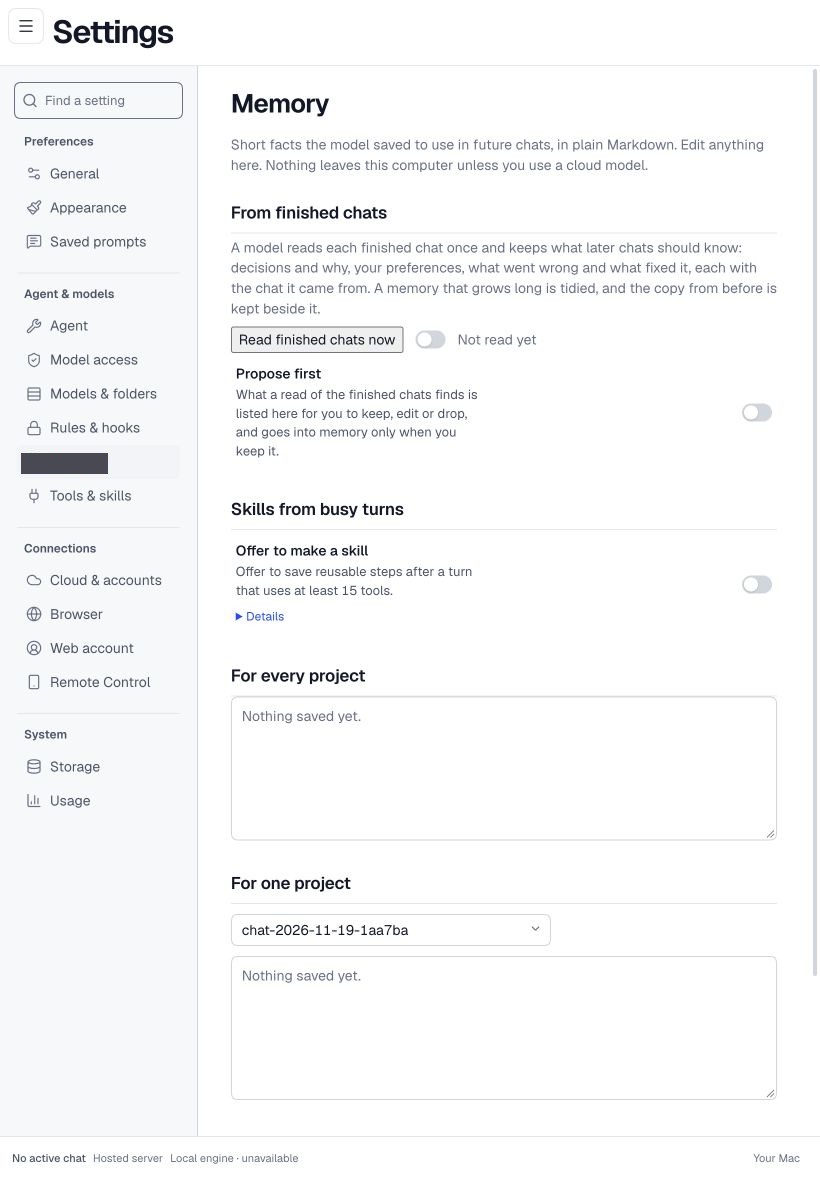
The settings view covers Memory. Manage information retained between tasks and the context that can be shared across a team.
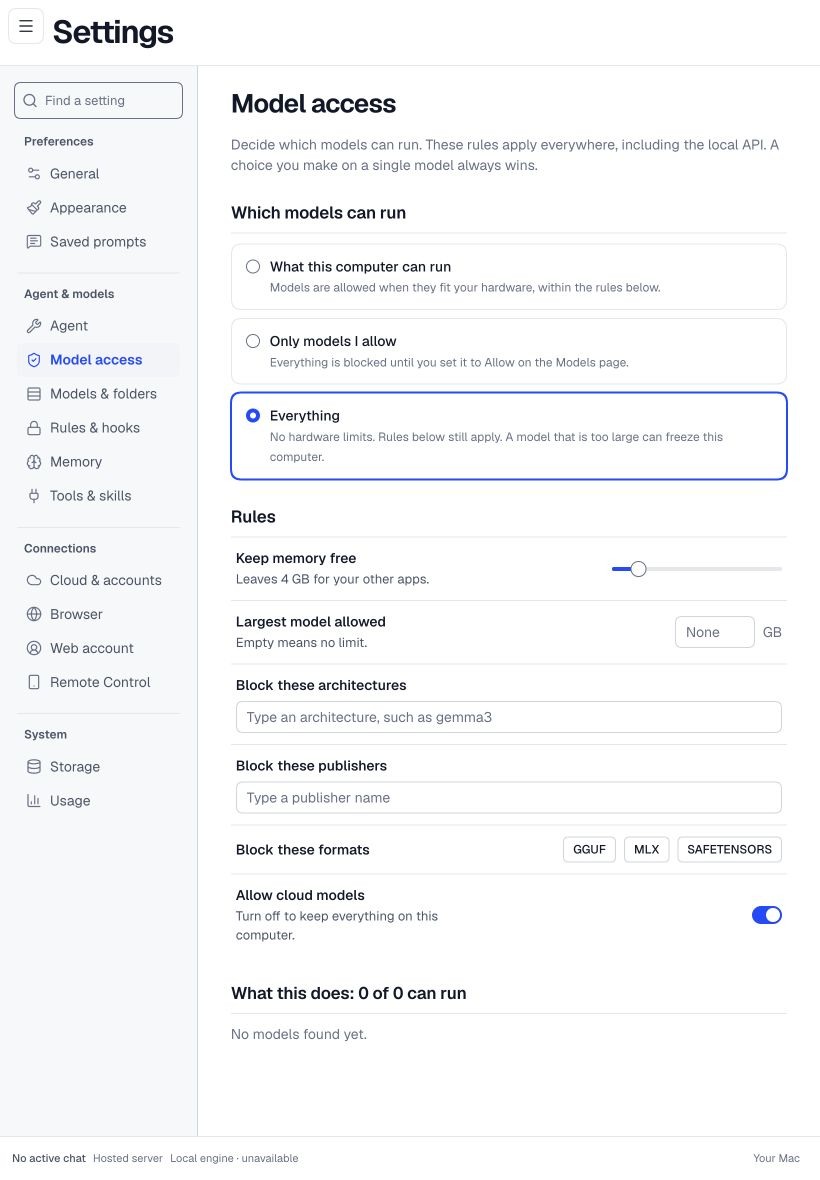
The settings view covers Model access · What this does - 0 of 0 can run. Review which models are eligible to serve requests. An installed model may still require permission before use.
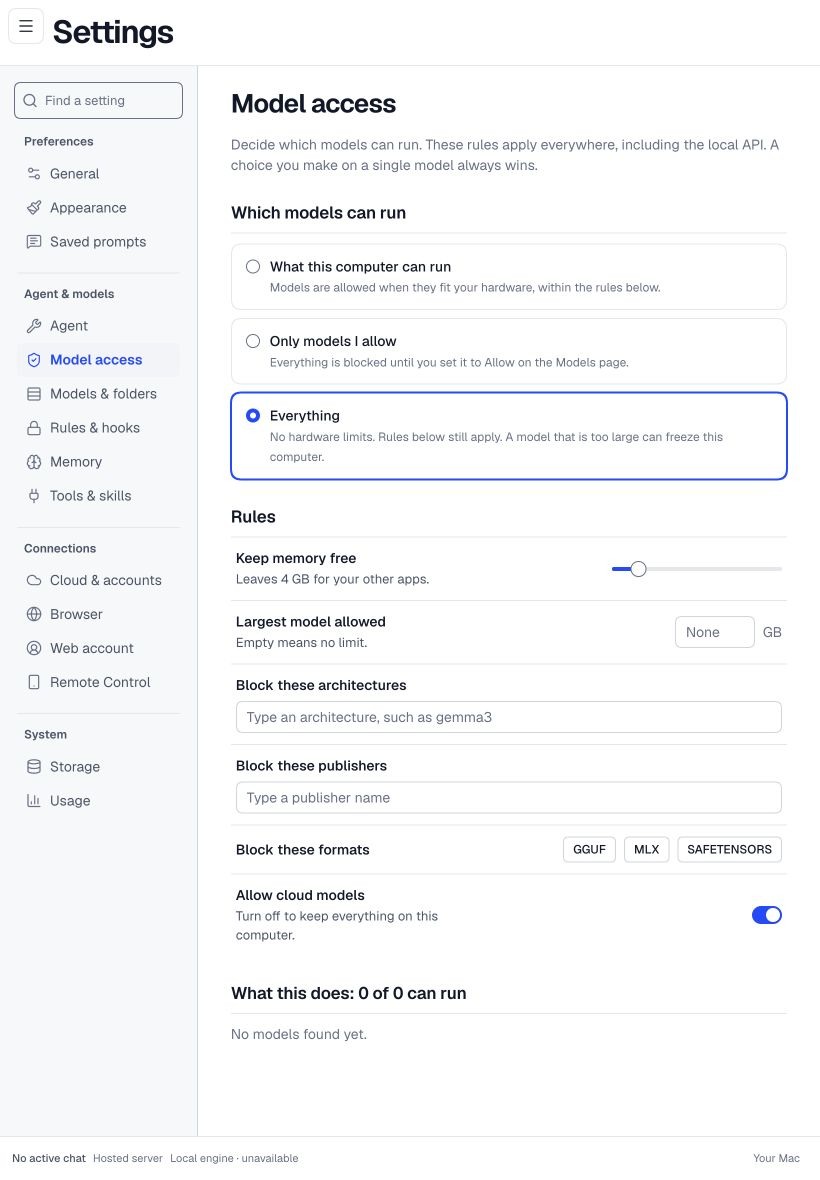
The settings view covers Model access. Review which models are eligible to serve requests. An installed model may still require permission before use.
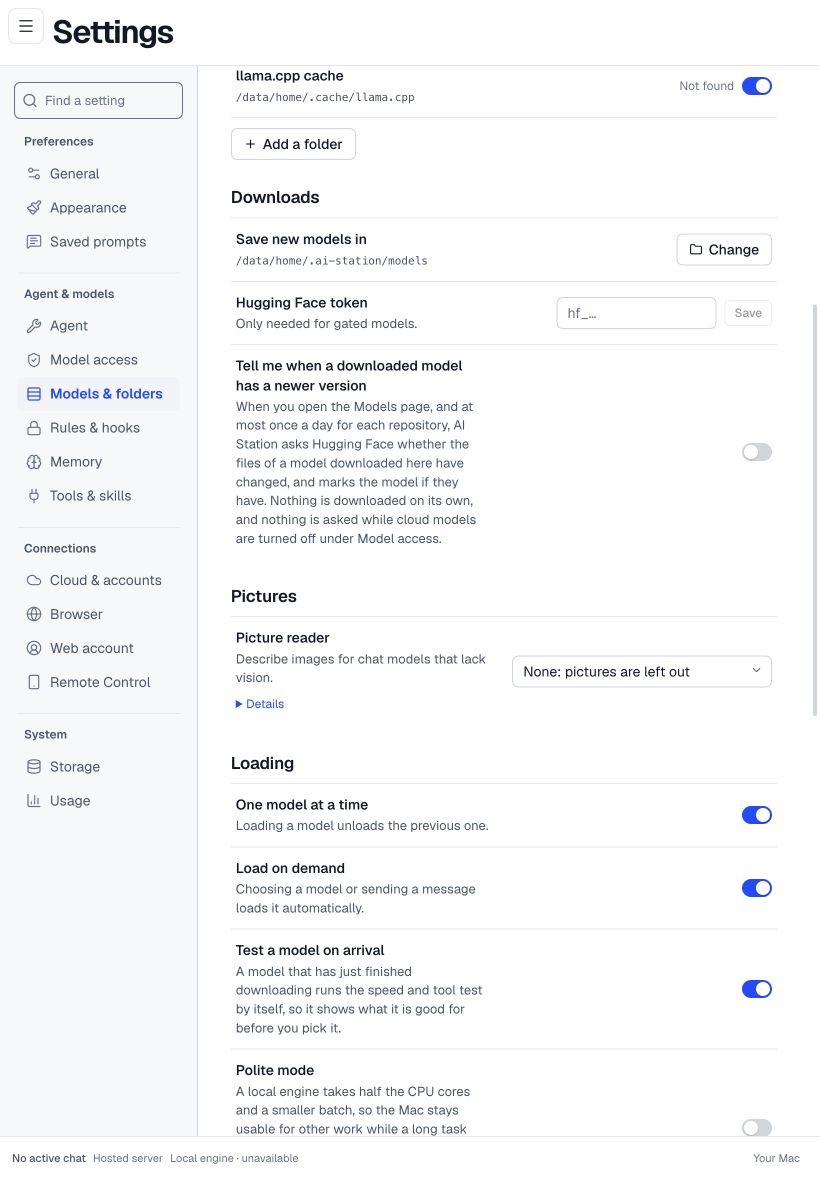
The settings view covers Models & folders · Pictures. Choose where the application looks for model files and related resources on the machine.
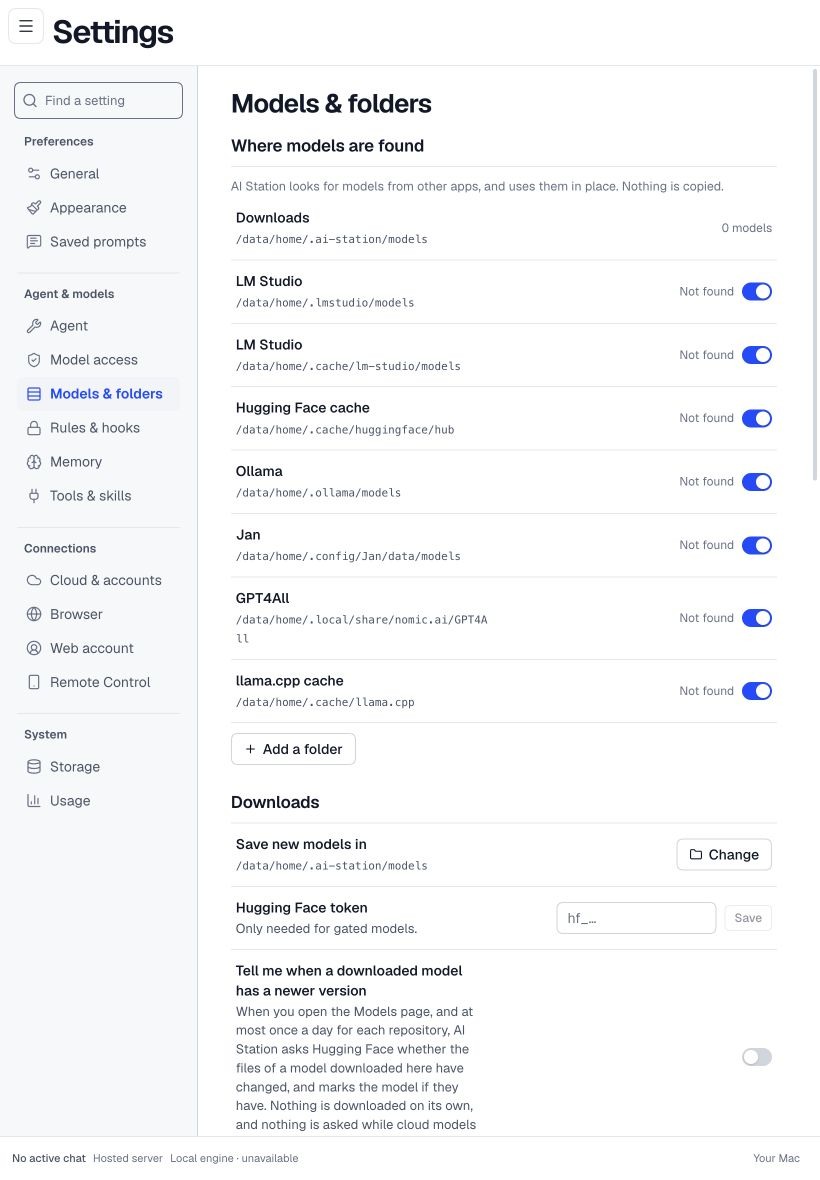
The settings view covers Models & folders. Choose where the application looks for model files and related resources on the machine.
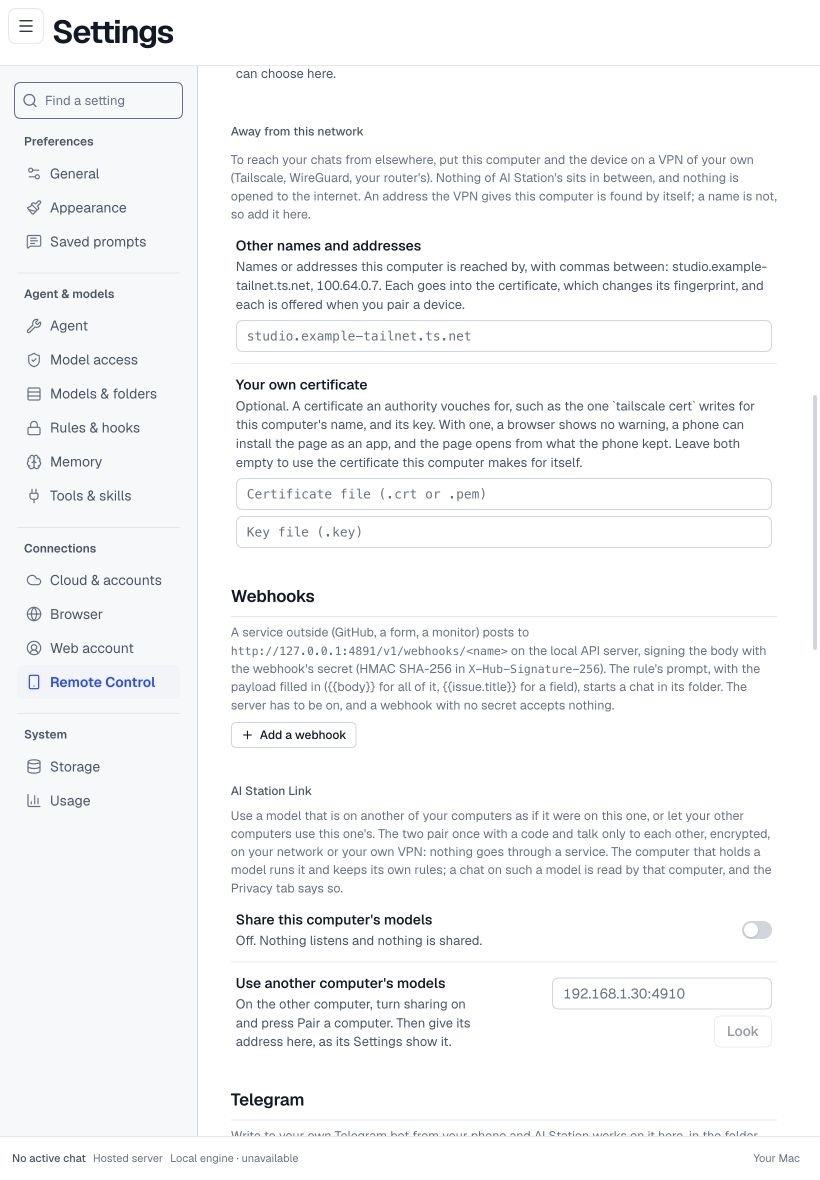
The settings view covers Remote Control · Webhooks. Configure the channels through which an operator can reach the workspace and receive updates away from the main interface.
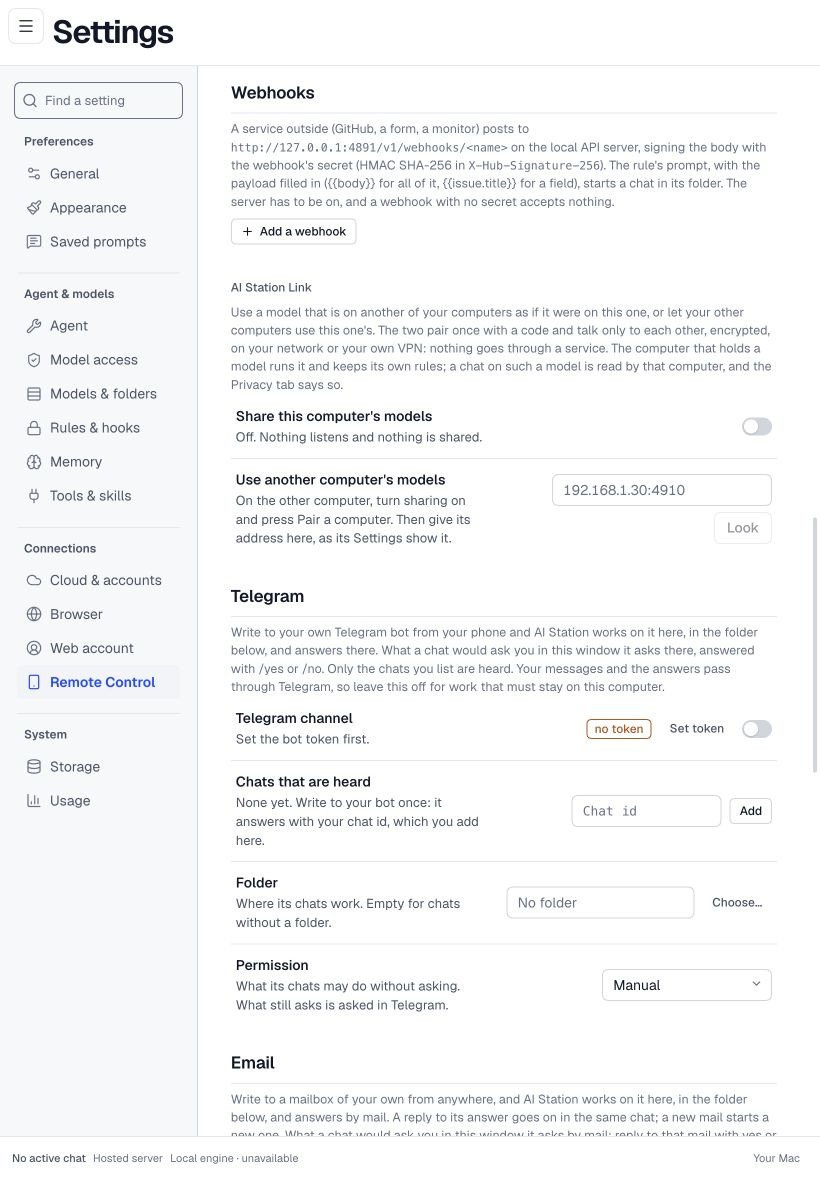
The settings view covers Remote Control · Telegram. Configure the channels through which an operator can reach the workspace and receive updates away from the main interface.
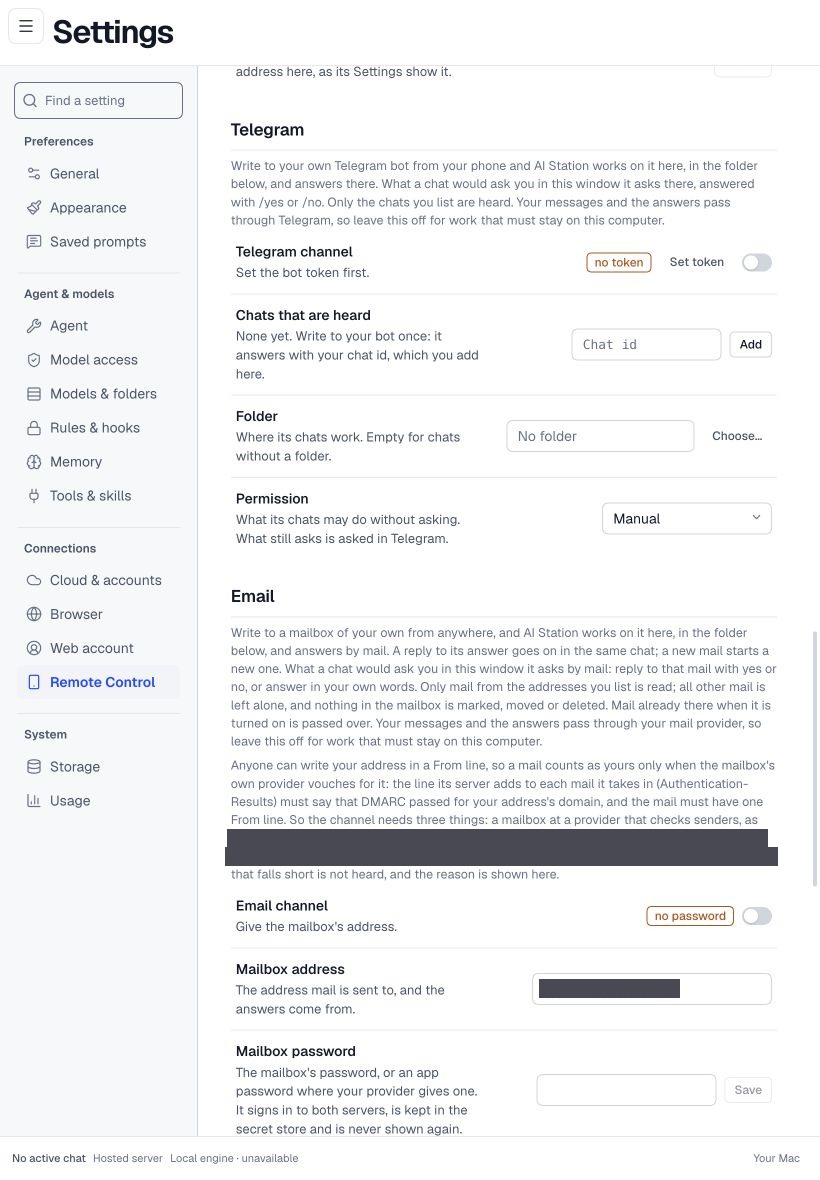
The settings view covers Remote Control · Email. Configure the channels through which an operator can reach the workspace and receive updates away from the main interface.
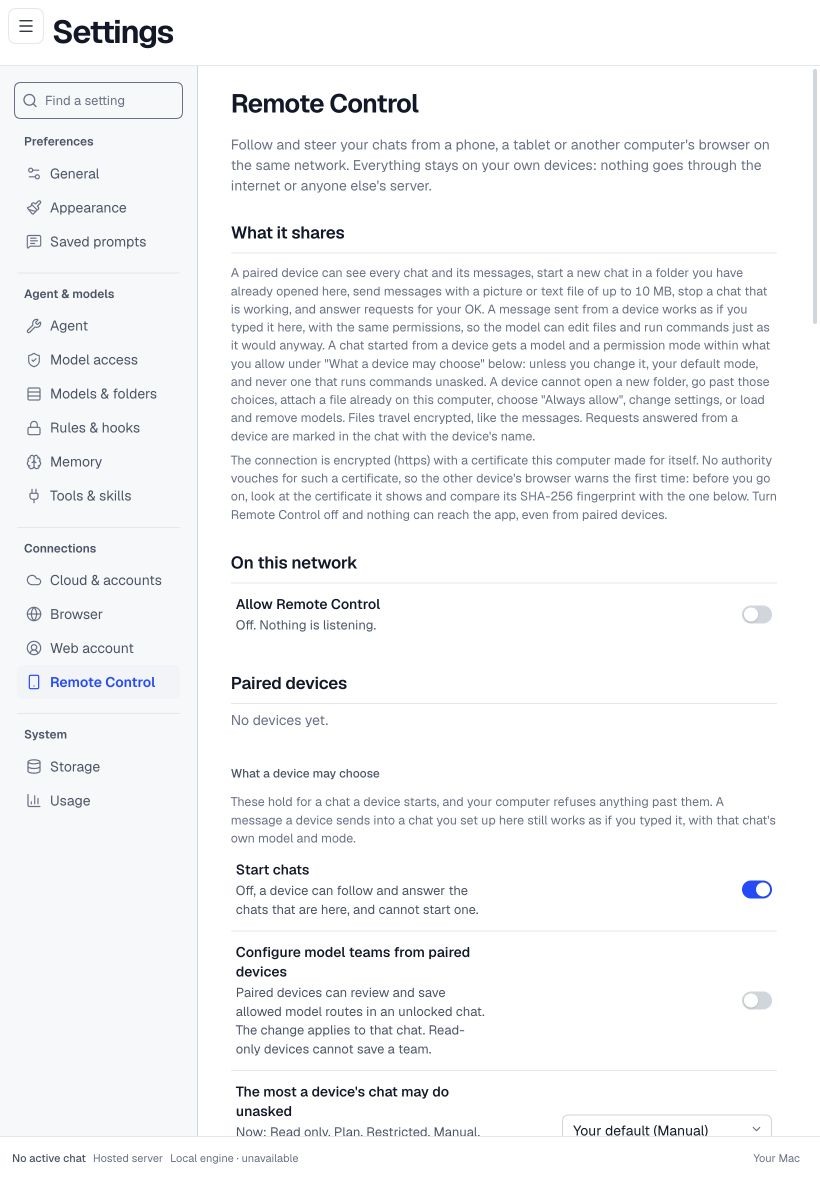
The settings view covers Remote Control. Configure the channels through which an operator can reach the workspace and receive updates away from the main interface.
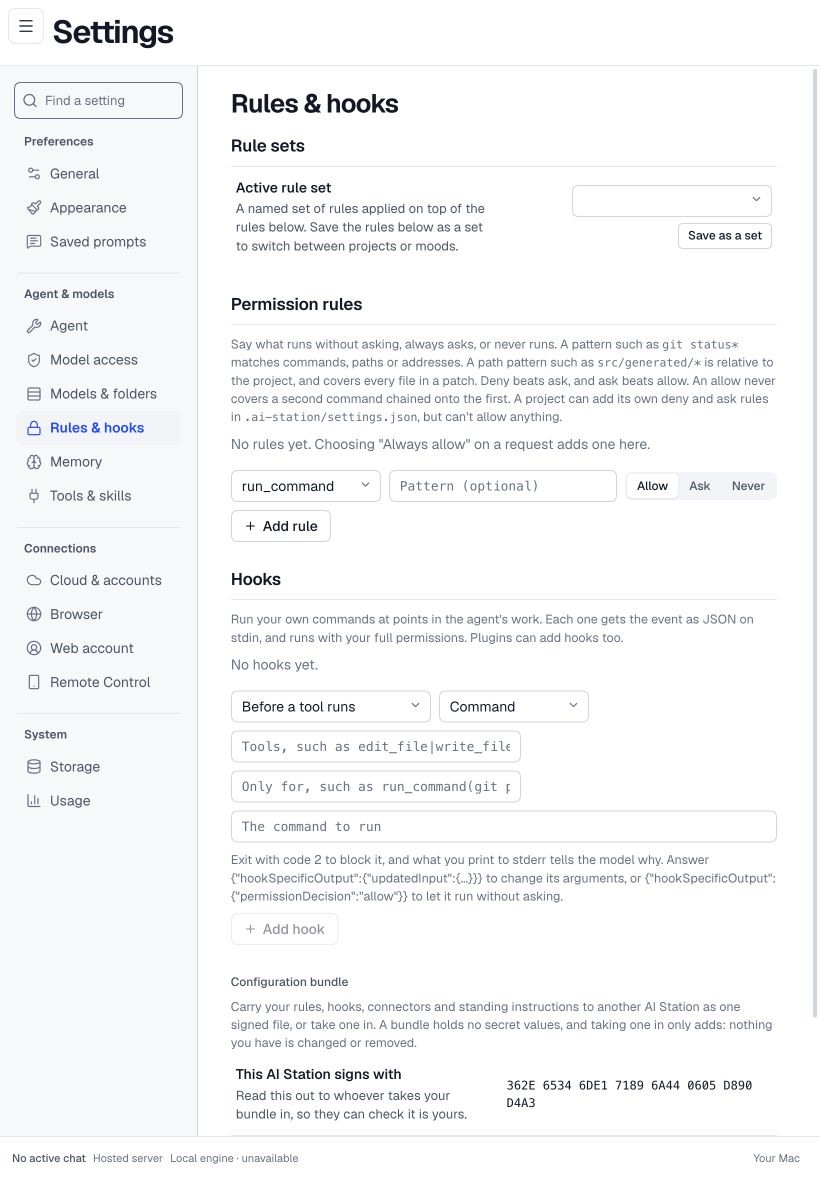
The settings view covers Rules & hooks. Define instructions and actions associated with workflow events so recurring project conventions can be applied consistently.
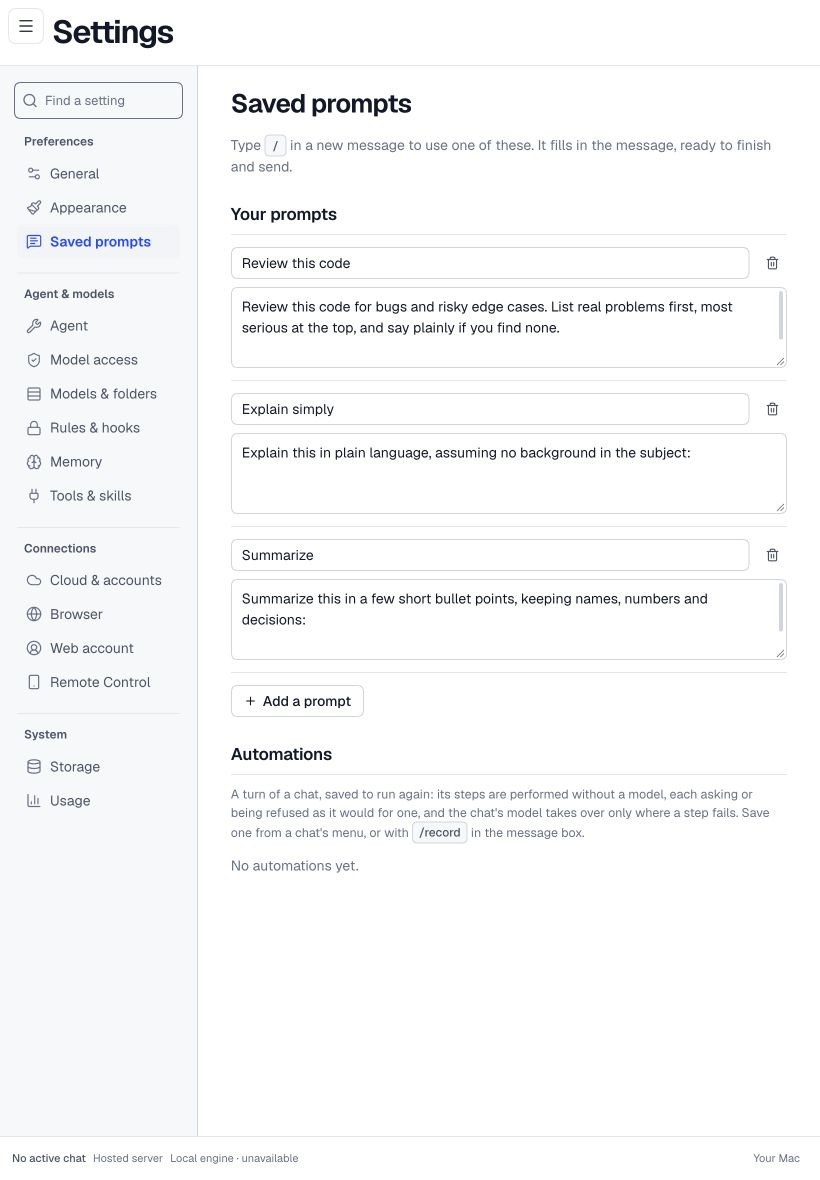
The settings view covers Saved prompts. Keep frequently used instructions available for later conversations.
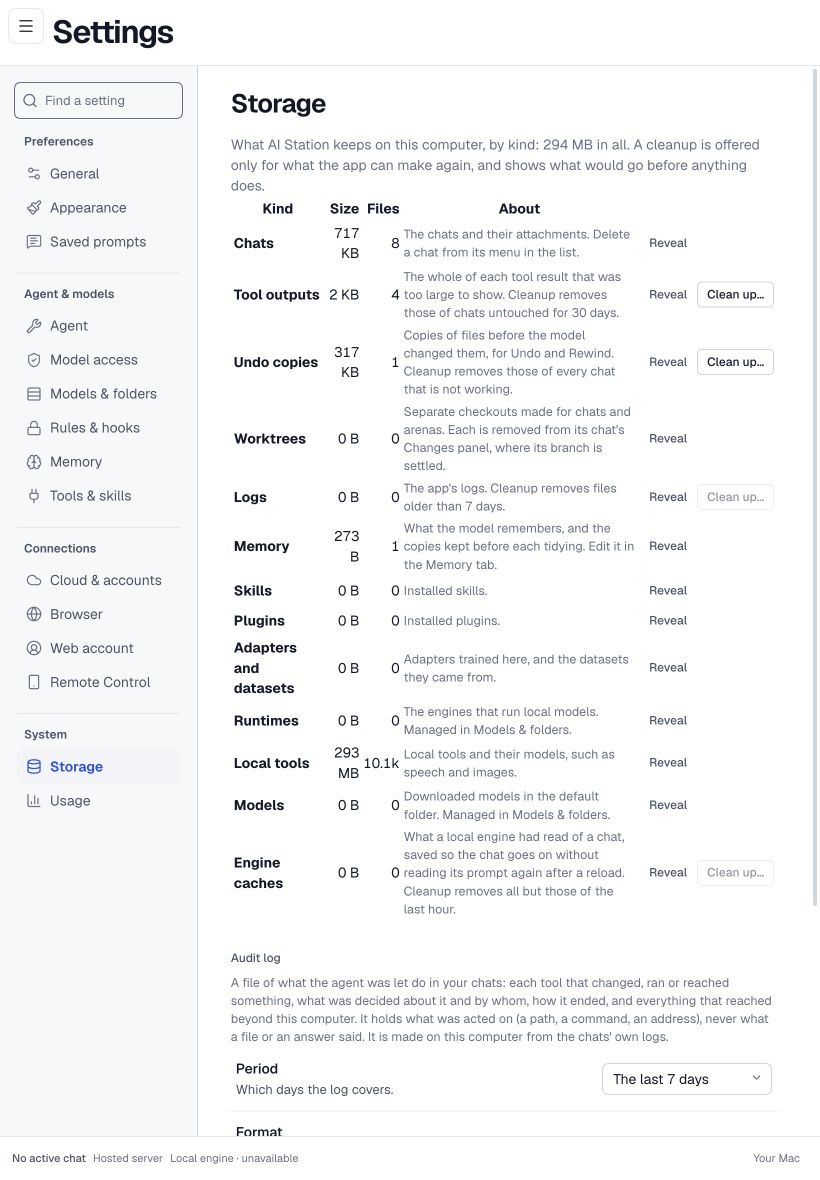
The settings view covers Storage. Inspect storage used by the workspace and manage its retained data.
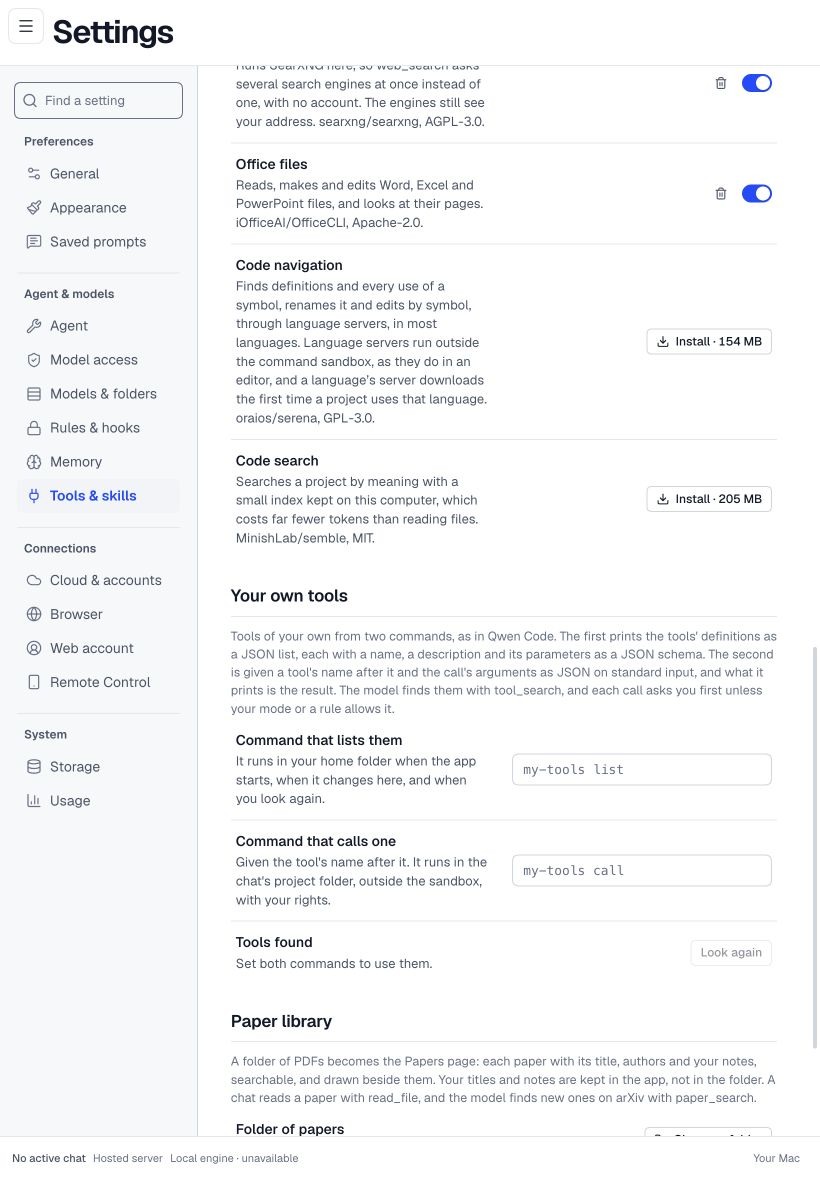
The settings view covers Tools & skills · Your own tools. Manage the tools, trusted directories and reusable skills available to an assistant.
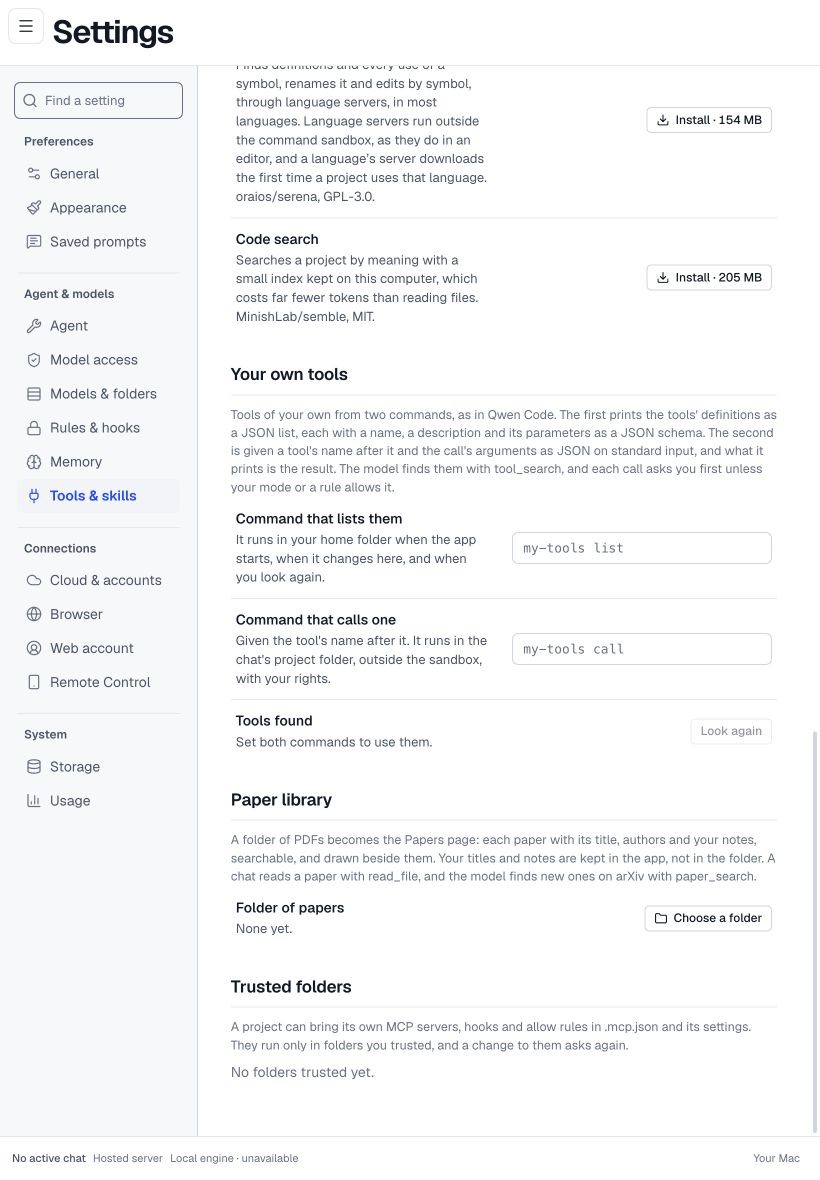
The settings view covers Tools & skills · Paper library. Manage the tools, trusted directories and reusable skills available to an assistant.
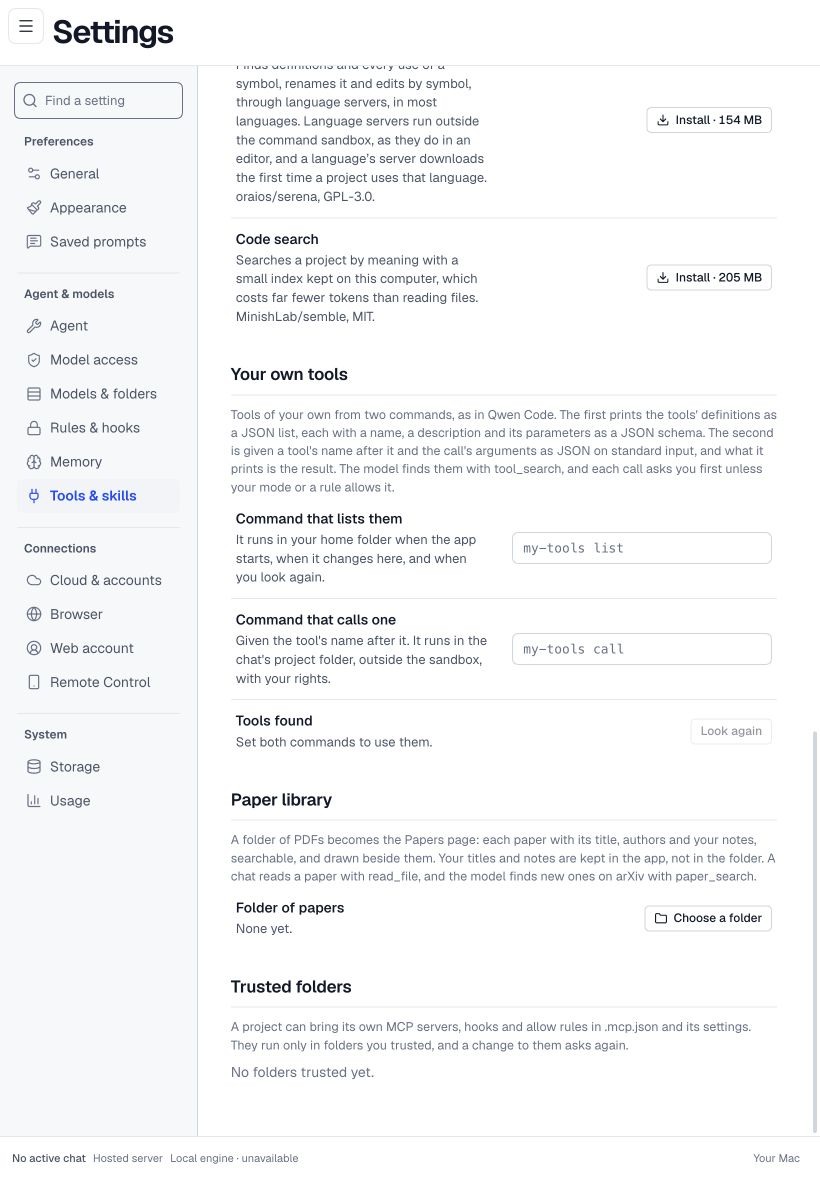
The settings view covers Tools & skills · Trusted folders. Manage the tools, trusted directories and reusable skills available to an assistant.
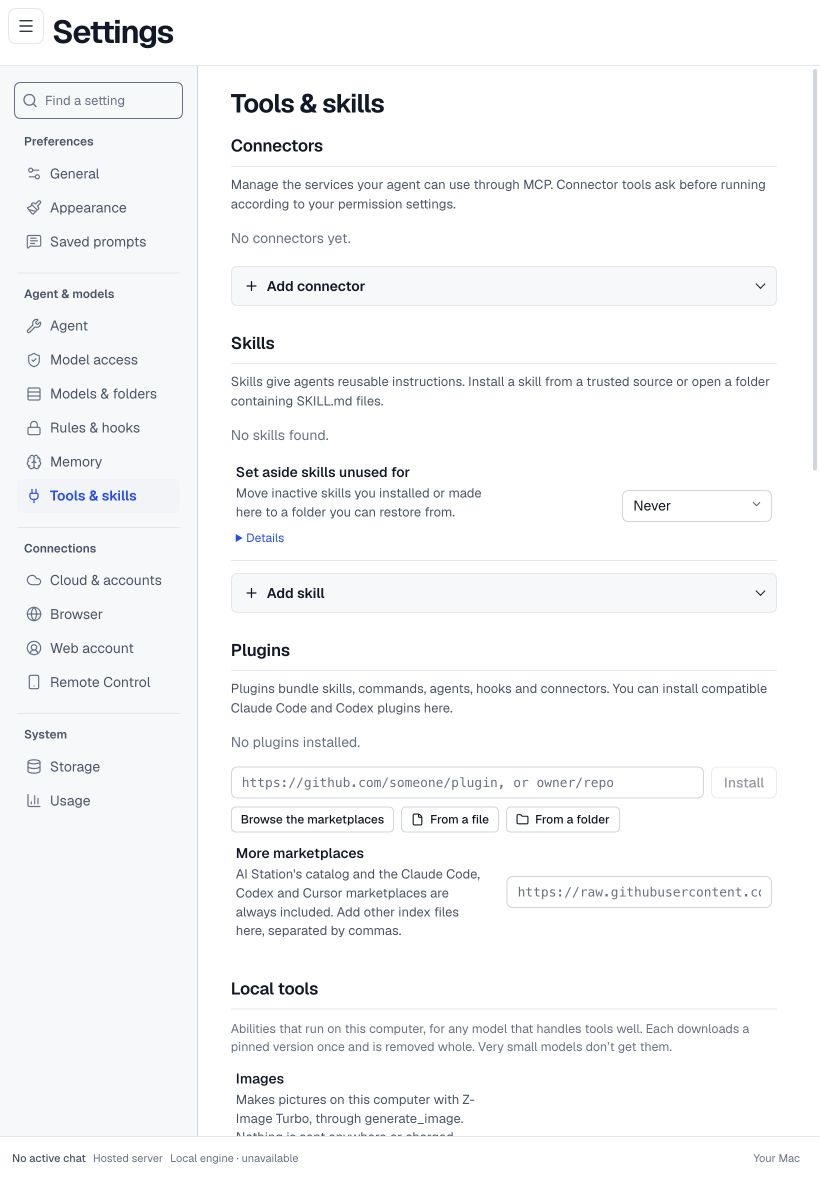
The settings view covers Tools & skills. Manage the tools, trusted directories and reusable skills available to an assistant.
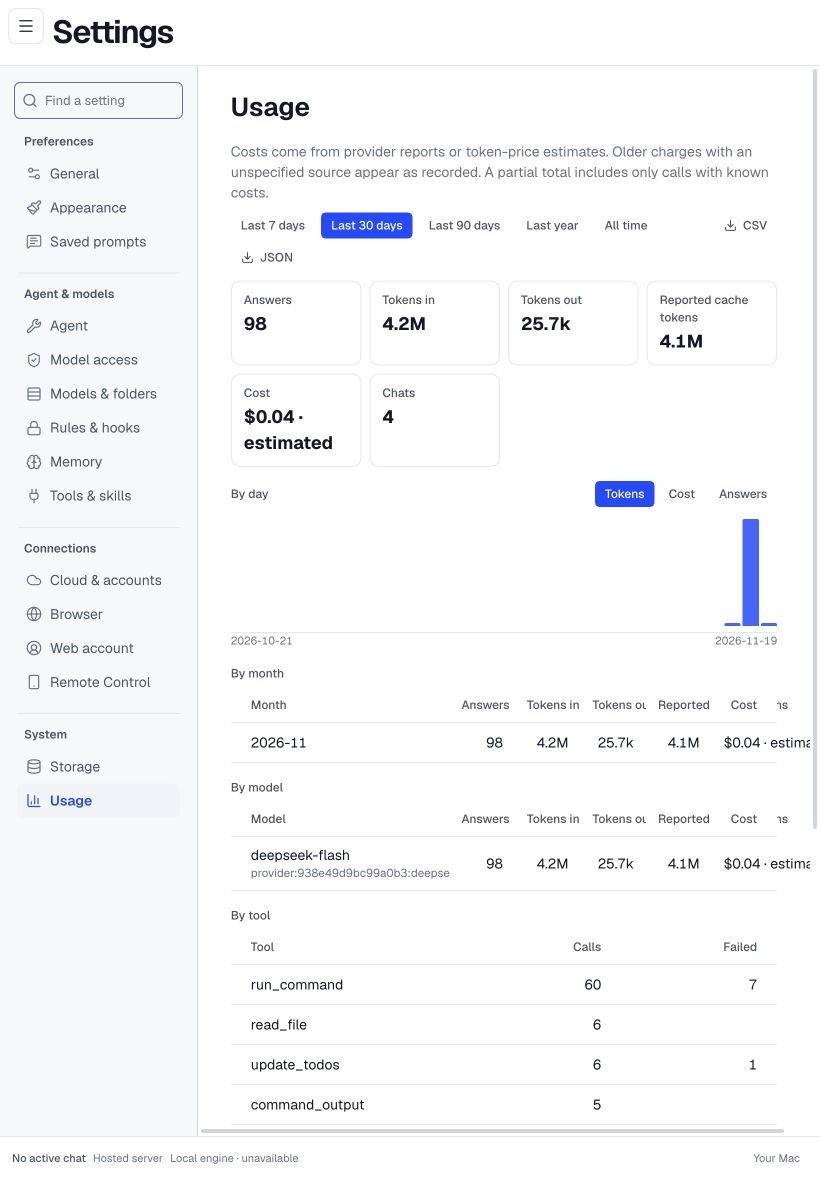
The settings view covers Usage. Inspect consumption across runs to understand which tools and periods account for activity.
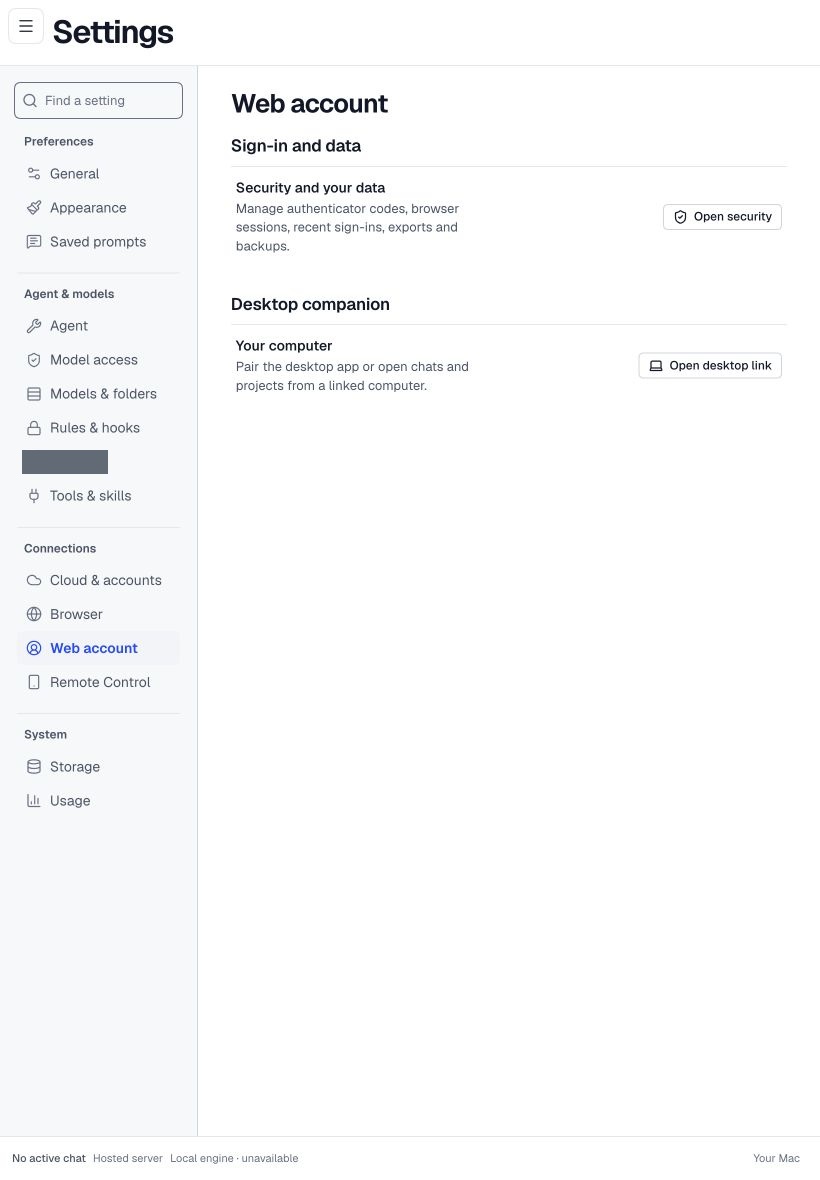
The settings view covers Web account. Review the account associated with the hosted workspace.
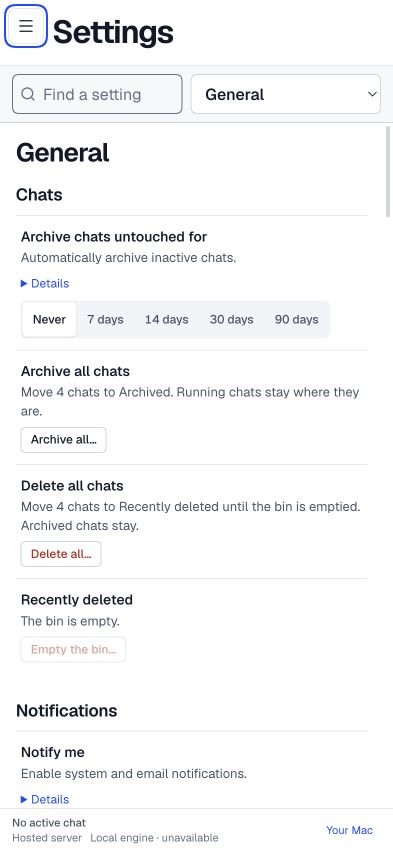
Explore the preferences and configuration panels available in this edition.
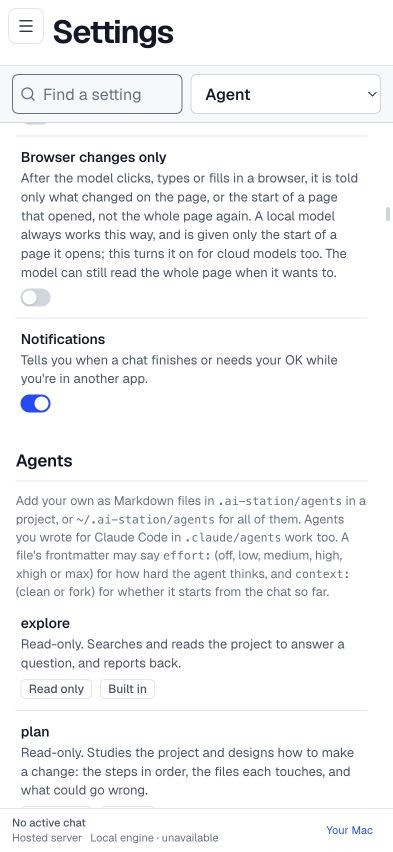
The settings view covers Agent · Agents. Set expectations for what an agent can do during project work, how much work it can undertake and when a person should review the result.
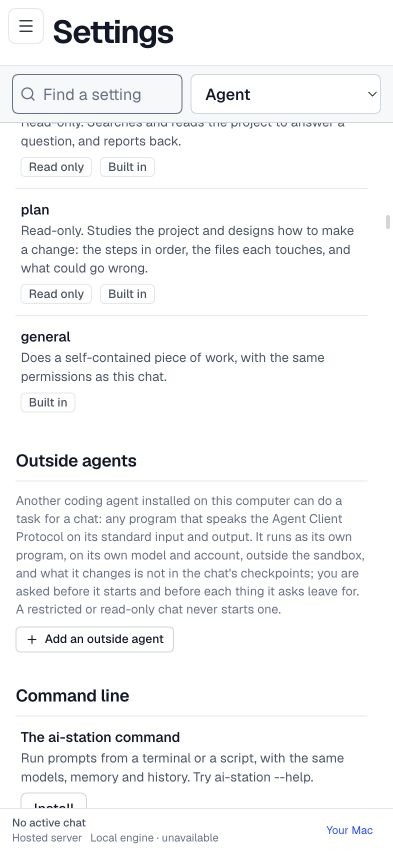
The settings view covers Agent · Outside agents. Set expectations for what an agent can do during project work, how much work it can undertake and when a person should review the result.
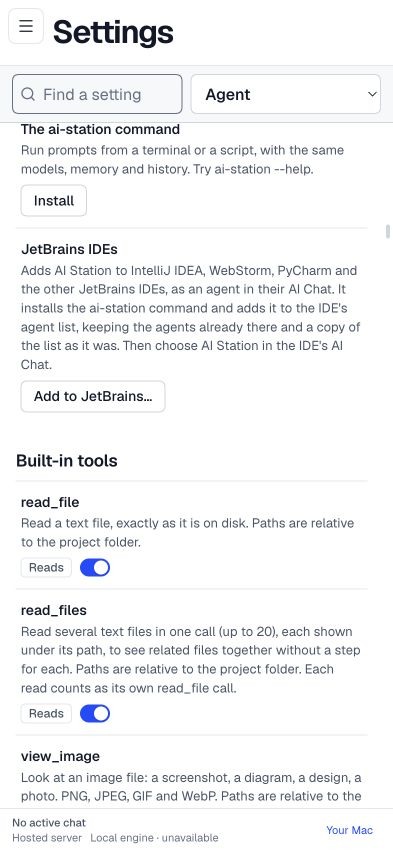
The settings view covers Agent · Built-in tools. Set expectations for what an agent can do during project work, how much work it can undertake and when a person should review the result.
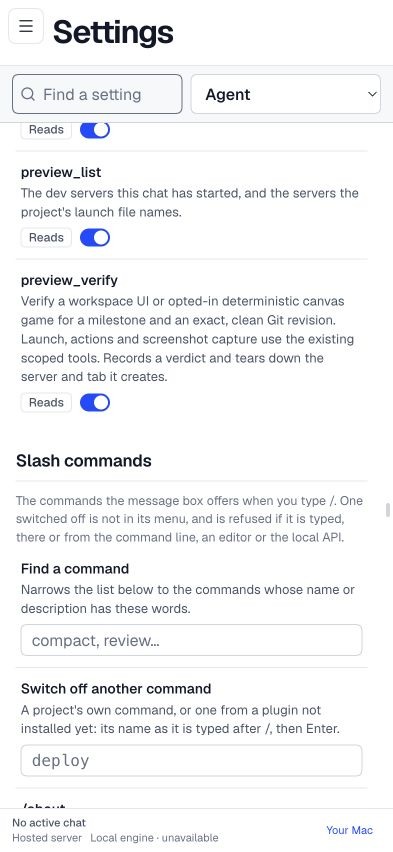
The settings view covers Agent · Slash commands. Set expectations for what an agent can do during project work, how much work it can undertake and when a person should review the result.
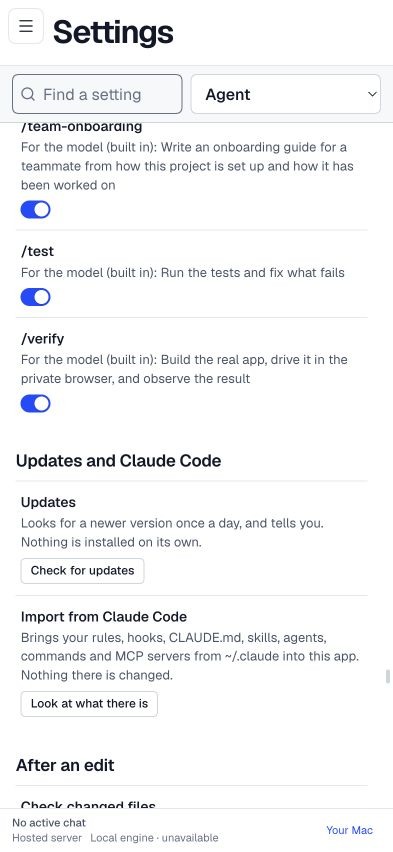
The settings view covers Agent · Updates and Claude Code. Set expectations for what an agent can do during project work, how much work it can undertake and when a person should review the result.
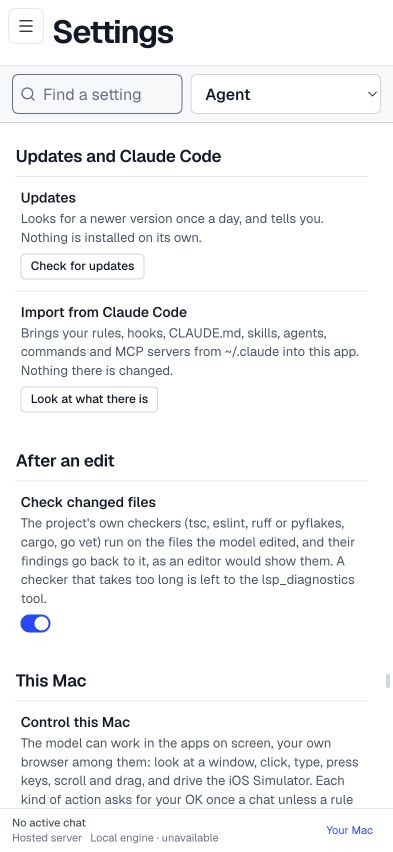
The settings view covers Agent · After an edit. Set expectations for what an agent can do during project work, how much work it can undertake and when a person should review the result.
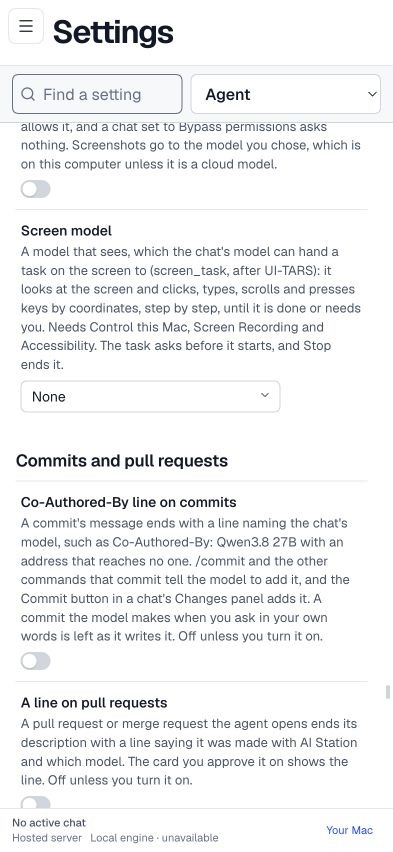
The settings view covers Agent · Commits and pull requests. Set expectations for what an agent can do during project work, how much work it can undertake and when a person should review the result.
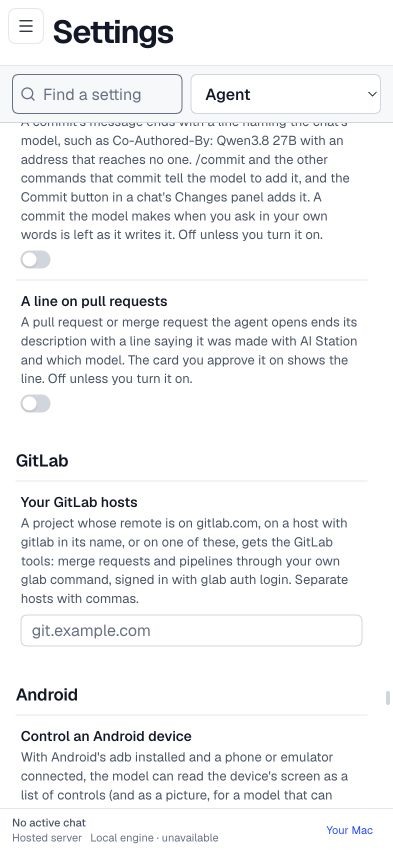
The settings view covers Agent · GitLab. Set expectations for what an agent can do during project work, how much work it can undertake and when a person should review the result.
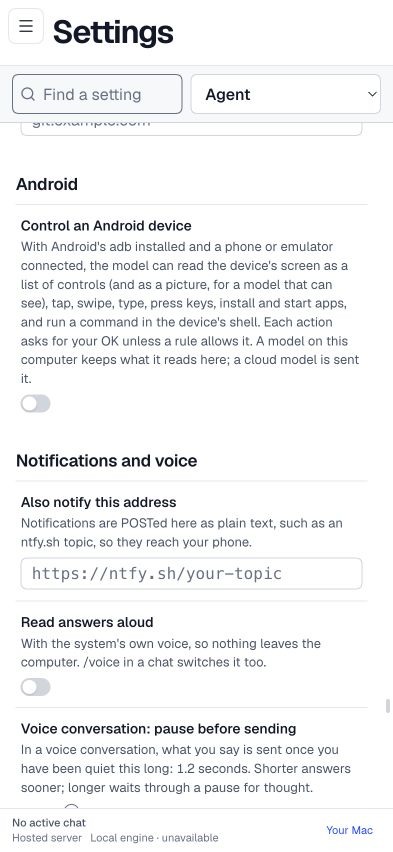
The settings view covers Agent · Notifications and voice. Set expectations for what an agent can do during project work, how much work it can undertake and when a person should review the result.
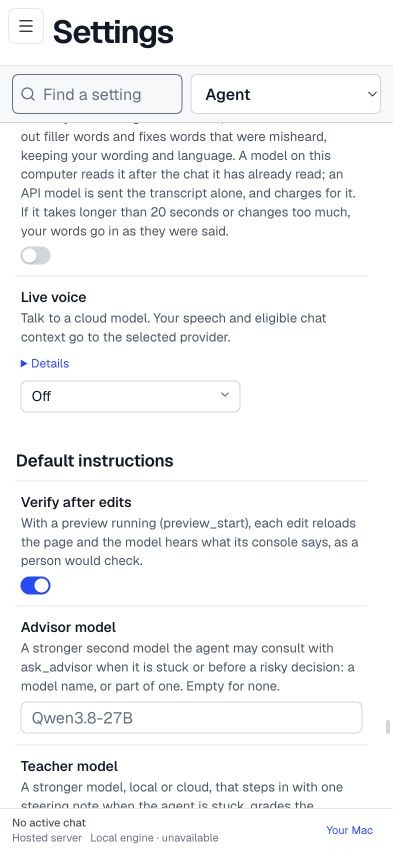
The settings view covers Agent · Default instructions. Set expectations for what an agent can do during project work, how much work it can undertake and when a person should review the result.
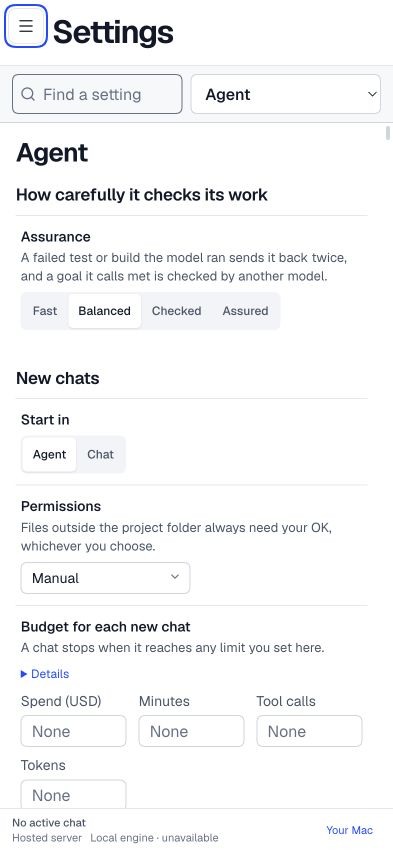
The settings view covers Agent. Set expectations for what an agent can do during project work, how much work it can undertake and when a person should review the result.
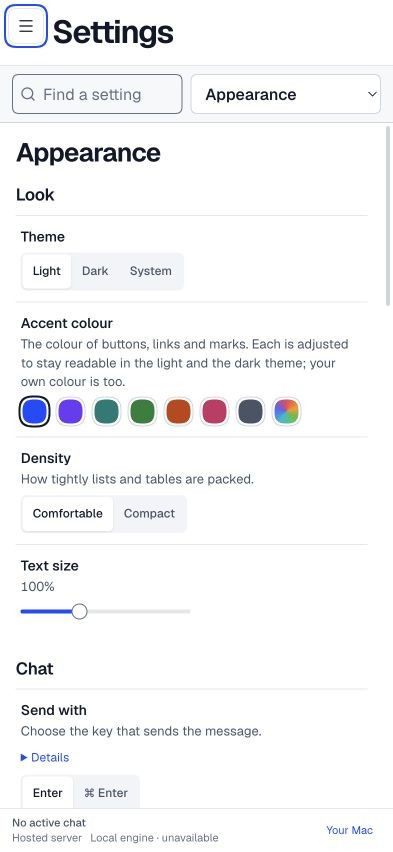
The settings view covers Appearance. Adjust the presentation of the workspace to suit the display and the person reading it.
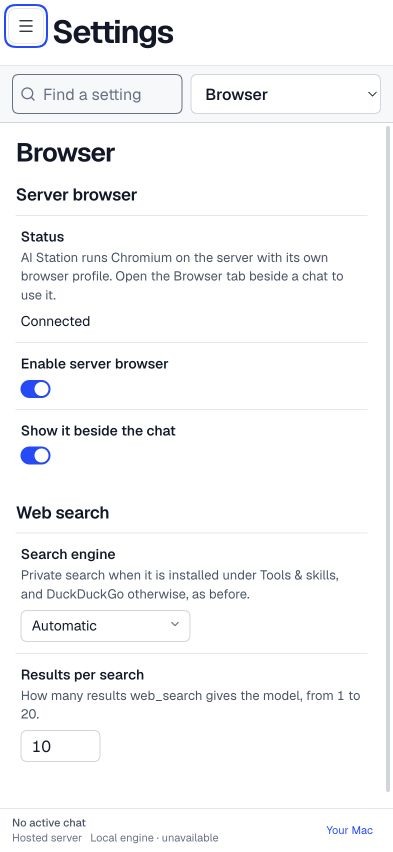
The settings view covers Browser. Configure the browser used to inspect web content and preview a project during a conversation.
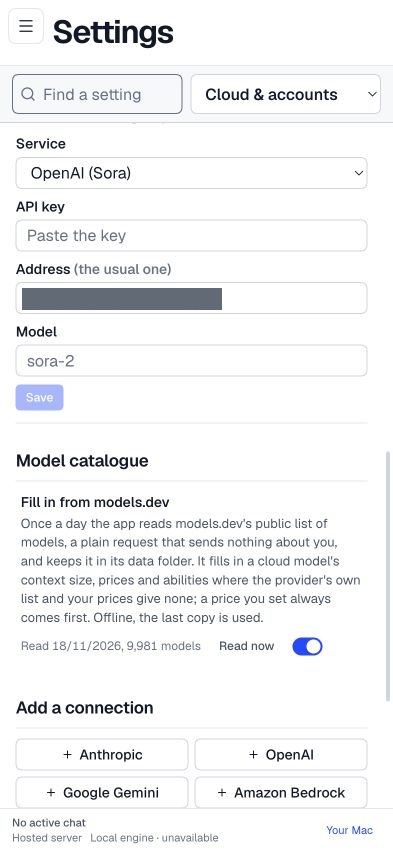
The settings view covers Cloud & accounts · Model catalogue. Manage provider connections and the models they make available to the workspace.
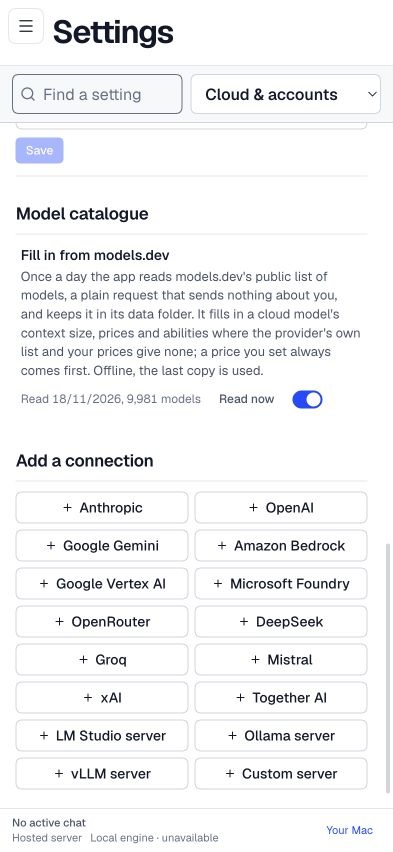
The settings view covers Cloud & accounts · Add a connection. Manage provider connections and the models they make available to the workspace.
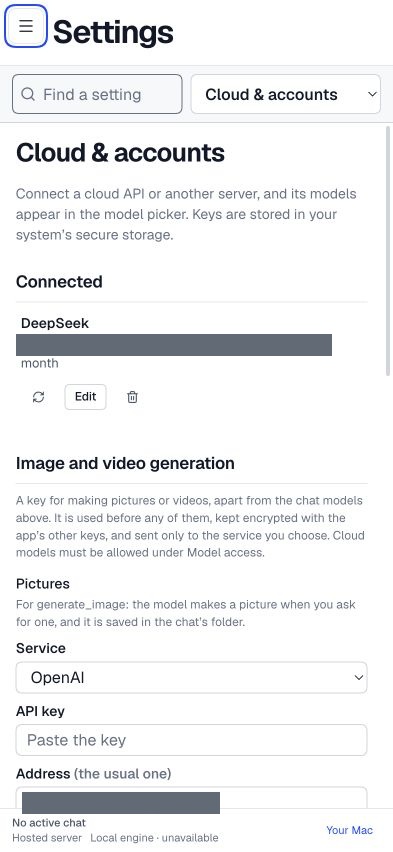
The settings view covers Cloud & accounts. Manage provider connections and the models they make available to the workspace.
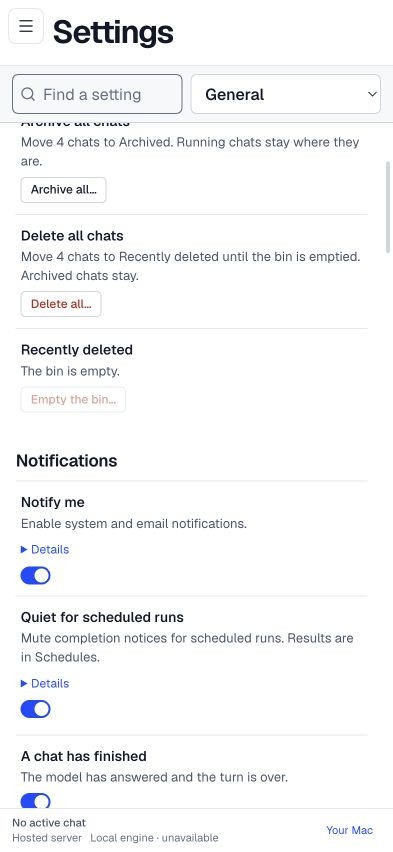
The settings view covers General · Notifications. Inspect application-wide preferences, diagnostic information and update controls.
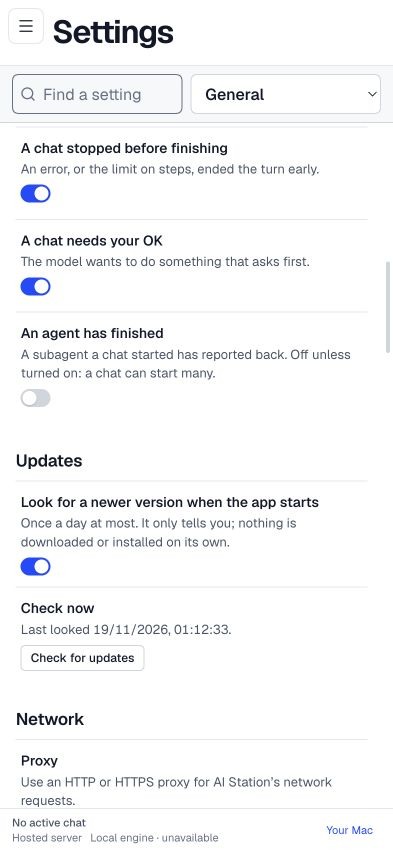
The settings view covers General · Updates. Inspect application-wide preferences, diagnostic information and update controls.
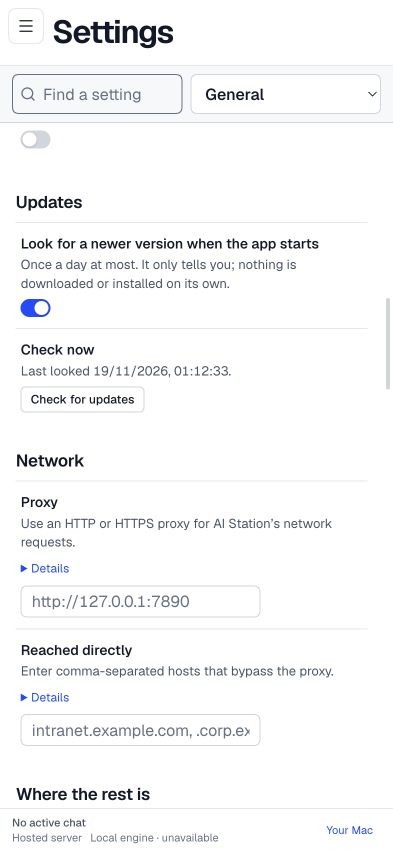
The settings view covers General · Network. Inspect application-wide preferences, diagnostic information and update controls.
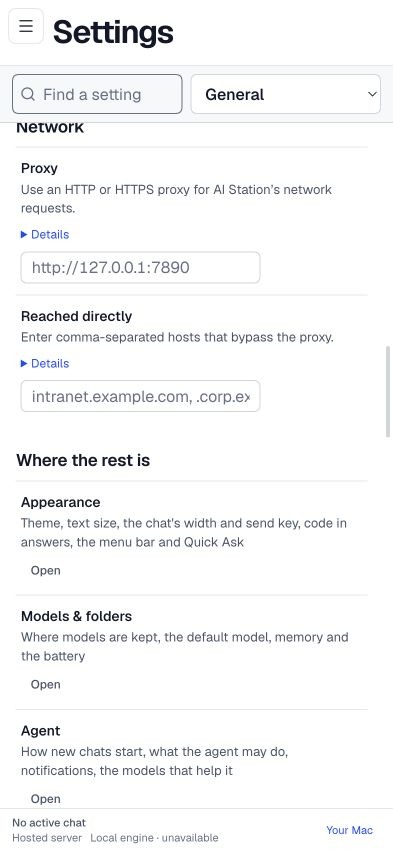
The settings view covers General · Where the rest is. Inspect application-wide preferences, diagnostic information and update controls.
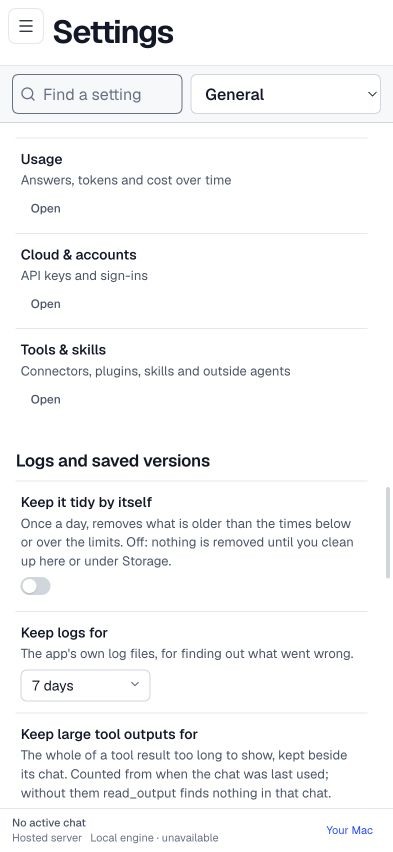
The settings view covers General · Logs and saved versions. Inspect application-wide preferences, diagnostic information and update controls.
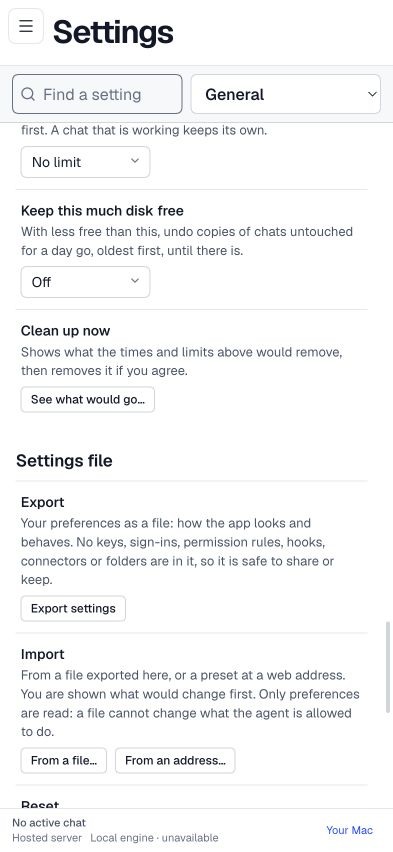
The settings view covers General · Settings file. Inspect application-wide preferences, diagnostic information and update controls.
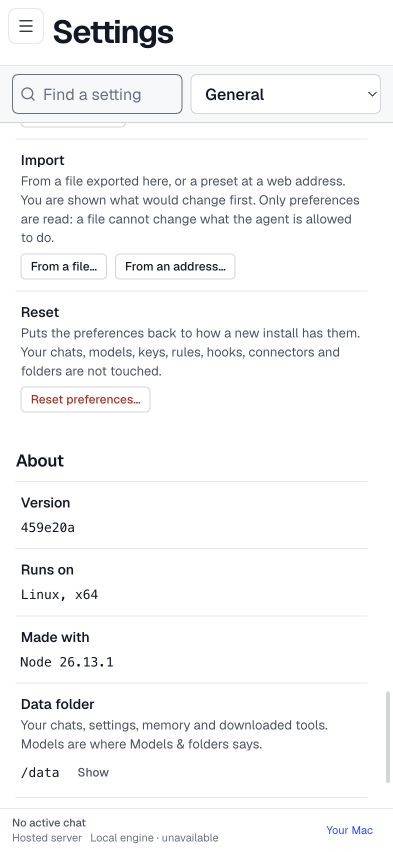
The settings view covers General · About. Inspect application-wide preferences, diagnostic information and update controls.
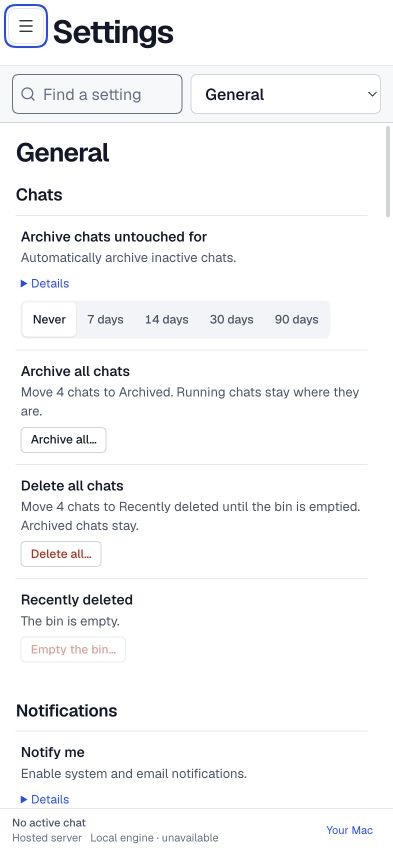
The settings view covers General. Inspect application-wide preferences, diagnostic information and update controls.
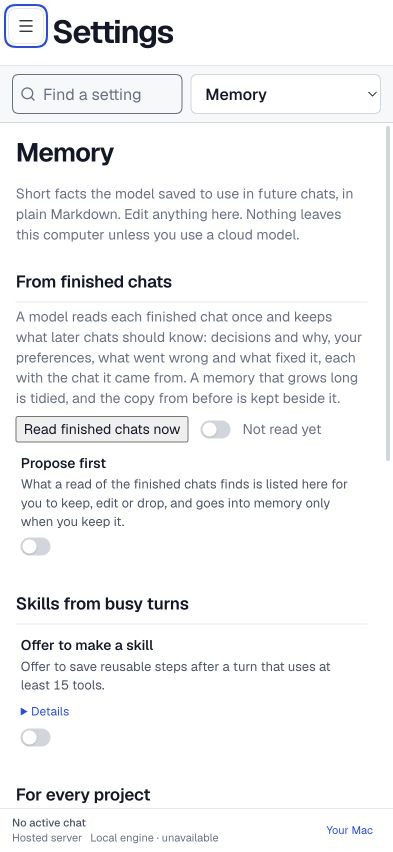
The settings view covers Memory. Manage information retained between tasks and the context that can be shared across a team.
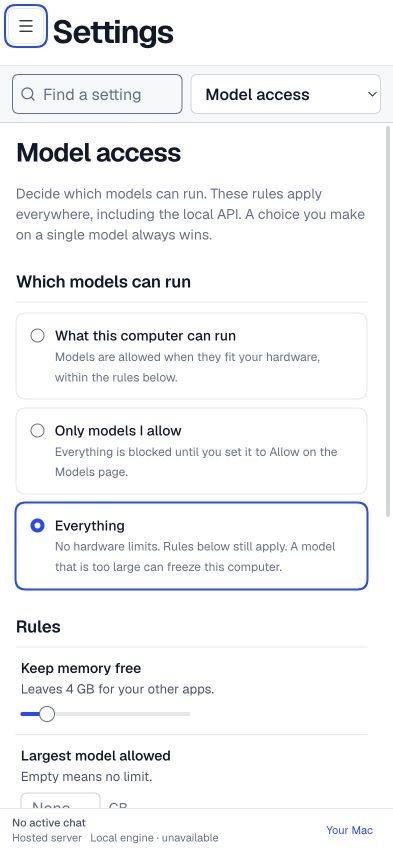
The settings view covers Model access. Review which models are eligible to serve requests. An installed model may still require permission before use.
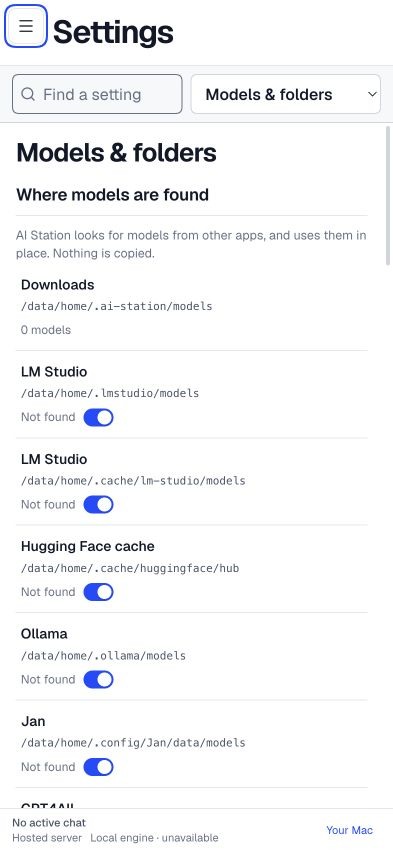
The settings view covers Models & folders. Choose where the application looks for model files and related resources on the machine.
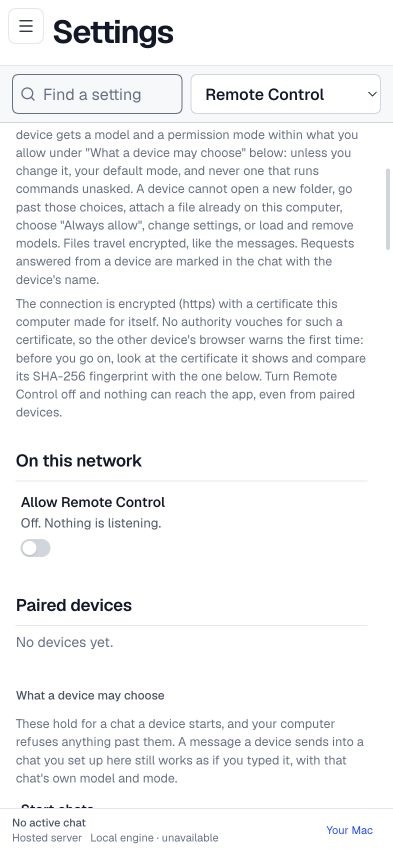
The settings view covers Remote Control · On this network. Configure the channels through which an operator can reach the workspace and receive updates away from the main interface.
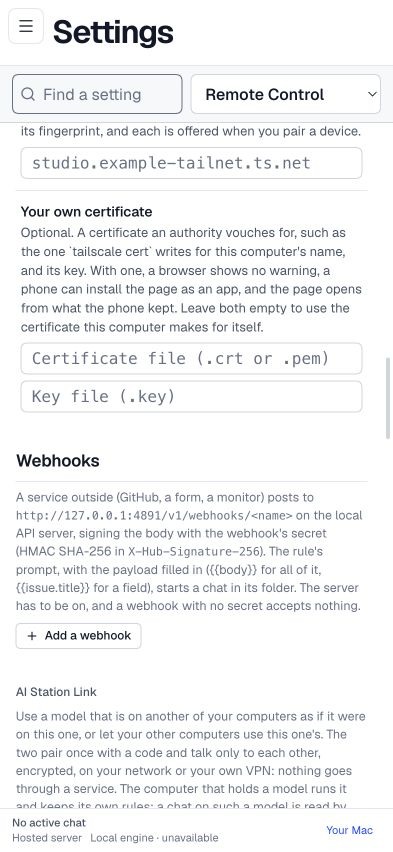
The settings view covers Remote Control · Webhooks. Configure the channels through which an operator can reach the workspace and receive updates away from the main interface.
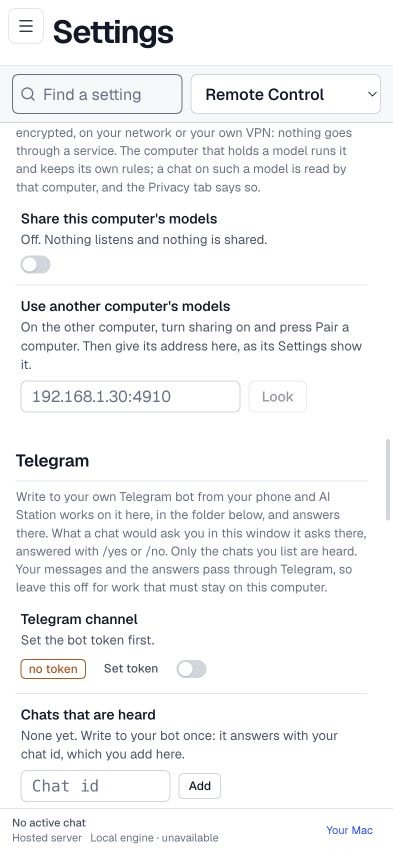
The settings view covers Remote Control · Telegram. Configure the channels through which an operator can reach the workspace and receive updates away from the main interface.
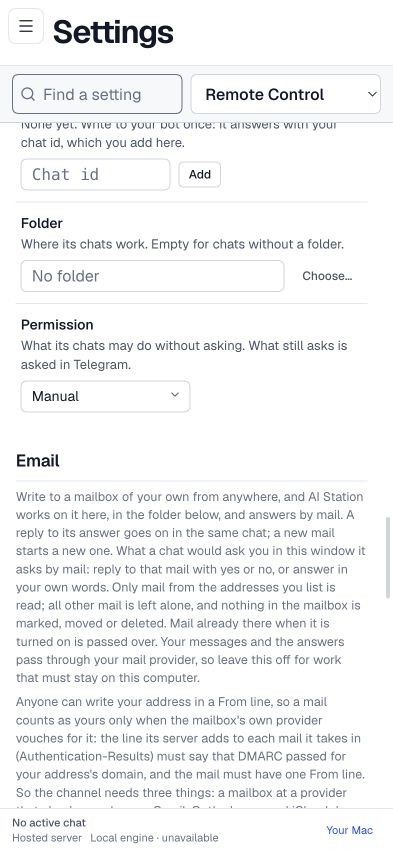
The settings view covers Remote Control · Email. Configure the channels through which an operator can reach the workspace and receive updates away from the main interface.
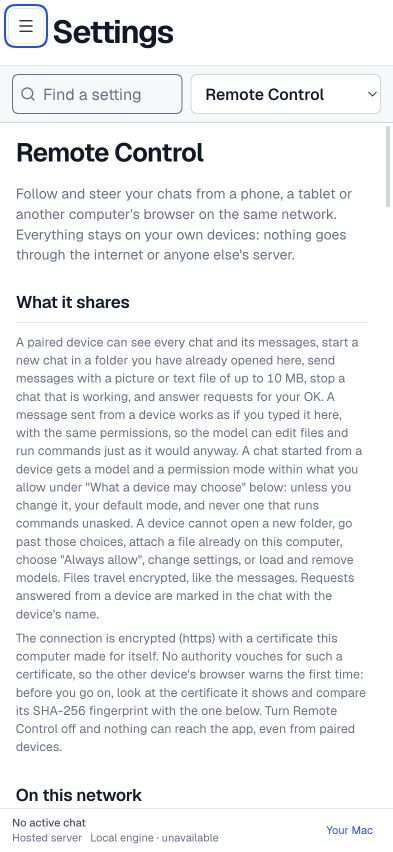
The settings view covers Remote Control. Configure the channels through which an operator can reach the workspace and receive updates away from the main interface.
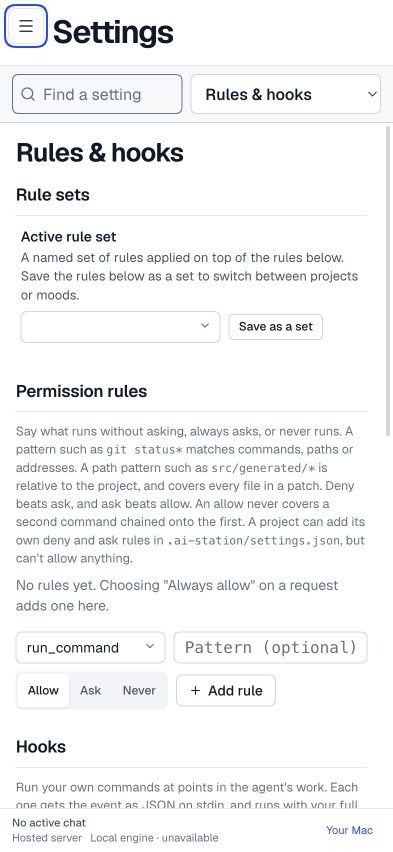
The settings view covers Rules & hooks. Define instructions and actions associated with workflow events so recurring project conventions can be applied consistently.
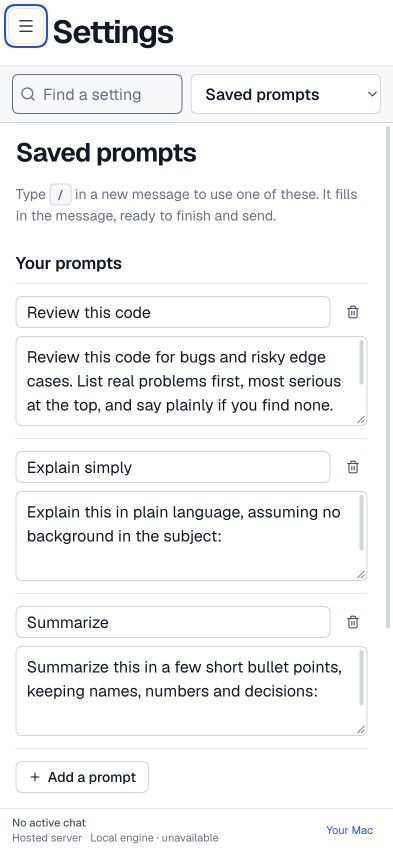
The settings view covers Saved prompts. Keep frequently used instructions available for later conversations.
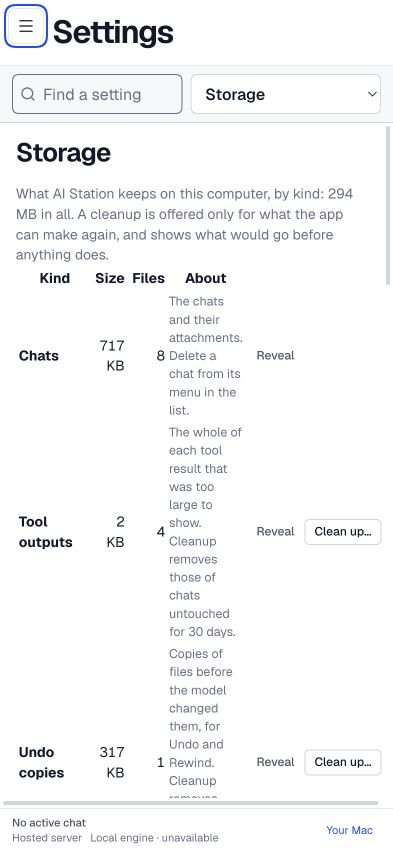
The settings view covers Storage. Inspect storage used by the workspace and manage its retained data.
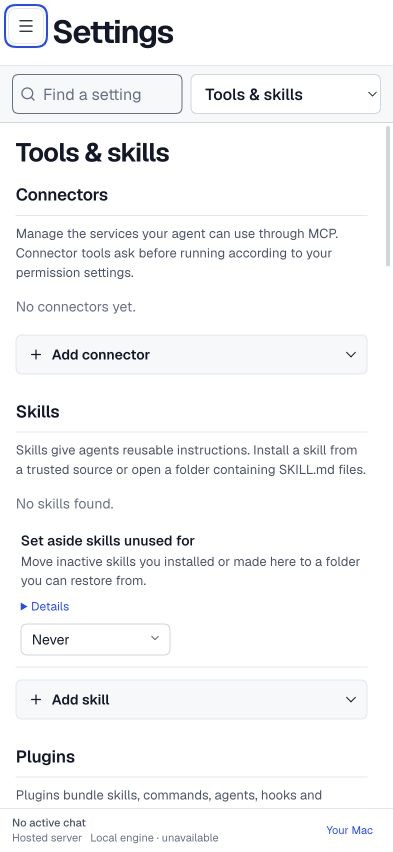
The settings view covers Tools & skills. Manage the tools, trusted directories and reusable skills available to an assistant.
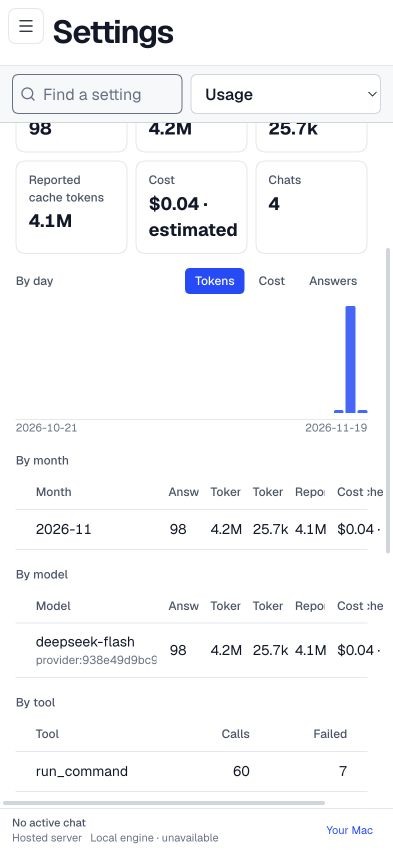
The settings view covers Usage · By month. Inspect consumption across runs to understand which tools and periods account for activity.
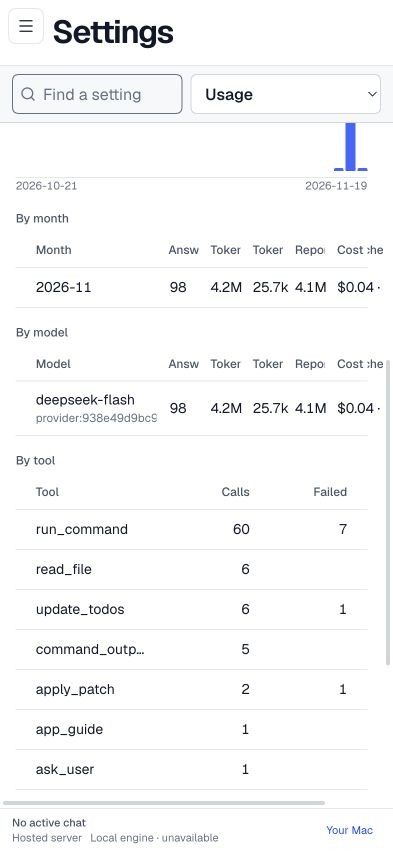
The settings view covers Usage · By tool. Inspect consumption across runs to understand which tools and periods account for activity.
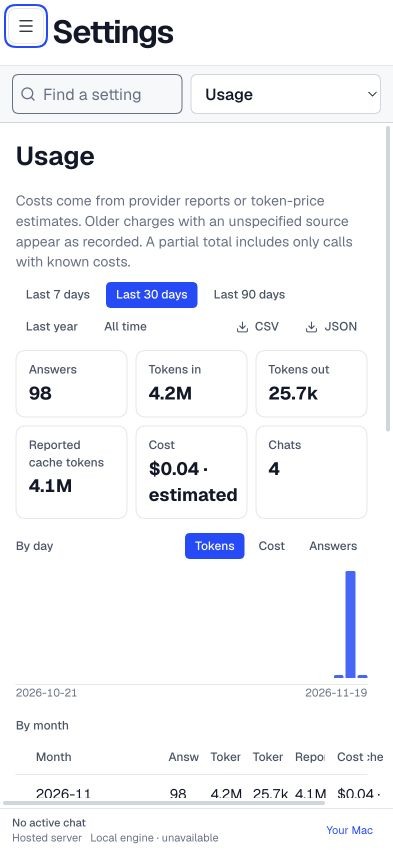
The settings view covers Usage. Inspect consumption across runs to understand which tools and periods account for activity.
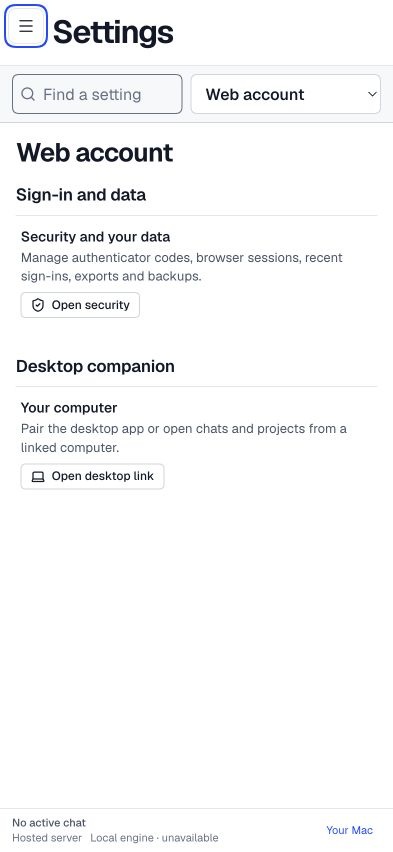
The settings view covers Web account. Review the account associated with the hosted workspace.
Storyboard 3
Inspect shot versions and review decisions before a sequence is ready for delivery.
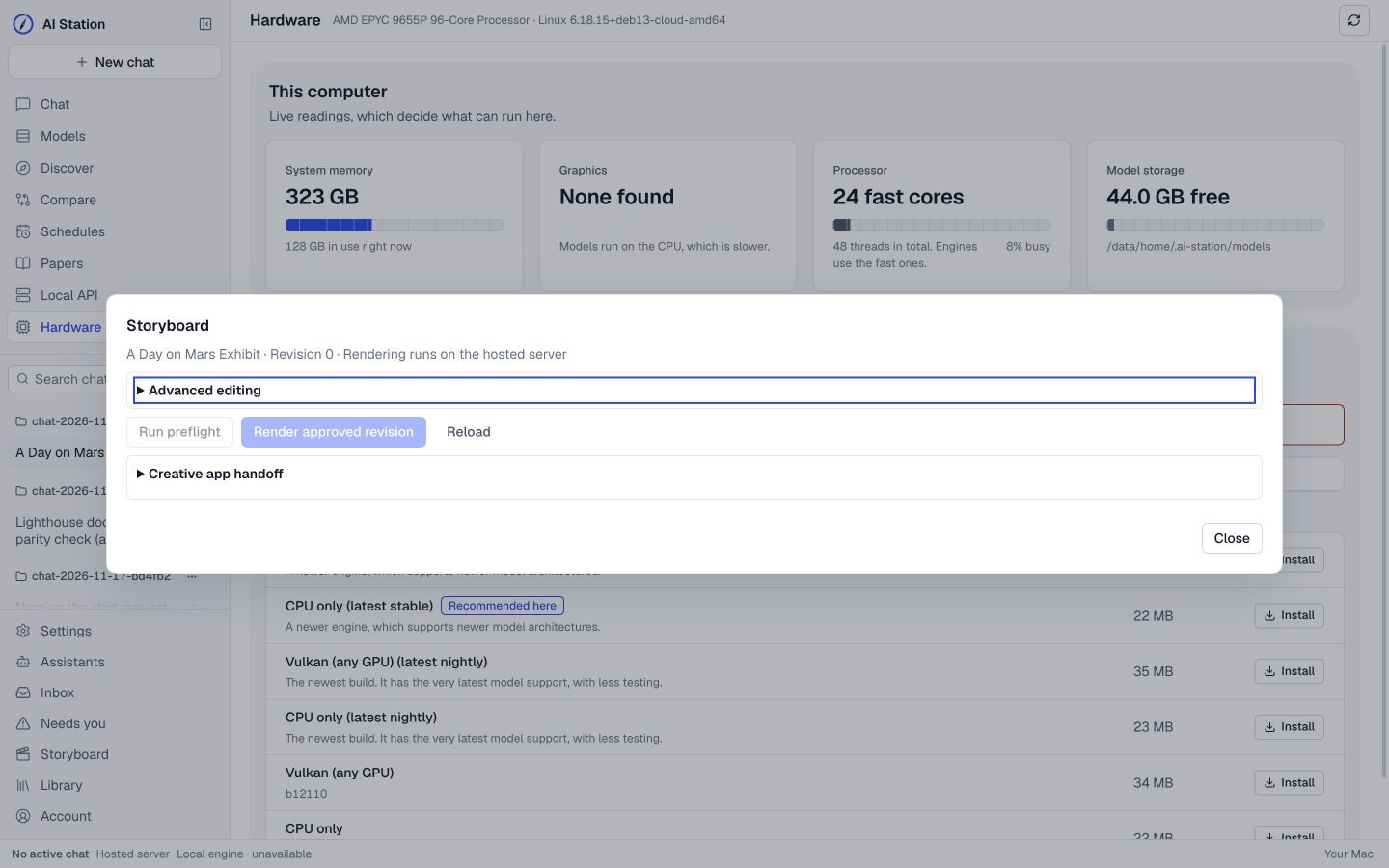
Inspect shot versions and review decisions before a sequence is ready for delivery.
Inspect shot versions and review decisions before a sequence is ready for delivery.
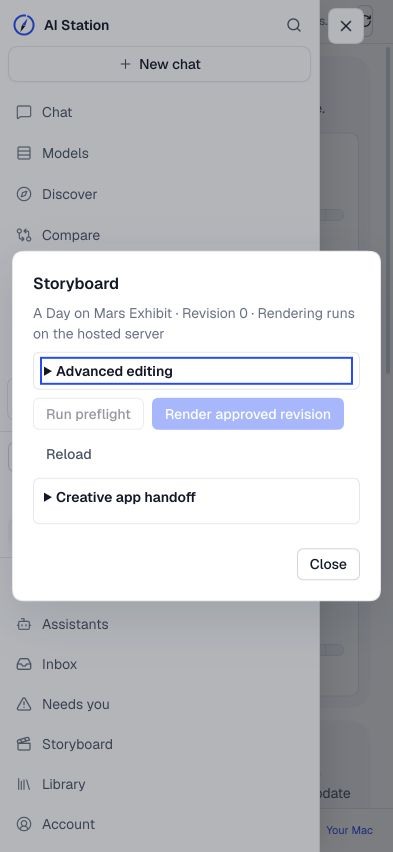
Inspect shot versions and review decisions before a sequence is ready for delivery.
Custom AI Product Consultant & Developer
Develop your own custom AI products
If your team reviews work across devices, I can build a shared workspace around your files, tools and approval process. I’ll work with you to define the problem, prototype the interface and build the application.
Get in touch →